FaceTime Like a Pro
Get our exclusive Ultimate FaceTime Guide 📚 — absolutely FREE when you sign up for our newsletter below.

FaceTime Like a Pro
Get our exclusive Ultimate FaceTime Guide 📚 — absolutely FREE when you sign up for our newsletter below.


Learn how to use Google Maps as the default navigation app on your iPhone with a simple Gmail and Chrome workaround.
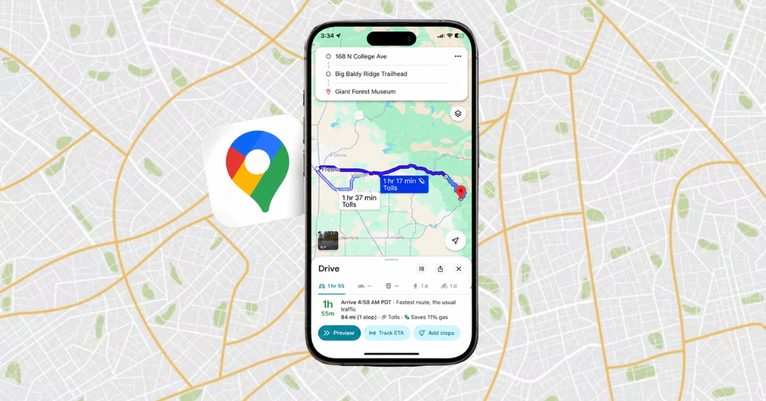
Google Maps is the go-to navigation app for many iPhone users, thanks to its accuracy, features, and familiar interface. So naturally, you may want to set Google Maps as your default app on your iPhone. But here’s the catch: Apple doesn’t allow it. Whenever you tap a location link, it will open in Apple Maps by default.
However, there’s a smart workaround that helps you route directions through Google Maps instead. Let’s explore how to make Google Maps the default on iPhone using a clever combination of Google apps.
Apple limits the ability to change default apps for certain core services like Maps to retain tighter control over the user experience and data privacy. The company has gradually allowed changes for browsers, email clients, and music apps since iOS 14, but not for Maps.
This restriction traces back to Apple’s fallout with Google in 2012. Back then, Google declined to offer turn-by-turn voice navigation for Apple Maps, prompting Apple to replace Google Maps as the default. Though the companies later reconciled, the option to change the default mapping app has never returned.
And yes, while you can technically set Google Maps as the default by jailbreaking your device, doing so violates Apple’s Terms of Service and voids your warranty.
While you can’t directly replace Apple Maps system-wide, there is a workaround using Google’s own apps. By configuring Gmail and Chrome, you can ensure map links open in Google Maps instead of Apple Maps.
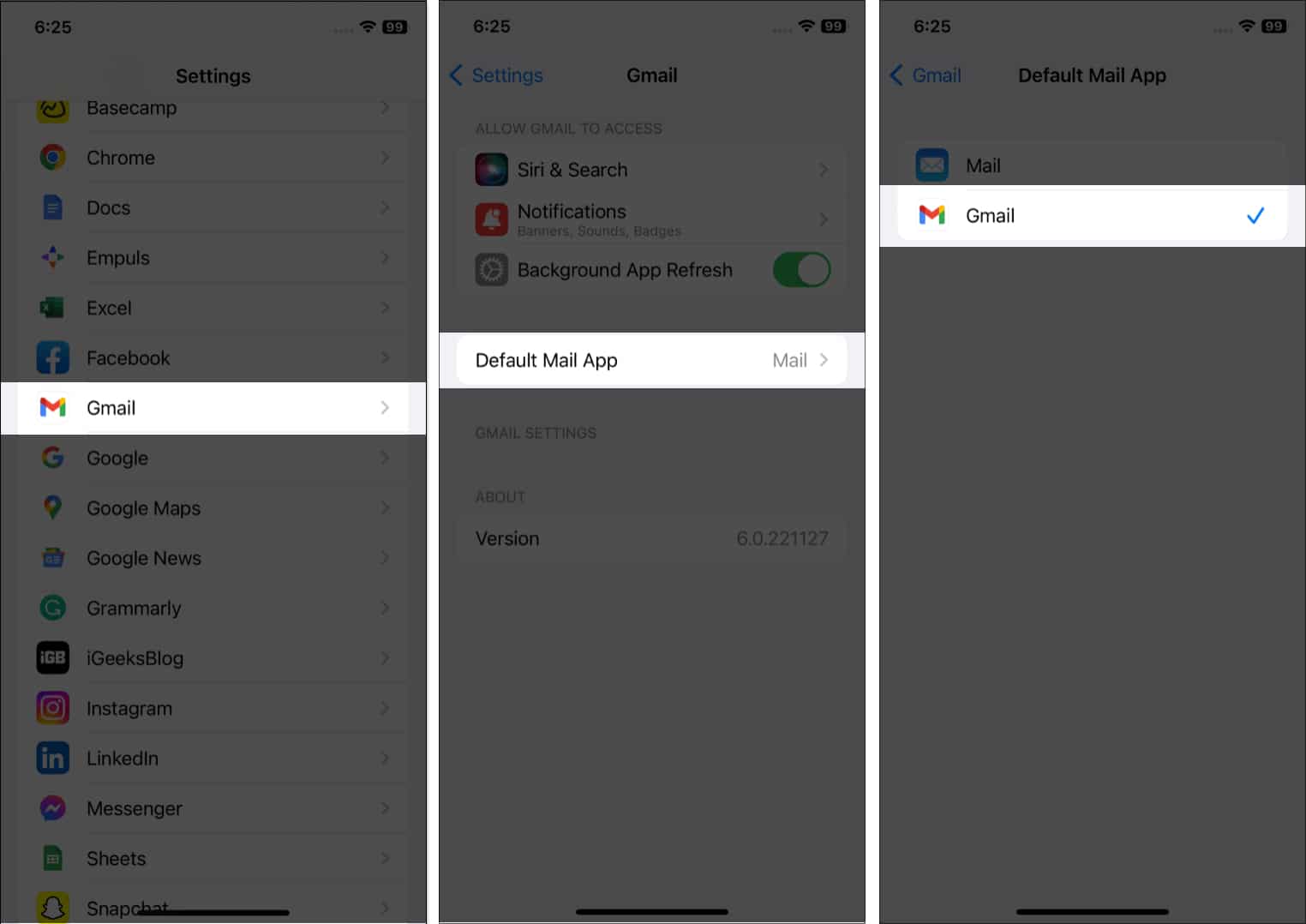
Go back and find Chrome, then tap Default Browser App → select Chrome.
Also Check: How to Change Default Browser on iPhone and iPad
That’s it! Gmail and Chrome are now your default email and browser apps.
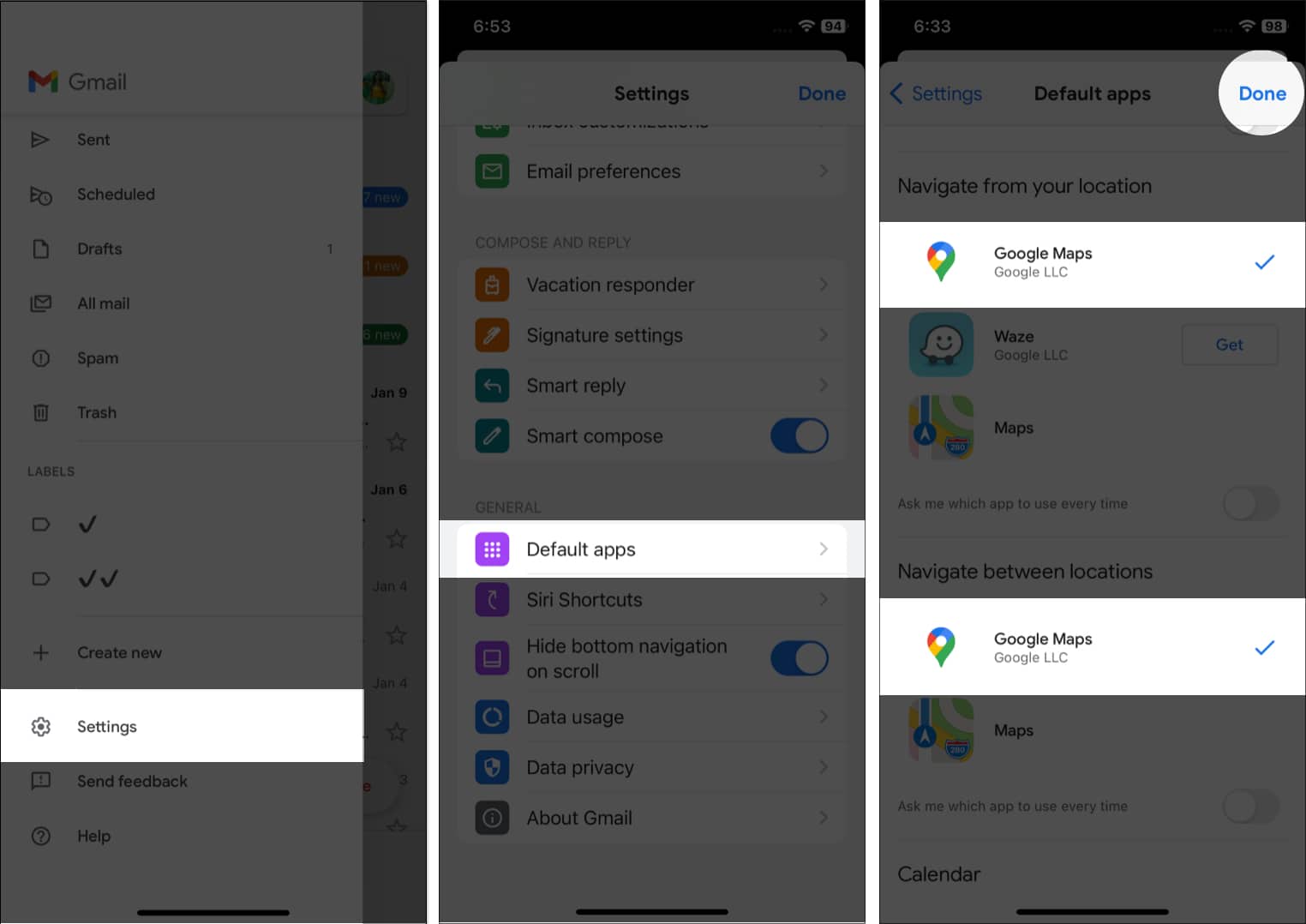
Now, whenever you tap a location link in your email, it will open in Google Maps instead of Apple Maps.
If you’re a fan of the Google Maps Timeline feature, which tracks your travel history, you’ll need to enable location services specifically for Google Maps.
Here’s how:
This ensures your Timeline is accurate and updates automatically in the background.
This workaround may not be a perfect solution, but it gets the job done if you’re loyal to Google’s ecosystem. By setting Gmail and Chrome as your default apps and tweaking the in-app settings, you can get close to using Google Maps as the default on iPhone, without jailbreaking.
Let’s hope Apple expands default app options globally in future updates, including navigation. Until then, this method ensures a smoother experience for Google Maps fans.
What do you think? Would you switch completely to Google Maps if Apple allowed it system-wide? Let us know in the comments below.
Don’t miss these related reads: