FaceTime Like a Pro
Get our exclusive Ultimate FaceTime Guide 📚 — absolutely FREE when you sign up for our newsletter below.

FaceTime Like a Pro
Get our exclusive Ultimate FaceTime Guide 📚 — absolutely FREE when you sign up for our newsletter below.


With Assistive Access, simplify the iPhone interface and make it more visually accessible.

 ByBhaskar Sharma and Ava Biswas
Apple has empowered elders and cognitively disabled people with Assistive Access, a thoughtfully designed feature that simplifies the entire iPhone and iPad experience. It highlights only the essential apps and presents them in a clean, easy-to-navigate layout. Users can operate the device with gestures, voice commands, or alternative input methods. It is genuinely one of the most supportive additions Apple has made to iOS, and this guide will help you set up and use Assistive Access on your iPhone.
Assistive Access is an accessibility feature introduced in iOS 17 that makes the iPhone easier to use for individuals with cognitive disabilities. It reduces visual clutter and replaces the standard interface with large buttons, simple menus, and clear visuals.
You also get streamlined tools like VoiceOver, magnification, and switch control to guide navigation. The entire design becomes more comforting for users who may feel overwhelmed by traditional iPhone menus.
When Assistive Access is on, the interface changes noticeably and becomes more focused:
Through this simplified experience, Assistive Access supports users who need extra help to interact with technology independently. Apple also lets you choose which apps appear, so you can tailor the layout to your users’ needs.
Before setting up Assistive Access, there are a few things to prepare.
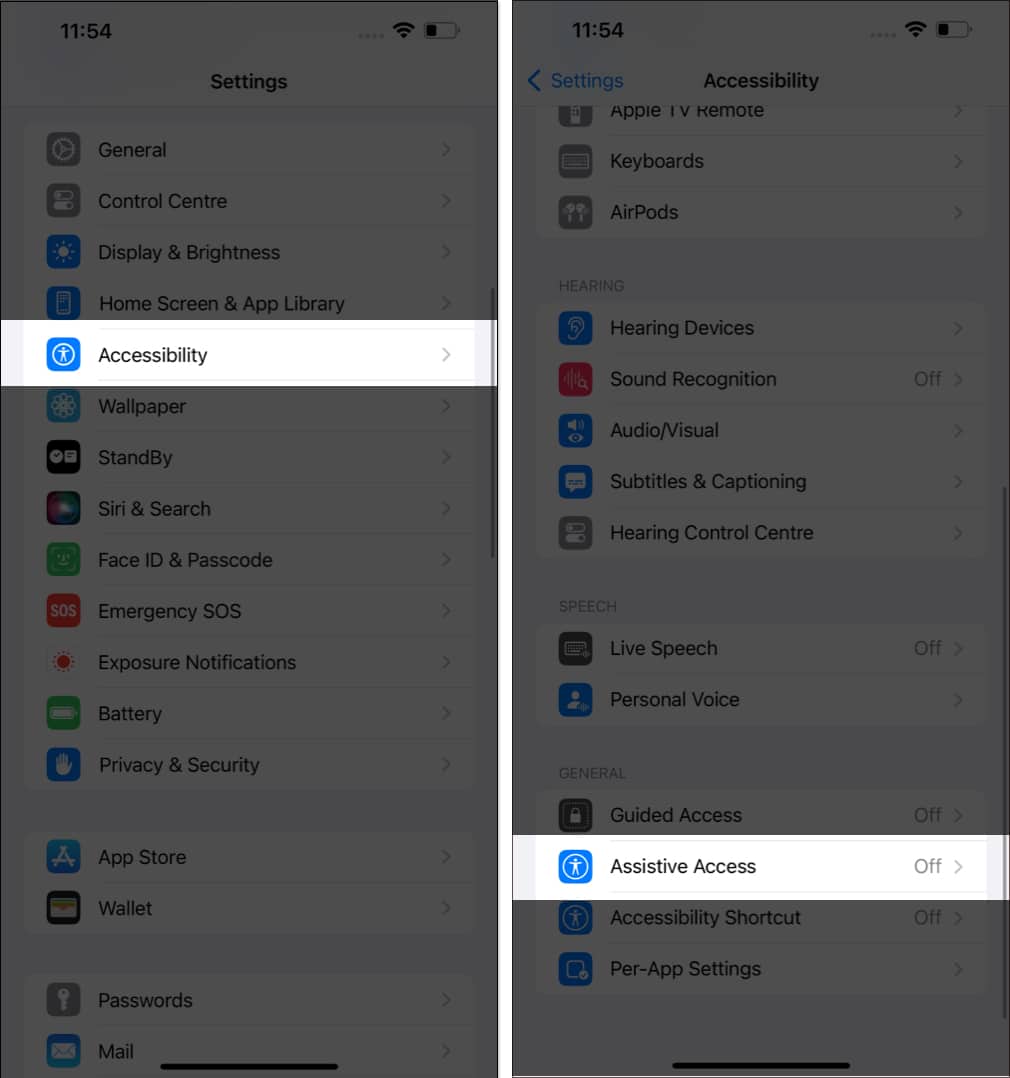
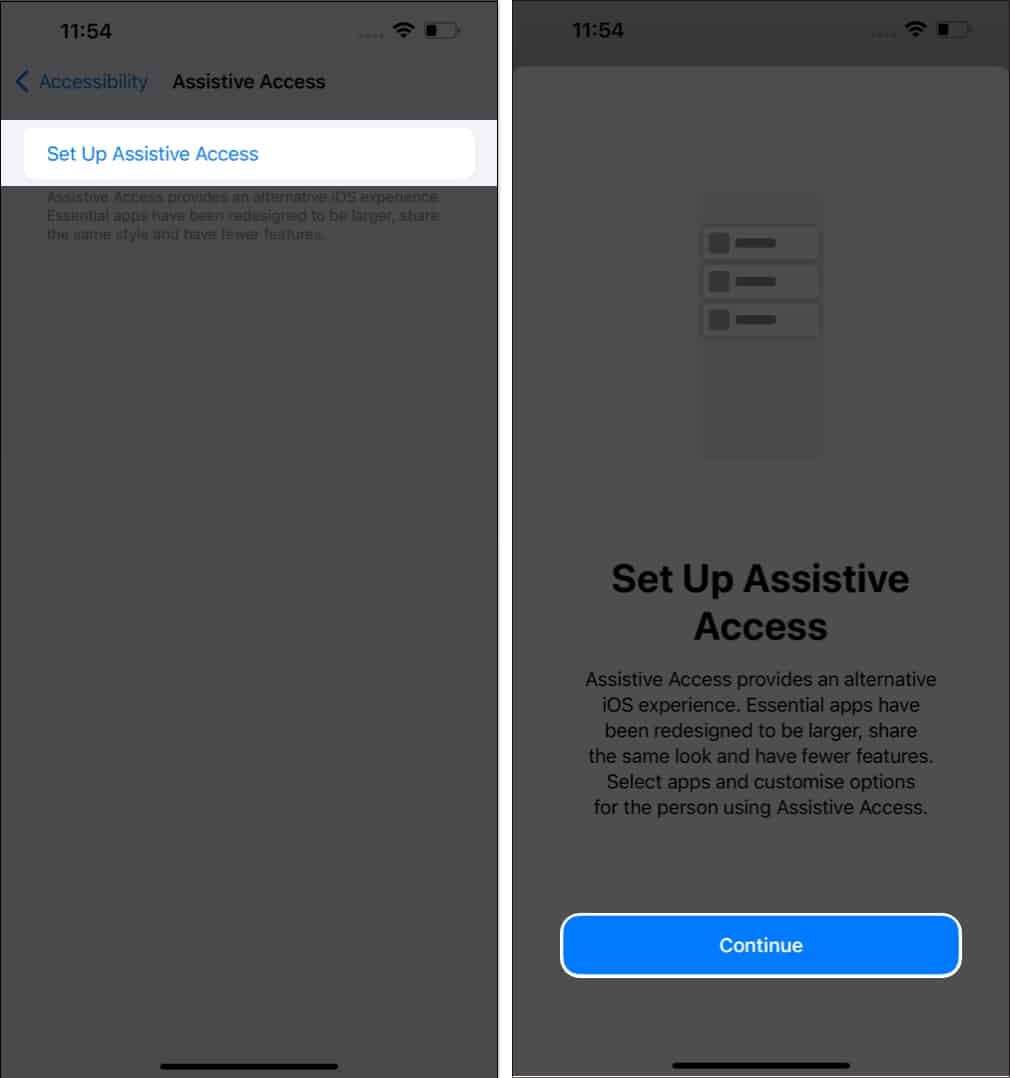
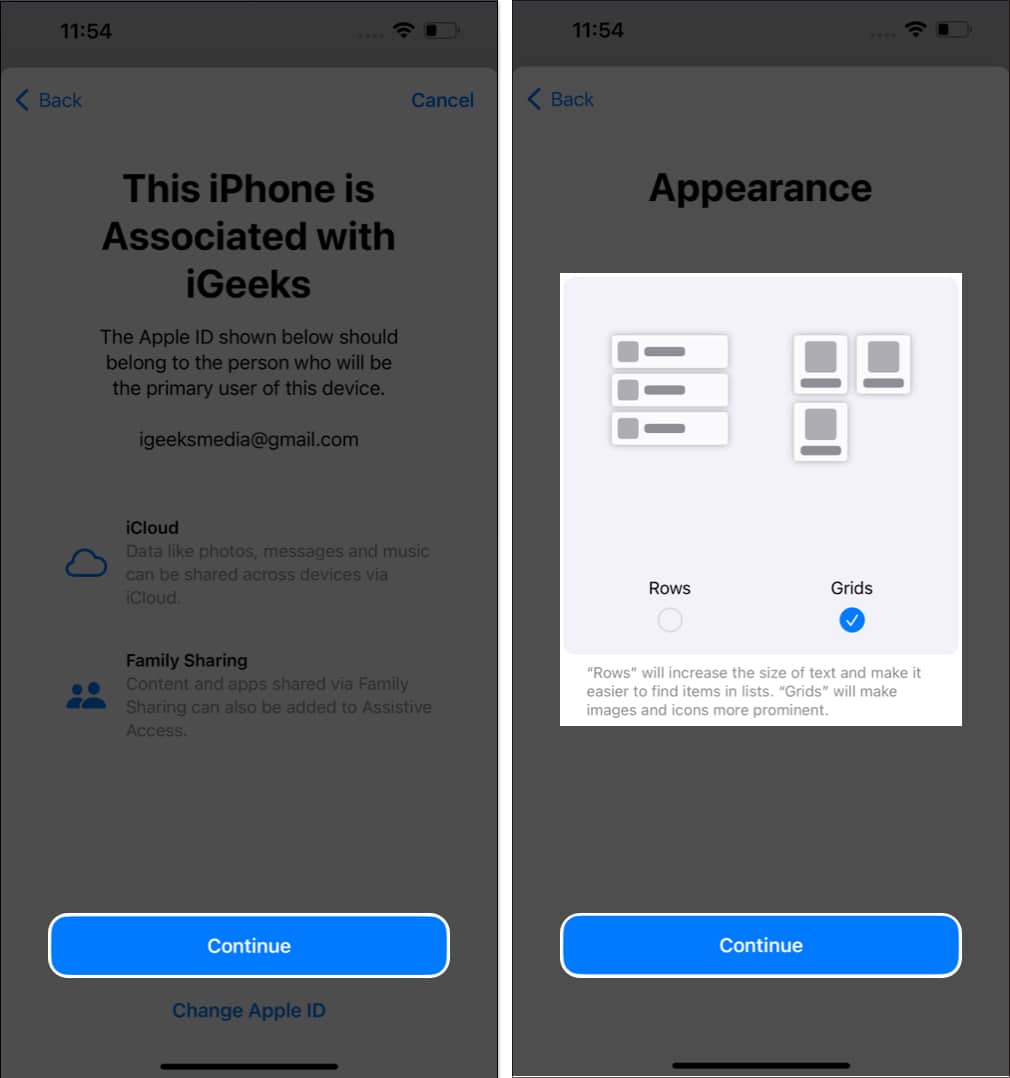
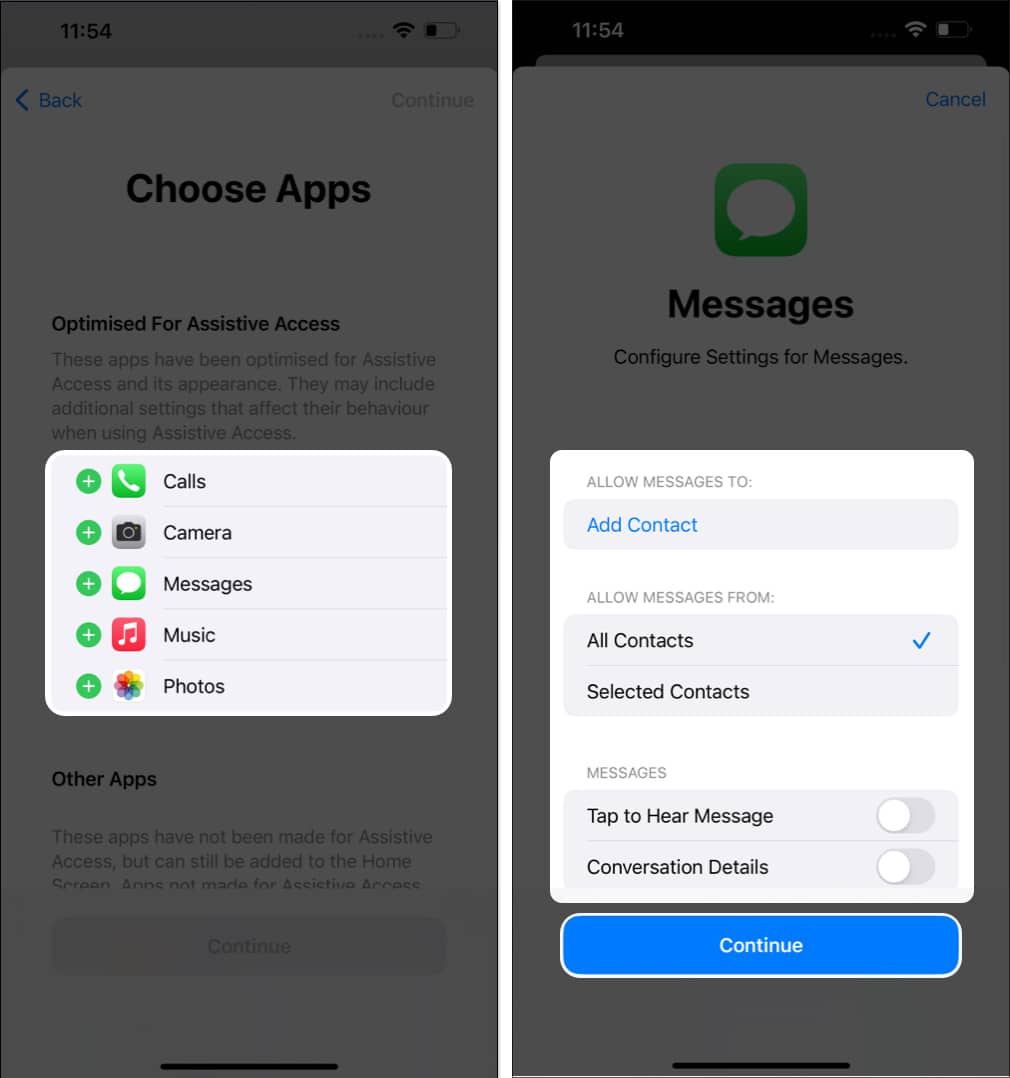
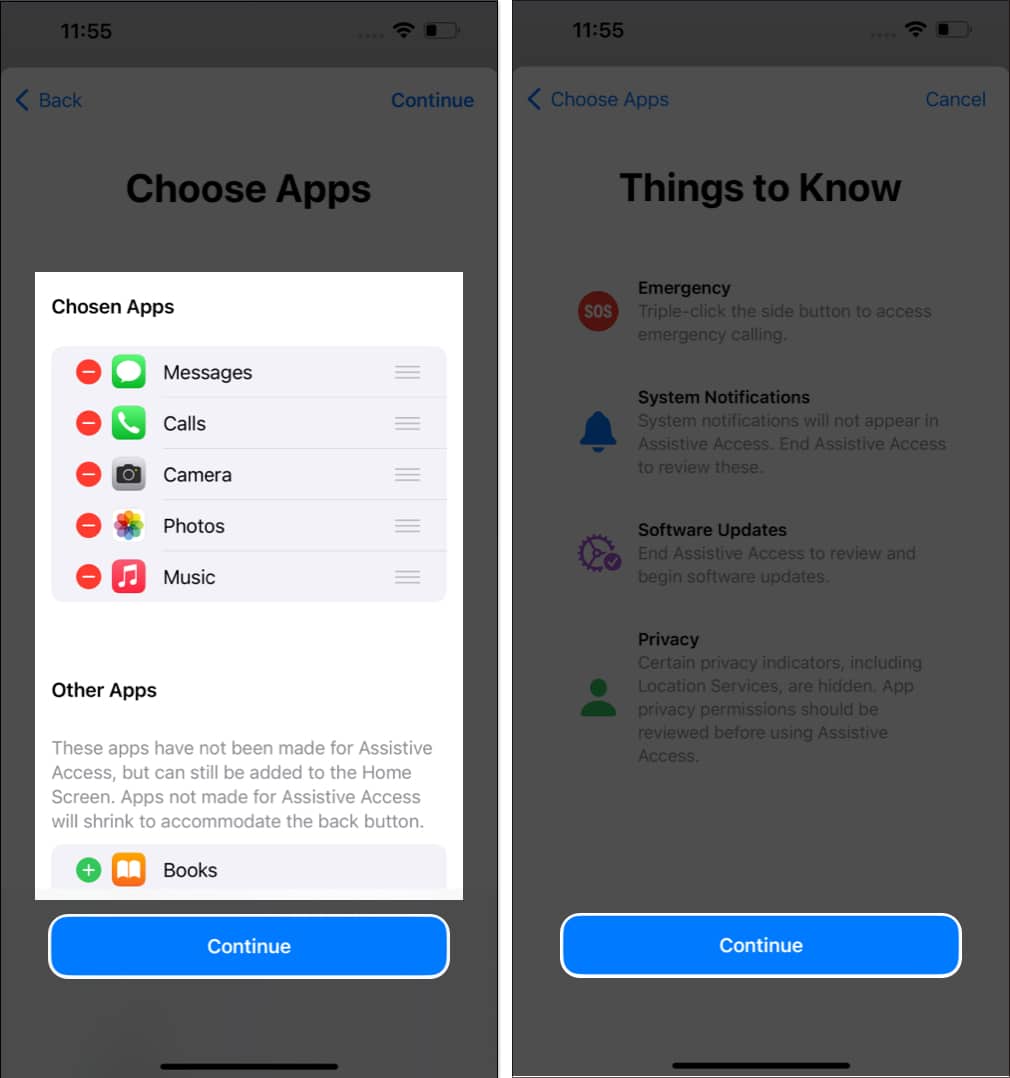
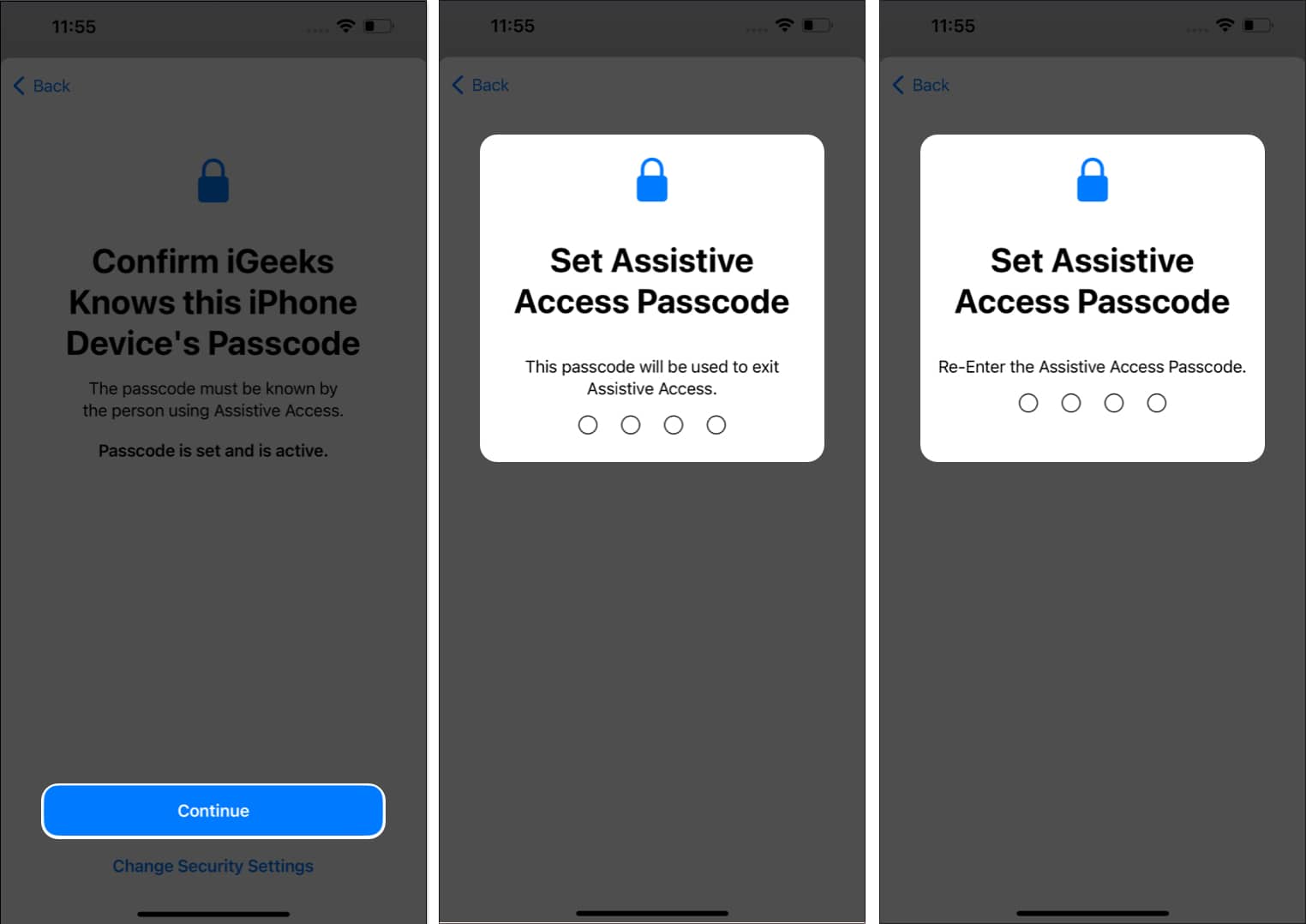
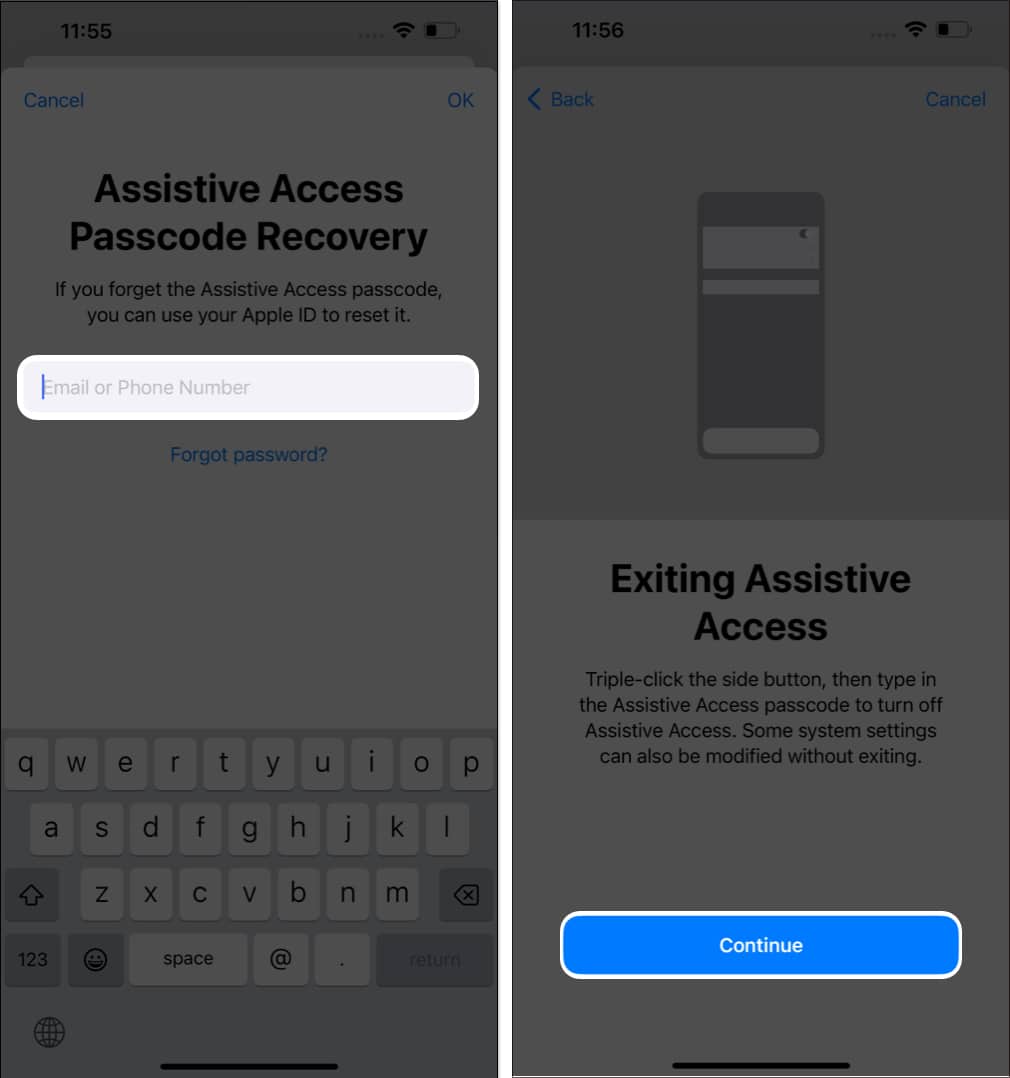
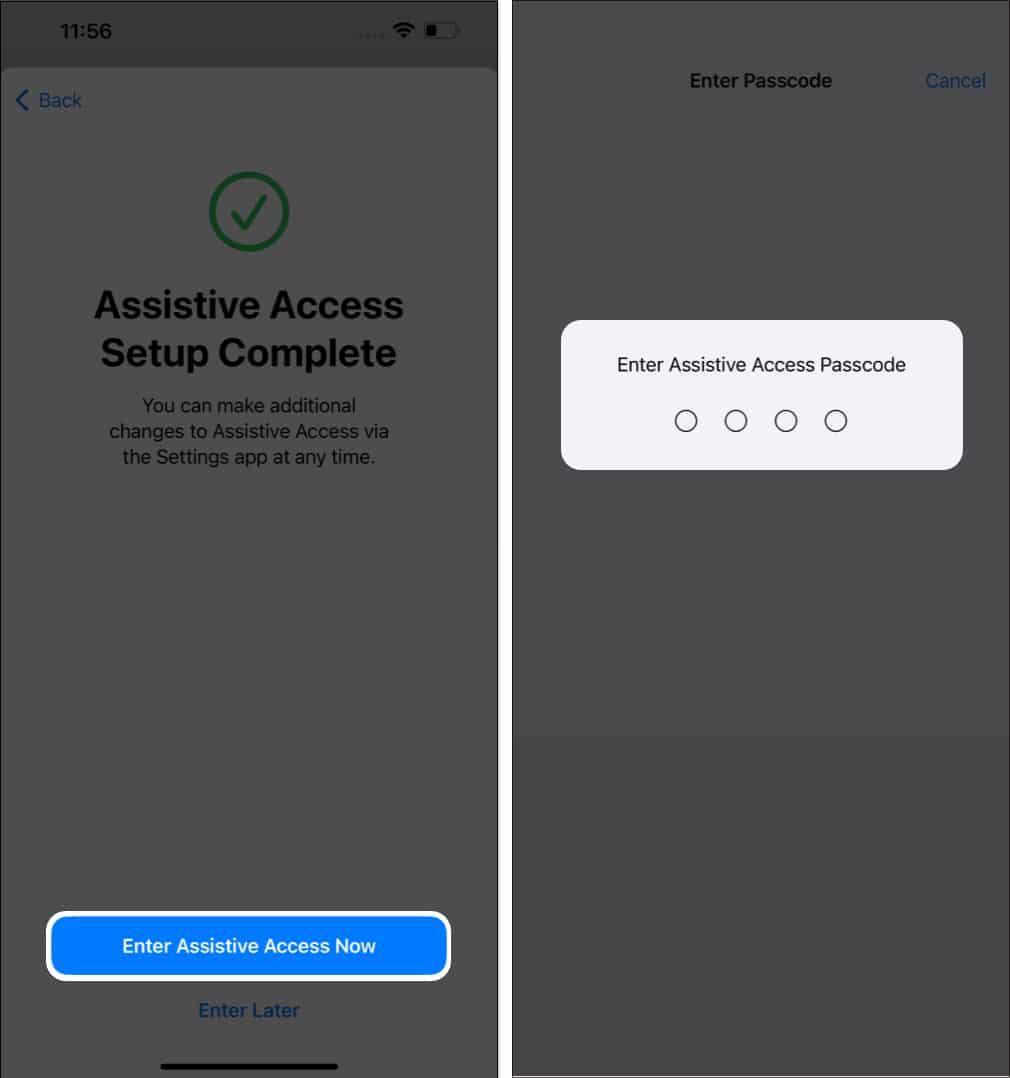
Now, your device will enter into Assistive Access mode after a few seconds.
Once Assistive Access is active, the Home Screen changes to a clean layout with large icons for the apps you selected. The interface is more focused and includes a big Back button for easy navigation.
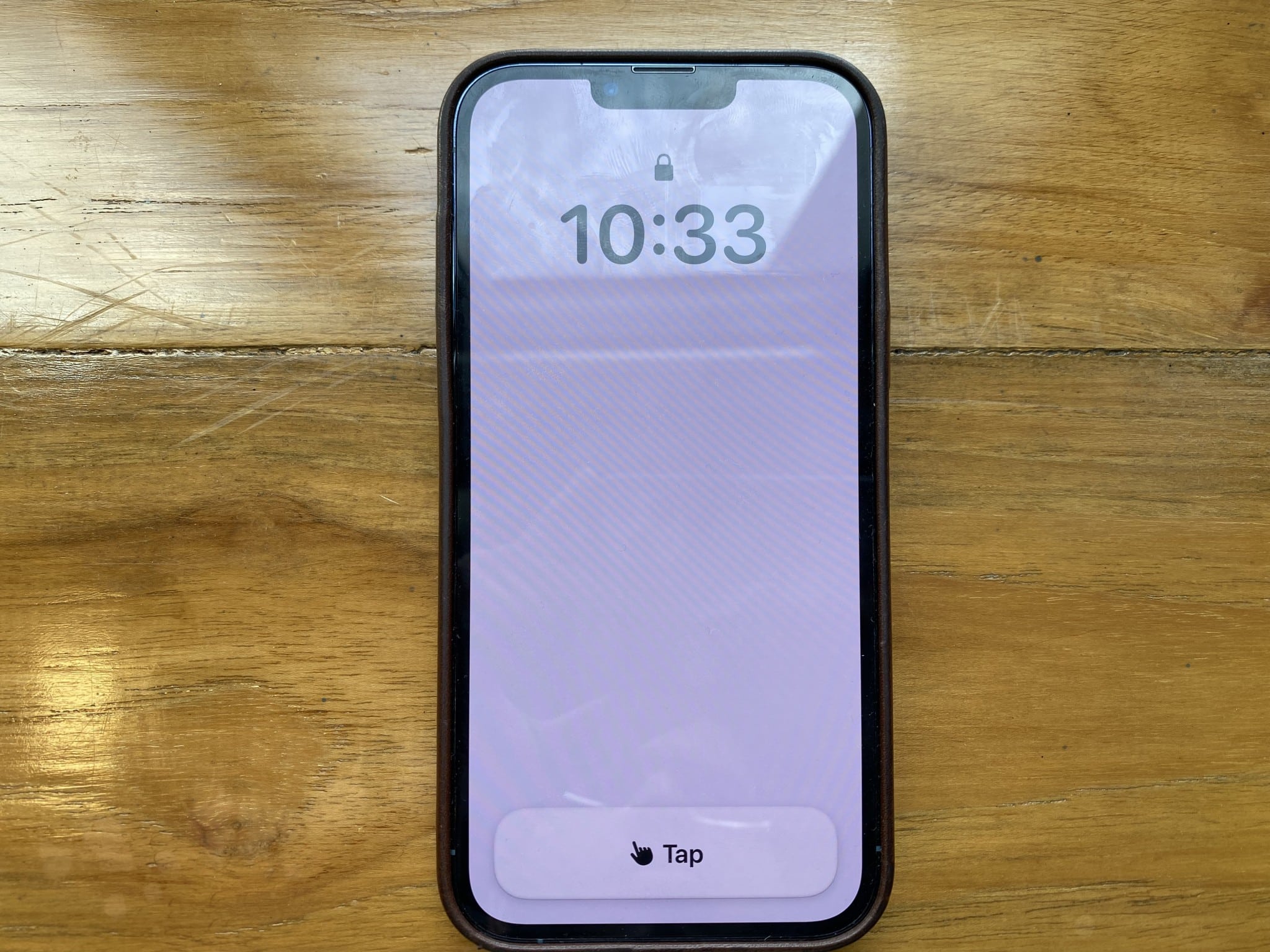
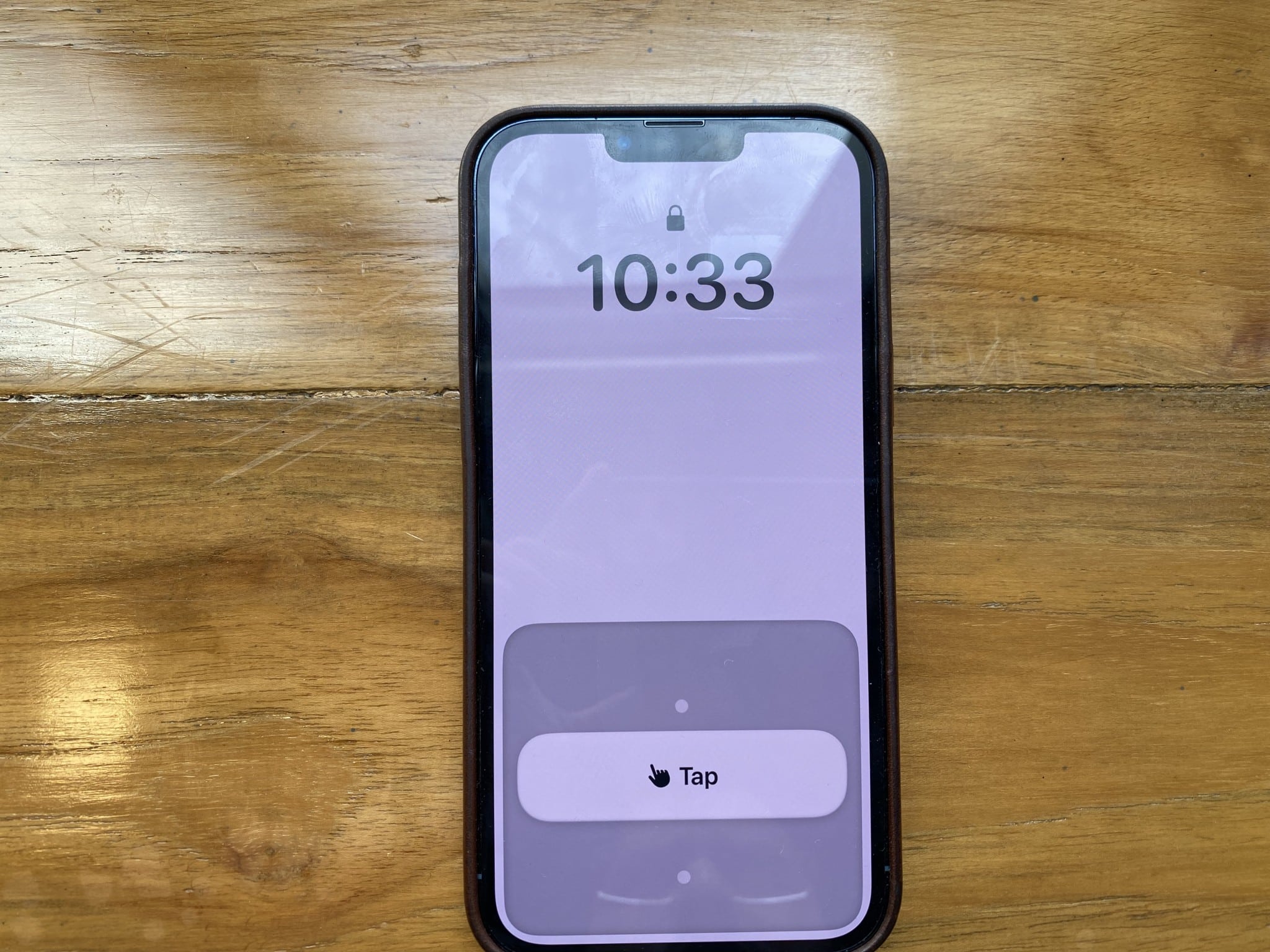
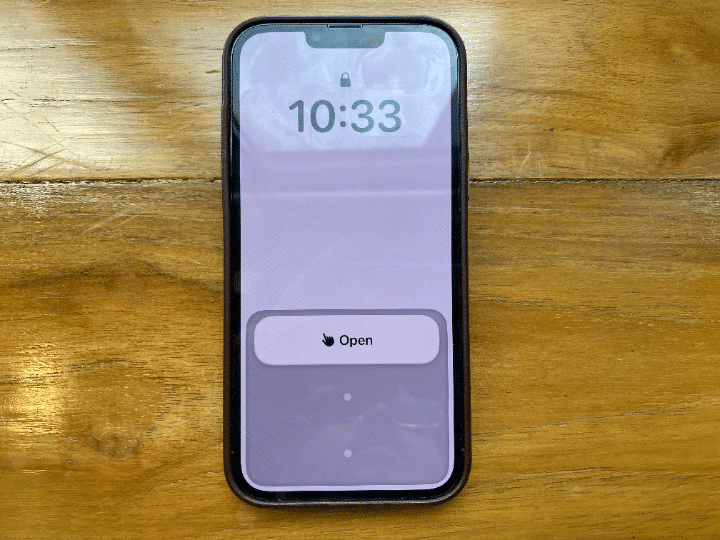
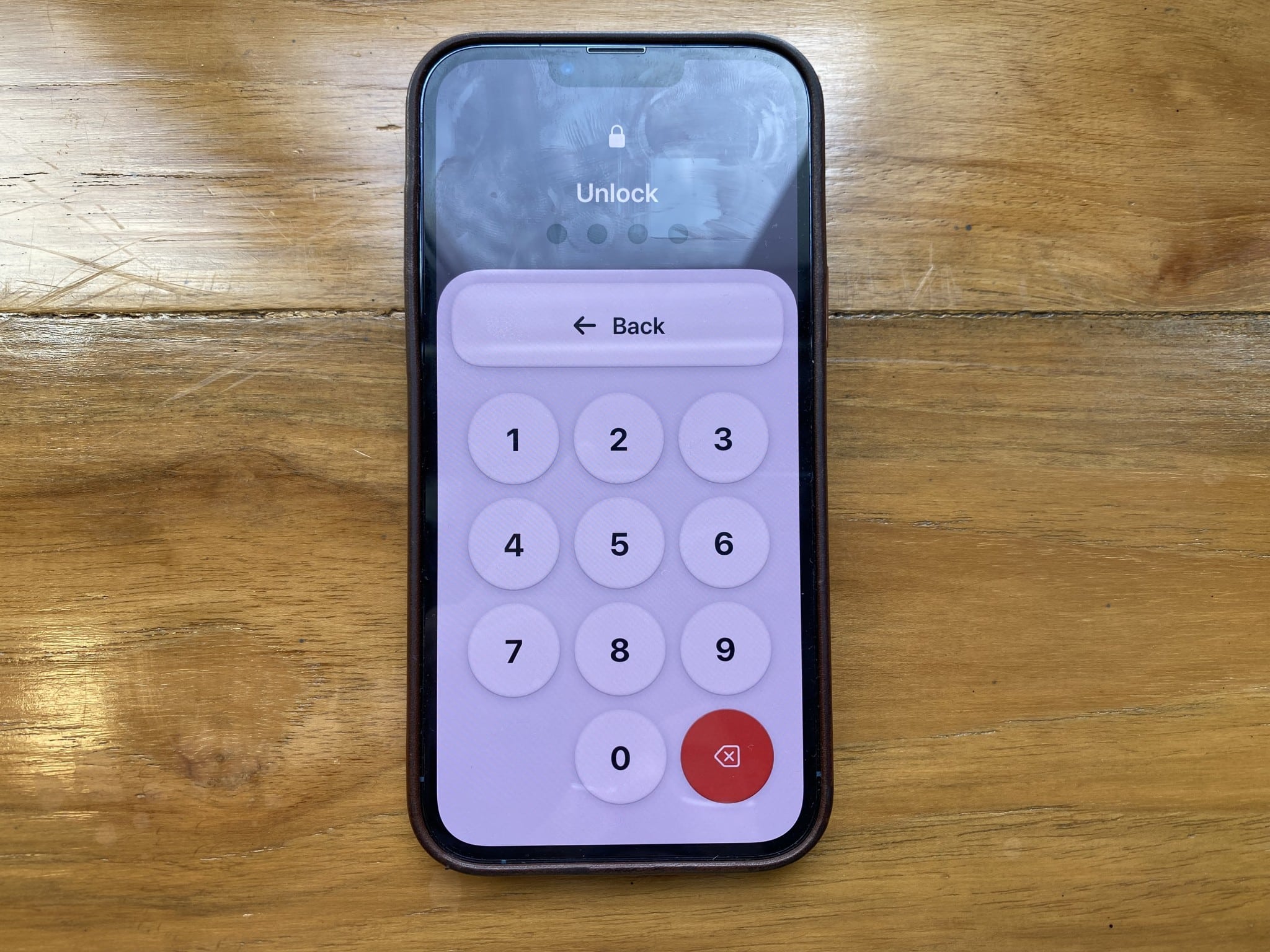
To lock your device, press the side button or the top button.
Simply tap the app icon to open the app. You will see a persistent Back button and a more extensive interface.
For example, when I opened the Messages app with Assistive Access, the initial screen presented two columns of large contact cards, each featuring the contact’s image and name.
If you receive a new text message while on Assistive Access, the Messages app will display a bell icon with a New alert in the top-left corner. Furthermore, if your device is locked, you will see the same icon in the top-right corner of the Open button.
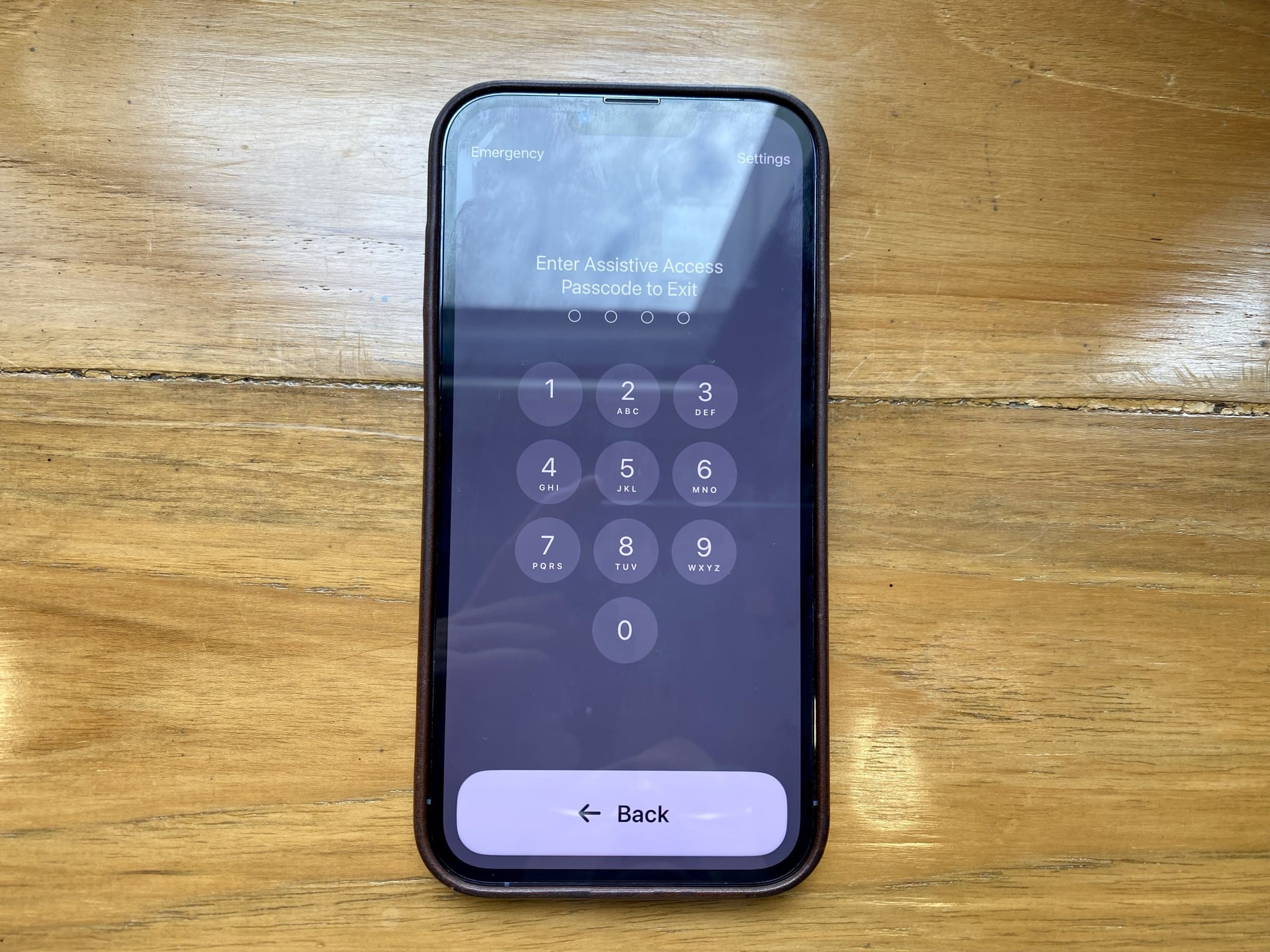
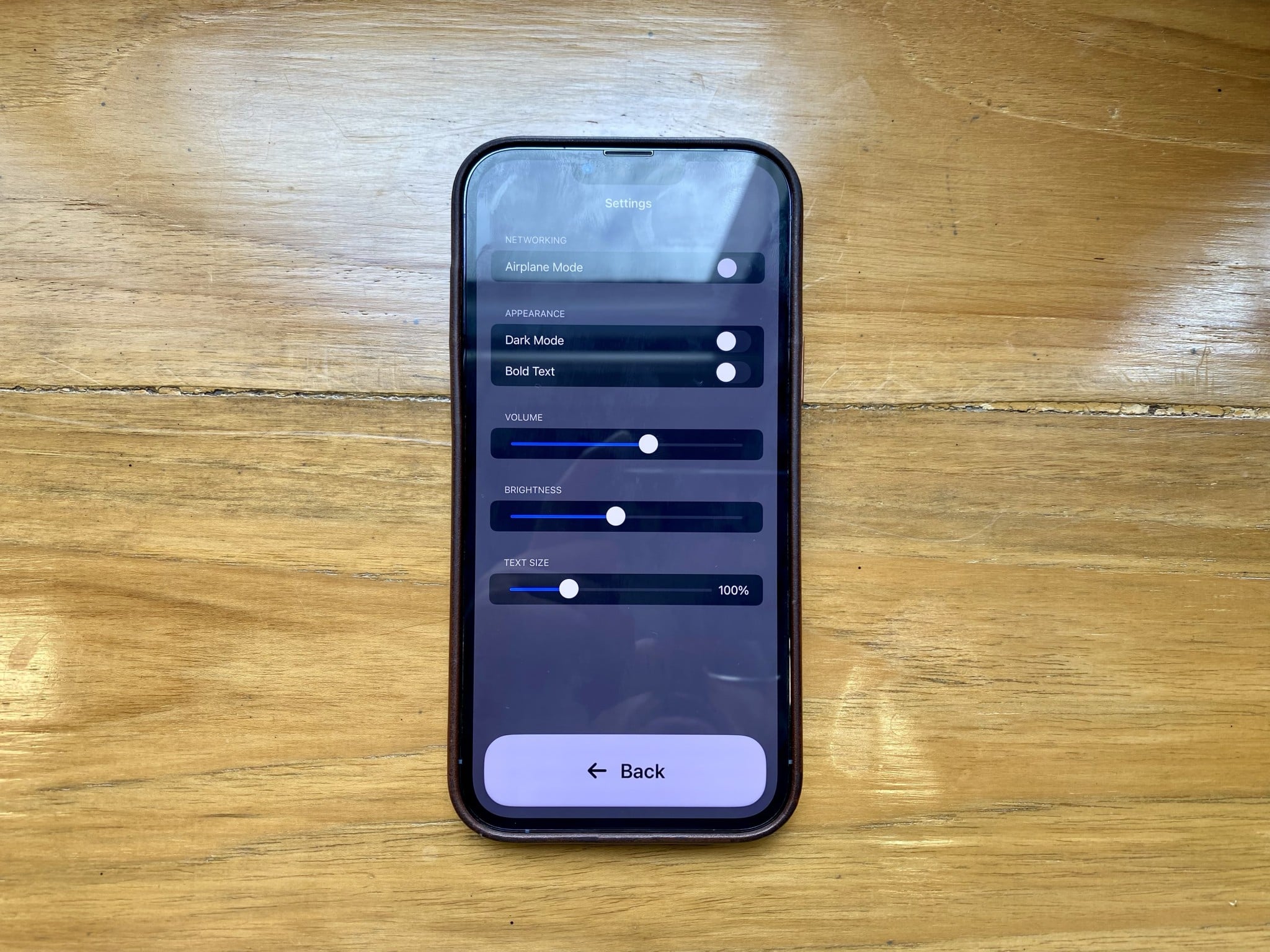
Once you have made the desired adjustments, tap the Back button to return to the Assistive Access Home Screen.
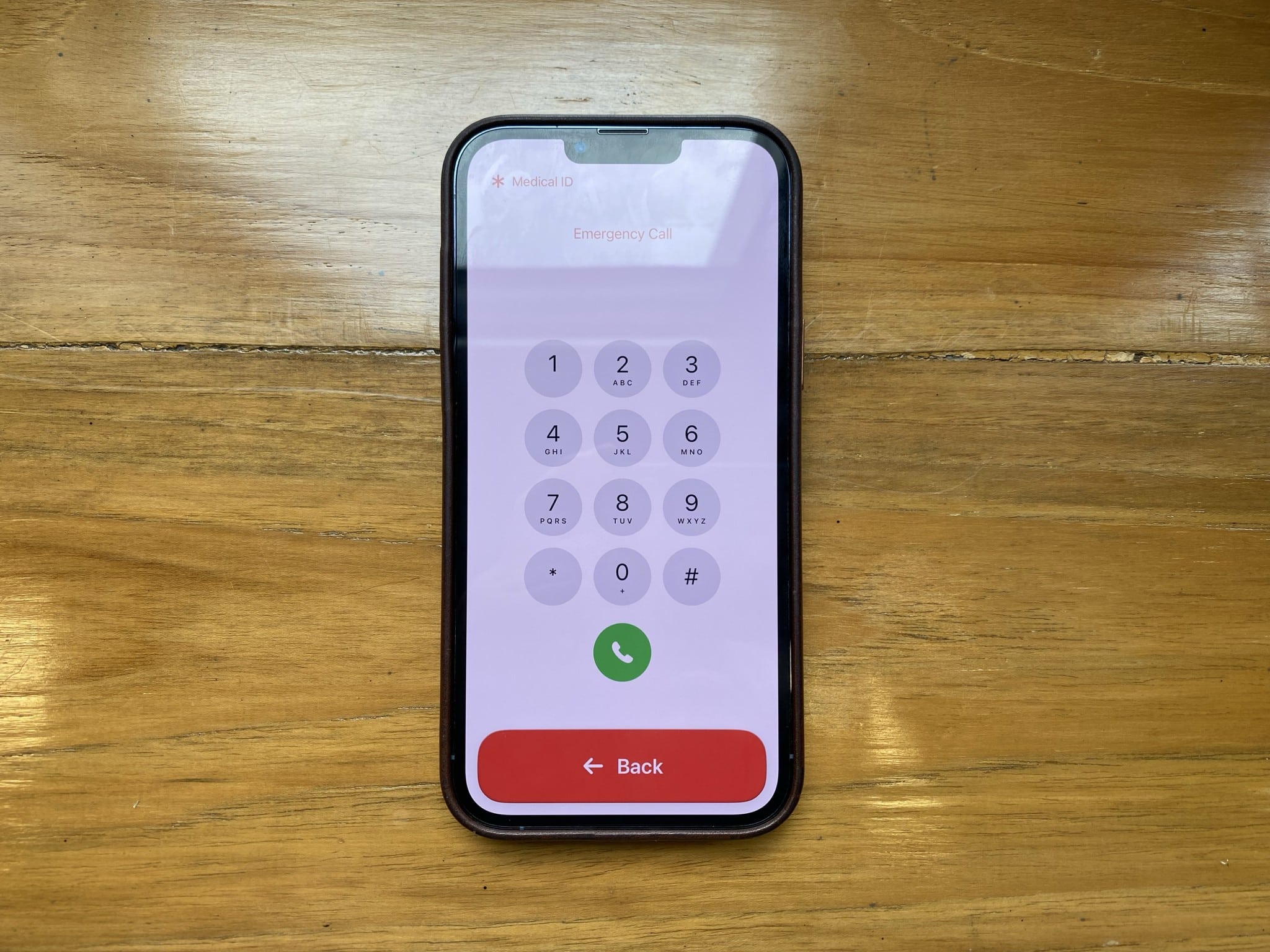
Moreover, you can also check the user’s health information by selecting the *Medical ID in the top left corner of the screen.
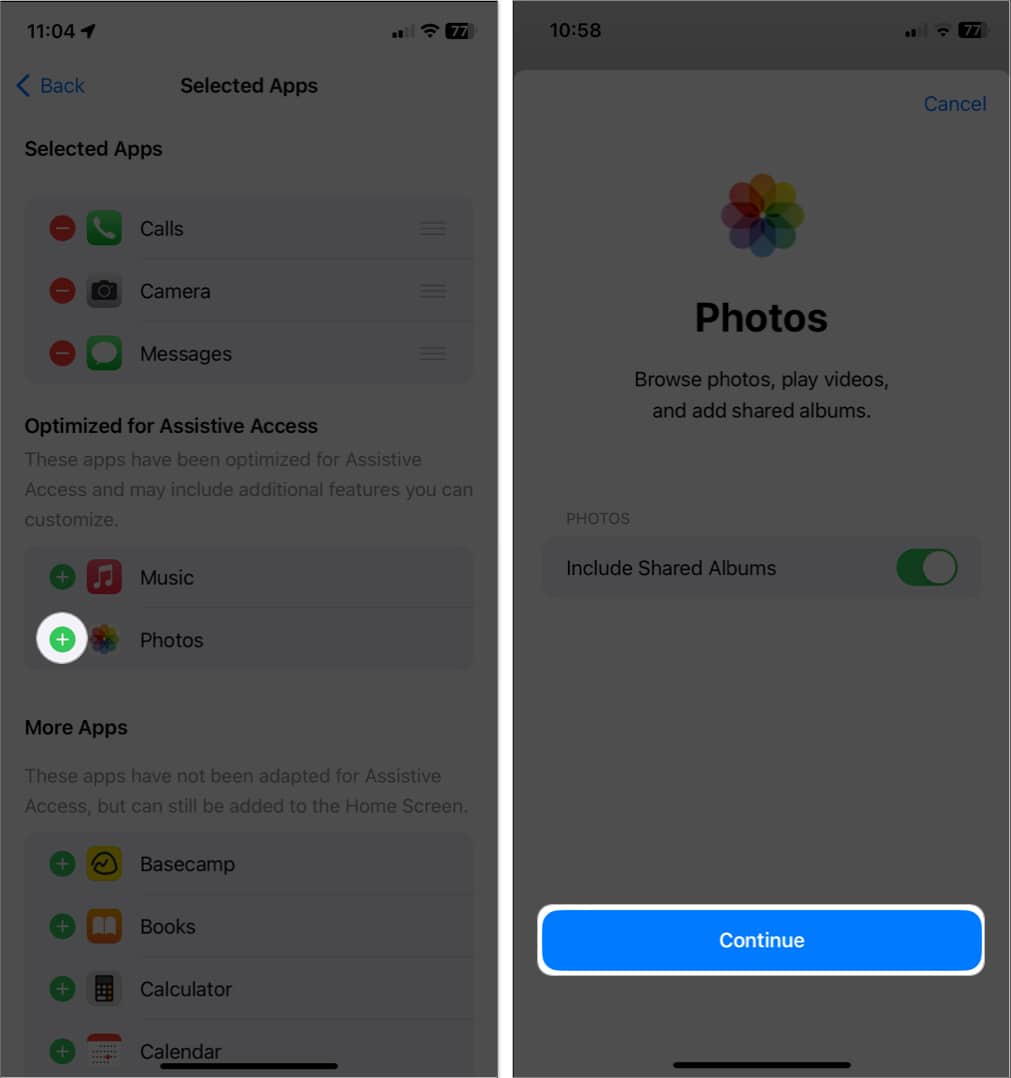
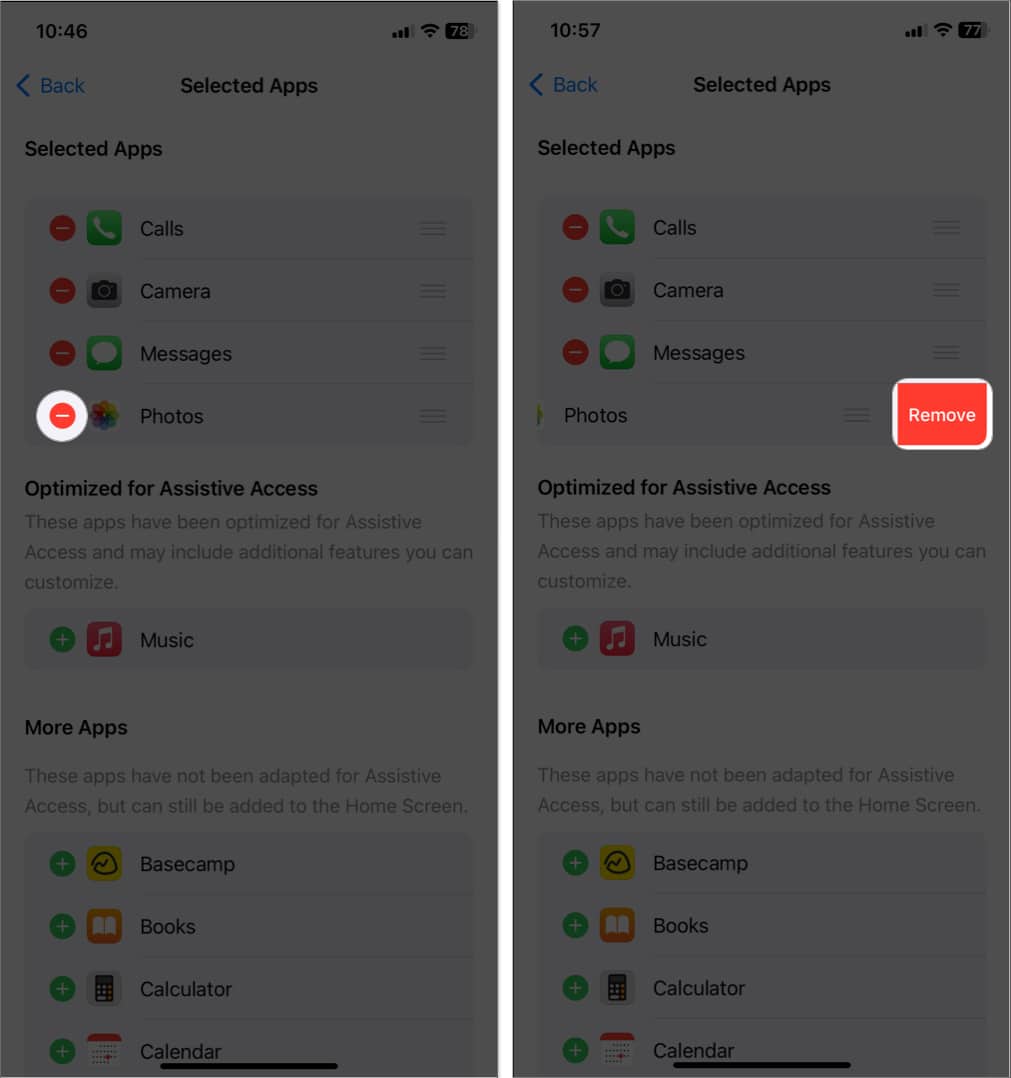
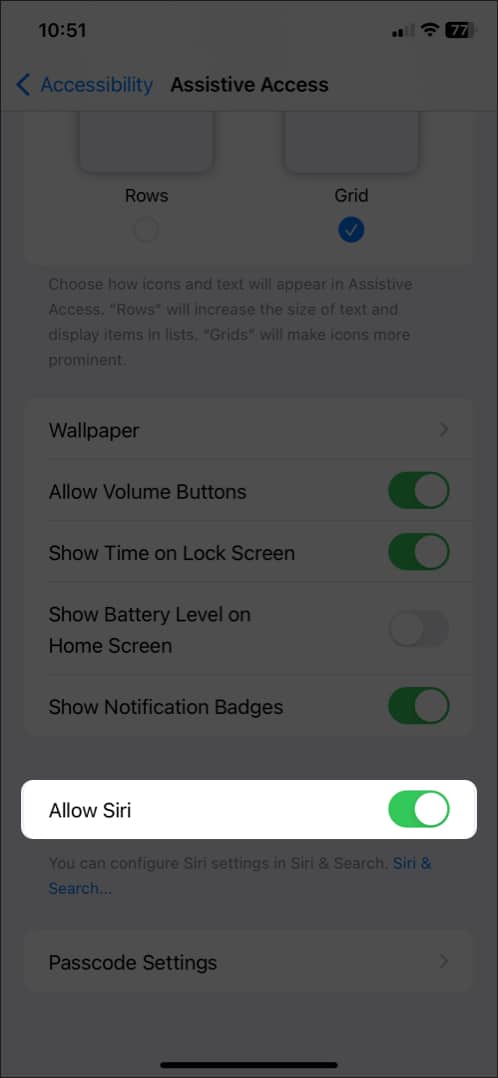
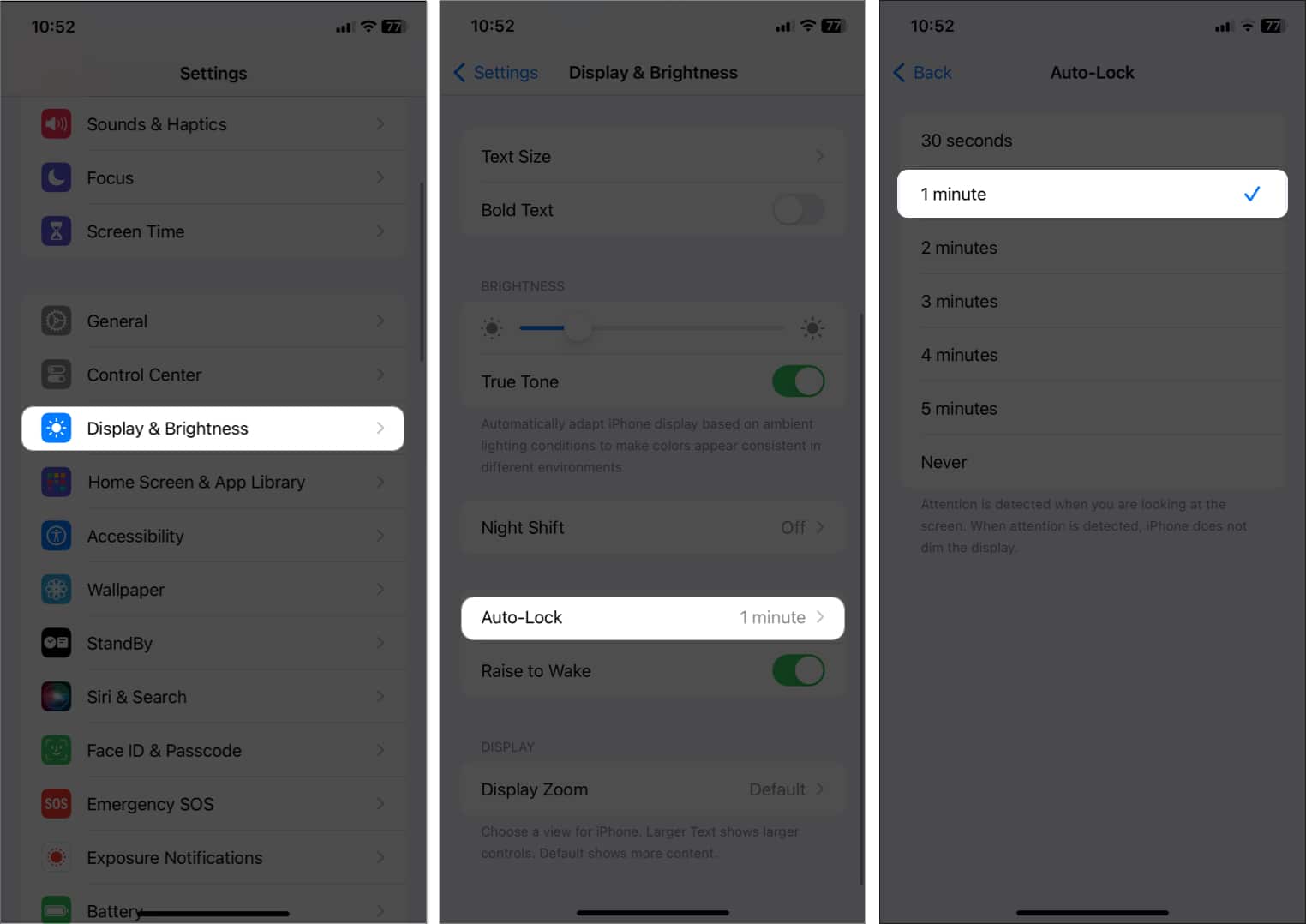
You may need to exit Assistive Access to add or remove apps, activate Siri, or change the auto-lock time.
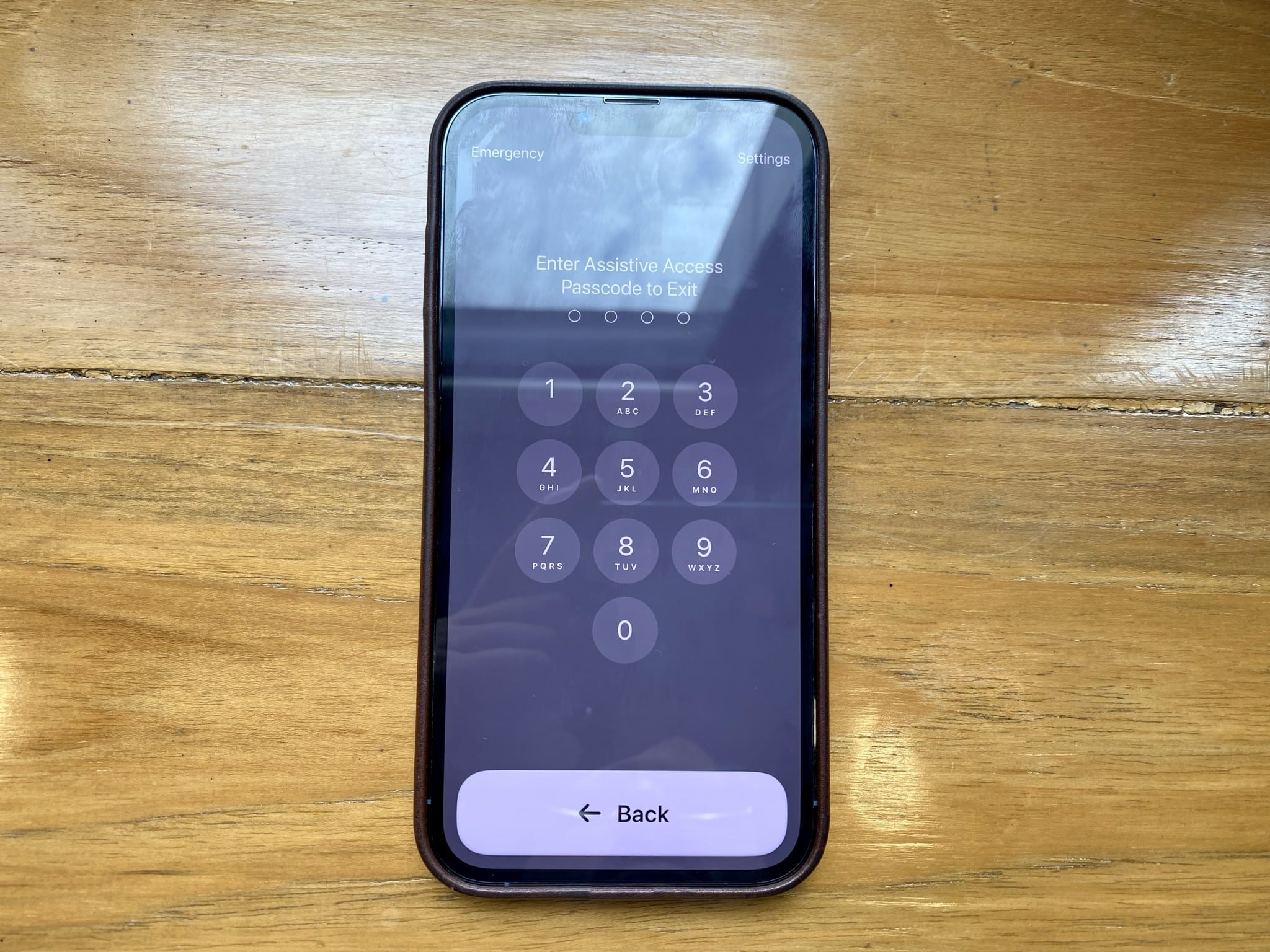
Now, wait a few minutes, and you’ll be back at your iPhone or iPad home screen.
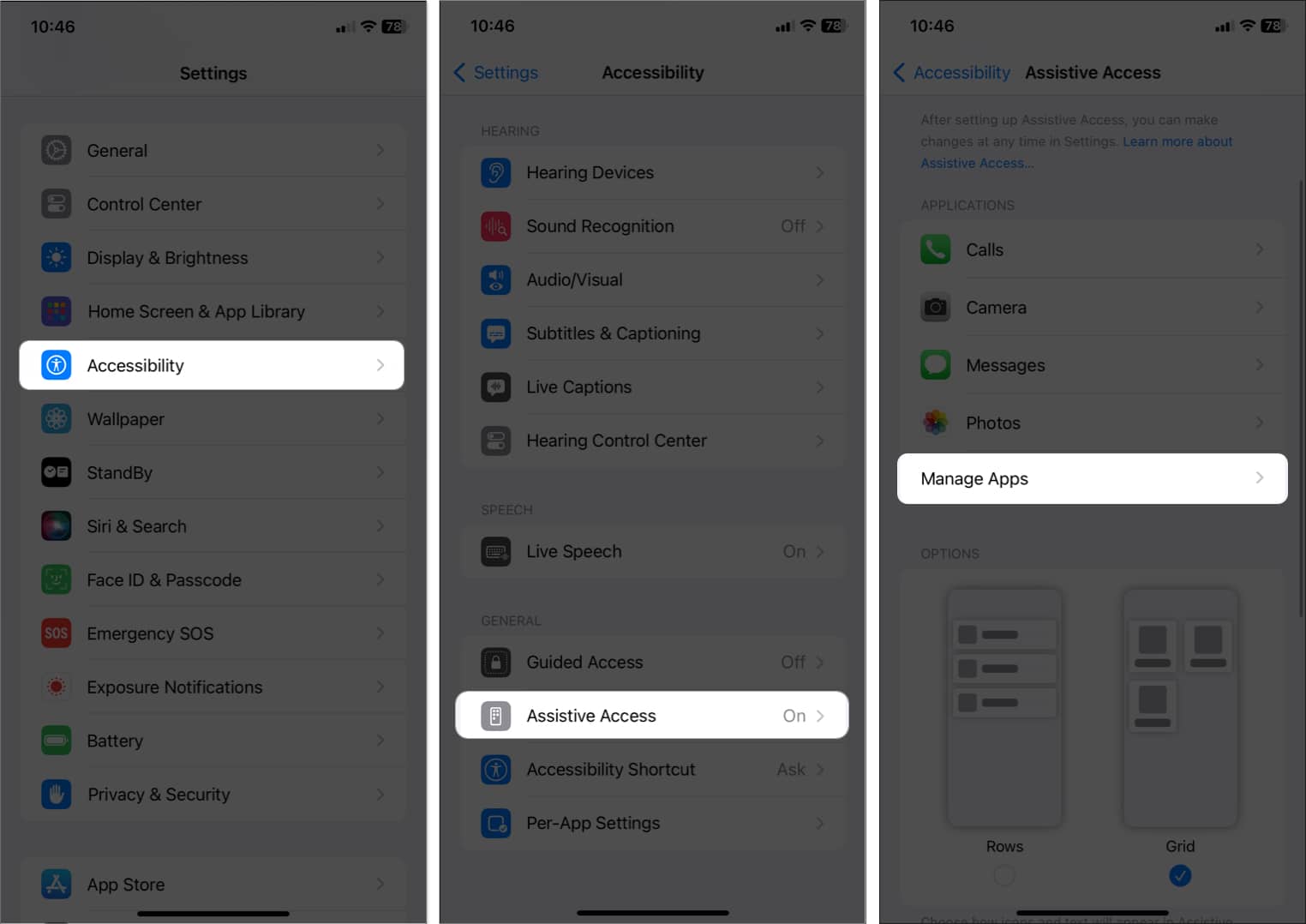
Assistive Access is a powerful and thoughtful tool that makes the iPhone feel more approachable. Even though it has a few limitations, it creates a safer and more independent digital experience for people who need extra support. What are your thoughts on this feature? Share them in the comments and let others know how it helped you.
FAQs
Restart your iPhone or iPad. If the white screen continues, update to the latest version of iOS or iPadOS.
No, the icon size is fixed and cannot be changed.
Assistive Access improves independence for users with disabilities. It makes navigation easier, reduces confusion, and provides quick access to essential apps and communication tools.
Read more: