FaceTime Like a Pro
Get our exclusive Ultimate FaceTime Guide 📚 — absolutely FREE when you sign up for our newsletter below.

FaceTime Like a Pro
Get our exclusive Ultimate FaceTime Guide 📚 — absolutely FREE when you sign up for our newsletter below.


I found an easy way to password-protect WhatsApp Web. Here's how to enable App Lock on WhatsApp Web, Android, iPhone, and Windows.
I always assumed locking my laptop whenever I stepped away was enough to keep my WhatsApp conversations secure. But then I started thinking about all the situations where that isn’t practical. Maybe someone asks to use my computer, I need to share my screen during a meeting, or I simply leave my laptop unlocked for a few minutes. In any of those cases, opening WhatsApp Web takes only a click—no phone required.
While digging through WhatsApp’s settings, I discovered a feature I hadn’t noticed before. WhatsApp Web can now be protected with its own password. Not your Windows password or your Mac login, but a separate password that blocks anyone from opening your chats even if they already have access to your browser.
In this guide, I’ll show you how to lock WhatsApp Web with a password, explain how the feature works, and also walk you through enabling App Lock on Android, iPhone, and your computer for even better protection.
Most people think about securing their phone.
Very few think about securing their browser.
If you’ve used WhatsApp Web before, chances are you’re still signed in. By design, WhatsApp continues syncing with linked devices until you manually sign out. It’s convenient—but it’s also a potential security risk.
Anyone who gains access to your browser could potentially:
I realized that my browser had quietly become the weakest link in my WhatsApp security. Thankfully, WhatsApp has finally addressed that problem with its built-in App Lock feature.
App Lock adds an extra password directly to your WhatsApp Web session, as well as the WhatsApp app on supported devices.
Instead of opening straight into your conversations, anyone trying to access WhatsApp first sees a password prompt. Until the correct password is entered, your chats remain hidden. WhatsApp also stops displaying new message notifications while the session is locked.
What impressed me most is that the password works independently of your computer’s login credentials. It protects only your WhatsApp Web session, so even if someone already has access to your browser, they still can’t open your chats.
One important thing to remember is that this password isn’t permanent across browser sessions. If you log out of WhatsApp Web, you’ll need to create a new App Lock password the next time you link your account.
Before WhatsApp introduced this feature, I experimented with browser extensions that claimed to password-protect WhatsApp Web. Eventually, I removed them all. Most required permission to read and modify webpages, injected their own scripts, and depended entirely on third-party developers. That never felt like the safest solution.
Using WhatsApp’s built-in App Lock is much easier and considerably more trustworthy.
Setting up App Lock takes less than a minute.
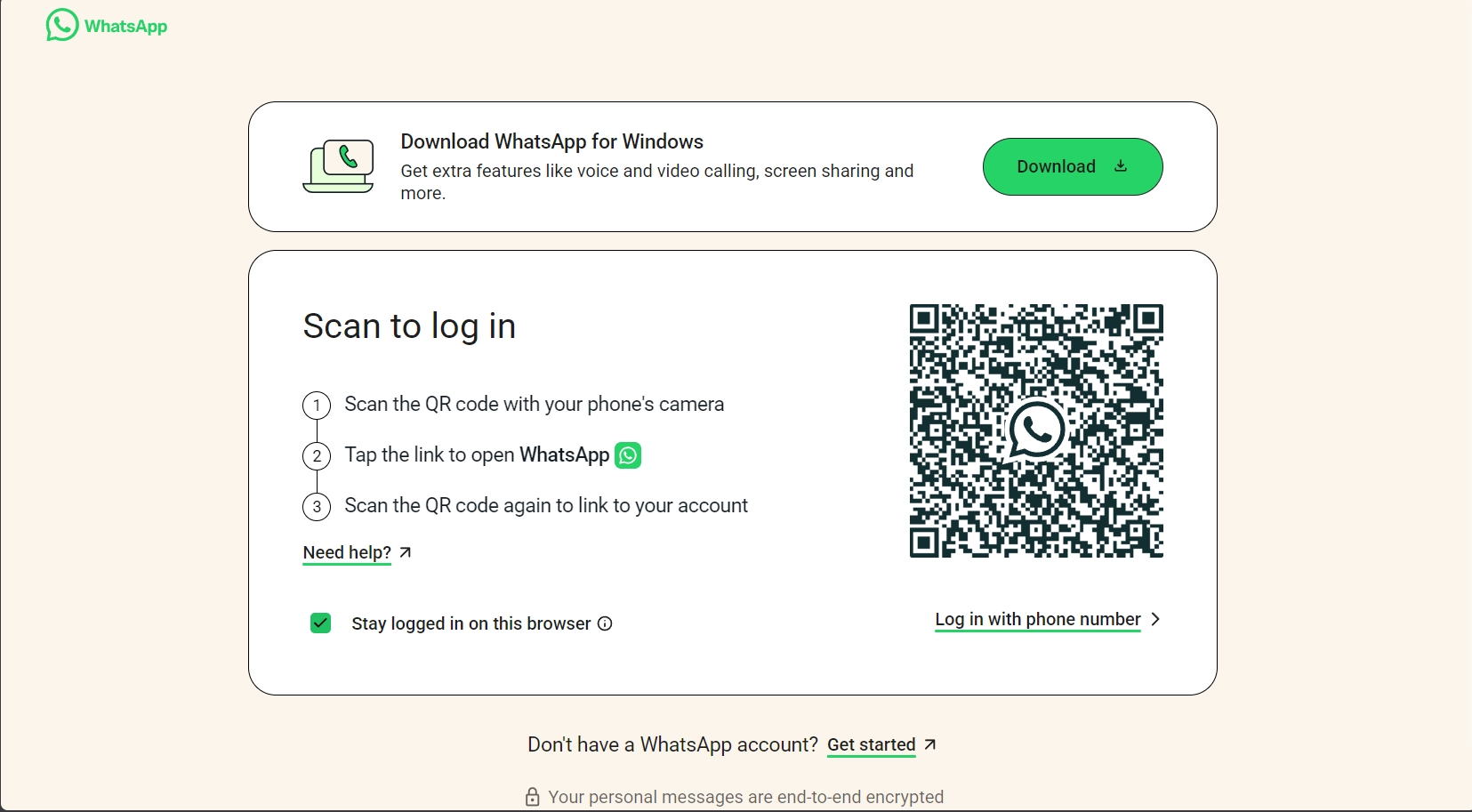
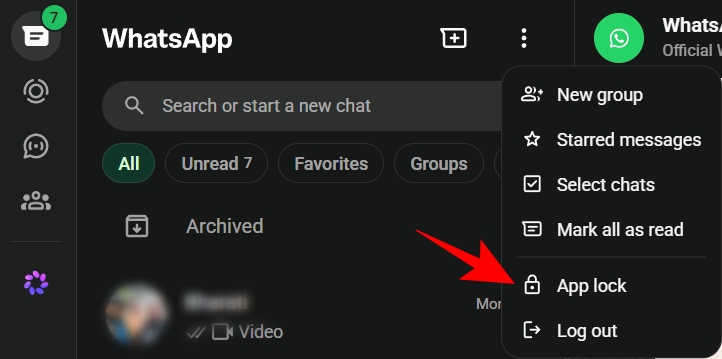
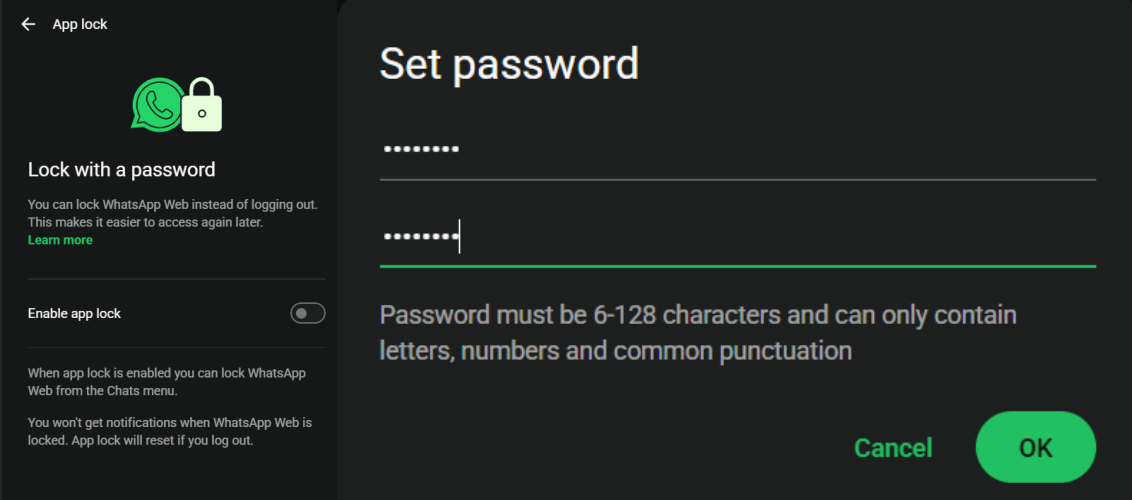
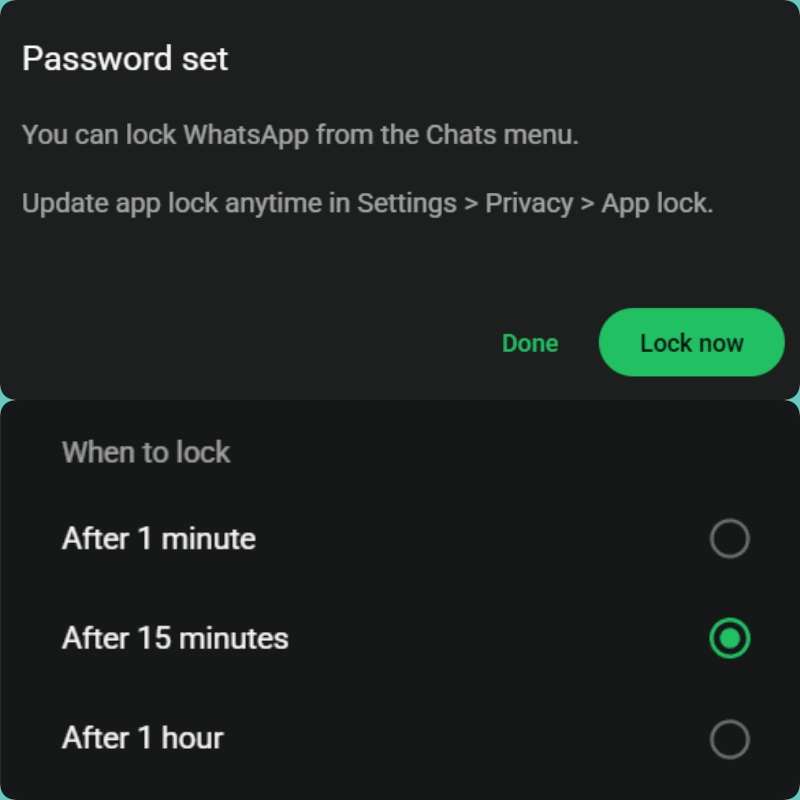
For auto-lock, I personally use 1 minute. Yes, it’s slightly annoying, but privacy usually beats convenience.
As an extra layer of protection, you can also lock individual WhatsApp chats. That way, even if someone somehow gets past your WhatsApp Web password, they still won’t be able to open your most sensitive conversations.
If you forget your WhatsApp Web App Lock password, don’t worry; you won’t lose your account or any of your chats.
The password protects only your current WhatsApp Web session. It isn’t connected to your WhatsApp account, your phone’s screen lock, your two-step verification PIN, or your device password.
To reset it:
Just keep in mind that this password isn’t the same as your phone’s screen lock, WhatsApp PIN, or two-step verification code. This is an additional layer of security, and resetting it will not affect your chats.
Locking WhatsApp Web is a great first step, but it’s just as important to protect the WhatsApp app on your Android phone. If someone gets hold of your unlocked device, App Lock adds another layer of security before they can access your conversations.
Here’s how to enable it:
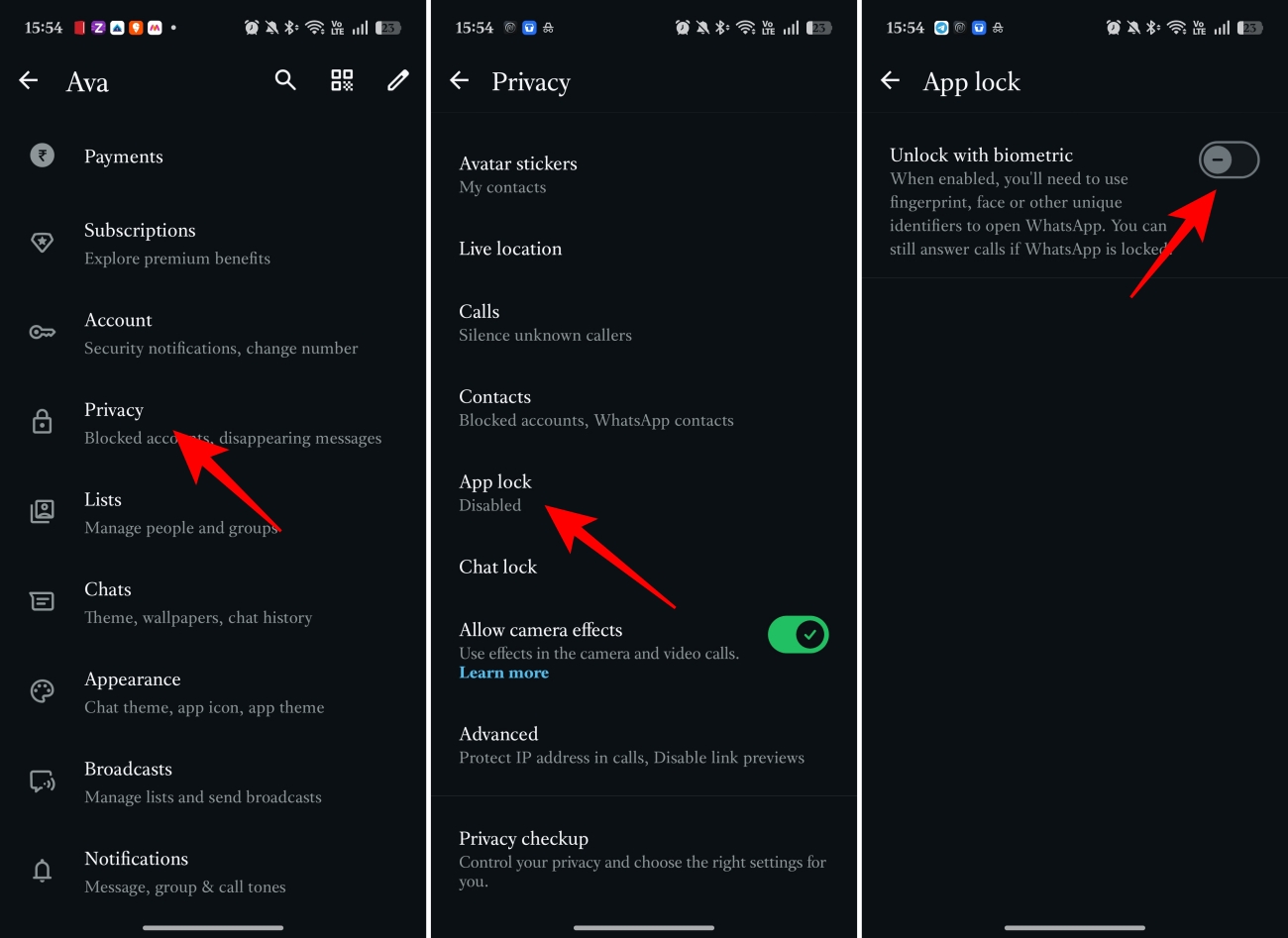
I also recommend turning off Show content in notifications. That way, incoming message previews stay hidden whenever WhatsApp is locked.
If you use WhatsApp on an iPhone, you can secure the app with Face ID or Touch ID, depending on your device.
Here’s how I set it up:
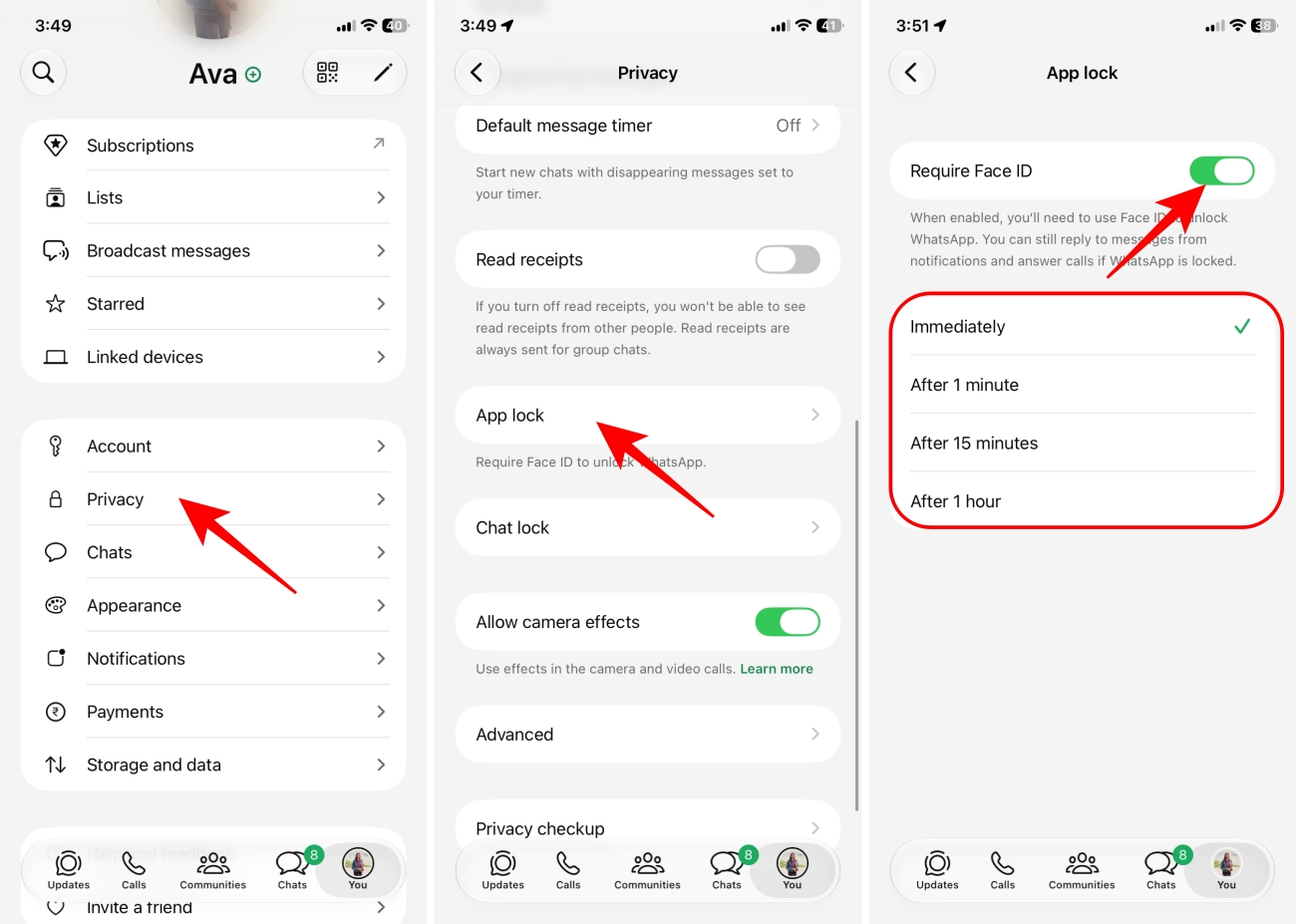
Once enabled, Face ID unlocks WhatsApp almost instantly, making it feel seamless while keeping your conversations protected.
Bonus: If you’re using iOS 18 and later, Apple also lets you lock individual apps. Touch and hold the WhatsApp icon on your Home Screen or App Library. Now, tap Require Face ID and confirm with Face ID or your passcode. This adds another layer of protection, even before WhatsApp itself opens.
This is where things get a little confusing.
Although WhatsApp Web and the desktop app look very similar, they don’t offer exactly the same features.
The built-in App Lock feature is currently available for the WhatsApp app on Windows. If you don’t see it yet, make sure you’re using the latest version of the app, as the feature may still be rolling out.
Unfortunately, the WhatsApp app for macOS doesn’t currently support App Lock, so Mac users will need to rely on macOS login security and other privacy features for now.
After enabling App Lock, I made a few other changes that significantly improved my WhatsApp privacy.
Most of us spend time securing our phones with Face ID, fingerprints, and strong passcodes, yet leave WhatsApp Web permanently signed in on our browser. That’s often the weakest point in our privacy.
If you regularly use WhatsApp Web, enabling App Lock takes less than a minute and adds an extra barrier between your conversations and anyone who has access to your computer. It’s especially worthwhile if you use a shared, office, or family PC.
I now consider it one of the first privacy settings every WhatsApp user should enable. Combined with biometric App Lock on your phone and regular reviews of your linked devices, it makes unauthorized access much less likely.
If you haven’t turned it on yet, now is a good time to do it. Your chats and your privacy are worth the extra few seconds.
Check out these helpful guides too: