
FaceTime Like a Pro
Get our exclusive Ultimate FaceTime Guide 📚 — absolutely FREE when you sign up for our newsletter below.

FaceTime Like a Pro
Get our exclusive Ultimate FaceTime Guide 📚 — absolutely FREE when you sign up for our newsletter below.


This guide covers quick checks and proven fixes for iOS 27 when the download stalls, or you see "Unable to Install Update."
Updating an iPhone should be straightforward, but seeing “Unable to Install iOS 27.2 Update” after waiting for the download to finish can be frustrating. Sometimes the update doesn’t appear at all; other times, the download completes but the installation fails.
These problems can happen when your iPhone is low on storage, your Wi-Fi connection is unstable, or Apple’s update servers are temporarily busy. Start with the simple checks below before trying more advanced fixes.
In this guide, I’ll walk you through the steps to try first. If the over-the-air (OTA) update still won’t install, I’ll also show you how to update your iPhone using a Mac or Windows PC.
If your iPhone is showing an “Unable to Install” error on the iOS 27 update page, the cause is usually something preventing the update from being downloaded, verified, or installed correctly.
Here are the most common reasons:
If you are unable to install the iOS 27.2 update, don’t stress. Here are some easy fixes you can try:
Before troubleshooting anything complicated, I’d check a few basics first.
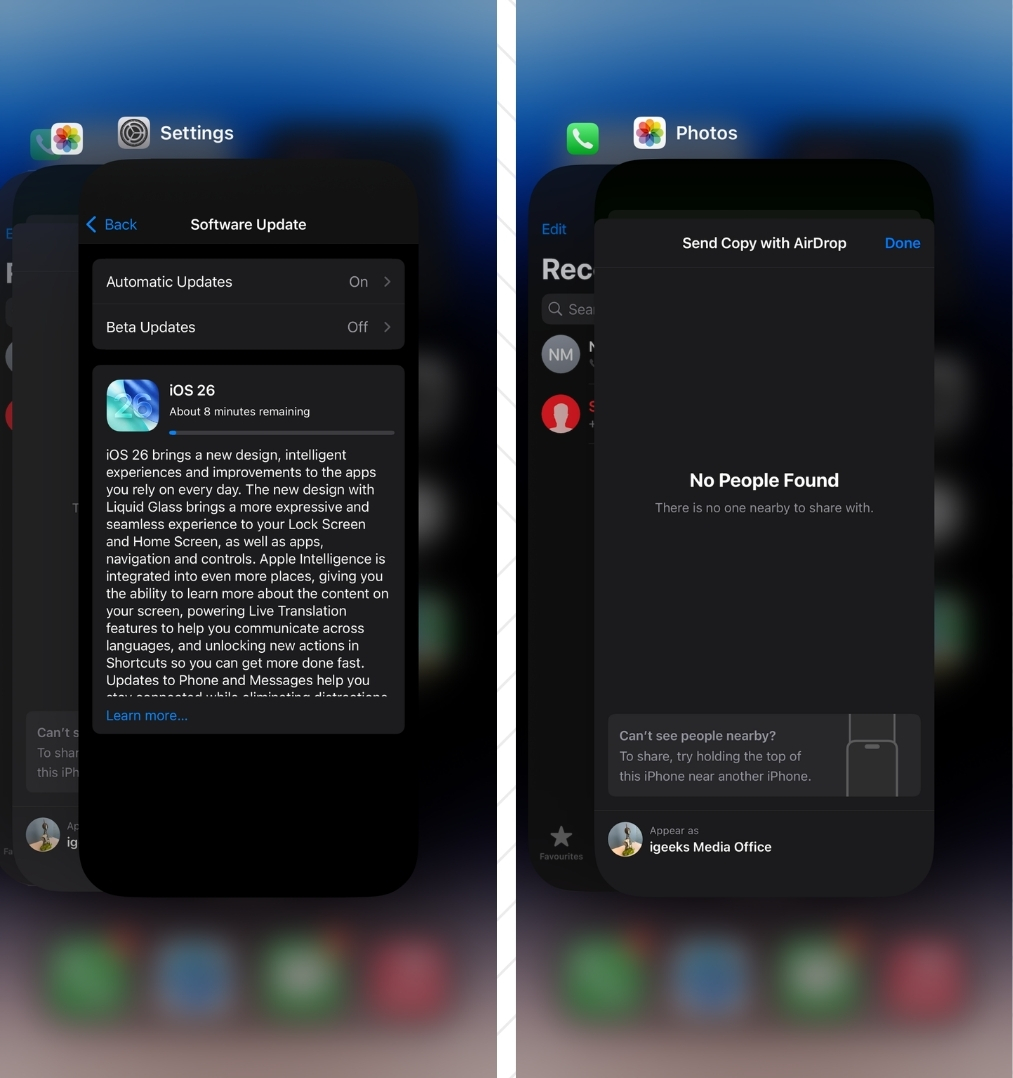
If the Software Update screen isn’t behaving normally, force-quitting Settings is worth trying.
A restart is one of the first things I’d try before changing any settings.
Temporary software processes can occasionally interfere with an update, and restarting gives iOS a clean start.
To restart your iPhone, turn it off, wait for a few seconds, and turn it back on.
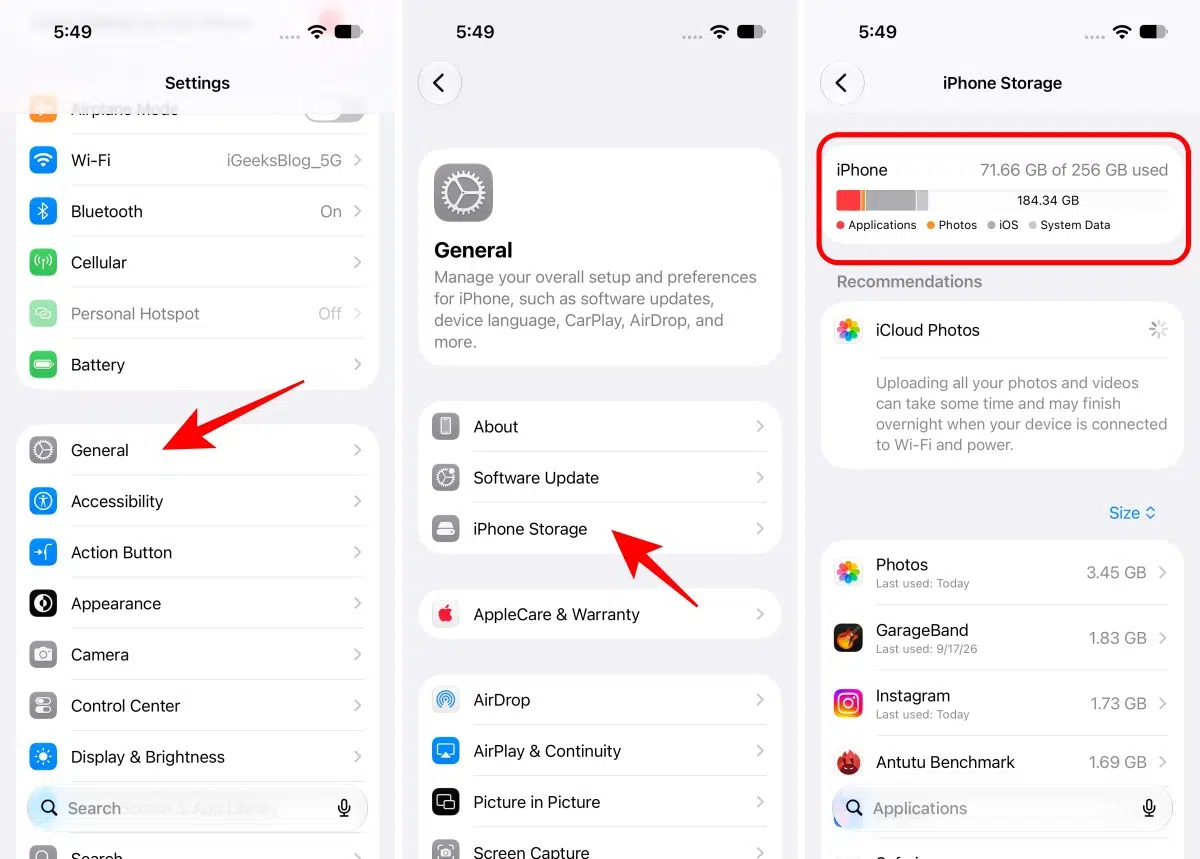
If iOS 27.2 has already downloaded but refuses to install, the update file itself could be the problem. You can delete the downloaded update and let the iPhone download a fresh copy.
Go to Settings > General > iPhone Storage. Scroll through the list and look for the downloaded iOS 27.2 update.
If it appears:
This is one of the fixes I’d try before resetting network settings because it specifically addresses a potentially incomplete or corrupted update download.
If the iOS 27.2 OTA update continues to fail, use a computer. This is particularly useful when the iPhone can download the update but can’t complete the installation.
Here’s how you can download and install iOS 27 on your iPhone using Finder on Mac:
This is a near-certain solution to resolve failed software update issues. Recently, my iPhone update also got stuck.
I switched to three different Wi-Fi networks, but the iOS update still wasn’t downloading. Finally, I reset the Network Settings, and everything was working as expected.
Note: This will not delete personal data like apps, photos, videos, songs, etc. However, all Network Settings related to Wi-Fi, Cellular, and such will be erased.
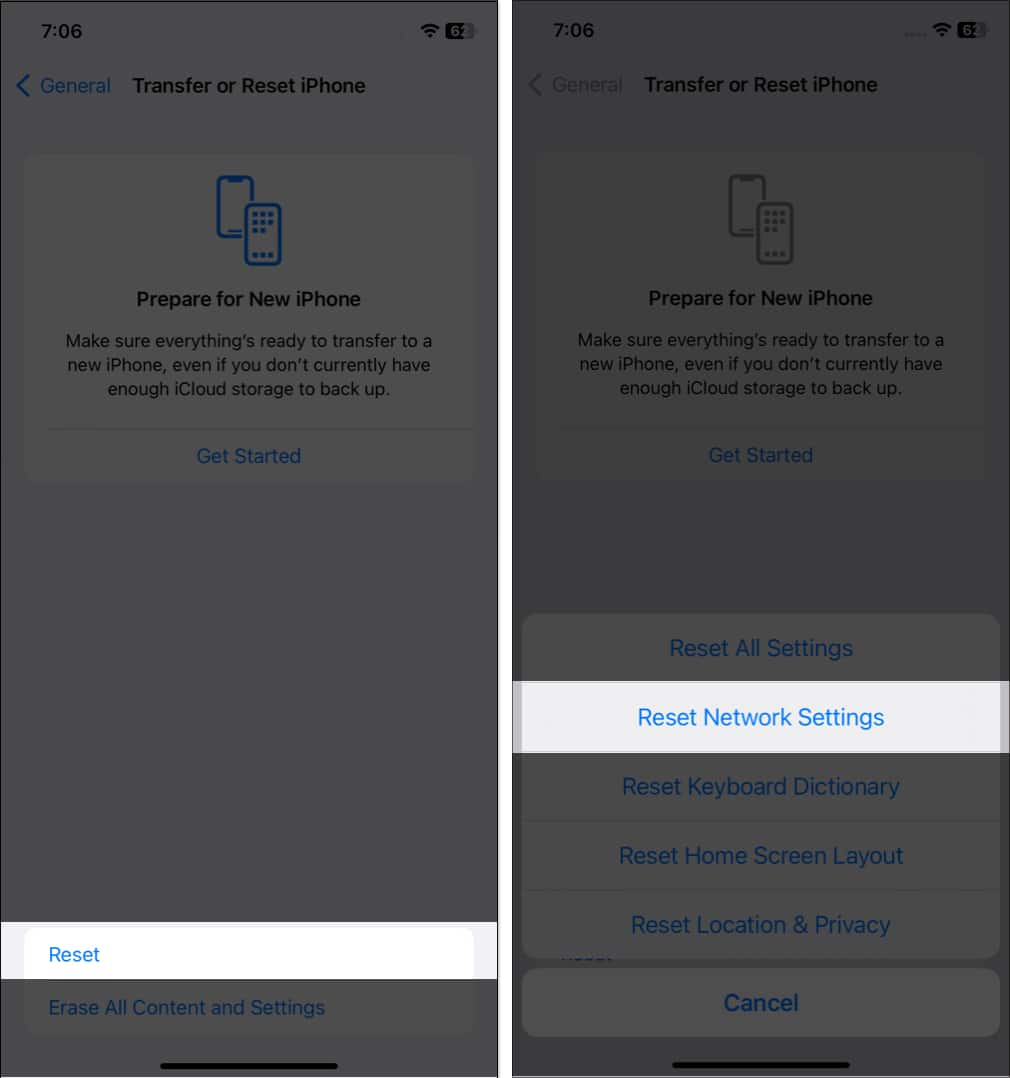
Once this is complete, try downloading and installing the update again. It will work.
In rare cases, if this does not help, reset all settings. This, too, won’t delete personal data. But all settings you have ever changed or added, such as notifications, keyboard, Wi-Fi, location, VPN, etc., will be reset to their default state.
If none of the above solutions work, your iPhone may have a hardware issue. Contact Apple Support or visit an Apple Authorized Service Provider to diagnose and resolve the problem.
Is your iPhone update frozen? Has it been stuck on the same Update Requested screen for a long time? If so, please see this post, where I show multiple solutions to fix the frozen iPhone issue.
A “Cannot Download and Install iOS 27.2 Update” message can look more serious than it is. Start by checking your Wi-Fi connection, available storage, battery level, and Apple’s System Status before changing settings on your iPhone.
These steps can resolve many iOS 27.2 installation problems without erasing your personal data. If the update still won’t install, try updating with a Mac or Windows PC, or contact Apple Support for help.
Check out next:












