How to Save Google Docs to the Files App on iPhone (Step-by-Step Guide)
Want to save Google Docs to the Files app on your iPhone? Here’s a quick guide to help you do it for offline access and easy sharing.
Google Docs is one of the most popular tools for creating and collaborating on documents. While downloading files from the Google Docs website to your Mac is easy, saving them directly to the Files app on your iPhone requires a few extra steps.
In this guide, I’ll walk you through how to save Google Docs to the Files app on iPhone, whether as a PDF or Word file and even show you how to integrate Google Drive directly into the Files app for easier file management.
Table of Contents
- Why Save Google Docs to the Files App on iPhone?
- Requirements Before You Begin
- Method 1: Save Google Docs as PDF or Word to Files App
- Method 2: Save from Google Drive App
- Bonus Tip: Add Google Drive to Files App on iPhone
- How to Find Saved Google Docs in the Files App
- Can You Edit Google Docs Saved in Files?
- Saved and Sorted!
Why Save Google Docs to the Files App on iPhone?
Even though Google Docs autosaves to Google Drive, there are several compelling reasons to save them to the Files app:
- Offline Access: View your documents without an internet connection.
- Local Backup: Store a copy safely on your iPhone or iCloud Drive.
- Simplified Sharing: Easily share documents via AirDrop, Messages, or third-party apps.
- Free Up Google Drive Storage: Avoid hitting the 15GB free storage limit.
- Use Other Apps: Open and edit your docs with Pages, Word, or PDF editors.
Requirements Before You Begin
Before you start, ensure:
- The Google Docs or Google Drive app is installed, and you’re signed in.
- Your iPhone is connected to the internet.
- You have enough space in your iCloud Drive or on-device storage.
Method 1: Save Google Docs as PDF or Word to Files App
You can easily export your document and save it in your preferred format. Here’s how:
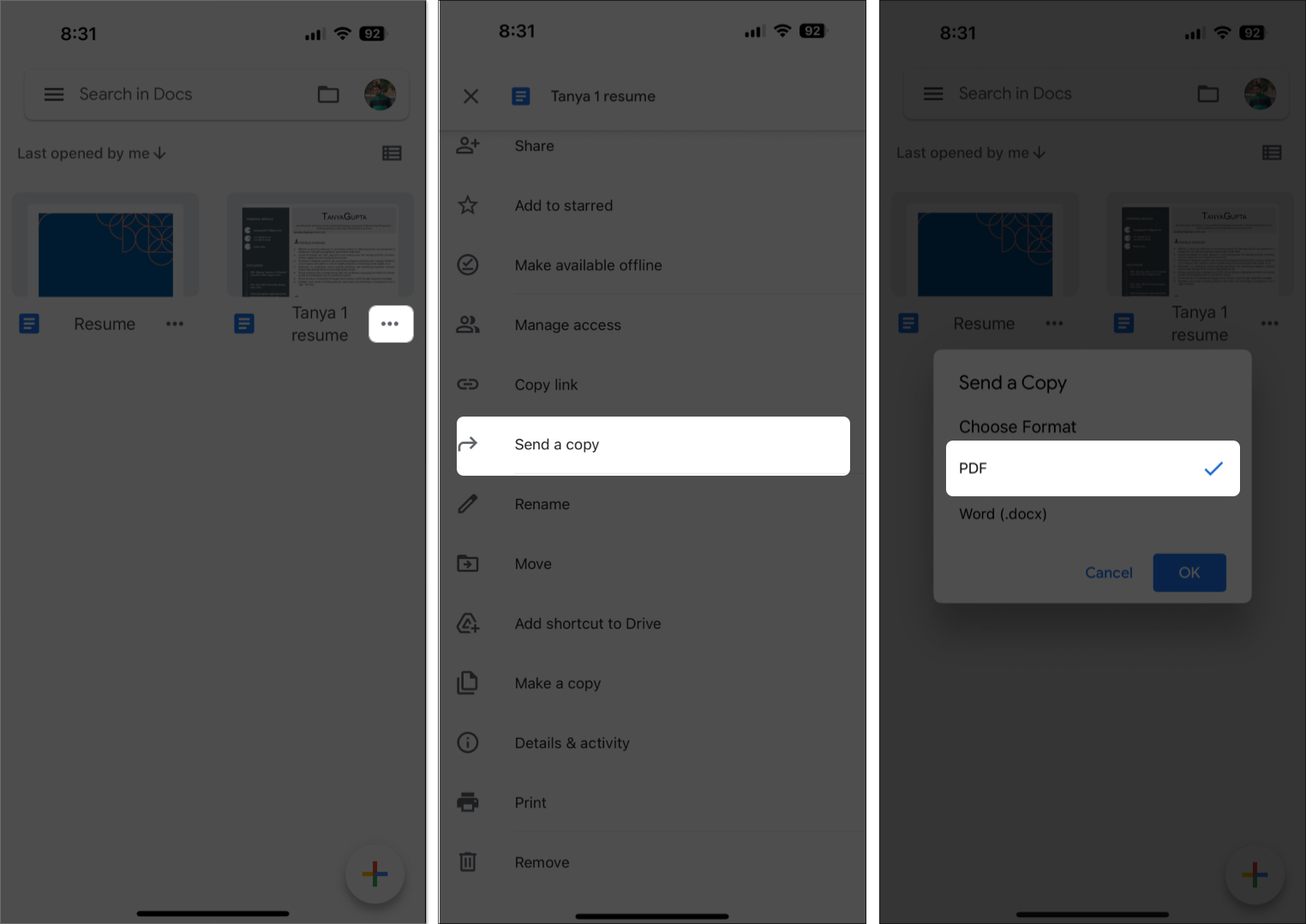
- Open the Google Docs app and find the document you want to save.
- Tap the three-dot icon next to the document (bottom left in grid view or next to the name in list view).
- Choose Send a copy.
- Select the format: PDF or Word (.docx) → Tap OK.
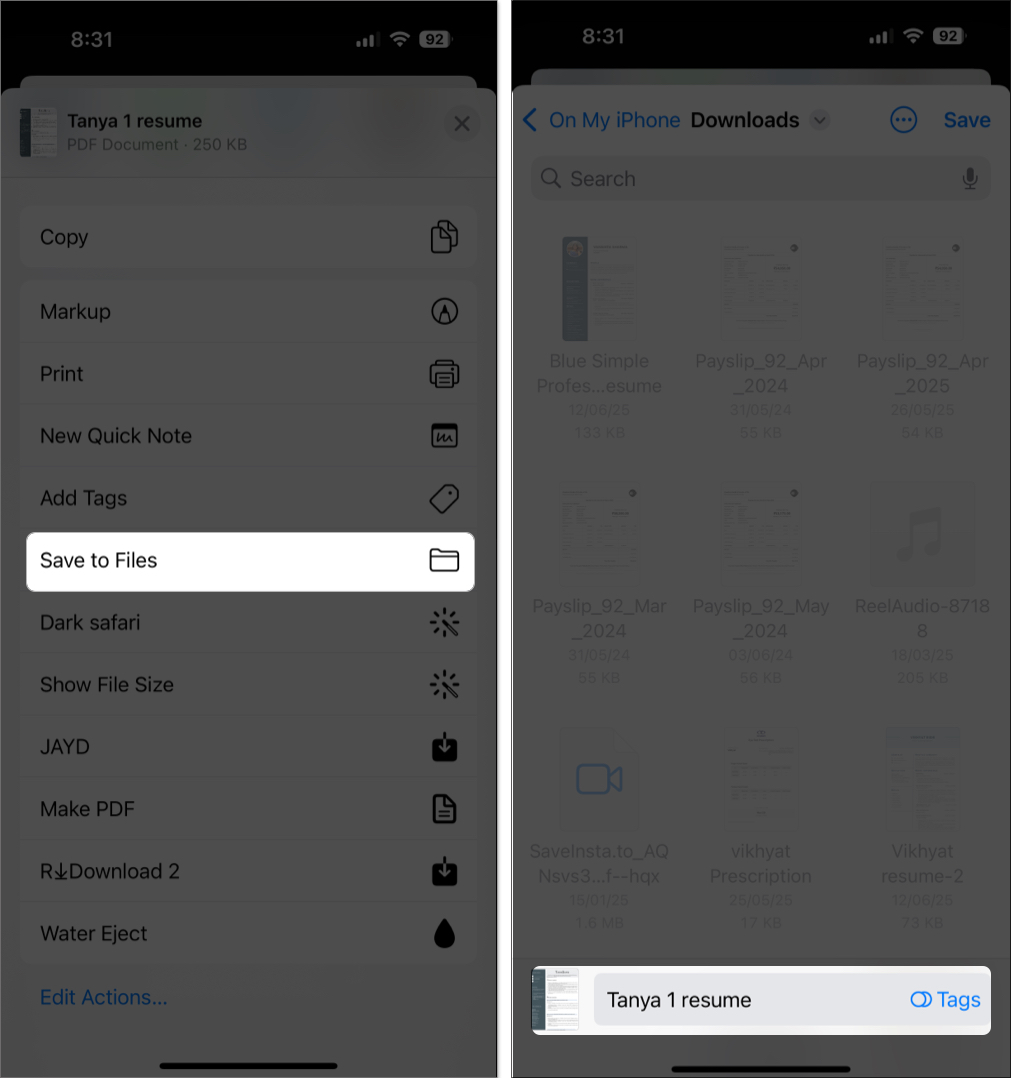
- From the iOS Share Sheet, tap Save to Files.
- Choose your destination—iCloud Drive or On My iPhone—and tap Save.
Method 2: Save from Google Drive App
If you don’t have the Docs app installed, use the Google Drive app:
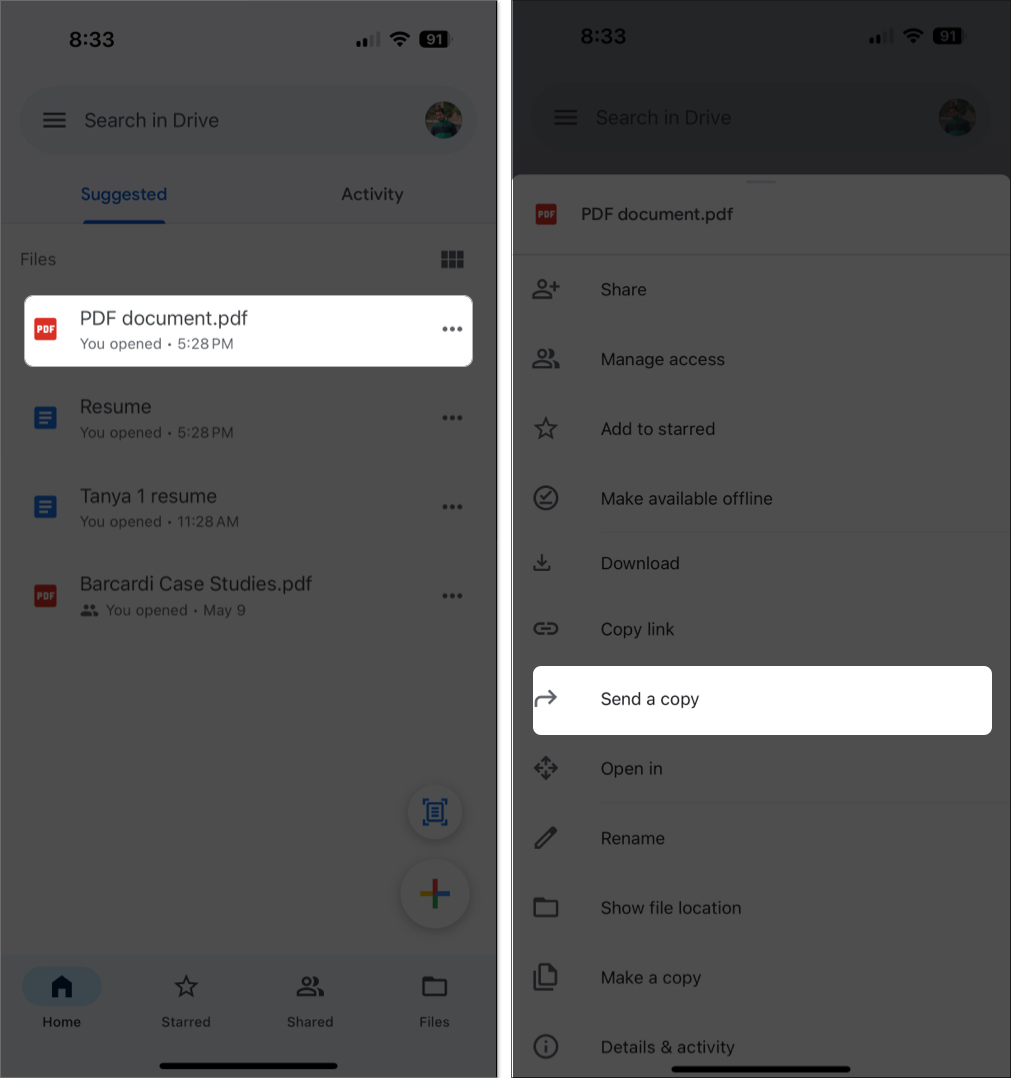
- Open the Google Drive app and locate the desired document.
- Tap the three-dot button next to the document’s name.
- Choose Send a copy or Open in.
- If you choose the Send a copy option, select your preferred format (PDF or Word), and the iOS share sheet will appear. If you choose “Open in,” the iOS share sheet will appear immediately.
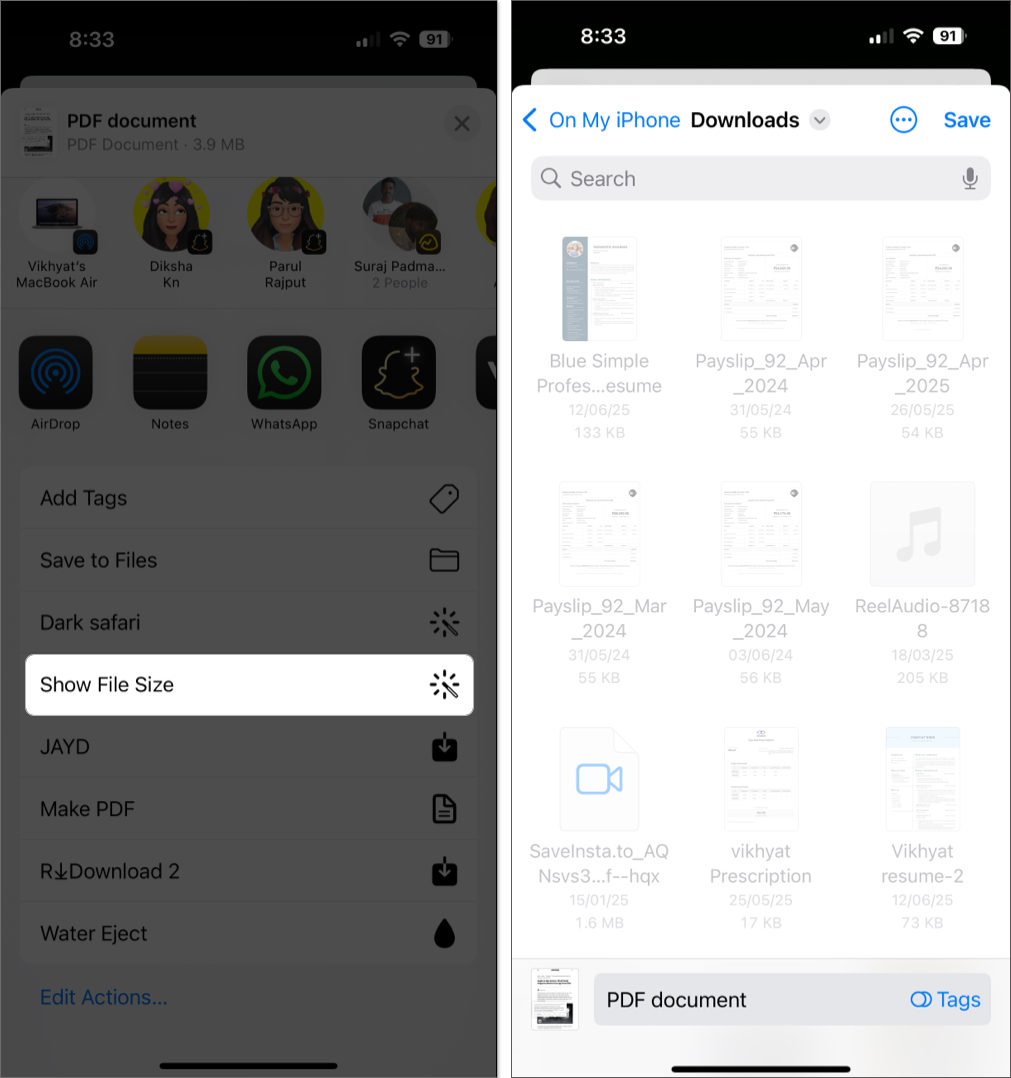
- Tap Save to Files on the iOS Share Sheet.
- Choose the save location and tap Save.
Bonus Tip: Add Google Drive to Files App on iPhone
Don’t want to manually export every time? Add Google Drive directly to your Files app:
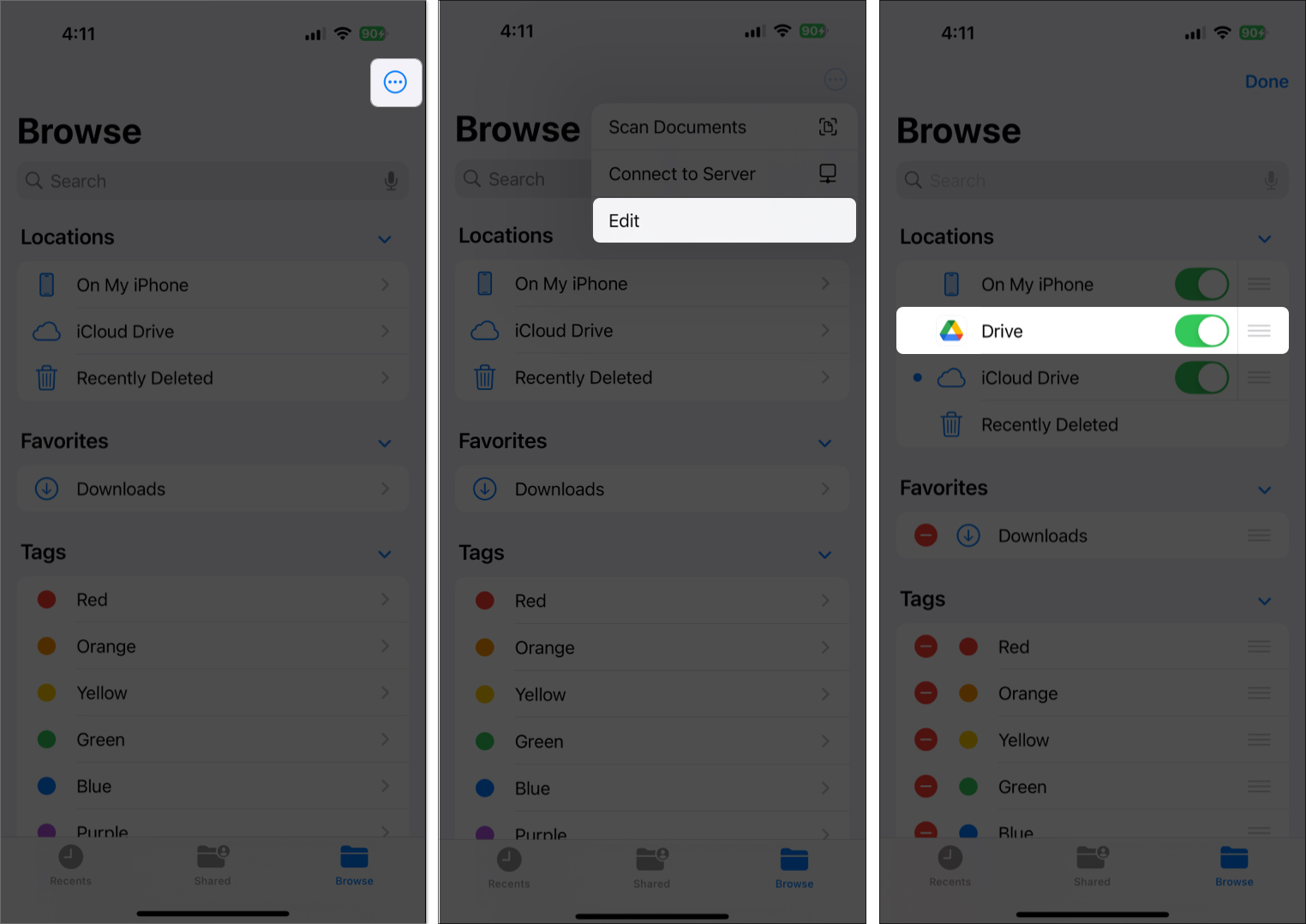
- Install the Google Drive app and sign in.
- Open the Files app and go to the Browse tab.
- Tap the three-dot icon at the top → Tap Edit.
- Finally, toggle on Google Drive and tap Done.
Now, you can access and move files between Google Drive, iCloud Drive, and your iPhone without leaving the Files app.
How to Find Saved Google Docs in the Files App
Not sure where the document went? Follow these steps:
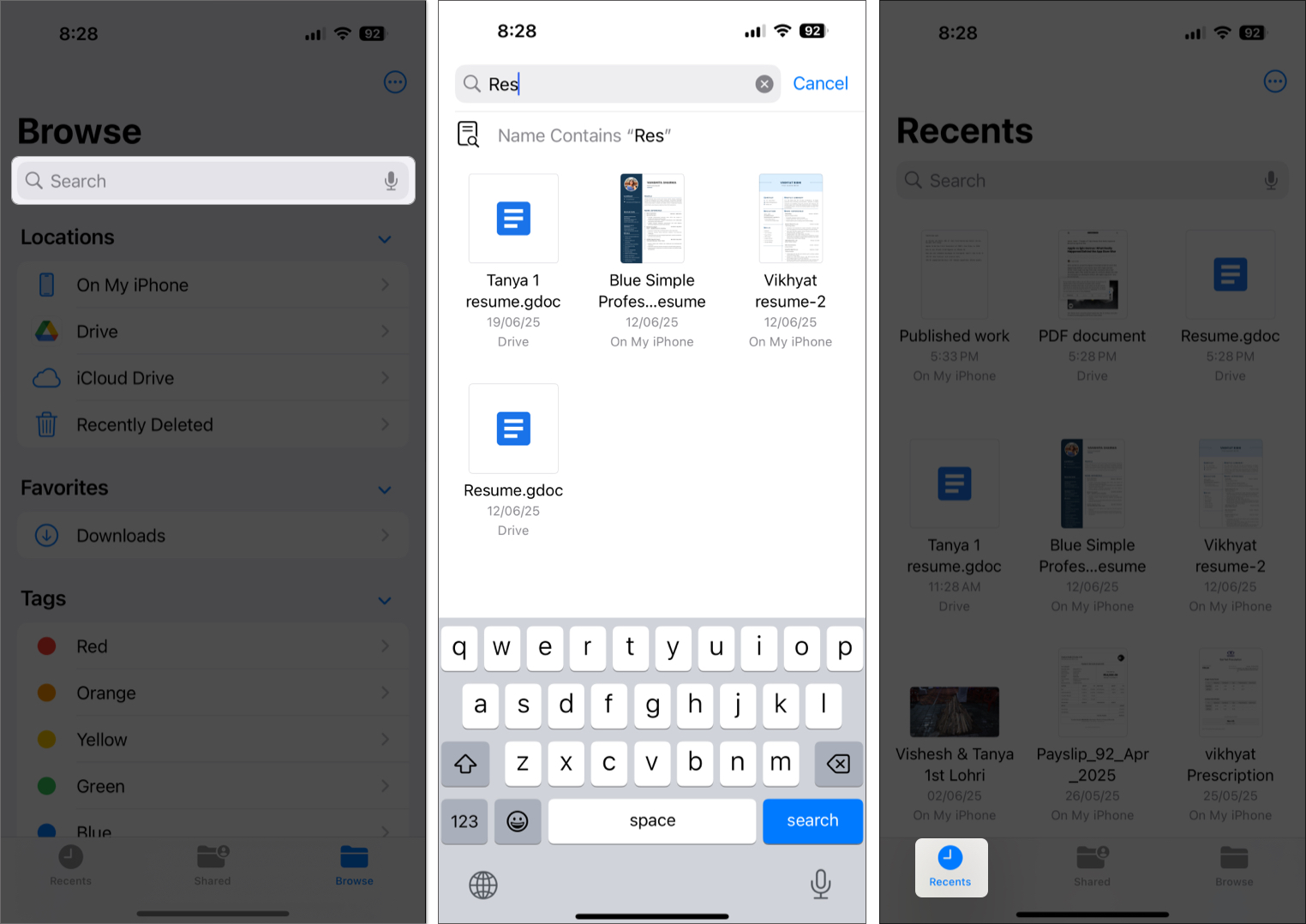
- Open the Files app and head to the Browse tab.
- Tap the Search Bar at the top and type the name of your document or part of its title to locate it quickly.
- If you don’t remember the document’s name or even a part of it, tap the Recent tab at the bottom right.
- Here, you’ll find the most recent documents you saved or interacted with in the Files app.
Pro Tip: Use colored tags or create folders to organize your saved Google Docs for easier access later.
Can You Edit Google Docs Saved in Files?
- If saved as a .docx file, you can open and edit it in Pages or Microsoft Word.
- If saved as a PDF, it will be view-only unless opened in a PDF editor like PDF Expert or Adobe Acrobat Reader.
Saved and Sorted!
Saving Google Docs to the Files app gives you more control over where and how your files are stored on iPhone. Whether you’re exporting them as a PDF or Word document, or accessing them offline, this method helps bridge the gap between Google’s ecosystem and Apple’s native tools.
Got stuck or have a question? Drop your query in the comments—we’re happy to help!
FAQs
Choose PDF for easy sharing or viewing with formatting intact. Go with .docx if you need to edit it later in Word or Pages.
Yes, because Google Docs is cloud-based, you must be online to download or export files. Once saved, you can access them offline.
Scroll to the bottom of the Share Sheet, tap Edit Actions, and add Save to Files to your quick actions.
Related articles worth reading:

- Google Drive not syncing or working on iPhone? 10 Fixes
- How to transfer photos from iPhone to external drive
- How to scan documents on iPhone with Notes and Files app