
FaceTime Like a Pro
Get our exclusive Ultimate FaceTime Guide 📚 — absolutely FREE when you sign up for our newsletter below.

FaceTime Like a Pro
Get our exclusive Ultimate FaceTime Guide 📚 — absolutely FREE when you sign up for our newsletter below.


With iOS 26, your AirPods can double as a wireless mic for video recording. No extra apps, no wires—just clearer audio for vlogs, social clips, and more.
If you vlog, record yourself outdoors, or film from a distance, you know how easily audio gets muffled or filled with background noise. Until now, the only fix was carrying an external microphone. But with iOS 26, you don’t need that anymore —your AirPods can work as a wireless microphone for iPhone video recording.
The same tech Apple uses to reduce background noise on calls now helps when you’re shooting video. No extra gear or wires needed. Just put on your AirPods, and your voice comes through crisp and clear, even while moving around.
For the first time, iOS 26 lets you use AirPods 4, AirPods Pro 2, or AirPods Pro 3 as a wireless microphone in the built-in Camera app. No hacks, no third-party apps required.
Here’s how to enable it:
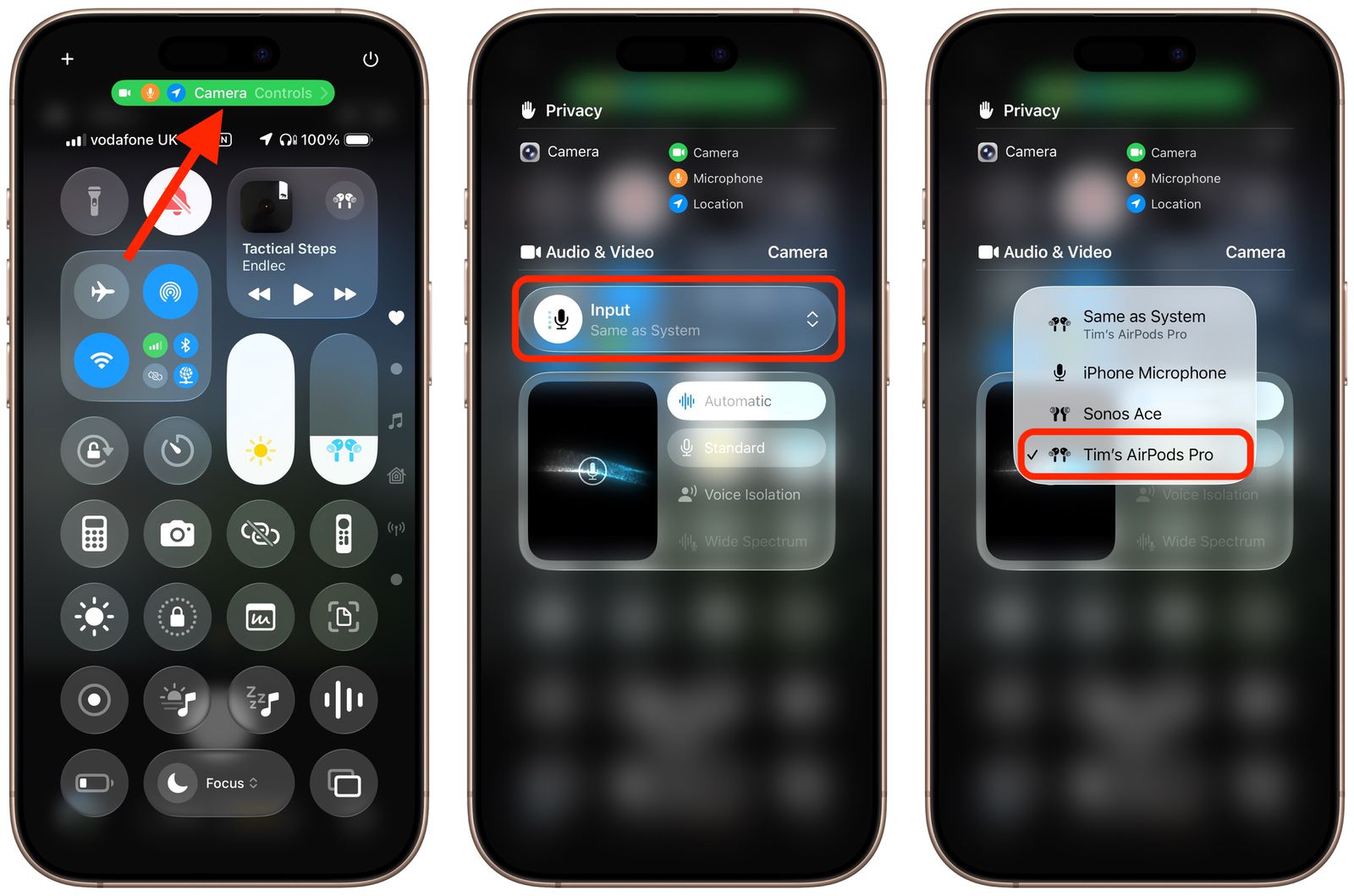
That’s it. Your AirPods now act like a lapel mic. Even better, you can start or stop recording with a press on the AirPods’ stem — perfect when your iPhone is on a tripod.
Apple gives you four microphone modes to fit different recording situations:
AirPods aren’t professional studio mics, so don’t expect broadcast-level quality. Still, for vlogs, TikToks, Reels, and casual videos, the convenience is unmatched.
This feature landed with iOS 26 in September 2025, which runs on iPhone 11 and newer, plus iPhone SE (2nd gen and later). That includes the latest iPhone 17 series too along with iPhone 17 Air.
Apple hasn’t rolled this out worldwide yet. As of launch, the feature is available in the US, UK, Canada, Australia, and most of Europe. Regions like India, parts of Asia, and some Middle Eastern countries don’t see it yet, so the option may be missing depending on where you are.
AirPods are not studio mics, so manage expectations. They’ll give you clearer audio than holding your phone far away, but they won’t replace a professional wireless lavalier setup. Still, for quick vlogs, social videos, and everyday recordings, the convenience is unmatched.
For years, you couldn’t use AirPods directly as a mic in the iPhone’s native Camera app. The system would always default to the iPhone’s built-in microphone. That meant creators had to look for workarounds. The solution came from third-party camera apps that supported Bluetooth microphones.
Apps like Filmic Pro, ProMovie, and Blackmagic Camera made this possible. The setup was straightforward but not built-in:
This worked decently for vlogs and casual content, though there were limits. Audio lag was common. And if you tried live streaming, platforms like YouTube, Facebook, or Instagram forced the built-in mic anyway. At best, AirPods could give you flexibility and a cleaner voice track compared to holding the phone far away.
Apple just turned a pair of everyday earbuds into a creator tool. With iOS 26, your AirPods become a wireless microphone for iPhone video — no wires, no extra gear, just a simple swipe and tap.
For everyday creators and casual vloggers, it’s a small but powerful update that changes the way you record forever.
Read More












