FaceTime Like a Pro
Get our exclusive Ultimate FaceTime Guide 📚 — absolutely FREE when you sign up for our newsletter below.

FaceTime Like a Pro
Get our exclusive Ultimate FaceTime Guide 📚 — absolutely FREE when you sign up for our newsletter below.


Lost your keys again? Your Apple Watch can now lead you right to your AirTag with Precision Finding. This guide includes setup steps, requirements, and tips for quickly tracking down lost items.
Apple continues to improve how its devices work together, and one of the latest updates brings a useful feature to your wrist. The Apple Watch can now help you locate nearby AirTags using Precision Finding, making it easier to track down lost items without pulling out your phone.
With this feature, you can use your watch to locate an AirTag attached to items, like your keys, backpack, or wallet, using haptic, visual, and audio feedback. Sounds good, right? In this guide, I’ll show you how to set up Precision Finding on Apple Watch and quickly find your AirTag 2.
Precision Finding is a tracking technology built into Apple’s ecosystem that helps you locate nearby items more accurately than traditional location tracking.
Normally, the Find My network can show the general location of a lost item on a map. For example, it may tell you that your keys are somewhere in your house. But Precision Finding goes a step further. It shows the exact direction and distance to the AirTag, guiding you step by step to it.
This technology relies on the Apple Ultra Wideband (UWB) chip, which allows devices to detect spatial awareness with high accuracy. In simple terms, it helps your device understand where another device is located relative to you.
Previously, Precision Finding was mainly available on compatible iPhone models. Now, the latest AirTag 2 boasts the 2nd-gen U2 Ultra Wideband chip, same as the Apple Watch Series 9 and iPhone 15 and later. It enables 1.5x the range of the older version and lets users enjoy a smart tracking experience directly from their wrist.
Before using Precision Finding on your Apple Watch, you need to make sure your devices meet a few requirements.
Usually, you go to the Find Items app on your watch to check the location of your devices or AirTags. However, it’s not the same for Precision Finding. The process of setting it up on your Apple Watch is a bit tricky, as the option is hidden in Control Center rather than in the Find Items app.
Follow these steps below:

That’s all! You will notice an icon indicating your item in the Control Center. Suppose your AirTag 2 is attached to your keys, so the tile will appear as a key with Find My signs. This helps you quickly identify items when searching.
Once you have added your AirTag to your watch Control Center, the rest of the process is easy. When you need to find the item:
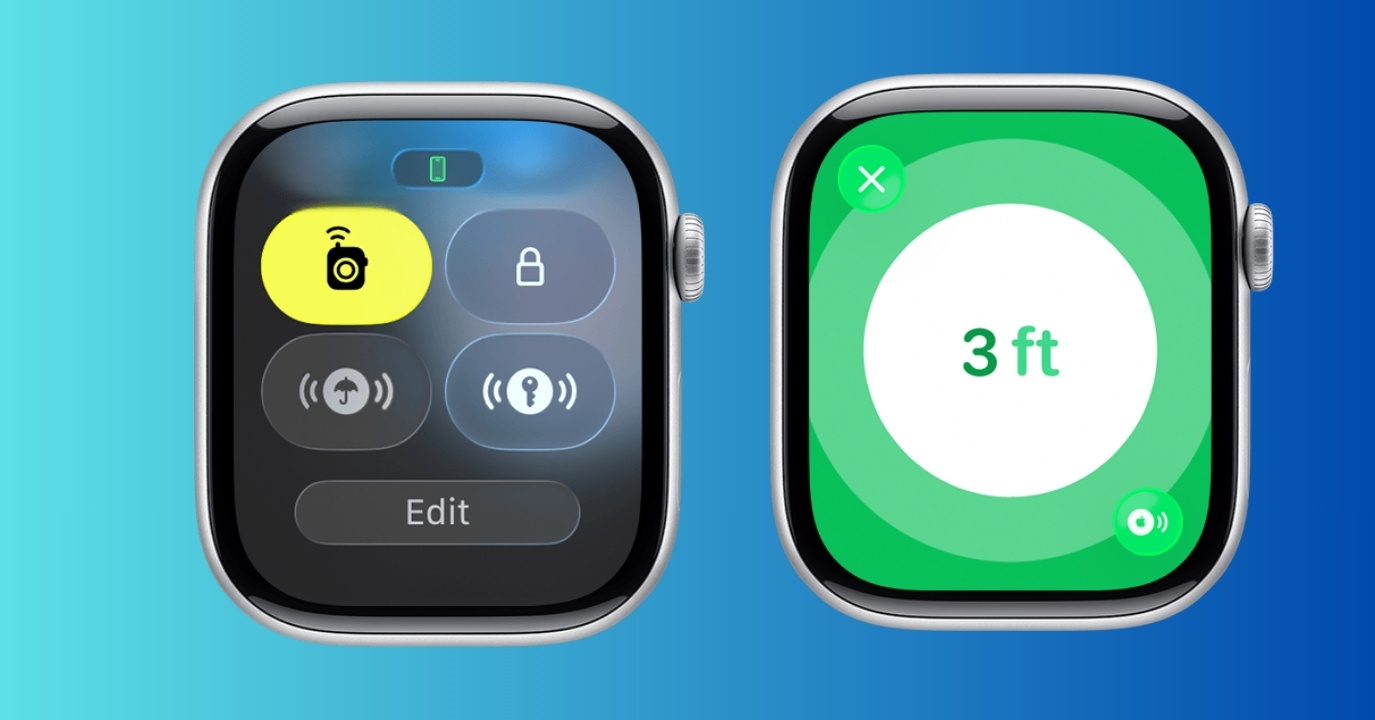
Precision Finding on Apple Watch is helpful in many everyday situations.
This feature is also convenient when pulling out your iPhone isn’t practical. Since the watch is always on your wrist, you can start searching instantly.
Sometimes, Precision Finding may not appear or work as expected on your Apple Watch. Fortunately, most issues are easy to fix.
| Issues | Solutions |
|---|---|
| AirTag doesn’t appear on the Apple Watch | Make sure your iPhone and Apple Watch are connected and signed into the same Apple Account. Restart both devices. |
| Precision Finding doesn’t appear | This feature only works when the item is within 27 feet. Also, ensure your devices are running the latest versions of iOS and watchOS |
| Devices not updating location | Check if Wi-Fi, Bluetooth, Location Services, and Find My are enabled. AirTag must have enough battery. |
Note that the feature is not available on Apple Watch SE models.
If you often misplace small but important items, Precision Finding on Apple Watch can be a very helpful tool. With just a few taps on your watch, you can quickly locate your AirTag 2 and get back to your day without reaching for your phone.
This feature. The setup only takes a few minutes and adds convenience, making everyday situations less stressful. If you found this guide helpful, consider sharing it with friends or family who use Apple devices. You can also explore some more practical ways to use AirTags in daily life.
FAQs
No. Only Apple Watch Series 9 and later, and Apple Watch Ultra 2 and later models running iOS 26.2.1, can use Precision Finding. Older models may still show the AirTag’s location in the Maps in Find Items app, but won’t provide directional guidance.
Yes. Your Apple Watch must remain paired with an iPhone that is connected to the same Apple ID. The iPhone helps manage the connection to the Find My network.
Precision Finding is extremely accurate when you are close to the AirTag. It can guide you within a few feet of the item using directional arrows, distance tracking, and haptic feedback.