FaceTime Like a Pro
Get our exclusive Ultimate FaceTime Guide 📚 — absolutely FREE when you sign up for our newsletter below.

FaceTime Like a Pro
Get our exclusive Ultimate FaceTime Guide 📚 — absolutely FREE when you sign up for our newsletter below.


If you struggle with your oversized phone, this mode makes the interface comfortable to use with one hand.
In recent years, bigger smartphones have become the norm. While larger screens are great for watching videos, gaming, and multitasking, I find it difficult to use my phone with one hand. Reaching the top of the screen or accessing certain controls always required me to adjust the position of my hands, slowing down, or risking a drop.
To solve this problem, Android includes a hidden one-handed mode gesture that makes the screen easier to reach. In this guide, I’ll show you how to enable and use one-handed mode to make large-screen Android phones much more comfortable to use.
Android’s one-handed mode is one of those features that sounds trivial until you actually use it. Instead of forcing your thumb to stretch across a massive display, it brings the entire interface down into reach, fundamentally improving how you use your phone.
It literally shrinks the usable portion of your screen and positions it toward the bottom half. That means notifications, menus, search bars, everything you normally struggle to reach, suddenly become accessible without adjusting your grip.
What surprised me most is how seamless it feels. I can just activate it with a simple gesture, and the UI shifts across most apps without breaking layouts or interactions.
The process is easy, and once you set up the one-handed mode, you can enable it with a gesture.
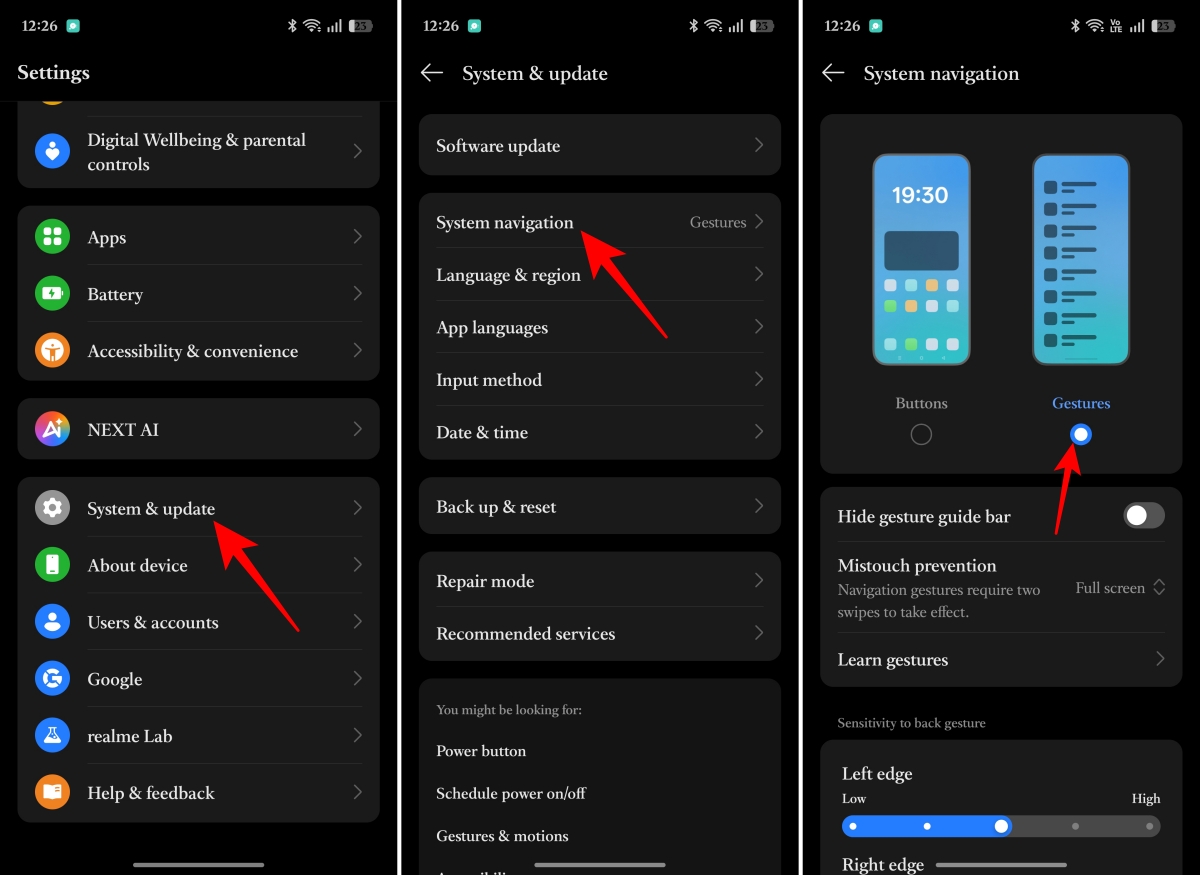
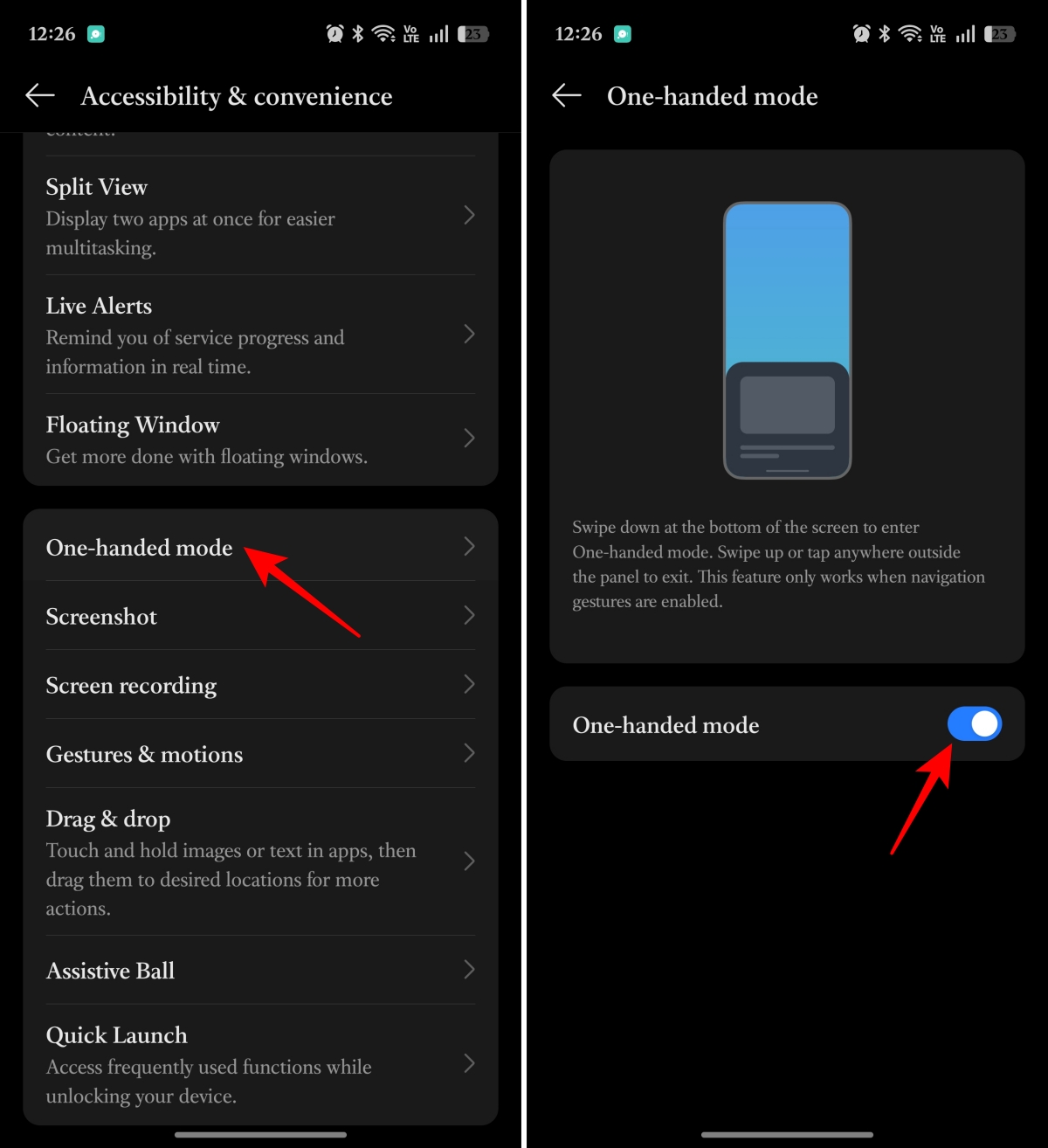
On Pixel devices, the step will be: Settings > System > Gestures > One-handed mode, and turn it on. For Samsung OneUI, go to Settings > Advanced Features > One-handed mode and enable it. You can also customize how to activate it.
Note that the exact steps may be different based on your phone. If you can’t find the option, open Settings and type One-handed mode into the search bar.
Once enabled, you can activate it with a simple downward swipe near the bottom of the screen. The screen instantly drops into reach, and exiting it is just as easy: tap outside or swipe up.
Truthfully, my initial impression was that the screen was distorted since I wasn’t getting a full-screen experience.
But after a few hours, that discomfort disappeared, and usage became smoother. I stopped stretching my thumb, adjusting my grip, and thinking about how I was holding my phone. That’s when it became addictive. Not in a flashy, exciting way, but in a quiet, practical way.
Also, the gesture navigation helps to go back by swiping in from either edge of the screen. So, I don’t need to go all the way down to tap the back button in the navigation bar. The same applies to going to the home screen or opening recently used apps. Moreover, the entire bottom region becomes viable app space in the absence of the fixed button bar.
Shrinking the screen isn’t the only way to make a big phone easier to use. After testing different Android settings, I found a few tweaks that made everyday use feel much more comfortable.
This is honestly the tweak I ended up using more than Android’s actual one-handed mode.
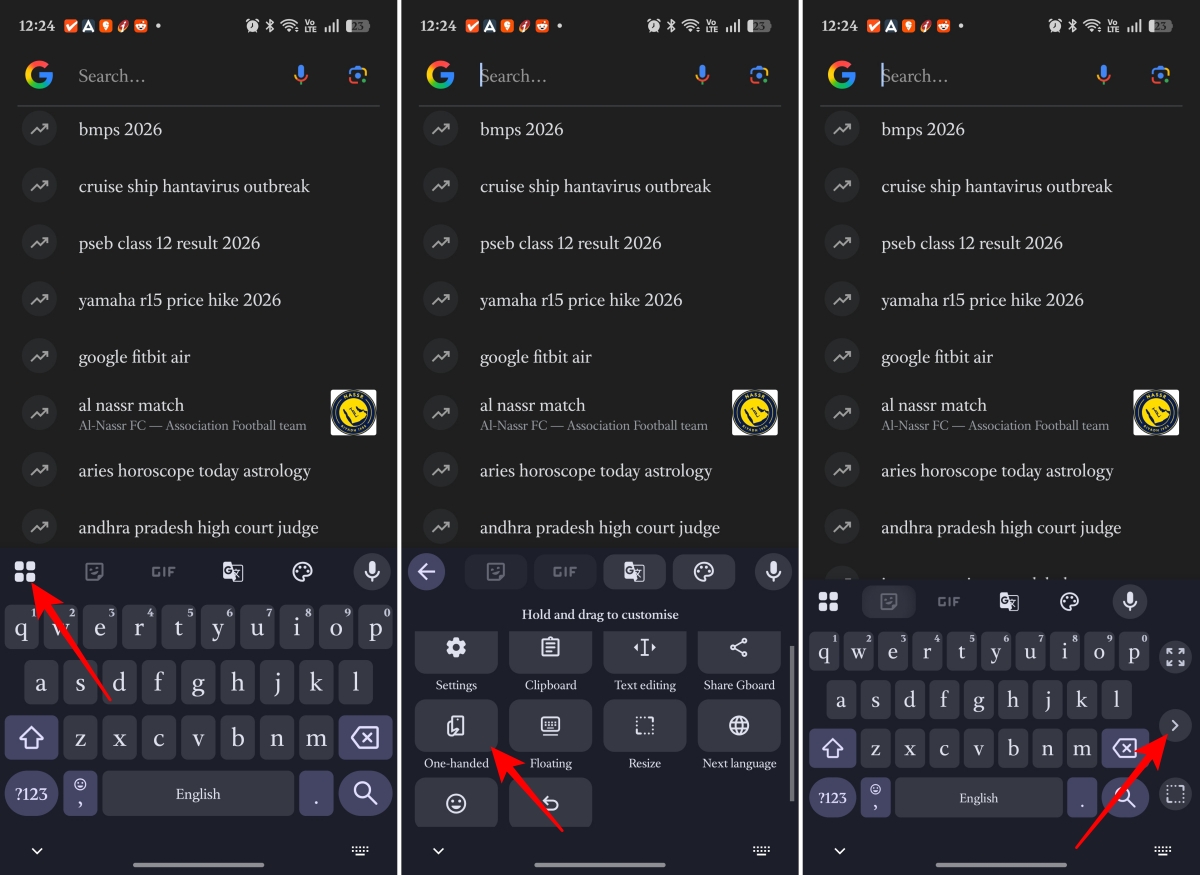
Keyboard apps like Gboard and Microsoft SwiftKey enable you to scale down the keyboard and move it nearer to your thumb. So, there will be no need to extend all the way across the screen to hit the keys.
On Gboard:
Dense home screen layouts make big phones feel even bigger. Switching from a tighter 5×6 grid to something like 4×6 immediately brought icons lower and accessible to my thumb. It additionally decreased unintentional touches since apps were not packed tightly together.
You can usually find this option under Home screen settings > Home screen layout and choose a larger icon layout. This sounds minor, but it changes how reachable your phone feels all day long.
After reorganizing my home screen, I stopped reaching the top half of the display nearly as often.
I now keep the Google search bar, WhatsApp, Chrome, Camera, Notes, and my office apps within the bottom two rows or dock area. That way, the apps I use most stay naturally within thumb range.
Some apps already have built-in reachability tricks that are easy to miss.
For example:
One-handed mode is not meant for default, as you can’t enjoy the reels or content in a half-screen. Here are some situations when I resort to it.
This is where it clicked for me.
Usually, I slow down or stop when replying to messages because typing one-handed is already hard enough. Checking notifications, using Maps, or navigating the UI makes it worse.
With one-handed mode, I didn’t need to shift my grip or use my second hand. Everything was just reachable.
I noticed this most at home. Holding a cup of coffee, cooking, carrying something, these are moments where you don’t want to fully engage with your phone, but you still need quick access.
Before, I’d either awkwardly juggle items or ignore my phone entirely. Now, I can quickly check messages, scroll, or tap through apps without breaking my flow.
If you have smaller palms, modern phones seem too big for grip.
One-handed mode doesn’t fix the size of your phone, but it fixes how you interact with it. And that distinction matters.
Instead of forcing your hand to adapt to the device, it adapts the interface to your hand. For me, it made my large phone feel practical again.
What surprised me most was the significance of gesture navigation in this context. With the combination of one-handed mode together with swipes, everything felt fluid and intentional. This universal gesture is so good that I wish iOS 27 takes the cue from Android.
I also assumed apps would break or look weird in this mode, but most of them handled it perfectly. Lastly, this mode isn’t just about convenience; it actually reduces strain. I didn’t notice how often I was stretching or readjusting my grip until I stopped doing it.
However, typing long messages still feels cramped. Landscape mode is basically useless here. And yes, there’s a tiny delay when activating it that can feel slightly clunky.
Even some power users argue it’s not the best solution. Alternatives like cursor-based navigation can feel smoother and less disruptive than shrinking the screen
I’ve tested a lot of Android features over the years, and most of them are either impressive but forgettable or useful but rarely used. This one is different. It doesn’t look exciting with flashy demos or marketing hype. But it solves a real, everyday problem in a way that actually sticks.
If you struggle with your phone’s size, grip, or reaching the top of the screen, try the one-handed mode today. And let me know how you liked it.
You may like to read: