FaceTime Like a Pro
Get our exclusive Ultimate FaceTime Guide 📚 — absolutely FREE when you sign up for our newsletter below.

FaceTime Like a Pro
Get our exclusive Ultimate FaceTime Guide 📚 — absolutely FREE when you sign up for our newsletter below.


Telegram uses many icons and symbols that can be confusing at first. Here’s what they actually mean and how to understand them easily.
 ByVikhyat
If you’ve been using Telegram for chats, channels, groups, or bots, you’ve probably noticed dozens of tiny icons across the app. From single ticks and double ticks to lock symbols, mute icons, and secret chat indicators, Telegram uses visual symbols everywhere to communicate actions and statuses quickly.
The problem is that many of these symbols are not self-explanatory. Some icons look similar, while others change depending on your device, chat type, or Telegram Premium features.
This post details the meaning of the most common Telegram icons and symbols in 2026.
Here are the icons and symbols you’ll mostly come across while chatting with someone directly or inside Telegram groups:
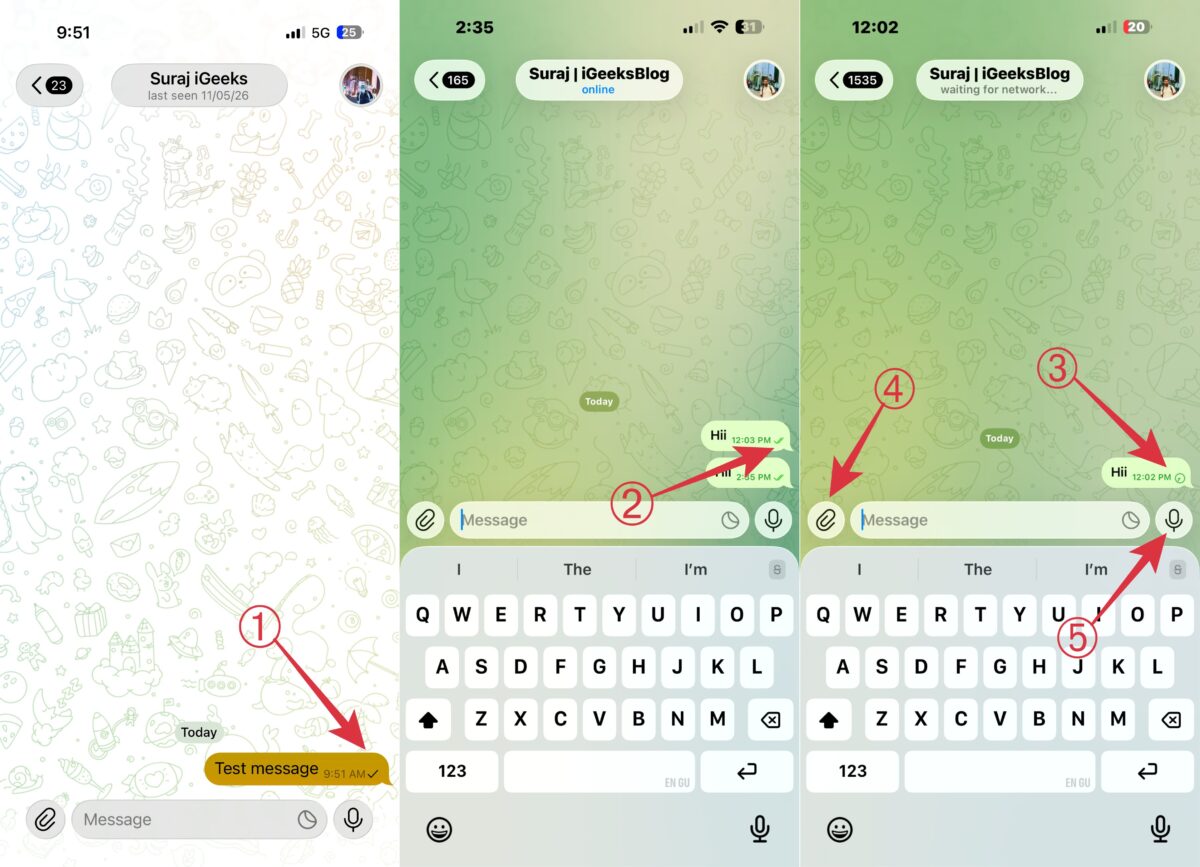
A single check mark means your message has successfully reached Telegram’s servers, but the recipient hasn’t viewed it yet. The person may be offline, inactive, or simply hasn’t opened the conversation.
Double check marks indicate that the recipient has opened the chat and seen your message. Unlike WhatsApp, Telegram doesn’t change the color of the check marks after messages are read.
If you see a small clock icon beside your message, Telegram is still trying to send it. This usually happens because of weak internet connectivity, airplane mode, slow mobile data, or large media uploads.
I’ve personally noticed this icon appear more often while sending videos or large files on mobile data, which is why basic Telegram tips like checking upload status and connection quality can actually save a lot of confusion.
Once the message uploads successfully, the clock icon changes into a check mark automatically.
The paperclip icon opens Telegram’s attachment menu. From here, you can share:
Telegram supports much larger file uploads compared to most messaging apps, which makes the attachment feature particularly useful.
Pressing and holding the microphone icon lets you instantly record and send voice messages. Telegram also supports playback speed controls for audio messages, including 1x, 1.5x, and 2x speeds.
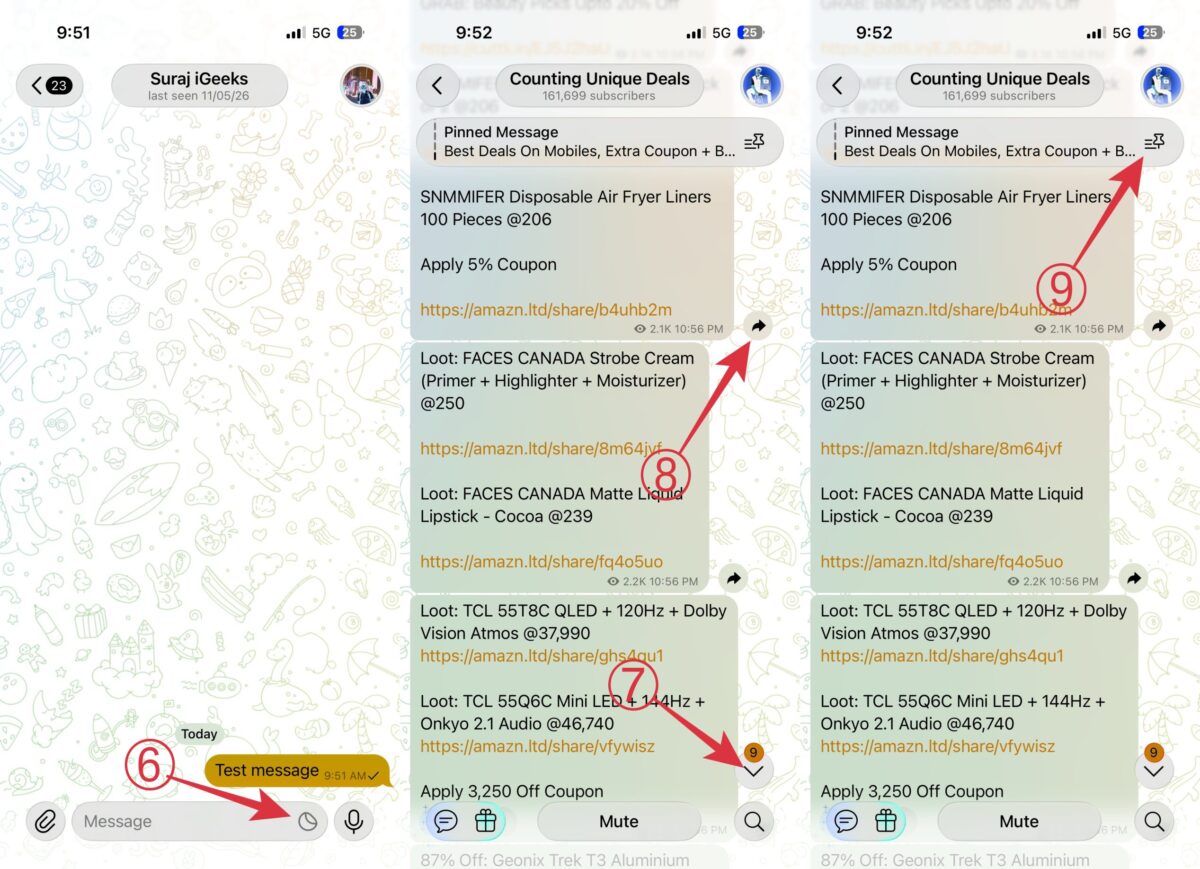
This icon appears on the right side of the text field. Tapping it opens the emoji icon, which opens Telegram’s emoji, GIF, and sticker section. Users can browse reactions, search for GIFs, and send stickers directly from this panel.
On Android and iPhone, the emoji icon may look slightly different because of platform-specific UI designs.
Telegram may show a downward arrow with a number while scrolling through conversations. The number represents unread messages remaining below your current position.
Tapping the arrow instantly jumps to the latest unread message.
The right arrow icon is used to forward messages. It allows users to quickly share messages, media, or posts with another chat, group, or channel.
Groups and channels can pin important announcements so they stay visible at the top of the conversation. Tapping the pin icon with horizontal lines displays all pinned messages inside that group or channel.
Telegram’s main chats screen also includes several important symbols that help users identify notifications, pinned chats, and account status quickly.
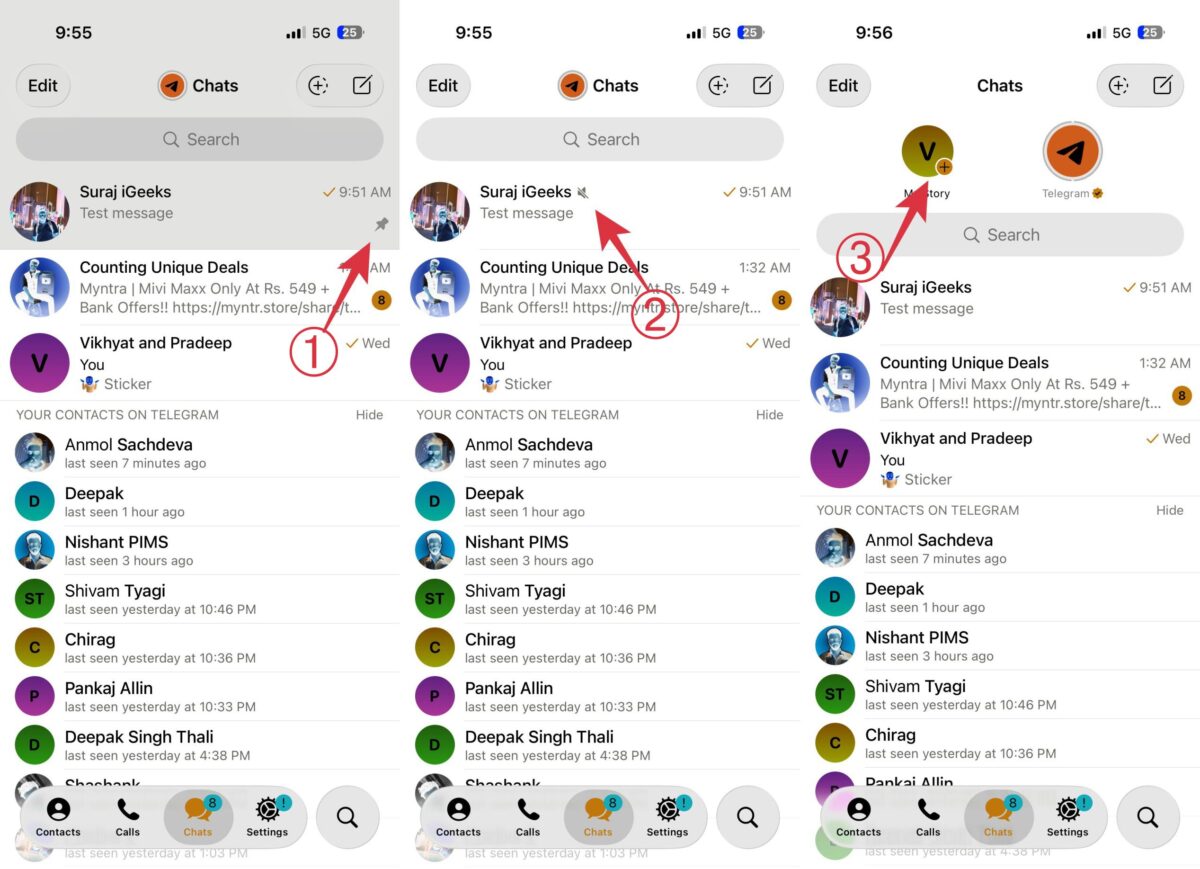
If a chat has a pin icon beside it, that conversation has been pinned to the top of your chats list. Pinned chats remain at the top regardless of how many new messages appear in other conversations.
A speaker icon with a line through it means that particular chat has been muted. You’ll still receive messages normally, but Telegram won’t send notification sounds or alerts for that conversation.
Many users mute:
Telegram now supports Stories for all users, and you may notice a plus icon near the Stories section. Tapping it lets you upload and share Stories, similar to Instagram Stories or WhatsApp Status.
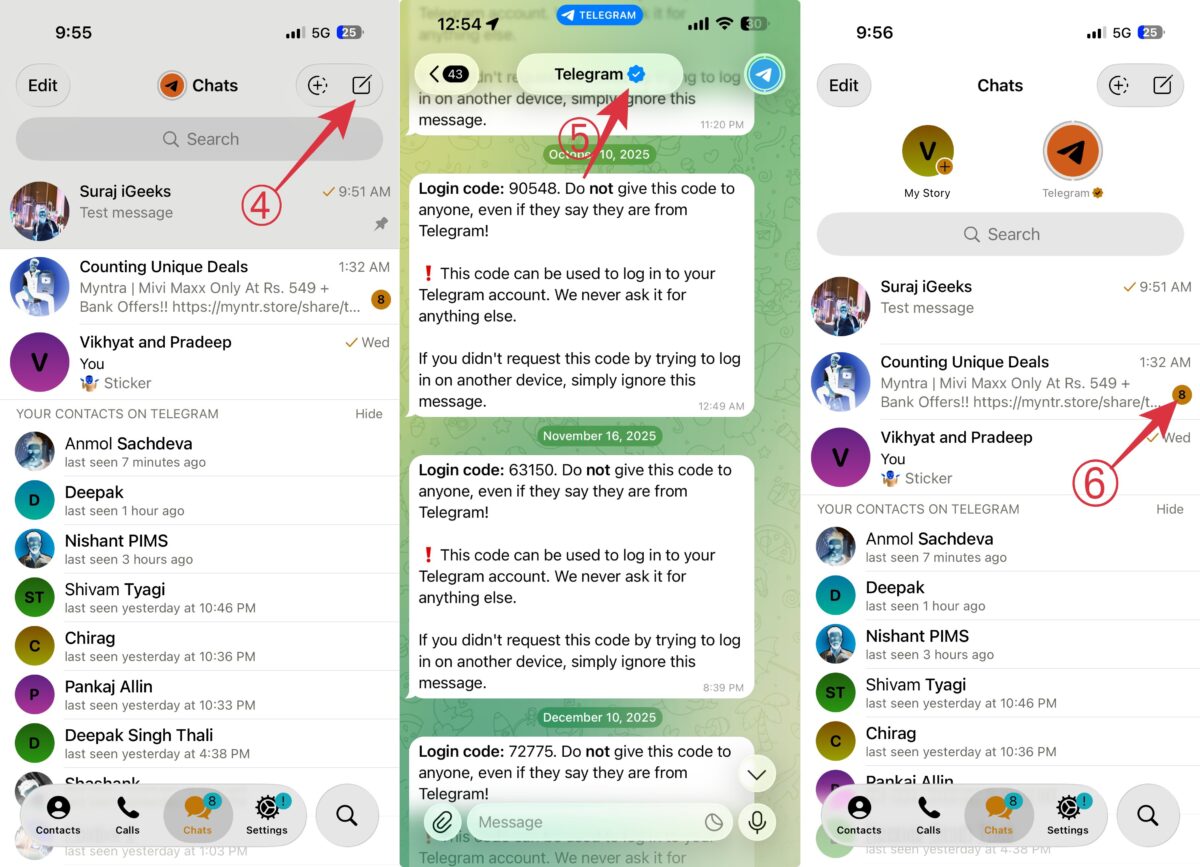
The floating pencil icon usually appears in the bottom corner of the chat screen. Tapping it lets users:
The blue verification badge helps users identify authentic creators, brands, public figures, and organizations on Telegram.
A blue dot beside a chat usually indicates unread activity or unread messages inside that conversation.
Apart from regular chat icons, Telegram also includes several additional indicators across different sections of the app.
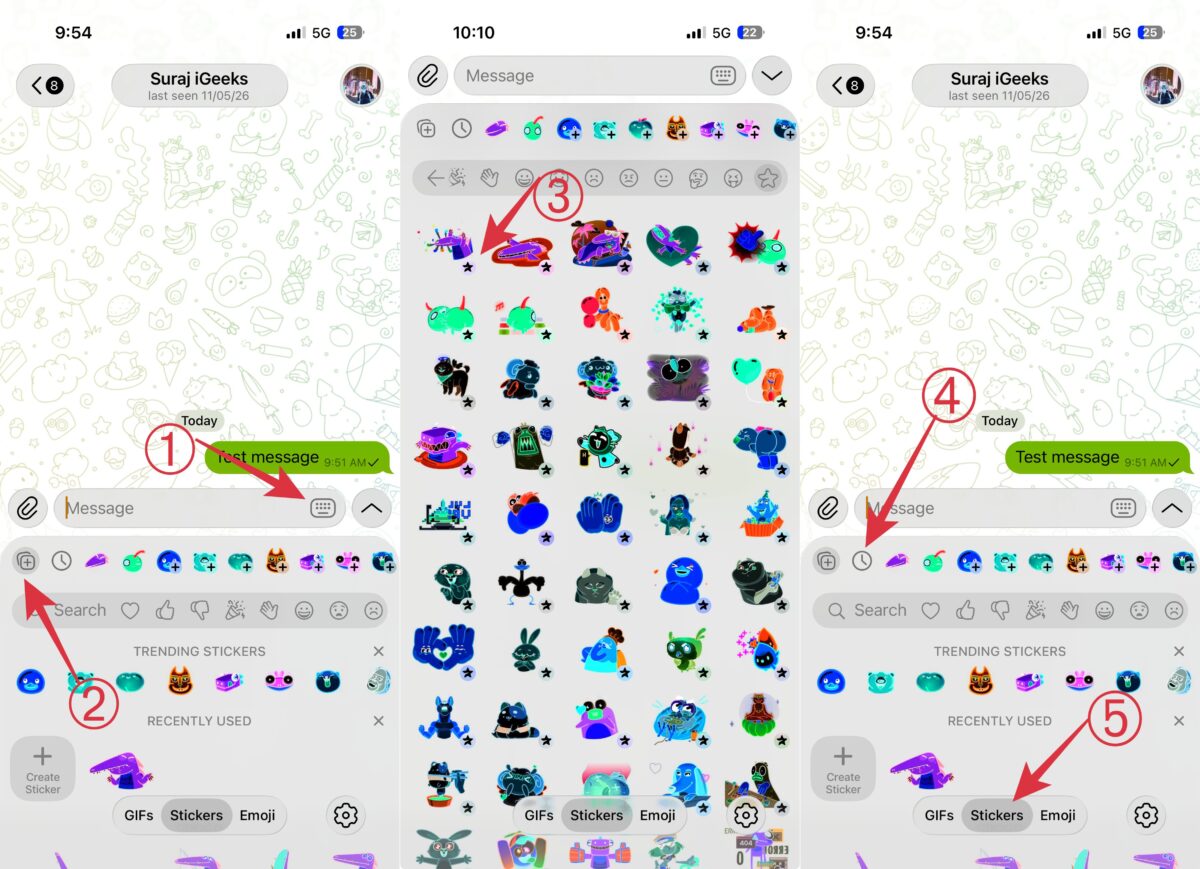
Inside the emoji panel, the keyboard icon switches you back to the regular typing keyboard.
Telegram shows multiple plus icons inside the emoji and sticker panel. Depending on where it appears, the icon may let you:
A star icon usually represents Telegram Premium features. Some emoji packs, reactions, and animated effects are only available to Premium subscribers.
Telegram Premium users may also have a star badge beside their profile names.
If you notice a small clock icon inside the emoji section, tapping it reveals your recently used emojis and stickers for quicker access.
The cross icon inside the emoji history section clears recently used emojis and stickers from your history.
If Telegram cannot upload a message after multiple attempts, you may see a red exclamation mark beside it. This means the message failed to send successfully.
I’ve also noticed this happen occasionally while trying to send disappearing messages, especially with larger media files or unstable mobile data connections.
Tapping the message usually gives you the option to resend it.
The eye icon represents view counts. The number beside it shows how many people viewed a particular message, Story, post, or media file.
This icon commonly appears in:
Telegram uses icons and symbols throughout the app to simplify messaging, notifications, media sharing, and navigation. Once you understand what these symbols mean, using Telegram becomes much easier and less confusing.
Since Telegram frequently updates its interface and features, some icons may evolve over time. Keeping the app updated ensures you always see the latest Telegram UI and symbols correctly.
Did we miss any Telegram icon or symbol that recently appeared in the app? Drop it in the comments, and we’ll update this guide with its meaning.
You may like to read