FaceTime Like a Pro
Get our exclusive Ultimate FaceTime Guide 📚 — absolutely FREE when you sign up for our newsletter below.

FaceTime Like a Pro
Get our exclusive Ultimate FaceTime Guide 📚 — absolutely FREE when you sign up for our newsletter below.


I replaced my scanner app with Google Drive's built-in document scanner. Learn how it automatically scans, edits, backs up, and saves documents as PDFs.
 ByVikhyat
Every time I had to scan a document, my first move was always the same: open a scanner app, capture the page, adjust the corners, and export it as a PDF. It worked, so I never really questioned keeping another app installed just for scanning documents.
But most of my scans never needed all those extra tools in the first place. I usually just wanted a clean digital copy I could save or share quickly, and Google Drive already had the scanning features I needed.
It does much more than simply take a picture of a document. Drive can detect pages automatically, fix the edges, scan multiple documents together, and save the final copy as a PDF without relying on another app.
Here’s everything you need to know about Google Drive’s built-in document scanner.
Google Drive’s scanner removes the most annoying part of scanning with a phone: getting the perfect shot.
Once you open the Google Drive app, tap the Scanner button and point your camera at a document. Drive automatically detects the page, identifies the edges, and captures the scan without needing you to press the shutter button every time.
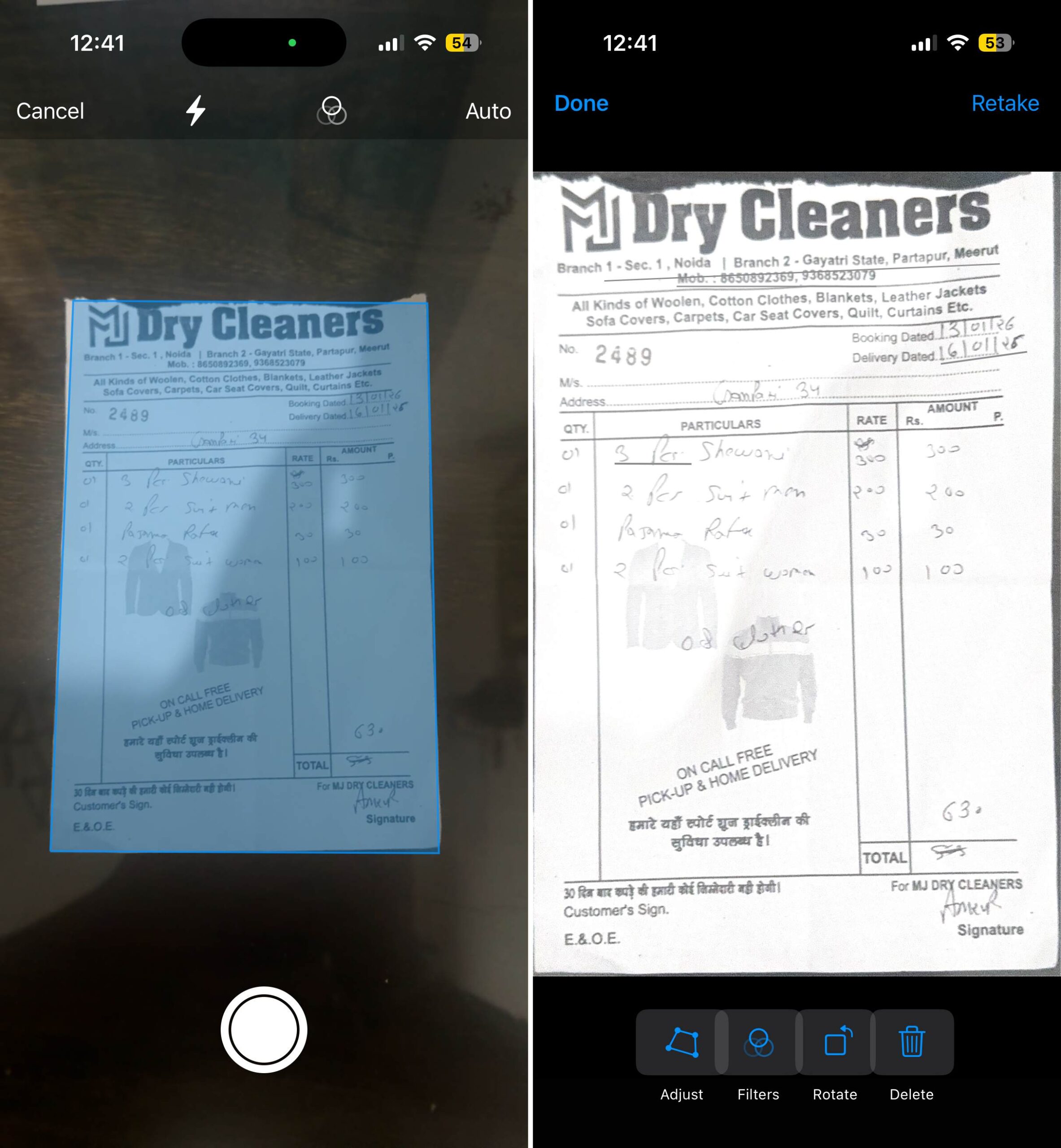
After capturing the document, it automatically crops the extra background and improves the scan so it looks cleaner than a regular camera photo.
You can still adjust the edges manually, rotate the document, or retake the scan before saving if something doesn’t look right.
Scanning a single document with your phone is nothing new, but Google Drive’s scanner becomes more useful when you have several documents to digitize. Instead of capturing and adjusting every document separately, you can place multiple documents in front of your camera and scan them together.
Drive automatically detects each document, separates them into individual scans, crops the edges, and organizes everything for you. This removes the repetitive work of scanning documents one by one and makes it much faster to convert a stack of physical paperwork into digital files.
Google Drive does not save the scan immediately after capturing it, which gives you a chance to fix things before creating the final file. If the automatic scan misses something or a page does not look right, you can make adjustments without starting the whole process again.
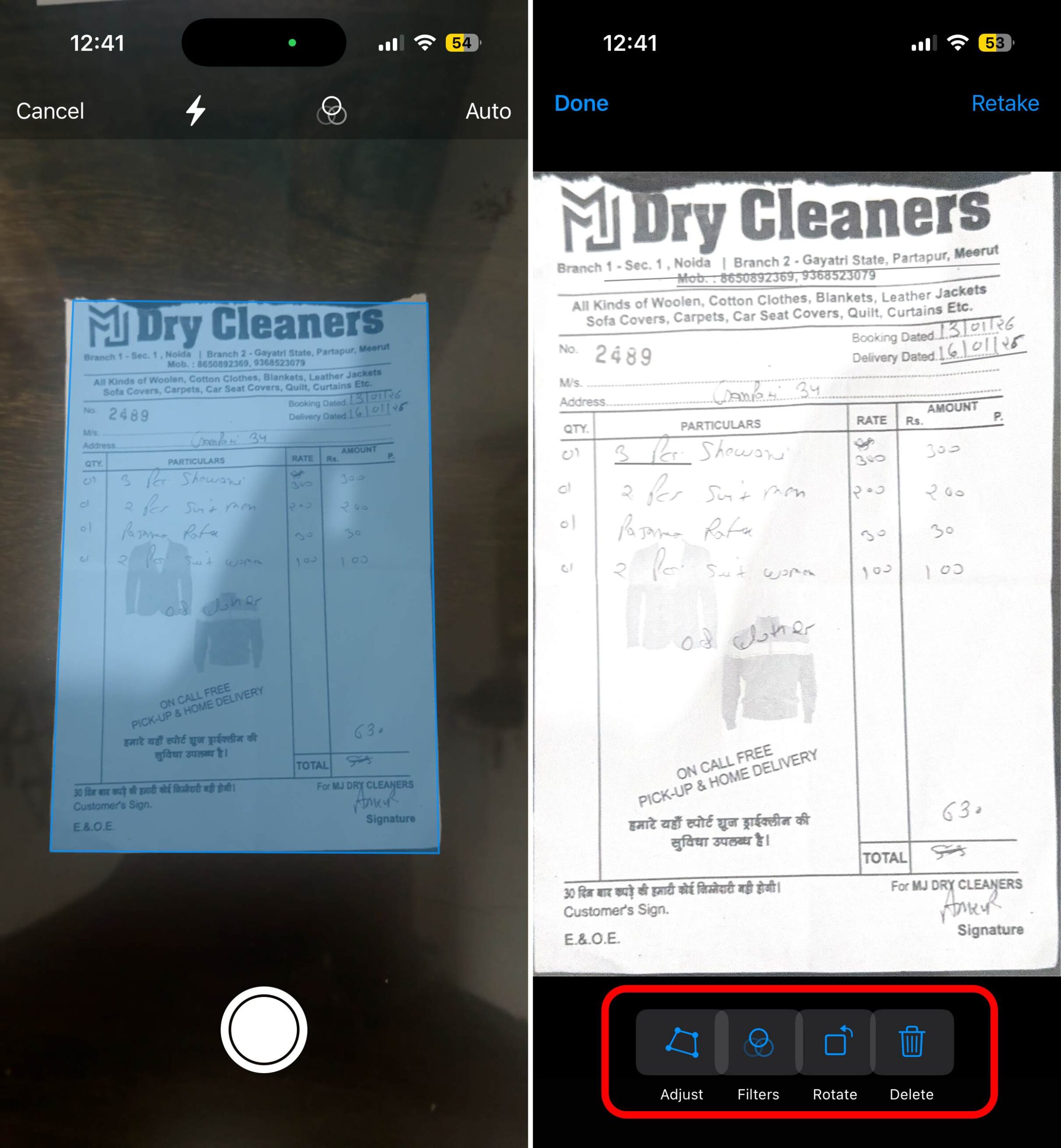
You can fine-tune the edges, rotate a page that was captured in the wrong orientation, retake a specific scan, or adjust the final look of the document. It keeps the editing options simple, but they cover the changes you usually need before saving a scanned copy.
Once your documents are scanned and adjusted, Google Drive saves them directly as PDF files. You do not have to capture images first, move them into another app, or use a separate PDF converter to create a shareable document.
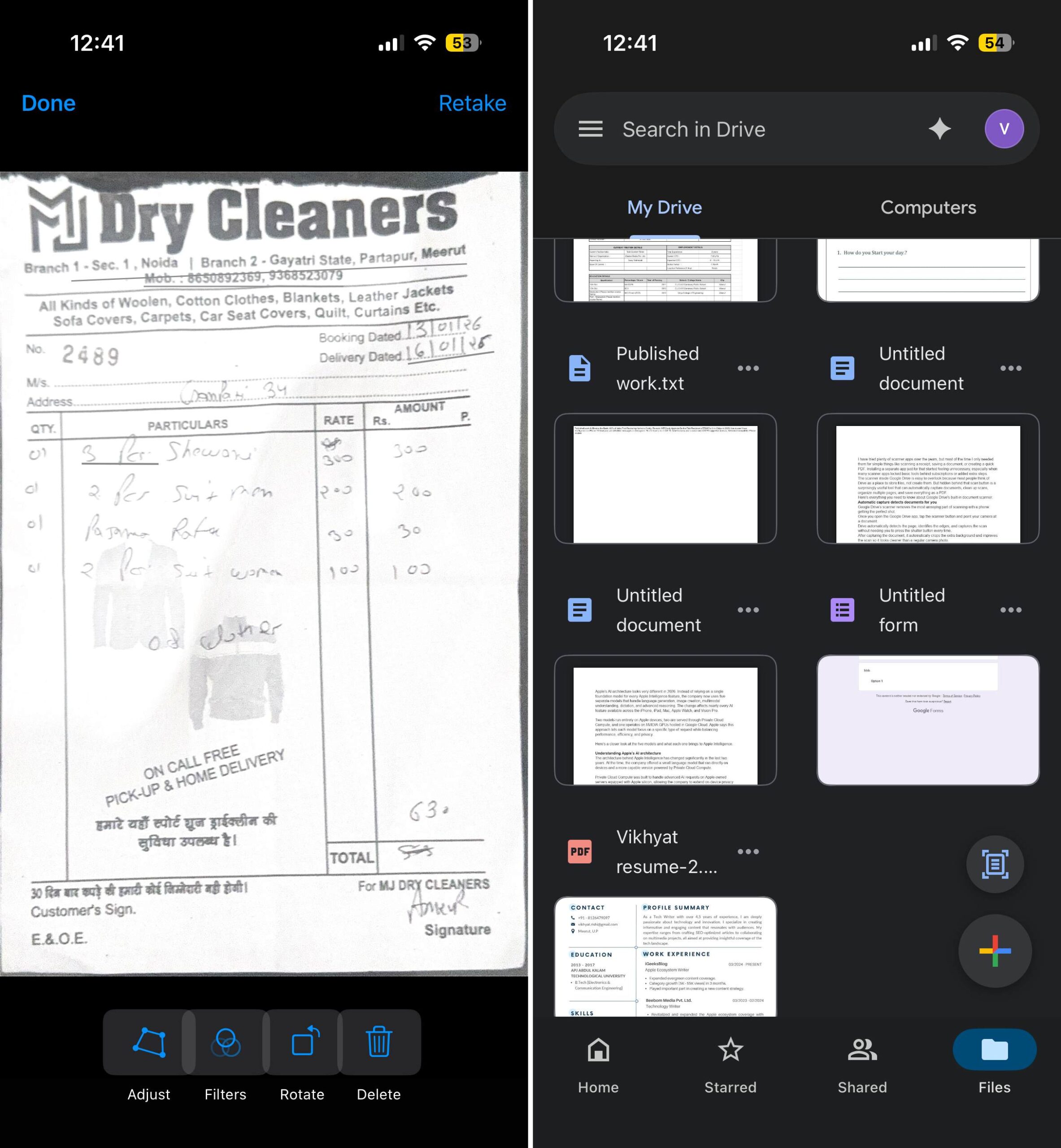
Since the scanner is part of Google Drive, every document you save is stored in your cloud storage.
You can scan something from your phone and access the same PDF later from another device. Since everything is synced through your Google account, your documents are available whenever you need them without manually transferring files.
It also makes organization easier because scanned files can be renamed, moved into folders, starred for quick access, and shared like any other Drive document. This keeps important paperwork organized and easy to find, whether it’s a receipt, invoice, contract, or handwritten notes.
Google Drive’s scanner covers more than I expected from a feature built into a cloud storage app. It takes care of the entire process, from detecting the document and adjusting the scan to saving everything as a PDF that is already available with my other files.
There will always be dedicated scanning apps with more advanced editing options, but I do not need those tools for every document I scan. For quick paperwork, Drive removes the extra steps and keeps the whole process simple.
I’m curious: how do you usually scan documents from your phone? Do you use a separate scanner app, or is Google Drive enough for you? Let me know in the comments.