FaceTime Like a Pro
Get our exclusive Ultimate FaceTime Guide 📚 — absolutely FREE when you sign up for our newsletter below.

FaceTime Like a Pro
Get our exclusive Ultimate FaceTime Guide 📚 — absolutely FREE when you sign up for our newsletter below.


Learn how to use Gemini to find Android apps with natural language prompts and discover the best apps directly from Google Play without manual searching.
Every time I need an Android app, my instinct tells me to open the Play Store and begin my search there. Then scroll through dozens of apps, check their reviews, and look for recommendations online. This process works just fine, but it’s rather inefficient. The problem is that the Play Store expects me to know exactly what I’m looking for.
Google’s new Gemini integration with Google Play aims to change that. Instead of searching with keywords, you simply describe what you need in natural language, and Gemini recommends apps while pulling listings directly from Google Play. Here’s how I used Gemini to find Android apps.
Google recently previewed a new Google Play Connected App inside Gemini at I/O 2026. Once enabled, Gemini can access relevant Google Play information such as search results, app library details, and purchase eligibility to recommend the perfect apps.
At first glance, it sounds like a small addition. In reality, it changes one of Android’s oldest habits: searching for apps. Normally, searching the Play Store means reducing your needs into a few keywords. The Play Store then returns hundreds of results based largely on keywords, popularity, ratings, downloads, and sponsored ads.
Gemini approaches the same problem differently. Instead of searching keywords, you describe what you actually want. For example, I asked Gemini that I need a free PDF editor that works offline. It understands the request, explains its recommendations, and displays Google Play listings. Tapping the app card sends you directly to the installation page.
It feels less like using a search engine and more like asking someone who already knows the Play Store inside out.
The first thing I had to do was enable the feature. I have tested it with my Gemini Pro account. It’s still rolling out on other Gemini slabs.
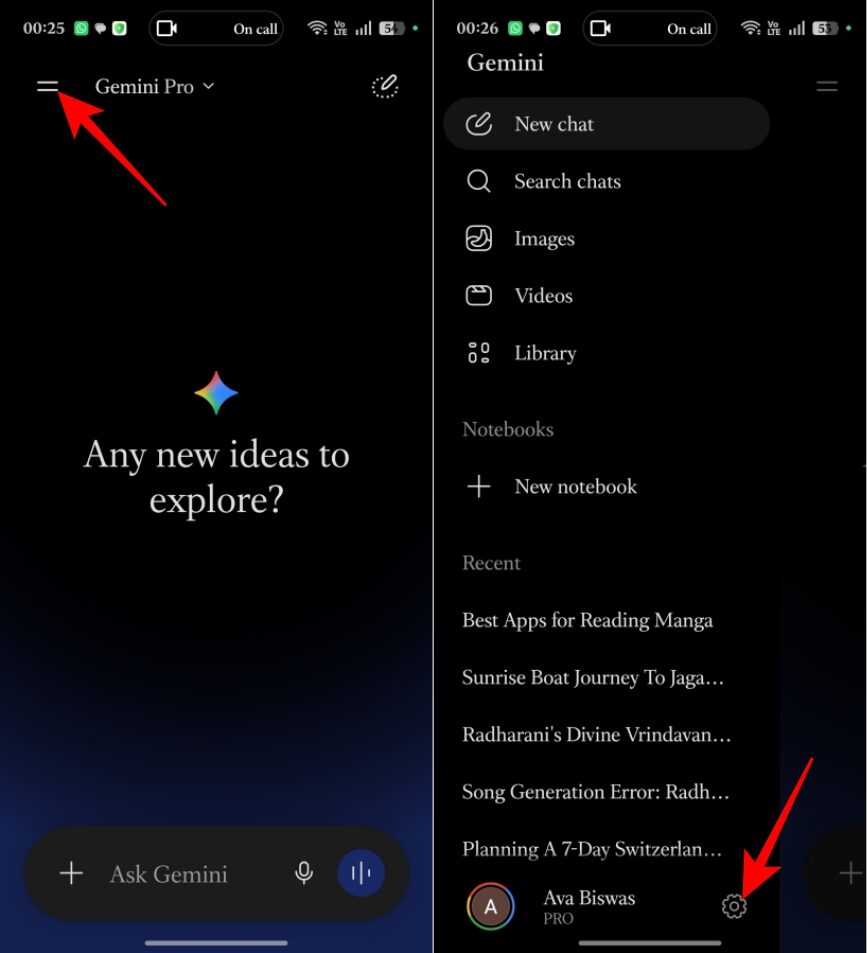
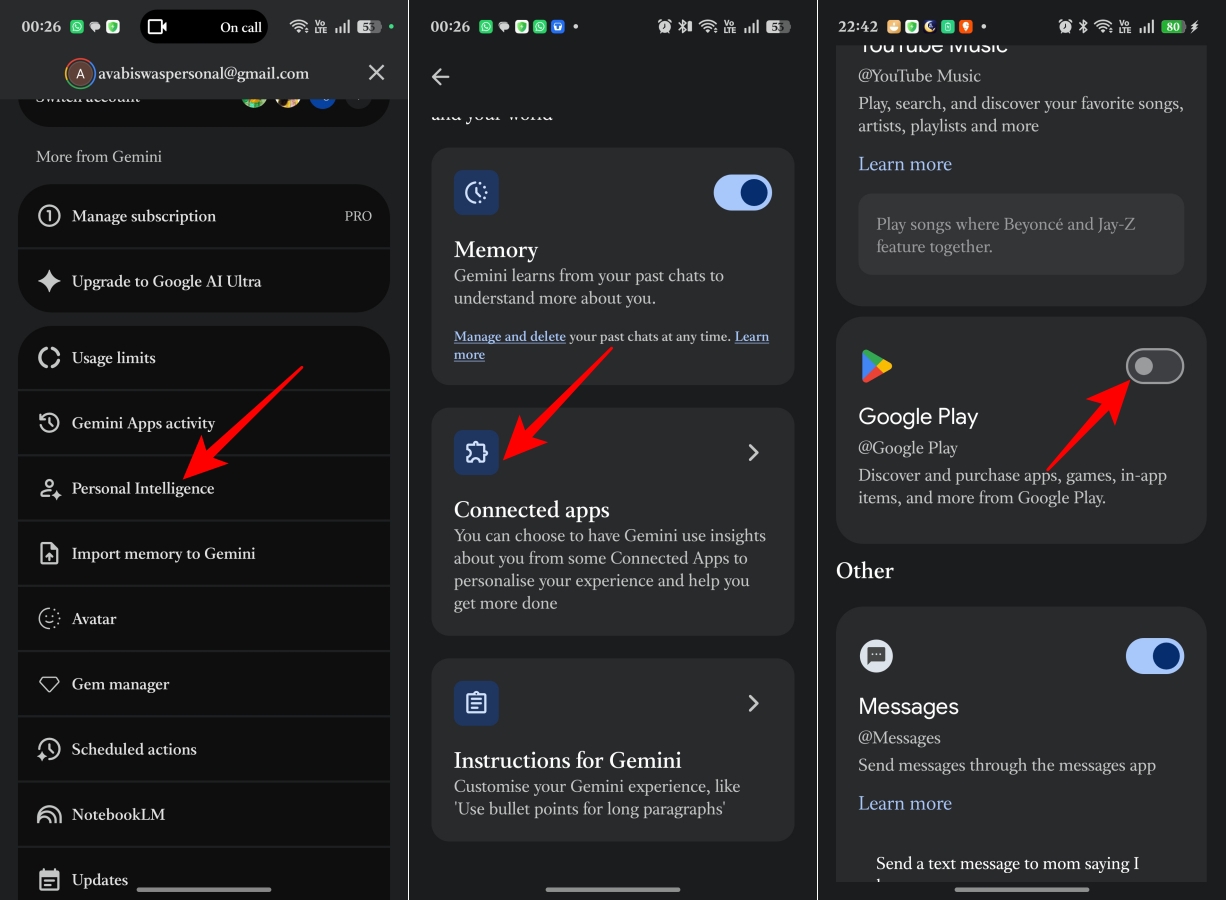
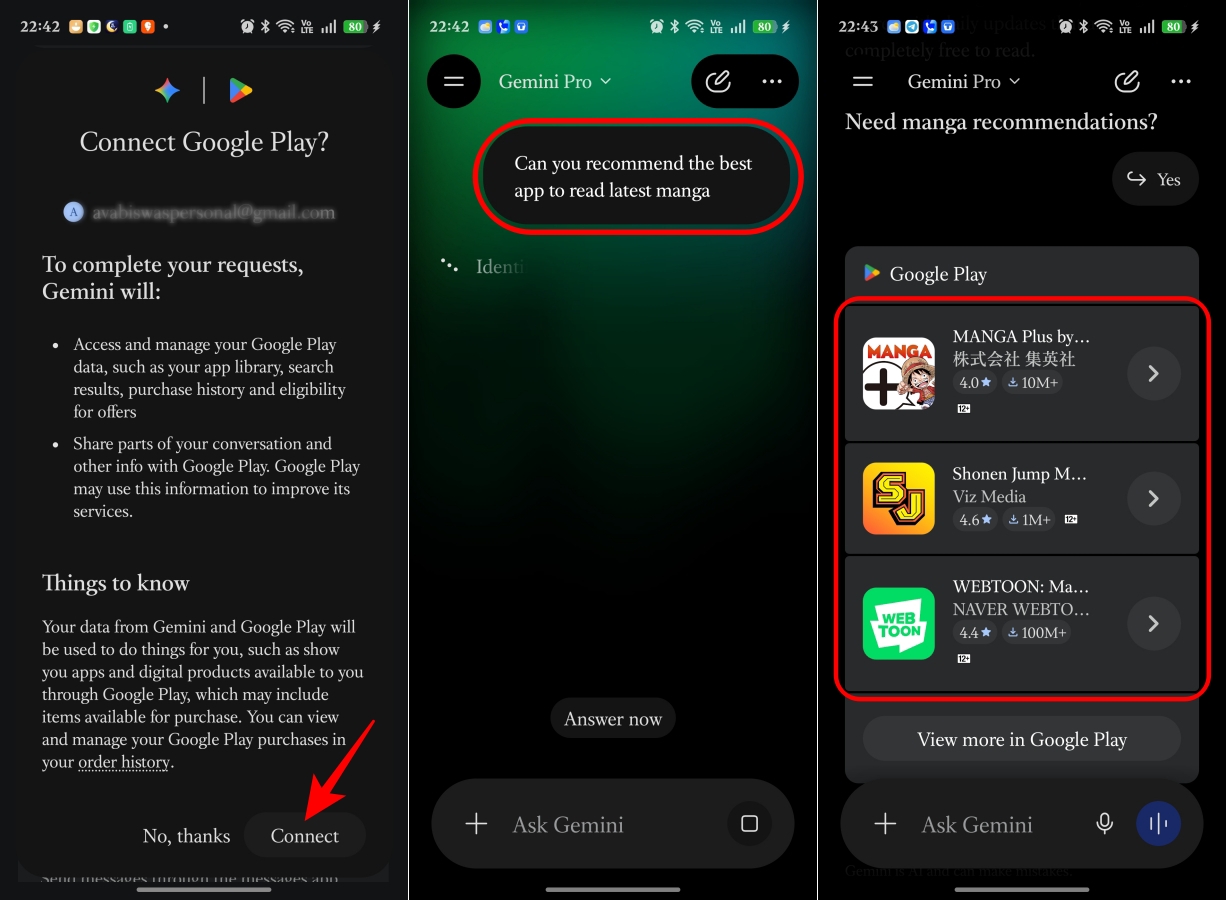
Once connected, I decided to skip opening the Play Store altogether. Instead, I asked Gemini: Can you recommend the best app to read the latest manga? Within seconds, Gemini responded with something I wasn’t expecting.
Instead of simply listing manga app names, it explained why each recommendation deserved consideration. It recommended MANGA Plus by Shueisha, Shonen Jump Manga & Comics, and WEBTOON. For each app, Gemini gave a short explanation. For example, it highlighted that MANGA Plus offers official simultaneous chapter releases directly from Japan.
Below those appeared actual Google Play cards. Each card showed:
As soon as I tapped Shonen Jump Manga & Comics, Gemini took me to its listing on the Google Play Store, where I could install it normally. Moreover, you can ask Gemini to search for and purchase in-app digital items, subscriptions, or digital gift cards for supported stores and apps on your device.
After using it, I realized Gemini isn’t trying to improve Play Store search. It’s trying to replace the part of app discovery that has always been frustrating.
This is easily the biggest improvement. When I searched for a manga app, I wasn’t thinking about keywords. I simply described what I wanted. That’s a completely different experience.
Traditional search expects users to know which keywords developers have optimized for. Gemini doesn’t. It understands the request itself. That’s a huge advantage for anyone who isn’t sure what they’re looking for.
One thing I immediately appreciated was that Gemini didn’t just throw links at me. It explained why it picked each app. Thanks to Personal Intelligence, the AI knows me very well and gives the summaries accordingly.
Those explanations save time. More importantly, they help you make better decisions. I didn’t need to open multiple Play Store pages and compare features manually.
Play Store search often rewards popularity. Gemini seems to reward relevance. That’s an important distinction.
If I ask for an app for reading manga legally, I don’t necessarily want the app with the highest download count. I want the one that best fits my needs. Gemini seems much better at understanding that difference.
Perhaps my favorite part? I spent almost no time scrolling.
Normally, finding a good app means opening multiple listings, checking ratings, reading descriptions, and comparing screenshots. Gemini condensed much of that work into a single conversation.
As impressive as Gemini is, I don’t think it replaces the Play Store. At least not yet.
If I already know the app I want, I’ll continue using Play Store search.
Searching for WhatsApp, Spotify, Instagram, or Adobe Lightroom is still quicker than opening Gemini first.
Sometimes I don’t want recommendations; instead, I just want to browse. The Play Store still has advantages here.
Features like:
don’t really have an equivalent inside Gemini. Those sections are still useful when you’re casually exploring.
Although my first experience was positive, AI recommendations can sometimes lean toward obvious or mainstream suggestions.
That isn’t necessarily bad. But users looking for very niche or highly specialized apps may still end up refining their prompts or browsing manually.
One thing I noticed almost immediately is that better prompts produce better recommendations. Instead of typing short searches, treat Gemini like you’re asking another person.
Rather than saying Note app, try: Recommend a note-taking app with Markdown support that syncs between Android and Windows.
Instead of budget app, try: I need a budgeting app for couples that works offline and doesn’t require a subscription.
The more context you provide, the better Gemini understands what you’re actually trying to accomplish.
Here are a few prompt ideas I’d recommend trying:
These kinds of prompts showcase why conversational search is more powerful than keyword search.
I don’t think Google built this feature because Play Store search is broken. It built it because search itself is changing. For decades, software discovery has relied on keywords.
Users adapted to machines. Now machines are adapting to users. That’s a much bigger shift than simply adding AI to the Google Play Store.
If Google continues improving Gemini’s recommendations, I can imagine a future where most people never type keywords into the Play Store again. Instead, they’ll ask questions. Developers may also need to rethink how they optimize their apps.
Today, visibility is highly dependent on titles, keywords, downloads, and reviews. Tomorrow, AI could place greater emphasis on whether an app actually satisfies a user’s request. That’s a fundamental change in app discovery.
After trying it myself, I don’t think the answer is choosing one over the other. The better approach is using both.
Use Gemini when you:
Use the Play Store when you:
For me, Gemini has become the starting point. The Play Store has become the destination. That’s a surprisingly natural workflow.
I expected Gemini’s Google Play integration to be another AI feature I’d try once and forget about. Instead, it solved a problem I’ve had with the Play Store for years.
Searching for apps has always required guessing the right keywords and digging through pages of results. Gemini removes much of that guesswork by letting me describe what I actually want, then explaining why certain apps fit my needs before sending me to the Play Store to install them.
That said, I don’t see Gemini replacing the Play Store anytime soon. The Play Store is still the fastest way to download apps you already know, browse top charts, or explore new releases. But when it comes to discovering the right app for a specific task, Gemini already feels like the smarter place to start.
Which one will you choose: Gemini or the traditional Play Store for app recommendations? Share your opinion in the comments below!
You might also like: