
FaceTime Like a Pro
Get our exclusive Ultimate FaceTime Guide 📚 — absolutely FREE when you sign up for our newsletter below.

FaceTime Like a Pro
Get our exclusive Ultimate FaceTime Guide 📚 — absolutely FREE when you sign up for our newsletter below.


Need to find someone else’s iPhone? Use the “Help a Friend” feature in the Find My app to locate their lost device in seconds.
 ByVikhyat


We all have that one friend who constantly misplaces their iPhone—patting pockets, checking under cushions, and pacing the room while shouting, “Where’s my iPhone?” Losing a phone, even for a minute, can trigger instant panic. Fortunately, Apple’s Find My app makes it incredibly easy to locate a friend’s lost or stolen iPhone in just a few taps.
Here’s how you can quickly help your friend find their iPhone—no stress, no tech drama.
Before offering a helping hand, make sure the basics are covered:
If you have an iPhone or iPad, this method is the fastest and most reliable:
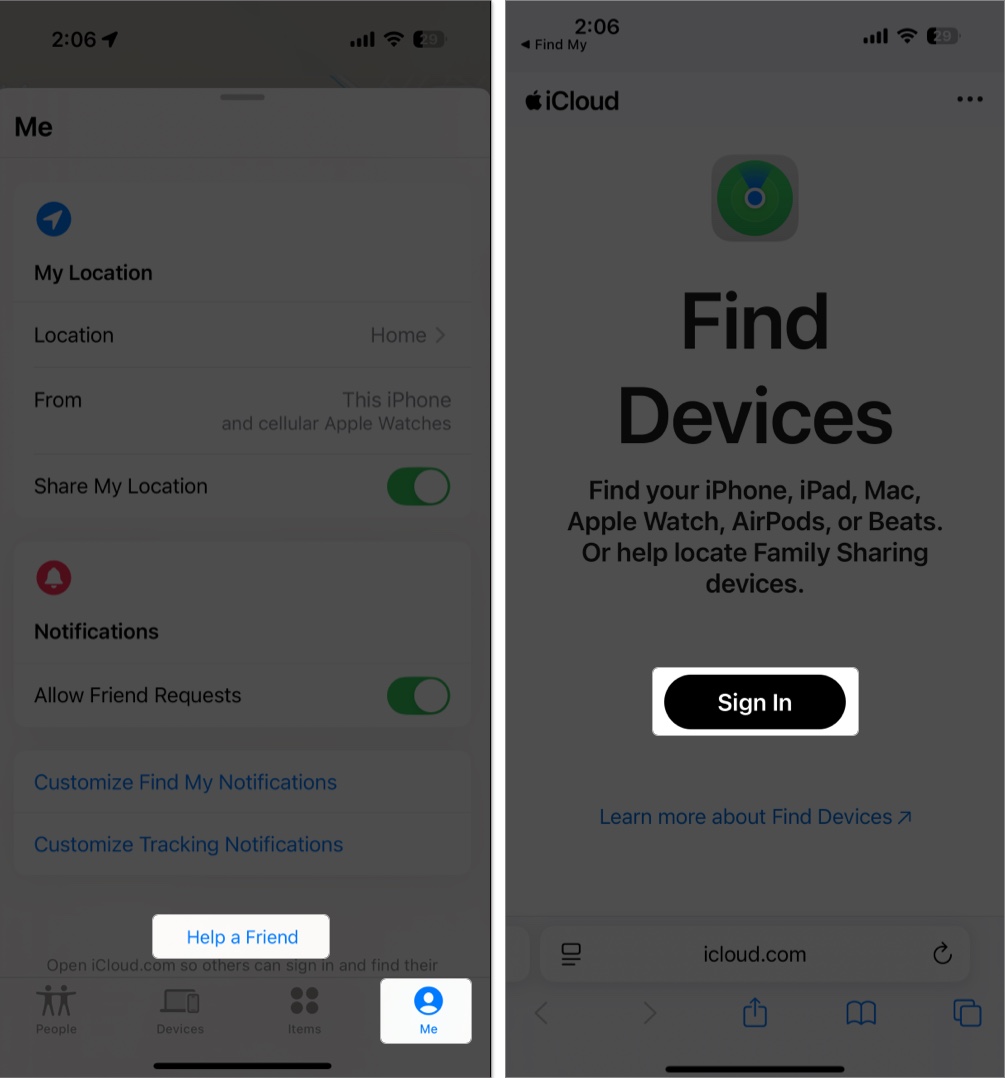
This method works best if the lost iPhone is nearby.
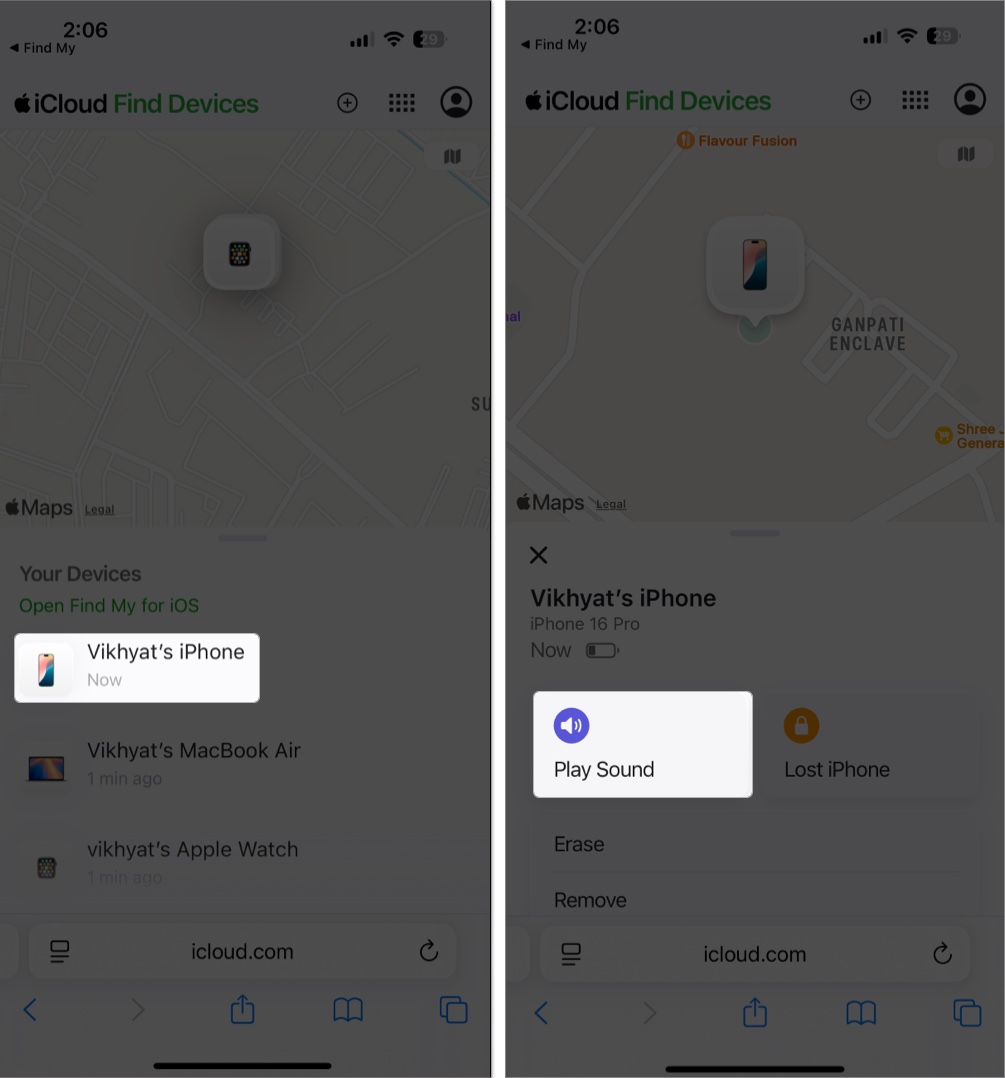
No iPhone? No problem. You can still help your friend using any browser:
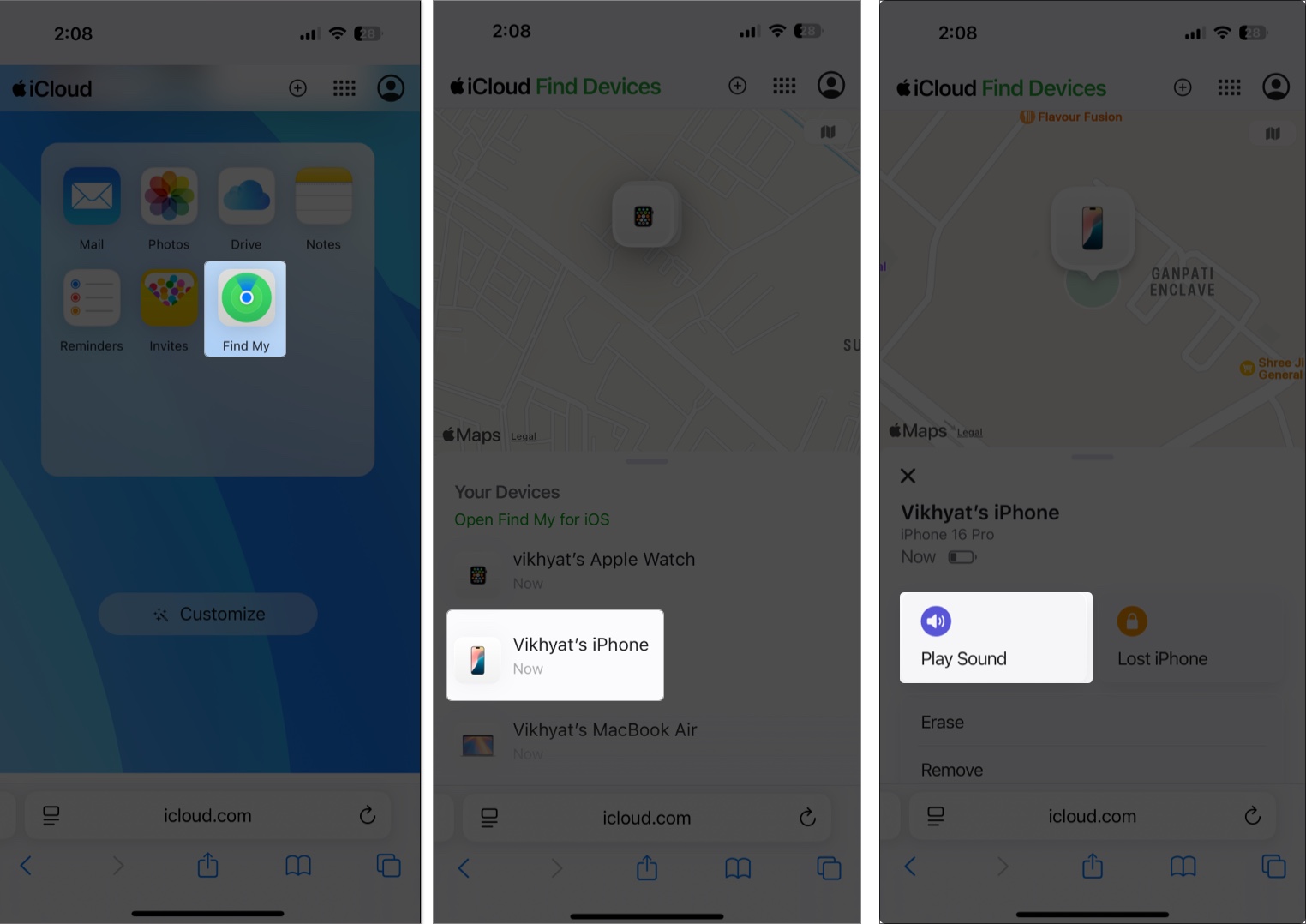
If you and your friend are part of the same Apple Family Sharing group, you can skip the login process altogether:
No passwords, no extra steps—just one tap and done.
Related: Forgot Your Apple ID Password? Here’s How to Reset It Easily
If your friend’s iPhone is turned off or has no internet connection, you won’t be able to make it ring or see its real-time location. Here’s what you can do in such a scenario:
This ensures that even if someone finds the phone, they can’t access personal data.
Helping out is great—but protect both your and your friend’s privacy:
Apple’s Find My feature makes it incredibly easy to help a friend locate their iPhone. Whether it’s under a car seat or left behind at a café, you now know how to assist in seconds.
Share this guide with your circle—because next time, you might be the one shouting, “Where’s my iPhone?!”
FAQs
Try calling the number or use recent location history via Google Maps (if location tracking was on). If nothing works, report the device as lost to the local authorities.
Yes, but only the last known location will appear. You can also enable Notify When Found to get an alert when it powers on.
Related articles worth reading:









