
FaceTime Like a Pro
Get our exclusive Ultimate FaceTime Guide 📚 — absolutely FREE when you sign up for our newsletter below.

FaceTime Like a Pro
Get our exclusive Ultimate FaceTime Guide 📚 — absolutely FREE when you sign up for our newsletter below.


Instagram’s new auto-scroll for Reels changes how you watch videos. Learn what it is, how it works, and why it matters.
 ByVikhyat


Gone are the days when you had to scroll through Reels manually. Instagram has finally introduced Auto-Scroll for Reels, a feature that automatically advances to the next Reel once the current one finishes playing. This new addition makes watching Reels more immersive, especially during long viewing sessions where constant swiping can feel disruptive.
Keep reading to learn how to enable Auto-Scroll for Reels on Instagram.
Auto-Scroll is a new playback setting in the Instagram mobile app that lets Reels play automatically, one after another. Instead of swiping up, the next Reel loads and starts playing on its own.
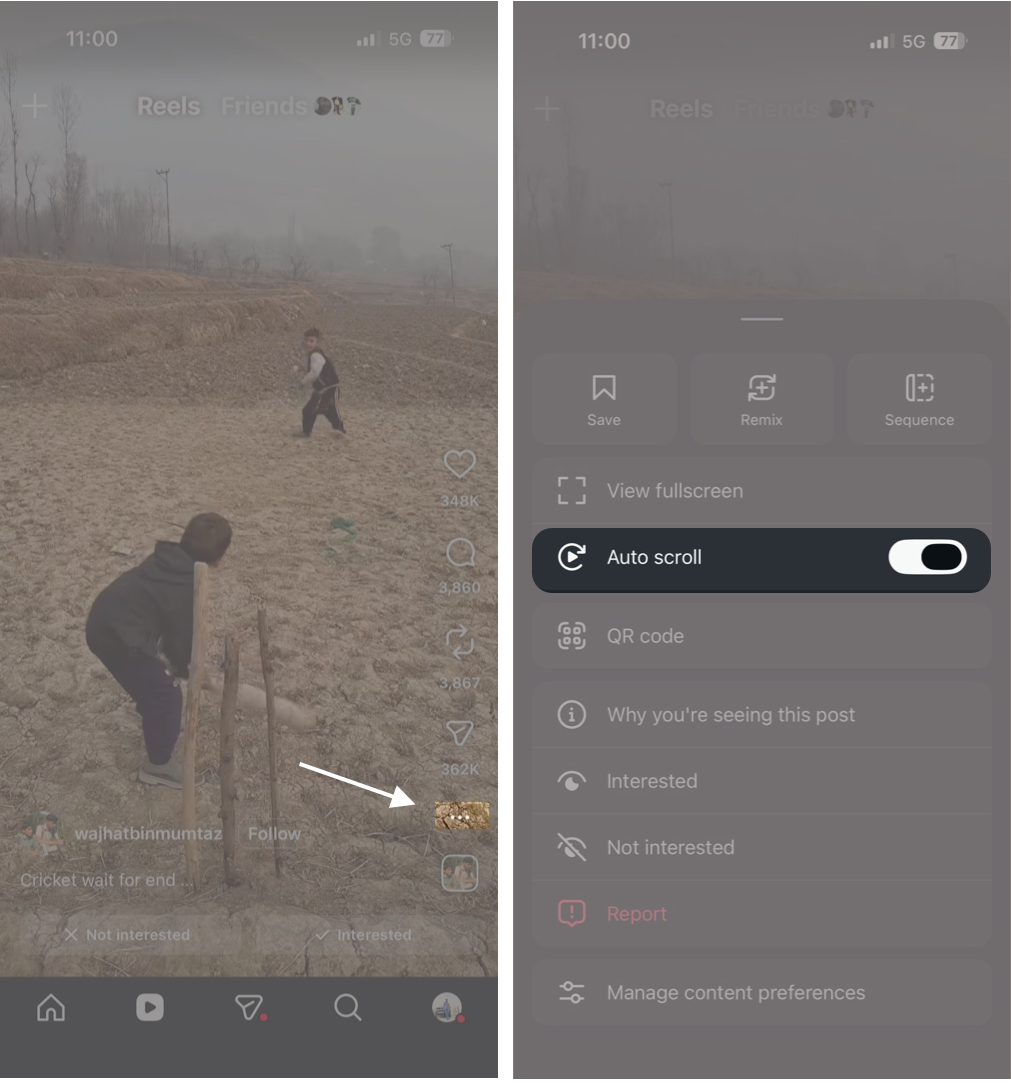
Once enabled, Reels will continue playing automatically without requiring a swipe up.
At the moment, Auto-Scroll for Reels is primarily designed for the Instagram mobile app and is still rolling out gradually. This means the feature is not yet available to all users, even on iPhone and Android. Availability depends on factors such as account type, region, and Instagram’s server-side rollouts.
As a result, users watching Reels on Instagram Web still need to manually move between videos.
While there is no official word on when Instagram will roll out Auto-Scroll for Reels on Instagram Web, Mac users are not entirely left out. Even without a native toggle on the desktop site, you can still experience Instagram’s official Auto-Scroll feature on a Mac by using the iPhone Mirroring app.
Since Auto-Scroll is supported in the Instagram mobile app, enabling it on your iPhone automatically carries over when the app is mirrored to macOS.
To use Auto-Scroll for Instagram Reels on a Mac:
If you don’t see the Auto-Scroll option for Reels, there is likely nothing wrong with your account or device.
While Auto-Scroll may seem like a small quality-of-life update, it carries broader implications for how people consume Reels. By removing the need to swipe manually, Instagram reduces the pauses that previously gave users a sense of control. The result is a more passive viewing experience that makes it easier to lose track of time and end up watching far more Reels than originally intended.
Have you noticed Auto Scroll in your Instagram app yet, or do you prefer manual control while watching Reels? Share your thoughts in the comments.
Don’t miss these related reads:









