iPhones don’t offer a universal “clear cache” button, but you can clear Safari, Chrome, and individual app caches manually when needed.
Clear browser cache via settings in Safari, Chrome, or Firefox, which can fix loading problems and free up storage space.
App cache can be cleared by offloading or reinstalling apps, or by using built-in clear data options when provided.
Regularly clearing cache improves speed, storage, and privacy, while also fixing glitches in apps or websites.
Clearing cache may log you out or reset settings, so back up important data and avoid unreliable cleaning tools.
Imagine your iPhone as your cozy digital home. Just like any home, it can get a little messy over time—things slow down, and clutter builds up. All those temporary files and cookies, collectively known as cache data, quietly accumulate behind the scenes, occupying space and sometimes making your phone feel sluggish. Cache data can accumulate and cause performance issues, such as slowdowns or app crashes.
Think of clearing your cache as a little self-care for your iPhone—and for you. It’s not just about tech stuff; it’s about keeping things running smoothly, making room for what matters, and fixing those annoying hiccups that slow you down. In this guide, I’ll walk you through simple steps to clear your iPhone’s cache so you can feel confident and in control and enjoy a smoother experience every day.
Can You Clear Cache on an iPhone? (Understanding iOS Limitations)
Unlike some other devices, iPhones don’t have a universal “clear cache” button. Apple’s iOS manages most cached data automatically. Apple makes specific decisions about how cache is managed, which limits user control over clearing all cached files at once. However, you do have effective tools to clear cache from browsers and individual apps and optimize your device’s performance with a few intentional steps—some apps provide a built-in option to clear cache, while others do not.
The following sections will cover various methods for clearing the cache and improving the performance of your device.
How to Clear Browser Cache on iPhone
Clearing your browser cache can fix loading issues and enhance browsing speed—here’s how to do it on different browsers.
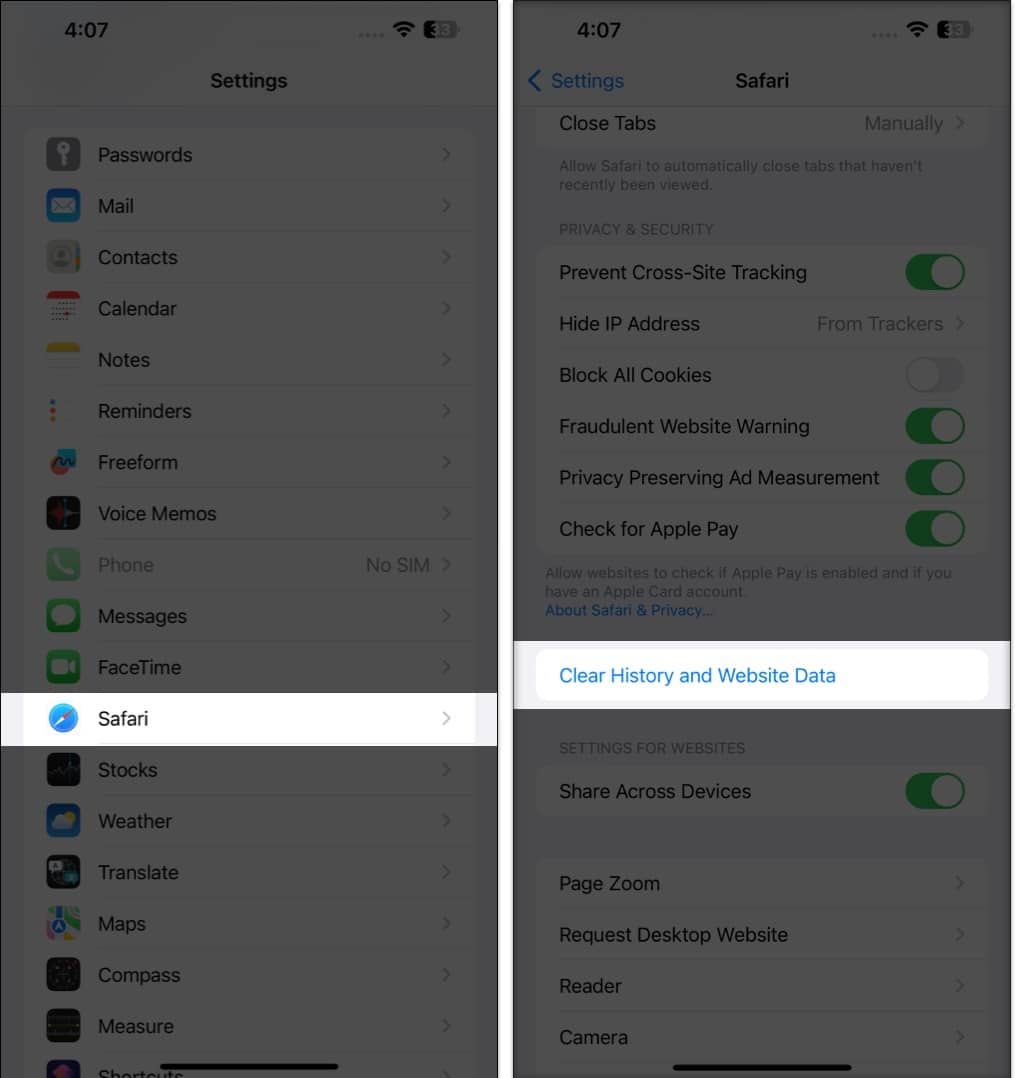
1. Clearing Safari Cache
Safari is the default browser for most iPhone users. Clearing its cache can help resolve browsing issues, free up storage space, and improve performance. Here’s how to clear its cache:
Open the Settings app > Apps.
Scrolldown and tap Safari.
Tap Clear History and WebsiteData.
Confirm by tapping ClearHistory and Data.
When you clear Safari’s cache, you’re wiping away old browsing history, cookies, and clutter—giving your web pages a fresh start and freeing up space on your iPhone. Plus, if you use iCloud, this refresh happens across all your Apple devices, so everything stays in sync and up to date.
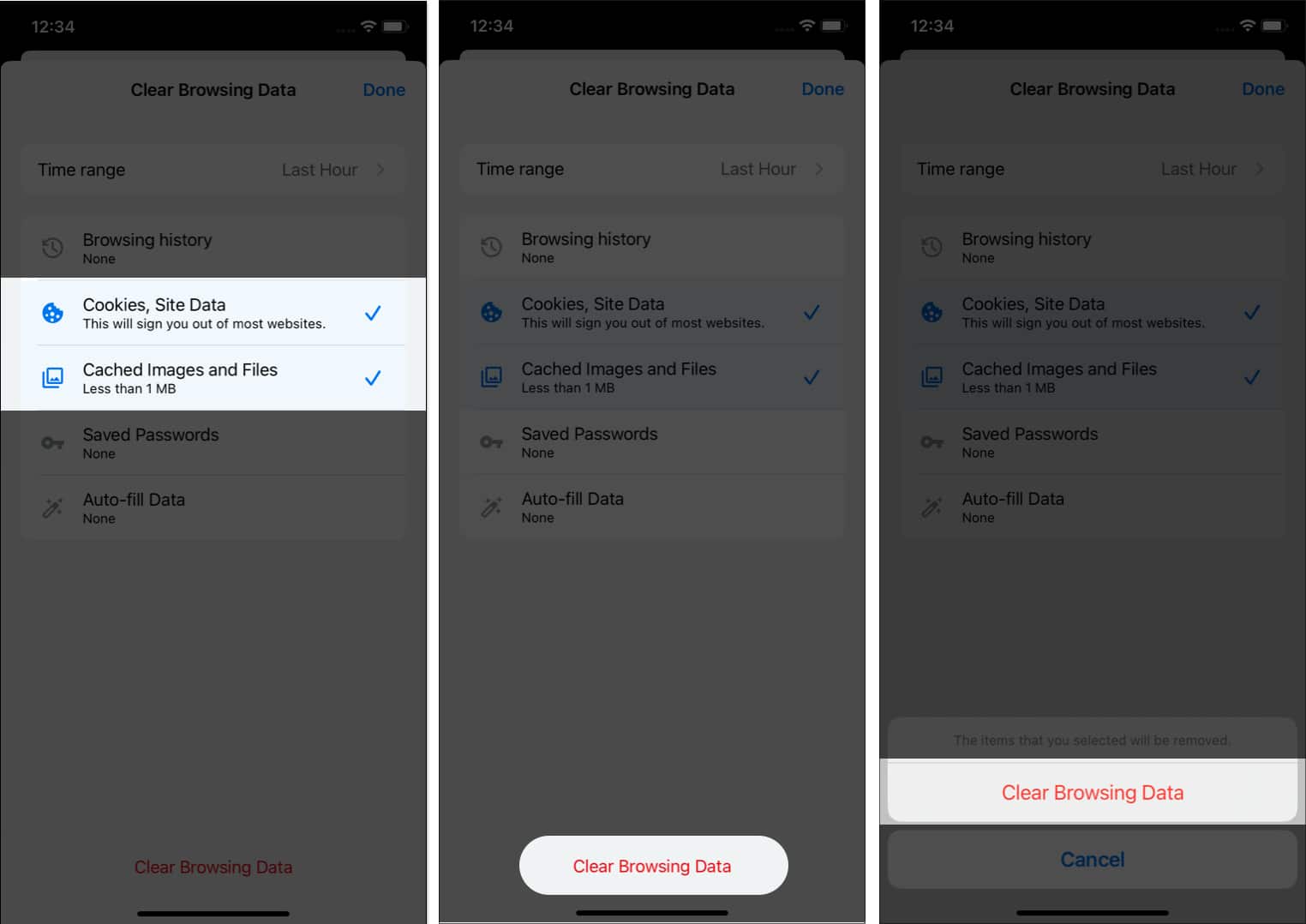
2. Clearing Chrome Cache
If you use Google Chrome:
Open the Chrome app.
Tap the three dots at the bottom right and select Settings.
Tap History, then Clear Browsing Data.
Ensure Cookies, SiteData, and Cached Images and Files are selected.
Tap ClearBrowsingData and confirm.
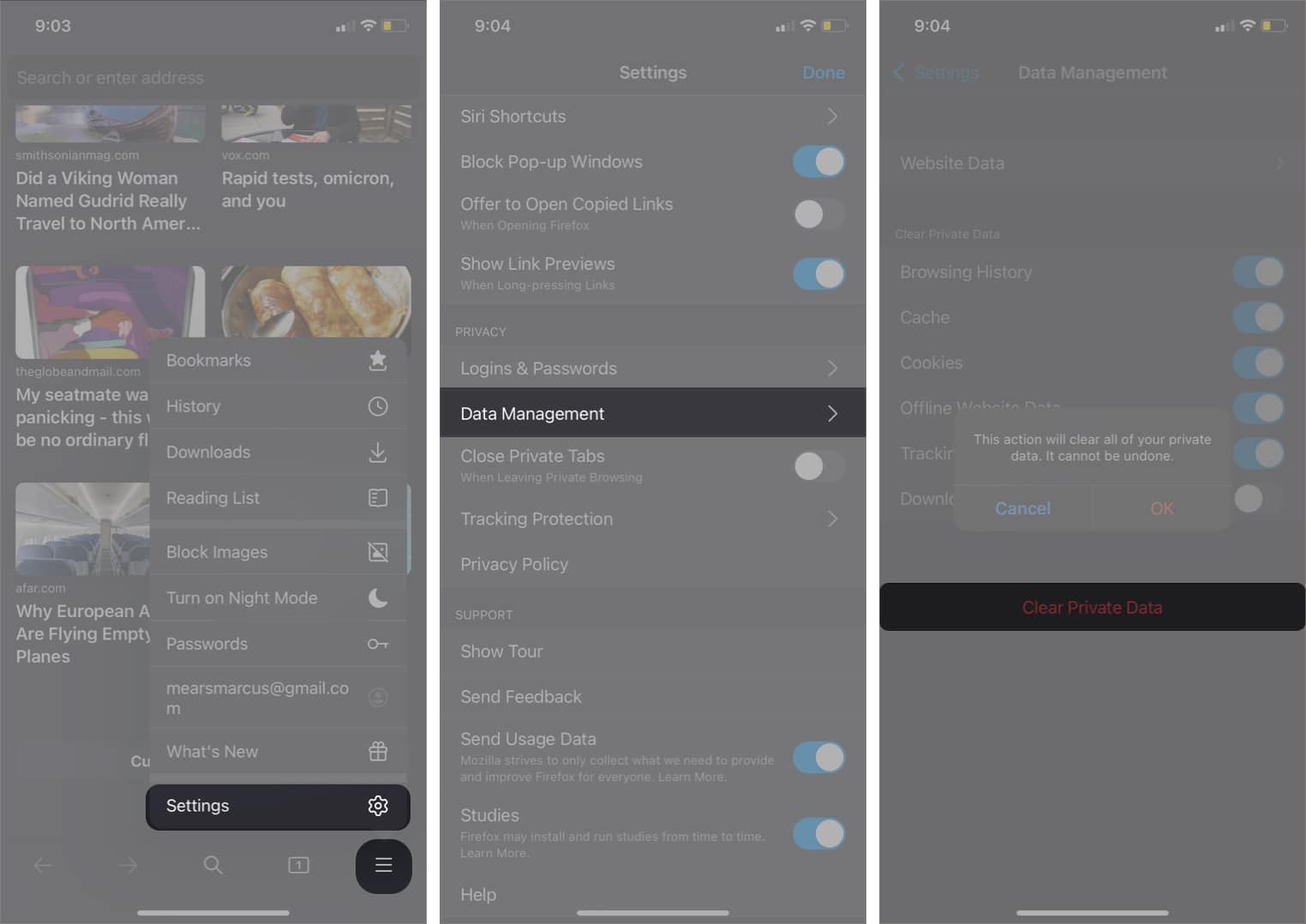
3. Clearing Firefox Cache
For Firefox users:
Open the Firefox app.
Tap the menu icon at the bottom and choose Settings.
Under Privacy, select Data Management.
Toggle on Cache.
Tap ClearPrivate Data to confirm.
Quick Reference Table: Clearing Cache in Popular Browsers
Browser
Where to Start
Key Steps
Safari
Settings > Safari
Clear History and Website Data
Chrome
Chrome > ⋮ > Settings
History > Clear Browsing Data > Select items > Clear
Firefox
Firefox > ☰ > Settings
Privacy > Data Management > Toggle Cache > Clear Private Data
Troubleshooting & Tips
If you don’t see the exact menu options described, check that your browser app is updated to the latest version.
Menu names and locations may change slightly with updates or if accessibility features are enabled.
For browsers not listed here (like Microsoft Edge or DuckDuckGo), look for similar options in their settings or consult their help documentation.
How to Clear App Cache on iPhone
Free up space and improve performance by managing app cache using these effective methods.
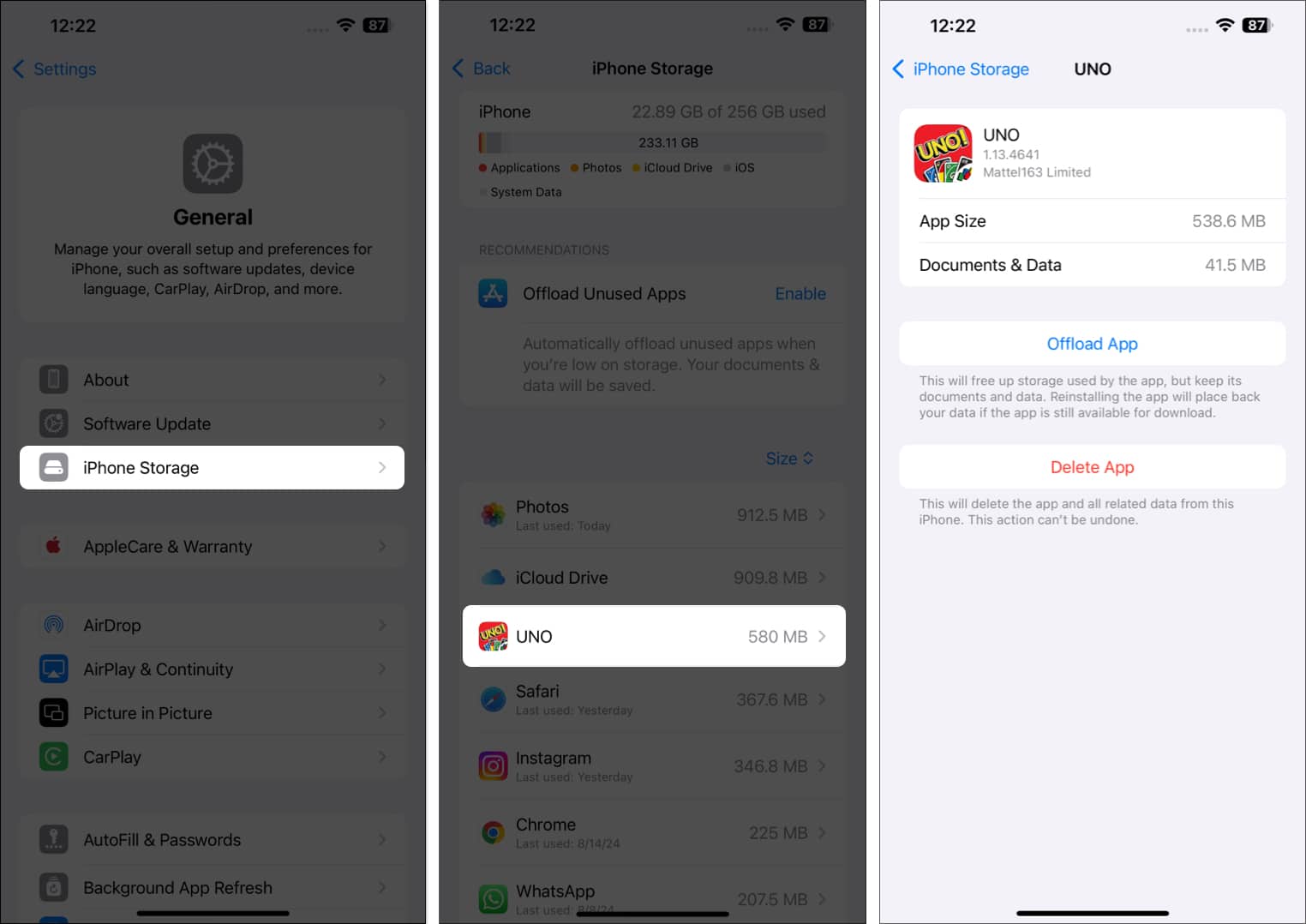
1. Offloading Apps
Offloading an app is like putting it in storage—you free up space on your iPhone, but all your info, settings, and files stay safe and sound. If you ever bring the app back, everything will be right where you left it, ready for you to pick up without missing a beat.
This process can be beneficial for freeing up space on your device without permanently deleting your important information:
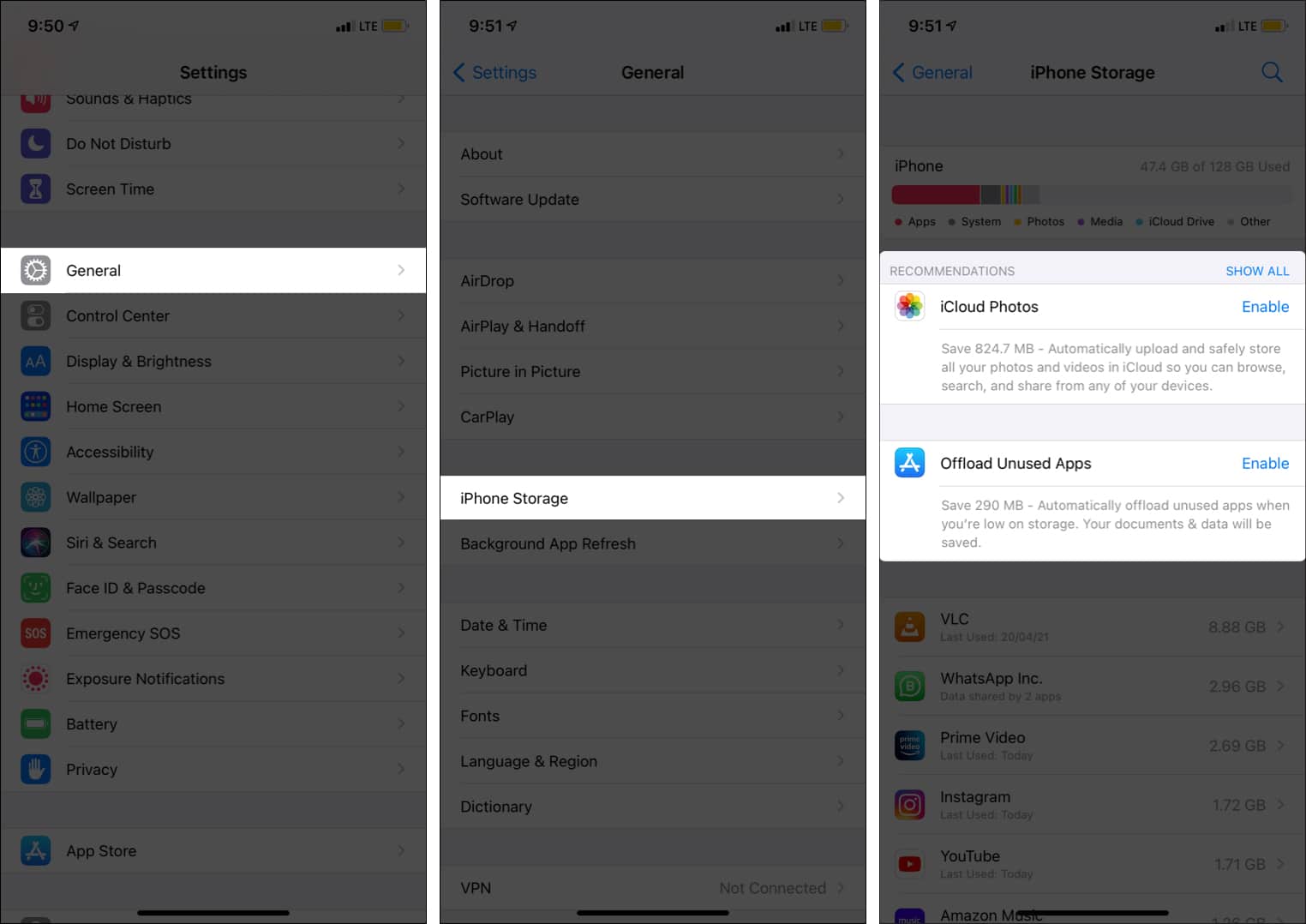
Go to Settings > General > iPhoneStorage.
Select the app you want to offload.
Tap Offload App.
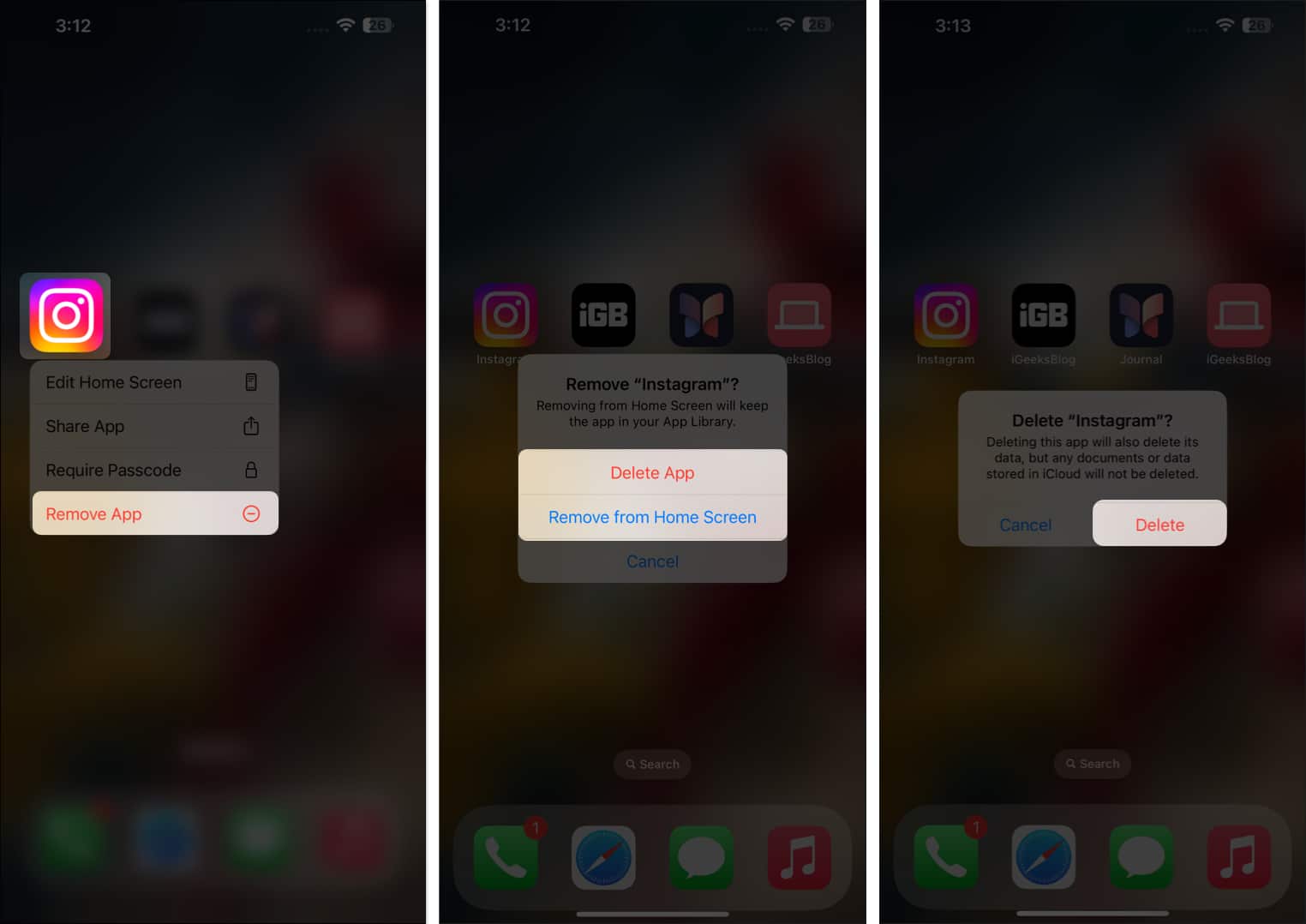
2. Deleting and Reinstalling Apps
For a more thorough cache removal, delete and reinstall the app: This process ensures that all temporary files and cached data associated with the app are entirely removed from your device. After uninstalling, reinstall the app from your device’s app store to start fresh, which can help resolve persistent issues caused by corrupted or outdated cache.
Touch and hold the app icon on your home screen.
Tap Remove App > Delete App.
Reinstall the app from the App Store.
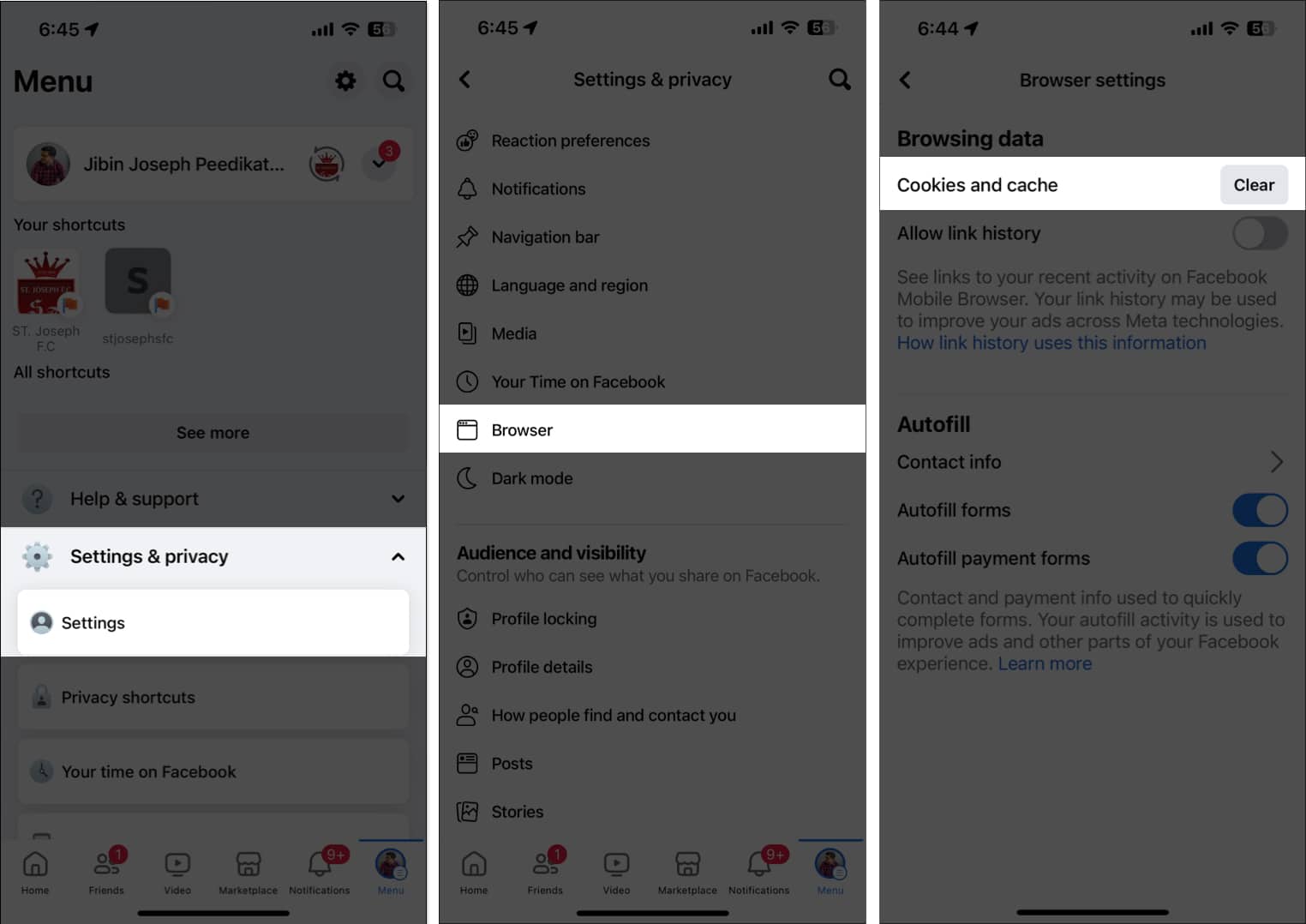
3. Using In-App Cache Clearing Options
Some apps, such as Messages, Facebook, Instagram and Spotify, include built-in features that let you clear their cache directly from the app settings. These options help you remove temporary files, free up storage space, and enhance the app’s performance without requiring you to delete and reinstall the entire app.
Open the app and go to its Settings or Privacy section.
Look for a Clear Cache or Storage option.
Follow the prompts to remove cached data.
Additional Tips to Improve iPhone Performance
Even after clearing the cache, these extra steps can help improve your iPhone’s performance and keep your iPhone running at its best:
Restart or Force Restart Your iPhone: A simple reboot can clear temporary files, refresh your device’s memory, and resolve minor software glitches that may be causing issues.
To restart your iPhone, power it off and turn it back on. For a force restart, quickly press and release the volume up button, then the volume down button, and finally, press and hold the side button until you see the Apple logo.
Alternatively, you can hold the power button and slide to power off. On devices with a home button, holding the home button after powering off can help clear RAM and further improve performance.
Update to the latest iOS version: Regular iOS updates can resolve bugs and performance issues.
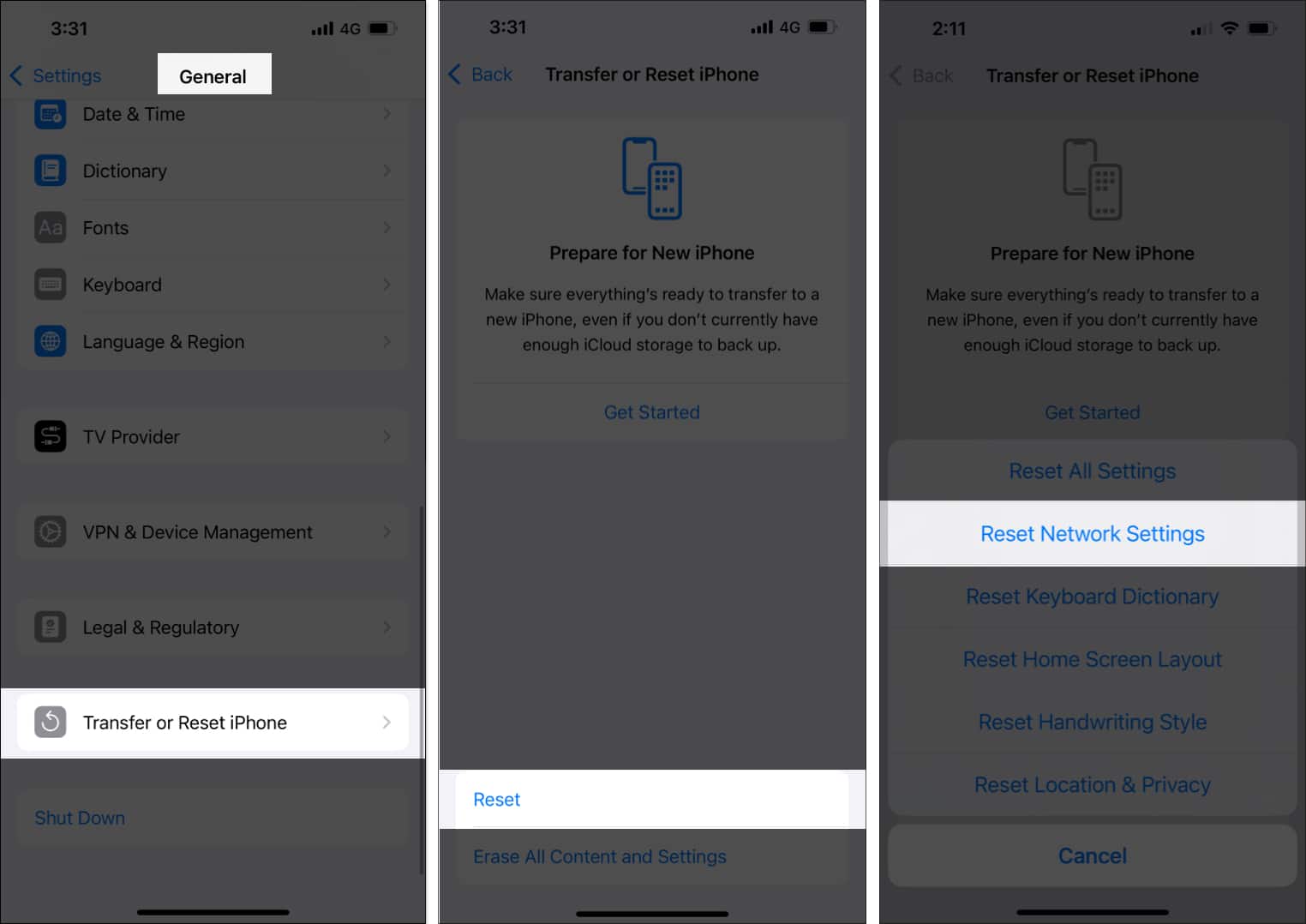
Reset Network Settings: If you experience connectivity issues or slow internet, go to Settings > General > Transfer or Reset iPhone > Reset > Reset Network Settings to clear network-related problems.
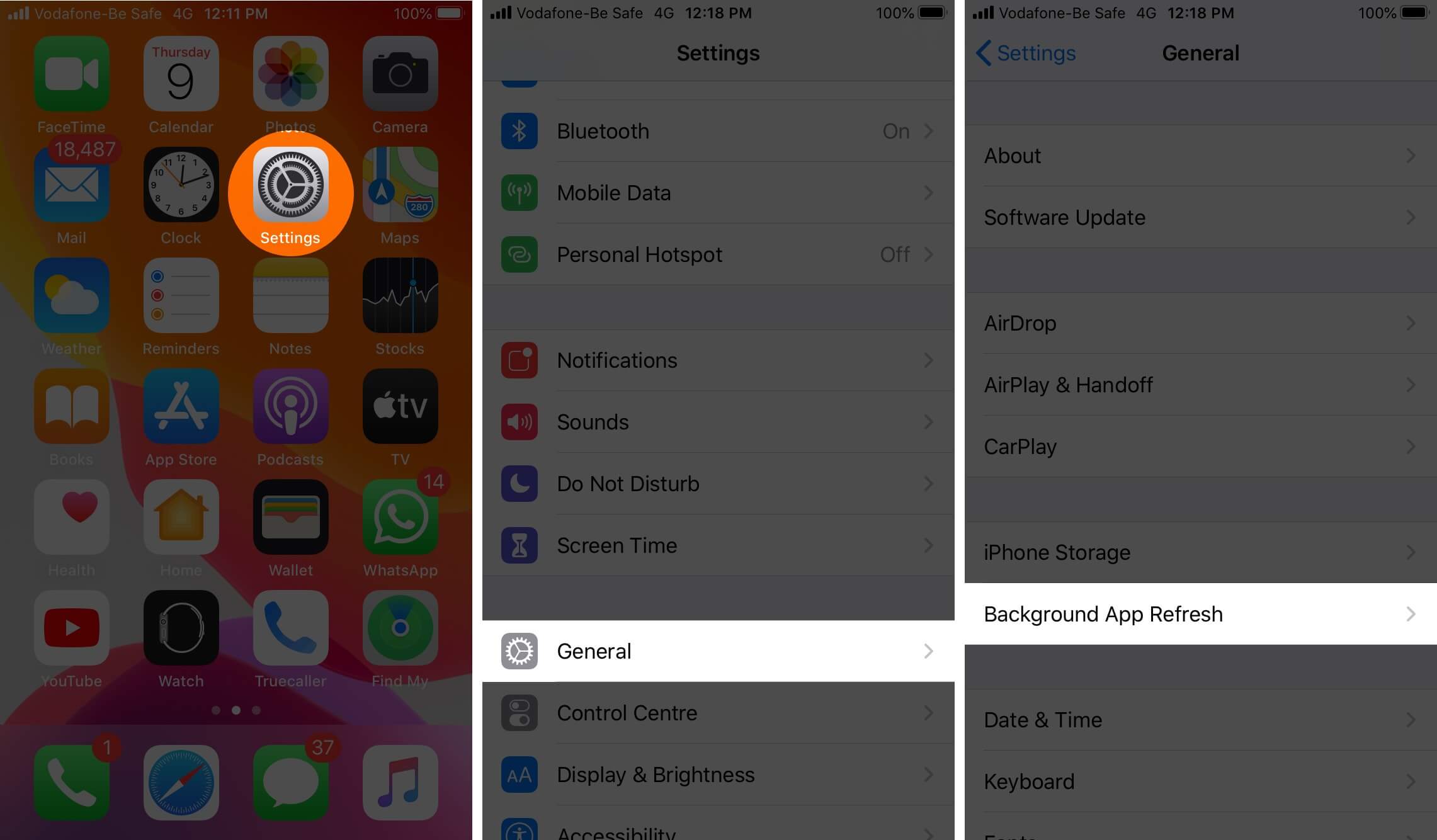
Turn Off Background App Refresh: Go to Settings > General > Background App Refresh. Here, you will see a list of all your installed apps. Review this list and toggle off any apps that do not need to update content or refresh in the background. Disabling Background App Refresh for unnecessary apps can help save battery life and reduce data usage.
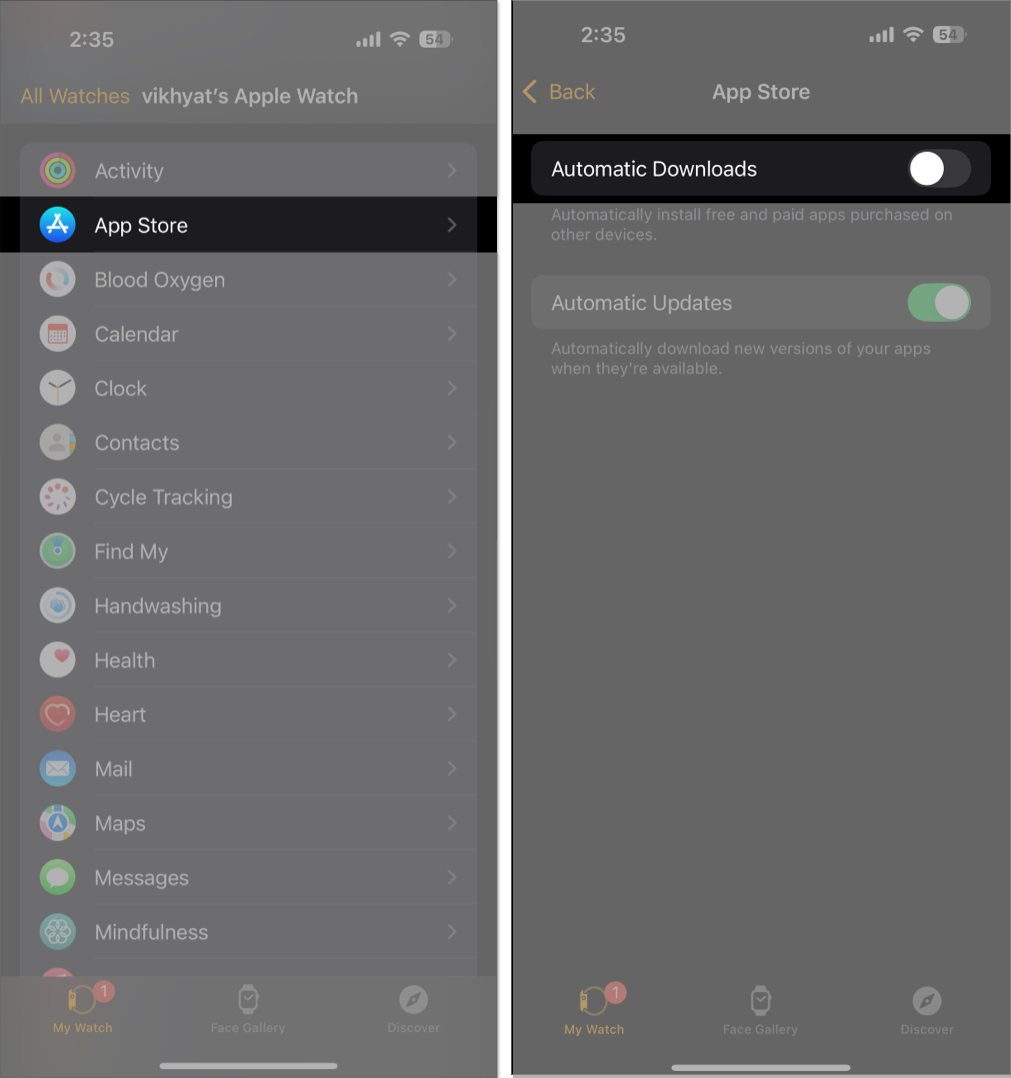
Disable Automatic Downloads and Updates: Go to Settings > App Store, then switch off automatic downloads and updates. This prevents your device from installing new apps or app updates without your permission, helping you save data and maintain more control over what gets installed on your device.
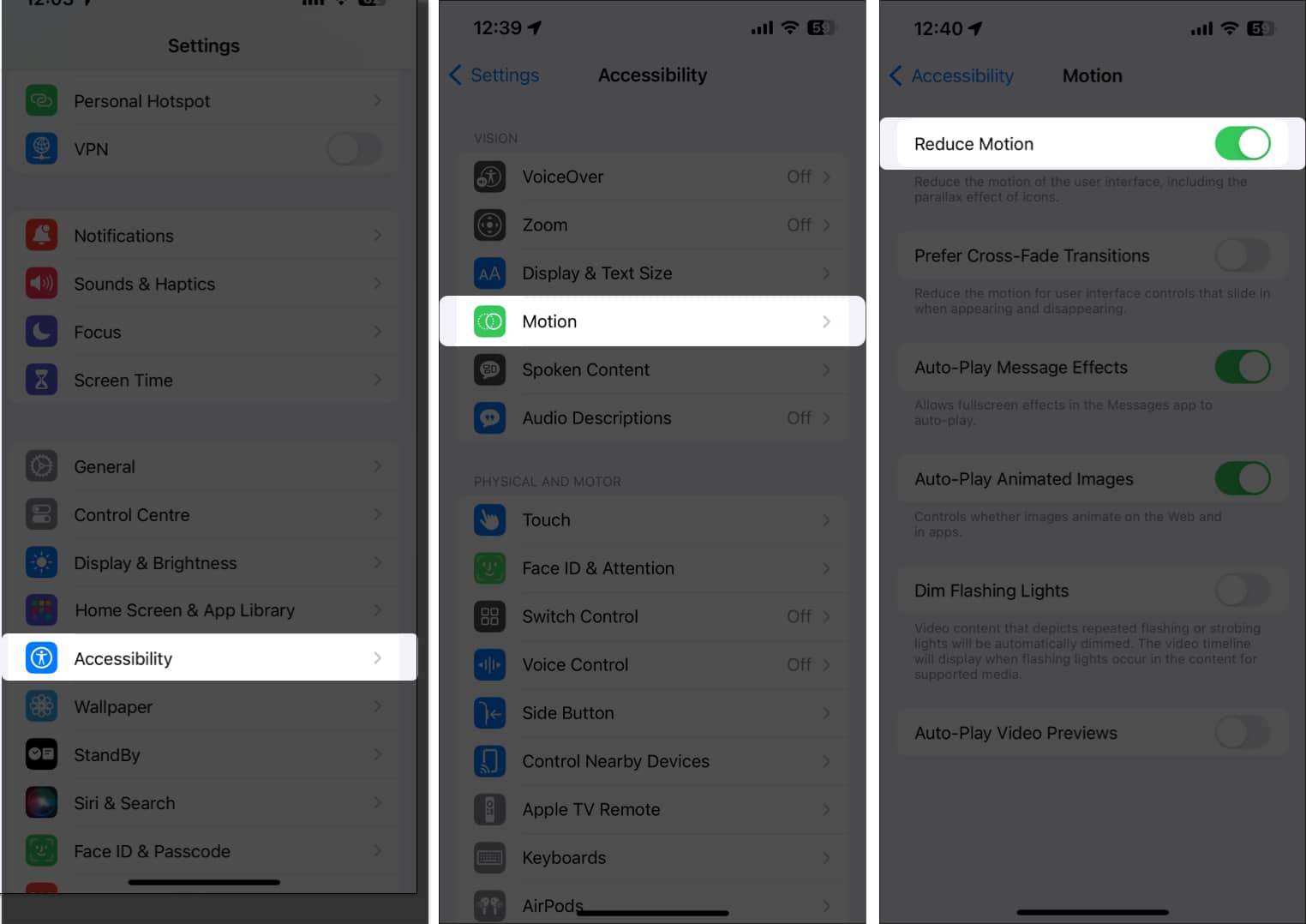
Reduce Motion and Animations: Go to Settings > Accessibility > Motion and turn onReduce Motion. With this setting, your iPhone dials back all the extra motion and fancy transitions, making it gentler on your eyes and easier to use—especially if you’re sensitive to movement. It can help cut down on distractions and even prevent that queasy feeling some people get while navigating their devices.
Review iPhone Storage Recommendations: In Settings > General > iPhoneStorage, check Apple’s suggestions for freeing up space. These recommendations may include deleting unused apps, offloading large attachments, optimizing photo storage, or removing cached data. Following these tips can help you manage your device’s storage efficiently.
Manage resources: Regularly review your device’s storage and memory usage to ensure optimal performance.
If your iPhone is running slow, consider clearing the cache, deleting unused apps, and restarting your device.
Delete heavy videos and duplicate photos: Big videos and duplicate photos can quickly eat up your storage. Open the Photos app or try a cleaner app to spot and delete those photos and extra files, giving your iPhone more breathing room.
Benefits of Clearing Cache and Cookies
Clearing cache and cookies is more than a quick fix—it’s a strategic way to maintain your iPhone’s health and your peace of mind. By regularly removing this stored data, you can ensure your device runs efficiently and stays secure. Here’s how it helps:
Faster Performance and Smoother Browsing: Removing old cached files helps your device and apps respond more quickly, much like tidying a cluttered room. With less unnecessary data to sift through, your iPhone can load web pages and applications faster, making everyday tasks more enjoyable.
More Available Storage Space: Free up space for the things that matter—photos, videos, and essential apps—by clearing out unnecessary temporary files. Over time, cache and cookies can accumulate and take up valuable storage, so clearing them regularly ensures you have room for new memories and essential apps.
Improved Privacy: Wiping cookies and cache removes stored data that websites use to track your activity, helping protect your sensitive information. This reduces the risk of targeted ads and unauthorized tracking, giving you greater control over your online privacy.
Troubleshooting App and Website Issues: If an app or website is acting up, a quick cache clear can often resolve the issue. Removing old, stored data helps resolve glitches and loading issues—no complicated fixes are required.
Real-Life Scenarios:
Make room for spontaneous photos at special events.
Speed up your device before a critical work call or online meeting.
Fix glitches in shopping or banking apps during important transactions.
Warning, Risks and Considerations
While clearing cache and cookies is generally safe and can improve your device’s performance, keep these important points in mind:
You may be logged out of websites and apps: After clearing cache and cookies, you’ll likely need to log in again to your favorite sites and applications, so make sure you remember your usernames and passwords.
Some settings or preferences may be reset: Certain customizations, such as saved themes, language choices, or other preferences, may return to their default state. You might need to reconfigure these settings according to your preferences.
Third-party cleaner apps may present privacy risks: Not all cleaning apps are trustworthy. Only download apps from reputable sources, and always review the permissions they request to protect your data and privacy.
Back Up Your Data: Before deleting or reinstalling apps, ensure important information is backed up. This includes contacts, photos, documents, and any app-specific data that you don’t want to lose. Consider using cloud services or an external storage device for added security.
Don’t Expect Miracles: Clearing cache helps, but it won’t solve every performance issue—incorporate it as one part of your broader device care. For optimal results, combine cache clearing with other maintenance steps, such as updating your operating system, uninstalling unused apps, and regularly restarting your device.
How Often Should You Clear Your Cache?
Regular Maintenance: Make cache clearing part of a monthly digital refresh routine for optimal performance. Regularly clearing your cache helps your devices run faster, prevents storage from filling up with outdated files, and ensures you consistently access the most recent versions of websites and apps.
When Troubleshooting: If an app or website isn’t working properly, clearing the cache can resolve the issue. Cached data can sometimes become corrupted or outdated, leading to loading errors or display problems, so removing it can help restore normal function.
Before Sensitive Transactions: Before typing in personal or financial details online, clear your browser cache for extra peace of mind. This simple step keeps your sensitive info from being stored on your device and helps protect your privacy from unwanted access.
What You Need to Know
Cache clearing is a small, intentional act of digital self-care that keeps your iPhone running smoothly, protects your privacy, and ensures you always have space for what matters most. By making cache clearing part of your regular device maintenance routine, you’ll enjoy faster performance, fewer headaches, and a more organized digital life—no technical expertise required.
What’s Next?
Stay proactive: periodically check for browser and app updates, review your privacy settings, and make digital hygiene a regular habit. Your iPhone—and your peace of mind—will thank you.
If you’d like this guide tailored for a specific audience or want more advanced tips, let me know!
FAQs
Will clearing cache delete my photos or contacts?
No, clearing cache only removes temporary files and does not affect your photos, contacts, or other personal data.
Can I clear cache for all apps at once?
No, iOS does not allow clearing cache for all apps simultaneously. You need to manage each app individually.
Is it safe to use third-party cleaning apps?
Use caution and only download apps from reputable developers. Always review permissions before installing.
The founder of iGeeksBlog, Dhvanesh, is an Apple aficionado, who cannot stand even a slight innuendo about Apple products. He dons the cap of editor-in-chief to make sure that articles match the quality standard before they are published.