
FaceTime Like a Pro
Get our exclusive Ultimate FaceTime Guide 📚 — absolutely FREE when you sign up for our newsletter below.

FaceTime Like a Pro
Get our exclusive Ultimate FaceTime Guide 📚 — absolutely FREE when you sign up for our newsletter below.


A Wi-Fi Privacy Warning on iPhone can be confusing, even when your internet works fine. This guide explains what the warning means and shows you simple steps to fix it and stay secure.


Seeing a Wi-Fi Privacy Warning pop up on your iPhone can feel unsettling. You connect to your usual network, everything loads fine, yet Apple suddenly warns you about privacy. Most people feel confused and start wondering whether something is wrong with their iPhone or if their data is at risk. This message appears when your iPhone detects insecure Wi-Fi settings that could expose your online activity. Fortunately, with the right steps, you can fix it in just a few minutes.
This guide explains what the Wi-Fi Privacy Warning means, why it appears, and how to get rid of it so you can browse safely again.
A Wi-Fi Privacy Warning appears when your iPhone connects to a wireless network that uses weak or outdated security, or when important privacy features such as Private Wi-Fi Address are turned off.
Apple displays this alert to let you know the network could allow others to view your activity, intercept data, or track your device. While the warning does not always mean the network is malicious, it does indicate that your connection is not fully protected.
Your iPhone may display a Wi-Fi Privacy Warning for several reasons, including:
Technically, yes. You can still use the internet for basic everyday activities. However, it is not recommended for sensitive tasks such as online banking, signing into important accounts, or sharing personal information.
When you see this warning, treat the network as insecure and either fix the issue or switch to mobile data until it is resolved.
Now that you know why your iPhone shows the Wi-Fi Privacy Warning, here’s how you can fix it.
Private Wi-Fi Address is enabled by default on all iPhones and is usually set to Fixed for most networks. This means your iPhone uses the same private address for that Wi-Fi network unless you change it. While this works fine in most cases, some routers struggle with this setup and may trigger the Wi-Fi Privacy Warning.
Follow these steps:
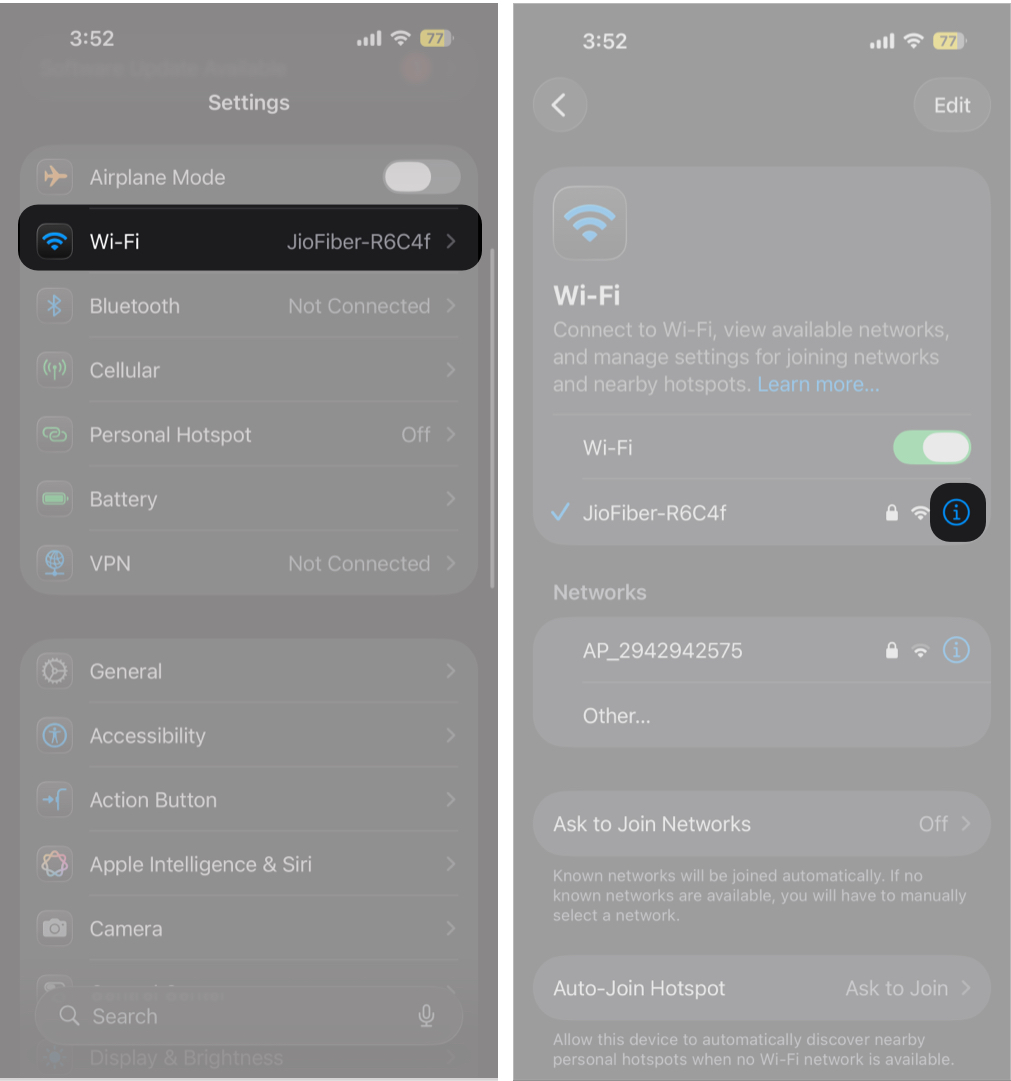
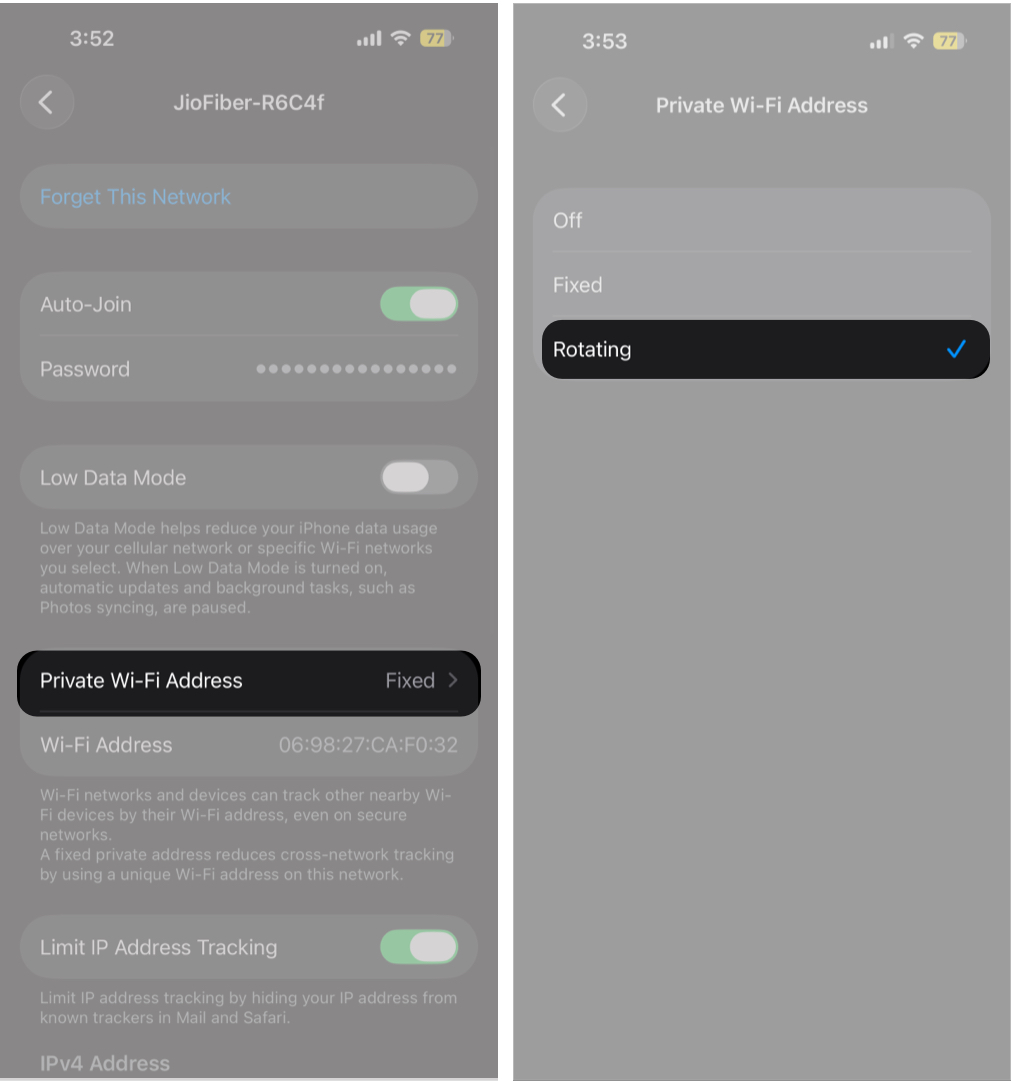
This allows your iPhone to periodically change its private address, which can clear the warning on certain networks.
Your iPhone saves Wi-Fi networks and reconnects automatically. Sometimes, the stored network profile becomes outdated after router changes, password updates, or iOS upgrades. When that happens, your iPhone may continue using old settings and trigger the privacy warning.
Forgetting the network removes those saved details and forces your iPhone to create a fresh connection.
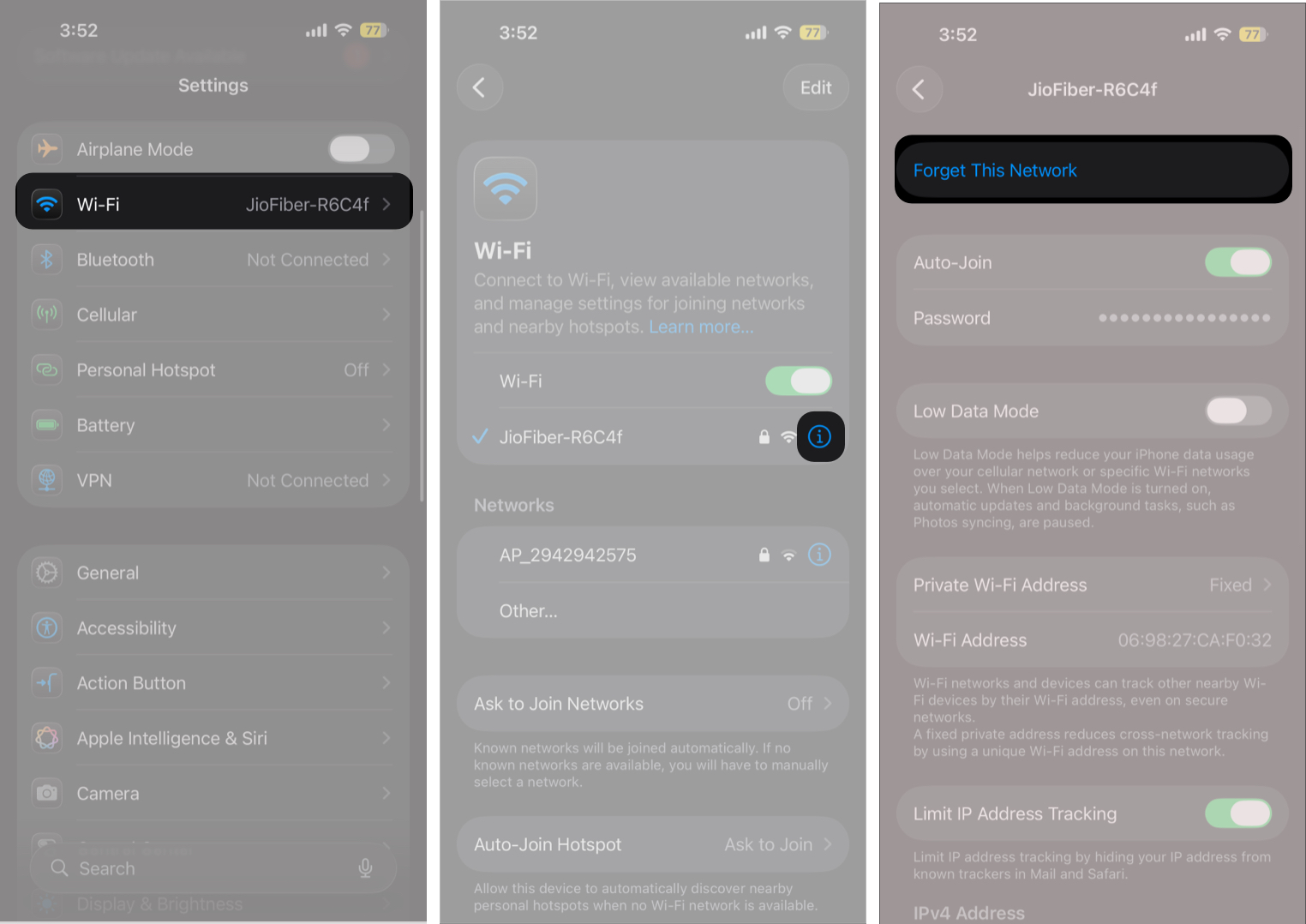
Restart your iPhone, then reconnect to the network by entering the password again. This often resolves the issue.
Both your iPhone and router often run continuously for weeks or months, which can lead to minor connection glitches. Even if Wi-Fi appears to work, background network services may be stuck.
Restarting your iPhone refreshes its network processes. Restarting your router clears temporary routing issues and refreshes connection data.
iOS updates do more than add new features. Apple also improves Wi-Fi security handling and fixes bugs related to network detection. If your iPhone is running an older version of iOS, it may incorrectly flag secure networks or fail to negotiate modern encryption.
After updating, reconnect to Wi-Fi and check whether the warning is gone.
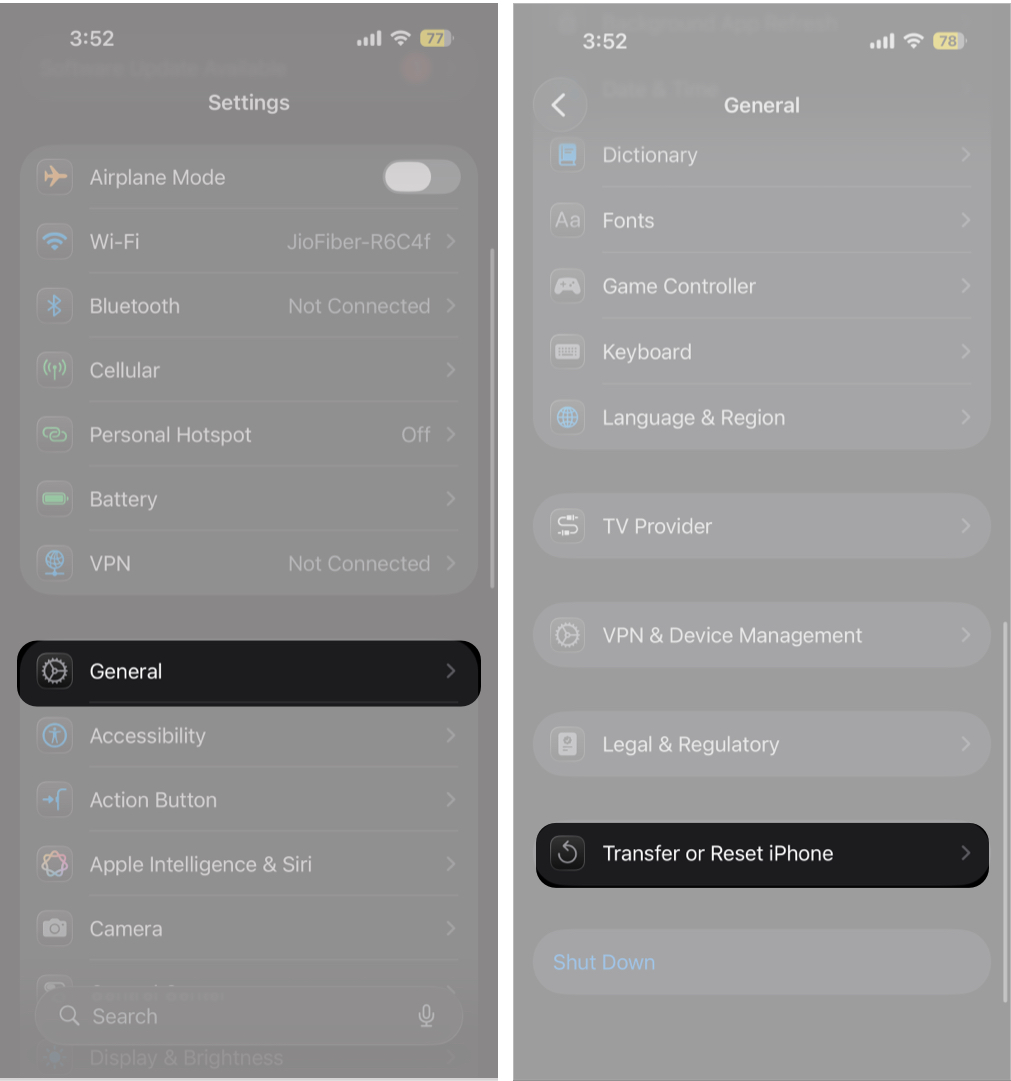
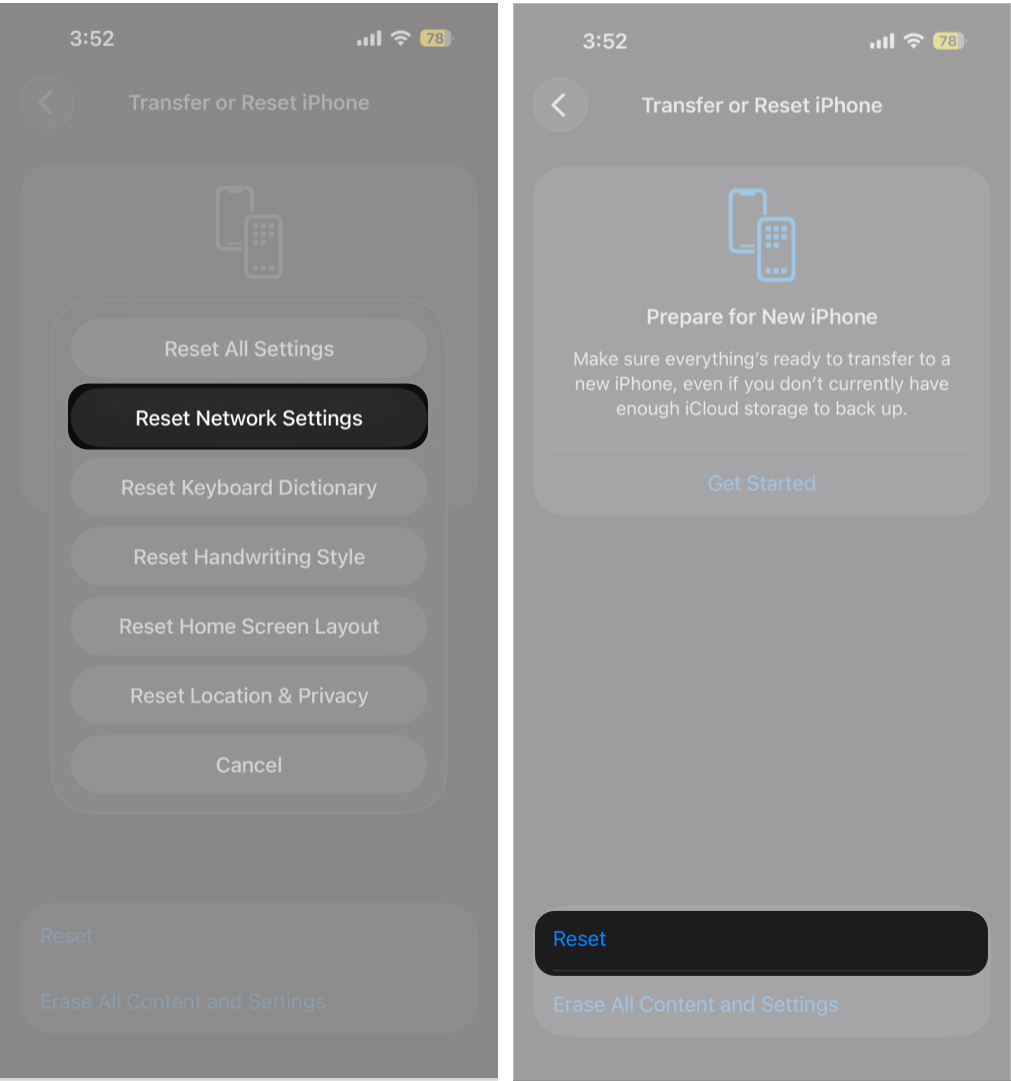
If the warning still appears, resetting network settings can help.
Your iPhone stores Wi-Fi configurations, DNS data, VPN profiles, and cellular settings in the background. Over time, these can conflict with router changes or new networks. Resetting network settings clears all of this without deleting your apps or personal data.
If the warning keeps returning on your home Wi-Fi, the issue is likely with your router. Modern routers should use WPA2 or WPA3 encryption, but older routers or custom configurations may still rely on weaker security standards. Even password-protected networks can trigger Apple’s privacy warning if encryption is outdated.
To fix this:
Even with Apple’s strong privacy protections, public Wi-Fi networks still carry risks. To stay safe:
A Wi-Fi Privacy Warning on iPhone is Apple’s way of alerting you to potentially insecure networks. While it may look serious, it is usually easy to fix. If the warning persists even after trying all the steps above, it is best to disconnect from that network for now.
If this guide helped you, feel free to leave a comment and share what worked for you.
Explore more…









