
FaceTime Like a Pro
Get our exclusive Ultimate FaceTime Guide 📚 — absolutely FREE when you sign up for our newsletter below.

FaceTime Like a Pro
Get our exclusive Ultimate FaceTime Guide 📚 — absolutely FREE when you sign up for our newsletter below.


Quick ways to hide certain contacts on your iPhone from others.


Privacy matters more than ever, especially when sensitive messages, call history, or contact names can pop up on your screen at the wrong moment. Whether your iPhone is often in someone else’s hands or you just like keeping certain details private, you may want to hide specific contacts.
But here’s the truth: iOS 26 still doesn’t offer a built-in hide option. So, here are some workarounds that let you protect private contacts without deleting them or breaking iCloud sync.
People hide contacts for many reasons, and understanding these helps you choose the right method:
Each motivation lines up with different hiding methods. Some focus on organization, others on privacy or restricting access.
Here are 8 proven methods, from built-in, completely free tricks to secure third-party options for hiding contacts on an iPhone.
This is the best way to keep your contacts, call history, and voicemails off limits. Let’s say you often hand your phone to others to show photos, videos, or documents, but you’re worried they might snoop around in your contacts. The good news is you can avoid this by locking the Phone app.
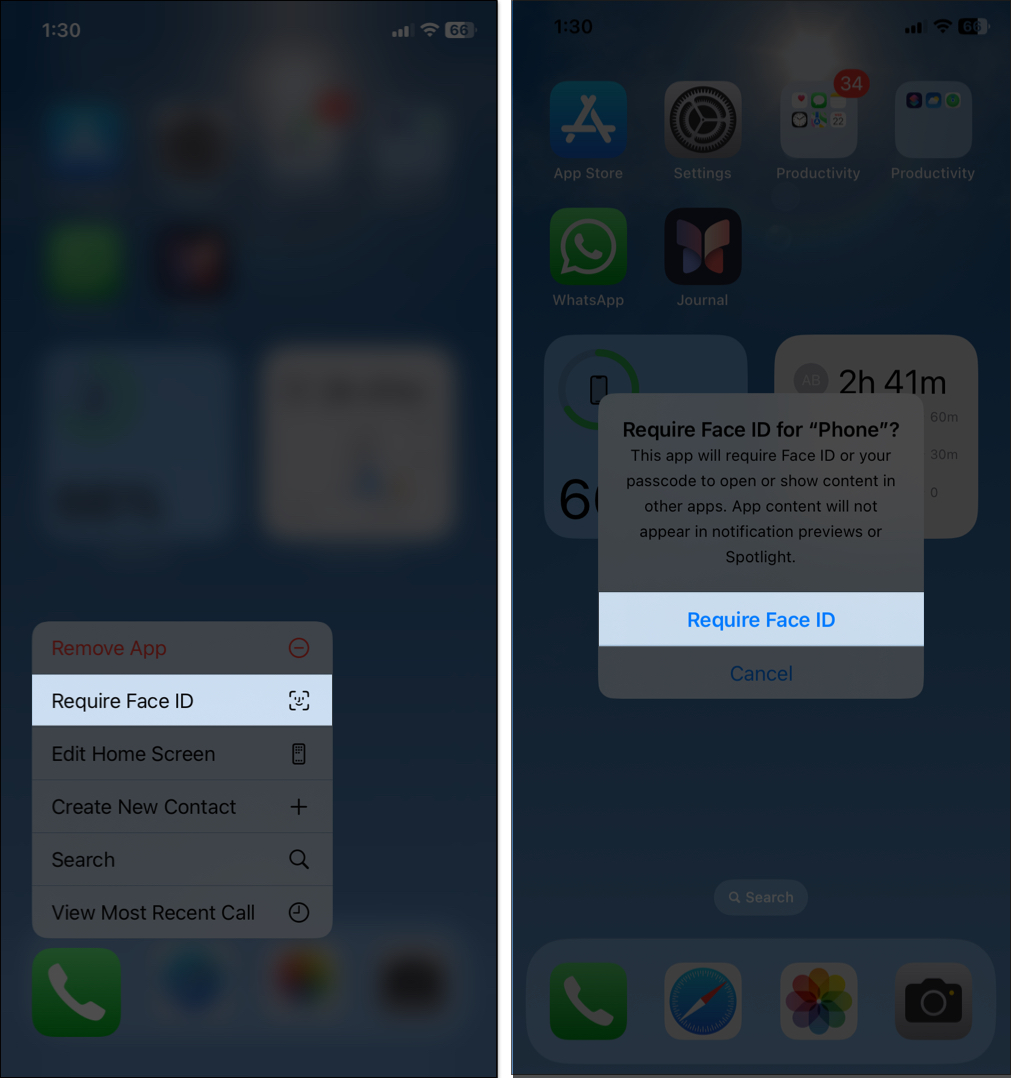
Now, no one can access your saved numbers and call logs except people who have registered Face ID on your iPhone.
This method doesn’t hide contacts from the Phone app, but it helps hide them from your main contact lists across apps.
It will sync your contacts with your Gmail account. Next, you need to remove those contacts from your main address book. For that:
You may prevent access to your contacts, but what if the contact calls or texts you? Each time, their full name or Contact Poster will appear on your screen. If you don’t want others to recognize it, rename their contact or give them a nickname.
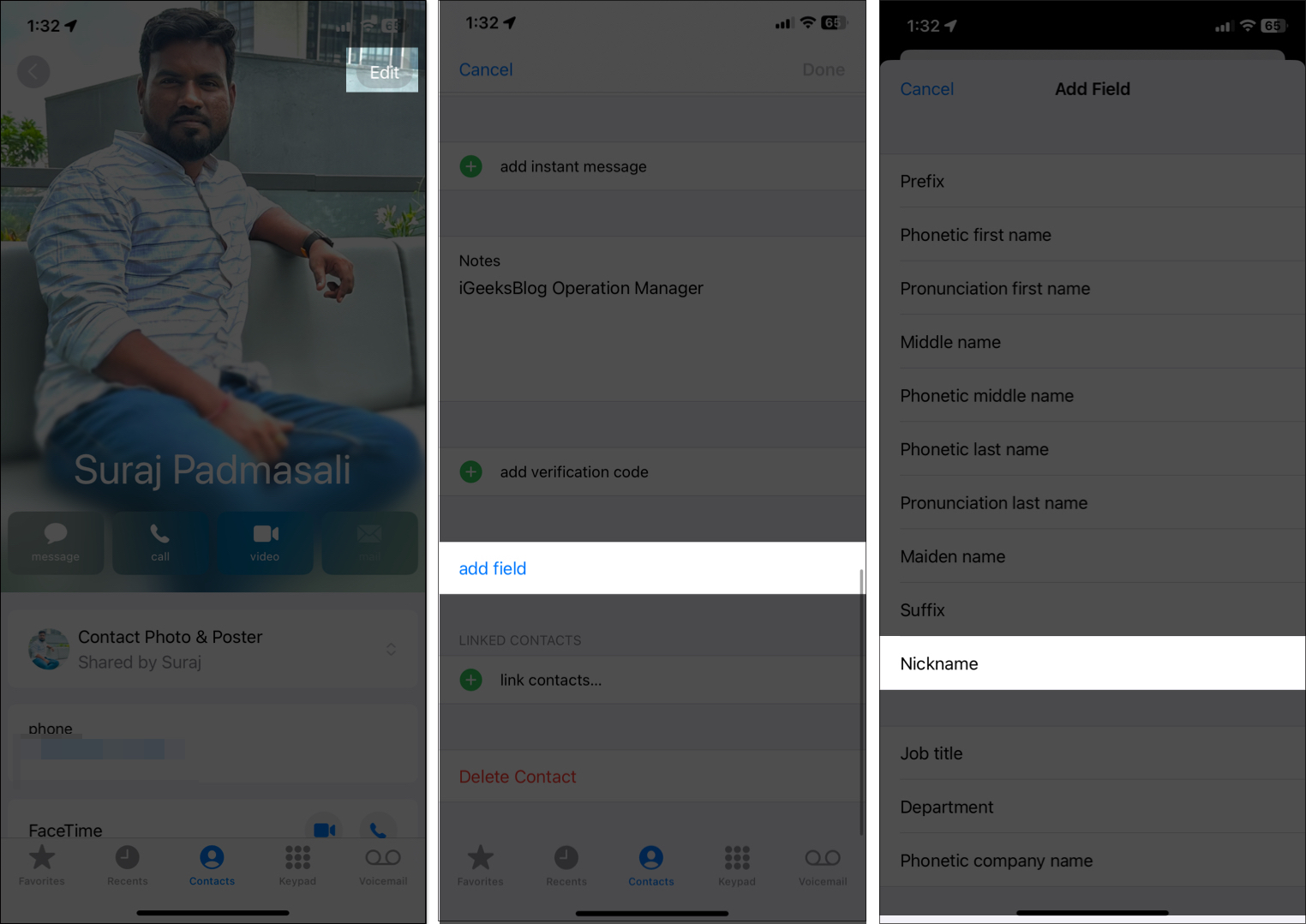
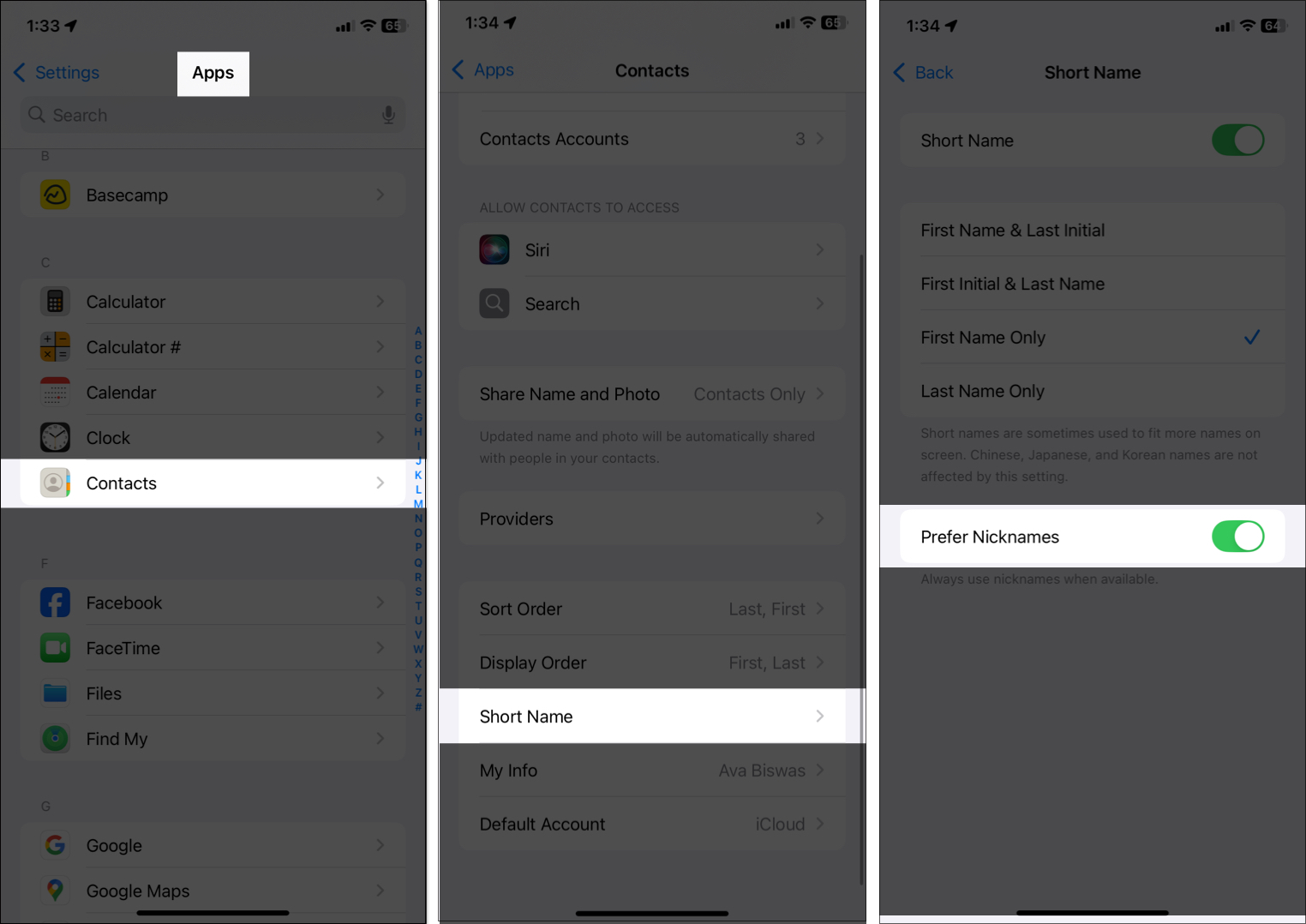
Now, whenever they call you, their nickname will be shown. If you are bothered by their photo appearing in full-screen incoming calls, open the contact, tap Contact Photo & Poster, and select Custom Photo. Then choose a Monogram as their Poster and Avatar.
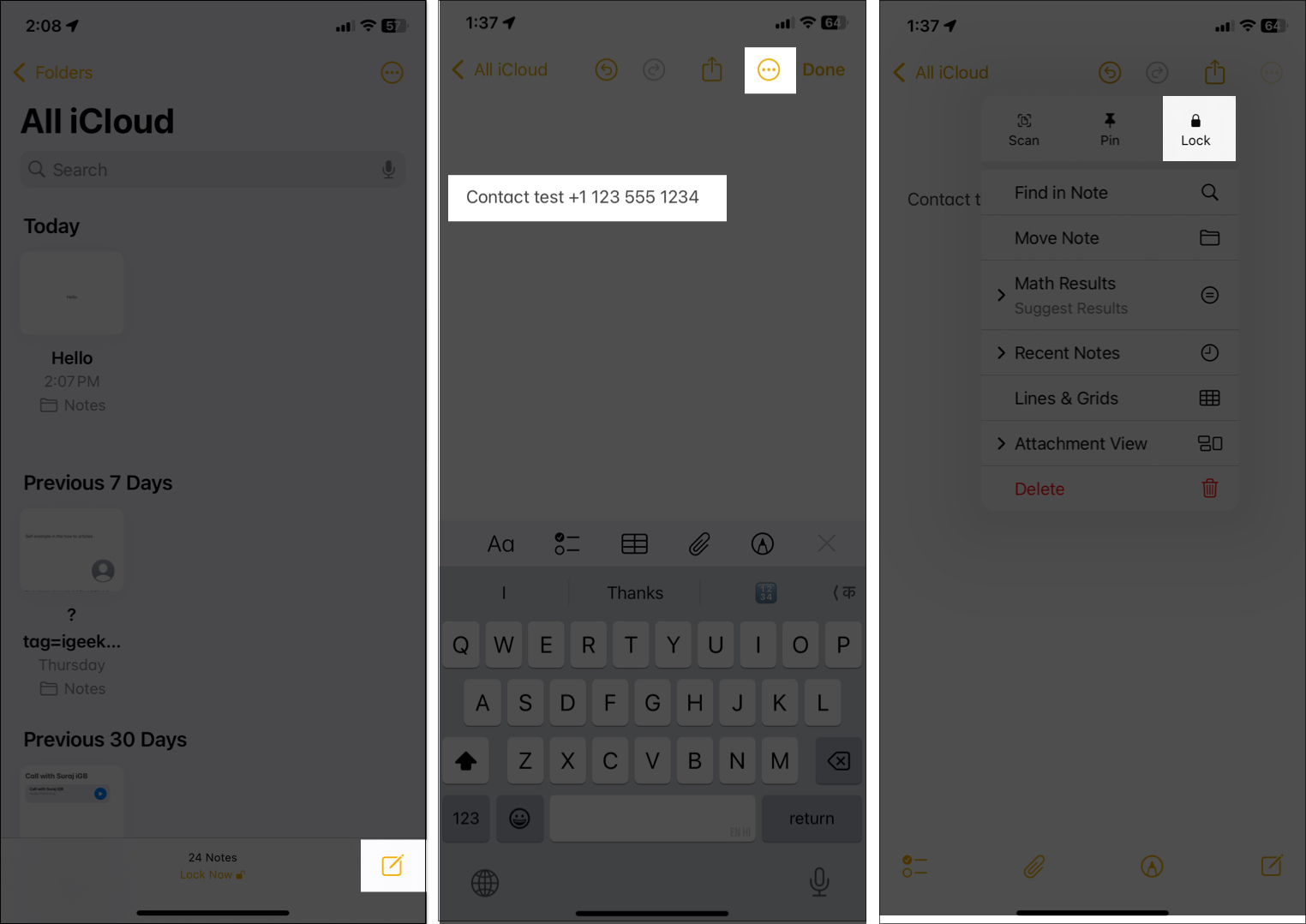
You can store sensitive contact details in a locked Note instead of in Contacts or the Phone app. This ensures that even if someone accesses your phone, they won’t find anything in your address book.
If someone types a few letters into your iPhone’s search bar, related contacts might pop up as suggestions. Similarly, Siri can suggest contacts based on your activity, potentially compromising your privacy.
You can turn that off:
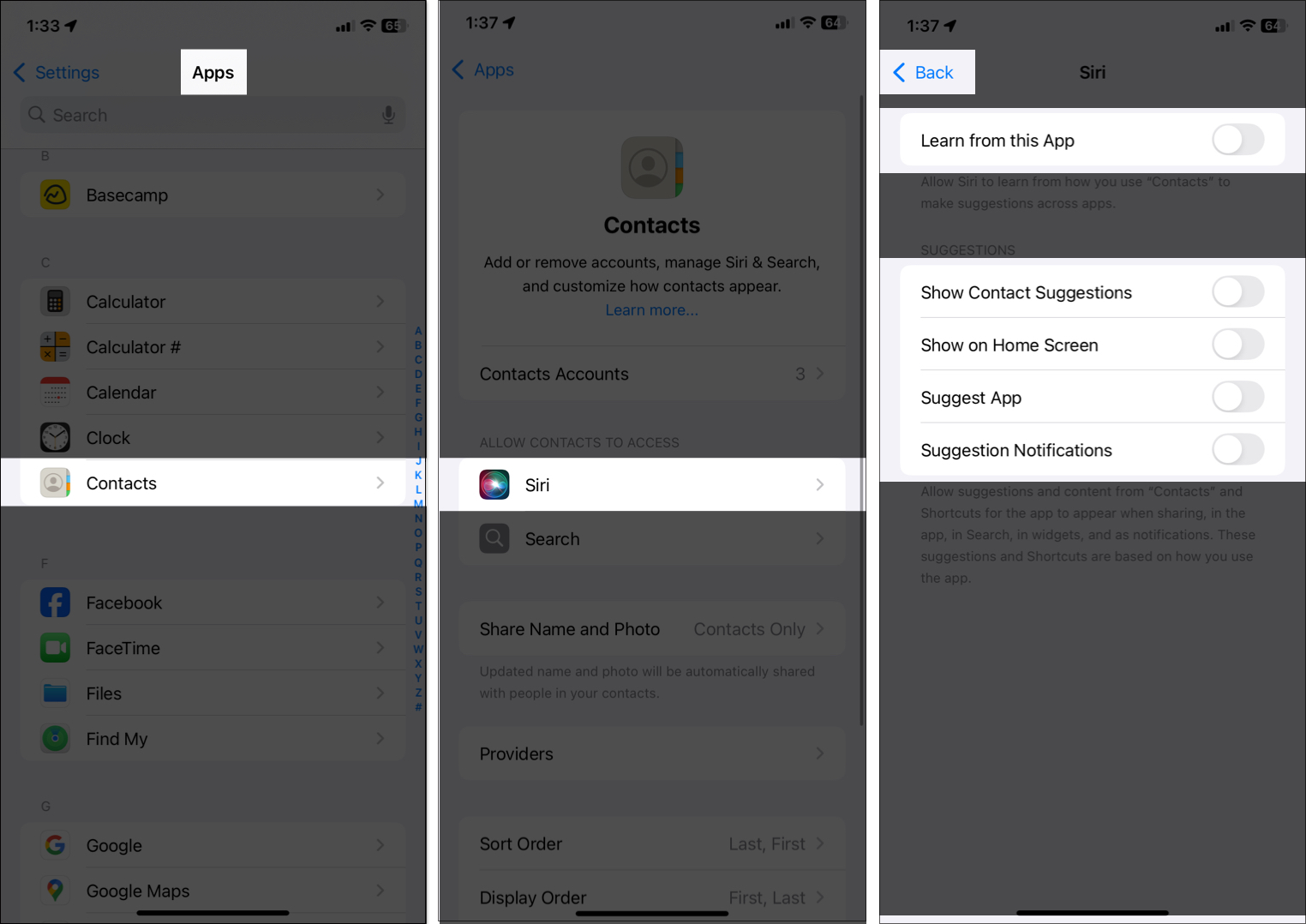
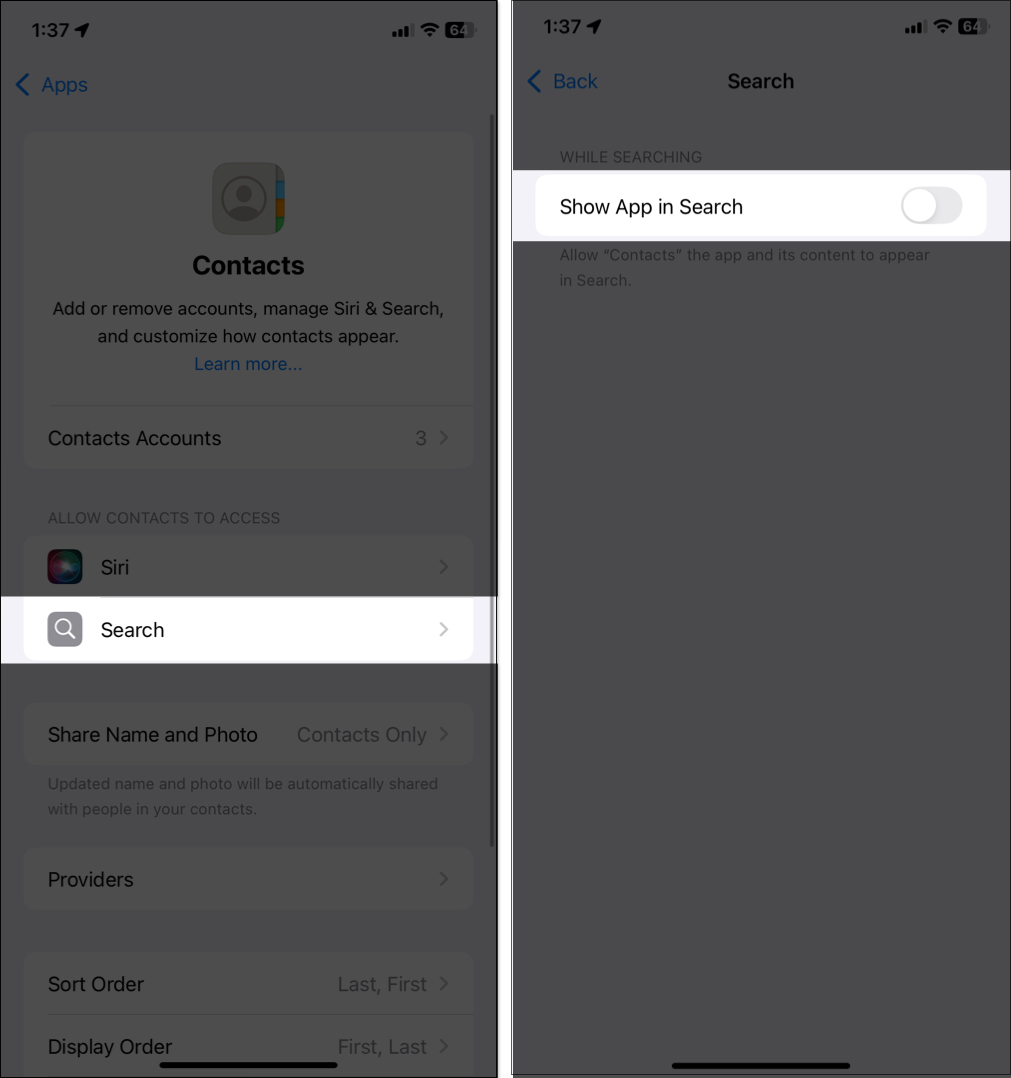
By doing this, your contacts won’t appear in search answers, widgets, and notifications.
If you use Gmail, you can store contacts only in Google Contacts, not in iCloud. It offers a built-in hide option.
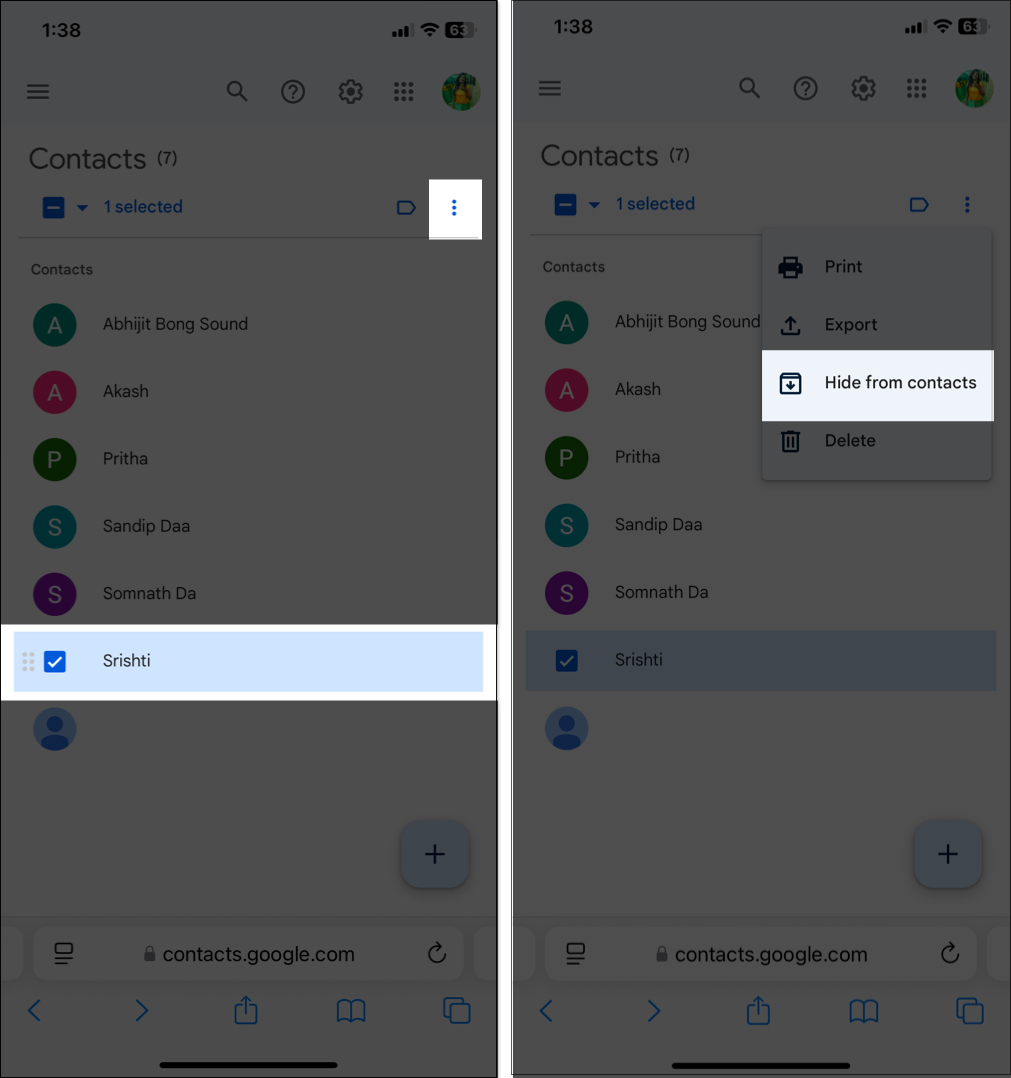
Whenever you want to access the hidden contact, go to Google Contacts and find it in the Other Contacts section. The contact data stays online and accessible.
Apps like GhostContact offer a separate contact list for sensitive contacts.
The numbers you have saved in the app won’t appear in your Phone or Contacts app. And hiding it adds an extra layer of privacy.
Even though iOS 26 doesn’t have a built-in “Hide Contact” feature, you can still protect sensitive names, conversations, and call history using smart workarounds. Use the options above to build a setup that keeps your iPhone contacts organized, secure, and aligned with your comfort level.
Have you tried hiding your contacts? Let us know in the comments below!
FAQs
Not directly. iOS doesn’t have a Hide toggle; instead, you can make good use of workarounds such as locked Notes and contact groups.
Move the information to a locked Note or another secure app, then remove it from the contact in the main address book.
Set the Note to locked, rename the contact, or remove it from your main contact lists.
Rename the contact to a nickname, and hide it from Siri Suggestions or Spotlight to minimize exposure across the system.
Read more:









