
FaceTime Like a Pro
Get our exclusive Ultimate FaceTime Guide 📚 — absolutely FREE when you sign up for our newsletter below.

FaceTime Like a Pro
Get our exclusive Ultimate FaceTime Guide 📚 — absolutely FREE when you sign up for our newsletter below.


Google’s AI Overviews clutter your search with half-baked summaries. Want cleaner, classic results? Here’s how to disable them on desktop and mobile.


Gone are the days of saying, “See? I’m right because Google says so.”
For a while now, users have been complaining that search quality has taken a hit. And just when things couldn’t get more frustrating, Google added a giant AI-generated box to the top of almost every results page.
Sure, the answers have improved since the early apply glue-on-pizza days. But they’re still often outdated, confusing, or flat-out wrong. And even when they’re close, I still find myself fact-checking them.
So here’s the question: if I’m going to double-check everything anyway, why not just skip the AI and go straight to the real results? That’s exactly what I did.
I turned off AI Overviews — and honestly, it felt like getting the old Google back. Here’s how you can do the same.
If you haven’t noticed yet, for most searches on Google now, you’ll likely see an AI Overview section at the top of the results. It’s an auto-generated summary that uses AI to pull pieces of information from various web pages and stitch them into one box.
Sounds helpful, right? The reality is often different.
These summaries frequently pull from outdated or questionable sources—including social media—and sometimes even hallucinate completely incorrect answers.
Here’s why many people (myself included) are opting out:
There’s no official “off” switch yet—but there are a couple of easy workarounds.
Install the Hide Google AI Overviews Chrome extension from the Web Store. Once it’s active, AI Overviews will disappear from your search results.
It works on Chrome and other Chromium-based browsers, such as Brave and Edge. No need to tweak any other settings.
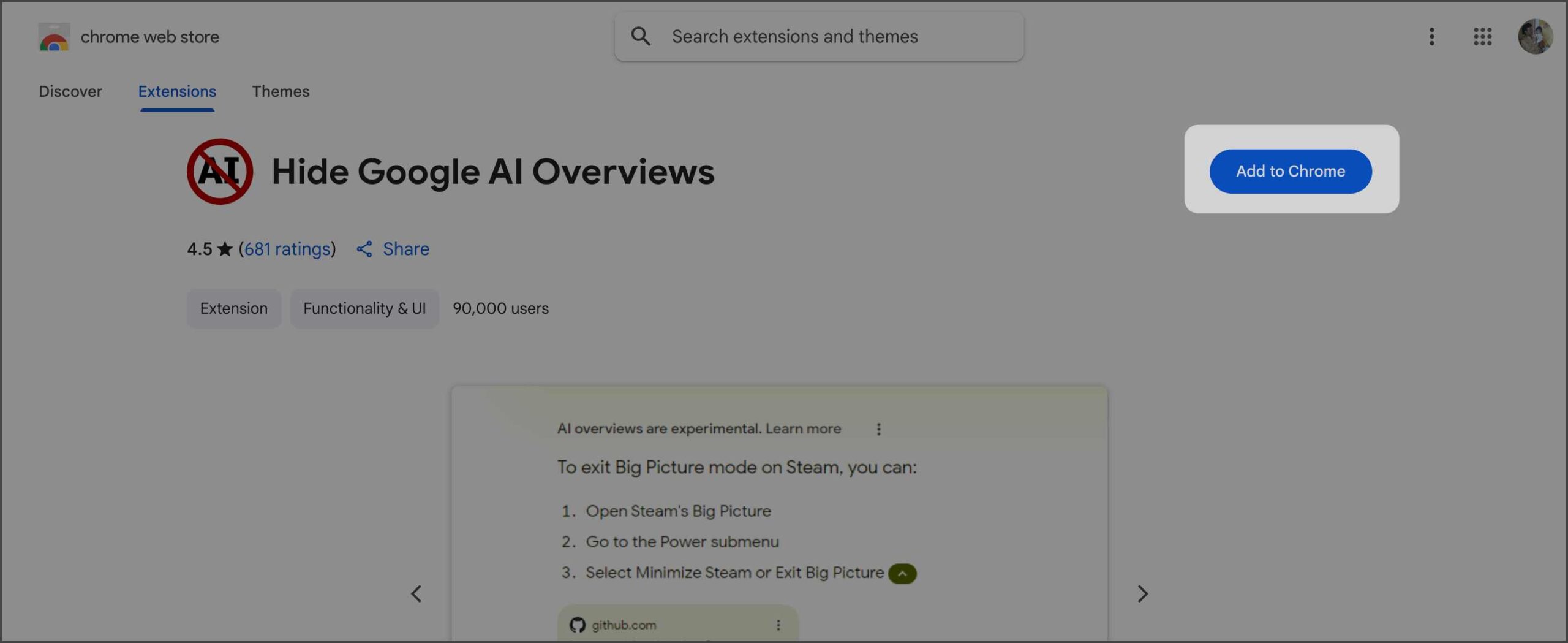
If you use Firefox, there’s a version for that too, made by the same developer.
The AI summary still loads in the background, but at least you won’t have to see it. Sometimes, the AI overview appears as a second result instead of the first; in such cases, this extension may struggle to hide it in such cases, but overall, it’s a simple and effective solution.
If you don’t want to use a third-party extension, or you use Safari or any other browser that does not have a proper extension, you can hide the AI overview yourself manually by modifying the default search URL. To do that,
chrome://settings/searchEngine. Alternatively, you can open Chrome Settings > Search Engine. 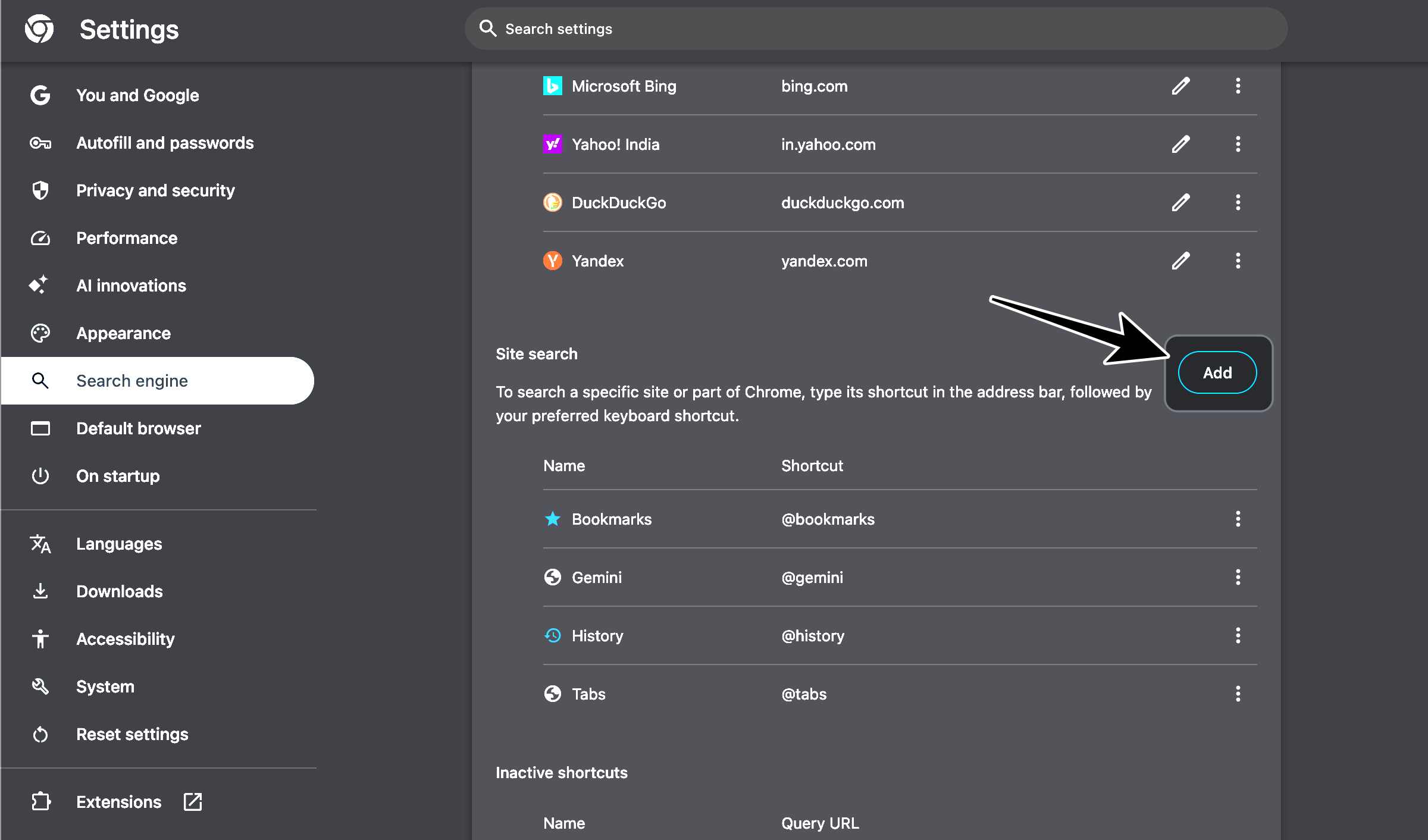
{google:baseURL}search?q=%s&udm=14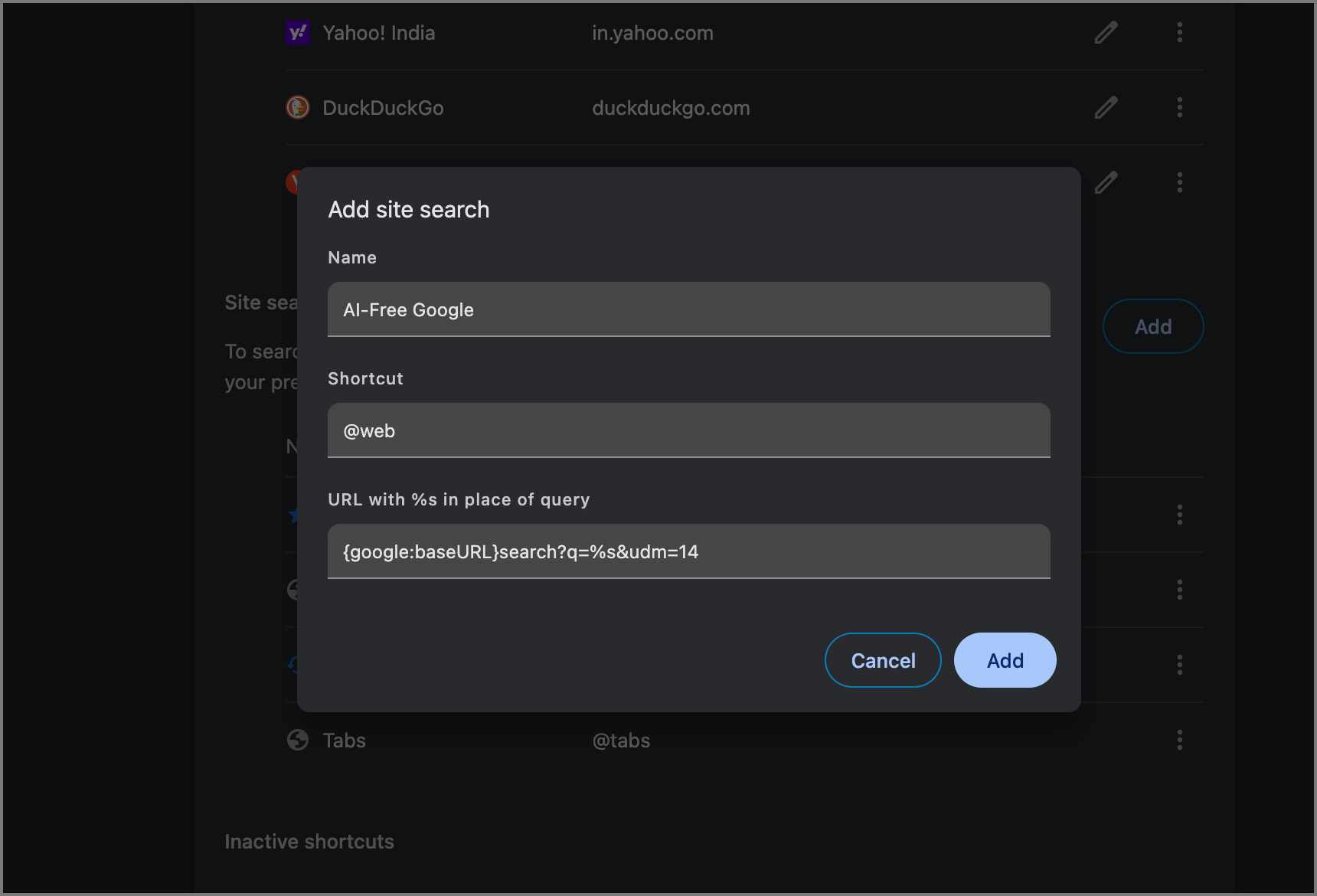
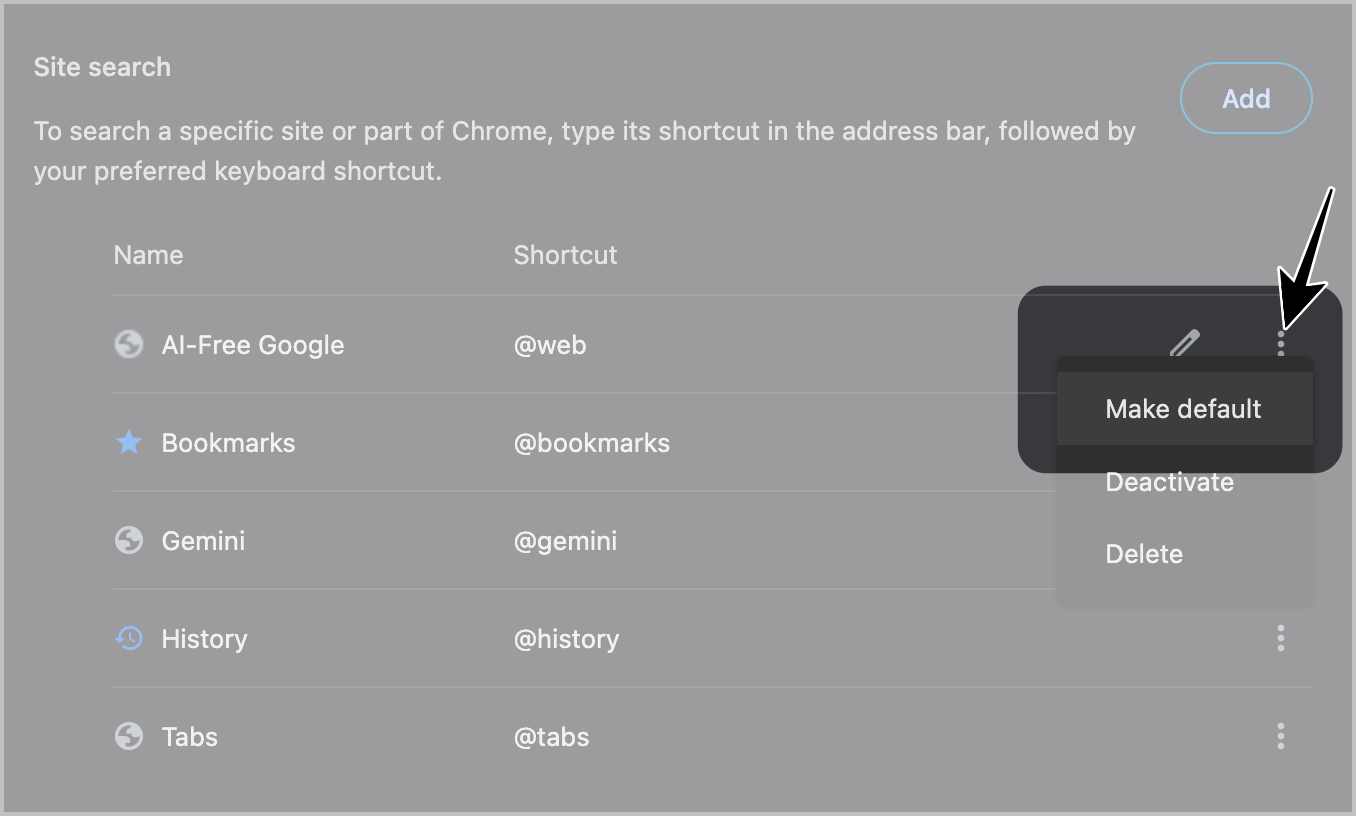
From now on, your searches will skip the AI Overview and go straight to the classic web results.
This redirects your searches to the “Web” tab of Google, skipping the AI Overview. But heads-up: it also removes sections like People Also Ask, videos, Images, and Info from the Knowledge Graph and Forums. You get the classic 10 blue links—and that’s it.
Blocking AI Overviews on iPhone and Android is slightly more complicated, but still possible.
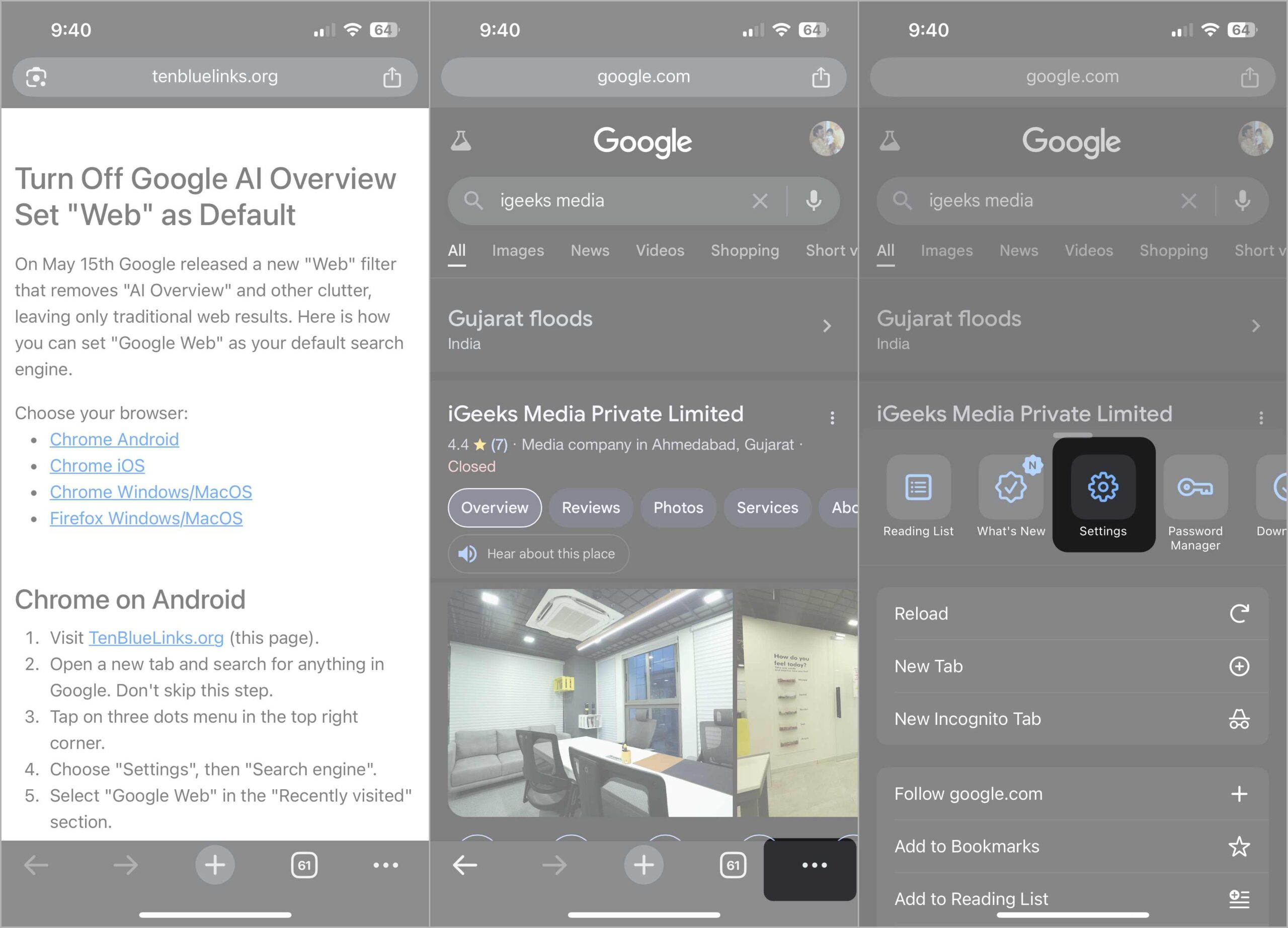
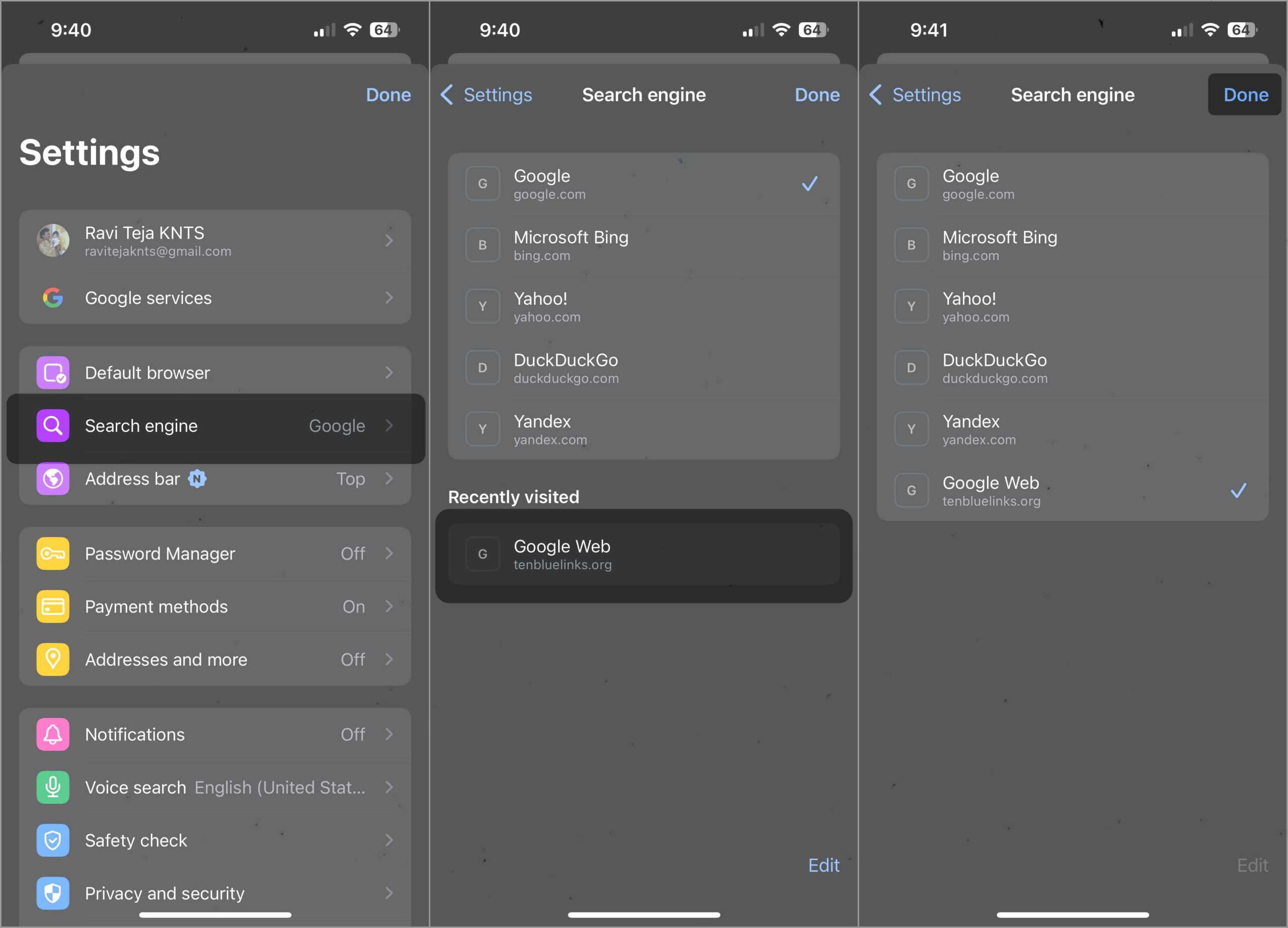
That’s it. Your searches now default to the Web tab, just like on desktop. As mentioned, this also removes “People Also Ask,” forum discussions, videos, etc., from the search results and only gives you 10 blue links.
You can also add a custom search engine in Firefox:
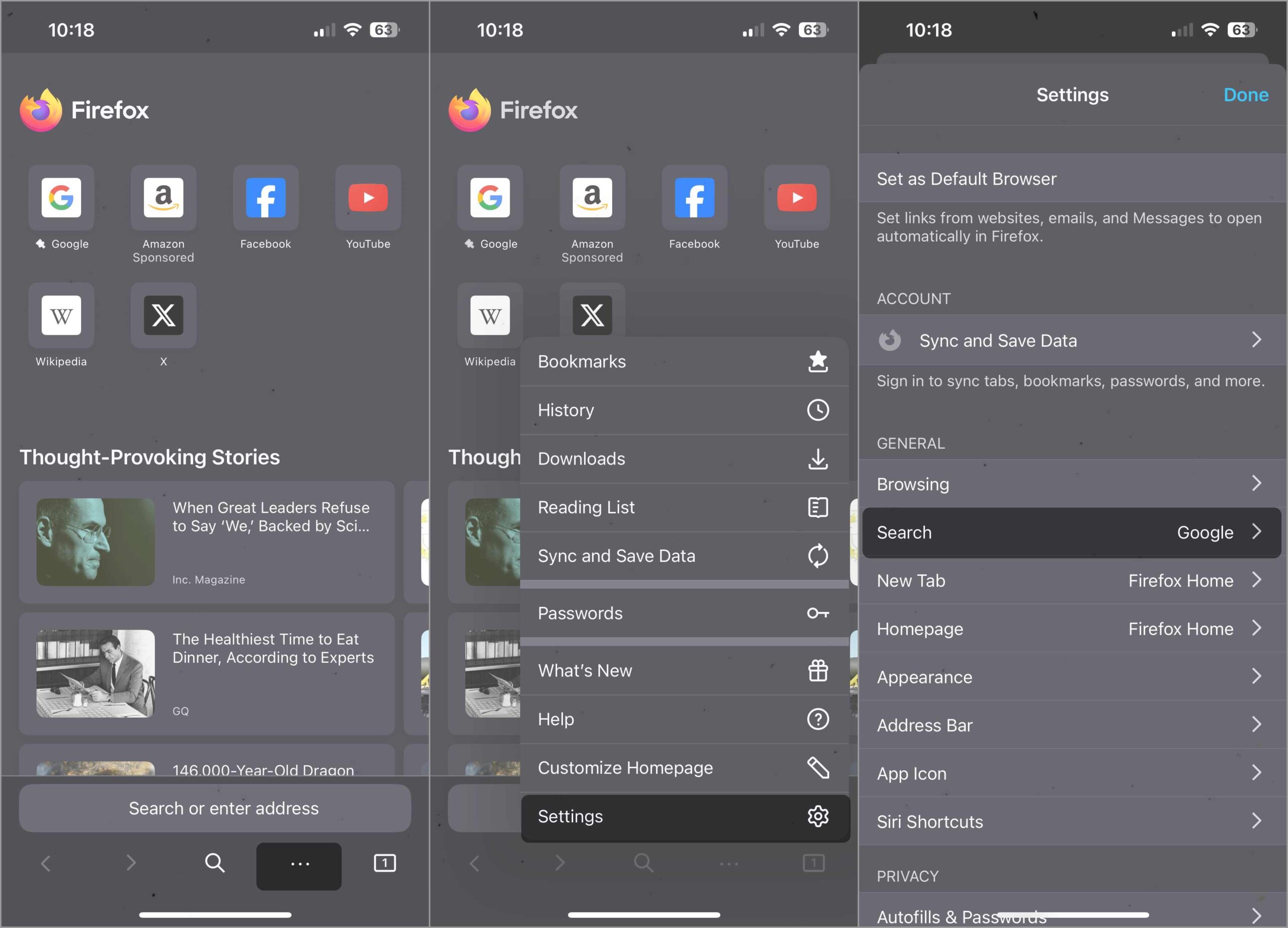
https://www.google.com/search?udm=14&q=%s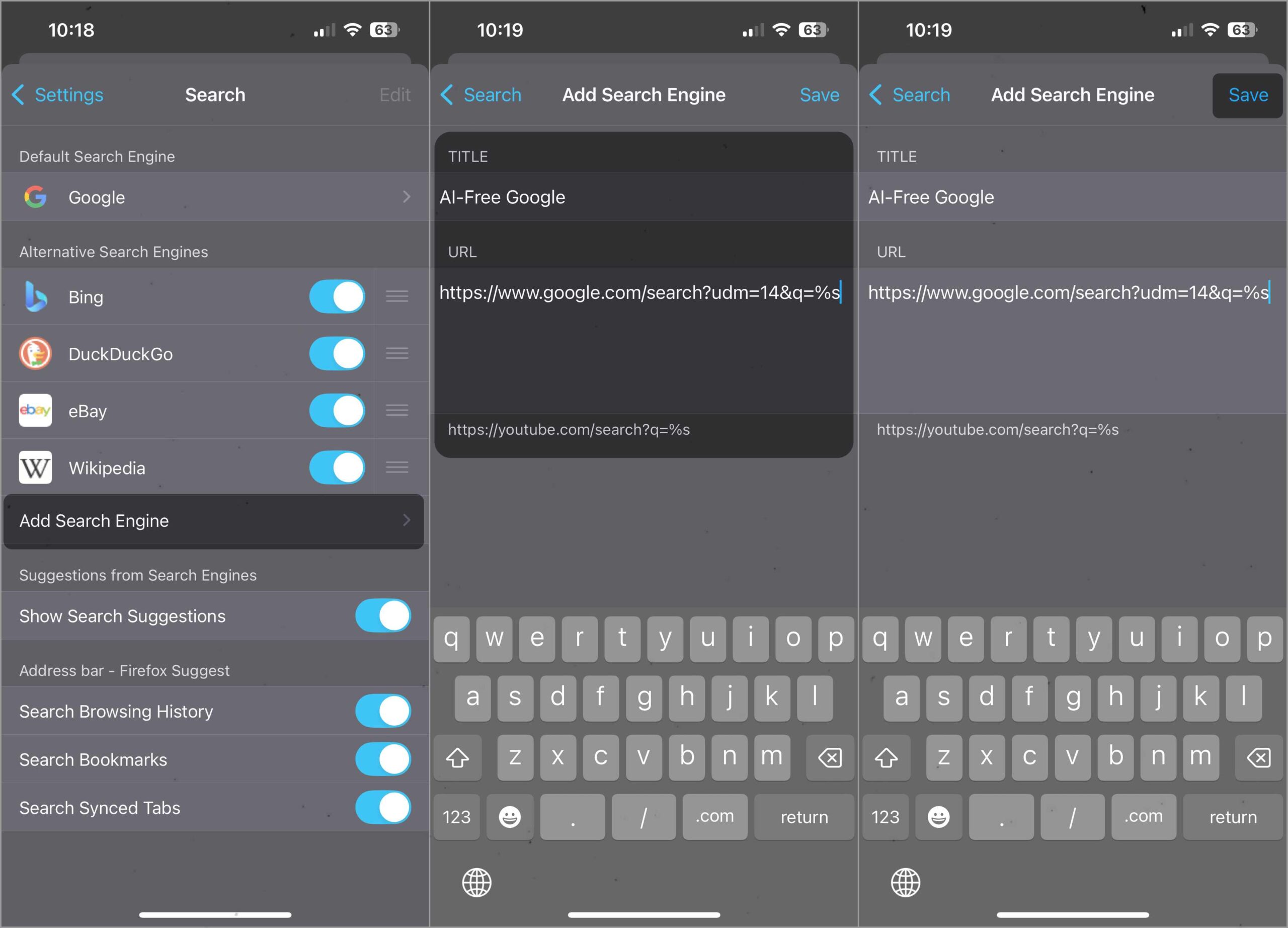
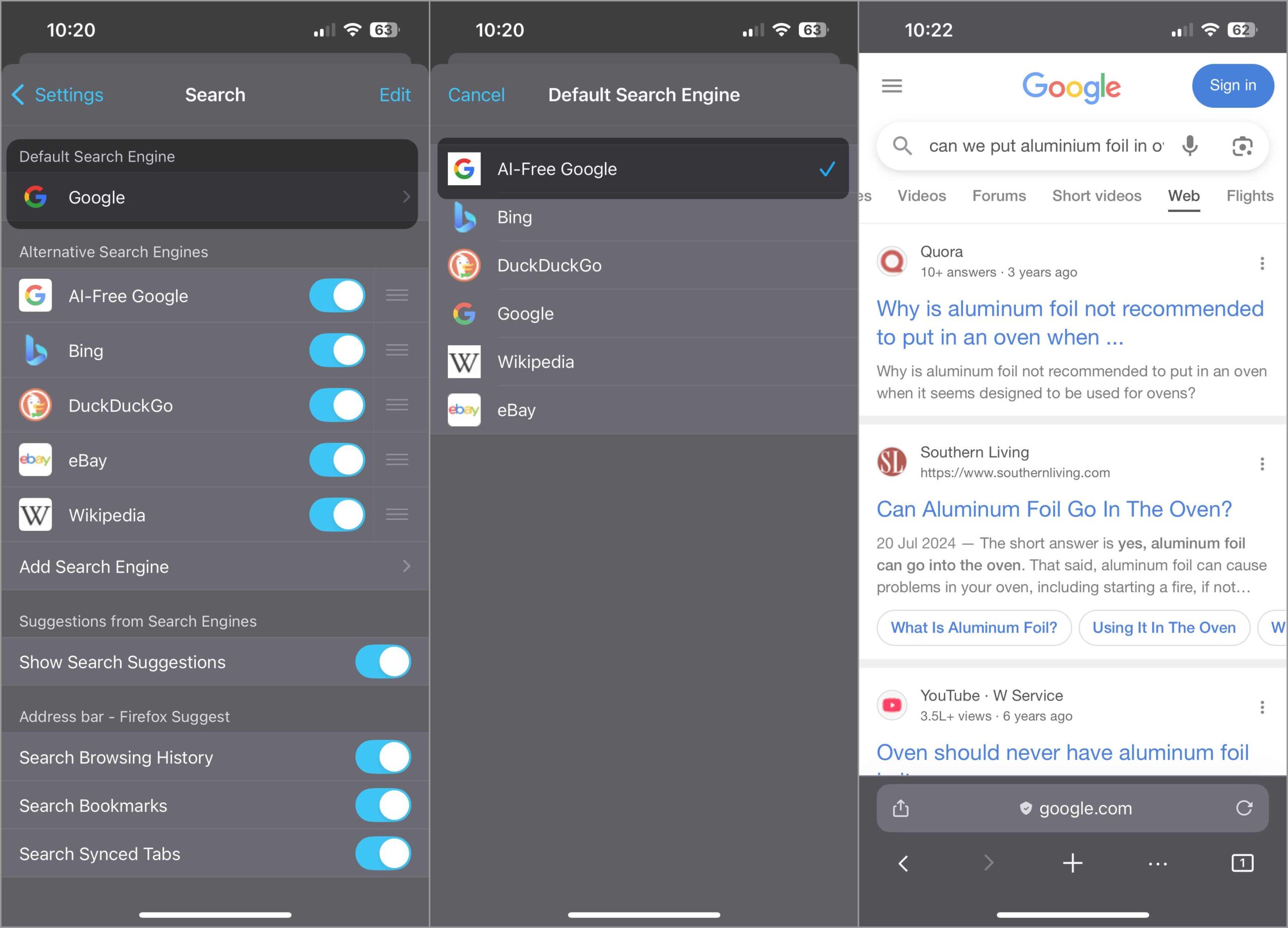
That’s it. You can remove AI Overviews by simply switching to a custom search engine. However, most other mobile browsers don’t currently support this method.
Google Search is no longer what it used to be. AI Overviews try to summarize the web for you, but end up getting in the way more often than not.
If you want your search experience to feel trustworthy again, you don’t have to wait for Google to fix it. You can take back control right now.
I did it — and now you know how to do it too.
Also Read:









