
How to Turn Off Vibration on iPhone for a Quieter Experience
Tired of constant buzzing? This guide shows you how to turn off vibration on your iPhone, whether for calls, keyboard typing, or all system haptics.
Key Takeaways:
- Why Turn Off Vibration on iPhone?: Turning off vibration helps reduce distractions, save battery life, and avoid unnecessary noise in meetings, theaters, or shared spaces.
- How to Turn Off All Vibrations on iPhone: Go to Settings → Accessibility → Touch and toggle off Vibration to completely disable all haptic feedback.
- How to Turn Off Vibration for Calls and Alerts: In Settings → Sounds & Haptics, set Haptics to Never to stop vibration for incoming calls, texts, and notifications.
- How to Turn Off Keyboard and System Haptics: You can disable keyboard feedback and subtle system taps by turning off Keyboard Feedback and System Haptics under Sounds & Haptics.
The haptics on an iPhone have always been top-tier. While vibration alerts in silent mode can be useful, they can also be distracting in meetings, classrooms, or quiet spaces. Thankfully, Apple gives you full control over vibration settings; you can turn off haptics entirely or disable them for specific features like calls, keyboard typing, or system interactions.
Here’s a complete guide on how to turn off vibration on iPhone, whether you want total silence or just less buzzing.
Table of Contents
- Why Turn Off Vibration on iPhone?
- How to Turn Off All Vibrations on iPhone
- How to Turn Off Vibration for Calls and Alerts
- How to Turn Off Keyboard Haptics
- How to Disable System Haptics
- How to Turn Off Vibration for Specific Apps
- iPhone Still Vibrating? Try These Fixes
- Take Control of Your iPhone Vibrations
Why Turn Off Vibration on iPhone?
While vibrations are handy when your iPhone is silent, they’re not always convenient. Here’s why many users choose to disable them:
- Peace and focus: Constant buzzing during meetings, study sessions, or sleep can be disruptive.
- Avoid embarrassment: A phone vibrating loudly in public can draw unwanted attention.
- Battery conservation: Vibrations consume battery power. Disabling them can slightly extend battery life if you get frequent notifications.
- Custom control: Not every alert needs haptic feedback; disable the ones you don’t want.
- Health and comfort: Some people find repeated vibrations uncomfortable, especially in pockets or close to the body.
How to Turn Off All Vibrations on iPhone
If you want complete silence with no buzzing or haptic taps, you can disable all vibrations through Accessibility settings:
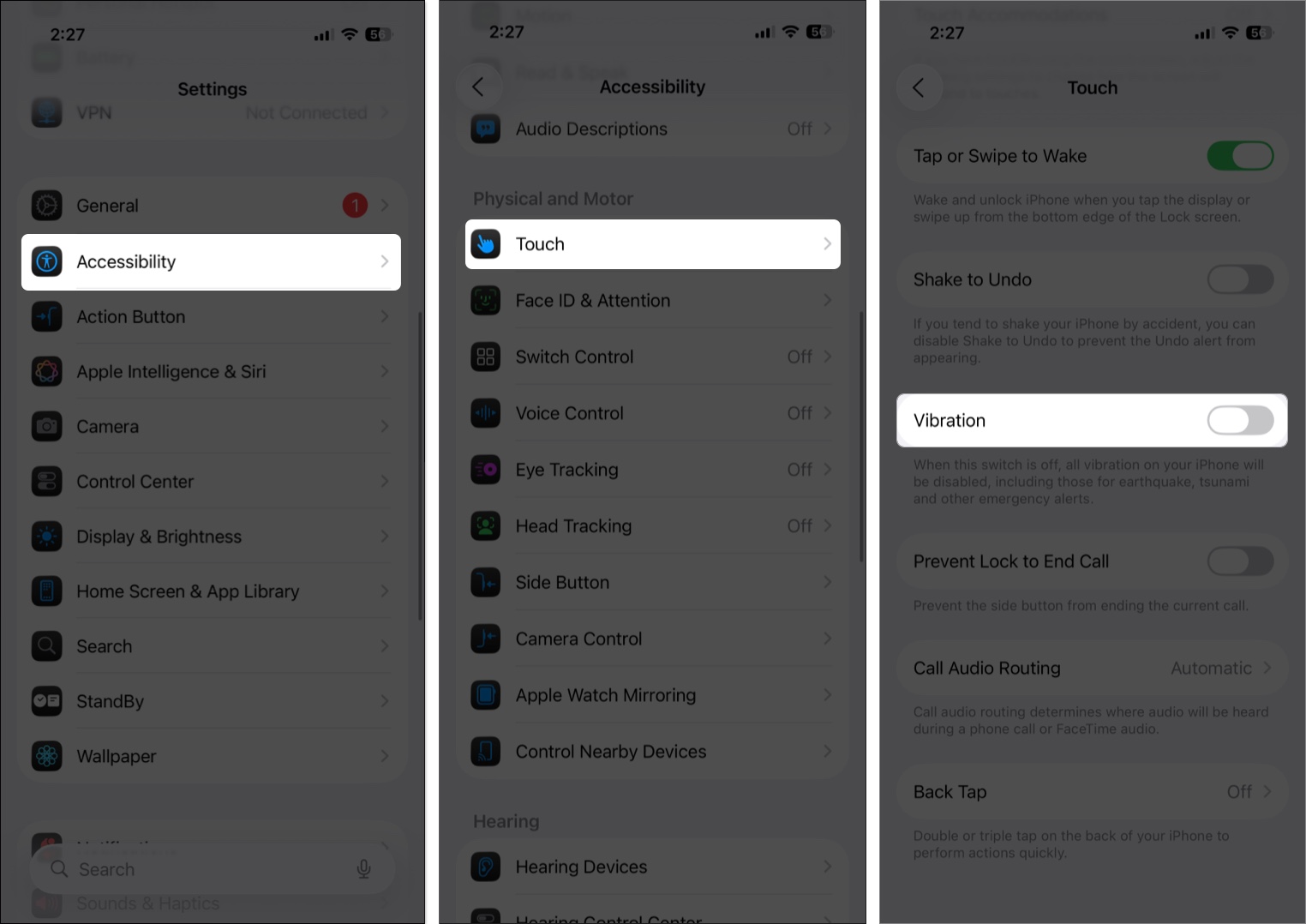
- Open Settings and head to Accessibility settings.
- Here, select ‘Touch‘ under the ‘Physical and Motor‘ section.
- Now, locate and toggle off Vibration.
Once disabled, your iPhone won’t vibrate for calls, texts, alerts, or system actions. Keep in mind that this also stops vibration for emergency alerts, which may be important.
How to Turn Off Vibration for Calls and Alerts
Instead of turning off all vibrations, you can disable them only for calls and alerts:
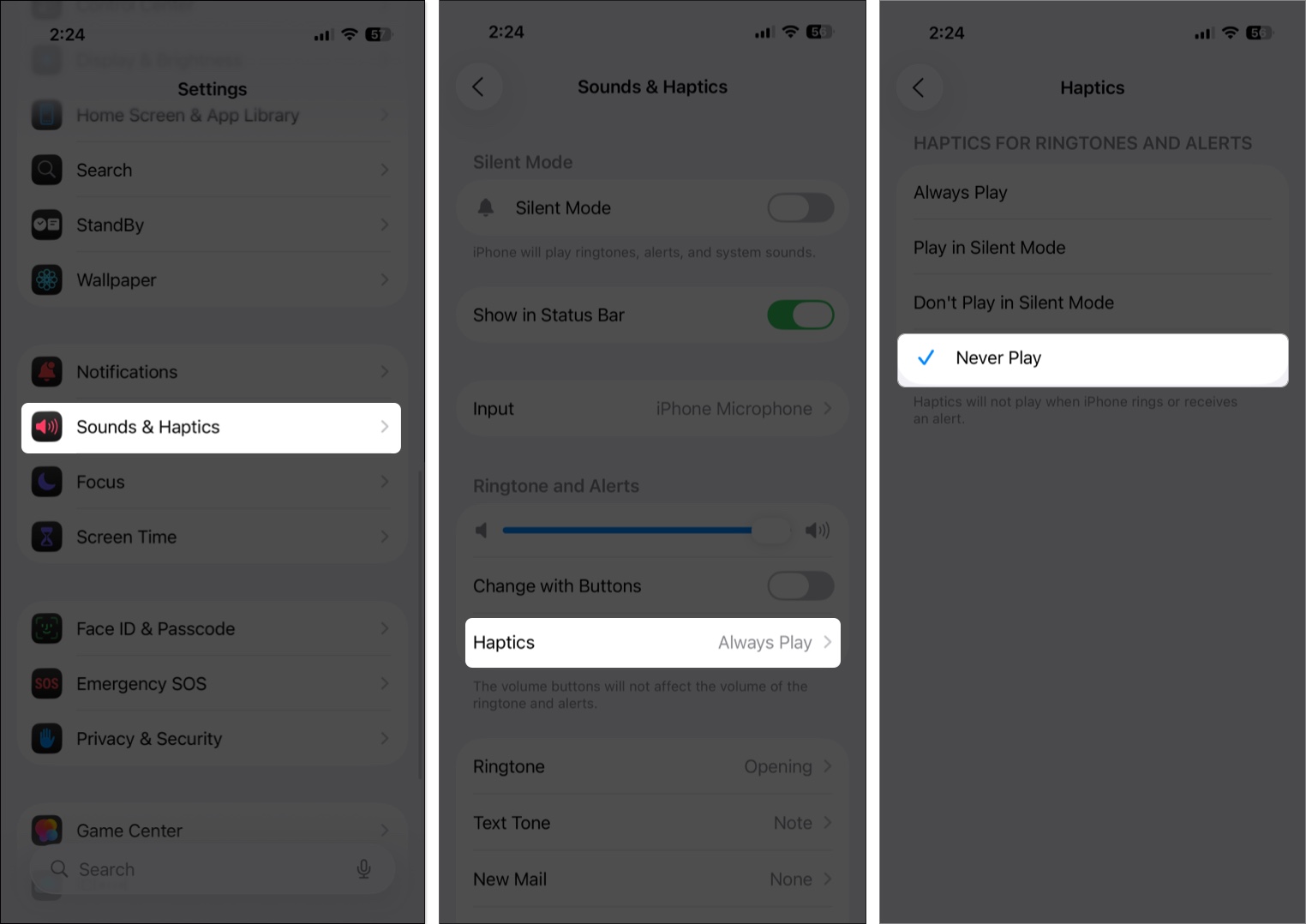
- Open Settings and tap Sounds & Haptics.
- Here, tap ‘Haptics‘ under the ‘Ringtone and Alerts‘ section.
- Next, select the Never Play option in the subsequent menu.
This way, you won’t miss emergency vibrations but still eliminate buzzing for calls and messages.
How to Turn Off Keyboard Haptics
Keyboard haptics add a tactile feel while typing but can drain battery. To turn them off:
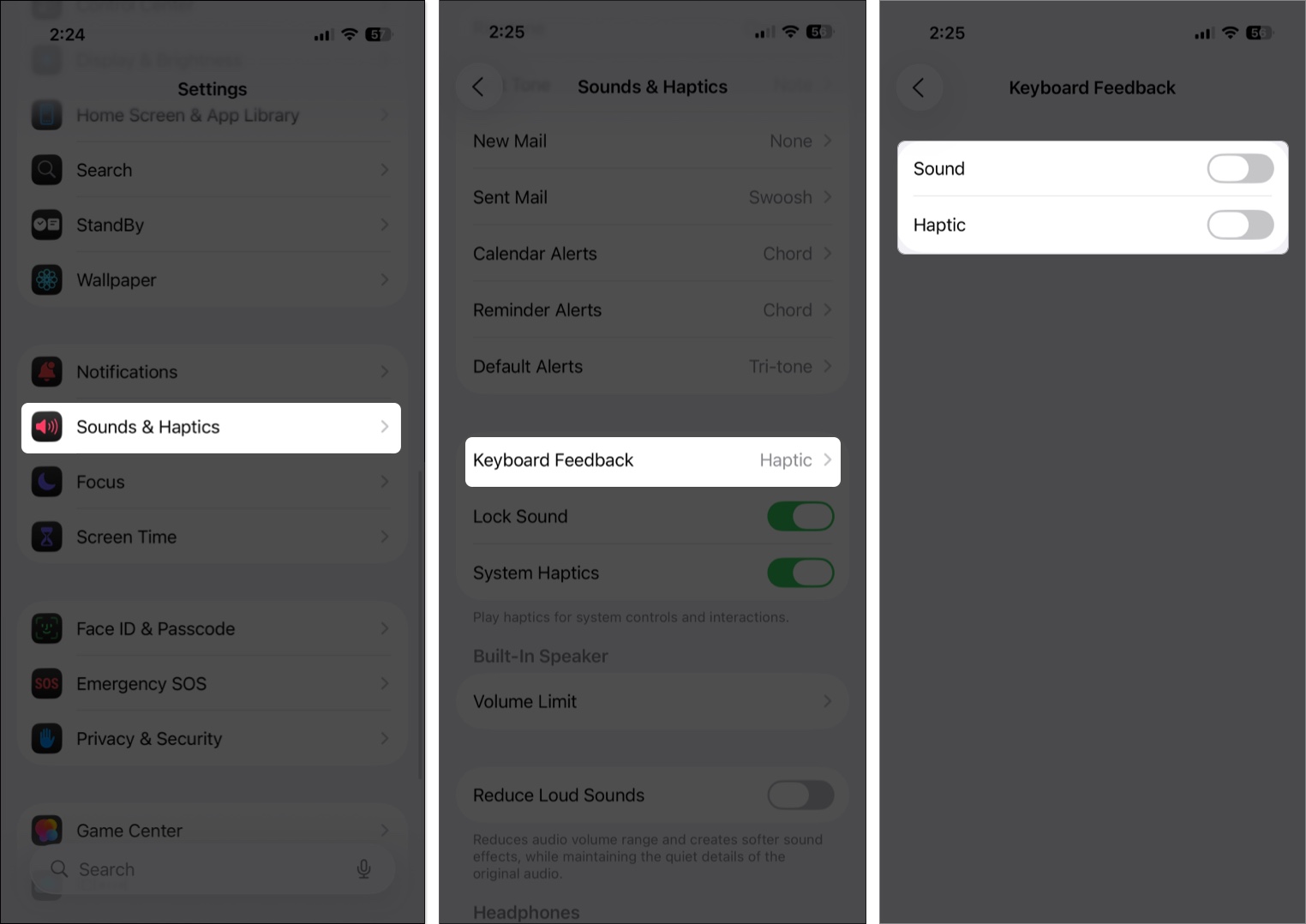
- Open Settings → Sounds & Haptics.
- Locate and tap Keyboard Feedback.
- Toggle off Haptic.
How to Disable System Haptics
Your iPhone also vibrates for actions like long-pressing icons or navigating menus. While these subtle system haptics feel nice, they’re not essential and can be turned off safely. Here’s how:
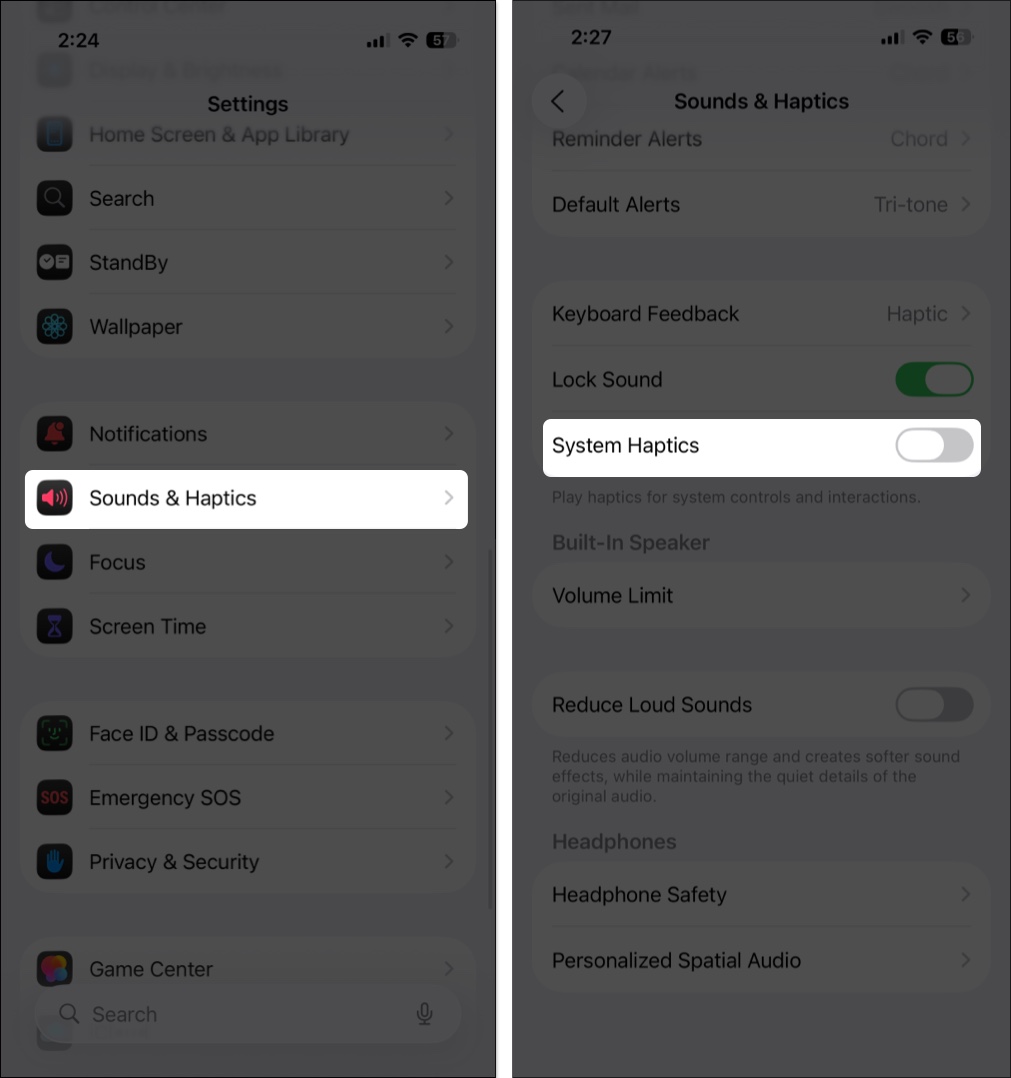
- Open Settings → Sounds & Haptics.
- Now, scroll down and toggle off System Haptics.
How to Turn Off Vibration for Specific Apps
Some apps like Messages have their own vibration settings. Here’s how to adjust them:
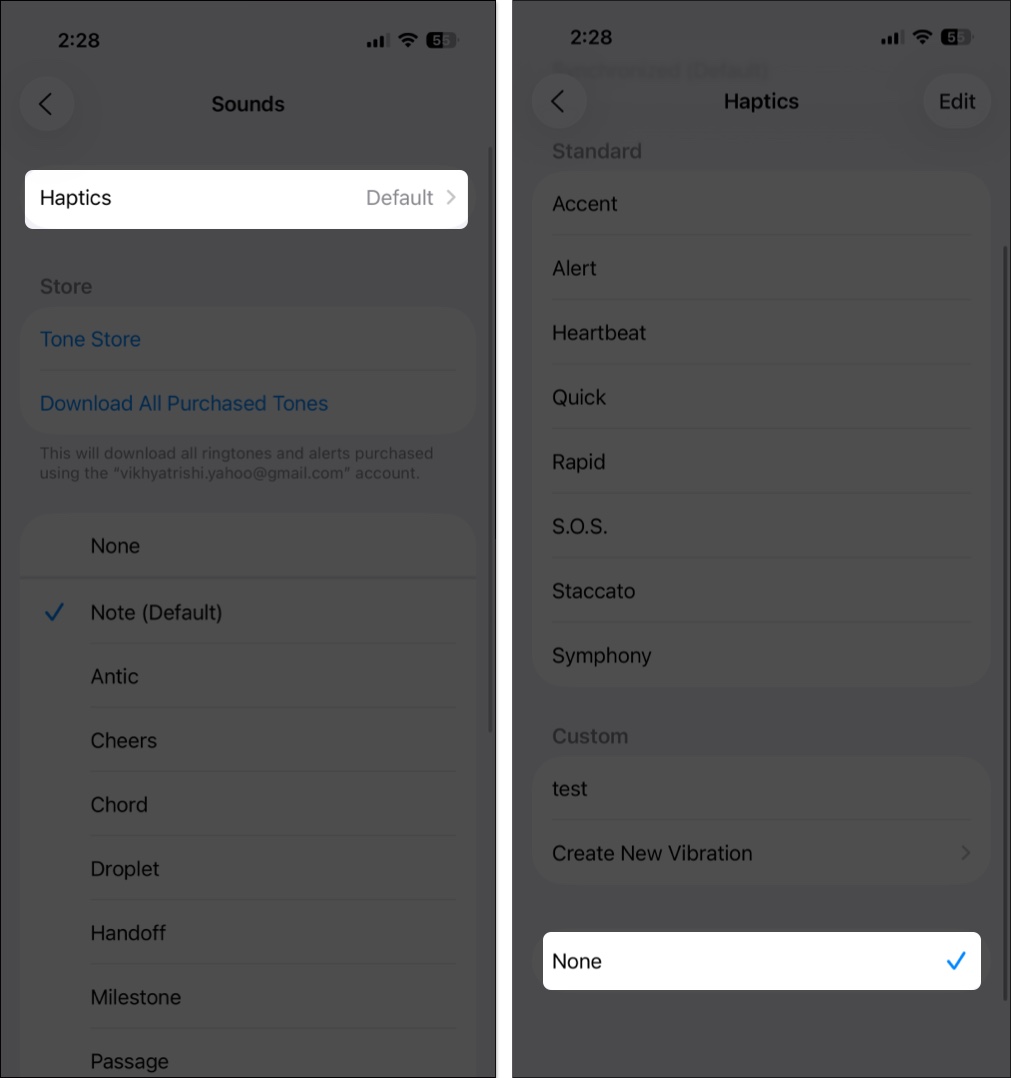
- Open Settings → Notifications.
- Here, select the app you want to turn off notification haptics for.
- Next, tap Sounds.
- Tap Haptics and select the None option in the subsequent menu.
iPhone Still Vibrating? Try These Fixes
If your iPhone continues buzzing after changing settings, try:
- Restart your iPhone after making the changes to the settings.
- Ensure both System Haptics and Keyboard Feedback are turned off.
- Check if Accessibility → Touch → Vibration is disabled.
- Update to the latest version of iOS, as some bugs may cause lingering vibrations.
Tried everything, but the issue persists. In that case, go to Settings → General → Transfer or Reset iPhone → Reset → Reset All Settings. This won’t delete data but will restore system settings to default.
Take Control of Your iPhone Vibrations
That’s it. With these options, you can silence all haptics or fine-tune which ones stay on. Experiment with the settings to find what works best for you, and enjoy a quieter, distraction-free experience with your iPhone.
If you’ve found this guide helpful, share your tips or questions in the comments.
Read more:

- How to Set a Custom Vibration Alert for Contact on iPhone
- IPhone Vibration Not Working? 9 Real Fixes
- How to Quickly Fix an iPhone Alarm Not Going Off





