
FaceTime Like a Pro
Get our exclusive Ultimate FaceTime Guide 📚 — absolutely FREE when you sign up for our newsletter below.

FaceTime Like a Pro
Get our exclusive Ultimate FaceTime Guide 📚 — absolutely FREE when you sign up for our newsletter below.


Eye Tracking on iPhone and iPad lets you control your device using only your eyes. Here’s how to set it up, use it, and customize dwell controls.

 ByAyush Patel and Yash Wate


Apple continues to introduce powerful accessibility features to make iPhones and iPads more usable for everyone. One such feature, Eye Tracking, can transform how people with motor disabilities or anyone interacts with their devices. Eye Tracking allows you to control your iPhone or iPad using the movement of your eyes to perform various actions without touching the screen, such as launching apps, scrolling through social media, taking screenshots, or locking your device.
This guide will help you try this unique accessibility feature. Keep reading as we show you how to turn on and use Eye Tracking on your iPhone or iPad.
Eye Tracking is an accessibility feature that lets you control your iPhone or iPad with the movement of your eyes. It uses the front-facing camera to detect your eye movements. Based on where you look, you can scroll, move, and select different areas and buttons on your screen.
This feature is particularly useful for people who face mobility challenges, but anyone can use it to navigate their device hands-free. You can still use the touchscreen while Eye Tracking is enabled.
Eye Tracking is available on any iPhone or iPad running iOS 18 or later. Supported models include:
| iPhone | iPad |
|---|---|
| iPhone 16 Series | iPad mini 6th gen |
| iPhone 15 Series | iPad 10th gen |
| iPhone 14 Series | iPad Air 4th gen and later |
| iPhone 13 Series | iPad Air 11-inch and 13-inch (M2) |
| iPhone 12 Series | iPad Pro 11-inch 3rd gen and later |
| iPhone SE 3rd gen | iPad Pro 11-inch (M4) |
| iPhone 16e | iPad Pro 12.9-inch 3rd gen and later |
| iPhone Air | iPad Pro 13-inch (M4) |
| iPhone 17 Series |
Setting up Eye Tracking only takes a minute. Here’s how:
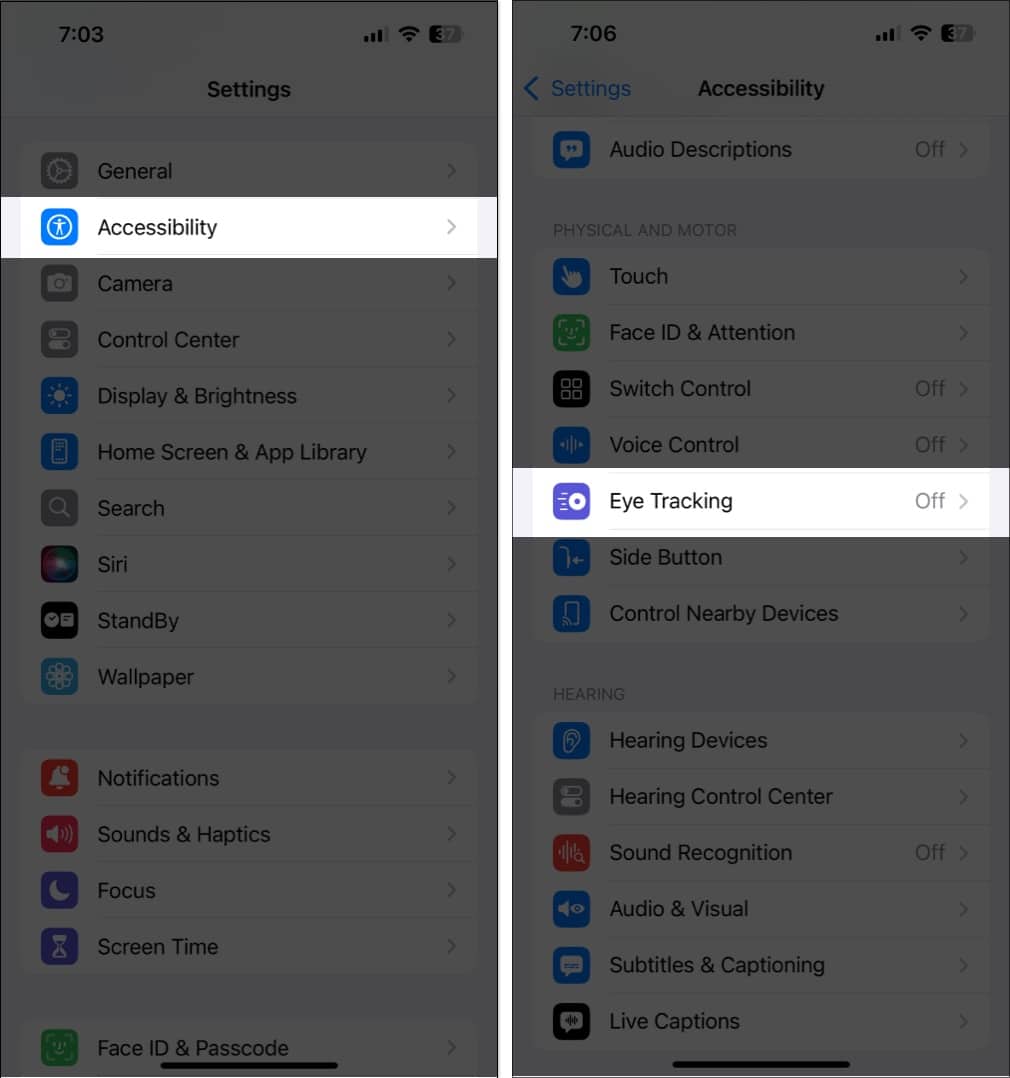
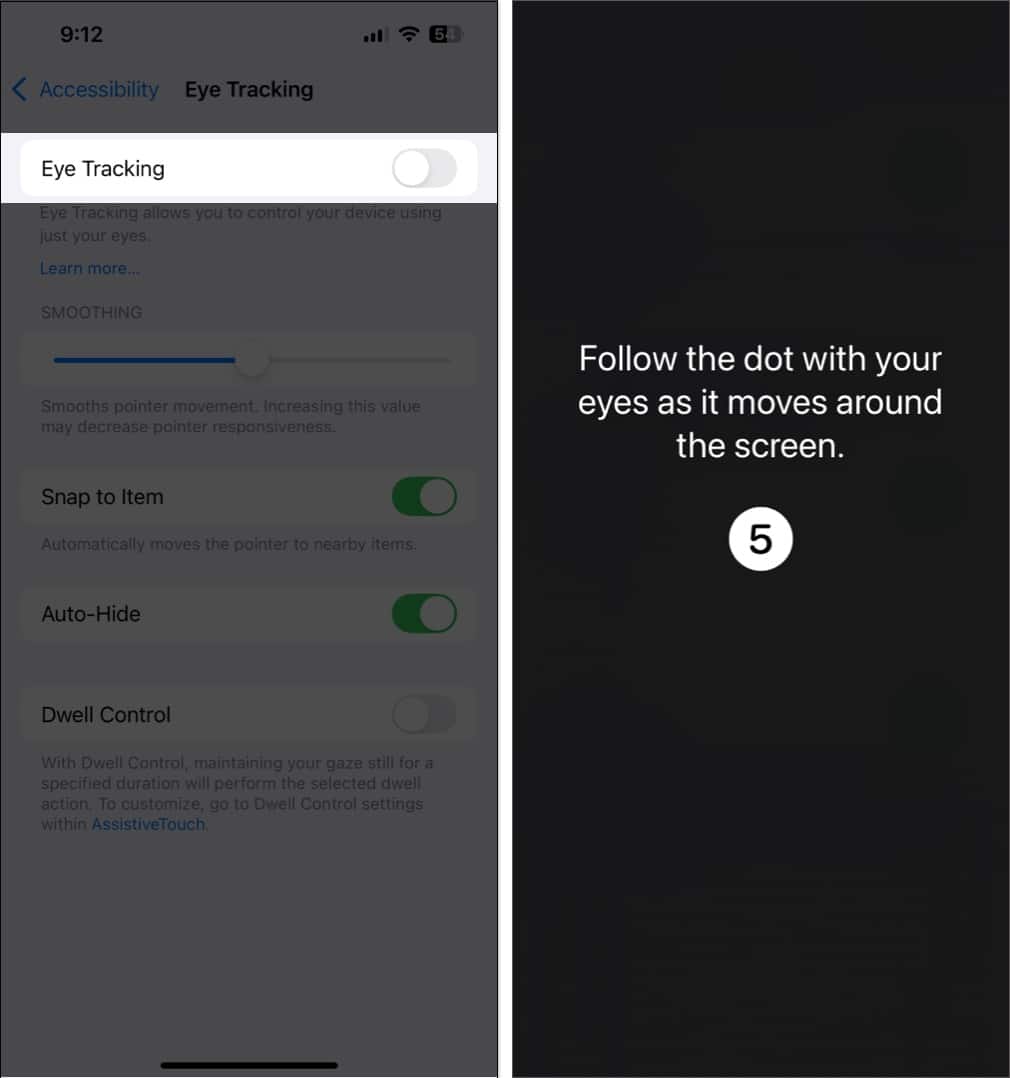
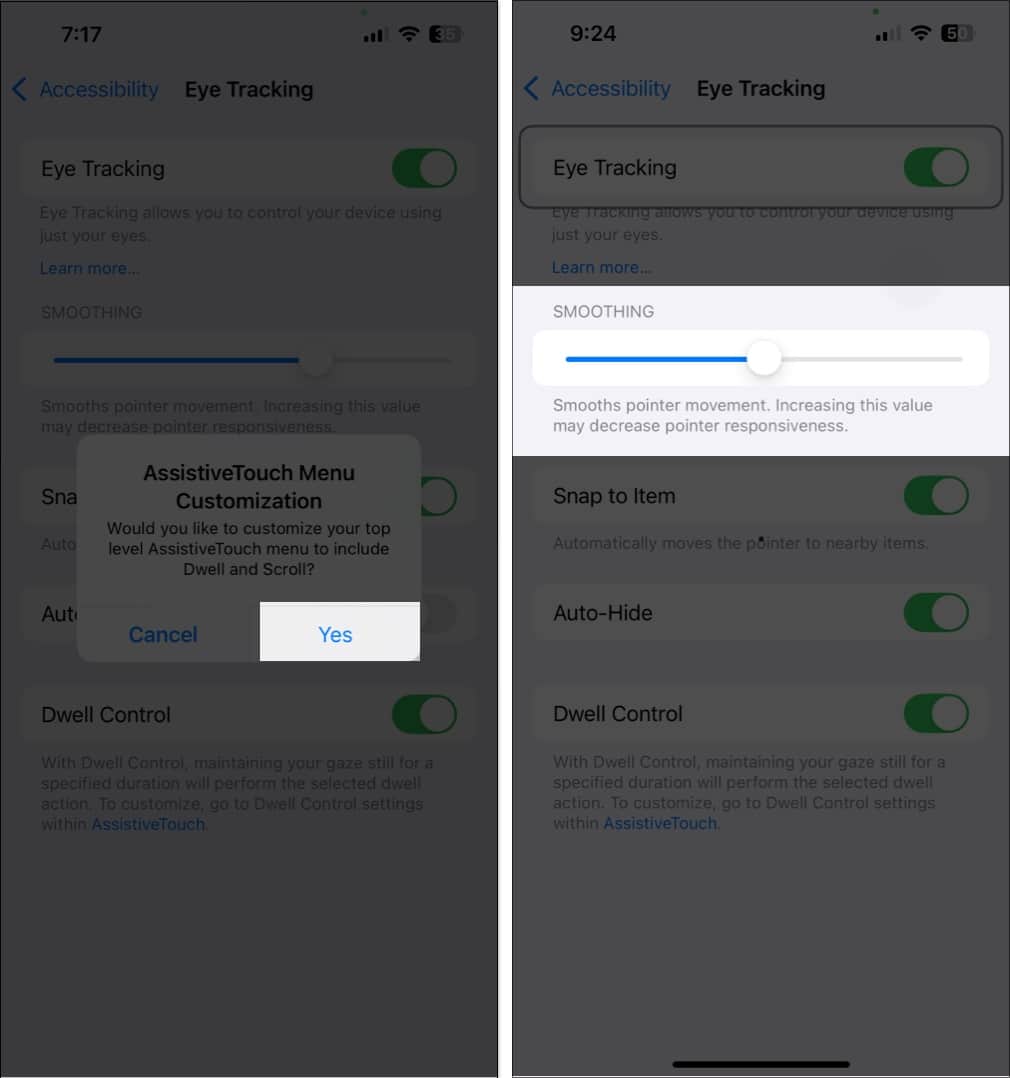
Turning on Eye Tracking also enables Dwell Control, which lets you perform actions by holding your gaze on a button or area.
Once set up, here’s how Eye Tracking works:
You can customize settings for a smoother experience:
Dwell Control determines how long you need to fix your gaze before an action is performed.
To access these settings:
Go to Settings → Accessibility → Touch → Assistive Touch. Scroll down to find the Dwell Control settings.
Here you can customize:
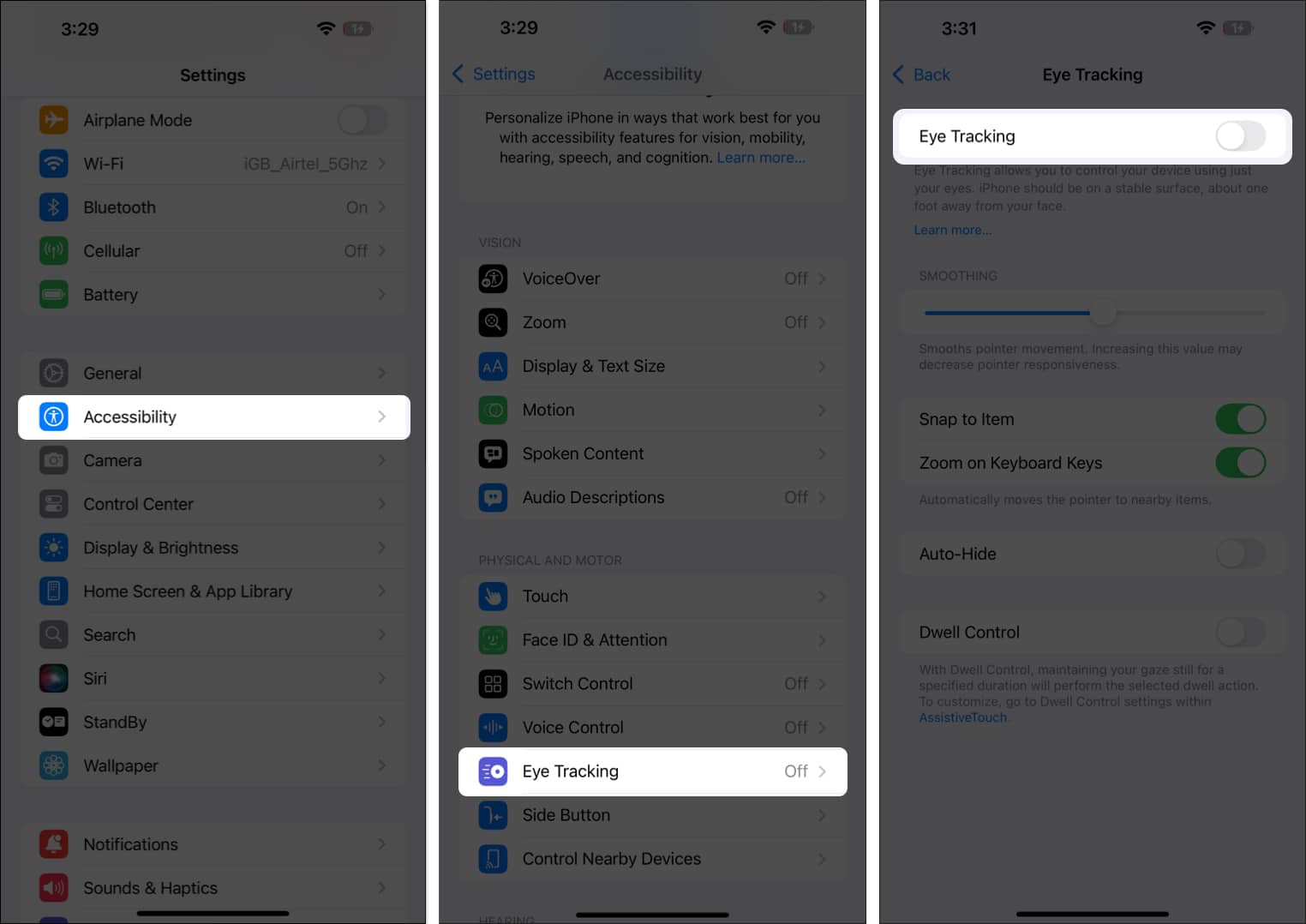
If you want to disable Eye Tracking:
Eye Tracking is a powerful accessibility feature that opens new ways to use an iPhone or iPad. It makes Apple devices more inclusive for people who cannot rely on touch controls. While it still has room for improvement, it’s a major step forward in hands-free navigation.
FAQs
If Eye Tracking is not working on your iPhone or iPad, you should first ensure that the TrueDepth camera used for Face ID is clean and not blocked by a case. If that doesn’t help, you can restart your device or recalibrate Eye Tracking by turning the feature off and then setting it up again.
Eye Tracking is not supported on Macs in macOS Sequoia. However, if you want a similar feature on your Mac, you can go to System Settings > Accessibility > Pointer Control and turn on Head Control. This feature lets you move the mouse pointer with the movement of your head and perform actions like double-click, right-click, or left-click using your facial expressions.
Also Read:









