How to Use Google Lens on iPhone to Identify Objects, Text, and Images
Google Lens lets iPhone users search the web using images. Learn how to scan photos, copy text, translate languages, and identify objects using the Google app.
Google Lens is a powerful visual recognition tool that lets you search what you see using your camera or photos. But why use Google Lens when iOS has its own Visual Lookup? Well, it often provides deeper search results, better text recognition, and stronger web-based matches.
In this guide, you’ll learn what Google Lens is, how it works, and different ways to use it on iPhone. I’ll also share how it compares with Apple’s Visual Lookup so you can choose your go-to tool.
Table of Contents
- What Is Google Lens and How It Works on iPhone?
- Requirements to Use Google Lens on iPhone
- How to Use Google Lens on iPhone
- Things You Can Do with Google Lens on iPhone
- Google Lens vs Apple’s Visual Lookup
- Tips to Get Better Results with Google Lens
- Common Issues and Troubleshooting
- Privacy and Data Safety Considerations
- Final Thoughts
What Is Google Lens and How It Works on iPhone?
Google Lens is an image recognition technology developed by Google. It uses AI to analyze images and understand objects, text, landmarks, animals, plants, products, and more. Instead of typing words, you simply point your camera at the thing you want to search for or select a photo and highlight the item.
Google Lens scans it and shows:
- Search results with AI Overviews.
- Identified objects.
- Translated or copied text.
- Solved math problems.
- Shopping links or related images.
Requirements to Use Google Lens on iPhone
Before using Google Lens, make sure you meet these basic requirements:
- Supported iPhone Models: iPhone 8 and newer provide the best performance.
- iOS Version Requirements: iOS 14 or later is recommended.
- Google Account: Optional, but signing in helps save searches and improves accuracy.
- Required Apps: On iPhone, Google Lens does not come as a separate app. Instead, it works inside the Google app, Google Photos and the Chrome browser. You’ll need at least one of them.
How to Use Google Lens on iPhone
There are three main ways to use Google Lens on iPhone or iPad.
Via the Google App
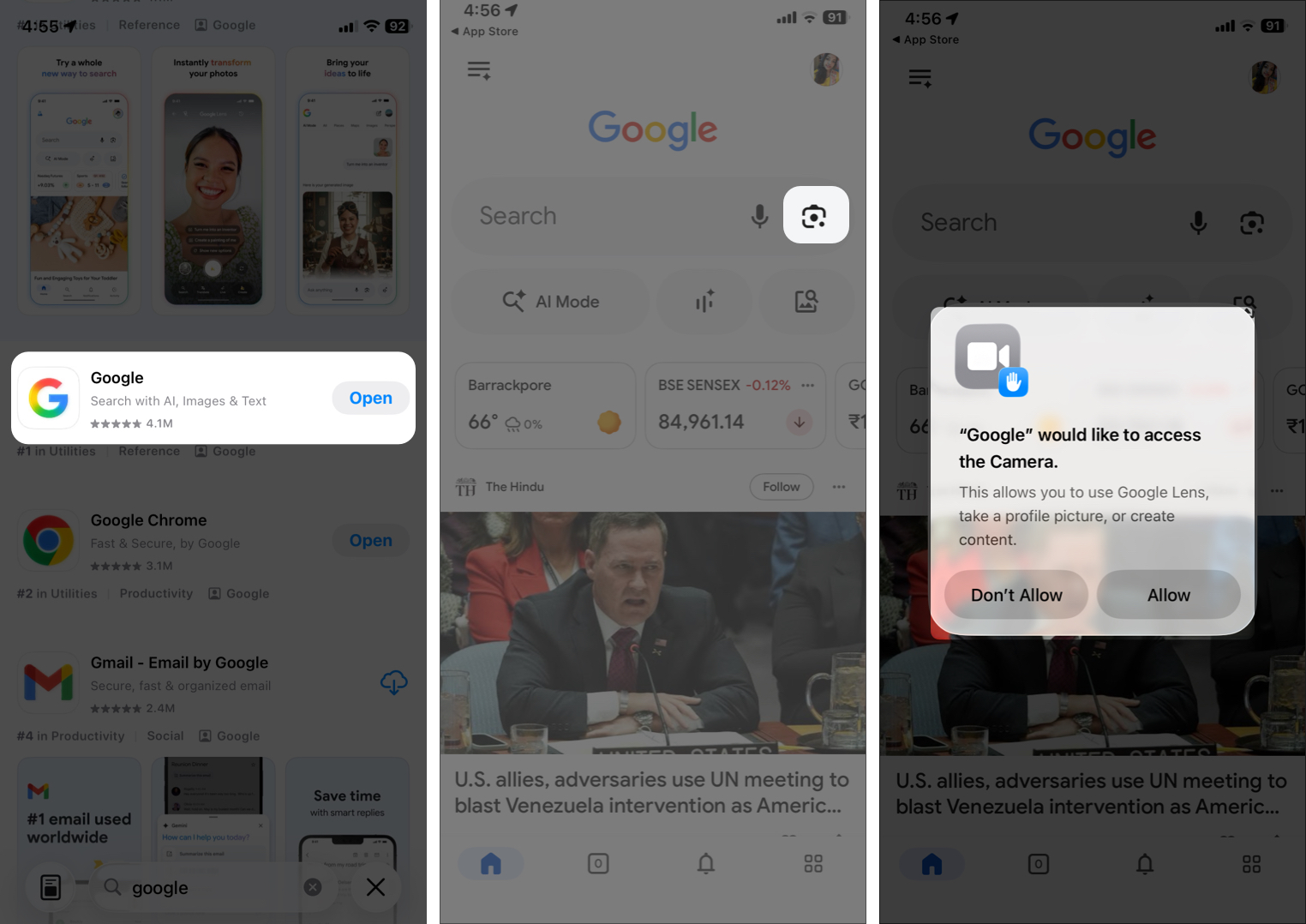
- Install and open the Google app on your iPhone.
- Tap the Lens icon on the search bar.
- Allow camera access when prompted.

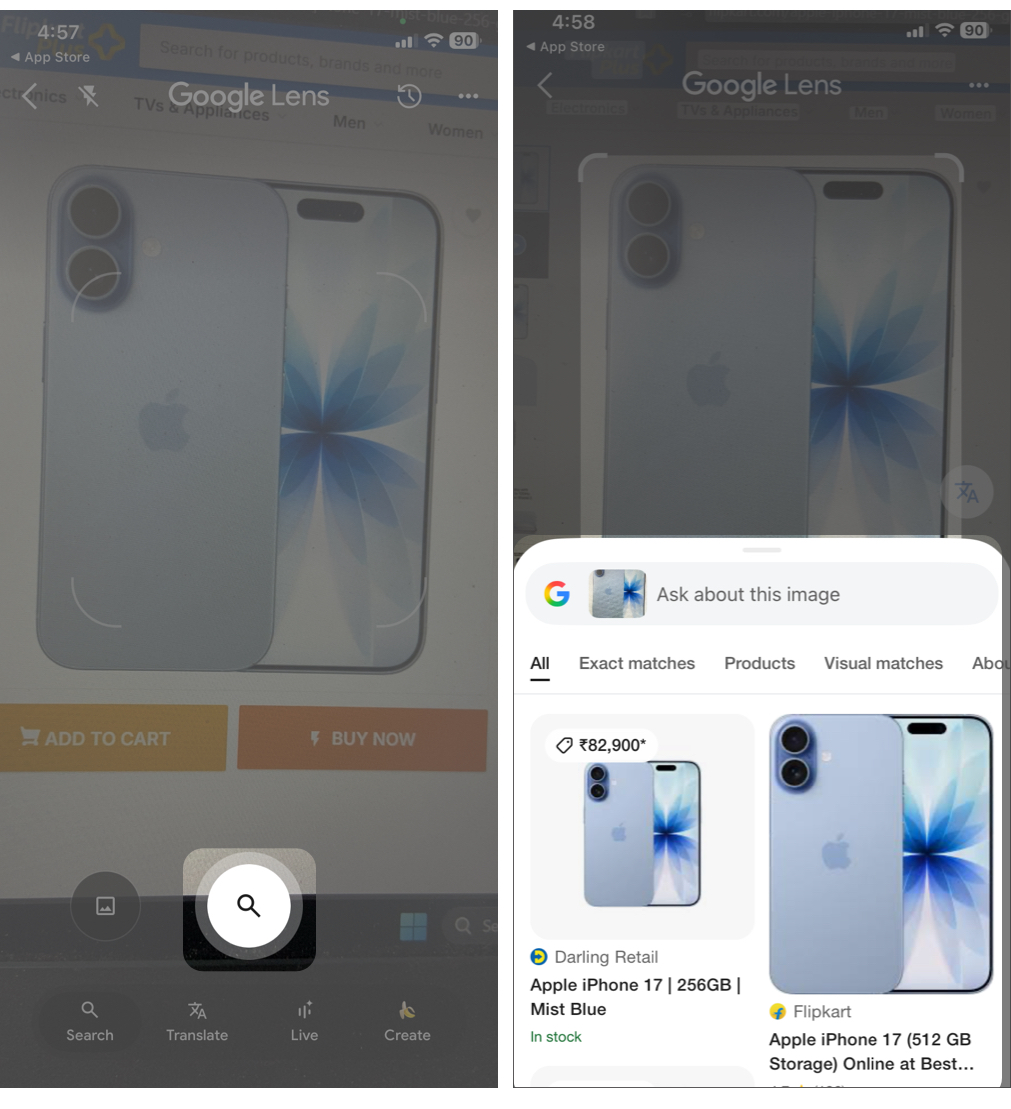
- Point your camera at an object and tap the search to see results.
- If the location is not well-lit, tap the flash icon and then search.

- Swipe up the result card. Now, you can explore exact matches, products, about this image, etc. To find more, tap the search bar at the top and enter a query.
This method is best for real-time searches.
Within Google Photos
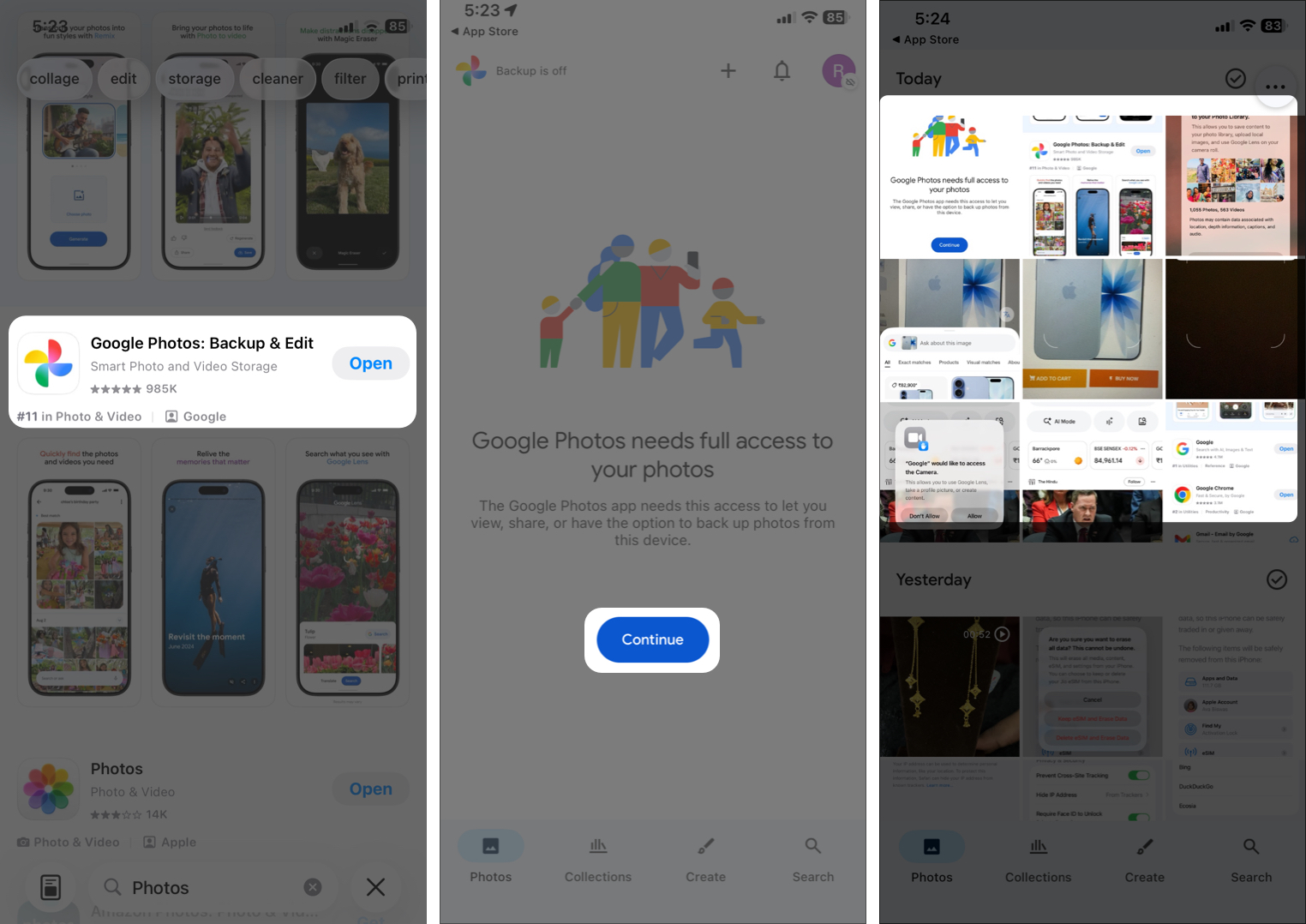
- Open the Google Photos app. Download it from App Store if you don’t have it.
- Tap Continue to give your camera roll access.
- Select any photo.

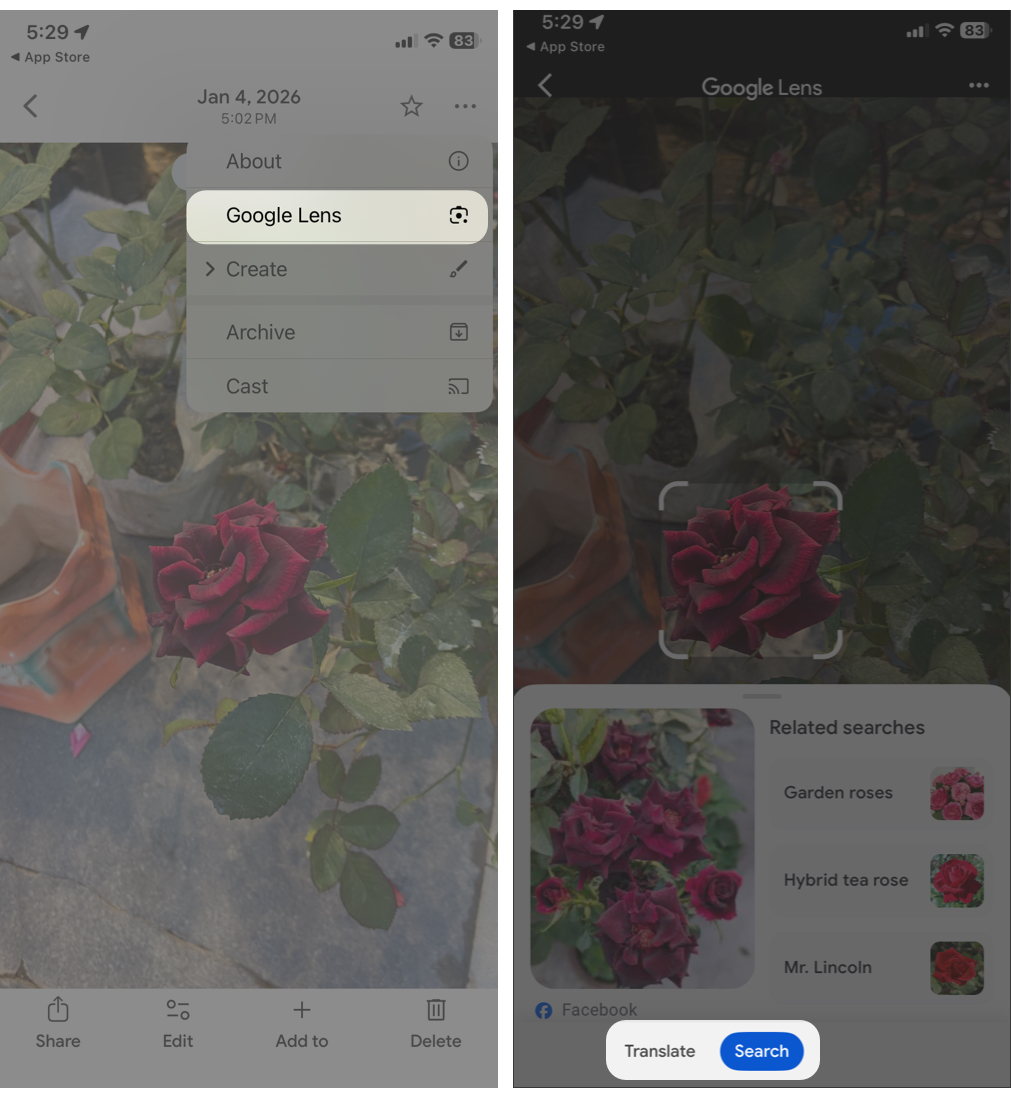
- Tap the three-dot icon at the top right icon and select Google Lens.
- Now, you can Search to view object or location results or Translate the text on the photo.

Using Google Lens via Google Photos works well for screenshots, documents, and photos already saved on your device.
Search by Image on the Chrome Browser
Came across an interesting image while browsing? You can run a visual search right there using Chrome.
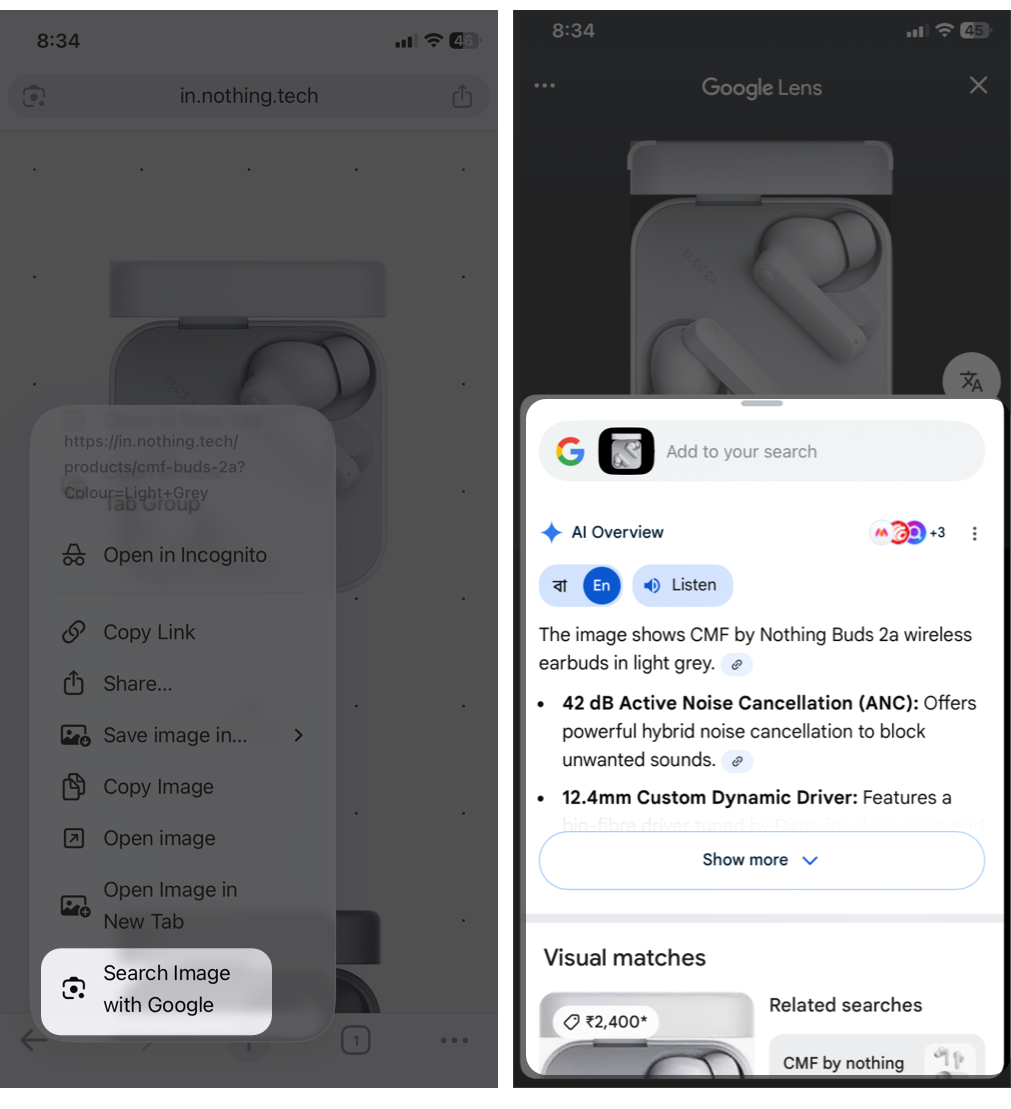
- Open Chrome on iPhone and ensure sign into your Google account.
- Go to website where you saw the image.
- Now, tap and hold the image.
- Scroll down the context menu and select Search Image with Google.

This method is useful for reverse image searches. You can find where an image comes from, similar images, product names or sources.
Things You Can Do with Google Lens on iPhone
Google Lens is more than just image search. You can:
- Identify plants, animals, and objects
- Copy printed or handwritten text
- Translate text instantly
- Scan QR codes and barcodes
- Shop for products seen in photos or real life. Google can provide you with shopping locations or website, pricing, and even reviews.
- Look up landmarks, sculptures, historic building, and artworks. You will get fast facts about them as well.
- Extract text for notes, emails, or documents
Google also has integrated Gemini and Nano Banana AI in Google lens. So, you can click a live photo and edit it or generate new images.
Google Lens vs Apple’s Visual Lookup
iOS comes with a built-in photo recognition tools called Visual Lookup and Visual Intelligence in newer iPhone models.
Feature Comparison
- Google Lens: web-powered, detailed search results.
- Apple Visual Lookup: basic object and photo recognition.
Accuracy and Use-Case Differences
- Google Lens is better for products, text, and research.
- Visual Lookup works well for animals, landmarks, and photos.
When to Use Google Lens Instead of Apple Tools
Use Google Lens when you want:
- More detailed results
- Shopping links
- Text extraction and translation
Apple’s tools come from Apple, but Google Lens often goes deeper.
Tips to Get Better Results with Google Lens
- Use good lighting.
- Keep images sharp and clear.
- Center the object in the frame.
- Avoid cluttered backgrounds.
- Choose the correct Lens category (text, shopping, translate).
- Allow camera and photo permissions.
Better input leads to better results.
Common Issues and Troubleshooting
| Google Lens Not Showing | Update the Google app, restart your iPhone |
| Camera Permission Problems | Go to Settings > Apps > Google and toggle on Camera |
| App Crashes or Slow Results | Update iOS, delete and reinstall Google app, free up iPhone storage |
| Recognition Errors | Try a clearer image or crop the image before searching |
Privacy and Data Safety Considerations
Google Lens processes images to identify content.
- How Google Handles Images: Your photos may be temporarily processed on Google servers and used for improving Google’s visual recognition and search technologies.
- Managing Permissions on iPhone: Control camera and photo access in iOS settings.
- When Image Searches Are Stored: Only when you have logged into your Google account or Visual Search History is enabled.
Final Thoughts
Google Lens is one of the most useful visual search tools available for iPhone users. Even without a standalone app, it delivers powerful features through Google’s ecosystem.
If you frequently search images, scan text, or shop visually, Google Lens is worth using. It complements iOS tools and often provides more detailed and accurate results.
Do try Google Lens and let us know how you like it!
FAQs
Yes, Google Lens is completely free.
No, an internet connection is required.
Yes, through the Google app, Google Photos, or Chrome.
You can disable camera access for Google apps in iOS settings.
Read more: