
FaceTime Like a Pro
Get our exclusive Ultimate FaceTime Guide 📚 — absolutely FREE when you sign up for our newsletter below.

FaceTime Like a Pro
Get our exclusive Ultimate FaceTime Guide 📚 — absolutely FREE when you sign up for our newsletter below.


Turn your iPhone into a high-quality webcam for Mac or Windows. This guide covers setup steps, app recommendations, accessories, and pro tips to get started.

 ByDarryl Dsouza and Ava Biswas


As remote work, virtual meetings, and content creation continue to grow, high-quality webcams have become essential. However, built-in Mac or PC cameras often fail to deliver clarity, low-light performance, and overall video quality. But did you know you can skip buying an expensive webcam and use your iPhone instead?
Using your iPhone as a webcam is a smart, cost-effective solution to get professional-looking video without needing extra gear. This guide explains how to use your iPhone as a webcam for both Mac and Windows, along with tips, accessories, and troubleshooting advice.
Your iPhone can be a game-changer for video calls, streaming, or recordings. Here’s why:
Using your iPhone as a webcam is one of the easiest upgrades you can make to your video setup.
Apple’s Continuity Camera feature lets you use your iPhone as a webcam for your Mac without third-party apps. It’s built into macOS and works wirelessly or via USB. Here’s how to set it up:
First, you need to set up the Continuity feature on your iPhone and Mac. Ensure both meet the requirements.
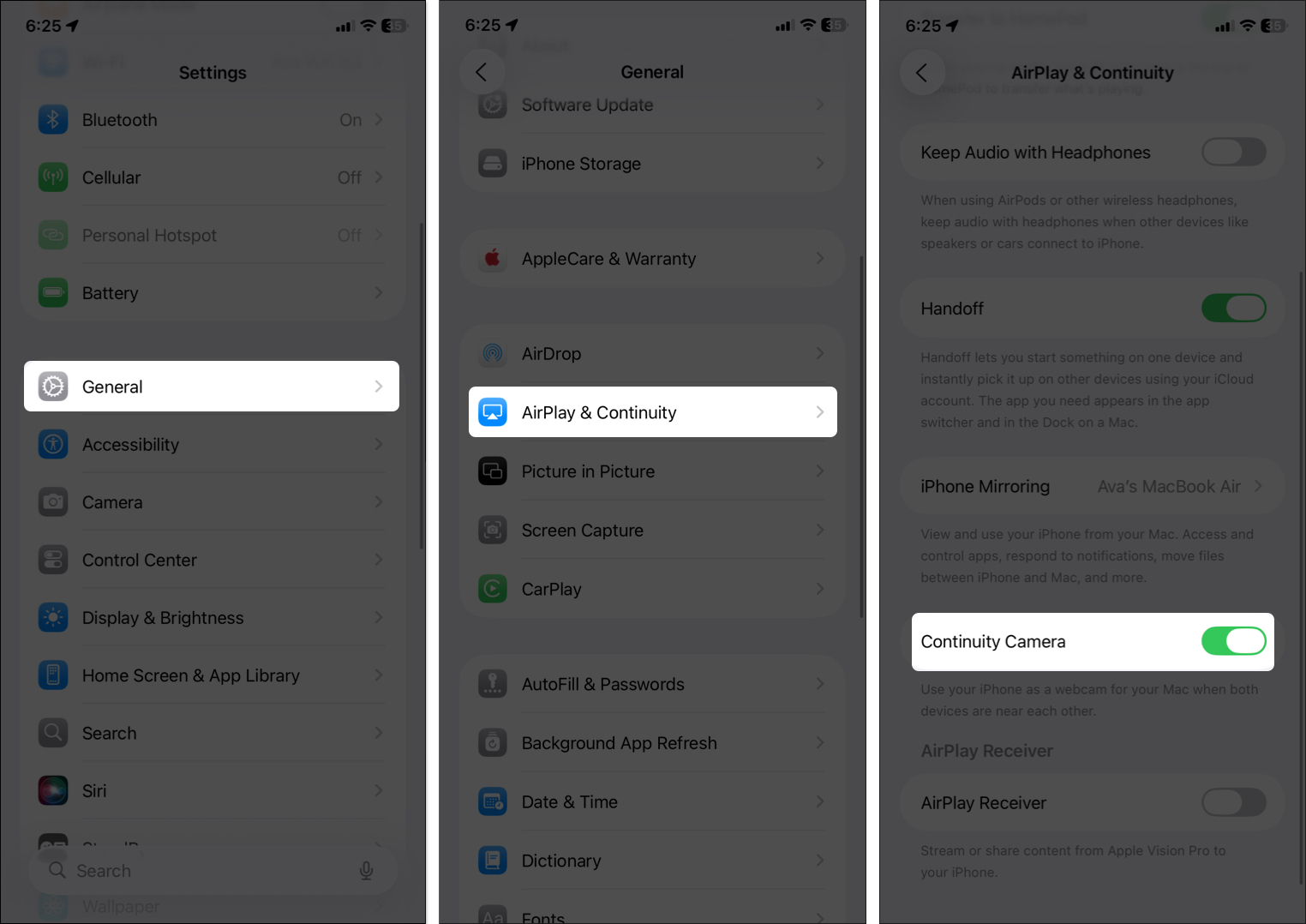
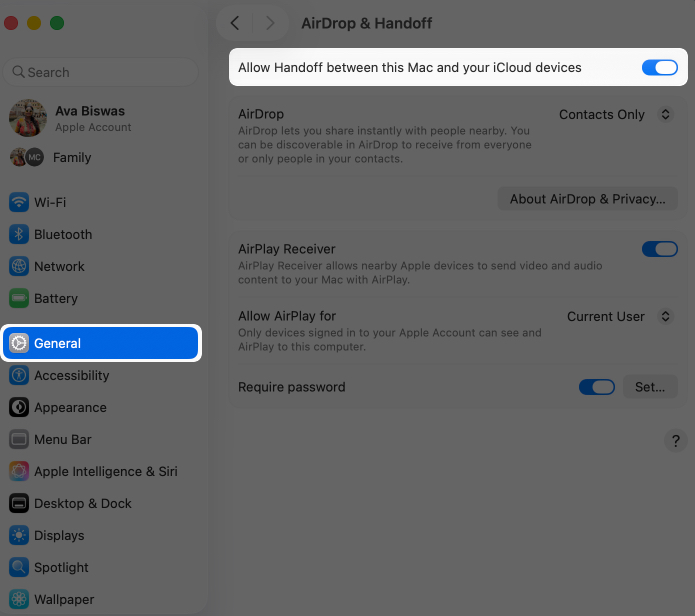
(Optional) Connect your iPhone via USB for added stability and charging during use.
Related: How to Use FaceTime Handoff Across iPhone, Mac, iPad, and Apple TV
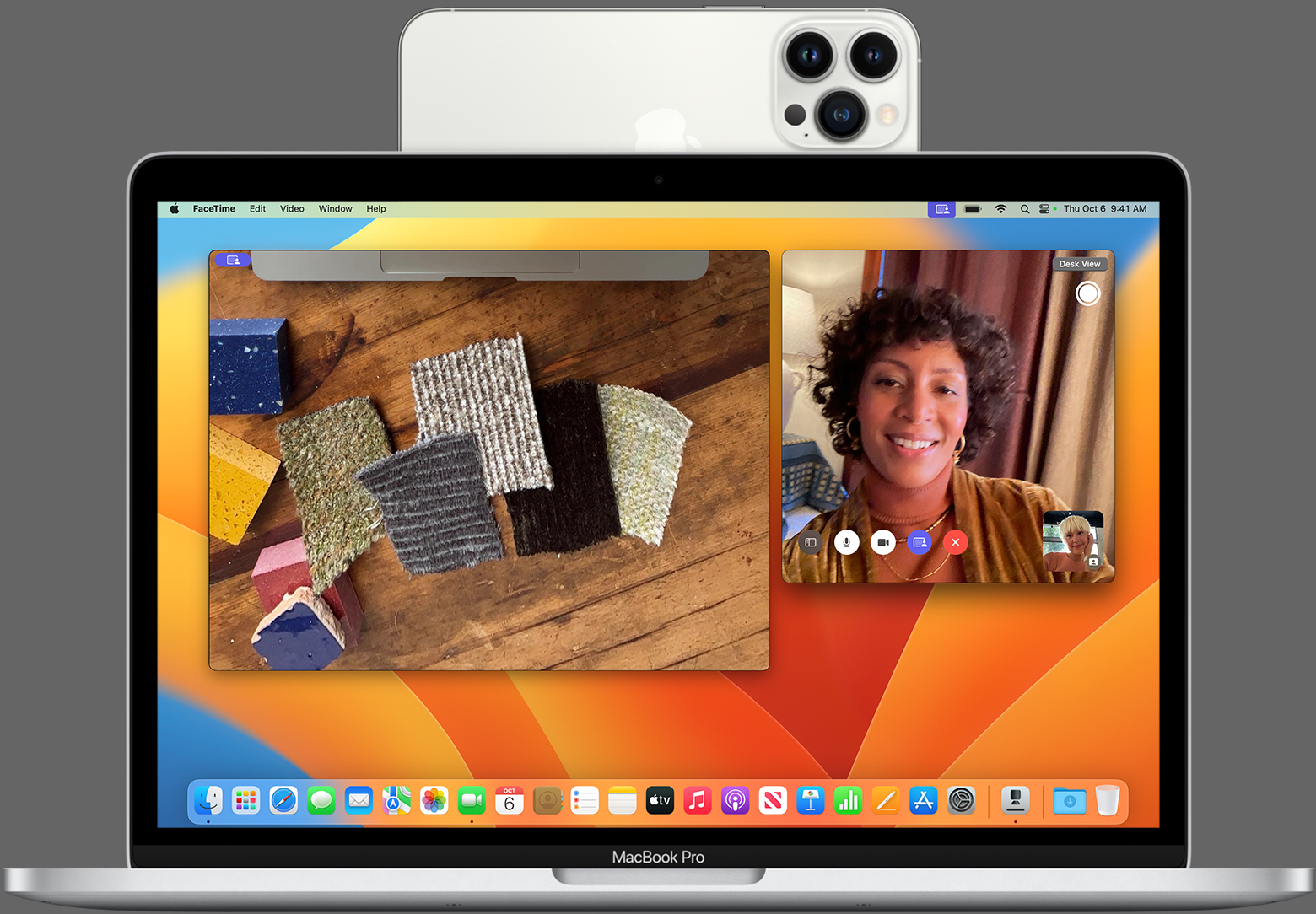
Mount your iPhone on a tripod, desktop mount, or stable surface using a stand or MagSafe accessory.
For example, on FaceTime:
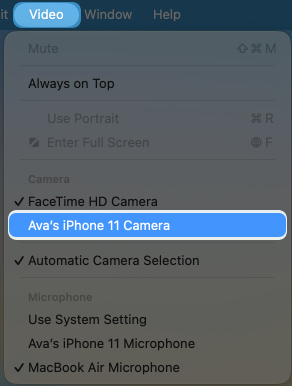
For other apps (Zoom, Google Meet, Teams), go to the camera settings and select your iPhone.
Apple offers pro-grade effects while using your iPhone as a webcam:
Portrait Mode: Adds background blur (bokeh) for a cinematic look.
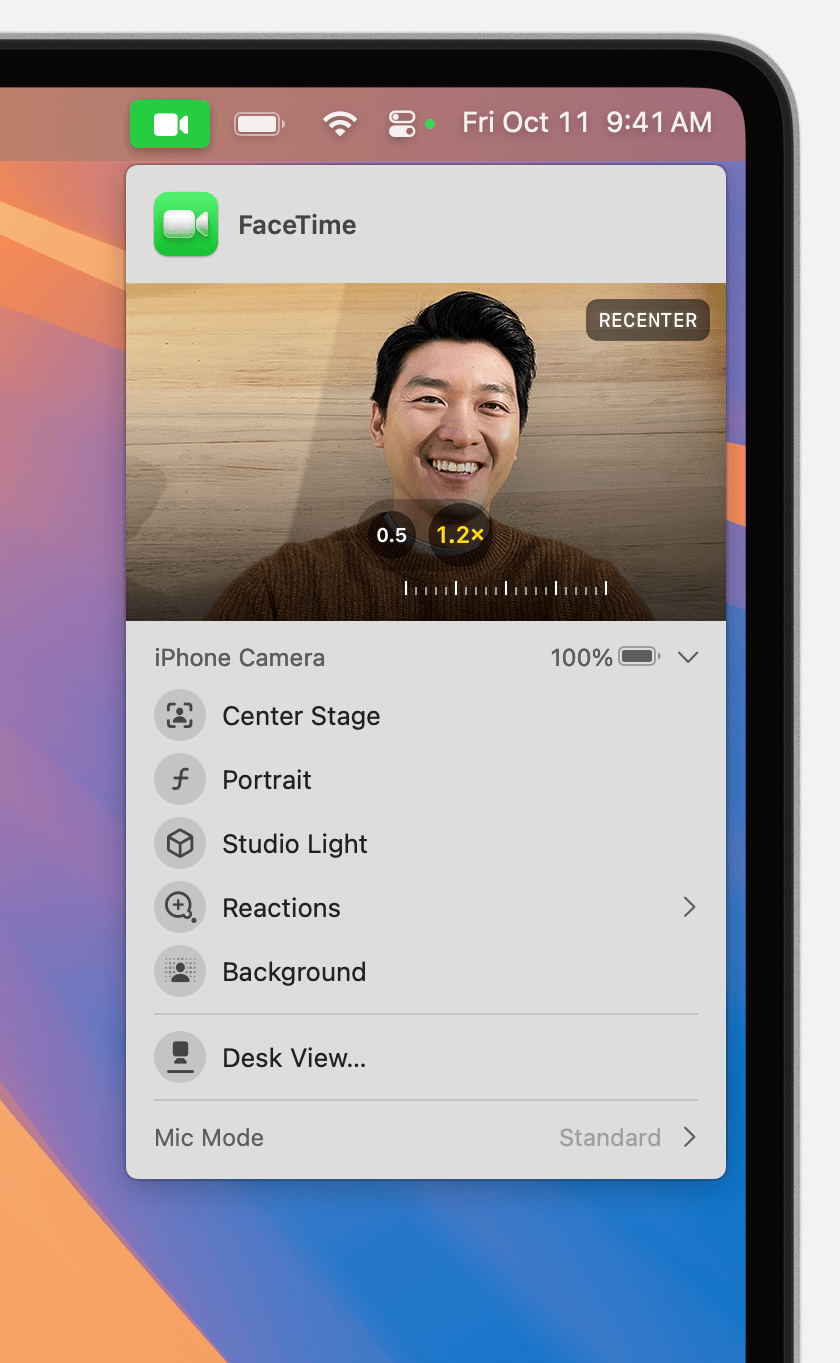
To activate effects: Click the green video icon on your Mac’s menu bar and choose the desired effect.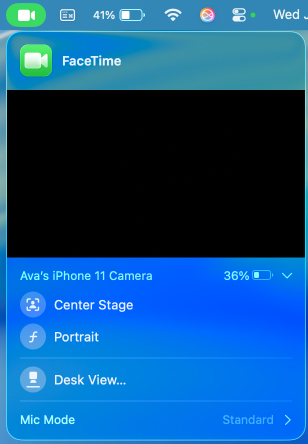
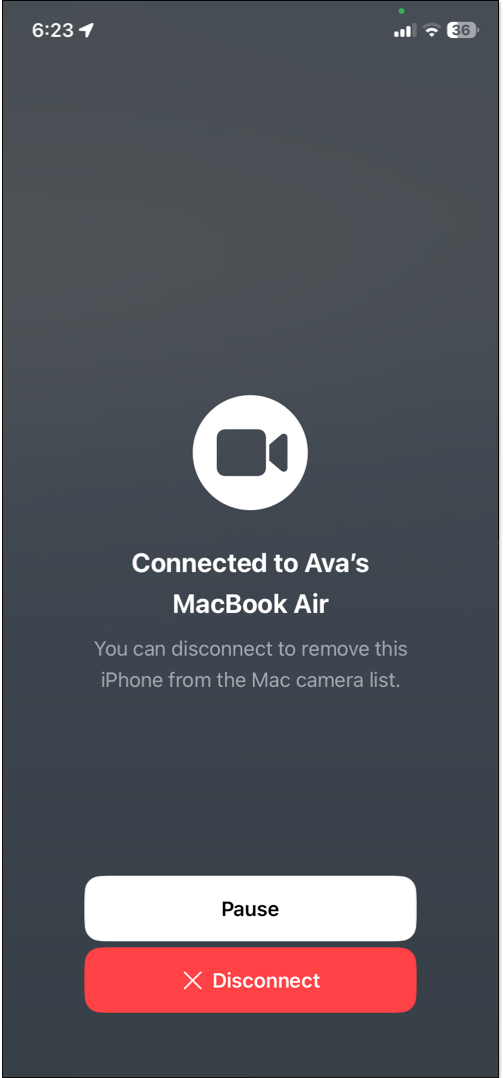
Your iPhone will display “Connected to [Mac Name]” and be locked during use.
Tap Disconnect on the iPhone screen to stop using it as a webcam.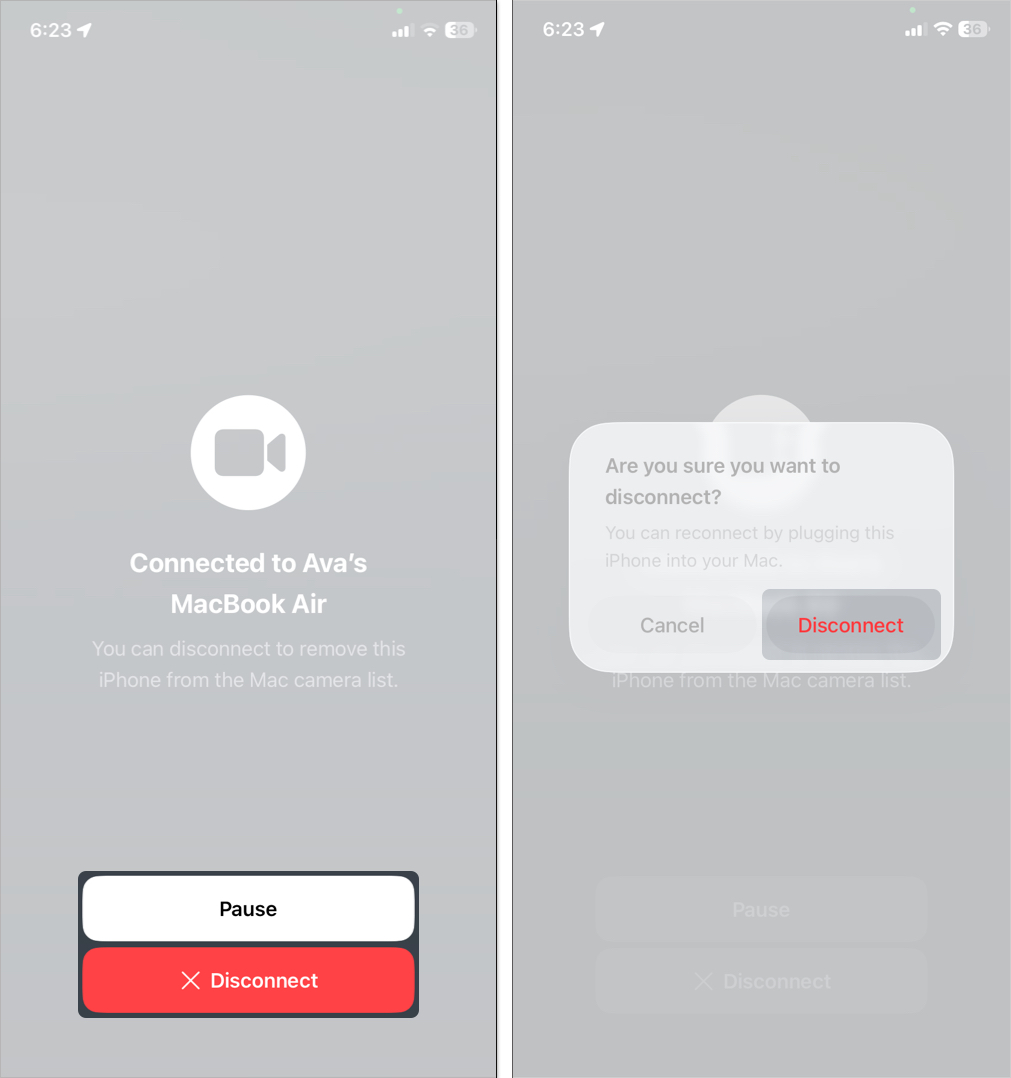
Alternatively, select Pause to temporarily disable the video feed.
Unlike Mac, Windows doesn’t support Continuity Camera natively. You’ll need a third-party app.
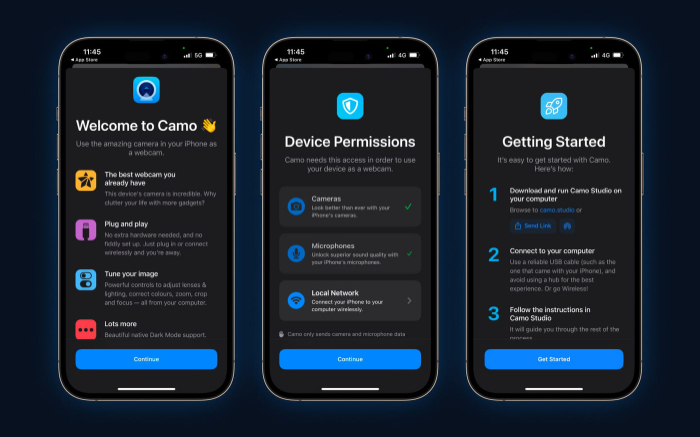
Open your video app (Zoom, OBS, Teams) and select Camo Studio as the camera source.
From the Camo desktop app, tweak resolution, lens (rear, ultrawide), and add video effects like portrait blur.
| Accessory | Purpose |
|---|---|
| Tripod/Mount | Keeps iPhone stable; e.g., Belkin MagSafe mount |
| Ring Light | Brightens face and eliminates shadows (e.g., ACMEZING Light Kit, $20) |
| USB Cable | Keeps iPhone stable, e.g., Belkin MagSafe mount |
| External Mic | Improves audio quality; e.g., Blue Yeti, AirPods Pro |
Here are solutions to common problems when using your iPhone as a webcam:
| Issues | Solutions |
| iPhone Not Detected (Mac) | Ensure Continuity Camera is enabled in Settings on your iPhone. Check that both devices are on the same Apple ID and Wi-Fi network. Bluetooth must be active. Restart both devices or try a USB connection. Trust your Mac when prompted. Restart devices if needed. |
| iPhone Not Detected (Windows) | Restart the app (e.g., Camo or EpocCam) on both devices. Update the app and your iPhone to the latest iOS version. Switch to a USB connection or ensure both devices are on the same Wi-Fi. |
| Poor Video Quality | Adjust lighting: Face a light source or use a ring light. In the app’s settings, increase resolution (e.g., 1080p or 4K if available). Clean your iPhone’s camera lens for sharper images. |
| Audio Not Working | Select your iPhone or app as the audio source in the video app. Use an external mic for better quality, as built-in mics may pick up background noise. Check iPhone mic permissions in Settings. |
| Connection Issues on PC | Update your PC’s drivers (e.g., USB or Wi-Fi drivers). Restart the webcam app or reinstall it. Switch to a USB connection for stability. |
Using your iPhone as a webcam is an easy way to dramatically improve your video quality, whether you’re using a Mac or a PC. With the right setup, lighting, and software, your iPhone can outperform many dedicated webcams.
If you haven’t tried it yet, now’s the time to elevate your video calls and content creation.
Need help? Drop your questions in the comments, we’re here to assist.
FAQs
Yes. Newer iPhones like the iPhone 15/16 offer 4K resolution, better sensors, and more advanced software features compared to most webcams under $200.
Yes, especially over Wi-Fi. Use a USB connection or keep your iPhone plugged into a charger for longer sessions.
On Mac: Enable Continuity Camera and select it in OBS.
On Windows: Use a third-party app (Camo, EpocCam) and select that app’s virtual camera inside OBS. Tweak resolution and frame rate in OBS settings.
Related articles worth reading:









