
FaceTime Like a Pro
Get our exclusive Ultimate FaceTime Guide 📚 — absolutely FREE when you sign up for our newsletter below.

FaceTime Like a Pro
Get our exclusive Ultimate FaceTime Guide 📚 — absolutely FREE when you sign up for our newsletter below.


Quick steps to use satellite messaging on iPhone when there is no cellular or Wi-Fi connection available.

 ByAva Biswas and Yash Wate


Staying connected isn’t always guaranteed, especially when you are in remote regions or facing a temporary network shutdown. That’s where satellite messaging technology steps in. Your iPhone has the option to connect to satellites orbiting Earth to send and receive messages.
With iOS 26, Apple has made satellite messaging faster, more reliable, and easier to use. In this guide, I’ll break down what satellite messaging is, how it works, which iPhones support it, and how to use it step by step, so you’re never completely off the grid.
Satellite messaging allows your iPhone to communicate through low-Earth-orbit satellites when cellular or Wi-Fi connections are unavailable. Instead of connecting to a tower nearby, your phone points toward a satellite in the sky to send your message.
Here’s how it works:
You can send standard texts, location information, and emergency messages if needed.
Satellite texting is available on:
These models include the necessary satellite antennas and hardware to connect to low-Earth-orbit networks. You must be running iOS 18 or later to access the latest satellite messaging features.
However, if you purchased your iPhone in Armenia, Belarus, China mainland, Kyrgyzstan, Kazakhstan and Russia, the feature is unavailable. In Hong Kong and Macao, satellite connectivity is only offered on iPhone 16e and later.
Apple continues expanding availability, but satellite messaging is supported in:
Emergency SOS via satellite covers more countries, including parts of Europe, Australia, New Zealand, and Japan.
After you ensure you can access the satellite features, you need to do a basic setup while having an active internet connection:
Tip: You may practice connecting to the satellite with the demo. Go to Settings > Apps > Messages and tap Satellite Connection Demo.
When you’re out of cellular range, your iPhone will automatically offer the satellite option. Here’s how to use it:
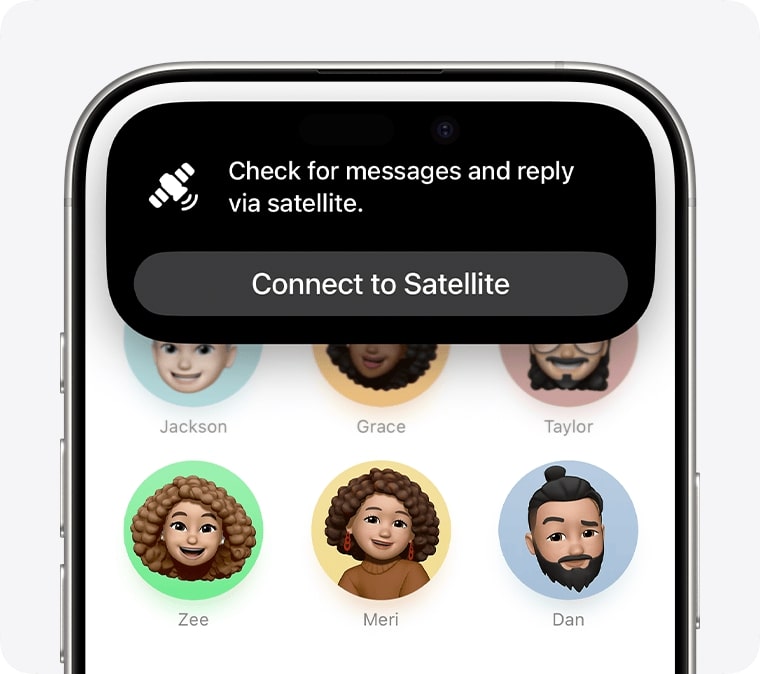
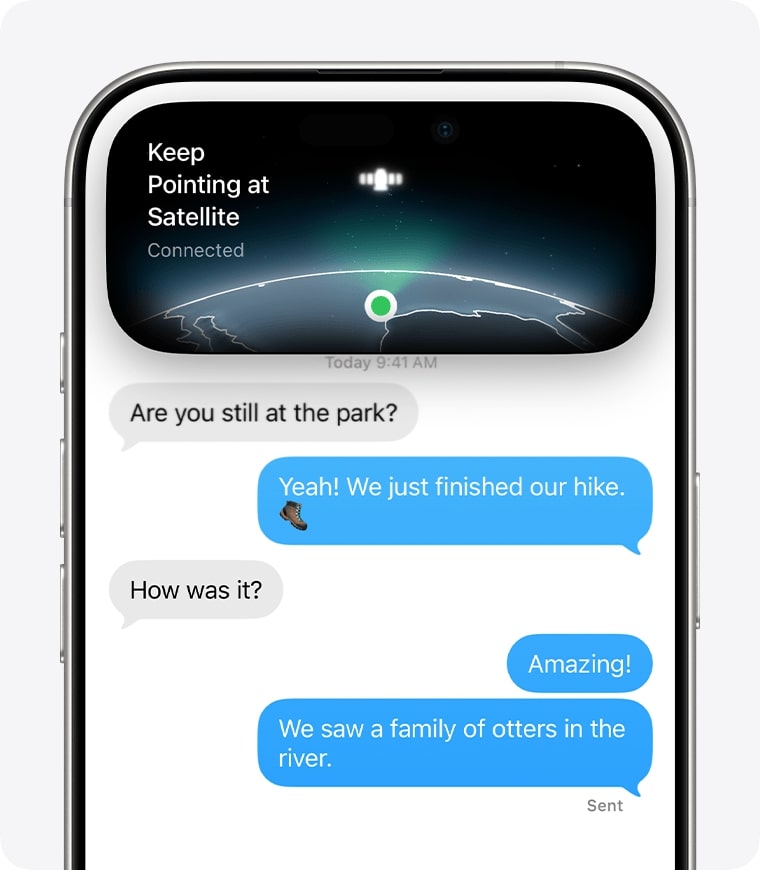
For a stronger satellite connection, stay outside with a clear view of the sky and horizon. Also, avoid tall buildings, mountains, and dense tree cover, as they may restrict the signals. Additionally, it may not work in areas above 62° latitude, such as the northern parts of Alaska.
The best part is that your message will be sent as an SMS via satellite if the contact doesn’t use iMessage, runs an older iOS version, or has a non-Apple device. Also, if you haven’t communicated with them over iMessage in the past month or more, the message becomes SMS.
One question people often ask is: “Can I receive messages via satellite even when I’m back in normal coverage?”
Yes! If someone sends you a text via satellite while you have regular cellular or Wi-Fi, it will simply appear in Messages like a normal SMS. You’ll see an alert that your contact is accepting messages via satellite. To reply to the conversation:
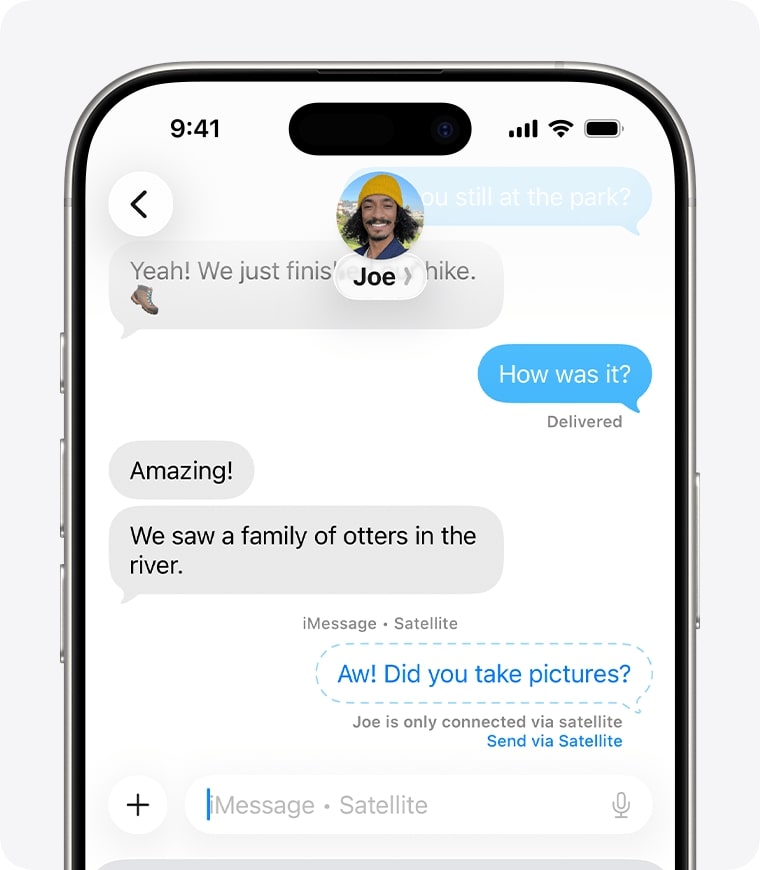
Once they have a signal, all texts sync. Thus, your friends and family can reach you without a hitch; no different than when you are using normal texting.
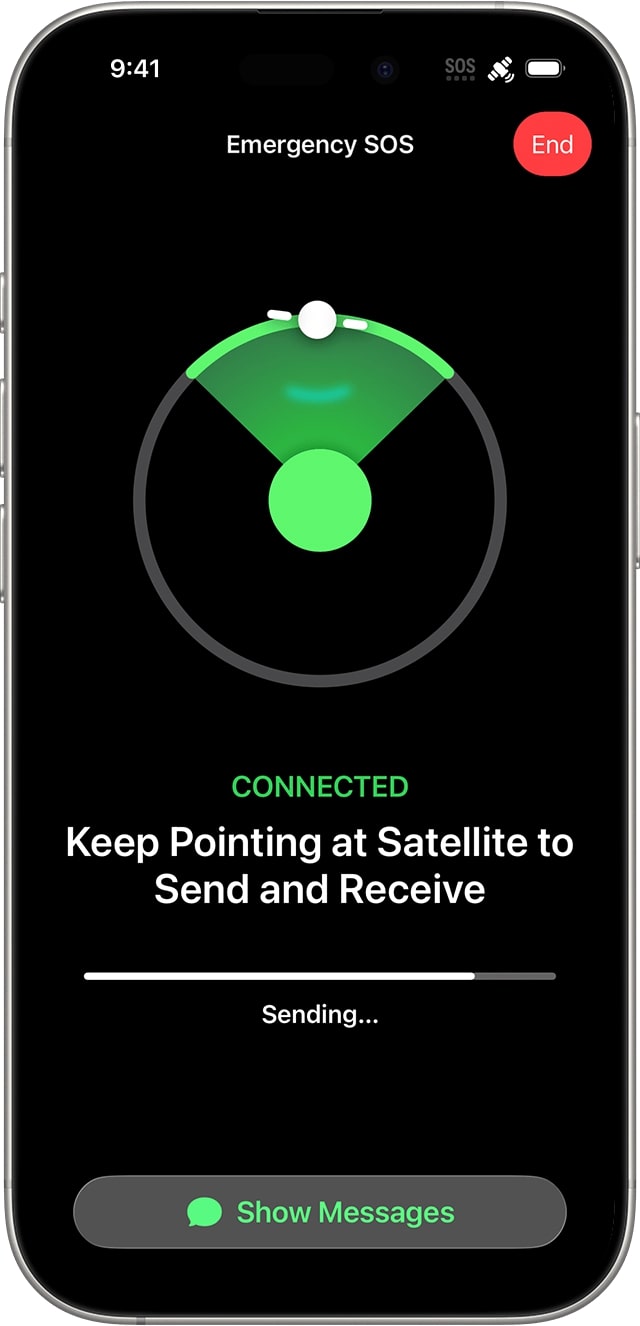
Satellite messaging is especially valuable in emergency situations. That’s why Apple added satellite SOS features to help you reach help even with no service.
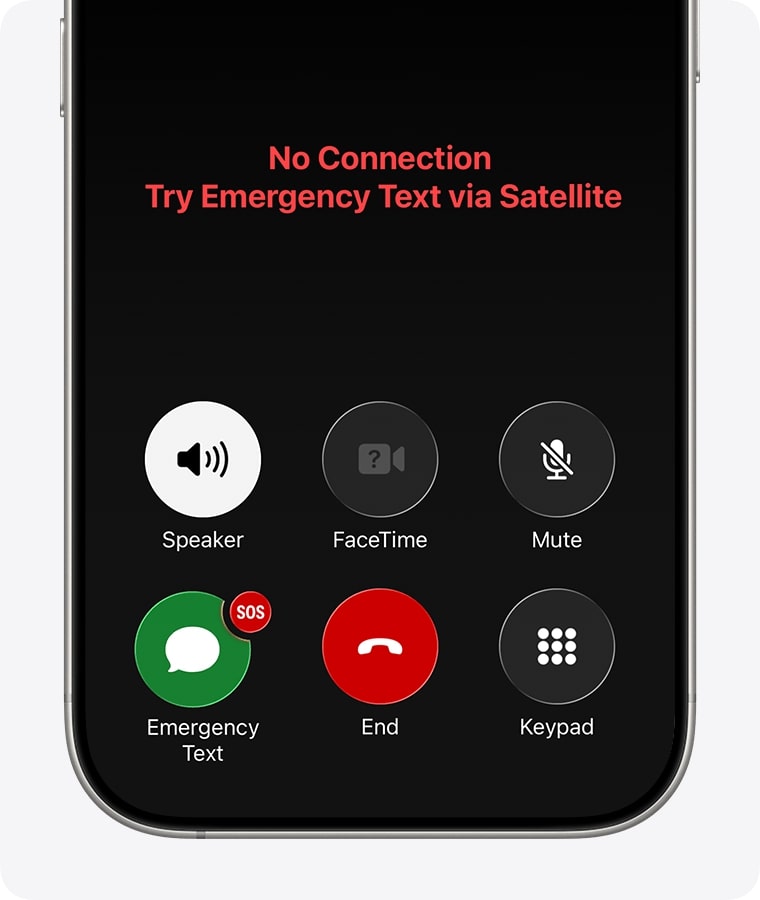
When you try to call emergency services with no coverage, your iPhone automatically offers Emergency SOS via Satellite. Ensure you have your Medical ID and emergency contacts set up beforehand.
While on a trip, I always share my location with my family and loved ones, so they can keep tabs on my whereabouts. Now, even if you go off-grid, you can continue sharing your location thanks to satellite support in Find My.
Great for hiking, camping, and road trips. However, you can’t see your friend’s location on Find My while on satellite.
In supported countries, you can request help from roadside services if your car breaks down and you have no signal.
To get Roadside Assistance via satellite:
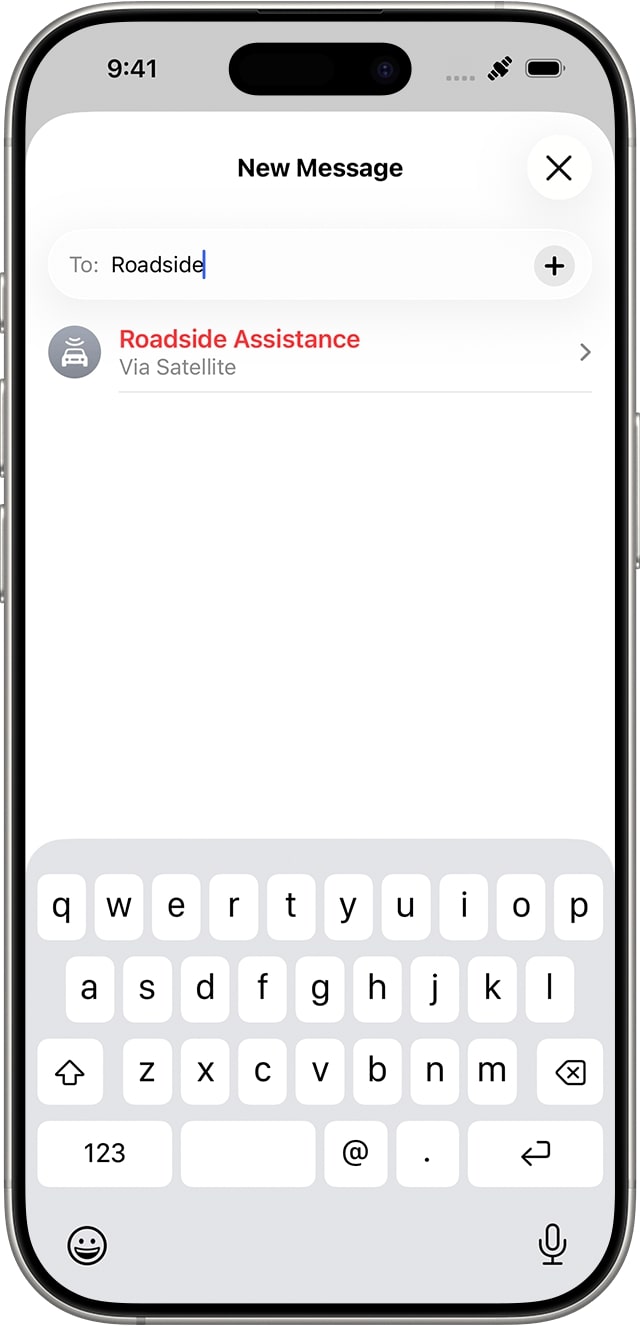
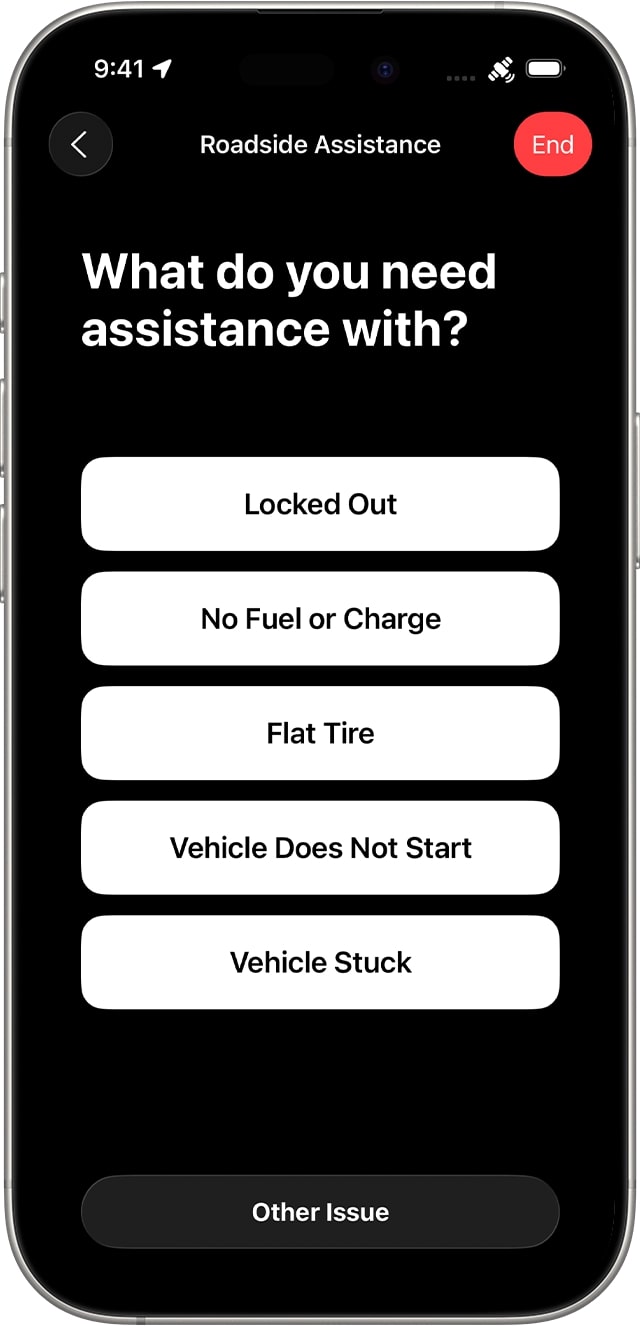
Apple has offered satellite messaging for free for the first two years on new eligible iPhones. The free period starts from your iPhone’s activation date.
Right now, Apple has extended the trial for existing users and hasn’t made post-free-period pricing publicly fixed.
Here’s what you need to know:
Here’s why satellite messaging is a game changer:
In short, satellite messaging brings peace of mind. It’s especially valuable for adventurers, campers, sailors, rural dwellers, or anyone in disaster-prone areas.
Absolutely! If you value safety, travel often, or live in areas with spotty signals, satellite messaging is one of the most important features Apple has ever added.
You may not need it every day, but the moment you find yourself without service, you’ll be glad your iPhone can still reach the outside world. iOS 26 makes the entire process smooth, intuitive, and reliable, turning your iPhone into a communication lifeline when you need it most.
If you haven’t tried the feature yet, take the demo today and be ready for any unexpected situations. Stay safe!
Read more:









