
FaceTime Like a Pro
Get our exclusive Ultimate FaceTime Guide 📚 — absolutely FREE when you sign up for our newsletter below.

FaceTime Like a Pro
Get our exclusive Ultimate FaceTime Guide 📚 — absolutely FREE when you sign up for our newsletter below.


With iOS 26, Apple Music now lets you pin playlists, albums, songs, and artists to the top of your Library, making your favorites easier to find and play.


If you’re tired of scrolling endlessly to find that one playlist you play every day or the album you keep on repeat, iOS 26 finally has something for you. Apple has added a simple but powerful feature to Apple Music called Music Pins. It lets you keep your favorites right at the top of your Library so you can jump into them instantly. No more digging, no more forgetting, your go-to music is always just a tap away.
Here’s everything you need to know about Music Pins in Apple Music and how to use them on iPhone, iPad, Mac, and Windows.
Music Pins let you save up to six items—songs, albums, playlists, or artists—directly to the top of your Library tab in Apple Music. Think of it as a shortcut to your musical essentials.
Once pinned, they stay front and center across all your devices, whether you’re on iPhone, iPad, or Mac.
You can even set them to download automatically for offline listening. The first time you pin something, iOS 26 will ask if you want this turned on. You can always change it later in Settings.
On iPhone and iPad, the process is the same. Once pinned, your items stay at the top of the Library for quick access.
Pinning is simple—you just choose what you want and lock it to the top.
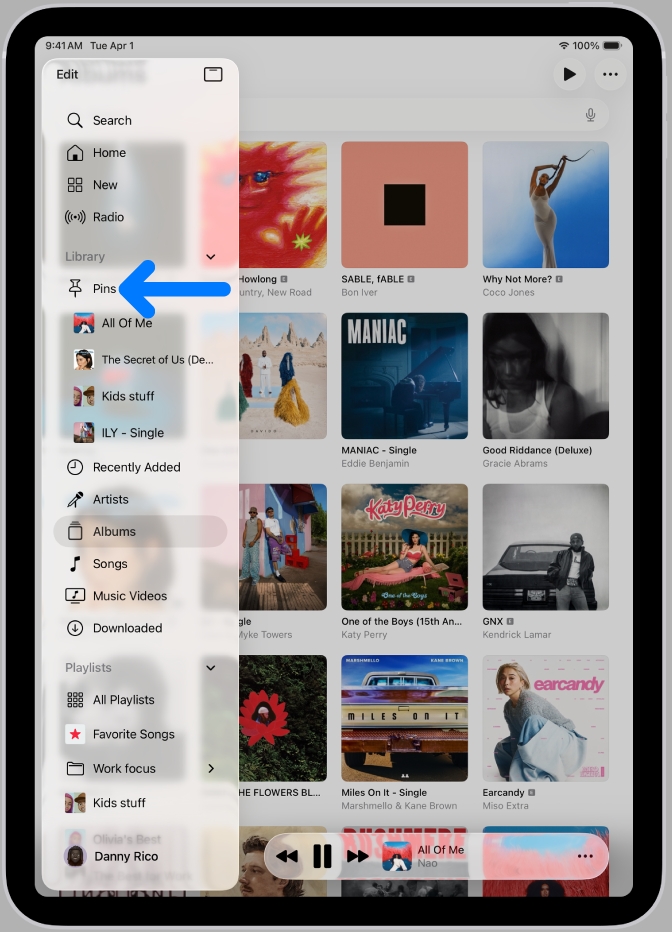
Cleaning up pins or reordering them only takes a moment.
On iPhone, you can decide what a pin does when you tap it.
This is handy if you prefer playlists to start shuffling right away.
On Mac, pins work just as smoothly. You can add them from playlists, albums, or even the Now Playing screen, and rearrange them in the sidebar.
Here’s how to quickly add pins on your Mac:
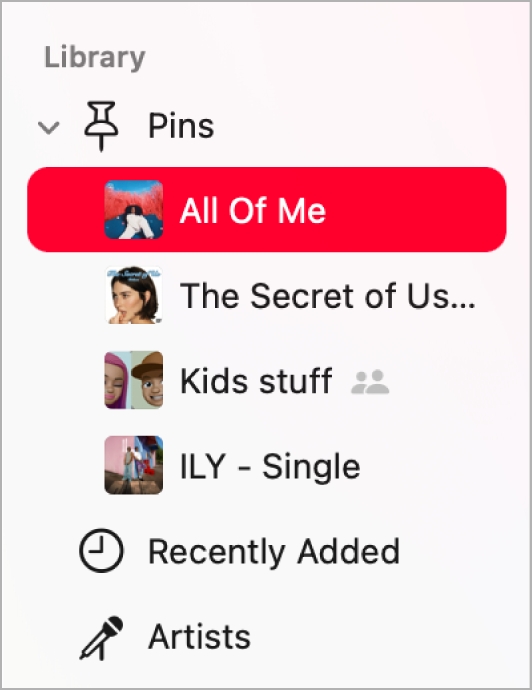
If your sidebar gets cluttered, removing pins is just as quick.
Tip: You can also drag pins in the sidebar to put them in the order you prefer.
The Windows version mirrors the Mac layout, with pins accessible from the sidebar.
Here’s the flow for adding pins on Windows:
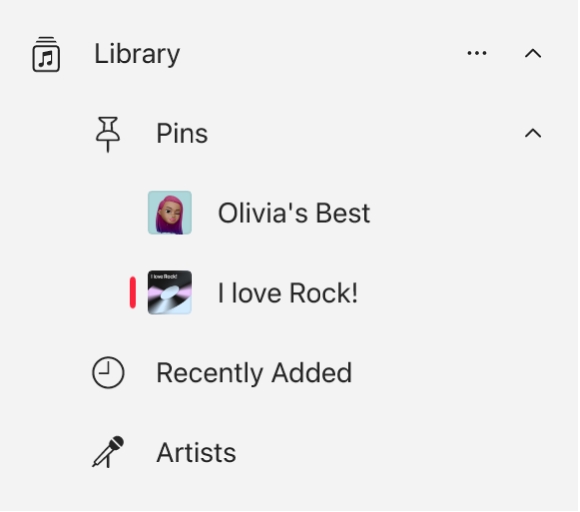
Unpinning is equally simple.
And just like on Mac, you can drag and drop pins in the sidebar to rearrange them.
Right now, you can pin up to six different items at a time. You can mix and match however you like—maybe one artist, two playlists, and a few albums. This setup keeps your everyday favorites handy while also leaving room for music you plan to check out later.
iOS 26 also brings new Home Screen widgets tied to your pinned music.
Pinned music can stay downloaded for offline playback.
Music Pins aren’t arriving alone. iOS 26 is one of the biggest Apple Music updates in years, and here’s what else you’re getting:
It’s a small feature, but it solves a real frustration. With Music Pins, your everyday tracks are always within reach, and you won’t lose track of albums or playlists you’re meaning to explore.
With iOS 26, Apple Music feels more personal — your Library isn’t just a long list anymore, it’s tailored to your habits. And that little change might make the biggest difference in how you listen every day.









