
FaceTime Like a Pro
Get our exclusive Ultimate FaceTime Guide 📚 — absolutely FREE when you sign up for our newsletter below.

FaceTime Like a Pro
Get our exclusive Ultimate FaceTime Guide 📚 — absolutely FREE when you sign up for our newsletter below.


Turn your iPhone into a contactless payment terminal. Learn how to use Tap to Pay on iPhone today.

 ByAva Biswas and Arshmeet Kaur


Let’s be honest. Reaching for your card while paying bills or checking out at the grocery store feels unnecessary now. Apple’s Tap to Pay solves that by letting you make secure, contactless payments using just your iPhone. No wallet, no extra hardware, no friction.
In this guide, you will learn how Tap to Pay works, which payment methods it supports, how to set it up, and how to use it confidently for everyday payments or business transactions.
Tap to Pay uses Near Field Communication (NFC) technology to securely exchange payment data when two devices are held close together.
Here is what happens behind the scenes:
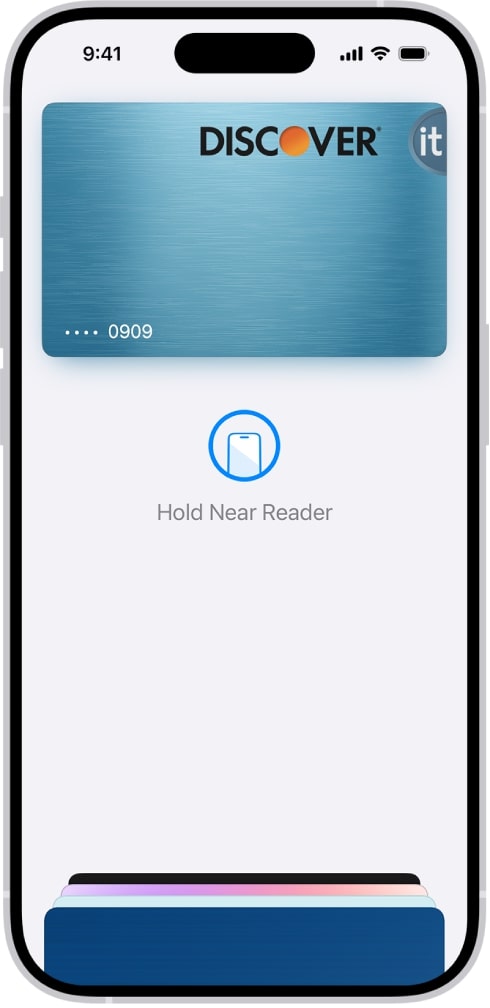
Your actual card number is never shared. This makes Tap to Pay extremely secure. For small businesses, it also means you can accept payments directly on an iPhone without buying POS hardware.
Tap to Pay on iPhone supports a wide range of cards, wallets, and payment platforms.
Most debit and credit cards with NFC support will work.
If you are a merchant, Tap to Pay also accepts NFC-based wallets such as Google Pay, Samsung Pay, and other contactless wallets.
Availability depends on country, bank, and payment provider. Always confirm support on Apple’s official documentation.
Setting up Tap to Pay takes only a few minutes.
You can also add Apple Card or cards from supported apps using the same steps.
For businesses, install a supported payment app like Stripe or Square and enable Tap to Pay inside the app.
Once your card is added, paying is quick and consistent.
To use a different card, tap the card stack after double pressing the side button and select another card.
Payment completes instantly. In iOS 26, Tap to Pay also works in supported apps and websites through Apple Pay checkout.
Also Read: iOS 26 Wallet App: Everything New You Need to Know
Tap to Pay is built with multiple layers of protection:
Even if your iPhone is lost, payments cannot be made without biometric verification. You can also disable Apple Pay remotely using Find My.
Tap to Pay stands out for a few simple reasons:
It benefits both users and merchants without changing habits.
If Tap to Pay isn’t working on your iPhone, don’t worry. Here are the most common reasons and quick fixes:
| Issues | Solutions |
| iPhone model or iOS version isn’t supported | Tap to Pay works only on newer iPhone models and requires an updated version of iOS. |
| NFC is turned off or not responding | If your iPhone case is too thick or you’re tapping in the wrong spot, the payment may fail. Try removing the case and tapping again. |
| Internet connection issues | A weak internet connection can interrupt the payment process. Make sure Wi-Fi or mobile data is enabled and working properly. |
| Card or wallet issue | The card in your Wallet might need verification. Remove and re-add an eligible card in Wallet to refresh. |
| Temporary software glitches | Sometimes it’s just a hiccup. Restart your iPhone and try the payment again after a few seconds. |
If the issue continues, the problem may be with the merchant’s terminal or payment app. Contact Apple Support or the POS provider if needed.
Tap to Pay vs Google Pay
Tap to Pay vs Samsung Pay
Tap to Pay vs Contactless Cards
Tap to Pay continues to expand with:
Mobile payments are no longer optional. They are becoming standard.
Tap to Pay on iPhone running iOS 26 is fast, secure, and genuinely practical. Whether you are buying coffee or running a small business, it removes friction from payments while keeping security front and center. Easy setup and wide support make it one of the most useful iPhone features today.
Have you started using Tap to Pay yet? Share your experience in the comments.
FAQs
iPhone XS or newer running iOS 16 or later supports Tap to Pay.
This usually happens due to unsupported cards, outdated iOS versions, disabled NFC, or Face ID issues. Restart your iPhone, update iOS, and recheck Wallet settings.
Don’t miss these related reads:









