FaceTime Like a Pro
Get our exclusive Ultimate FaceTime Guide 📚 — absolutely FREE when you sign up for our newsletter below.

FaceTime Like a Pro
Get our exclusive Ultimate FaceTime Guide 📚 — absolutely FREE when you sign up for our newsletter below.


Discover how Visual Intelligence can identify what you see, understand what's on your screen, answer questions, and help you get things done.

 ByVikhyat and Ava Biswas
Apple first introduced Visual Intelligence with iOS 18.2, a feature that could recognize what your iPhone’s camera saw in real time. With iOS 27, Apple takes it a step further. Visual Intelligence is now closely integrated with Siri AI, giving the iPhone a much better understanding of what is in front of the camera and what is displayed on the screen.
Here’s a full guide on how to use Visual Intelligence on your iPhone.
Visual Intelligence is an Apple Intelligence-powered feature that combines on-device AI with real-time visual understanding. It debuted with the iPhone 16 series and requires at least an A17 Pro chip with an advanced Neural Engine for fast, private processing.
With it, your iPhone can recognize and extract details from what your camera or screen shows—from identifying a plant to translating a menu, finding products online, or getting instant help from ChatGPT and Siri AI.
In iOS 27, Visual Intelligence is more closely connected to Siri. It can:
Apple also lets Visual Intelligence work with screenshots, so you don’t need to physically point your camera at something if the information is already on your iPhone.
Visual Intelligence requires an Apple Intelligence-compatible iPhone.
Apple says Apple Intelligence on iOS 27 is available on:
Apple Intelligence availability can vary depending on the device, language, and region.
If you are unsure whether your iPhone supports the feature:
iOS 27 gives several ways to launch Visual Intelligence.
If you have Siri AI enabled, this is the most direct way to use Visual Intelligence.
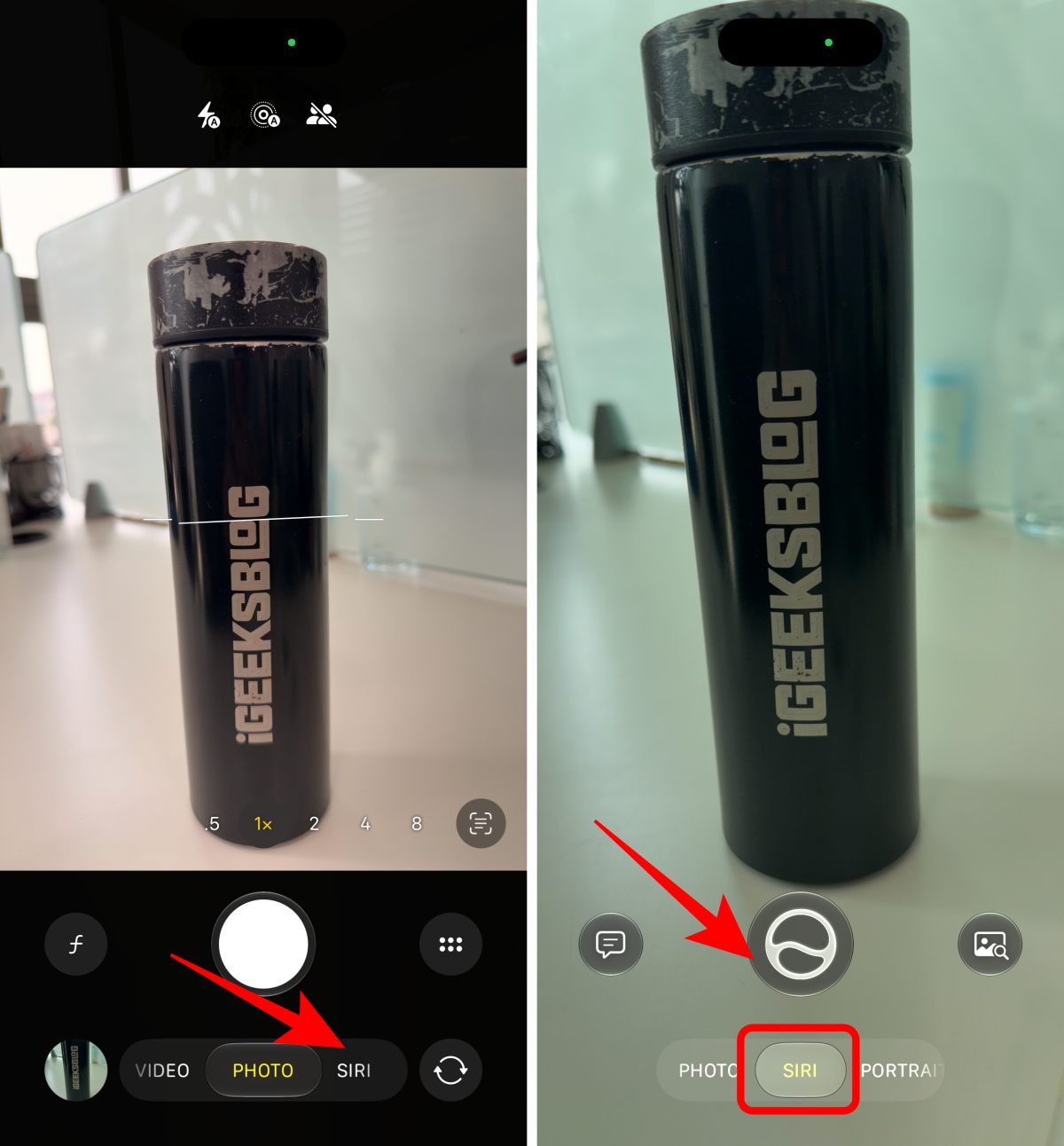
For example, I can point the camera at an unfamiliar object and tap the Siri button to get information about it. Then swipe down on the response and continue the conversation with follow-up questions.
If your iPhone has the Camera Control button, press and hold it to let Visual Intelligence analyze the scene, then choose one of the suggested actions or ask a question.
First, you need to set it up:
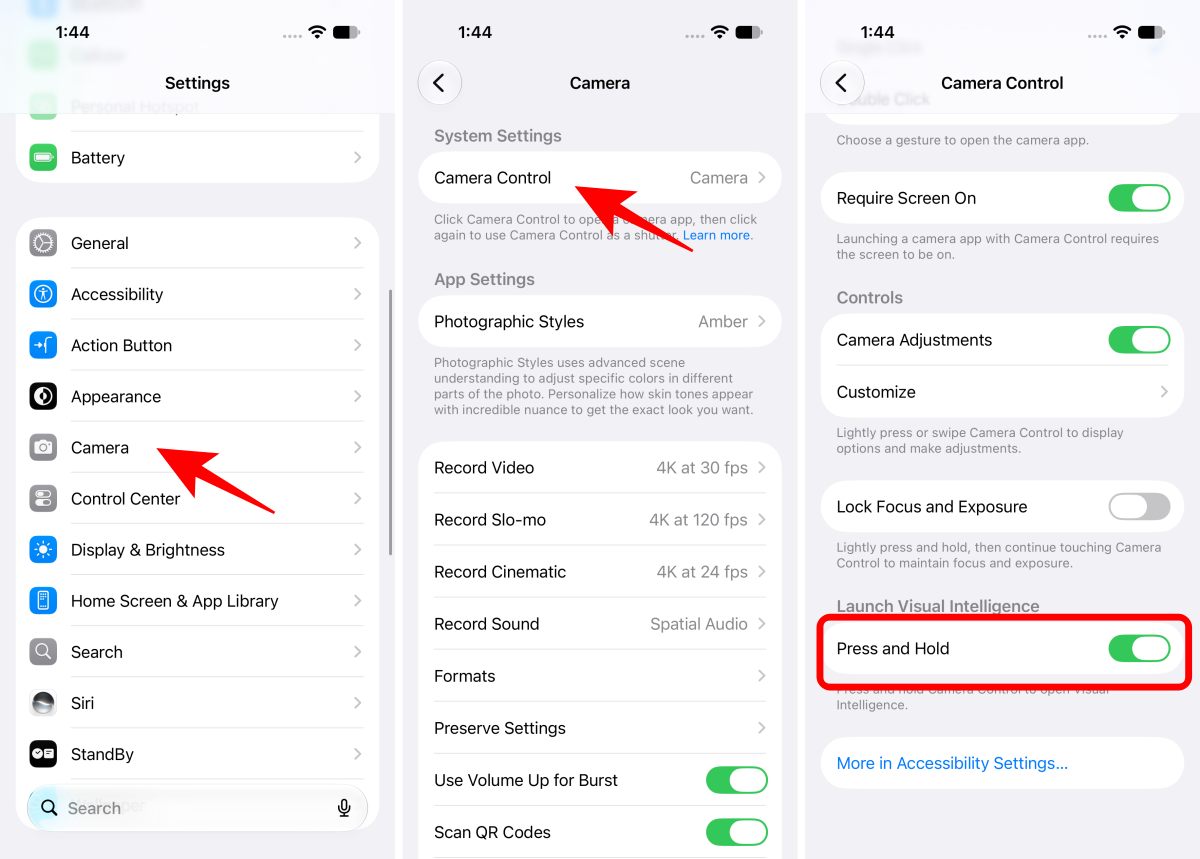
This remains one of the quickest ways to access Visual Intelligence on supported iPhones.
If your iPhone doesn’t have Camera Control, you can assign Visual Intelligence to the Action button on supported models.
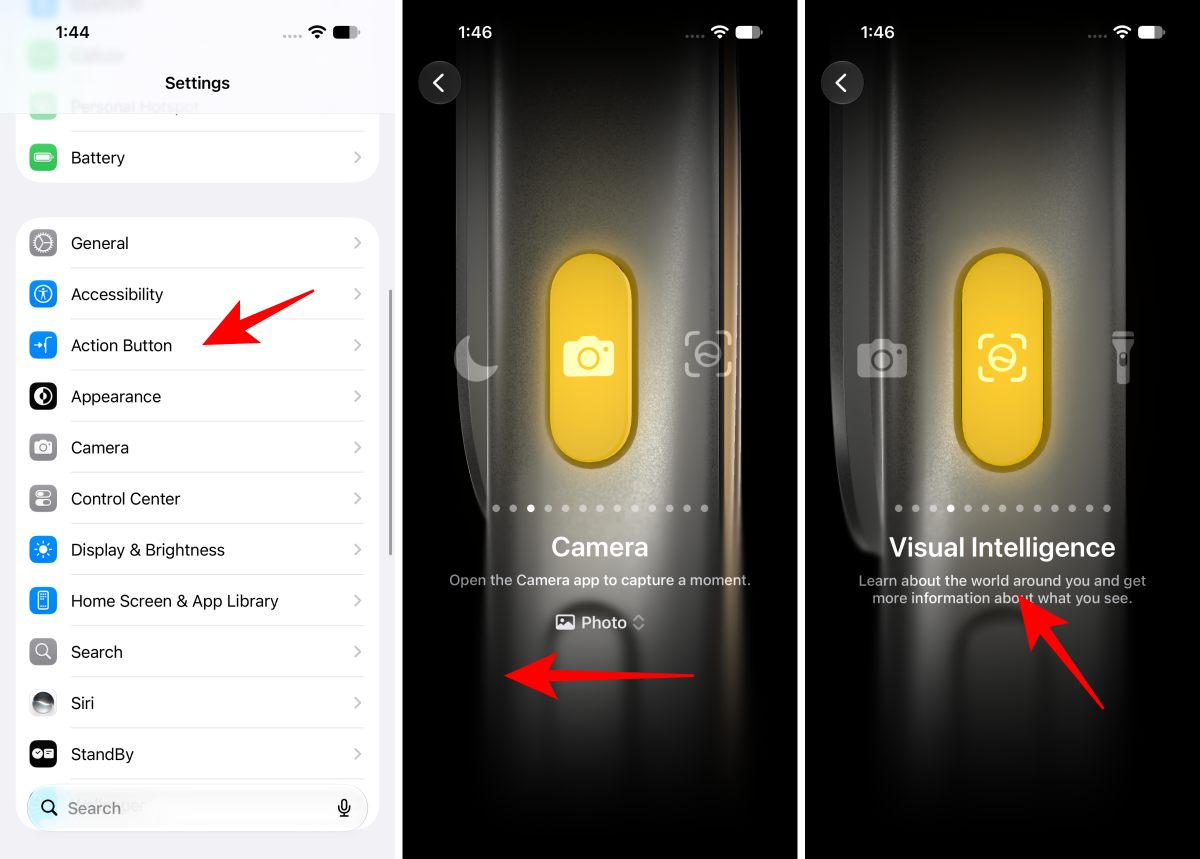
You can also customize your Lock Screen to add Visual Intelligence as a control.
This is particularly useful when I want to analyze something quickly without navigating through multiple menus.
You can also launch it from Control Center.
If you don’t see it, tap the + button to customize Control Center and add the Visual Intelligence control.
The real appeal of Visual Intelligence isn’t simply recognizing objects. What makes iOS 27 interesting is that the feature can turn what the camera sees into an action.
Here are some of the most useful things you can do.
This is one of the biggest changes in iOS 27.
Instead of simply identifying an object, I can ask a question about it. For example, I can point my camera at a cricket ball and ask: “How do you play cricket?”
Siri AI can identify the object and continue the conversation with a follow-up answer.
To try it:
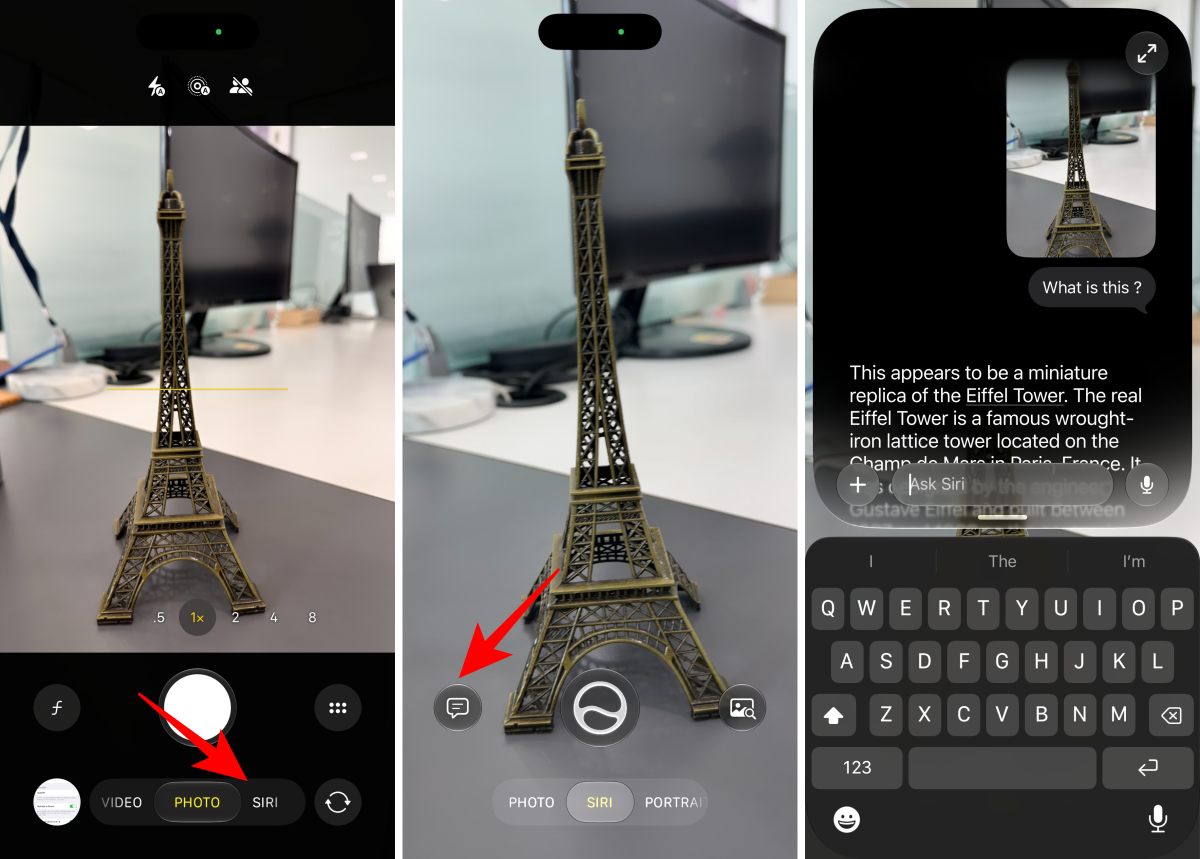
You can continue asking questions without starting over. Also, all these conversations are available in the Siri app for future reference.
This makes Visual Intelligence feel much more like an interactive assistant rather than a simple visual search tool.
Visual Intelligence can recognize plants and animals through the camera.
To use it:
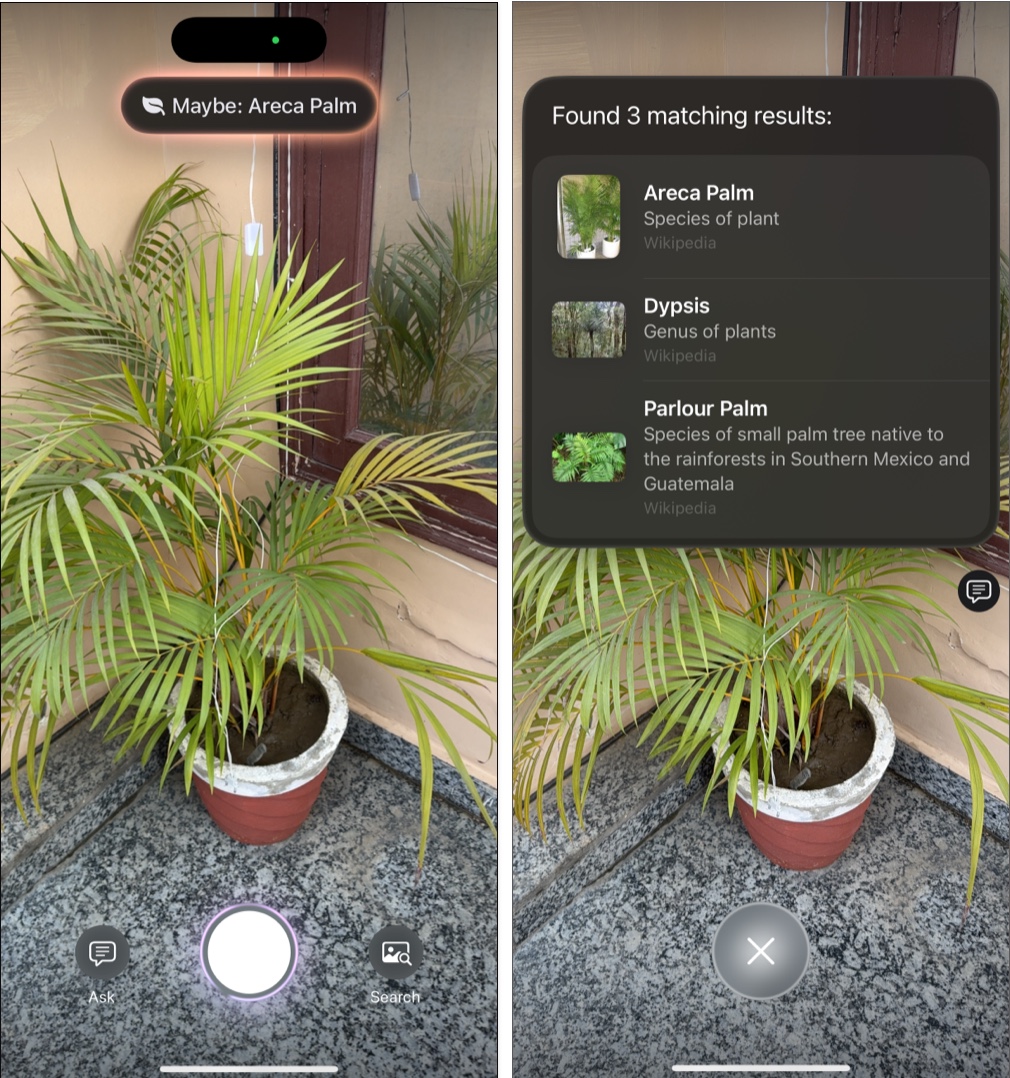
If the system isn’t confident about an identification, treat the result as a suggestion rather than a guaranteed answer.
Visual Intelligence can also help when you’re walking around a new area.
Point the camera at a business or location, and Visual Intelligence can provide relevant information about it, depending on what’s available in your region.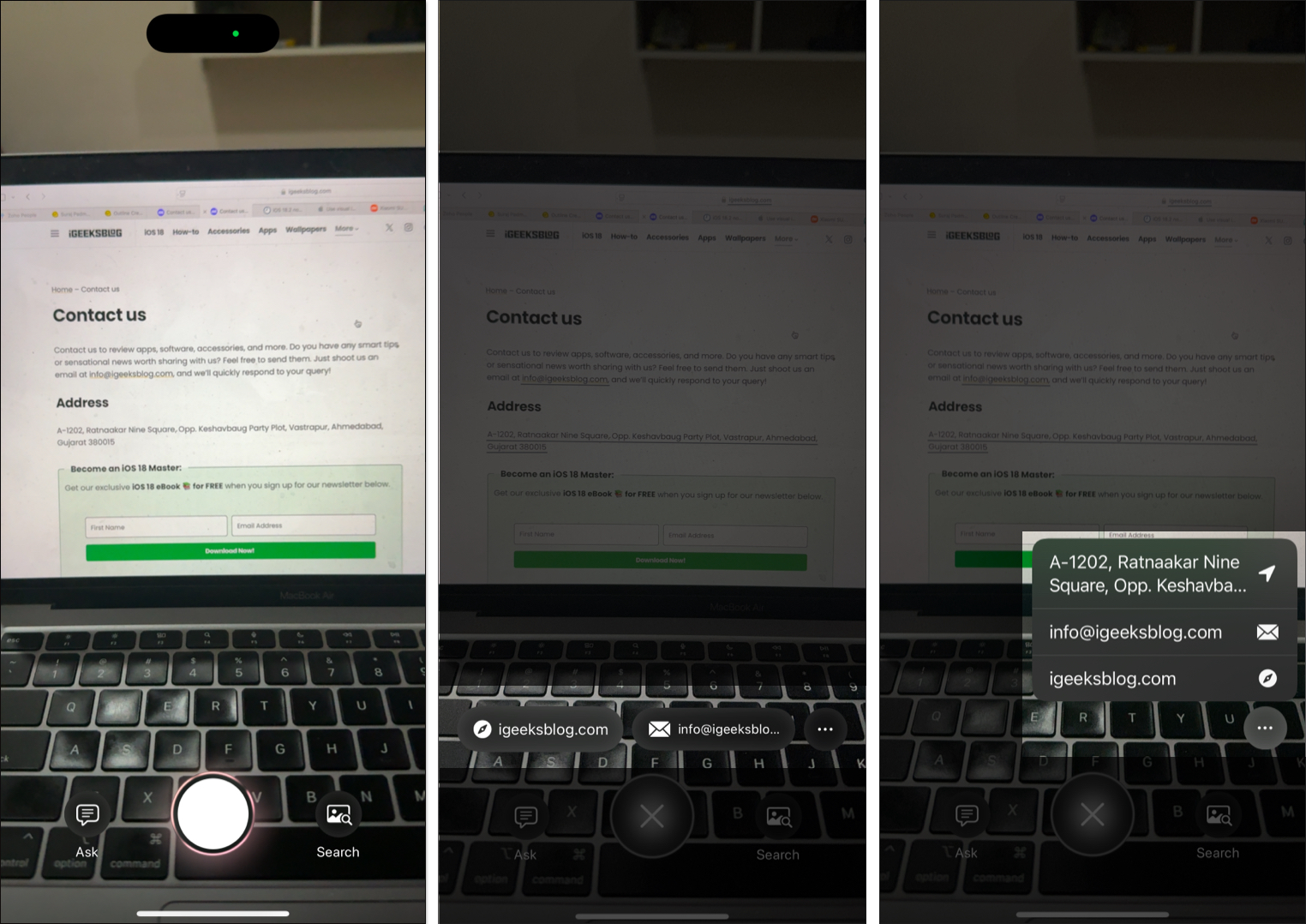
For supported businesses, you may see details such as:
This is one of the more interesting iOS 27 additions.
Point your iPhone camera at food or a meal, and Visual Intelligence can provide information about it, including nutritional information and ingredients when the system can determine them.
To try it:
The results are meant to provide useful information, not replace professional dietary or medical advice.
Visual Intelligence can now do more than read a restaurant receipt. With the updated Wallet app in iOS 27, Siri can offer a Split Bill option when you point your camera at a receipt.
To use it:
The exact payment options depend on region and service availability.
Visual Intelligence can perform a visual search when you want to find similar items online, similar to Google Lens.
For example, if I see a pair of shoes, bag, piece of furniture, or gadget I like, I can point my camera at it and search for visually similar results. You can also directly buy the product from the search results.
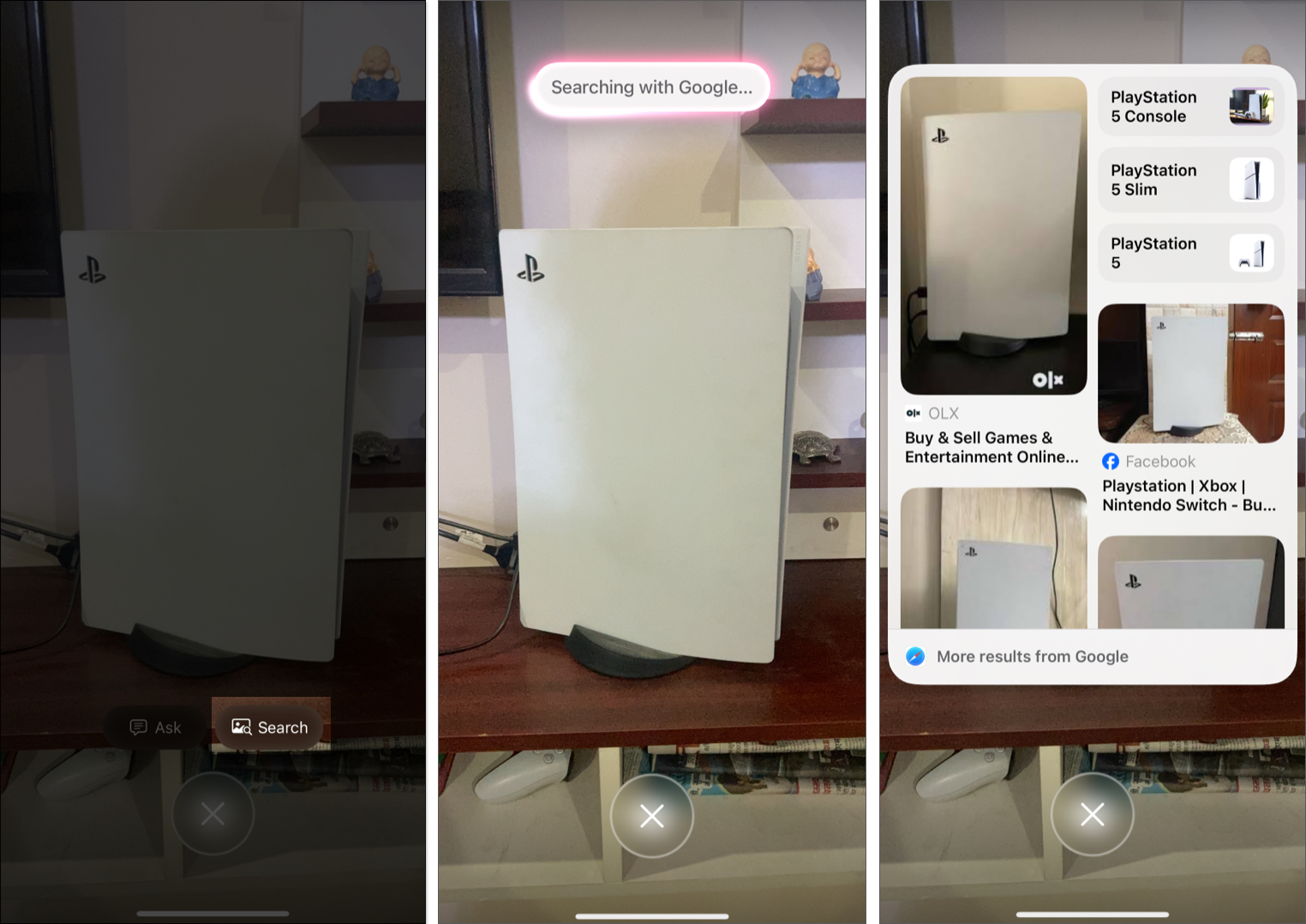
This is particularly useful when I don’t know the name of the product I’m looking at.
Visual Intelligence can understand text through the camera and provide actions such as translation.
To translate text:
I often use this feature for signs, menus, labels, notices, and other printed text when traveling. No need to open the Translate app separately!
Visual Intelligence can also provide options for summarizing or reading text aloud when appropriate.
You don’t always need to read a long notice or document yourself.
Point your camera at the text, and Visual Intelligence can offer a Summarize and Read Aloud action.
This can be useful for:
The available actions depend on what Visual Intelligence detects.
Visual Intelligence can recognize event information from posters and flyers and help you add it to Calendar. This is much faster than manually typing the event name, date, time, and location.
To use it:
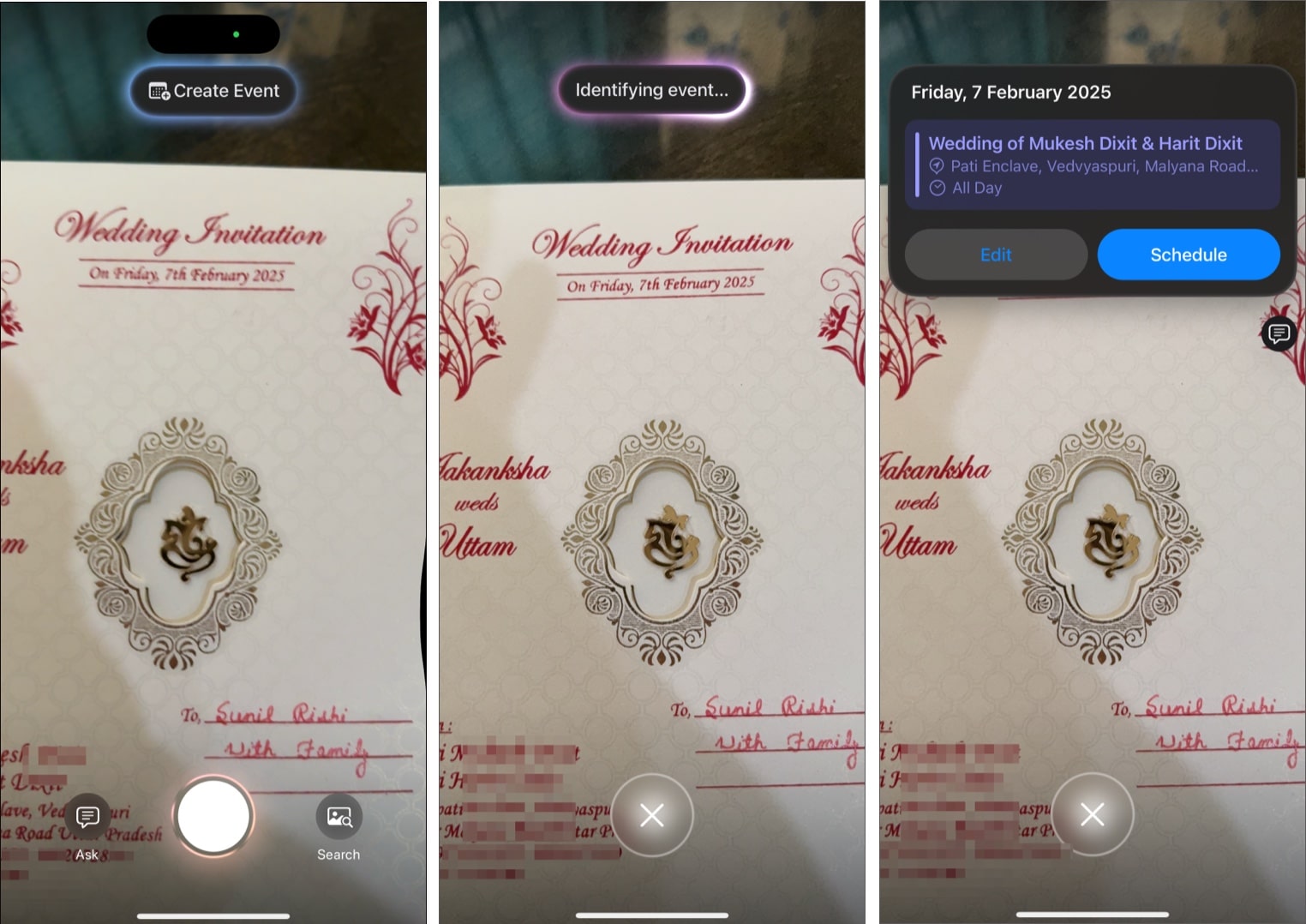
Similarly, the feature also helps me add contacts from visiting cards.
Also read: I tried the Calendar app in iOS 27. These new features actually save time
This is where Visual Intelligence becomes particularly useful.
You don’t have to point your camera at everything. If something is already displayed on your iPhone, you can use screenshot-based Visual Intelligence to understand it.
For example, I can use it on a product page, social media post, website, document, photo, message, screenshot of an app, and much more. Apple provides a dedicated Visual Intelligence experience for content on the iPhone screen.
The tools shown at the bottom can change depending on the content in your screenshot.
The best feature is the ability to highlight an object on the screen. Suppose I’m looking at a screenshot containing several products, but I only want information about one of them. In such a case, simply take a screenshot and highlight the specific object.
Visual Intelligence can then search for that specific item rather than treating the entire screenshot as a single image. This is especially useful when comparing products or researching something I see on social media.
If you’ve used Visual Intelligence in earlier iOS versions, you may remember seeing an Ask option that handed questions to ChatGPT.
That integration hasn’t disappeared from Apple’s broader Apple Intelligence experience, but the iOS 27 Visual Intelligence workflow is more tightly connected to Siri AI.
If you still want to use ChatGPT for some queries, here’s how:


The Siri app saves such conversations as well.
Apple has added settings that let you control how Visual Intelligence behaves.
To find them:
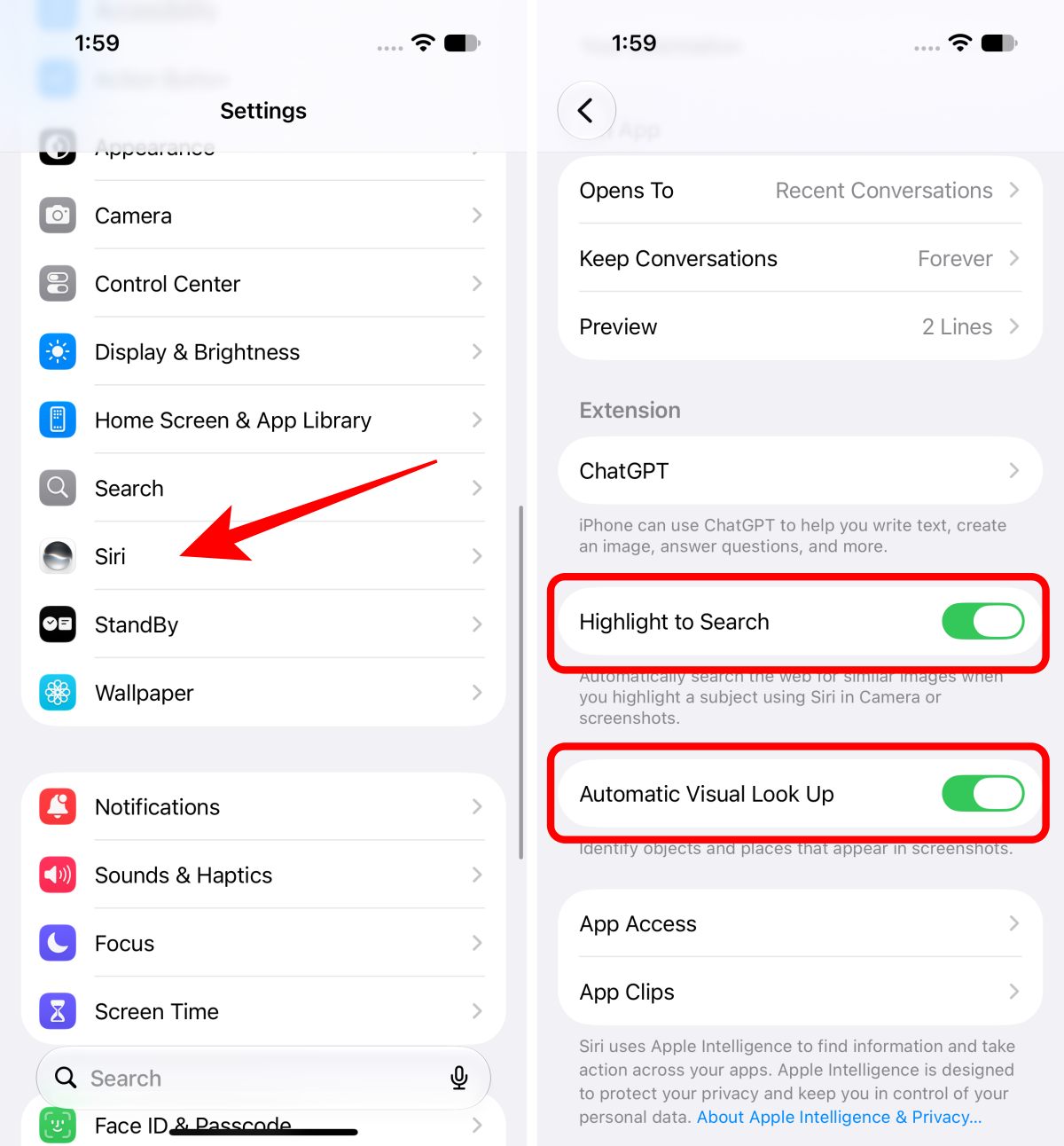
These options are useful if you want Visual Intelligence to be more proactive.
These two features can sound confusing because both can identify things.
Visual Look Up is Apple’s traditional image-recognition feature. It can recognize certain objects, animals, plants, landmarks, laundry symbols, car dashboard signs, and other visual content.
Visual Intelligence is broader. It combines Apple’s visual understanding with Apple Intelligence to let you search, ask questions, summarize information, translate text, and take actions based on what your camera or screen shows.
In iOS 27, Visual Intelligence also works closely with Siri AI, making it more conversational.
Visual Intelligence is powerful, but I wouldn’t treat every result as authoritative. AI-generated information can sometimes be incomplete or incorrect, especially when the camera can’t clearly see the subject.
I also need to remember that feature availability varies by:
Apple specifically notes that Apple Intelligence features aren’t available in every language or region, and Siri AI is currently offered as a beta feature on iOS 27.
For anything involving health, nutrition, finances, or other important decisions, I would verify the result using a reliable source rather than relying on Visual Intelligence alone.
Visual Intelligence has come a long way since Apple introduced it.
In earlier versions of iOS, I mostly thought of it as a smart camera feature that could recognize objects, translate text, identify plants, or search for products. iOS 26 expanded the idea by letting Visual Intelligence understand what was on my screen.
With iOS 27, Apple takes the next step by bringing Visual Intelligence deeper into Siri and the Camera app. I can now ask Siri what I’m looking at, follow up with another question, search for similar images, or take an action based on what my iPhone sees.
If Apple continues improving Siri AI and Visual Intelligence in future updates, I think this could become one of the most useful parts of Apple Intelligence. What do you think about this feature? Let me know in the comments below!
Also read: