
FaceTime Like a Pro
Get our exclusive Ultimate FaceTime Guide 📚 — absolutely FREE when you sign up for our newsletter below.

FaceTime Like a Pro
Get our exclusive Ultimate FaceTime Guide 📚 — absolutely FREE when you sign up for our newsletter below.


Apple’s new Vehicle Motion Cues feature helps reduce motion sickness when using your iPhone or iPad in a moving car. Learn how it works and how to enable or customize it for a more comfortable travel experience.


If you often feel dizzy or nauseous while using your iPhone or iPad in a moving car, you’re not alone. Motion sickness is a common issue for many users, especially during long drives or commutes. To tackle this, Apple introduced Vehicle Motion Cues, a smart accessibility feature designed to help prevent motion sickness so you can comfortably use your device on the go.
In this guide, I’ll explain what Vehicle Motion Cues is, how it works, and how you can enable or customize it on your iPhone, iPad, and Mac for a smoother, more comfortable ride.
Motion sickness happens when your eyes and inner ears send mixed signals to your brain. While your inner ear senses the movement of the car, your eyes are focused on a still object like your iPhone screen, which tells your brain that you’re not moving. This sensory mismatch confuses the brain and leads to symptoms such as dizziness, nausea, and general discomfort.
Apple’s Vehicle Motion Cues directly addresses this visual-vestibular conflict.
According to Apple’s research, motion sickness often occurs when your brain struggles to reconcile what it sees versus what it feels. To bridge that gap, this feature adds subtle animated dots along the edges of your screen that move in sync with the vehicle’s motion. These cues visually represent acceleration, turns, and stops, helping your brain better align visual and physical sensations, reducing discomfort.
It’s a small yet powerful change that makes a big difference, especially for passengers who regularly use their devices on the road.
You can find Vehicle Motion Cues in the Accessibility settings. Here’s how to enable it:
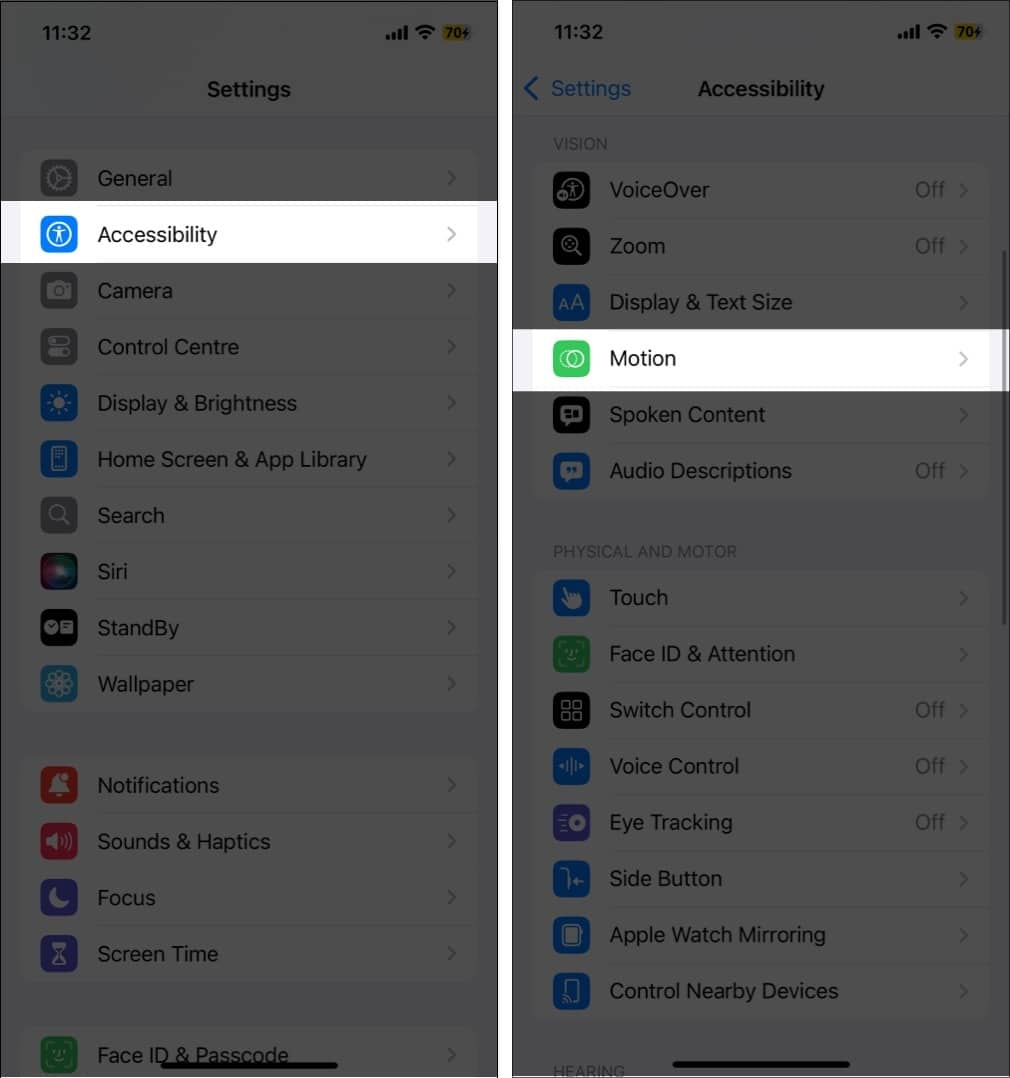
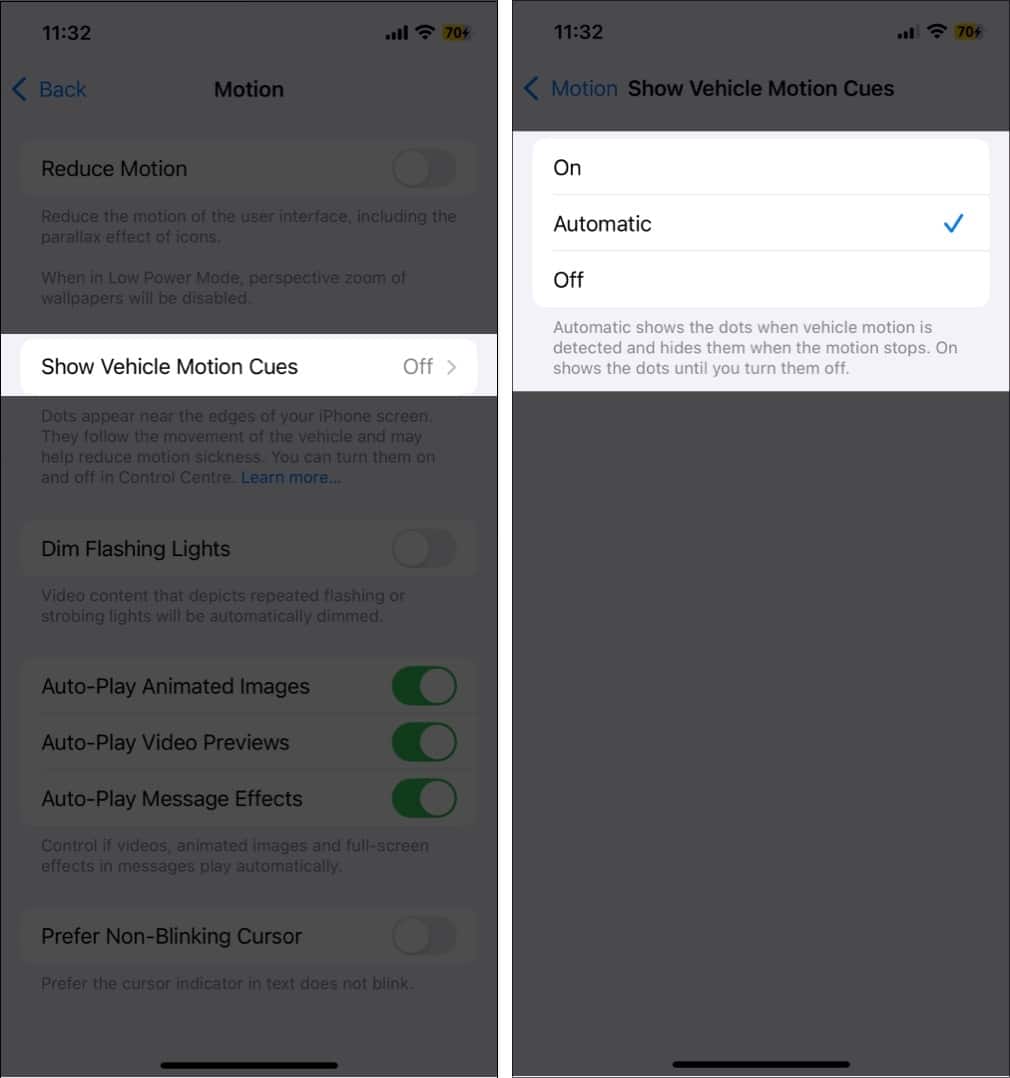
This gives you full control over when and how the cues appear.
With iOS 26, Apple introduced more customization options for Vehicle Motion Cues, allowing users to personalize how these dots look and behave based on comfort and visibility.
To customize:
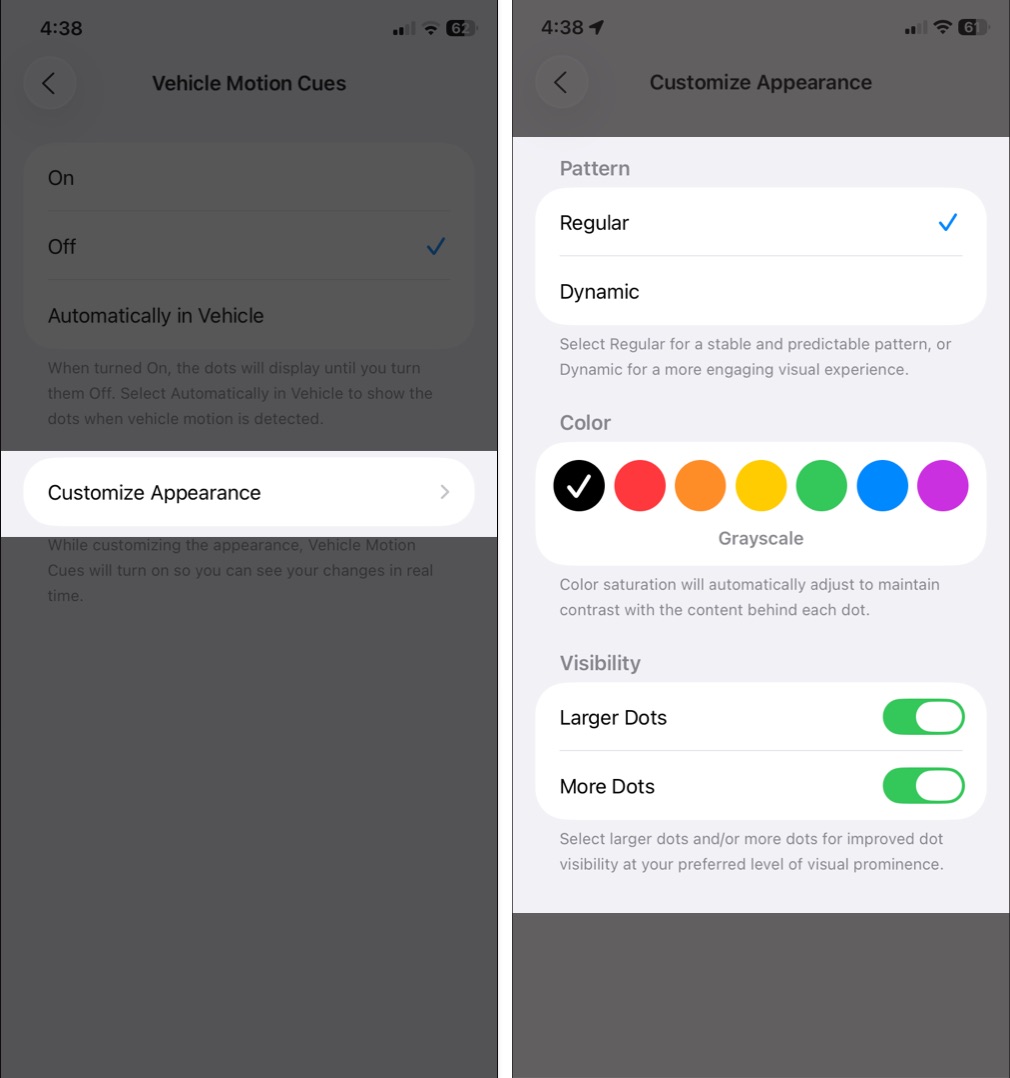
These new controls let you fine-tune your experience depending on your motion sensitivity and screen preferences.
If you often switch between riding and driving, adding Vehicle Motion Cues to your Control Center gives you quick access.
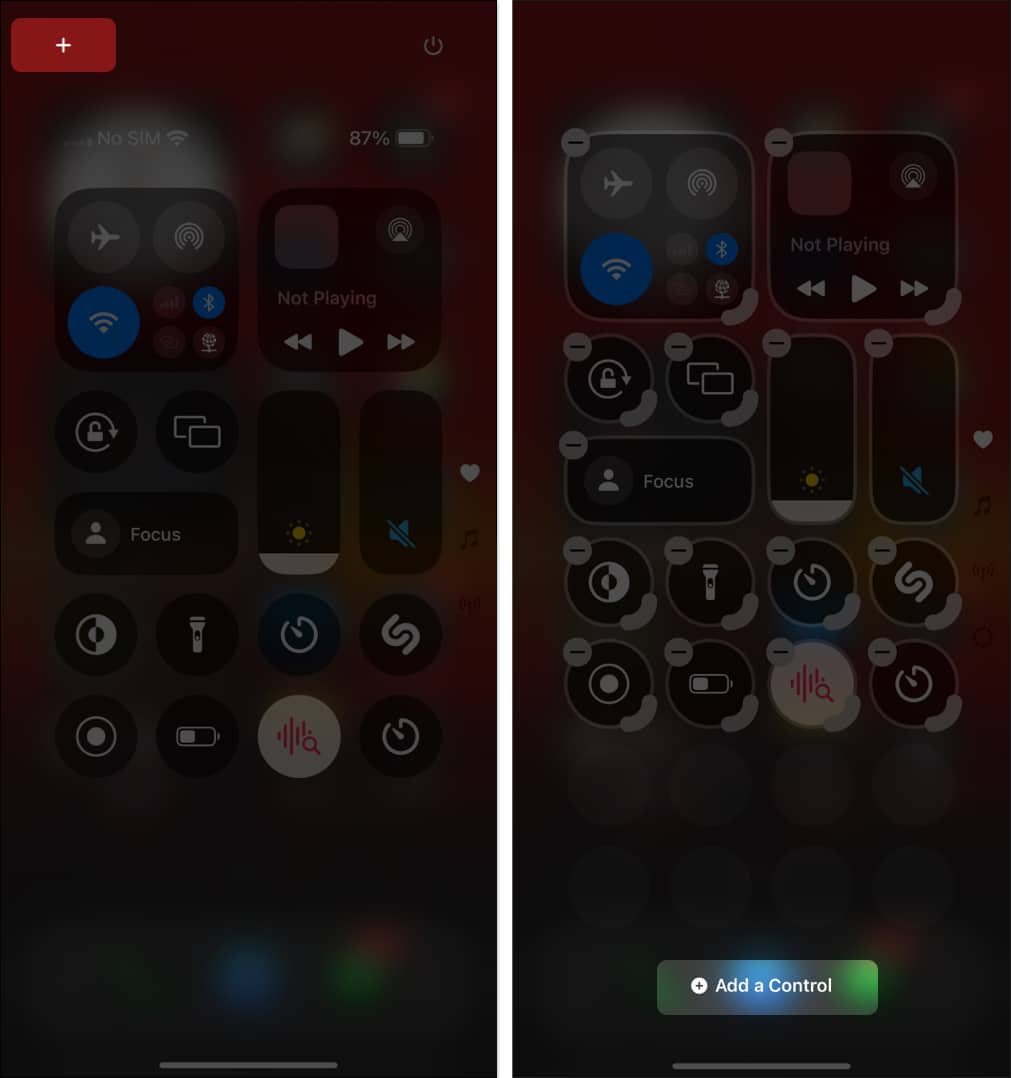
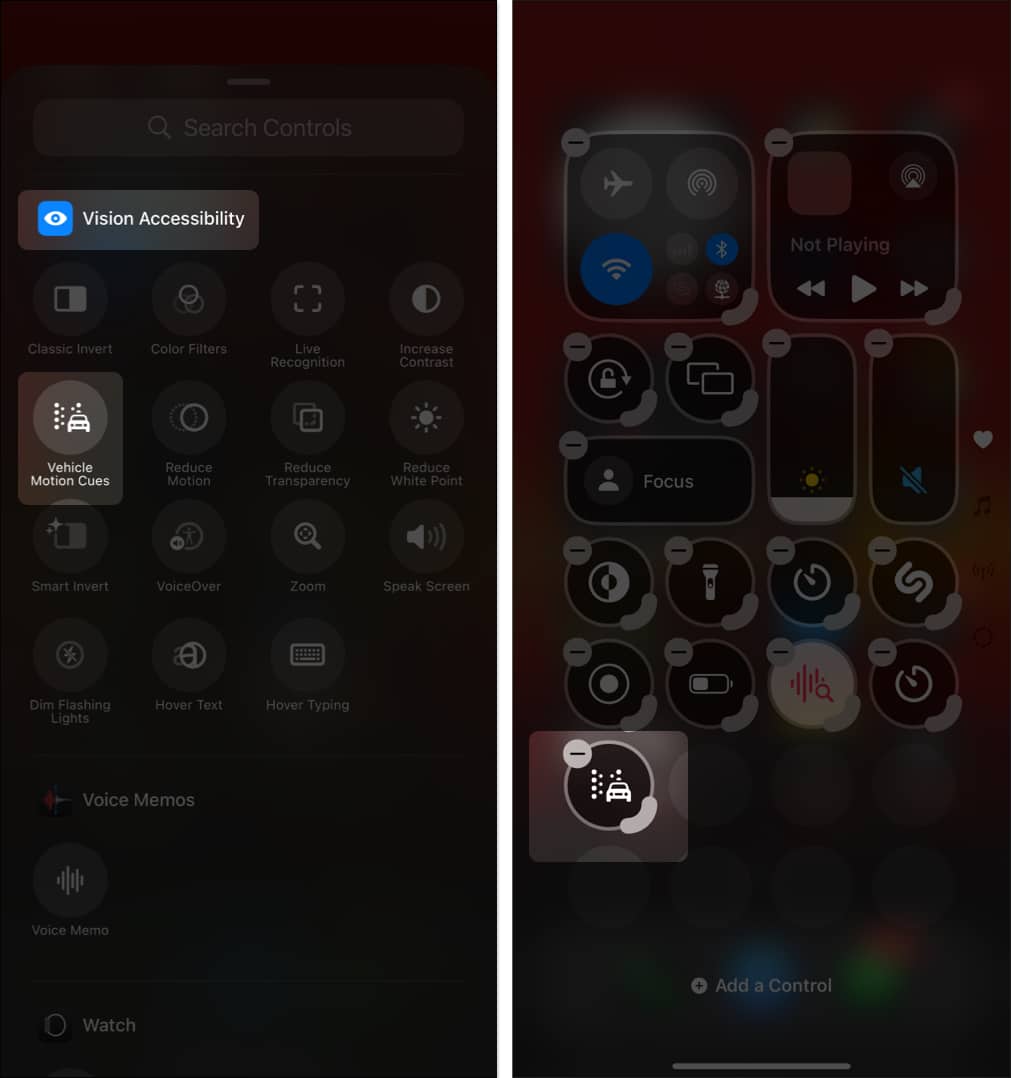
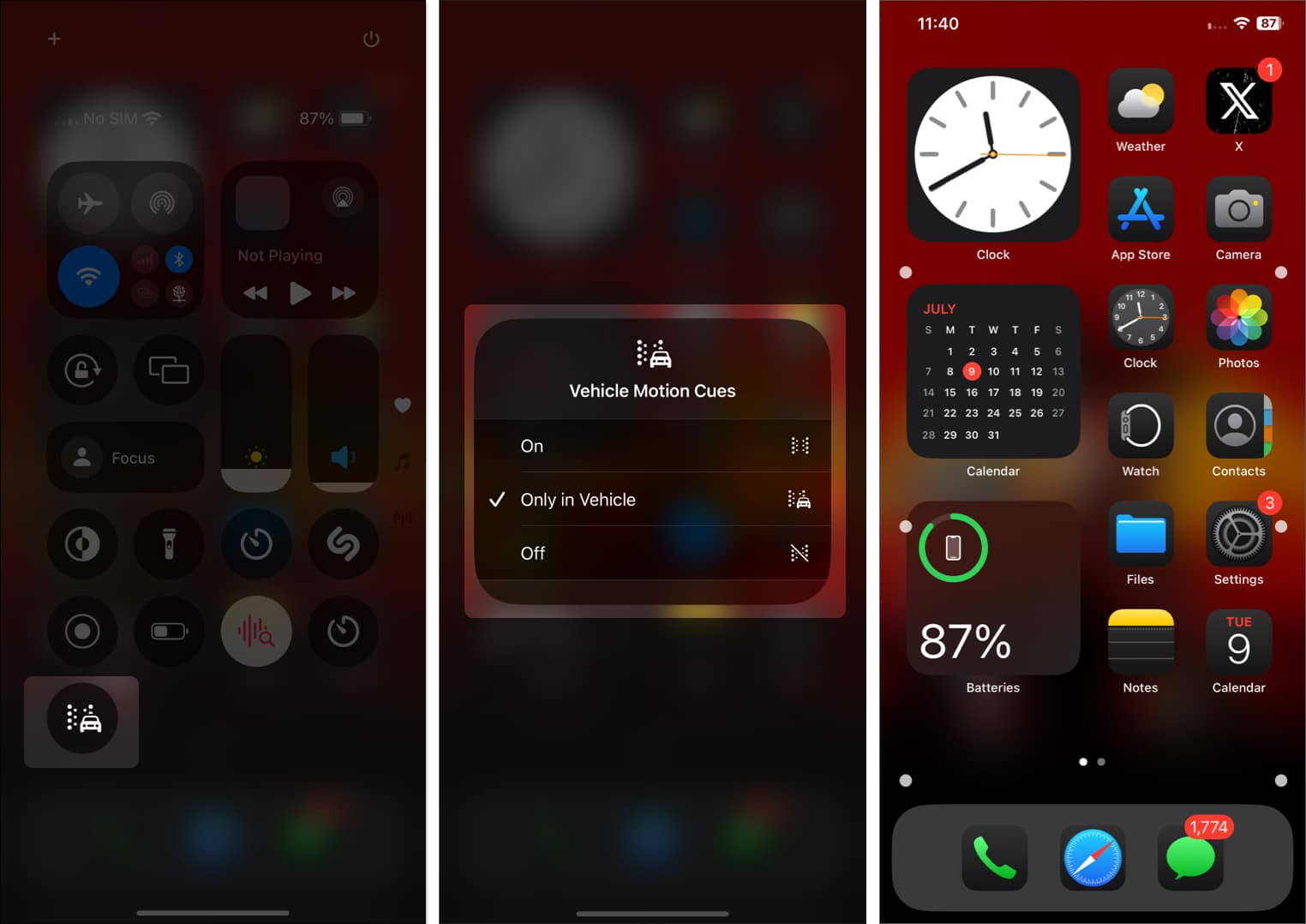
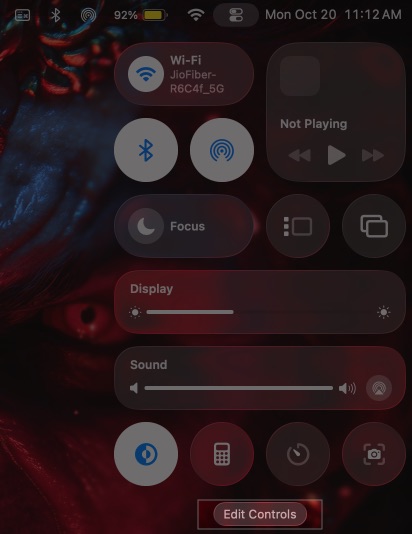
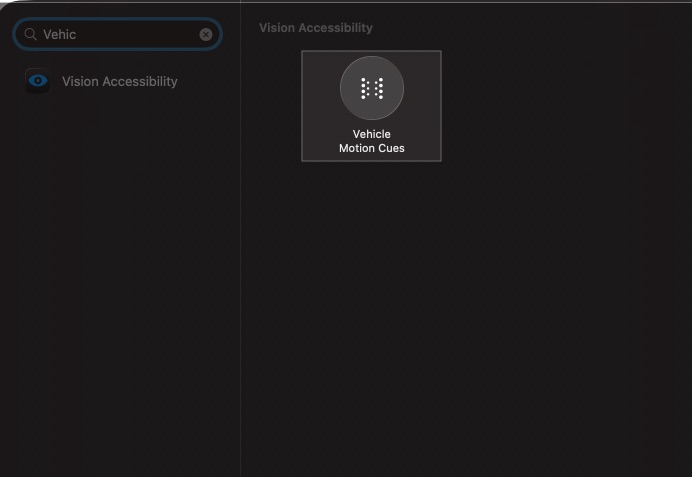
This shortcut saves you from digging through settings every time you hop in the car.
Apple’s Vehicle Motion Cues feature marks a big step forward in improving digital wellness and user comfort. For anyone who often feels uneasy using their phone while traveling, this feature can make road trips, long commutes, and even short rides more enjoyable.
Its true impact will become clearer as more people try it and share their experiences. But if you’ve ever had to put your phone down mid-drive because of dizziness, it’s definitely worth turning on.
Have you tried Vehicle Motion Cues yet? Does it help reduce motion sickness for you? Share your experience in the comments below. Your feedback might help others find relief too.
Related articles worth reading:









