
FaceTime Like a Pro
Get our exclusive Ultimate FaceTime Guide 📚 — absolutely FREE when you sign up for our newsletter below.

FaceTime Like a Pro
Get our exclusive Ultimate FaceTime Guide 📚 — absolutely FREE when you sign up for our newsletter below.


Use Continuity features to connect your iPhone and Mac, switch tasks seamlessly, share content instantly, and boost productivity across devices.

 ByDarryl Dsouza and Ava Biswas


Apple’s Continuity features make your iPhone and Mac work together like a dream team. You can start a task on your iPhone and finish it on your Mac, or use your iPhone’s superior camera as a webcam for your Mac. These tools let you seamlessly switch between devices, share content, and boost productivity without any extra apps.
With the latest iOS 26 and macOS Tahoe updates, Apple has enhanced the Continuity experience with new tools like the Phone app and Live Activities. Here, I’ll share the seven best Continuity features to use on Mac and iPhone, how to set them up, and tips to make the most of them.
To ensure smooth Continuity between devices, your setup must meet these requirements:
Check Apple’s official support page for detailed system requirements to ensure compatibility.
Setting up Continuity is simple:
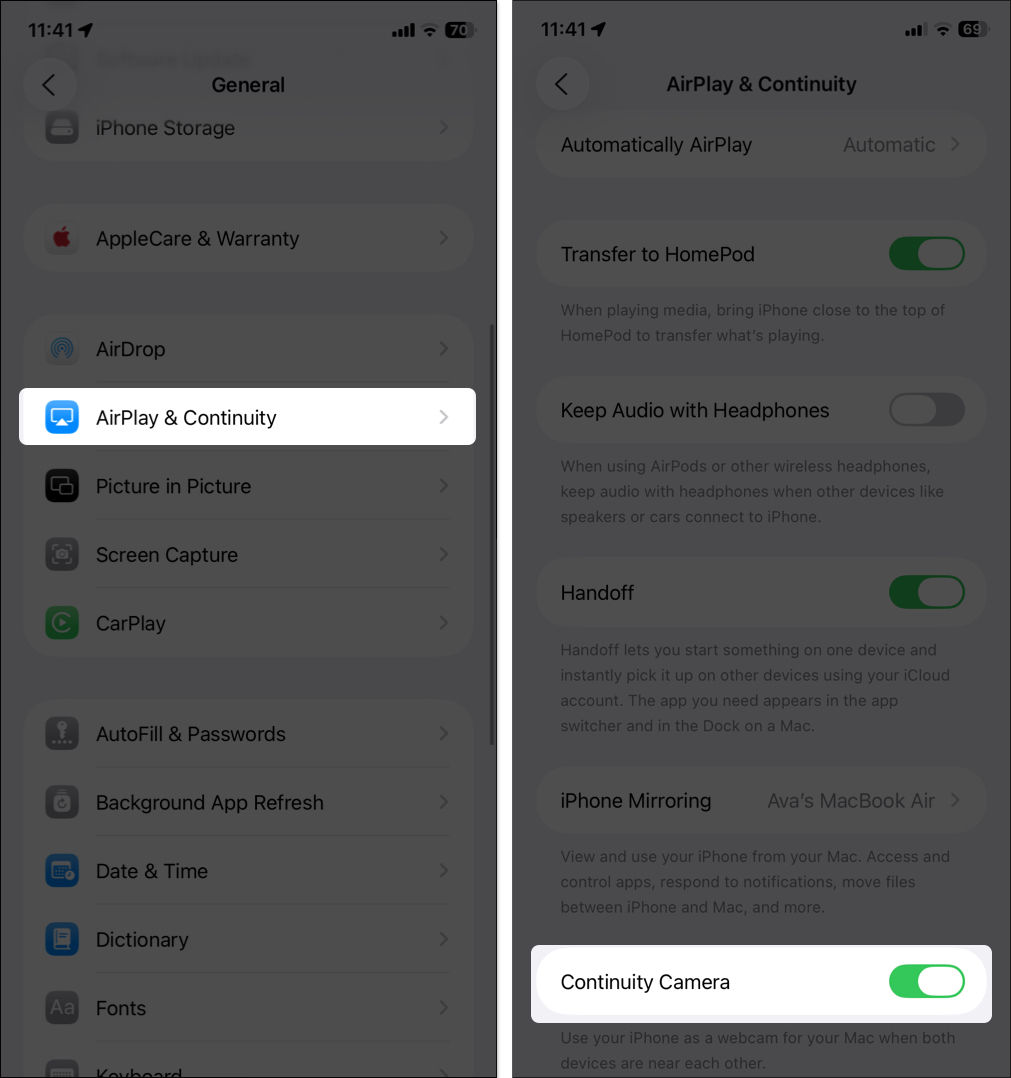
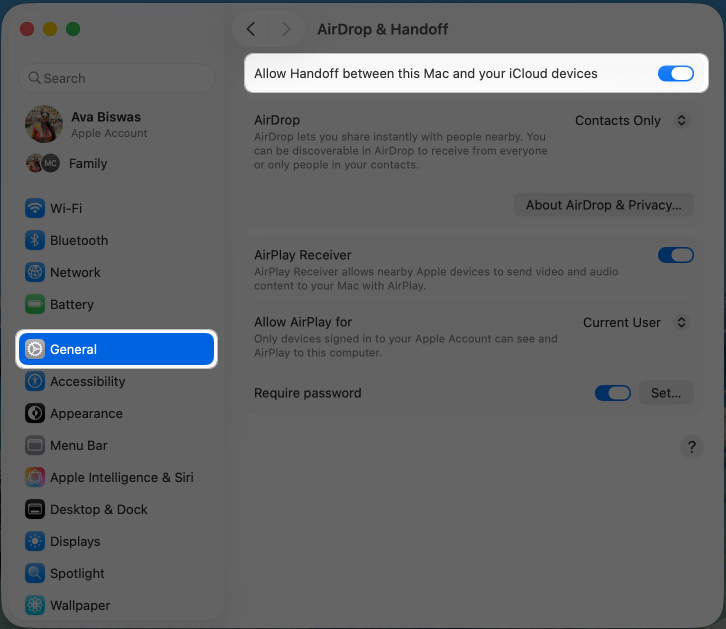
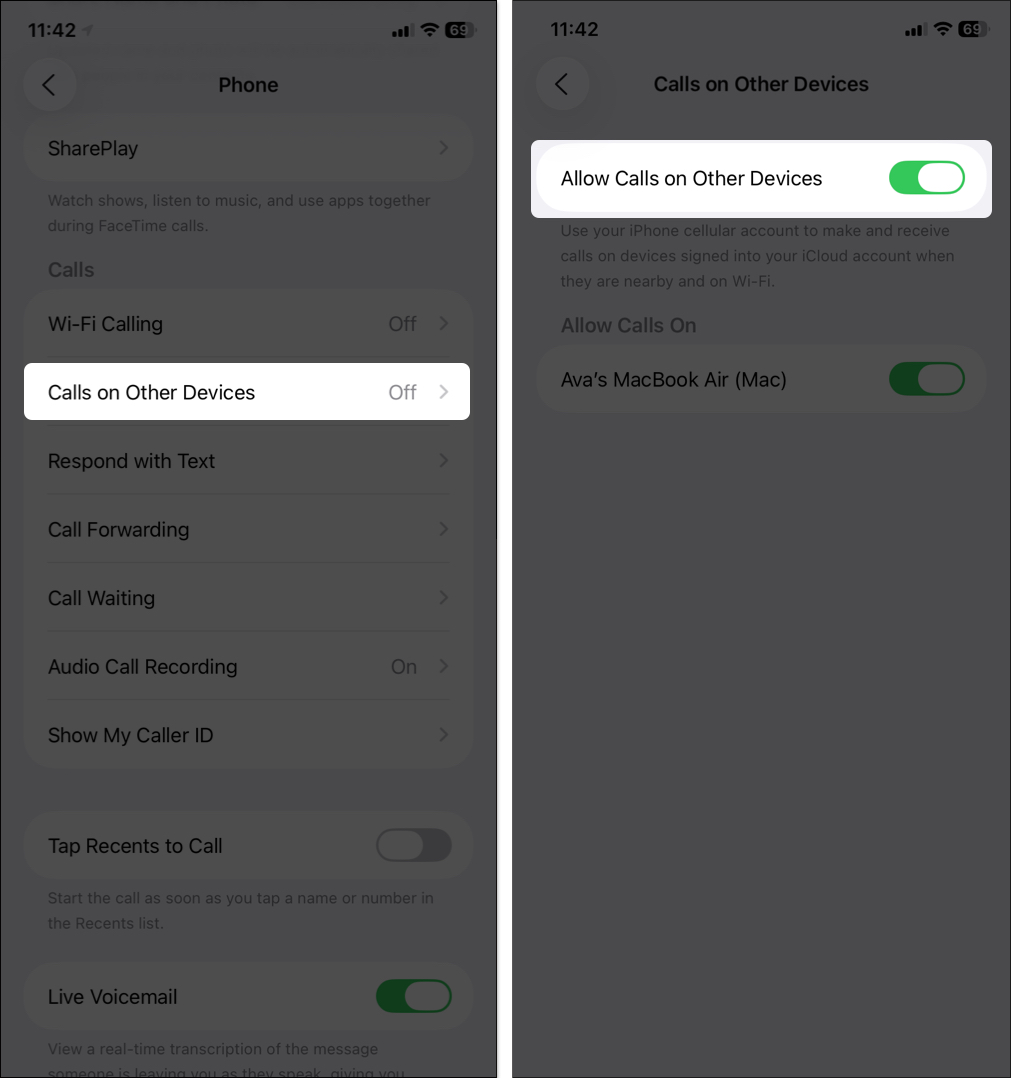
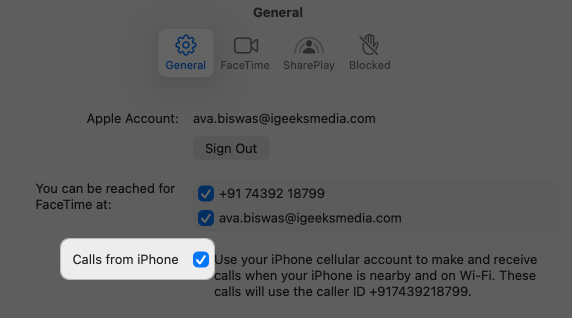
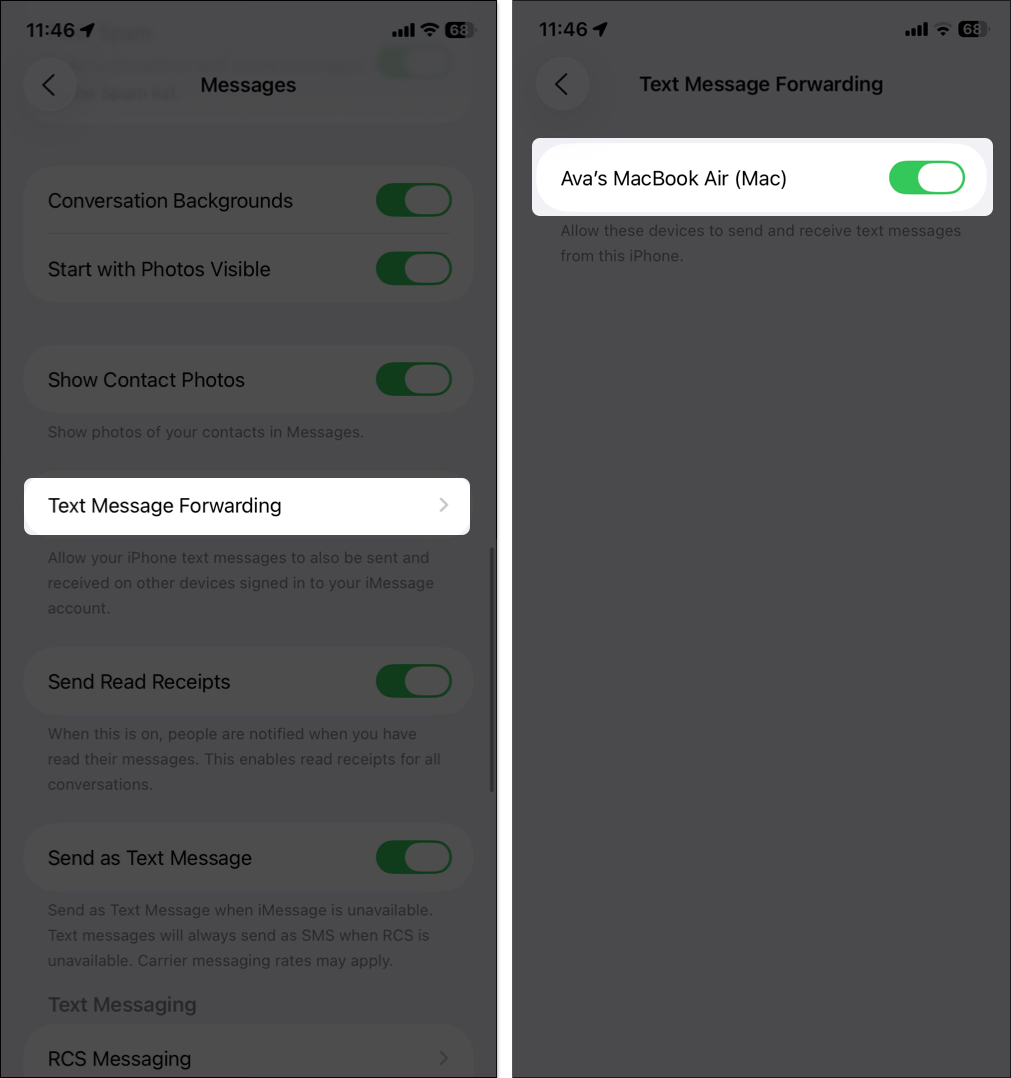
If you run into setup issues, ensure both devices are fully updated and restart them.
Here are the seven best Continuity features to supercharge your iPhone and Mac workflow.
Why settle for a basic webcam when you can use your iPhone’s powerful camera? Continuity Camera lets you use your iPhone as a high-quality webcam and mic for your Mac, perfect for video calls or livestreams. You can also take photos, scan documents, or create sketches on your iPhone that appear instantly on your Mac.
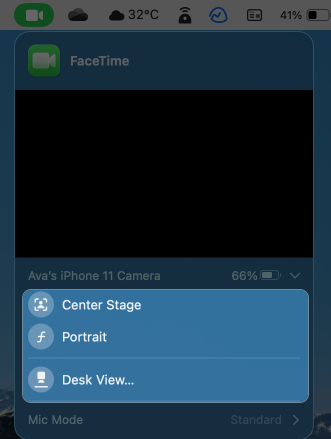
With iOS 18 and macOS Sequoia, you get features like:
How to use as a webcam:
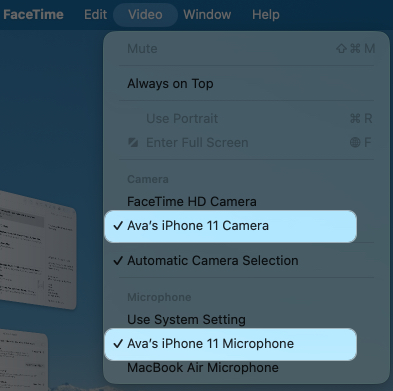
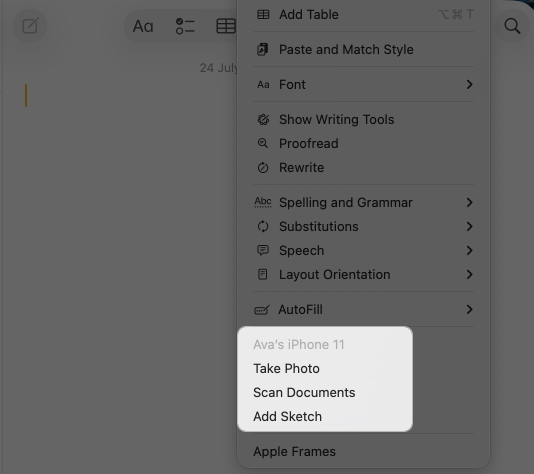
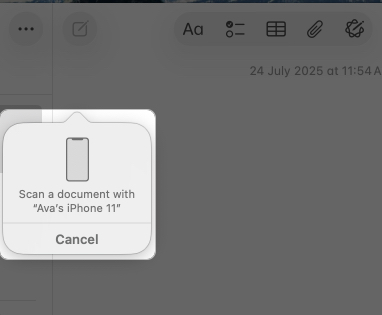
Now, let’s see how to use Continuity Camera to scan documents or take photos that instantly appear in iWork apps like Notes, Mail, Messages, Numbers, Keynote, Pages, and TextEdit.
Handoff lets you start an activity on iPhone and continue it on Mac (and vice versa) without losing progress. Works with apps like Safari, Mail, Pages, Notes, and some third-party apps.
Example:
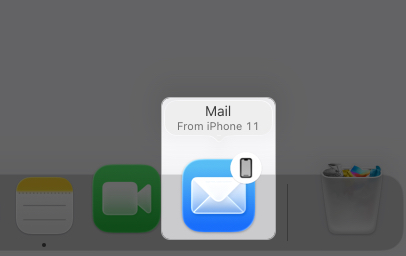
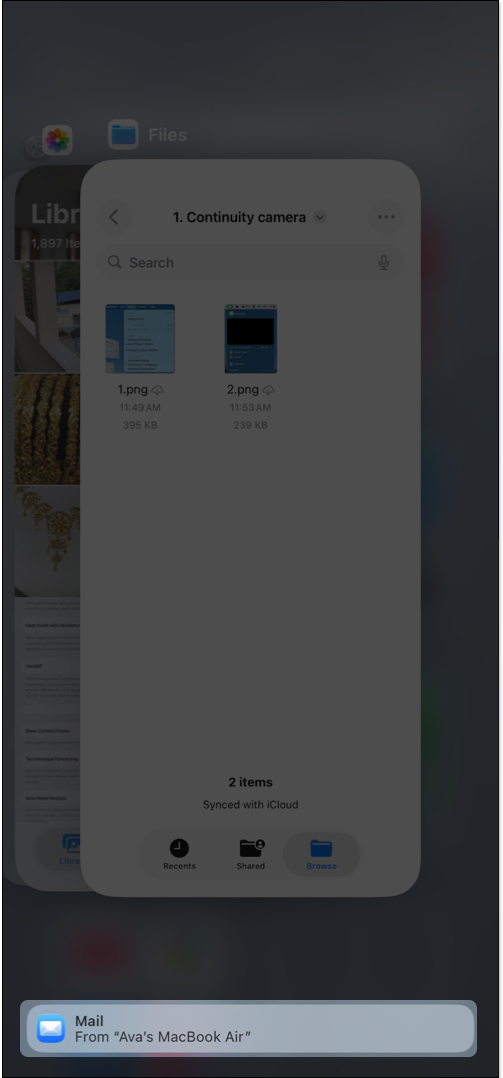
So, Handoff saves time by letting you switch devices seamlessly, whether you’re browsing, writing, or planning.
With macOS 26’s Phone app, you can make and receive calls on your Mac without touching your iPhone. You also get iOS 26 features like Hold Assist, Call Screening, and Live Translation.
With the new Phone app on macOS 26, you can make and receive phone calls on your Mac without touching your iPhone. Your Mac acts as a speakerphone and shows caller details and Contact Poster with the same ringtone you have for that contact on your iPhone.
To call on Mac:
With this, you can stay productive at your desk while keeping your phone elsewhere.
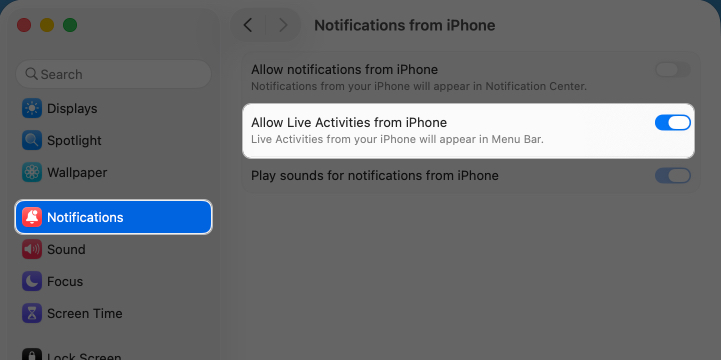
In macOS Tahoe, you can view iPhone Live Activities sports scores, timers, and delivery updates right from your Mac’s menu bar.
To enable Live Activities on your Mac: Go to System Settings > Notifications > Allow Notifications from iPhone, then toggle on Allow Live Activities from iPhone.
Universal Control lets you use a single keyboard, mouse, or trackpad to control both your Mac and iPad, with your iPhone indirectly benefiting through shared workflows. Move your cursor seamlessly between devices and drag content like sketches from your iPad to your Mac.
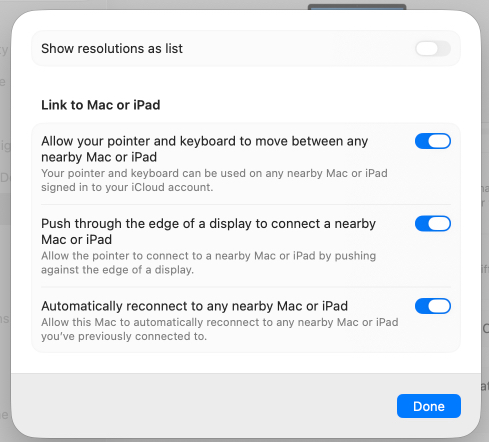
Ensure your Mac and iPad are signed into the same Apple Account with Bluetooth and Wi-Fi on. Go to System Settings > Displays > Advanced on your Mac and toggle on all options under Link to Mac or iPad. Now, take your cursor to the edge of your Mac’s screen to control your iPad.
Continuity Clipboard, also known as Universal Clipboard, lets you copy text, images, or files on one device and paste them on another. It’s perfect for quick content transfers across your devices without emailing yourself.
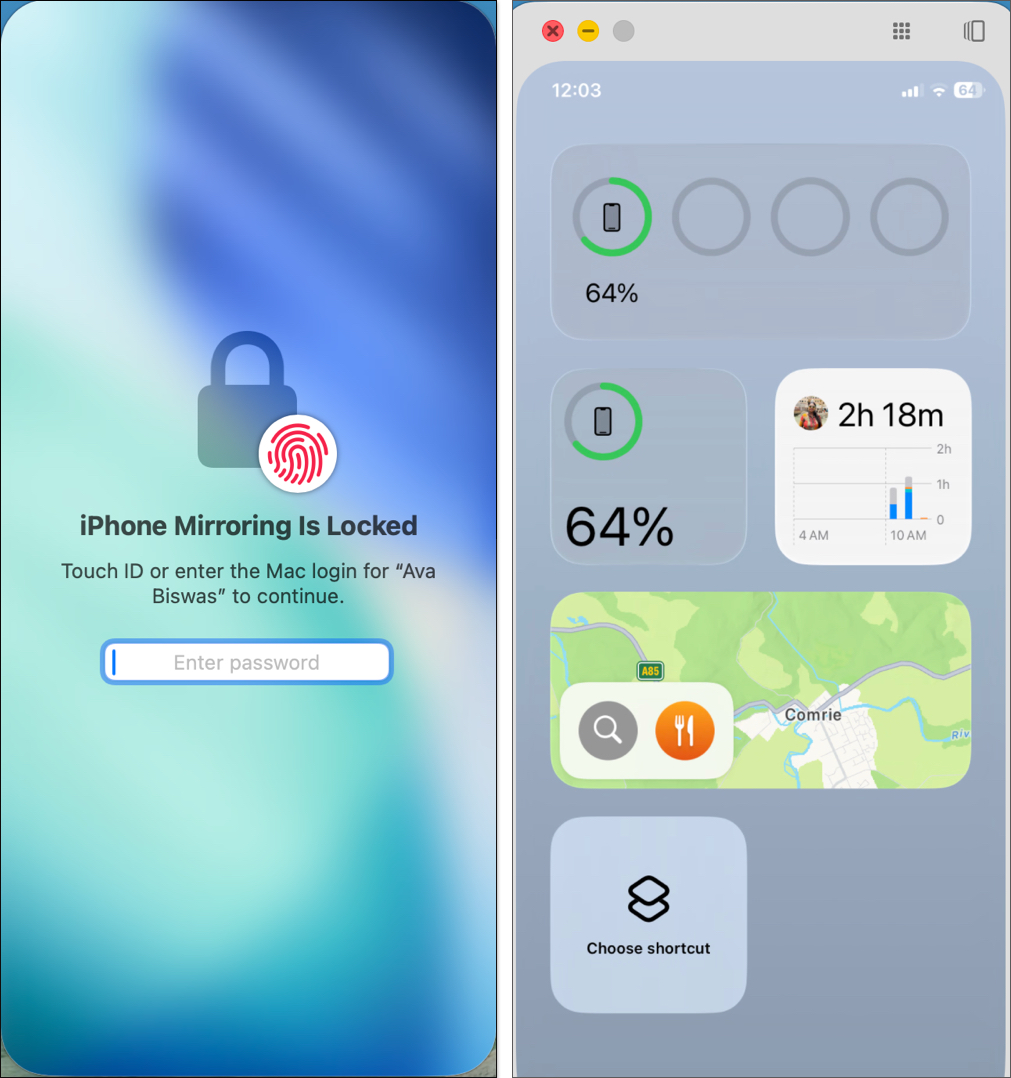
On macOS Sequoia and iOS 18, iPhone Mirroring lets you control iPhone from Mac. Open the iPhone Mirroring app, unlock with your Mac’s passcode, and navigate your iPhone right from your Mac’s screen.
Beyond the top seven, here are other Continuity features to explore:
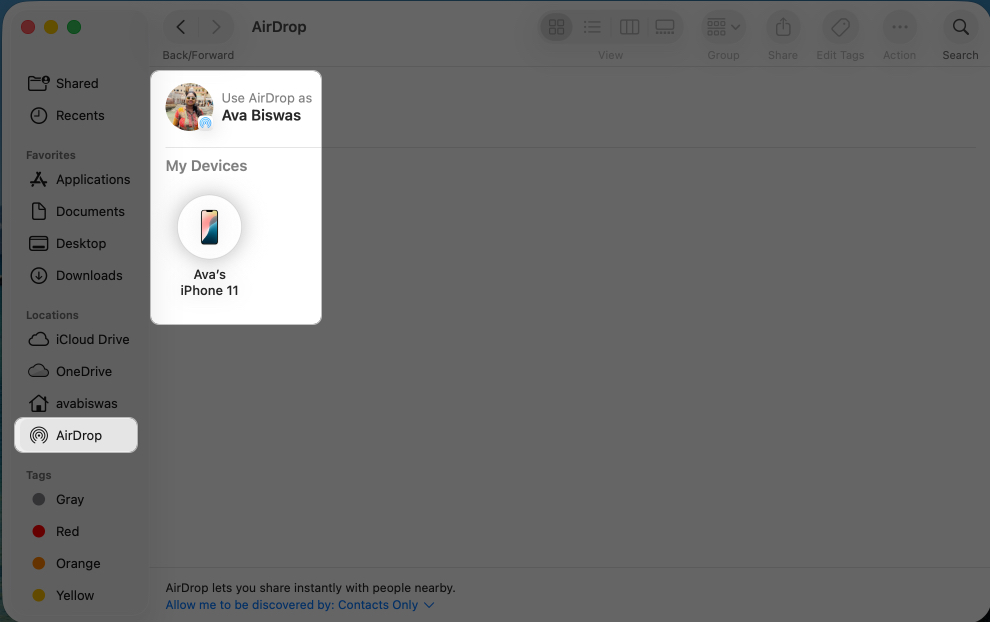
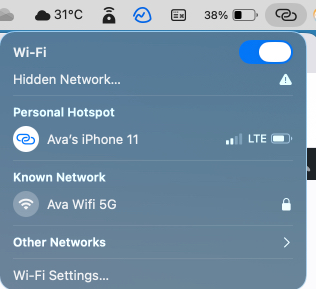
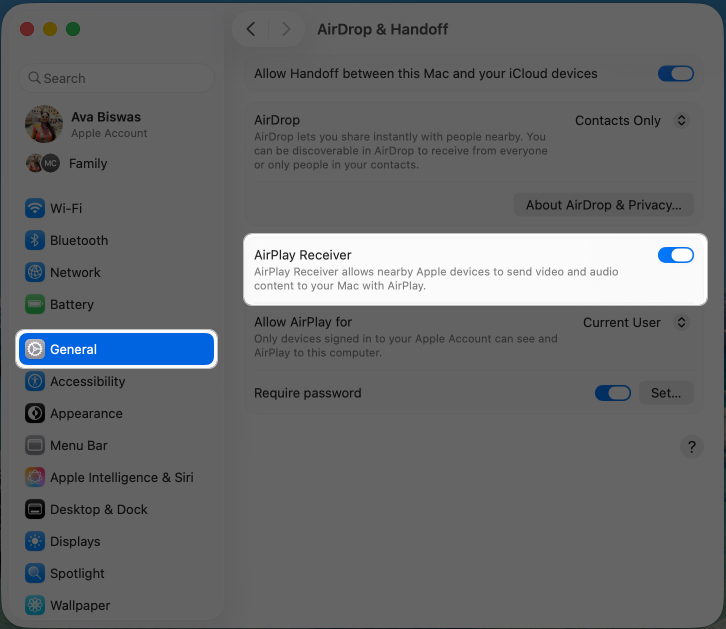
These features add even more flexibility to your Apple ecosystem.
Now, you understand the Continuity features well, here are some expert tips to make the most out of it:
Can’t access Continuity features as intended? Let’s quickly fix it:
| Issue | Fix |
| Continuity Camera is not working | Restart devices, update software, ensure iPhone is unlocked at least once since restart, and not sharing cellular data. |
| Handoff not showing | Turn Handoff off/on, confirm same Apple ID, Wi-Fi, and Bluetooth on both devices. |
| Clipboard not syncing | Requires Handoff. Toggle Bluetooth off/on. |
| Calls/texts not syncing | Enable Calls on Other Devices, Wi-Fi Calling, and Text Message Forwarding. |
| iPhone Mirroring fails | Ensure Mac has Apple Silicon or T2 chip, both devices on same network, and restart. |
If problems persist, toggle Wi-Fi and Bluetooth off/on or sign out/in of iCloud. Contact Apple Support for further help.
Apple’s Continuity features transform your iPhone and Mac into a seamless productivity duo. From Continuity Camera to iPhone Mirroring, these tools help you work smarter and faster. Set up your devices today to unlock the full power of the Apple ecosystem.
Read more:









