FaceTime Like a Pro
Get our exclusive Ultimate FaceTime Guide 📚 — absolutely FREE when you sign up for our newsletter below.

FaceTime Like a Pro
Get our exclusive Ultimate FaceTime Guide 📚 — absolutely FREE when you sign up for our newsletter below.


Bring your iPhone screen to life with stunning animated wallpapers that move with every tap.

 ByAnkur Thakur and Ava Biswas
Still photos make great iPhone wallpapers, but sometimes I want something a little more lively on my Lock Screen. That’s where Live wallpapers come in. You can use a Live Photo from your photo library or choose a dynamic wallpaper that changes to reflect the world around you.
Whether you want to see a favorite memory come to life, check the changing weather at a glance, or give your Lock Screen a view of the Earth, your iPhone offers several ways to do it. Here’s how to set up and customize Live wallpapers on iPhone.
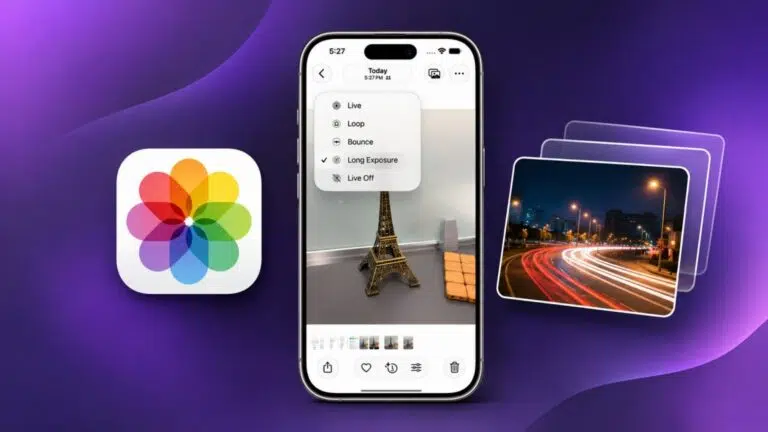
One of the easiest ways to create a moving wallpaper is to use a Live Photo you’ve captured with your iPhone. Live Photos record a little movement and sound around the moment you take a picture, making them more than ordinary still images.
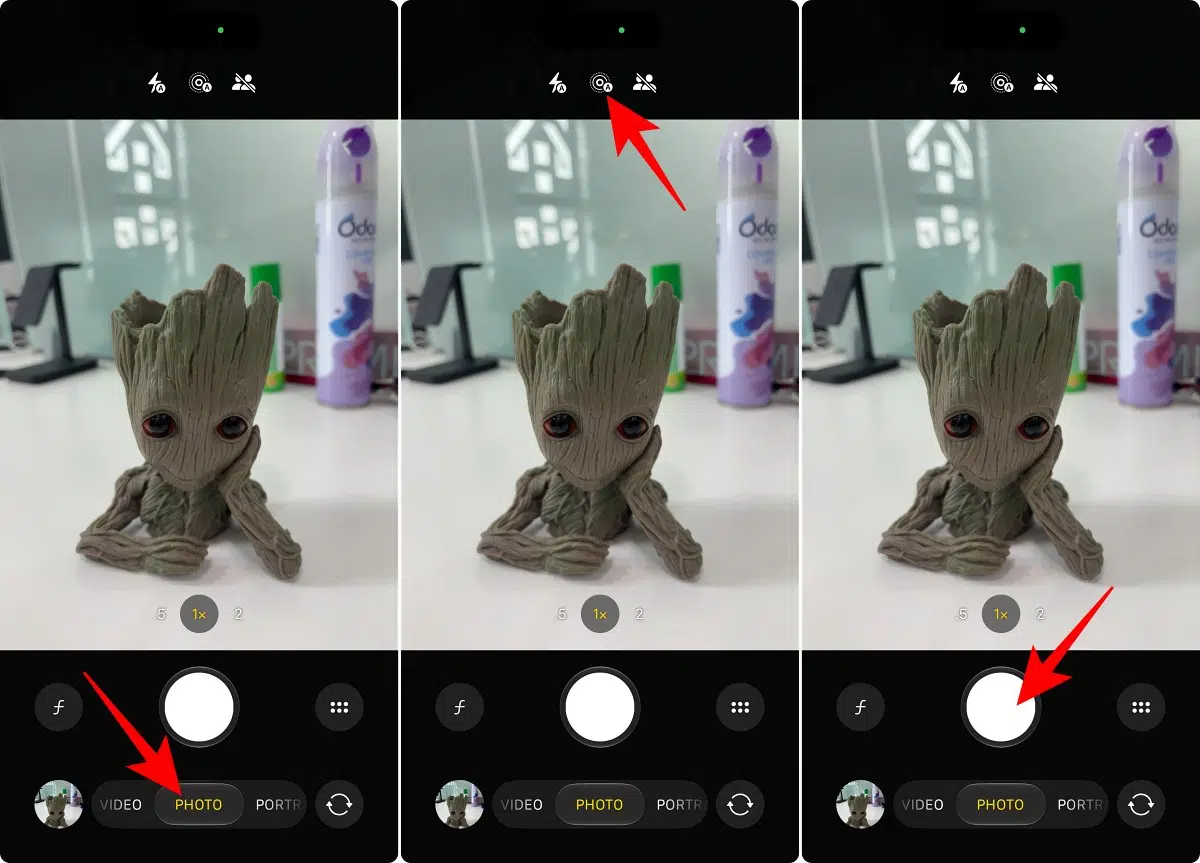
If you don’t already have one, you can capture a Live Photo first:
Now, follow these steps to set it as your wallpaper:
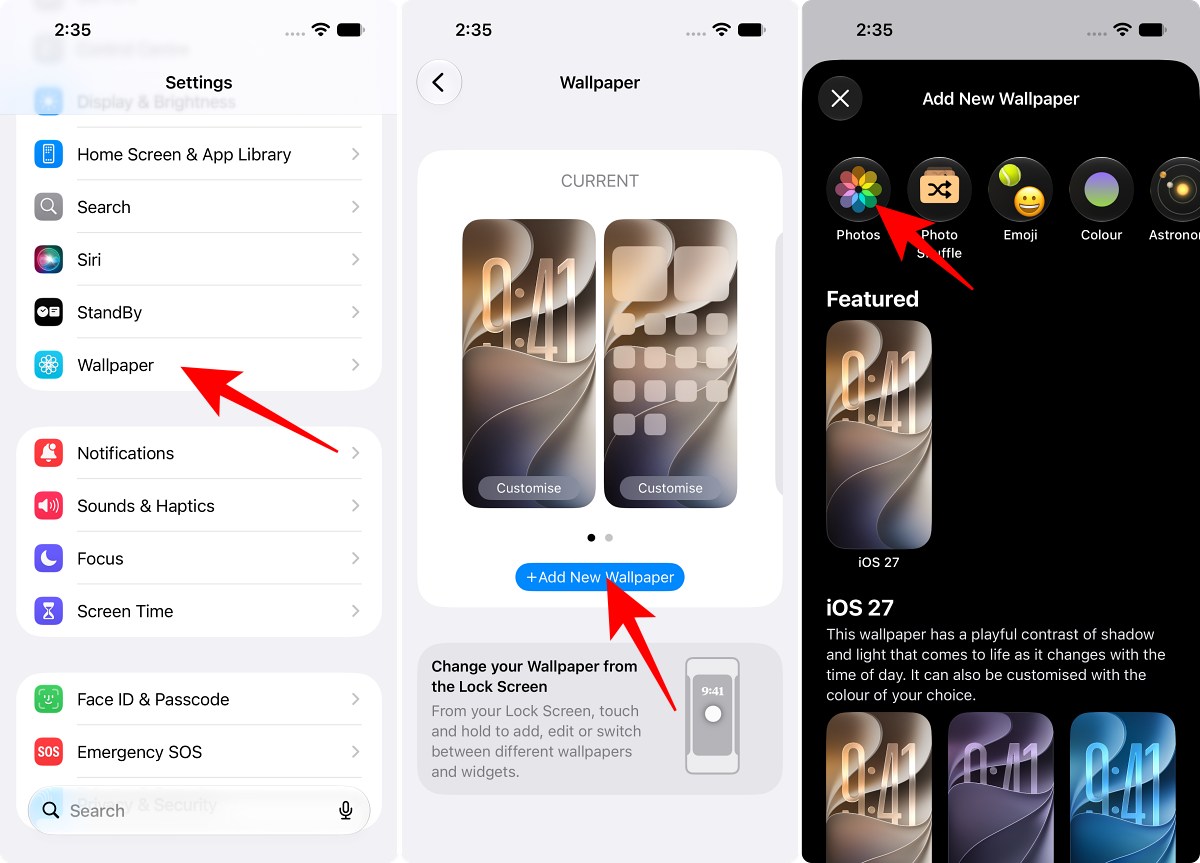
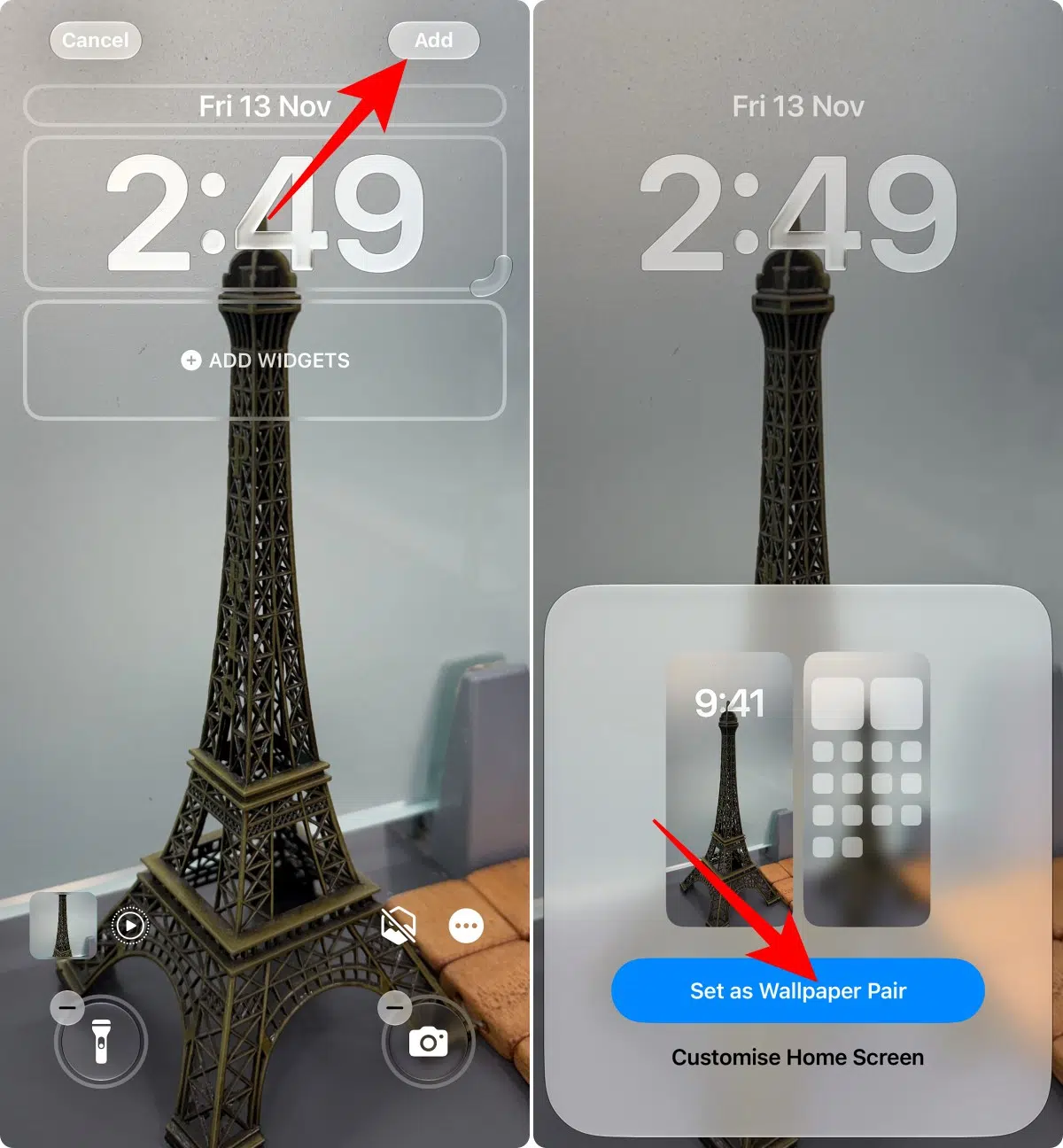
Your Live Photo is now set as your Lock Screen wallpaper. When you wake your iPhone, it will play its motion effect.
Tip: You can also open the wallpaper editor by touching and holding your current Lock Screen and tapping the + button. From there, choose Photos and follow the same steps.
If you don’t want to use your own pictures, Apple’s Weather and Astronomy wallpapers are worth trying. Unlike Live Photos, these don’t simply play a short animation when you wake your iPhone. They update their appearance to reflect real-world conditions and information.
The Weather wallpaper changes to reflect the current weather around your location. Depending on the conditions, you may see sunshine, clouds, rain, or other weather effects on your Lock Screen.
It’s a nice option if you like having a visual reminder of what’s happening outside without opening the Weather app.
To set it up:
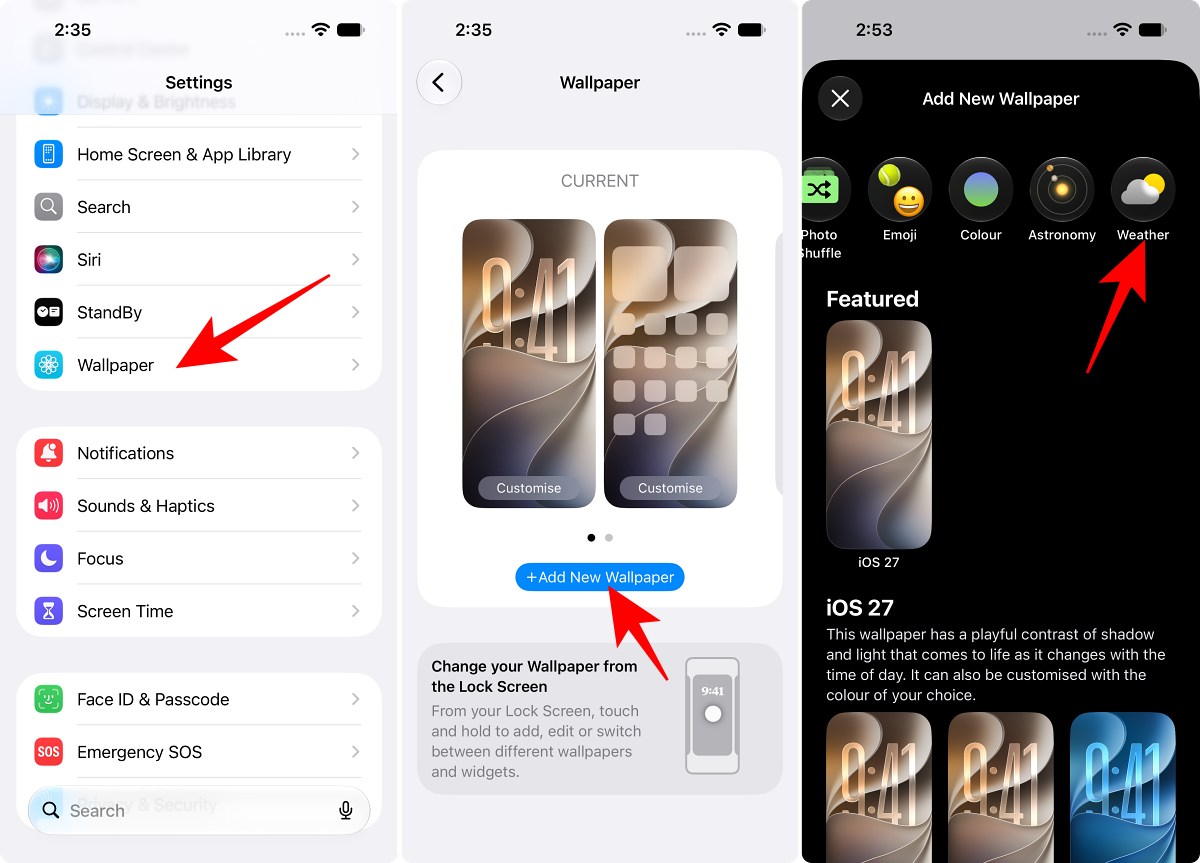
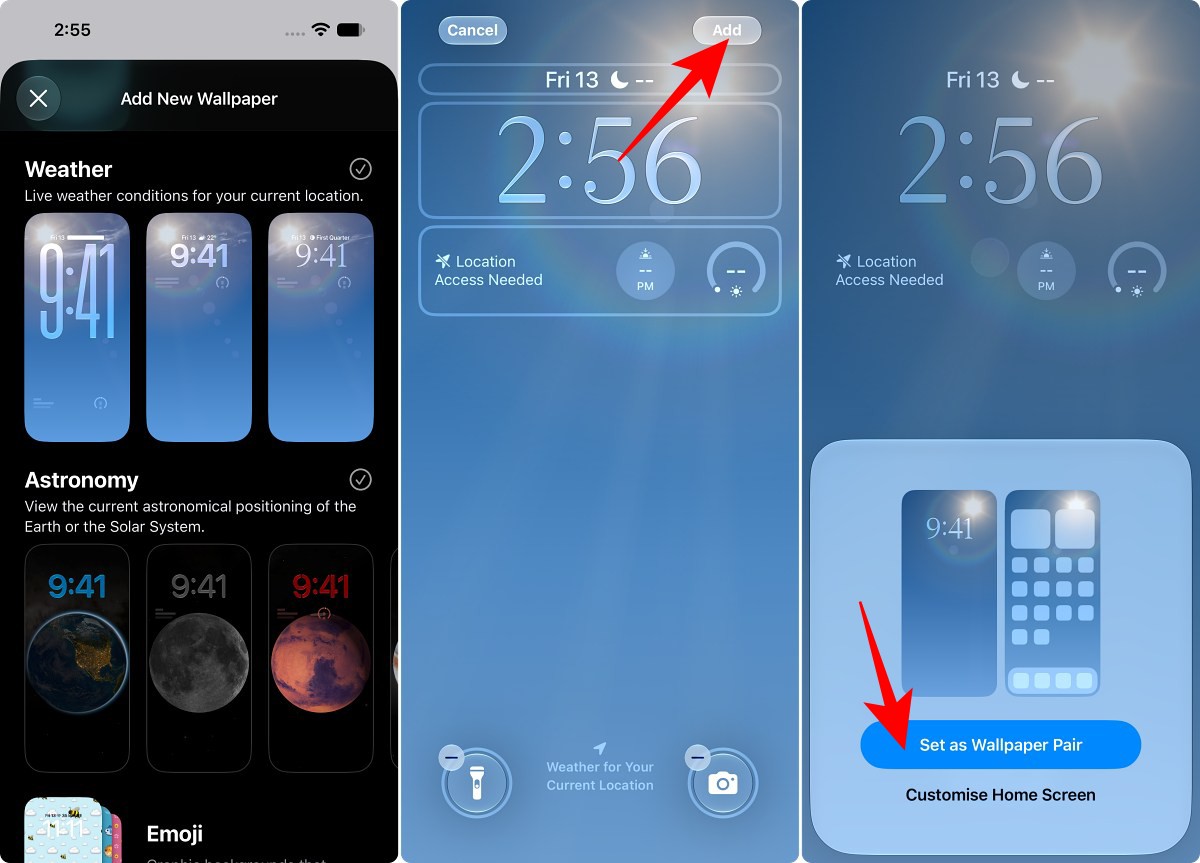
Make sure your iPhone has the necessary Location Services access and an active internet connection so the wallpaper can use your local weather conditions in real time.
The Astronomy wallpaper is a great choice if you enjoy space-themed backgrounds.
Depending on the design you select, you can see a view of the Earth, a closer look at your region, the Moon, or the Solar System. Its appearance changes with the current date, time, and location.
To add one:
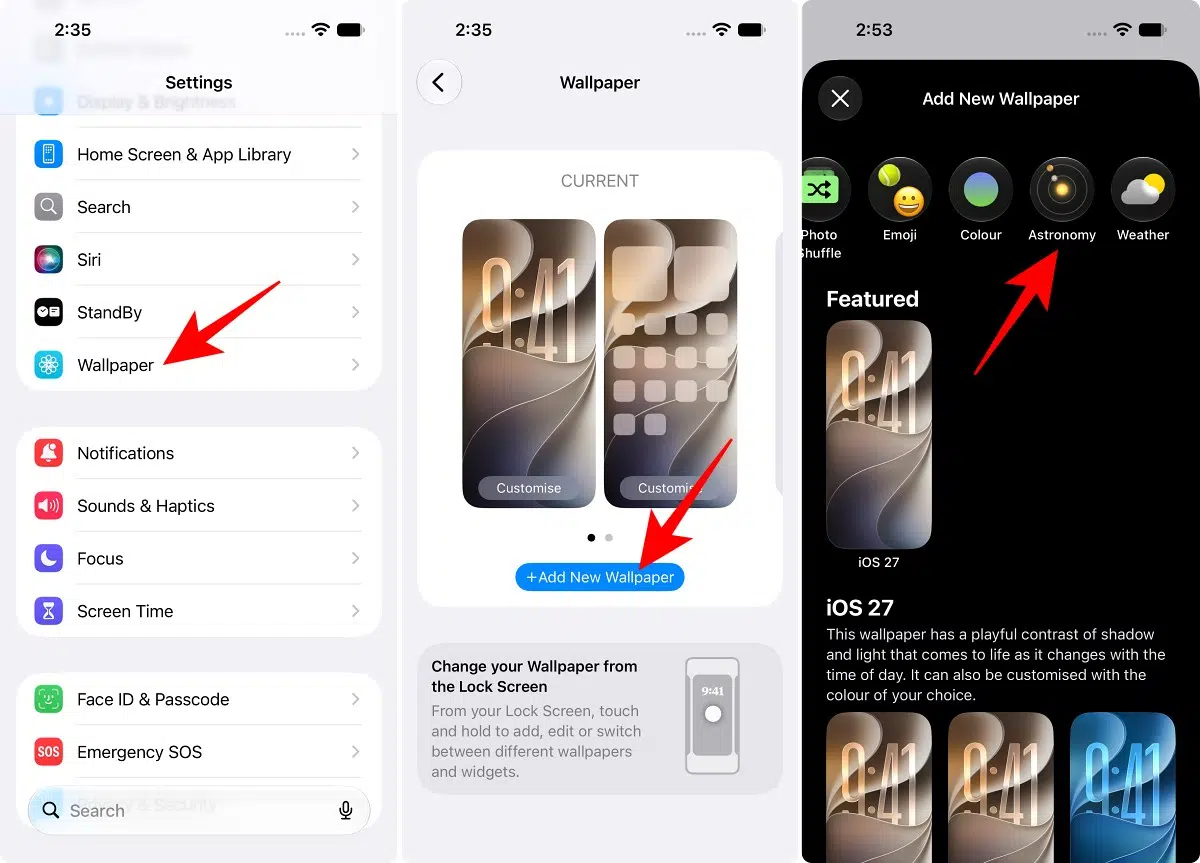
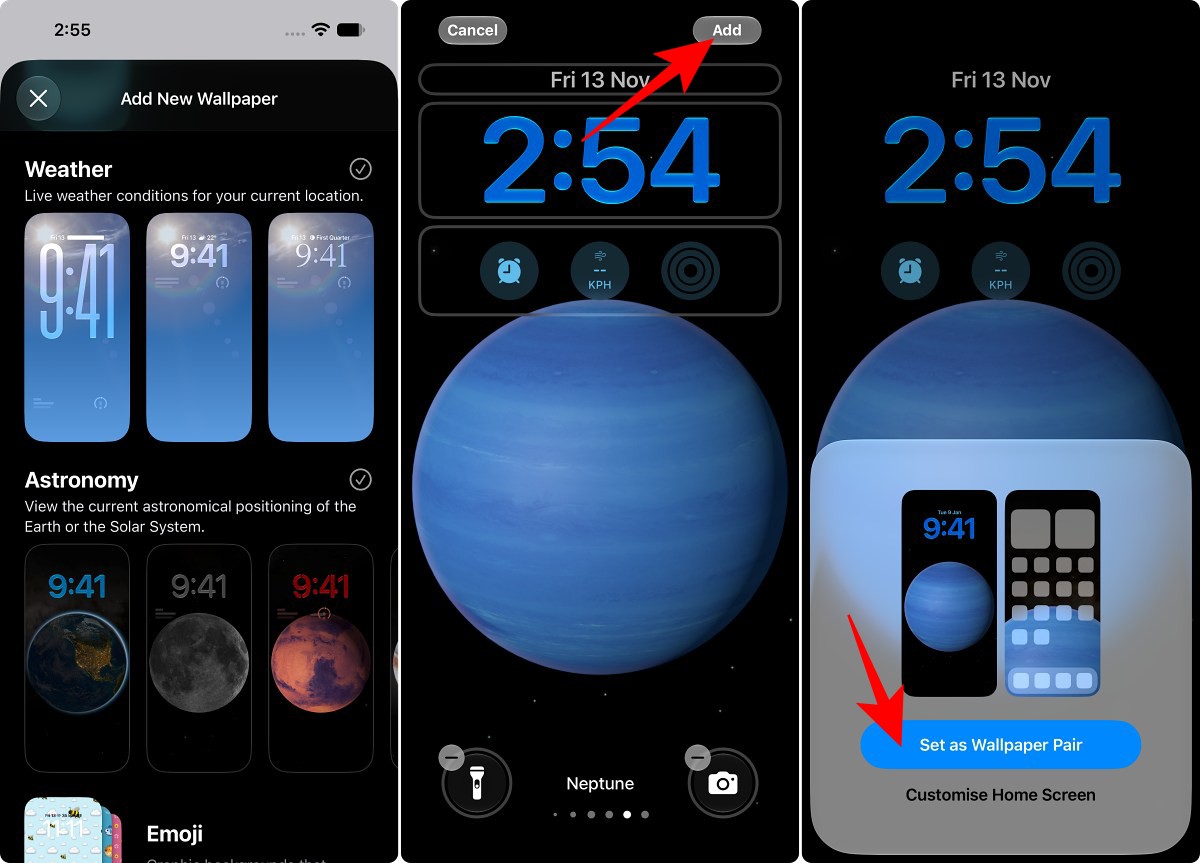
My recommendation: Try Weather if you want your wallpaper to reflect the conditions outside, or Earth from Astronomy if you prefer a more scenic, space-inspired Lock Screen.
After setting a Live Photo or built-in dynamic wallpaper on your Lock Screen, you can see its animation whenever you wake your iPhone.
Remember that Live Photo wallpapers don’t behave like continuously looping videos. The motion plays when you wake the Lock Screen, while the Home Screen displays the still image.
If your wallpaper isn’t moving, open Settings > Wallpaper, select your Live Photo wallpaper, and check that the playback button is turned on.
Using your own Live Photos is a nice way to personalize your iPhone, but you might not always have the right picture for your Lock Screen. That’s when wallpaper apps can help.
Here are a couple of options worth exploring:
You can also explore our list of the best Live Wallpaper apps for iPhone.
If you prefer browsing on the web, these platforms offer plenty of images and videos:
Keep in mind that downloading an ordinary photo or video from these websites doesn’t automatically make it a Live Photo. You’ll need a compatible Live Photo file before you can use it with Apple’s Live Photo wallpaper feature.
Not directly. The iPhone’s built-in wallpaper picker lets you select Live Photos, but it doesn’t offer a direct option to choose an ordinary video or GIF as a moving Lock Screen wallpaper.
If you have a video you really like, you can use a third-party app such as intoLive to convert a compatible video into a Live Photo. Once you’ve saved the converted Live Photo to your Photos library, follow the steps in the first section to set it as your wallpaper.
Before downloading a conversion app, check its current features, supported formats, and privacy information.
Live wallpapers are a fun way to make your iPhone feel more personal. You can turn a favorite memory into a moving Lock Screen, use Weather to reflect the conditions around you, or choose Astronomy for a constantly updated view of space.
I particularly like having these options because they offer different ways to customize the same screen. If you prefer something personal, use a Live Photo. If you’d rather have a wallpaper that changes with the world around you, give Weather or Astronomy a try.
FAQs
First, check that you’re using a Live Photo rather than a regular picture. Then go to Settings > Wallpaper, select your Live Photo wallpaper, and make sure its playback button is enabled. Also check whether accessibility motion settings are affecting the animation.
Live Photo wallpapers play when you wake your iPhone, rather than running continuously as videos. Their battery impact should therefore be limited, although actual battery usage can vary depending on how frequently you wake your screen and your device.
You can select the same wallpaper for both screens, but the Live Photo animation plays on the Lock Screen. The Home Screen displays its still image.
No. Apple’s wallpaper picker requires a Live Photo. You can convert a compatible video or GIF into a Live Photo using a third-party app and then select it from your Photos library.

As an Amazon Associate, iGeeksBlog earns from qualifying purchases.