How to Fix Apple Notes Not Syncing Between iPhone and Mac
uick, step-by-step fixes to get Apple Notes syncing again — from toggles and storage checks to network resets and sign-in troubleshooting.
Key Takeaways:
- Ensure Apple ID Consistency: Your iPhone and Mac must use the same Apple ID for Notes syncing; mismatched accounts block synchronization.
- Enable iCloud Notes Sync: Check that iCloud sync for Notes is toggled on in Settings and System Preferences to keep updates flowing across devices.
- Move Notes to iCloud: Any notes saved in “On My iPhone” or “On My Mac” folders stay offline; move them into iCloud to enable syncing.
- Check iCloud Storage Space: When iCloud is full, new notes won’t upload; clear unused files or buy more storage to restore syncing.
- Confirm Connectivity and Status: A stable internet connection is required, and Apple’s System Status page helps confirm if Notes syncing is temporarily disrupted.
You write something important in Apple Notes on your iPhone, only to find it missing when you check on your Mac. Frustrating, right? Apple’s ecosystem is designed to make everything seamless, but when syncing fails, it feels like the whole system breaks down. Don’t worry — there are clear reasons behind this and equally clear fixes.
Table of Contents
- 1. Confirm You're Signed Into the Same Apple ID
- 2. Check if iCloud Notes Is Turned On
- 3. Make Sure Notes are Stored in iCloud (Not Locally)
- 4. Ensure iCloud Storage Isn't Full
- 5. Double-Check Your Internet Connection
- 6. Check Apple’s System Status
- 7. Restart or Refresh Notes (Force Quit, Add/Delete a Note)
- 8. Keep Devices Updated
- 9. Turn iCloud Notes Off and Back On
- 10. Sign Out and Back Into iCloud
- 11. Network Fixes: Disable VPN or Reset Network Settings
- 12. Quick Workaround: Use AirDrop
- Final Thoughts: Fixing Apple Notes Not Syncing Between iPhone and Mac
1. Confirm You’re Signed Into the Same Apple ID
Apple Notes relies on iCloud. If your iPhone and Mac are signed in to different Apple IDs, your notes will not appear on both devices.
On iPhone:
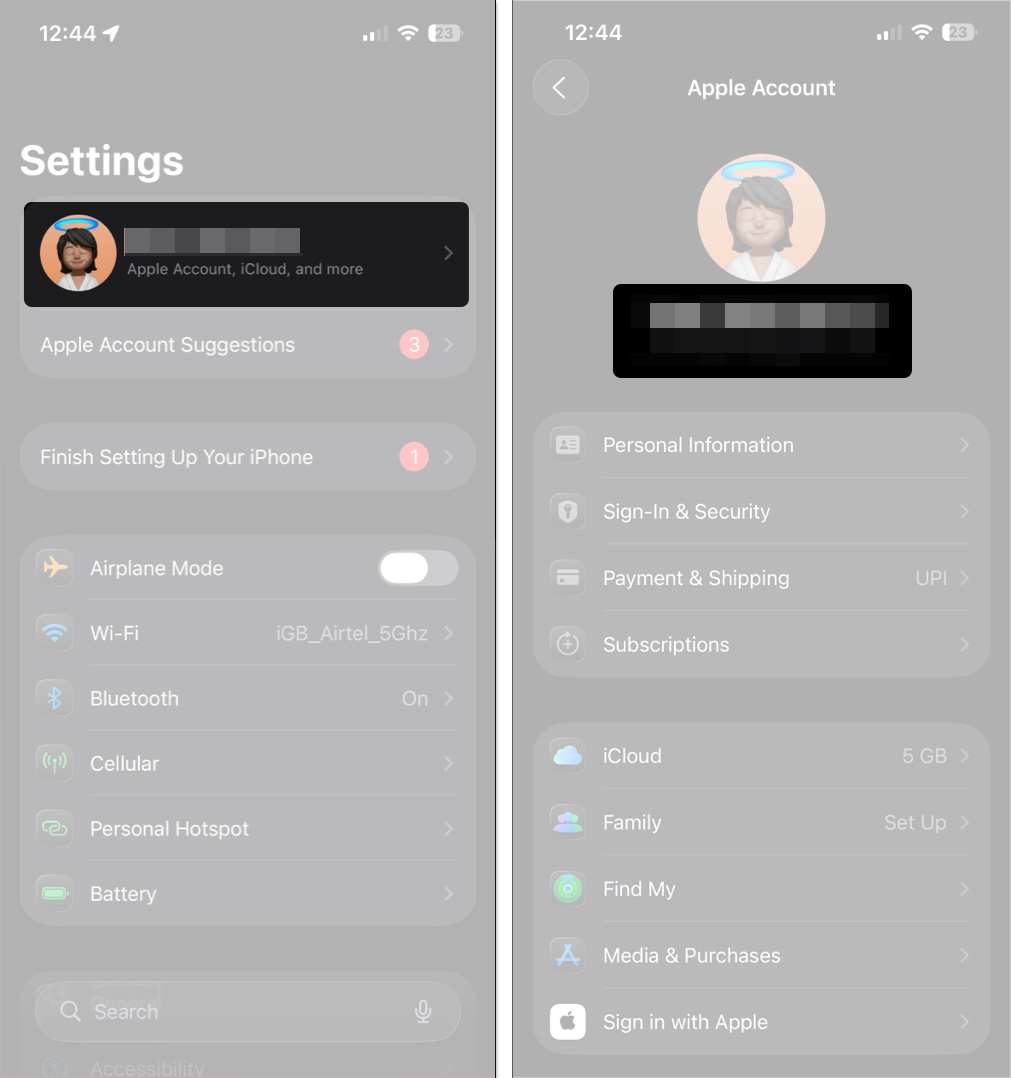
- Go to Settings > [Your Name]
- Check the Apple ID at the top
On Mac:
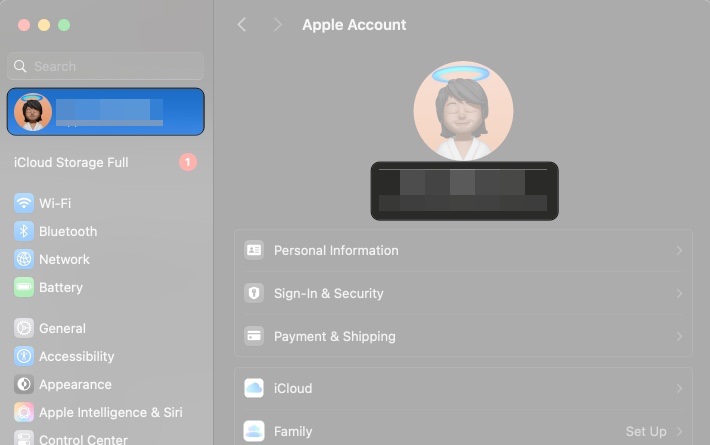
- Open System Settings > Apple Account
- Confirm the Apple ID matches your iPhone
If they’re different, sign out and sign back in with the same Apple ID. Otherwise, your notes are tied to different accounts.
2. Check if iCloud Notes Is Turned On
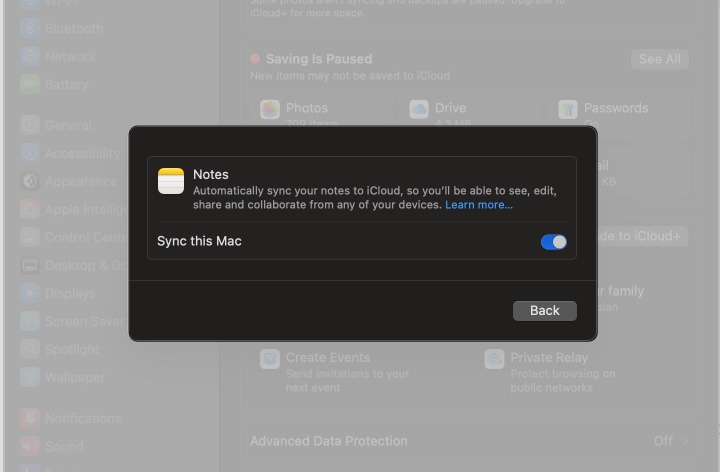
Notes won’t sync unless iCloud sync is enabled on every device. Many users overlook this small toggle, which prevents notes from being synced and leaves them stuck locally.
On iPhone:
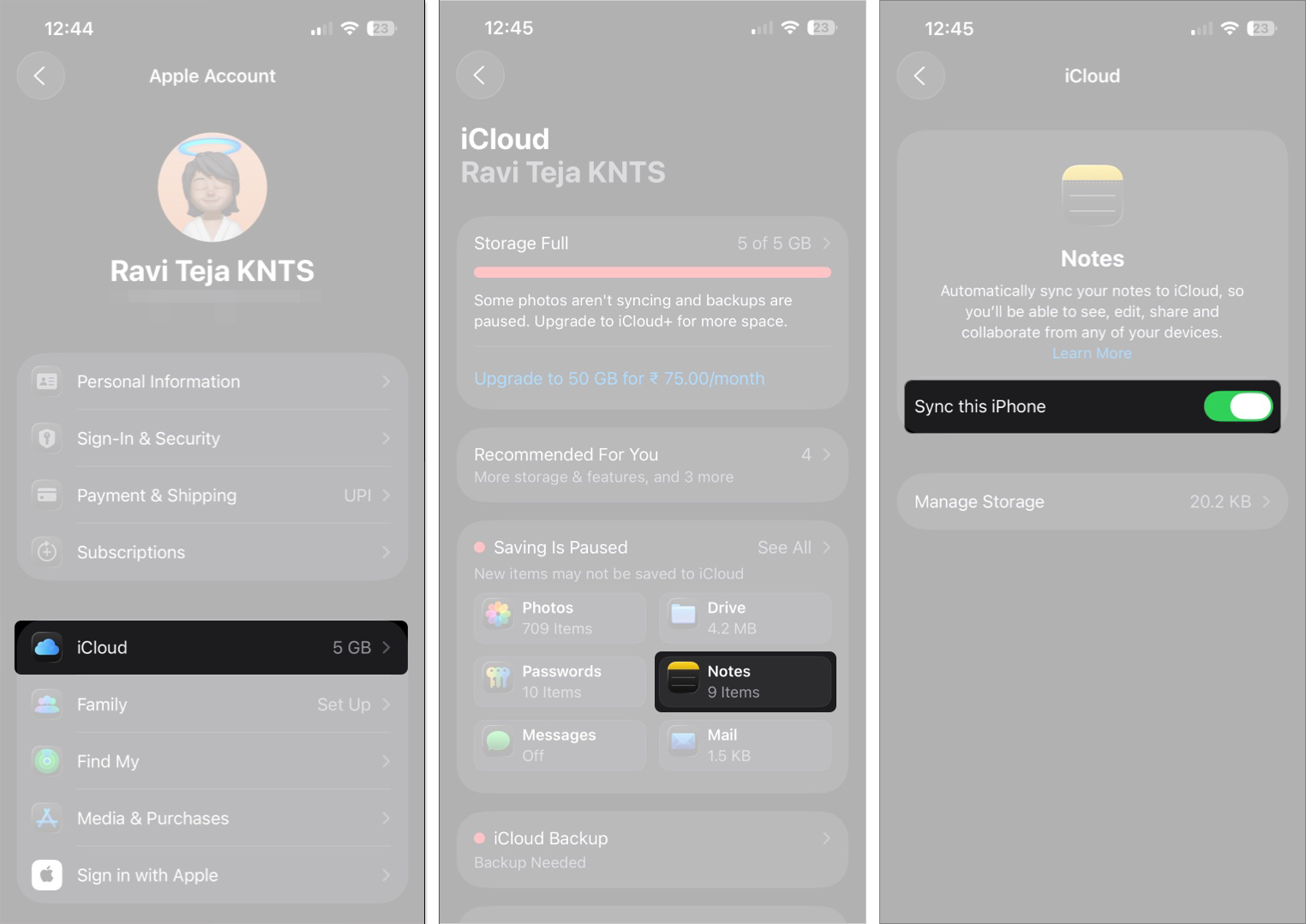
- Go to Settings > [Your Name] > iCloud
- Tap See All under Apps Using iCloud if needed
- Turn on the Sync this iPhone toggle for Notes
On Mac:
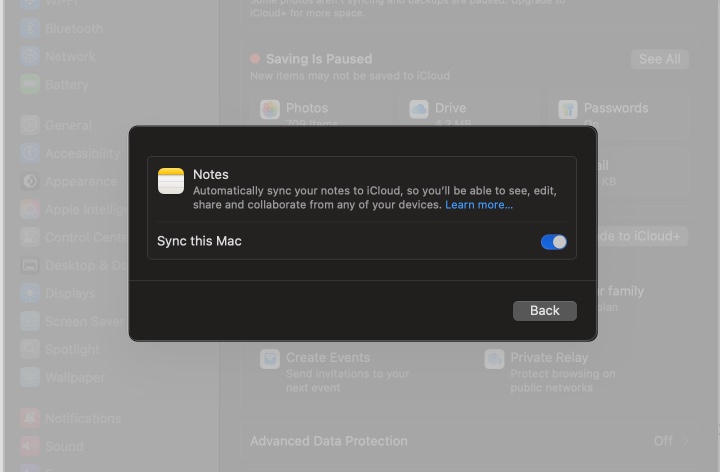
- Open System Settings > Apple Account > iCloud
- Tap See All under Apps Using iCloud if needed
- Turn on the Sync this iPhone toggle for Notes.
Once enabled, syncing happens automatically in the background when connected to the internet.
3. Make Sure Notes are Stored in iCloud (Not Locally)
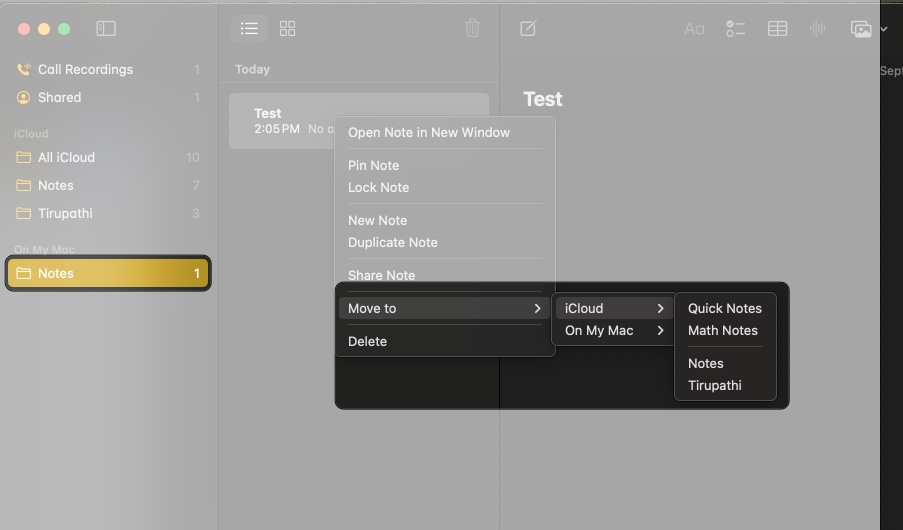
Notes saved under “On My iPhone” or “On My Mac” stay only on that device. They won’t sync until you move them.
On iPhone:
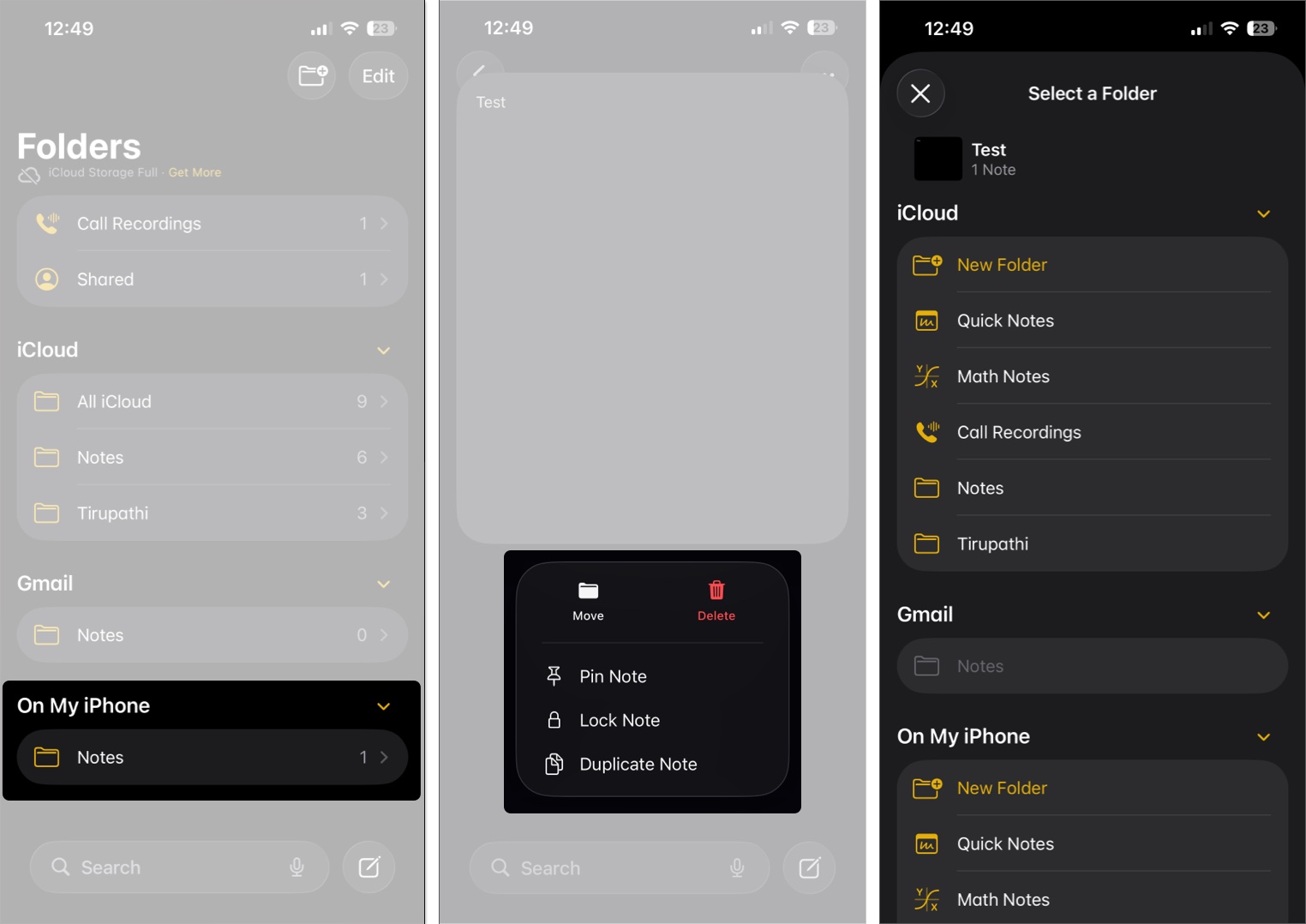
- Open the Notes app and go to Folders.
- If notes are under On My iPhone, press and hold > Move > choose an iCloud folder.
- To move multiple notes, tap Edit > Select > Move.
On Mac:
- Open the Notes app and look under On My Mac.
- Select notes and drag them into an iCloud folder or right-click > Move to > iCloud.
You can confirm syncing works by visiting iCloud.com and opening Notes. If your notes appear there, they’re syncing properly.
4. Ensure iCloud Storage Isn’t Full
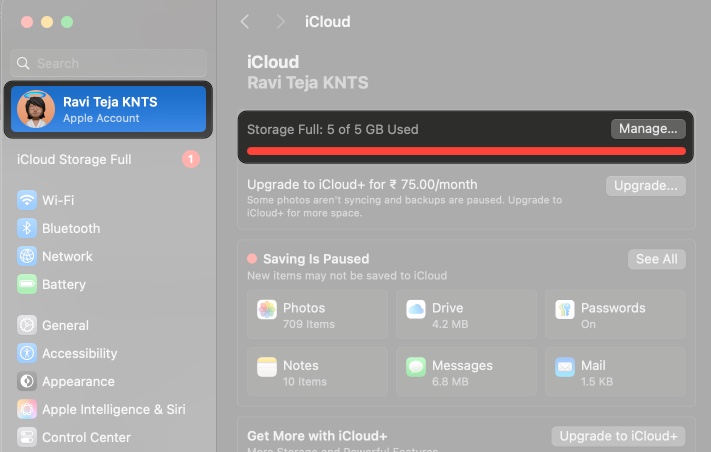
If your iCloud storage is full, new notes can’t be uploaded. Syncing silently fails until space is freed.
On iPhone:
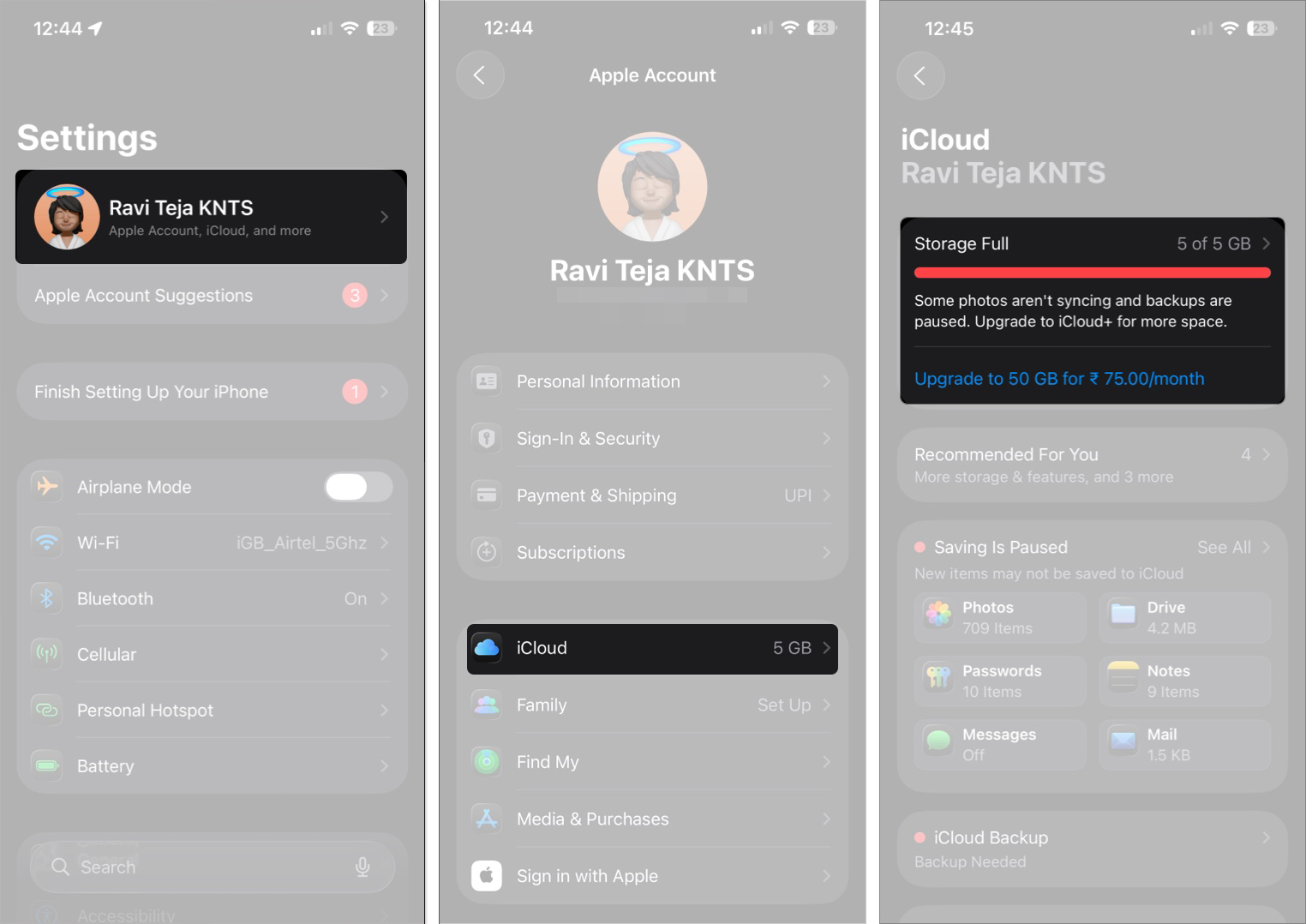
- Go to Settings > [Your Name] > iCloud.
On Mac:
- Open System Settings > Apple Account > iCloud.
If space is full:
- Delete old backups, photos, or files.
- Upgrade to iCloud+ for more space.
Without storage, Notes won’t sync across devices.
5. Double-Check Your Internet Connection
iCloud requires the internet to sync. If you’re offline, your notes won’t update.
- Try opening a website or streaming video to test connectivity
- Switch between Wi-Fi and mobile data if one isn’t working
- Restart your router or reconnect to a stable network
Syncing resumes as soon as internet access is restored.
6. Check Apple’s System Status
Sometimes Apple’s servers are the problem. If iCloud Notes is down, syncing won’t work until Apple resolves the issue.
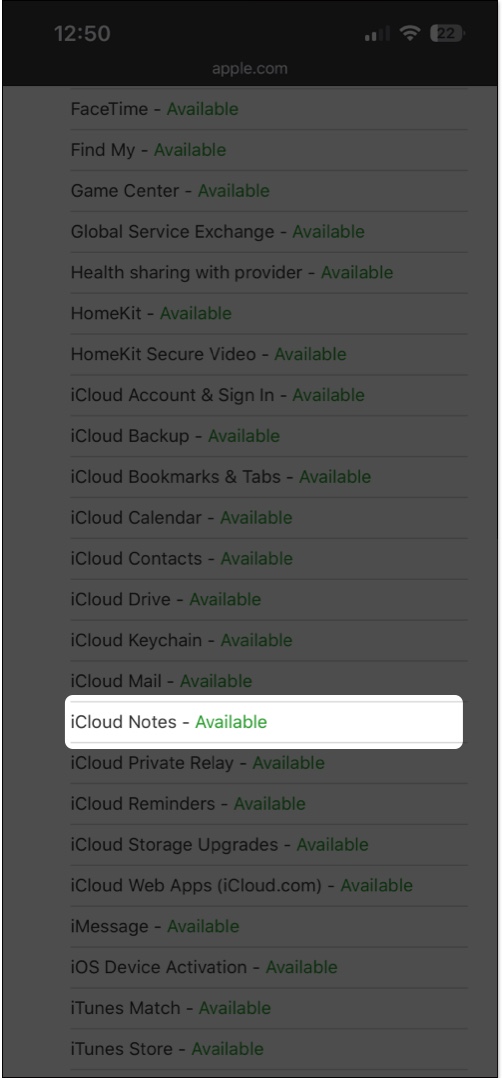
- Visit Apple’s System Status page.
- Check iCloud Notes, iCloud Web Apps, Apple Account & Sign In.
- If yellow or red, it’s a server issue. Wait until Apple resolves it.
7. Restart or Refresh Notes (Force Quit, Add/Delete a Note)
Sometimes, Notes freezes and needs to be refreshed.
On iPhone:
- Swipe up from the bottom and close the Notes app
- Reopen Notes and give it a few minutes
On Mac:
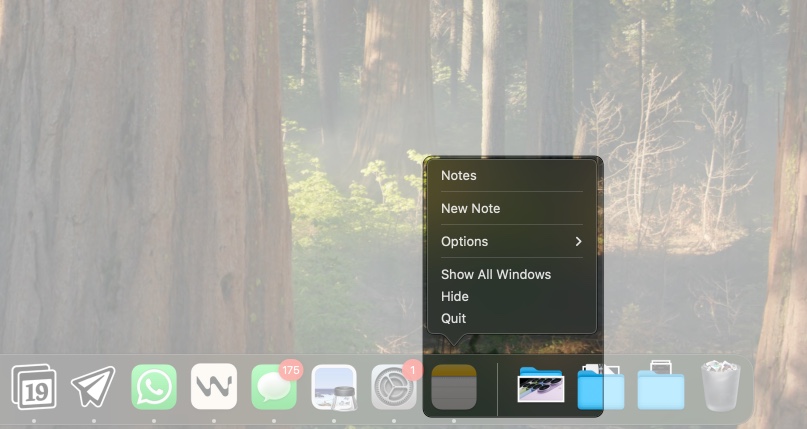
- Right-click Notes in the dock and select Quit
- Open it again and wait
You can also create a new note and delete it to trigger syncing. If that doesn’t help, try restarting your iPhone or Mac to clear any temporary glitches.
8. Keep Devices Updated
Outdated iOS, iPadOS, or macOS versions may contain bugs that block syncing.
On iPhone:
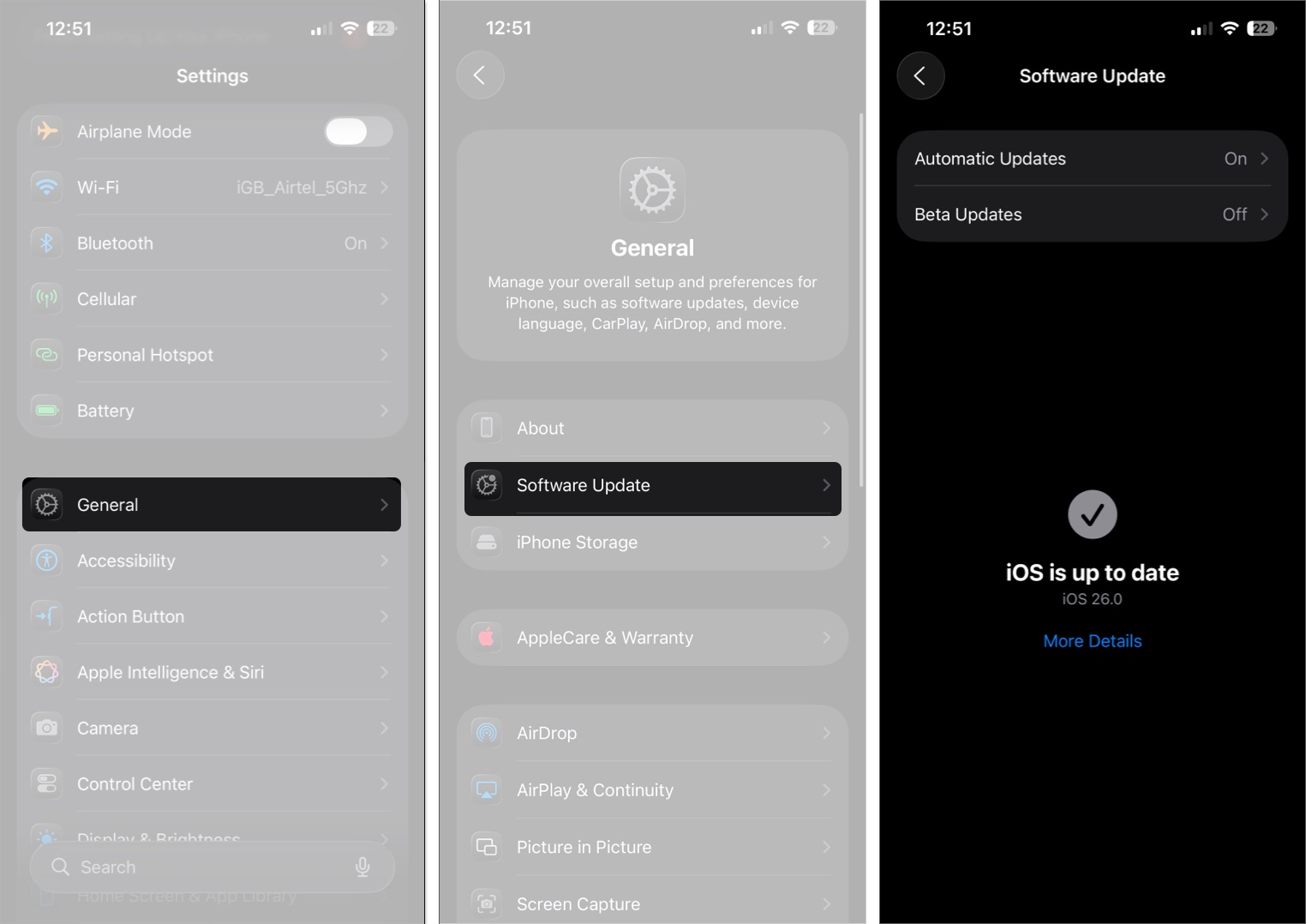
- Go to Settings > General > Software Update
On Mac:
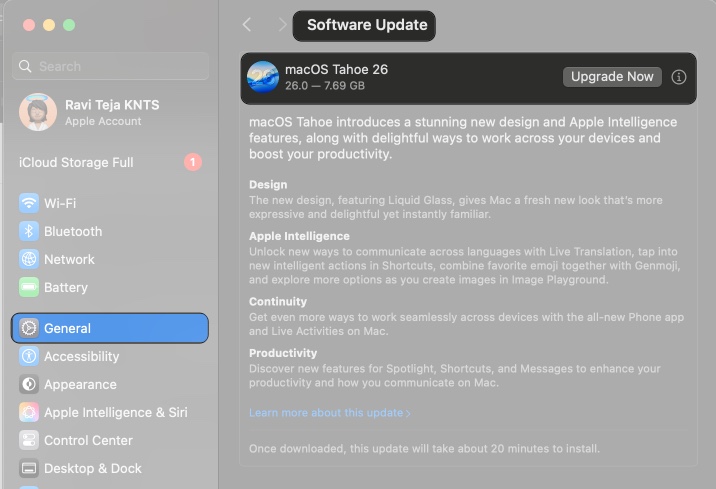
- Open System Settings > General > Software Update
Install the latest updates to get Apple’s bug fixes and improvements.
9. Turn iCloud Notes Off and Back On
Refreshing iCloud Notes can unstick frozen syncing, but take precautions.
On iPhone:
- Go to Settings > [Your Name] > iCloud > Notes
- Turn it off and confirm by deleting notes from the device (they stay in iCloud)
- Restart your iPhone
- Turn Notes back on

On Mac:
- Open System Settings > Apple Account > iCloud
- Disable Notes
- Restart your Mac
- Re-enable Notes
Warning: Unsynced local notes may be lost. Copy or back them up before toggling.
10. Sign Out and Back Into iCloud
If nothing else works, signing out of iCloud resets the account connection and forces a full resync.
On iPhone:
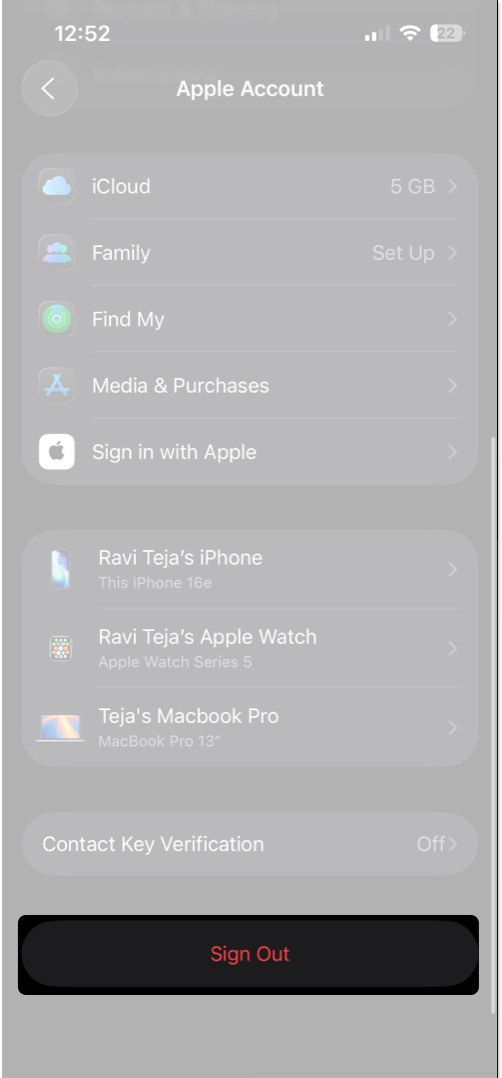
- Go to Settings > [Your Name]
- Tap Sign Out
- Restart your iPhone
- Sign back in with the same Apple ID
On Mac:
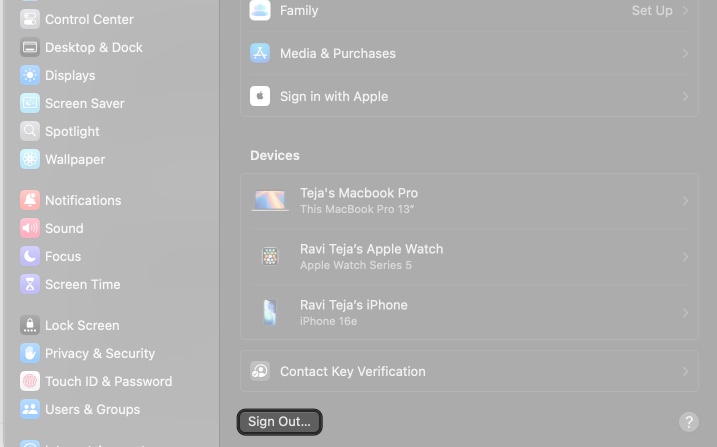
- Open System Settings > Apple Account
- Click Sign Out
- Restart your Mac
- Sign back in
This re-establishes the connection with Apple’s servers.
11. Network Fixes: Disable VPN or Reset Network Settings
VPNs and corrupt network settings may block syncing.
On iPhone:
- Disable any VPN apps
- Go to Settings > General > Transfer or Reset iPhone > Reset > Reset Network Settings
On Mac:
- Disable any VPN apps
- Open System Settings > Network
- Forget your Wi-Fi and reconnect
Resetting clears saved Wi-Fi networks, so keep your passwords ready.
12. Quick Workaround: Use AirDrop
If syncing still fails and you need a note urgently, AirDrop is your best fallback.
On iPhone:
- Open a note
- Tap Share > AirDrop
- Choose your Mac
On Mac:
- Open a note
- Click Share > AirDrop
- Choose your iPhone
Accept the transfer on the other device. It’s manual but reliable when iCloud won’t sync.
Final Thoughts: Fixing Apple Notes Not Syncing Between iPhone and Mac
Apple Notes is supposed to make your life easier, not harder. Most syncing issues can be resolved by toggling settings, using local-only notes, increasing iCloud storage, or resolving temporary server problems. Go through these fixes carefully, and in most cases, your notes will start flowing again between your iPhone and Mac.
Meanwhile, here are more fixes for your iPhone and Mac: