FaceTime Like a Pro
Get our exclusive Ultimate FaceTime Guide 📚 — absolutely FREE when you sign up for our newsletter below.

FaceTime Like a Pro
Get our exclusive Ultimate FaceTime Guide 📚 — absolutely FREE when you sign up for our newsletter below.


Tired of your Mac and iPad ringing every time your iPhone gets a call? Learn easy ways to stop calls from showing up on other devices and stay interruption-free.
 ByVikhyat
When you get a call on your iPhone, you may not want every nearby Apple device ringing along with it. While Apple’s ecosystem is designed for convenience, having your iPhone, Mac, and iPad ring at the same time can be distracting, especially during meetings or focused work.
The good news is that you can fix this quickly. Below, I’ll show you easy ways to stop iPhone calls from ringing on your Mac or iPad, whether you want to turn them off permanently or silence them temporarily.
Your Mac and iPad ring with your iPhone because of Apple’s Continuity feature called “Calls on Other Devices.” When this feature is enabled, your iPhone sends incoming cellular calls to nearby Apple devices that are signed in with the same Apple ID and connected to the same Wi-Fi network. This allows you to answer calls from any of those devices.
If you do not want your Mac or iPad to ring, you can easily turn this feature off in your iPhone’s settings.
This is the most effective way to stop your Mac and iPad from ringing. Here’s how to turn it off:
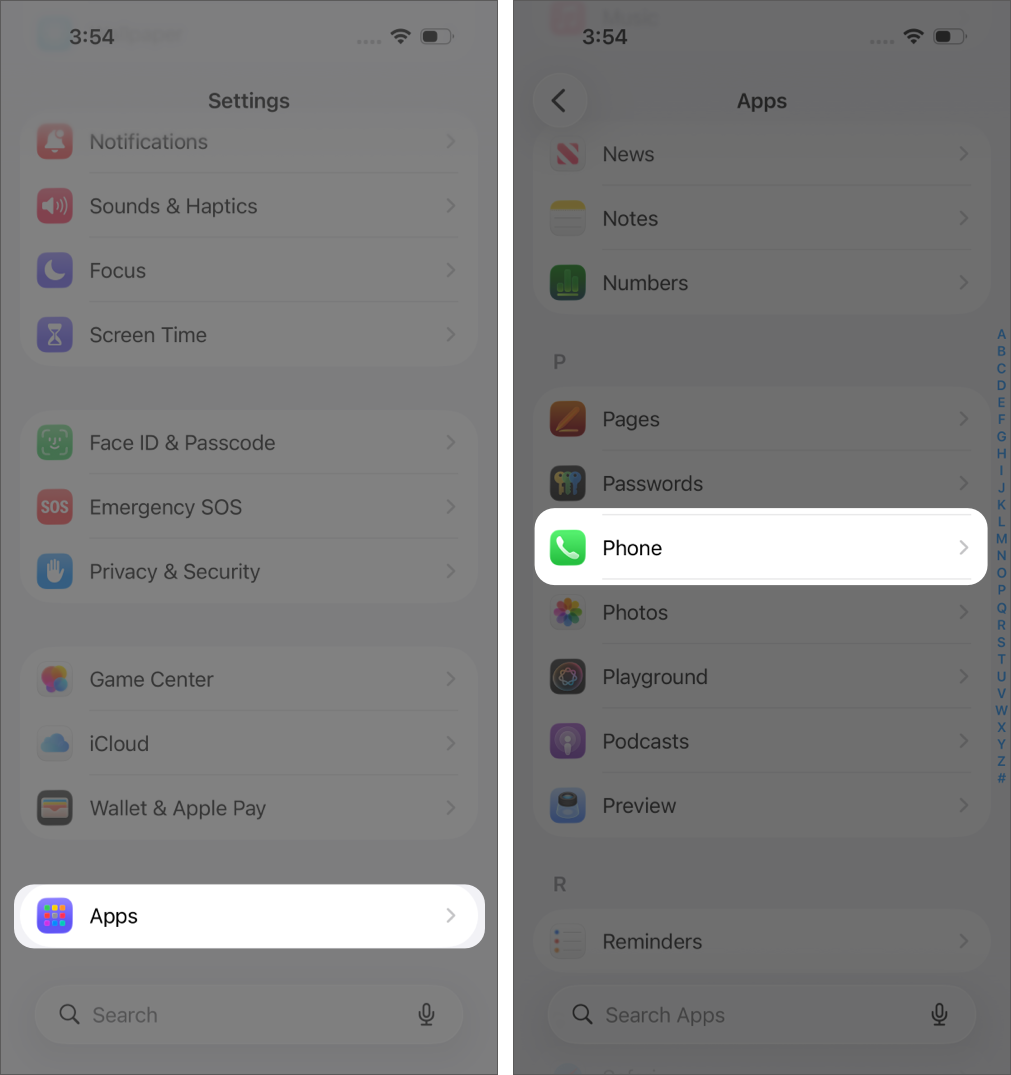
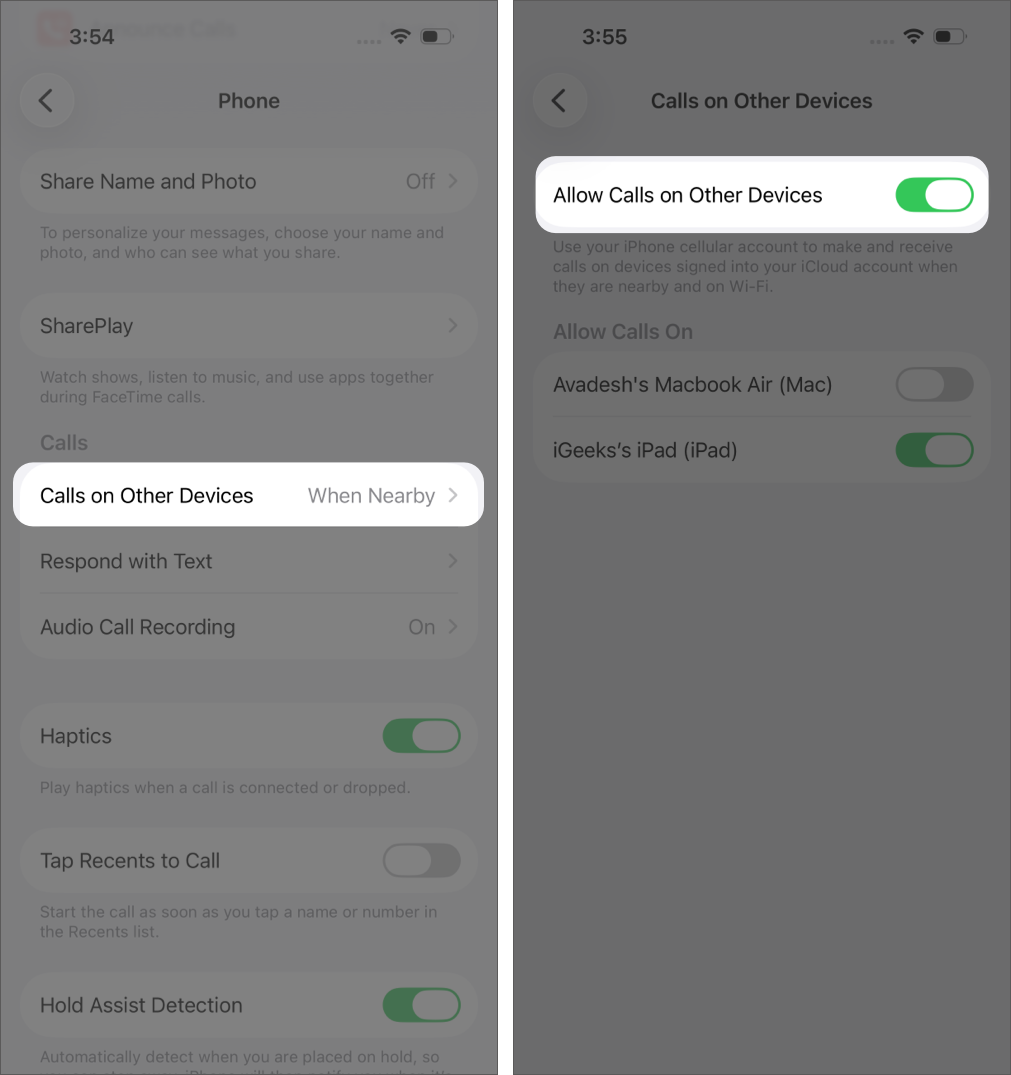
Alternatively, instead of turning the feature off completely, you can disable it only for specific devices. Simply toggle off your Mac or iPad in the device list.
If you want to manage this setting on a specific device, such as your Mac, you can turn it off directly from there.
Here’s how:
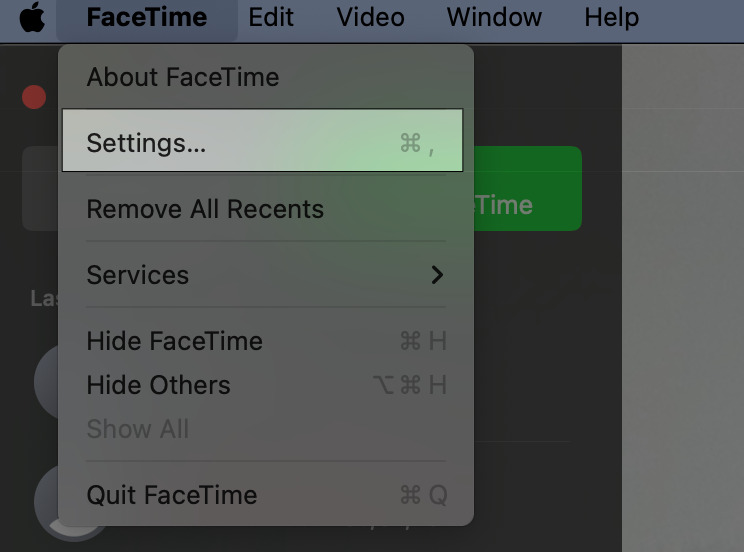
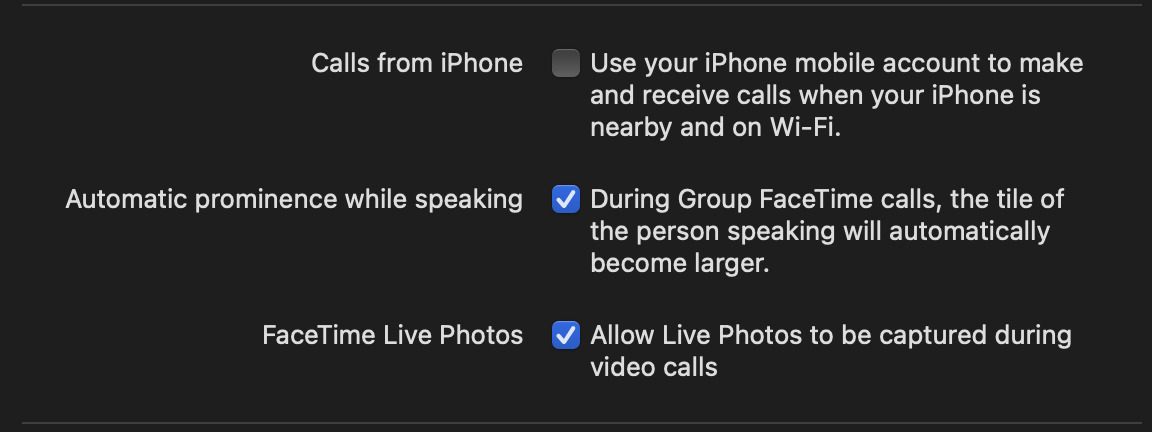
This keeps the feature active on other devices while disabling it only on your Mac.
Turning on Focus mode is the quickest way to silence calls during meetings or work hours.
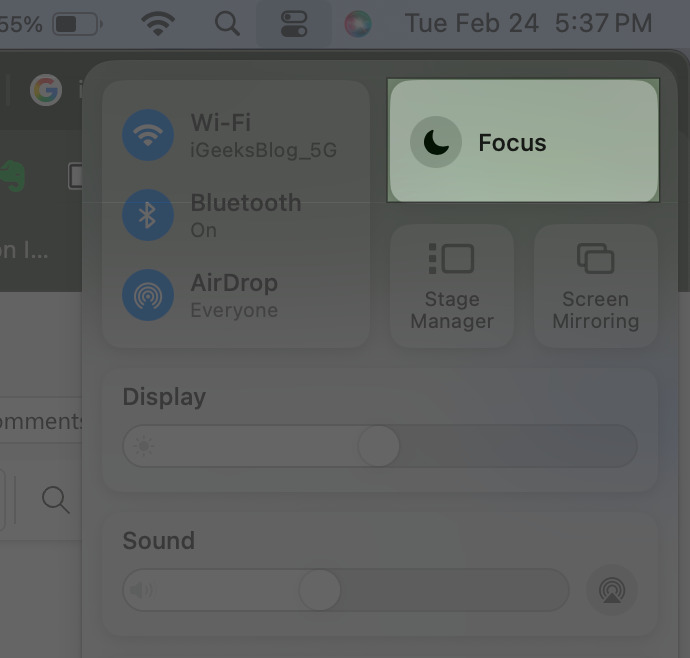
You can set it for one hour, until the evening, or schedule it automatically.
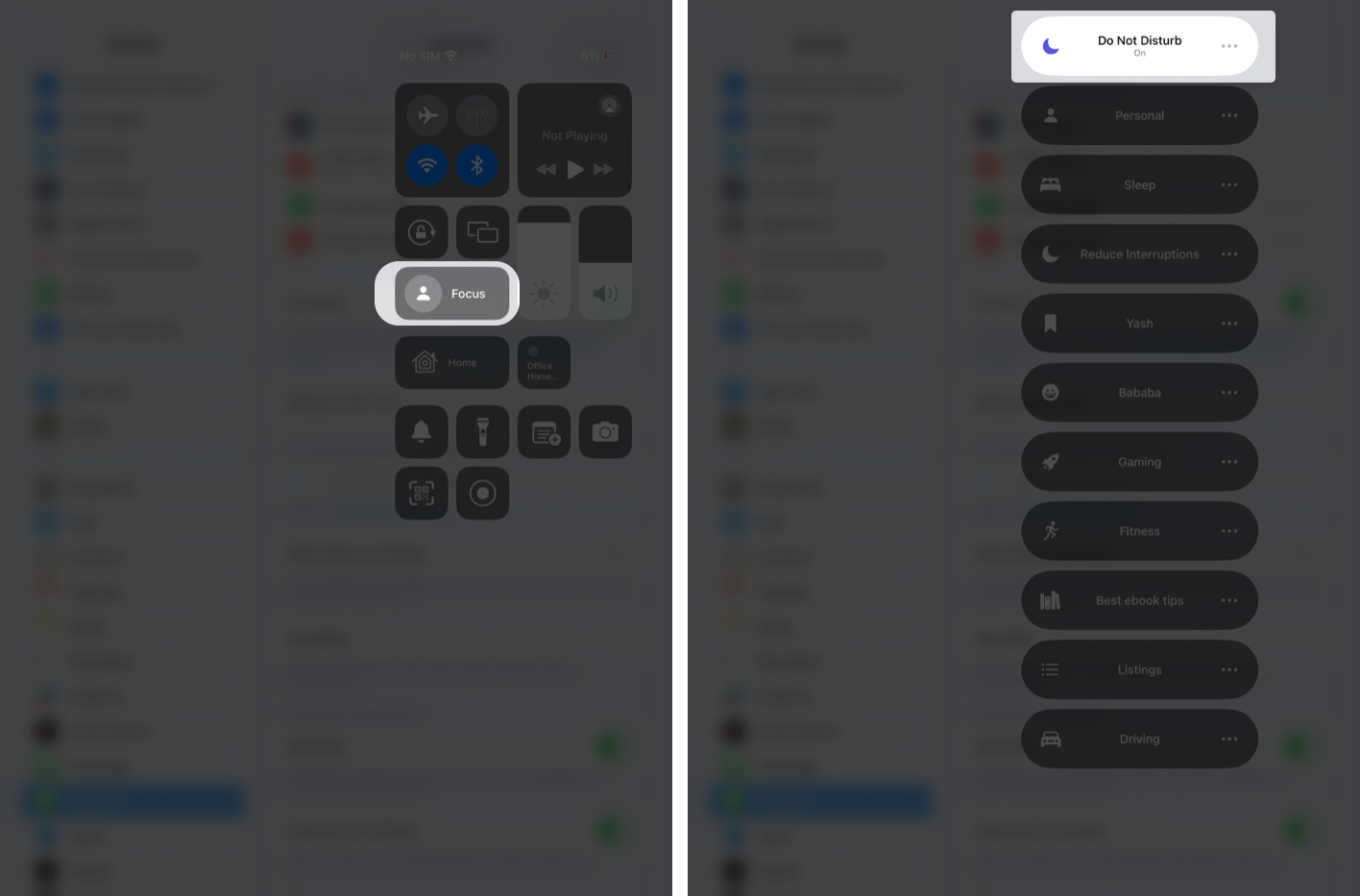
Keep in mind that this silences all notifications, not just calls.
FaceTime calls work differently from regular cellular calls. When someone calls you on FaceTime, every device signed in with your Apple ID may ring at the same time.
To stop this, sign out of FaceTime or remove your contact details from the device where you do not want to receive calls.

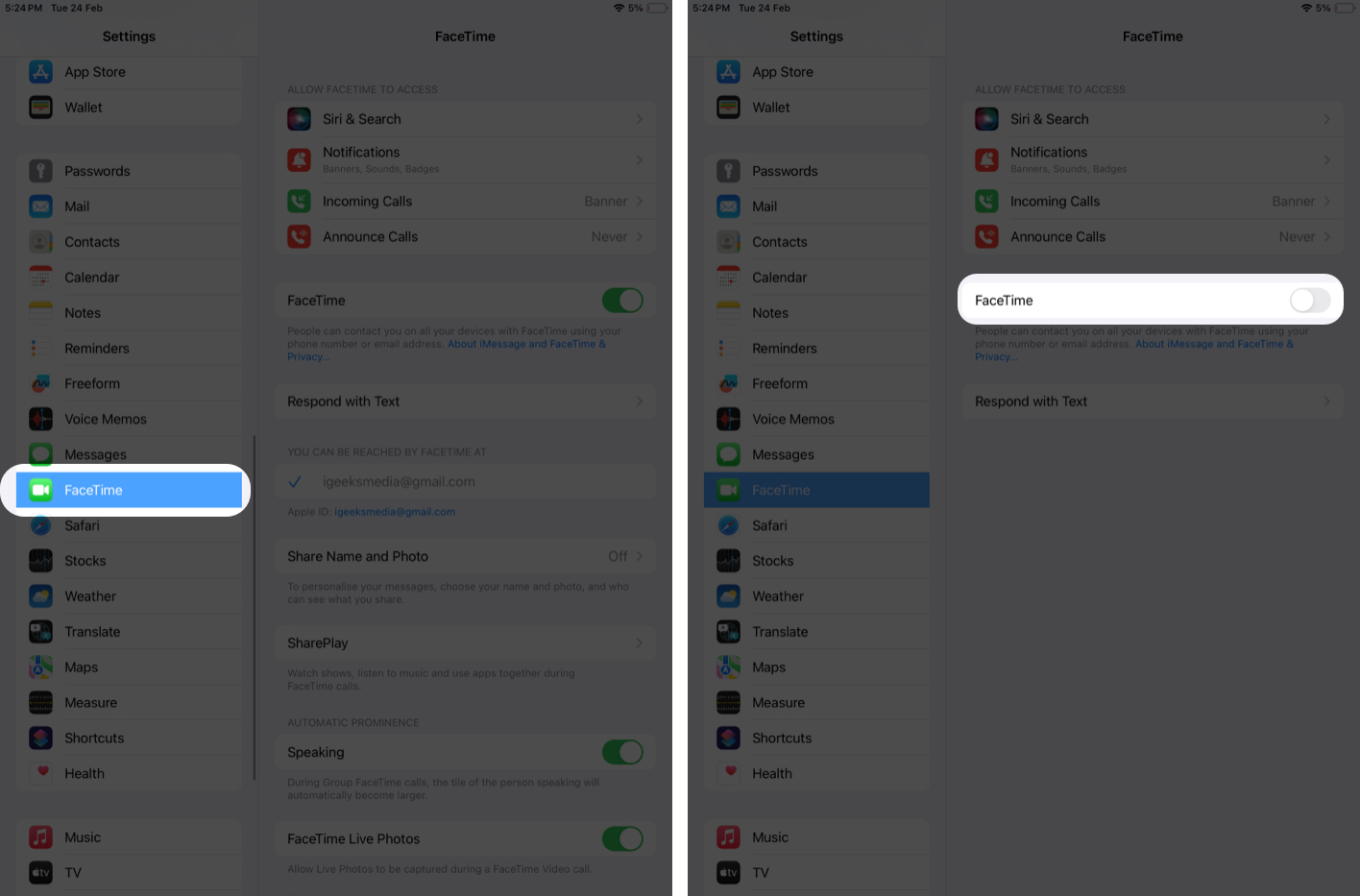
If your Mac or iPad is still ringing, try the following quick checks:
Sometimes Continuity settings take a few moments to sync across devices.
If your Mac and iPad ringing alongside your iPhone feels more chaotic than helpful, turning off “Calls on Other Devices” is an easy fix. Whether you disable it completely, adjust it for a specific device, or use Focus mode temporarily, you can control how calls appear across your Apple devices.
FAQs
No. Disabling “Calls on Other Devices” only affects phone call forwarding. iMessage syncing works separately.
If call forwarding is disabled, emergency calls will ring only on your iPhone.
No. Handoff is a separate Continuity feature and will continue working unless you disable it separately.
Also read: