X (Twitter) Calls Enabled by Default: Here’s How to Turn Them Off
X (formerly Twitter) now lets anyone call you by default, raising privacy concerns. Luckily, you can turn off audio and video calls or limit who can reach you in just a few taps.
Key Takeaways:
- Default Calling Feature on X: Audio and video calls are turned on by default, letting people you follow reach you directly, which raises privacy concerns.
- Privacy Risks of X Calls: Calls use peer-to-peer connections that expose your IP address, making your location traceable unless you enable advanced privacy settings.
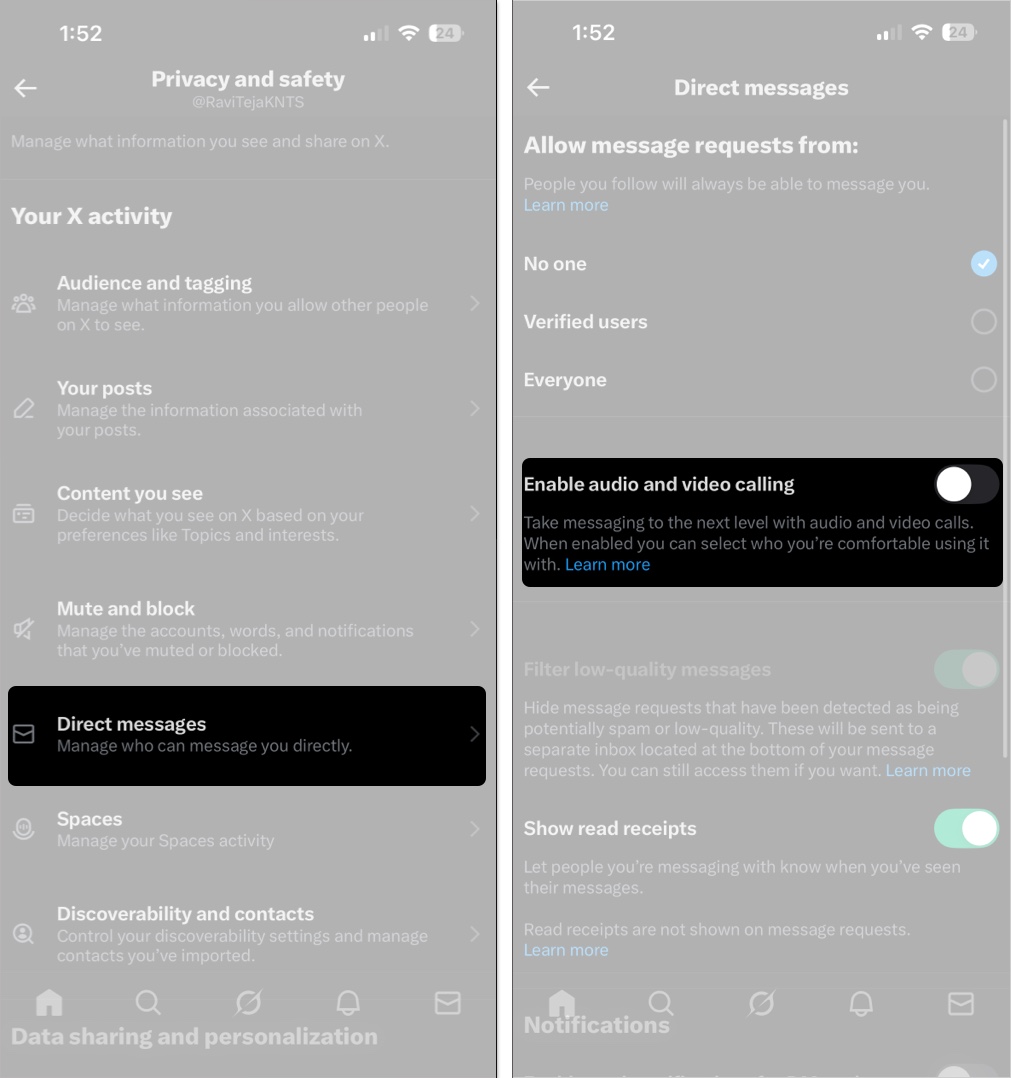
- How to Disable Calls on iPhone: Go to Privacy and Safety > Direct Messages in the X app, then toggle off ‘Enable audio and video calling’ to block calls.
- How to Disable Calls on Android: Open the messages tab in the X app, enter settings, and switch off ‘Enable audio and video calling’ to stop unwanted calls.
- Controlling Who Can Call You: You can limit call permissions to followers, contacts, or verified users, but choosing contacts only offers the safest protection.
Last year, out of nowhere, Elon Musk announced that audio and video calling would be available on X for everyone. It was also enabled by default, so anyone you follow, and sometimes even strangers, could call you anytime. Why would anyone want to get calls from X (aka Twitter)? For a platform already criticized for trolls and privacy issues, this feels like a step too far for many users.
Before you panic, the good news is you can disable calls completely or limit who can reach you. Here’s everything you need to know.
Why You Might Want to Disable X Calls
Calls on X show up inside the Messages tab, with a new phone icon. While it looks like WhatsApp or Messenger at first glance, there are two key issues:
- It’s enabled by default. If you do nothing, people you follow can start calling you right away.
- Privacy risks. Calls are peer-to-peer, which means your IP address is shared with the other person. This can reveal your approximate location. Unless you toggle on Enhanced call privacy in settings, your IP is out in the open.
For many, that’s reason enough to turn it off.
How to Turn Off Calling on iPhone
Turning off X calls on iOS only takes a few taps:
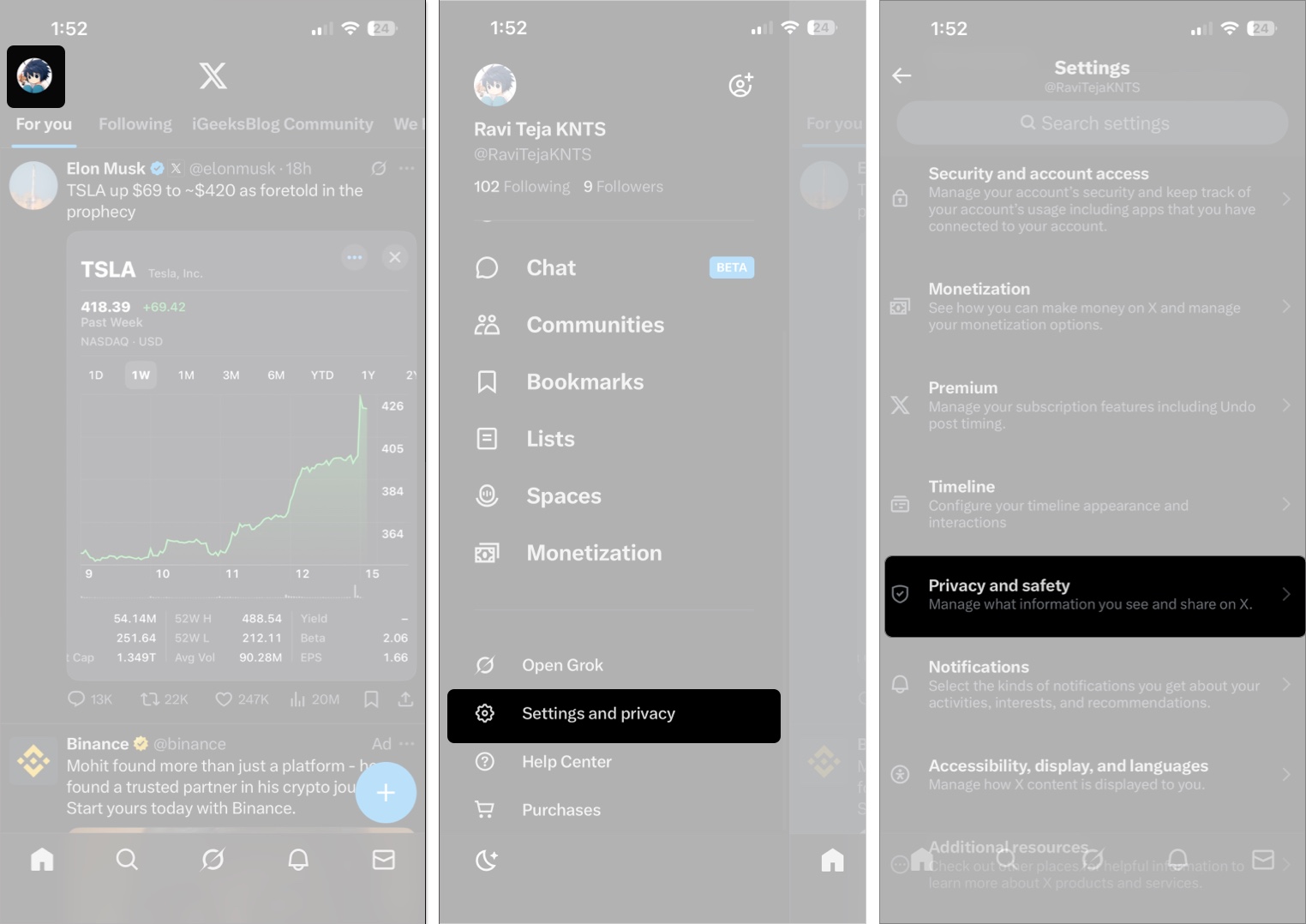
- Open the X app.
- Tap your profile icon in the top-left.
- Go to Settings and privacy > Privacy and safety.
- Select Direct Messages.
- Toggle off Enable audio and video calling.
Once done, no one can call you through X.
How to Turn Off Calling on Android
The steps are almost the same on Android:
- Open the X app.
- Tap the messages icon at the bottom.
- Hit the settings (cog) icon at the top-right.
- Turn off Enable audio and video calling.
- Tap Done if prompted.
Don’t Want to Fully Disable Calls?
If you’re okay with calls but want more control, X lets you choose who can reach you:
- People you follow (default)
- People in your address book (if you’ve shared contacts)
- Verified users (anyone paying for X Premium)
- Everyone (prepare for spam)
The safest option is to keep calls limited to your address book so random followers or strangers can’t ring you.
Extra Privacy Tips
If you must use calling but care about privacy:
- Toggle on Enhanced call privacy. This routes calls through X servers, hiding your IP address.
- Revoke X’s access to your contacts, microphone, or phone dialer if you don’t want the app to have that much control.
- Remember, X doesn’t mention end-to-end encryption. Unlike WhatsApp or Signal, calls may not be fully secure.
Final Thoughts
X is pushing hard to be the “everything app,” but many users see Twitter calls as unnecessary. With reliable alternatives like FaceTime, WhatsApp, and Zoom, few people want trolls or strangers ringing them on X.
Thankfully, it only takes a minute to disable the feature—or at least restrict it to people you trust. Doing so not only prevents unwanted interruptions but also protects your privacy and security.
Read more:

- What Is X/Twitter Premium? Price, Tiers, and Benefits Explained
- How to Pin a Post on X (Twitter) on iPhone, iPad, or desktop
- Threads vs. Twitter (X): Key Differences You Need to Know
- How to Use X/Twitter Spaces