FaceTime Like a Pro
Get our exclusive Ultimate FaceTime Guide 📚 — absolutely FREE when you sign up for our newsletter below.

FaceTime Like a Pro
Get our exclusive Ultimate FaceTime Guide 📚 — absolutely FREE when you sign up for our newsletter below.


Struggling with weak iPhone signal? Don't worry. You can fix it quickly using these simple tips to boost reception and stay connected wherever you are.

 ByJibin Joseph and Vikhyat
No matter how advanced your iPhone is, it’s of little help if it struggles with basic functions like making calls or accessing the internet.
A weak signal can make everything feel sluggish, whether you’re browsing Safari or sending a simple iMessage or SMS. While it’s common for signal strength to vary based on your location, experiencing consistent issues can be frustrating.
The good news is that you don’t need much technical know-how to improve your iPhone’s network signal. Keep reading to learn how to fix it.
Before blaming your iPhone, make sure the problem isn’t with your carrier. You can:
If the signal is weak for everyone around you, the issue is likely related to your carrier’s infrastructure or a nearby tower outage.
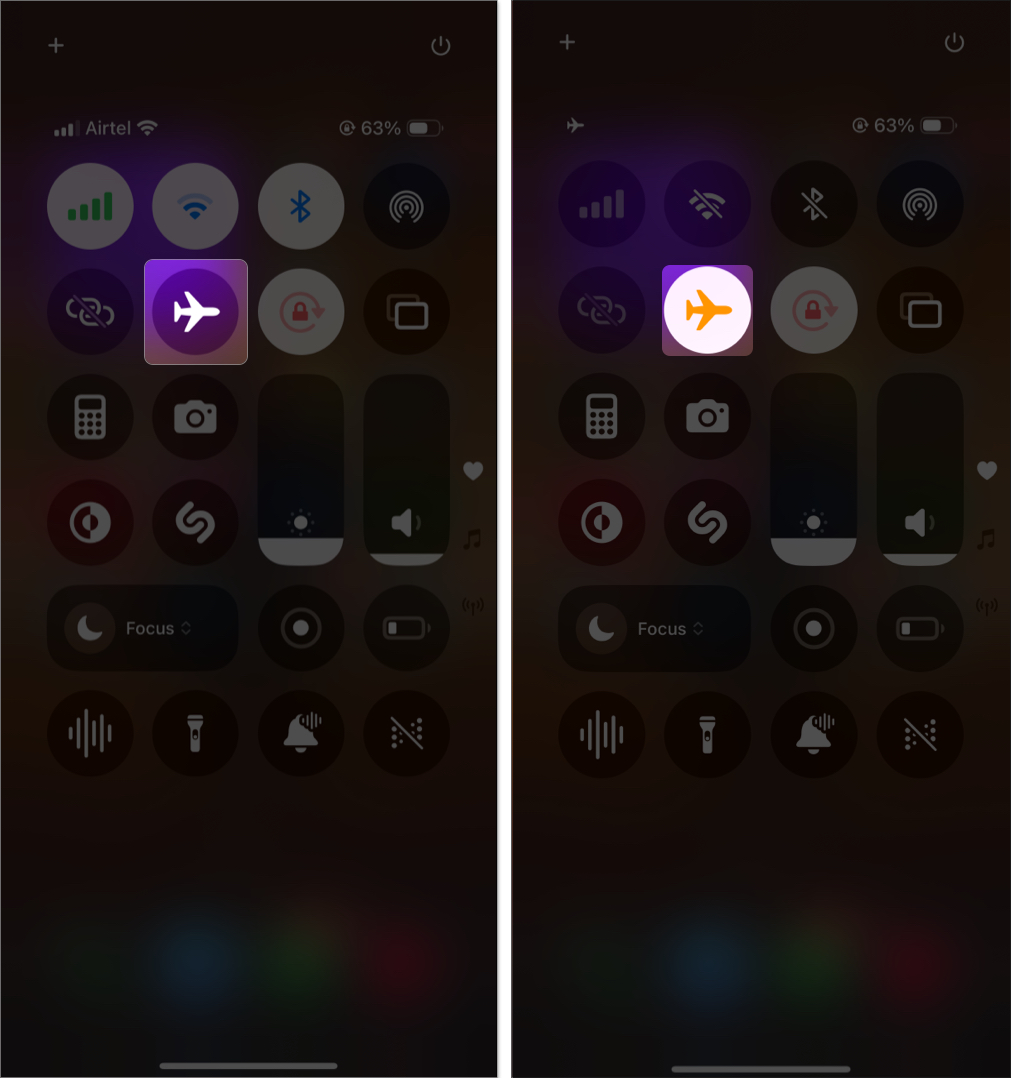
Toggling Airplane Mode on and off is one of the quickest ways to reconnect your iPhone to the nearest cell tower. This action resets the radio connection and often fixes temporary signal problems.
How to do it:
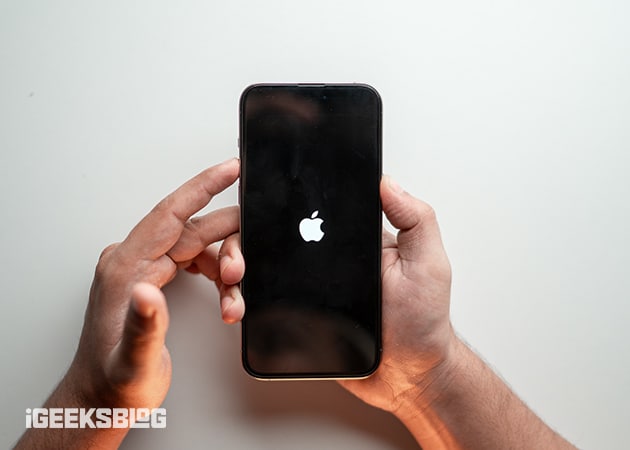
If Airplane Mode doesn’t resolve the issue, try restarting your iPhone. A reboot can clear out background processes or network conflicts that may be affecting signal strength.
Apple and your mobile provider frequently release updates designed to improve connectivity and fix bugs.
To check for updates:
If a carrier update is available, your iPhone will prompt you to install it.
Even if everything seems fine, installing the latest iOS and carrier settings can improve network performance.
If your iPhone isn’t picking up a signal but other nearby phones are, your SIM card might be misaligned, or the tray could be damaged.
In that case:
If the SIM appears damaged, contact your carrier to request a replacement.
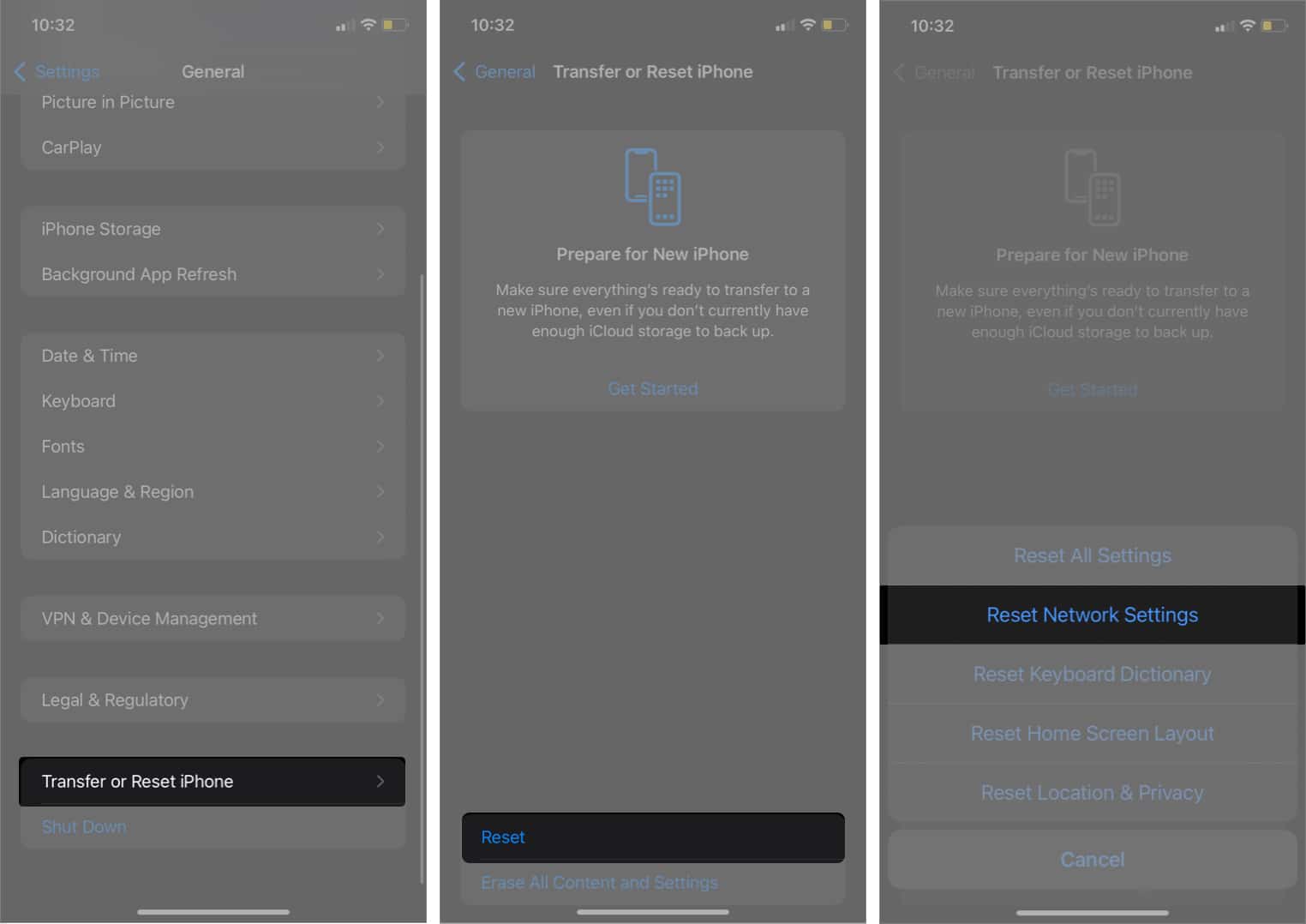
Corrupted network settings can lead to dropped calls, missing signal, or an inability to make calls. Resetting these settings can often resolve the issue.
To reset:
If your cellular signal is weak but your Wi-Fi connection is strong, enabling Wi-Fi Calling can help. This feature allows your iPhone to use Wi-Fi for calls and texts.
To enable it:
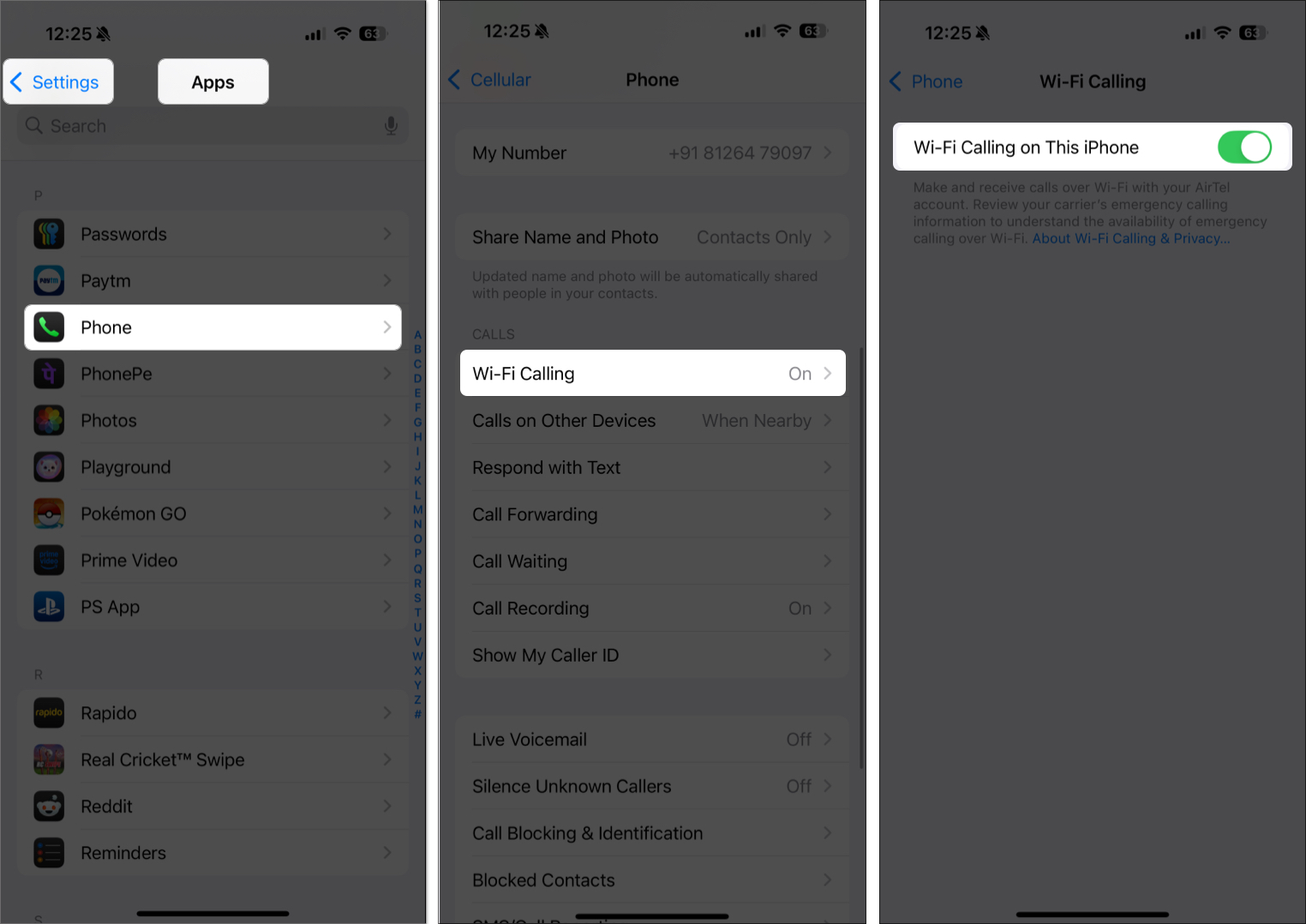
This will allow you to make and receive calls even when you’re in an area with no cellular service.
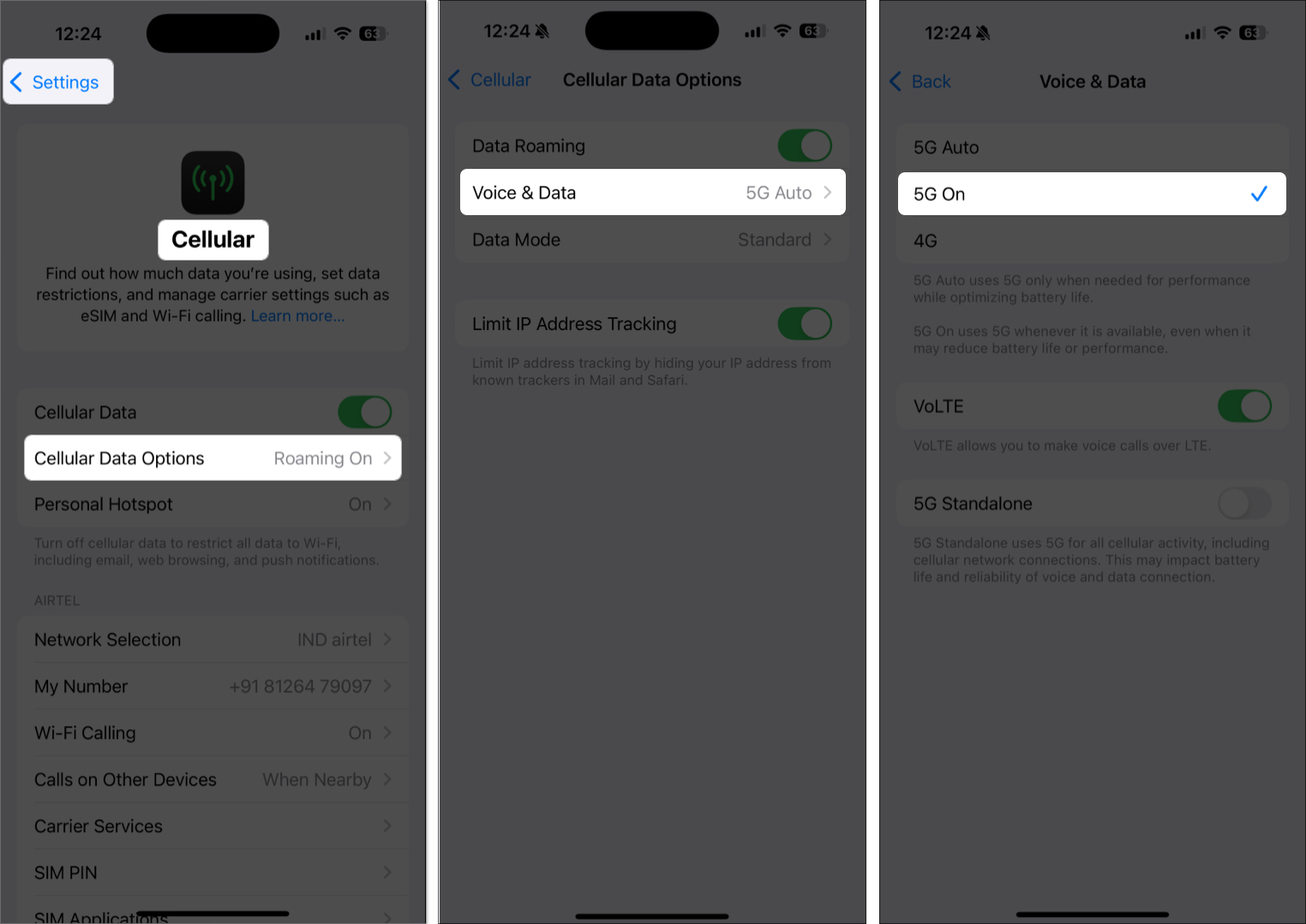
If your iPhone is set to “5G On,” it will stay connected to the 5G network even when the signal is poor. This can cause dropped calls and slow data speeds.
It’s better to switch to “5G Auto” so your phone can switch between 5G and 4G/LTE depending on signal strength. You can also manually select 4G/LTE if 5G isn’t reliable in your area.
To change this setting:
If you live in a remote location or a building with thick walls, a signal booster or network extender can make a big difference.
A signal booster amplifies weak signals from nearby towers and rebroadcasts them inside your home. A network extender works like a small cell tower and plugs into a wall outlet.
Recommended signal boosters (FCC-certified):
Carriers like Verizon and AT&T also offer femtocells or microcells to help you maintain a strong signal indoors.
If nothing else works, reach out for professional support.
If you’re traveling and experiencing poor signal, try the following:
Now you know how to stop dealing with poor iPhone signal issues. From simple steps like toggling Airplane Mode to more advanced solutions like installing a certified signal booster or enabling Wi-Fi Calling, these methods can significantly improve your network experience.
Have you tried any of these tips? Let us know what worked best for you in the comments below.
FAQs
Yes. Especially if your phone is set to “5G On.” Use “5G Auto” to conserve battery while still enjoying fast speeds when available.
No. Apps cannot enhance hardware-based cellular reception. However, apps like OpenSignal or Cellular-Z can help you test signal quality and locate nearby towers.
Low Power Mode does not directly impact signal strength, but it may limit background activity that uses your network.
Yes, but only through Apple or certified repair centers. Antenna problems are hardware-related and require professional service.
Related articles worth reading: