FaceTime Like a Pro
Get our exclusive Ultimate FaceTime Guide 📚 — absolutely FREE when you sign up for our newsletter below.

FaceTime Like a Pro
Get our exclusive Ultimate FaceTime Guide 📚 — absolutely FREE when you sign up for our newsletter below.


Is your Apple Watch calorie count right? Here's how accurate it is and how to make it better.
Your Apple Watch gives you a neat number at the end of each day, showing how many calories you’ve burned. But how accurate is that number, really? If you’re counting calories to lose weight, stay healthy, or hit fitness goals, accuracy matters. With real data and studies now available, let’s break it down.
Apple Watch is incredibly reliable when it comes to heart rate and step tracking. Studies show it has a small error margin, just around 4.4% for heart rate and 8.1% for step count. That’s impressive for any wearable.
But when it comes to calorie tracking, the numbers can get murky. A major university meta-analysis revealed that Apple Watch has an average error rate of 28% for calorie estimates. Other tests show even bigger gaps, off by 18% to 40% depending on activity type. So if your Watch says you’ve burned 500 calories, it could actually be as low as 350 or as high as 600.
Counting calories isn’t as straightforward as counting steps. To estimate your energy burn, Apple Watch combines:
Even with this tech stack, small factors can throw it off. Your metabolism, the fit of the watch, skin tone, and tattoos under the sensors can all impact accuracy. That’s not a flaw unique to Apple; it’s a challenge across the entire wearable industry.
Your Apple Watch tracks two types of calories:
Your total daily energy burn is the sum of both.
The top red ring in the Fitness app shows the active energy you’ve burned. You can view this in the Activity app on your Apple Watch or in the Fitness app on your iPhone.
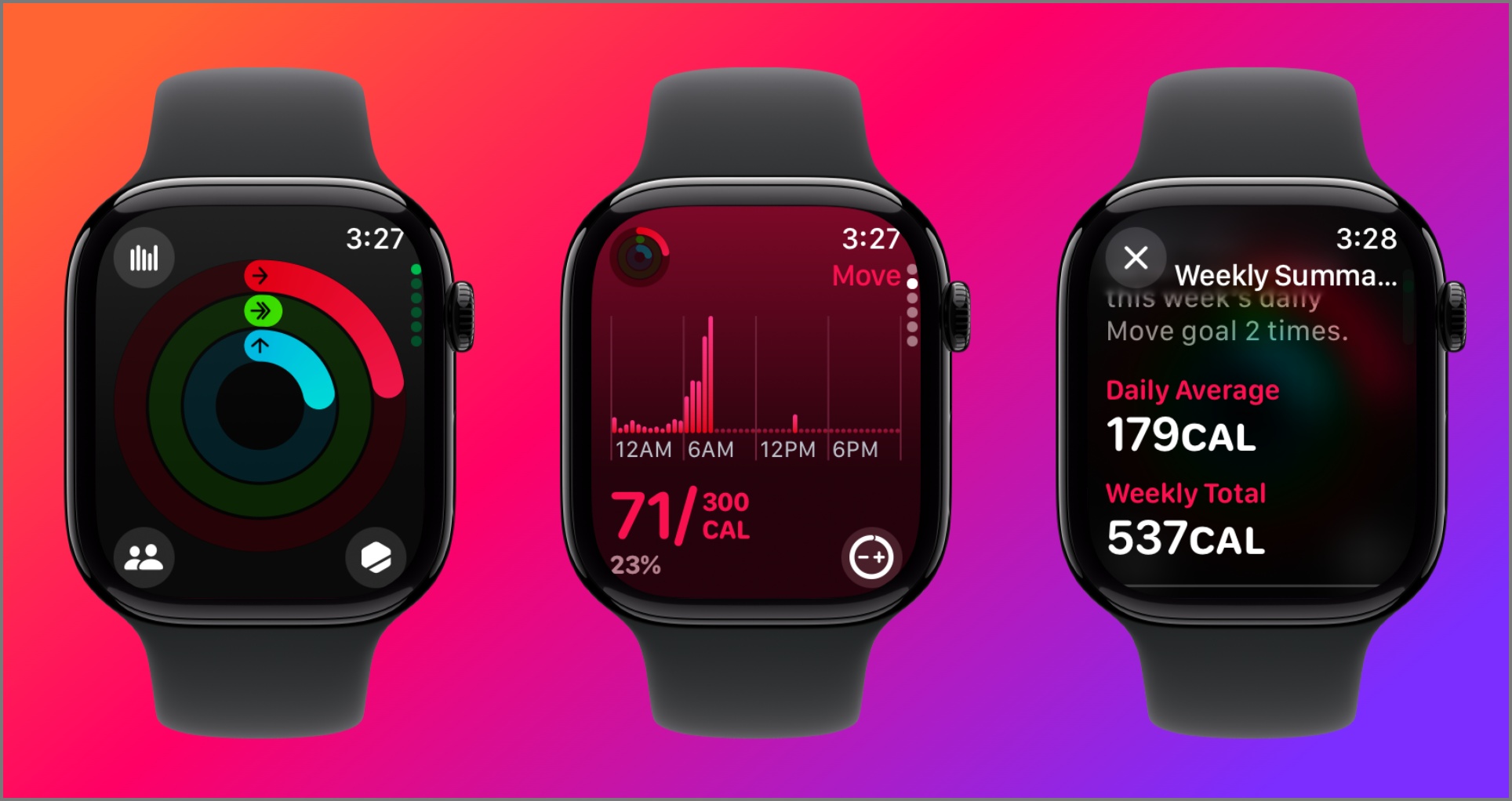
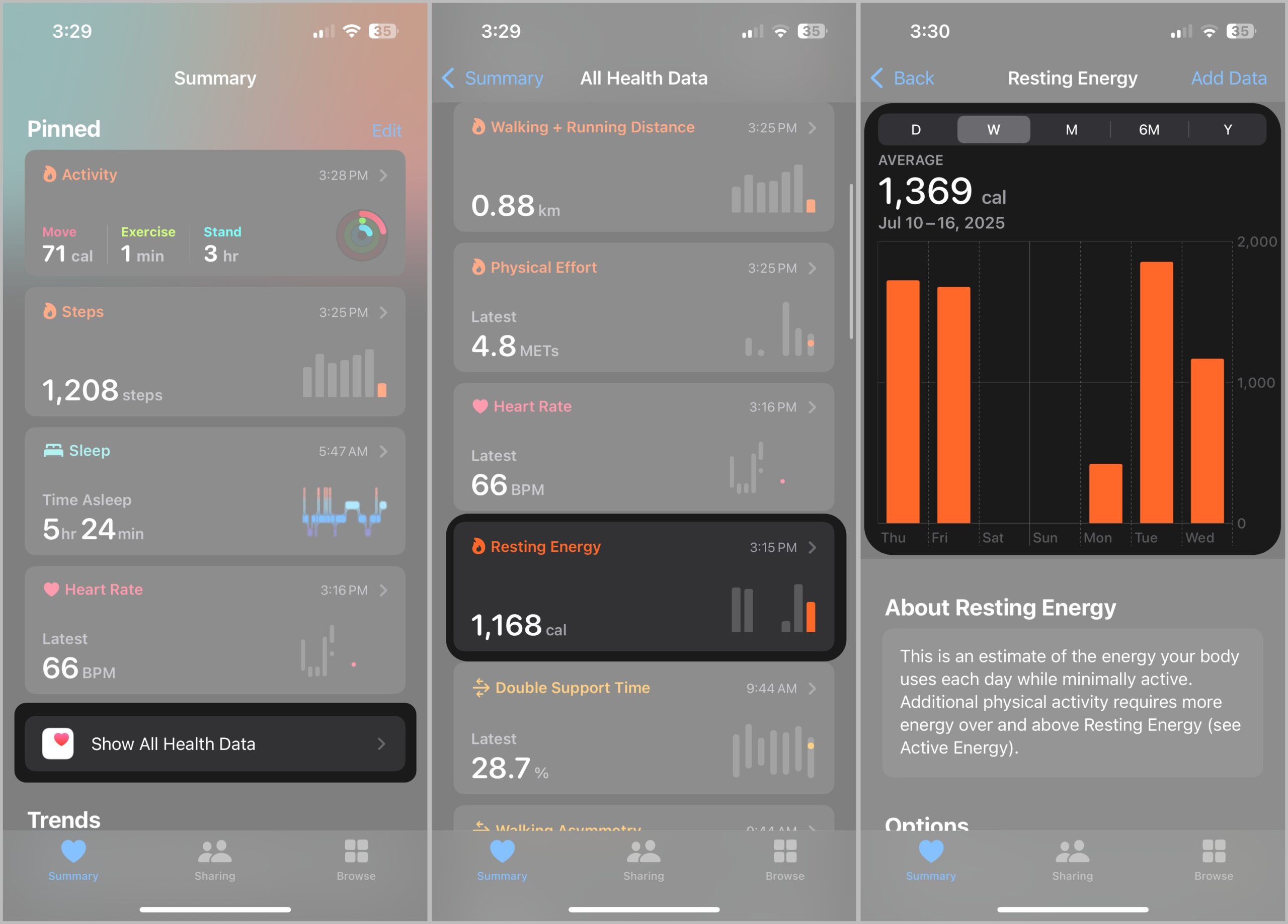
However, it doesn’t include resting energy. To see both active and resting energy:
Also Read: How to Read Weekly Activity Summary on Apple Watch
While you can’t make it perfect, you can reduce errors:
Apple labels these numbers as estimates, and for good reason. If you’re an athlete or counting calories to the decimal, don’t rely solely on your Watch. But for most users looking to build habits, track progress, and close rings, the data is good enough.
Apple Watch may not be lab-accurate, but it excels at showing trends, boosting motivation, and keeping you on track.
To get the full picture of calories in vs. out, pair your Apple Watch with apps like MyFitnessPal. Let your Watch handle activity tracking, and log your food manually. The combo gives you a much more balanced and actionable health view.
Related articles worth reading: