FaceTime Like a Pro
Get our exclusive Ultimate FaceTime Guide 📚 — absolutely FREE when you sign up for our newsletter below.

FaceTime Like a Pro
Get our exclusive Ultimate FaceTime Guide 📚 — absolutely FREE when you sign up for our newsletter below.


Roblox crashing with a Memory Dump error? Here’s what it means, why it happens, and the safest fixes to get the game running again.
Roblox usually launches in seconds, so it feels confusing when it suddenly crashes before you even enter a game. Instead of opening normally, you may see a pop-up saying Roblox encountered an unrecoverable error and asking you to click OK to create a memory dump.
That message sounds serious, but it does not mean your PC is damaged. It usually means Roblox crashed badly enough that it wants to save a report of what went wrong. The annoying part is simple: you still cannot play until the conflict causing the crash is fixed.
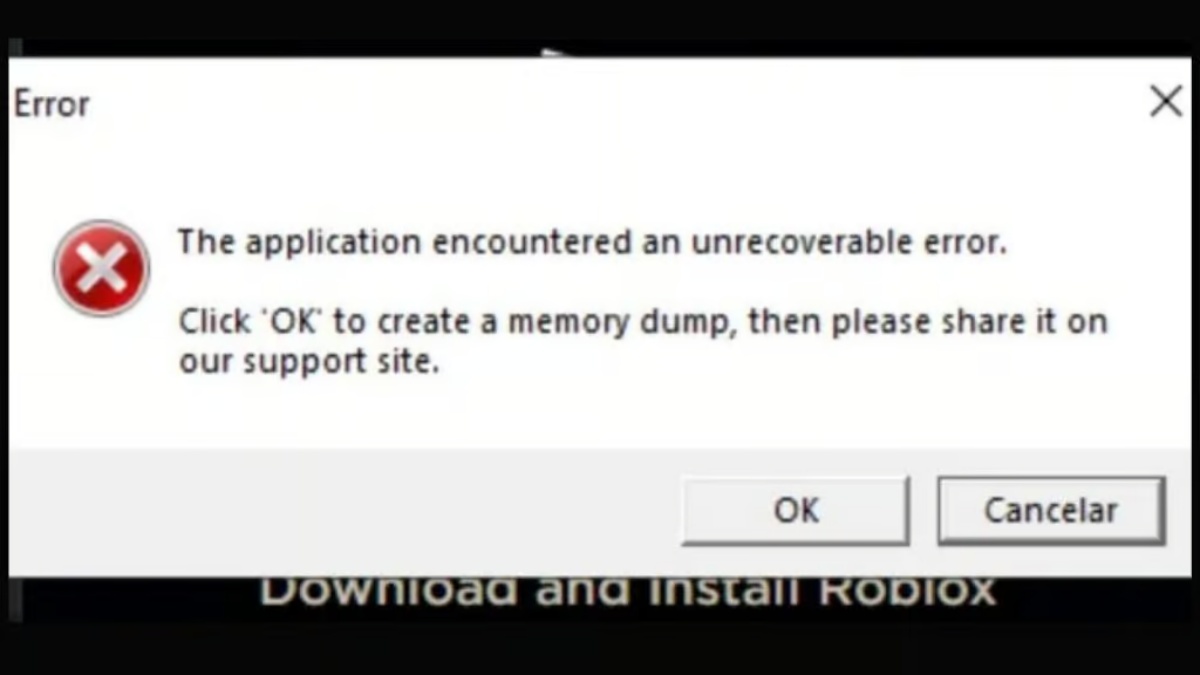
The Roblox Memory Dump error appears when the Roblox Player crashes and creates a memory dump file. A memory dump is basically a snapshot of what the app was doing at the moment it failed.
Roblox can use that report to understand the crash and fix the issue in a future update. Clicking OK is generally harmless, but it may not fix the problem on your device by itself.
The error can happen when Roblox fails to launch, crashes during startup, or gets blocked by a low-level system feature. Many reports point to conflicts with Windows security settings, BIOS virtualization settings, or third-party antivirus software.
The most common causes are:
Start with the safer fixes first. Only change BIOS or security settings if the easier steps do not work.
Before changing deeper settings, restart your computer once. Roblox may have crashed because of a temporary background process, a failed update, or a stuck service.
Close Roblox completely, restart your PC, and then open Roblox again from the website or desktop app. If the error was temporary, this may be enough.
If a lot of players are seeing the same memory dump error, Roblox may already be working on a fix. Updating Roblox and Windows gives your system the latest files it needs to run properly.
To update Roblox, uninstalling and reinstalling is often the cleanest method because Roblox usually updates itself during installation.
To update Windows:
After restarting, launch Roblox again and check if the error is gone.
A broken Roblox installation can also trigger launch errors. Reinstalling Roblox replaces damaged or missing files with a fresh copy.
Here is how to reinstall Roblox:
Roblox is not a very large app, so this step usually does not take long. If the issue came from corrupted files, reinstalling should fix it.
Related: Roblox Error Code 279: What it is and how to fix it
If Roblox still crashes, Windows Memory Integrity may be the reason. Memory Integrity is part of Windows Core Isolation. It helps protect your system from unsafe drivers, but it can sometimes conflict with games or anti-cheat systems that need low-level access.
Only turn this off for troubleshooting. It lowers one layer of Windows security, so re-enable it later if Roblox works after another update.
To disable Memory Integrity:
If Roblox works after this, the crash was likely caused by a conflict between Roblox and Windows virtualization-based security.
Some players, especially on AMD systems, have reported that disabling SVM Mode fixes the Roblox Memory Dump error. SVM stands for Secure Virtual Machine. It is AMD’s hardware virtualization feature, similar to AMD-V.
This setting is useful for virtual machines and some developer tools, but it can sometimes create conflicts with Roblox or its anti-cheat behavior.
To disable SVM Mode:
Do this carefully. BIOS menus look different on every PC, and changing the wrong setting can cause problems. If you use virtual machines, Android emulators, Docker, or similar tools, disabling SVM may affect them.
Third-party antivirus tools can sometimes block Roblox because they monitor processes, drivers, and network activity. Roblox’s anti-cheat system may look suspicious to some security tools, even when nothing is actually wrong.
Temporarily disabling your antivirus can help you check whether it is causing the crash.
To test this:
Do not leave your antivirus disabled permanently. If Roblox works only when the antivirus is off, add Roblox as an allowed app or exception instead of keeping protection turned off.
If the error started suddenly and many players are reporting it at the same time, the issue may be on Roblox’s side. In that case, your PC may not be the real problem.
You can still try the fixes above, but sometimes the best fix is a Roblox update. Keep Roblox updated, restart your PC after major changes, and avoid making too many system-level changes if the error appears during a wider outage or platform bug.
The Roblox Memory Dump error looks scary because it mentions an unrecoverable error, but in most cases, it is just Roblox crashing and asking to create a report. The fix usually comes down to removing whatever is blocking Roblox from launching properly.
Start with a restart, Windows updates, and a clean Roblox reinstall. If that does not work, check Memory Integrity, SVM Mode, and your antivirus. These deeper settings are more likely to fix stubborn cases, but they also affect system security or virtualization features, so change them carefully.
Once Roblox launches normally again, you can go back to playing without that memory dump pop-up interrupting every session.
You might also like: