FaceTime Like a Pro
Get our exclusive Ultimate FaceTime Guide 📚 — absolutely FREE when you sign up for our newsletter below.

FaceTime Like a Pro
Get our exclusive Ultimate FaceTime Guide 📚 — absolutely FREE when you sign up for our newsletter below.


ChatGPT can now draft and send emails directly through Gmail and Outlook. After testing the new feature, here’s how it works, what its limitations are, and whether it’s worth using.
ChatGPT has long been useful for drafting emails, but there was always an extra step involved. You had to copy the generated text, open Gmail or Outlook, paste the message, review it, and finally hit send.
Now, that’s changing. ChatGPT has introduced a new email-sending integration on the web that allows the AI to draft and send emails through your connected Gmail or Outlook account after you approve the message. After spending some time testing the feature with different email scenarios, I found that it can save a surprising amount of time for routine communication.
That said, it’s not perfect, and there are a few limitations worth knowing before you trust it with important messages. Here’s how ChatGPT’s new email feature works, how to set it up, and what I learned during testing.
The new integration allows ChatGPT to draft and send emails directly through a connected Gmail or Microsoft Outlook account. Instead of copying text between apps, everything happens within ChatGPT.
The feature is built around ChatGPT’s Writing Blocks, which provide a dedicated editing experience for longer content.
When you ask ChatGPT to write an email, it doesn’t simply generate a standard chat response. Instead, the email appears inside a structured editor-like block that resembles a traditional email composer.
You can edit individual sections, highlight sentences, and ask ChatGPT to rewrite them, shorten them, or adjust the tone. You can also review suggestions before deciding whether to apply them.
Once you’re satisfied with the draft, simply add the recipient’s email address and approve the send action.
The feature reflects OpenAI’s broader push toward AI assistants that can perform actions on your behalf rather than simply generating text.
For anyone who regularly handles follow-ups, meeting requests, customer inquiries, or outreach emails, the workflow feels noticeably faster than traditional email drafting.
Before getting started, make sure you meet the following requirements:
Currently, the feature is not available to Free or Go users. Support is limited to Gmail and Outlook, and the integration currently works only through the ChatGPT web app.
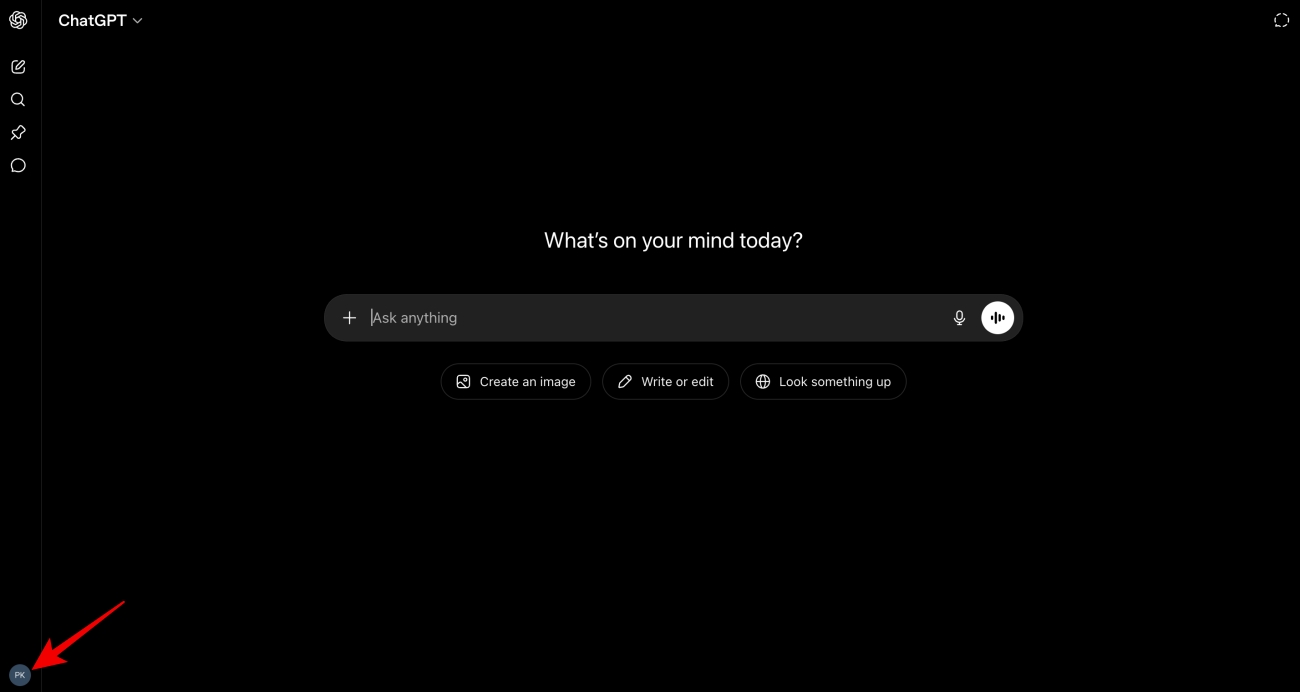
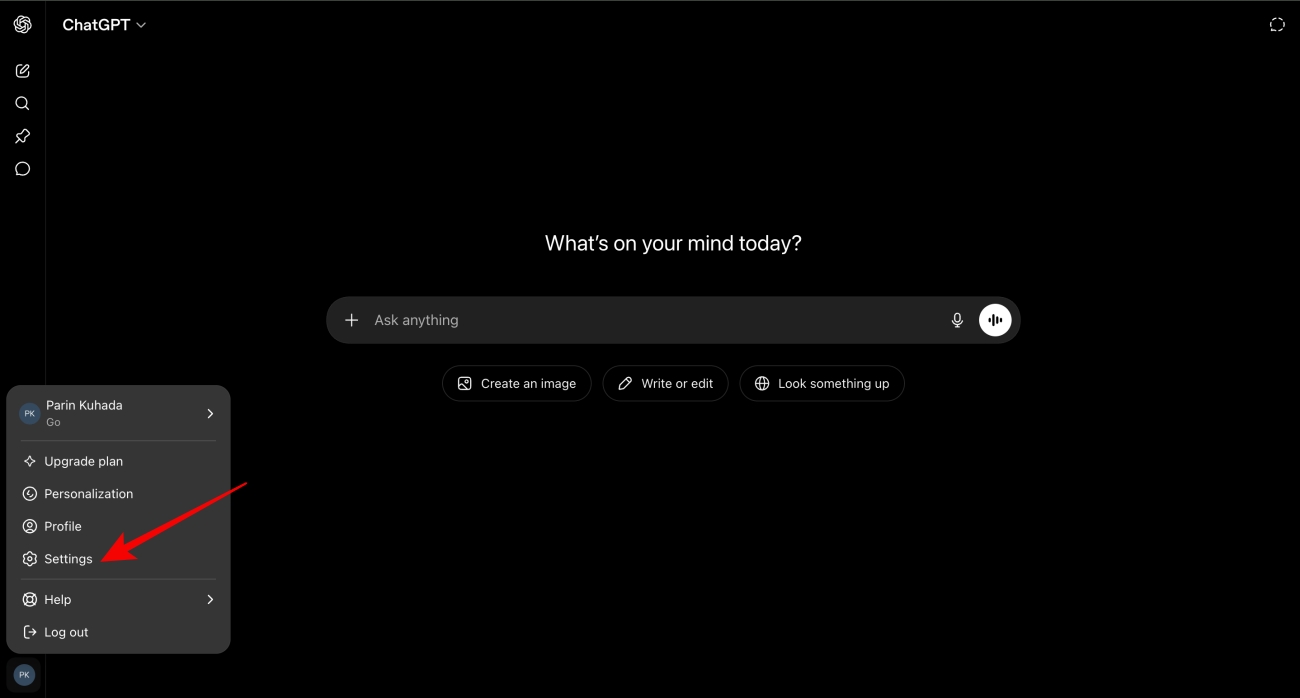
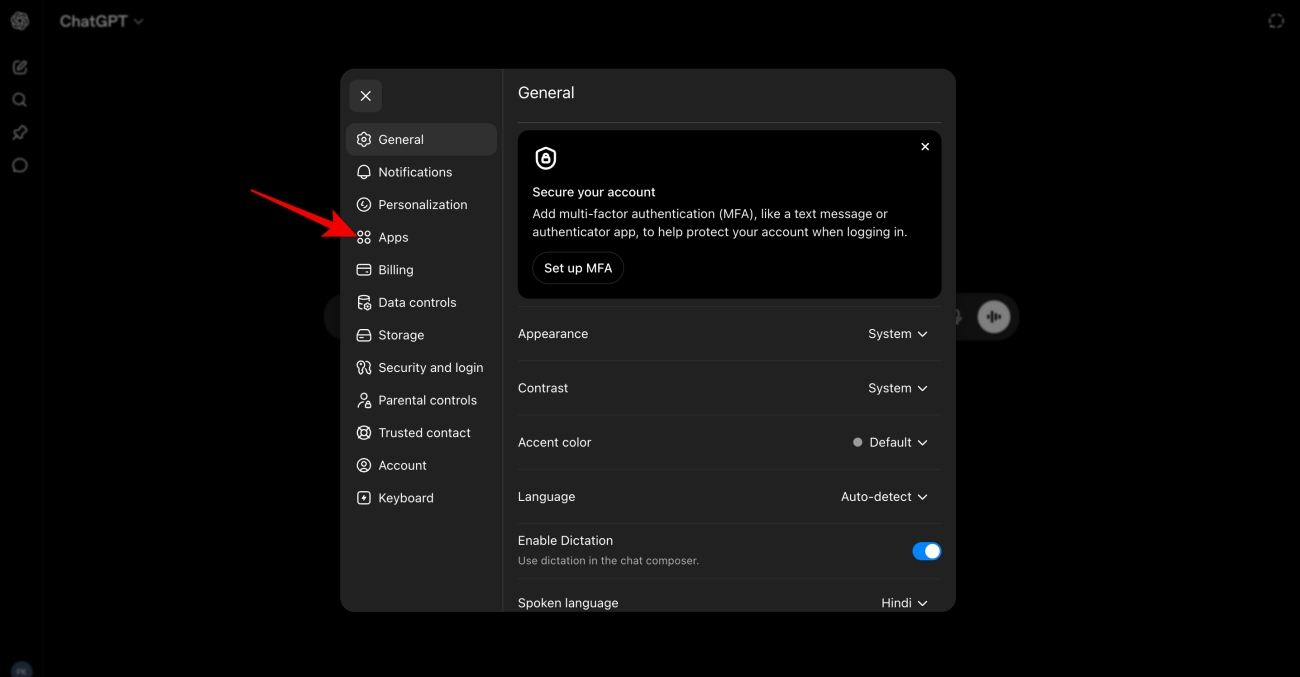
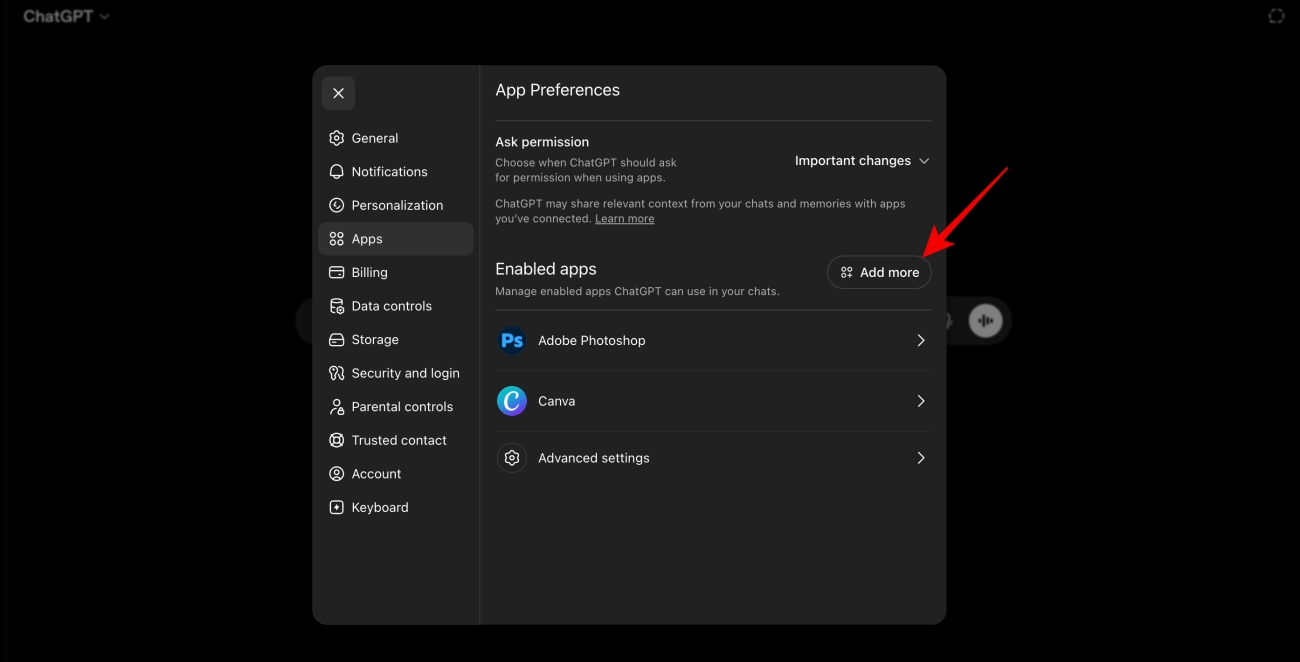
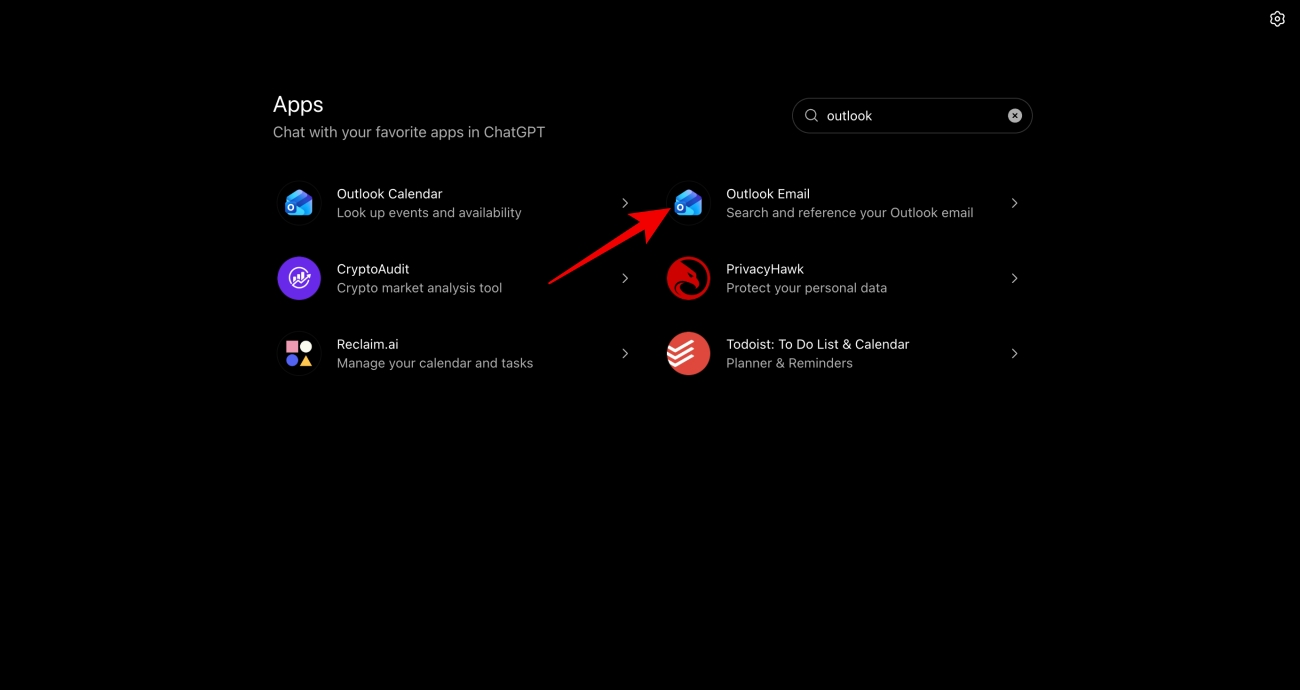
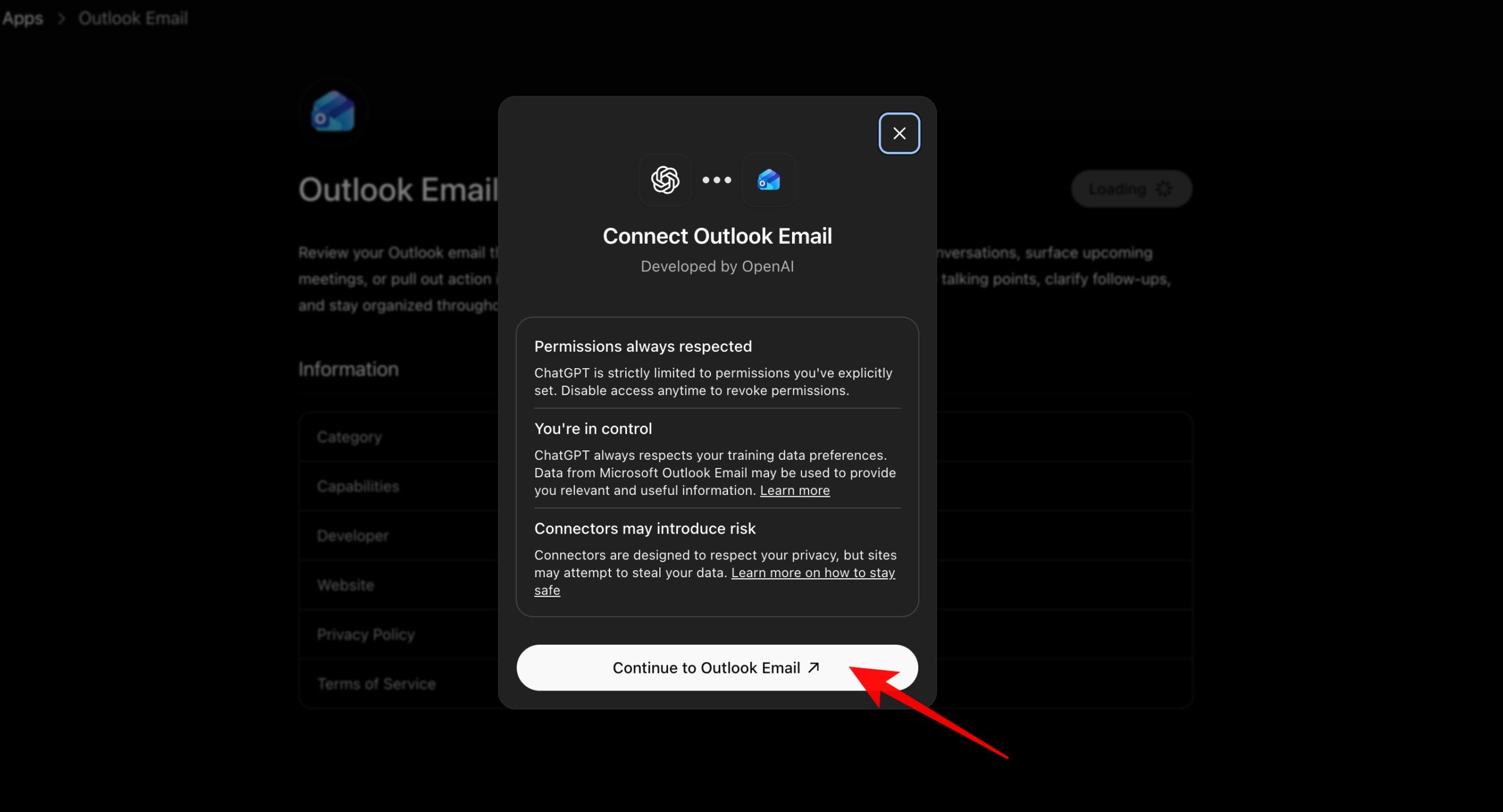
After setup, ChatGPT can access the connected account when you ask it to perform email-related actions.
Give ChatGPT a prompt on what kind of email needs to be drafted. Make it detailed for a better result.
For example: Write an email asking a local sneaker store about its latest arrivals and upcoming releases.
ChatGPT will generate both a subject line and email body.
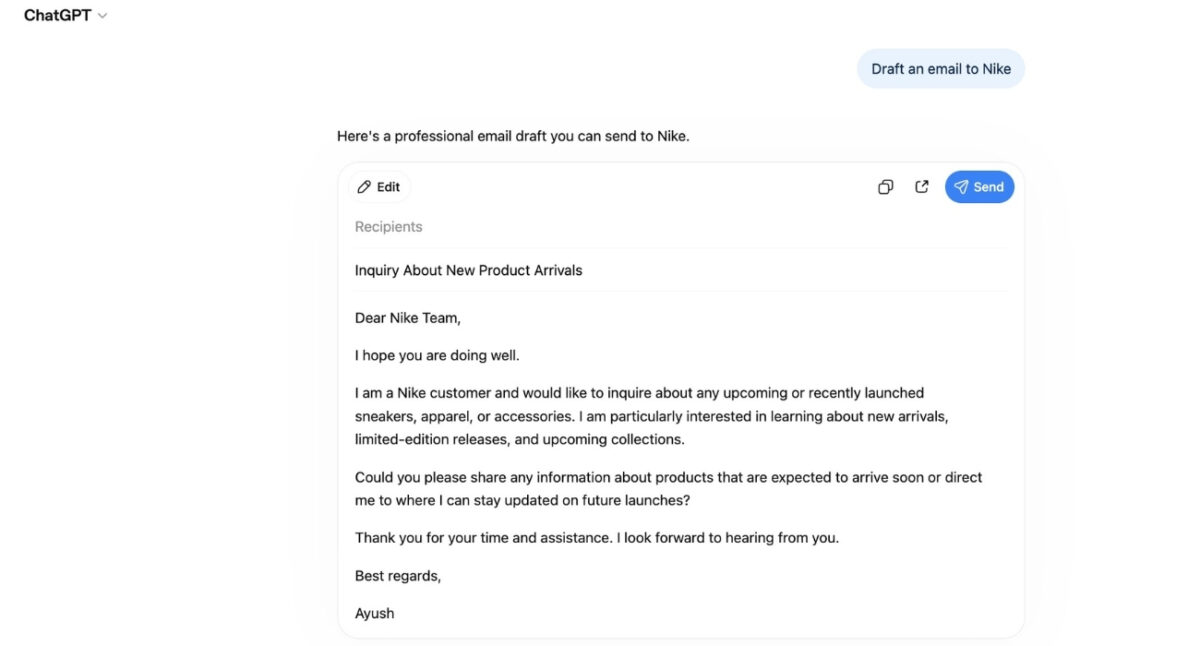
Before sending, ChatGPT displays:
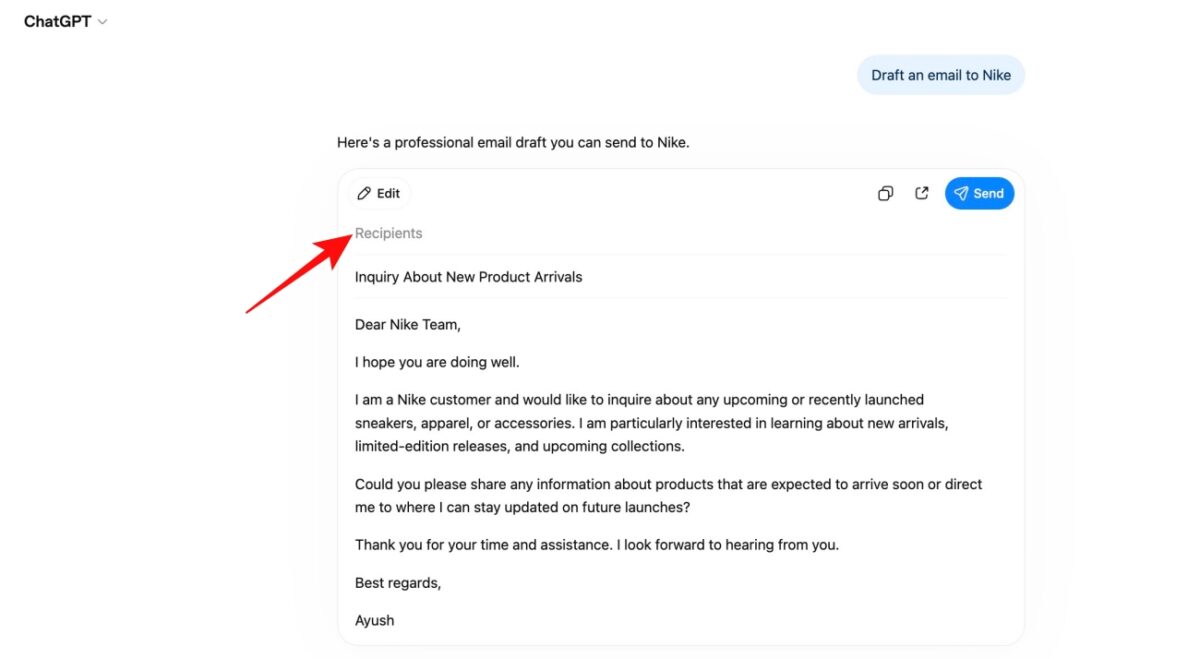
Take a moment to verify all the content and edit the required sentences. You can also ask ChatGPT to revise the tone, make it more personalized, shorten the message, or add more information before proceeding.
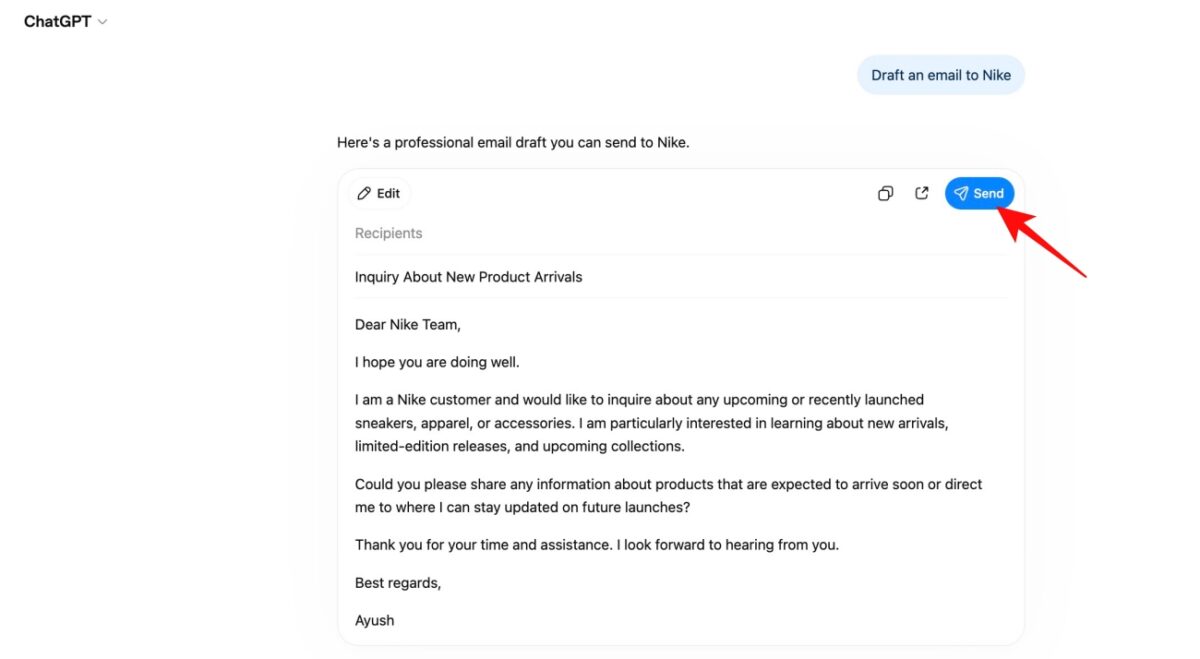
For the first time, ChatGPT presents a confirmation dialog showing exactly what it plans to send. Click Allow to approve the action so that ChatGPT sends the email through your connected account.
Usually, you will see a Send button at the top of the writing block. Tapping it will send the email, and it will then appear in your Sent folder just like a normal email.
I tested ChatGPT’s new email-sending feature by connecting my Gmail account and asking it to write and send a few routine emails. The setup process was surprisingly simple. What impressed me most was how natural the workflow felt. Instead of switching between ChatGPT and my inbox in a different tab, I could stay inside a single conversation.
Also, the draft takes only a few seconds and requires only minor adjustments before sending. The approval step is worth mentioning because ChatGPT cannot send emails automatically. It’s actually reassuring from a security standpoint, as there will be no accidental emails, and it gives you one final chance to review everything.
That said, I quickly ran into a few limitations that make the feature feel more like an early version rather than a complete replacement for Gmail or Outlook.
Here are some of the limitations:
| Limitation | Details |
|---|---|
| No attachments | ChatGPT currently cannot attach files to outgoing emails. |
| Limited providers | Only Gmail and Outlook are supported. |
| Paid plans only | Not available for Free or Go users. |
| Web-only access | The feature currently works through the ChatGPT web app, not mobile or desktop apps. |
The lack of attachment support is currently the biggest drawback, especially for users who frequently send documents, presentations, and reports. Also, ChatGPT has recently revamped its memory system to remember your information from conversations. However, it’s not as advanced as Gemini’s Personal Intelligence, so the generated emails may lack context.
Furthermore, I wouldn’t use it in any sensitive conversations. Recently, OpenAI faced a lawsuit because it allegedly shared user data with Meta and Google trackers. Therefore, it might not be a good idea to share anything too personal here.
This feature is ideal for people who send a lot of routine emails, such as professionals, freelancers, small business owners, students, and job seekers. It works especially well for follow-ups, meeting requests, customer replies, and other text-based messages that don’t require attachments.
However, if you frequently send documents, PDFs, presentations, or manage complex email threads, you’ll still need to use Gmail or Outlook. At least for now, ChatGPT’s email functionality should be seen more as a productivity tool and not as an alternative to your email app.
After testing ChatGPT’s send email feature, my conclusion is simple: it is genuinely useful. The feature eliminates several repetitive steps, creates strong first drafts, and makes routine communication significantly faster. For professionals who spend large portions of their day handling email, the time savings can be meaningful.
At the same time, it shouldn’t be considered a completely autonomous solution. Human review remains important, especially for messages involving sensitive information, complex negotiations, or important business decisions.
For everyday emails, follow-ups, meeting requests, and outreach messages, ChatGPT’s ability to draft and send emails feels like one of the most practical AI productivity features released so far.
If you like this feature, you can also try connecting your WhatsApp to Gemini to send messages with voice prompts.
You might also like: