
FaceTime Like a Pro
Get our exclusive Ultimate FaceTime Guide 📚 — absolutely FREE when you sign up for our newsletter below.

FaceTime Like a Pro
Get our exclusive Ultimate FaceTime Guide 📚 — absolutely FREE when you sign up for our newsletter below.


No more scrubbing through videos for screenshots. With iOS 27, you can instantly save high-quality photos from any video frame with just a few taps.
 ByVikhyat
Have you ever watched a video on your iPhone and paused at the perfect moment, only to wish you had taken a photo instead? I know I have. A genuine smile, an action shot, or a beautiful sunset can make for a great photo, yet most of us end up taking a screenshot that includes playback controls or loses some quality.
I was excited to learn that iOS 27 solves that problem with a new Photos app feature that lets you save any video frame as a standalone photo in just a few taps. You no longer have to scrub through a video trying to capture the perfect screenshot or regret missing the shot in the first place.
Continue reading to learn how to save a video frame as a photo on your iPhone in iOS 27.
The Photos app in iOS 27 includes a new option that extracts a single frame from a video and saves it directly to your photo library.
Unlike a screenshot, the image comes straight from the video itself, so you don’t have to worry about playback controls, the progress bar, or other interface elements appearing in the final result.
It works with videos already stored in your library, giving you a quick way to turn recorded moments into photos without opening another app.
Saving a video frame as a photo in iOS 27 only takes a few taps. Here’s how:
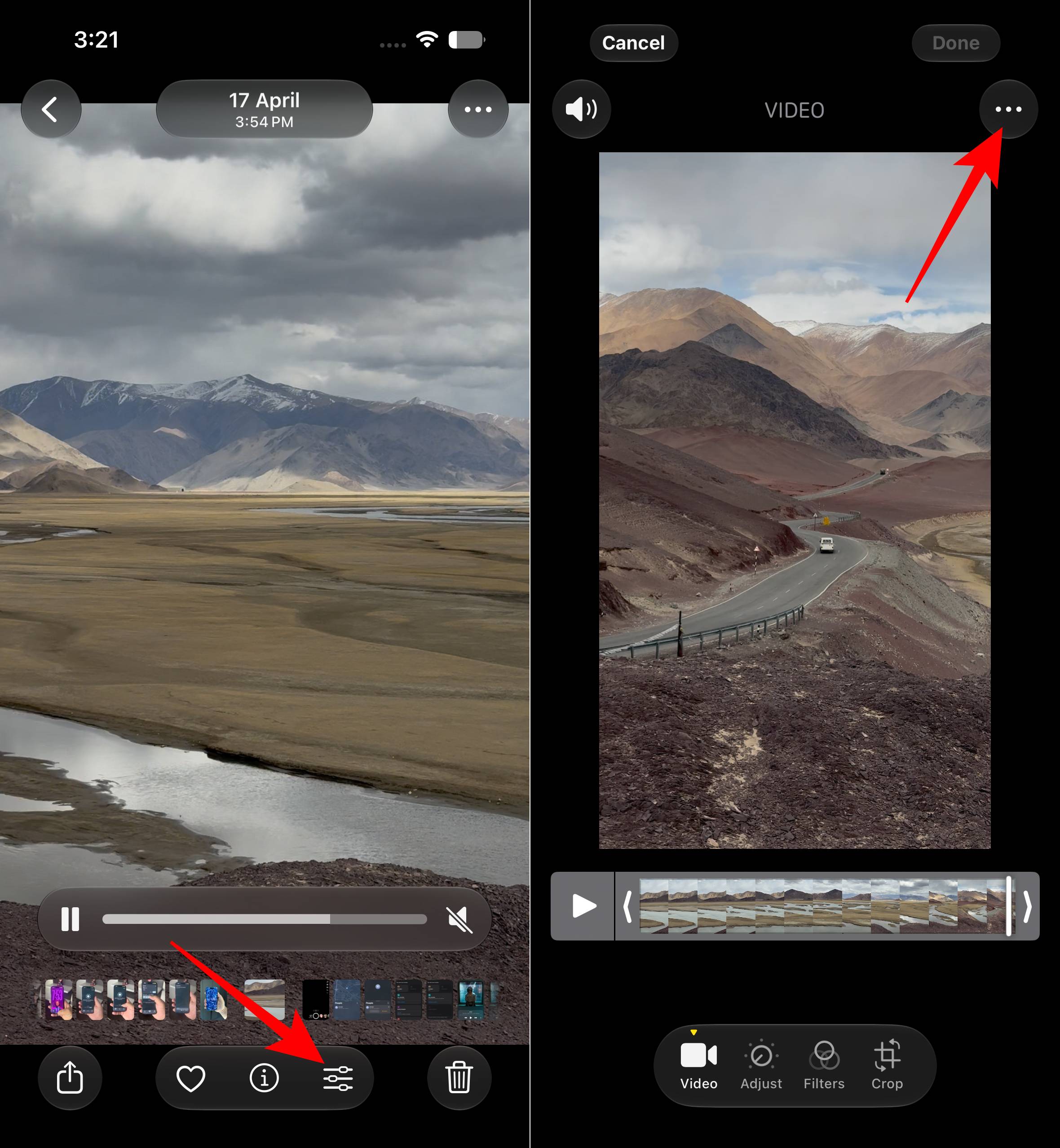
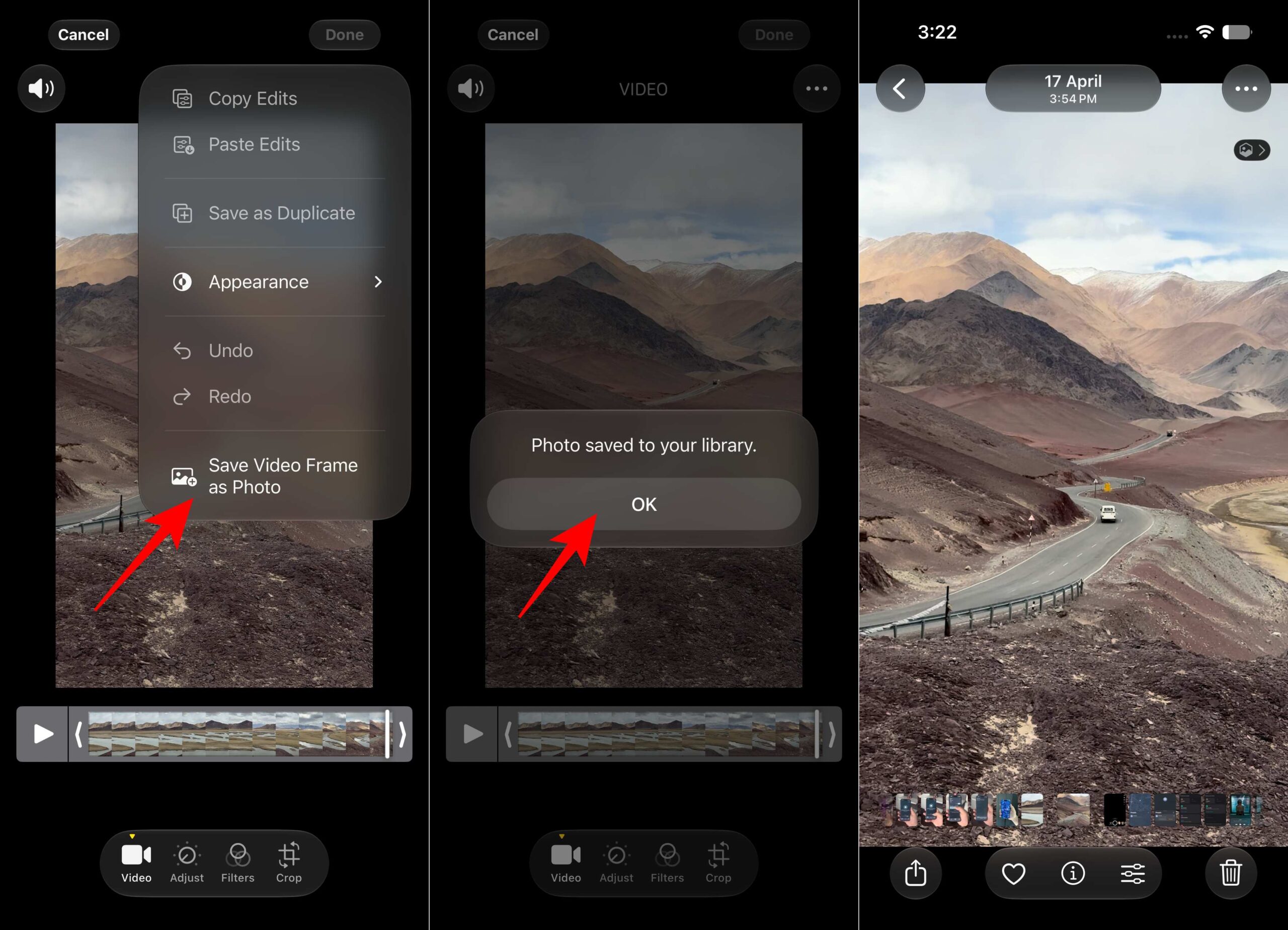
Screenshots have always been the quickest way to grab a still image from a video, but they come with a few compromises. The captured image can include playback controls, status icons, or other on-screen elements, and I often end up cropping everything manually.
The new Save Frame feature eliminates those extra steps and creates a clean photo directly from the video, which makes the process much more convenient.
| Save Frame | Screenshot |
|---|---|
| Creates a standalone photo from the video | Captures everything visible on the screen |
| No playback controls or interface elements | May include buttons and progress bars |
| No manual cropping required | Usually needs editing before sharing |
| Saved directly to the Photos library | Saved as a regular screenshot |
The feature works well in plenty of everyday situations.
With this feature, I can get dozens of usable photos from a single video, making it easier to preserve moments that might have been difficult to capture with the camera alone.
Saving video frames isn’t the only addition to the Photos app in iOS 27. Apple has also introduced:
Must read: How to create a Shared Album on iPhone
And that’s all there is to it. Saving a video frame as a photo on an iPhone running iOS 27 only takes a few taps, and it gives a much cleaner result than taking a screenshot. The next time you spot the perfect smile, action shot, or scenic view in a video, you can save it as a standalone photo without any extra editing or cropping.
Do you think saving video frames as photos is one of the most useful Photos app additions in iOS 27? Share your opinion in the comments.
You might also like:











