Roblox uses icons everywhere: the main menu, Avatar Marketplace, Party tab, More menu, and even the in-game player list. Most are simple once you know where they appear, but the same-looking symbol can point to different features depending on the screen.
Use the label around the icon as the final clue. A people icon in the main menu can open Party, while a similar icon in the More menu may point to Friends or Communities.
Main menu icons
These are the icons you usually see around Roblox’s main navigation and game browsing pages.
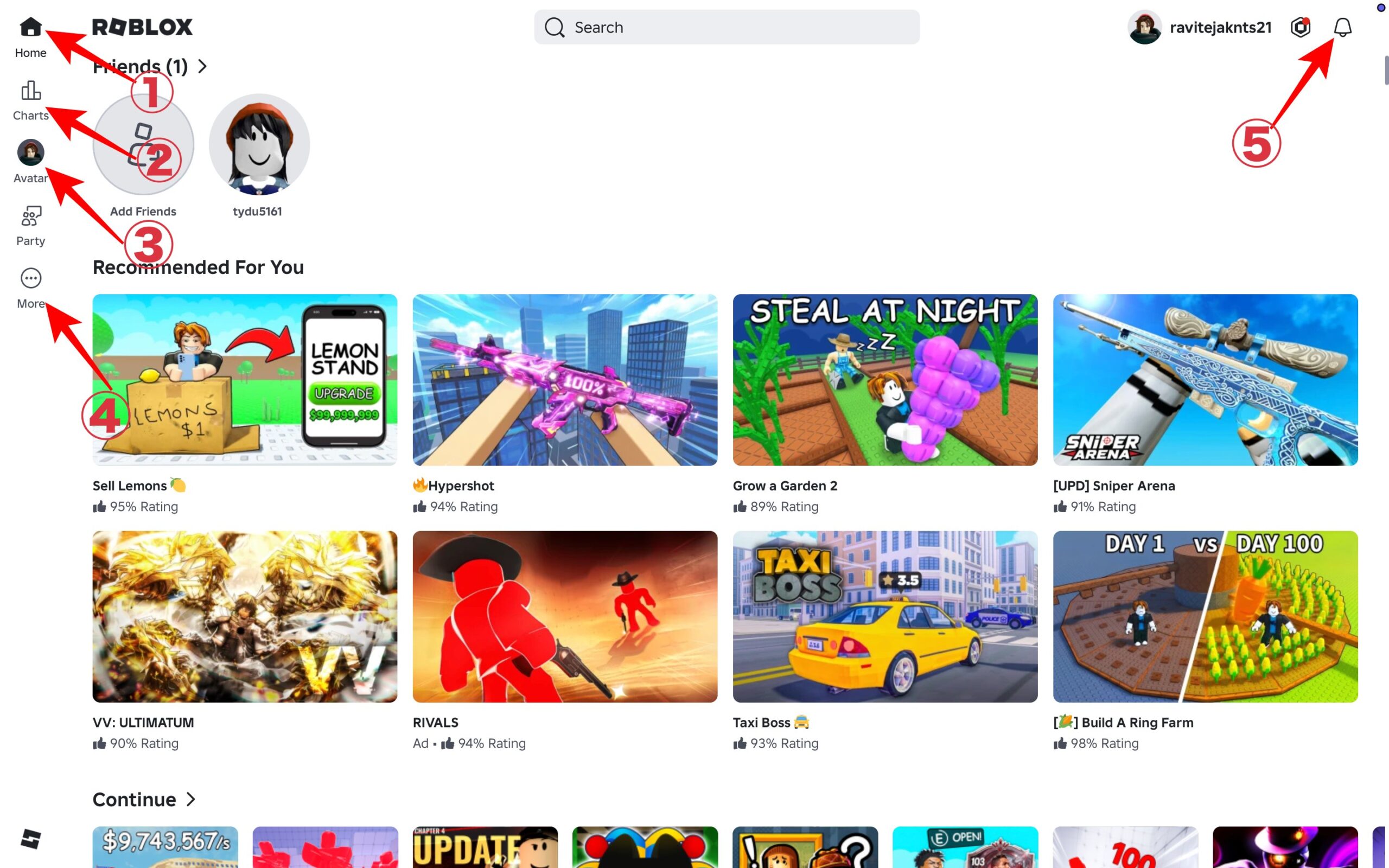
- House (Home): Opens your main Roblox feed with recommendations, friends, and recently played experiences.
- Charts/graph (Charts): Shows popular, trending, and highly rated experiences.
- Avatar/person icon (Avatar): Opens avatar customization so you can change your character’s look.
- Three dots or More icon (More Men): Opens extra sections such as Inventory, Messages, Create, Blog, Gift Cards, Settings, and Help.
- Bell (Notifications): Shows alerts such as friend requests, messages, party invites, and account updates.
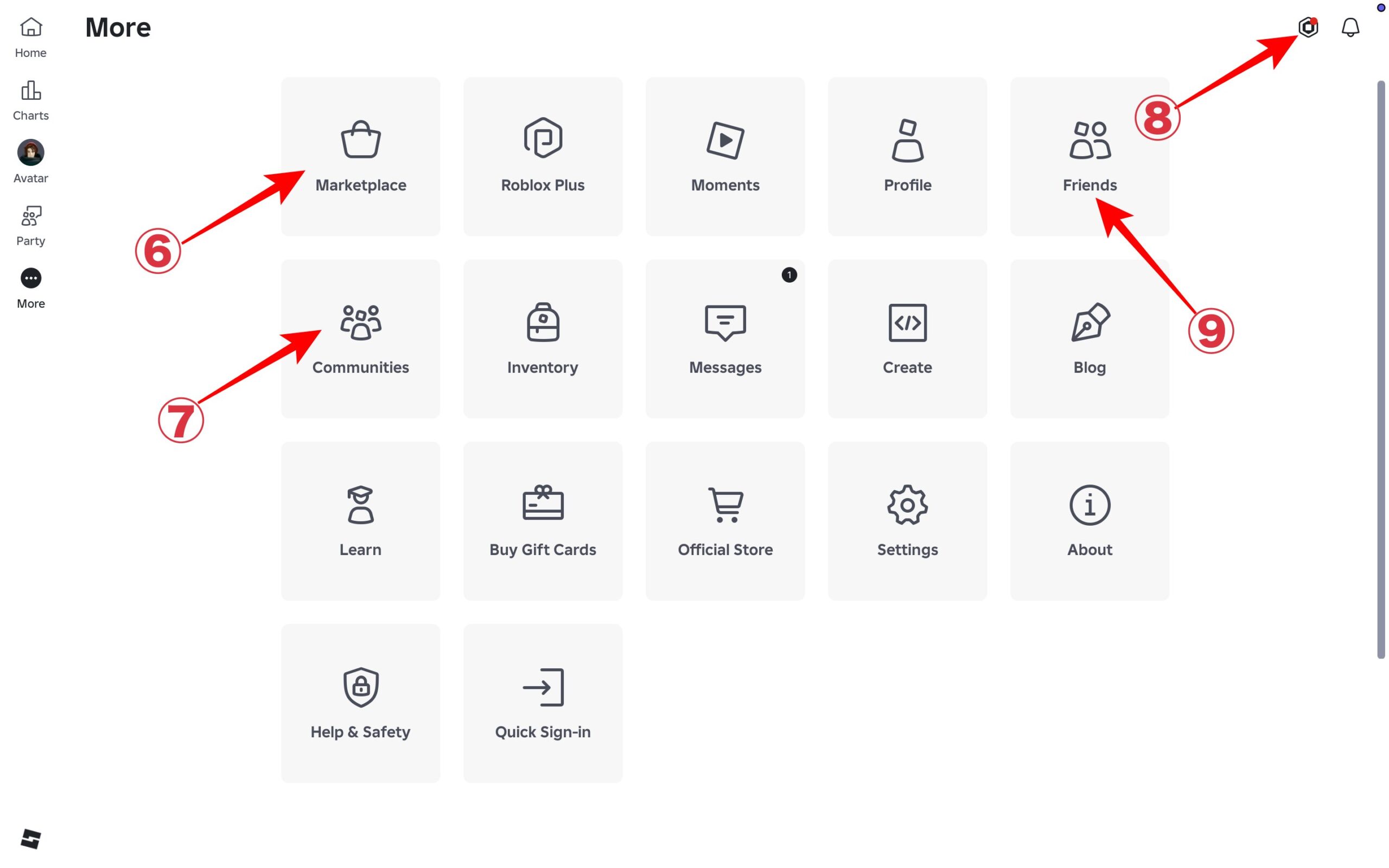
- Shopping bag/store icon (Marketplace): Opens avatar items, clothing, accessories, bundles, and other shop items.
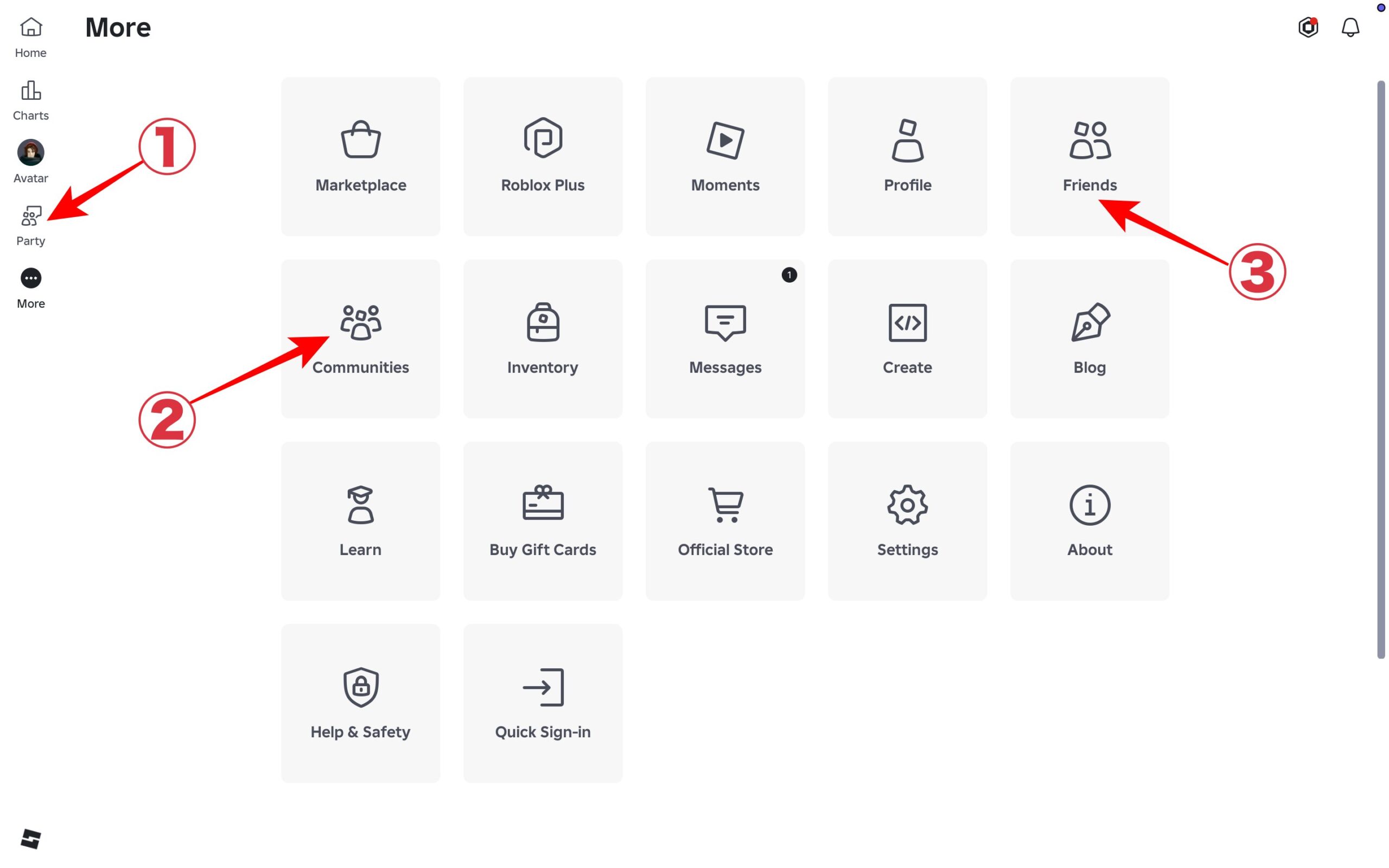
- Three people (Party): Opens Roblox’s social party area for friends and group activity.
- Hexagon Robux icon (Robux): Shows your Robux balance or opens Robux-related pages.
- Player/person count: Shows how many people are playing or how many players a server can hold, depending on where it appears.
Avatar Marketplace icons
Marketplace icons mostly help you filter, preview, and buy avatar items.
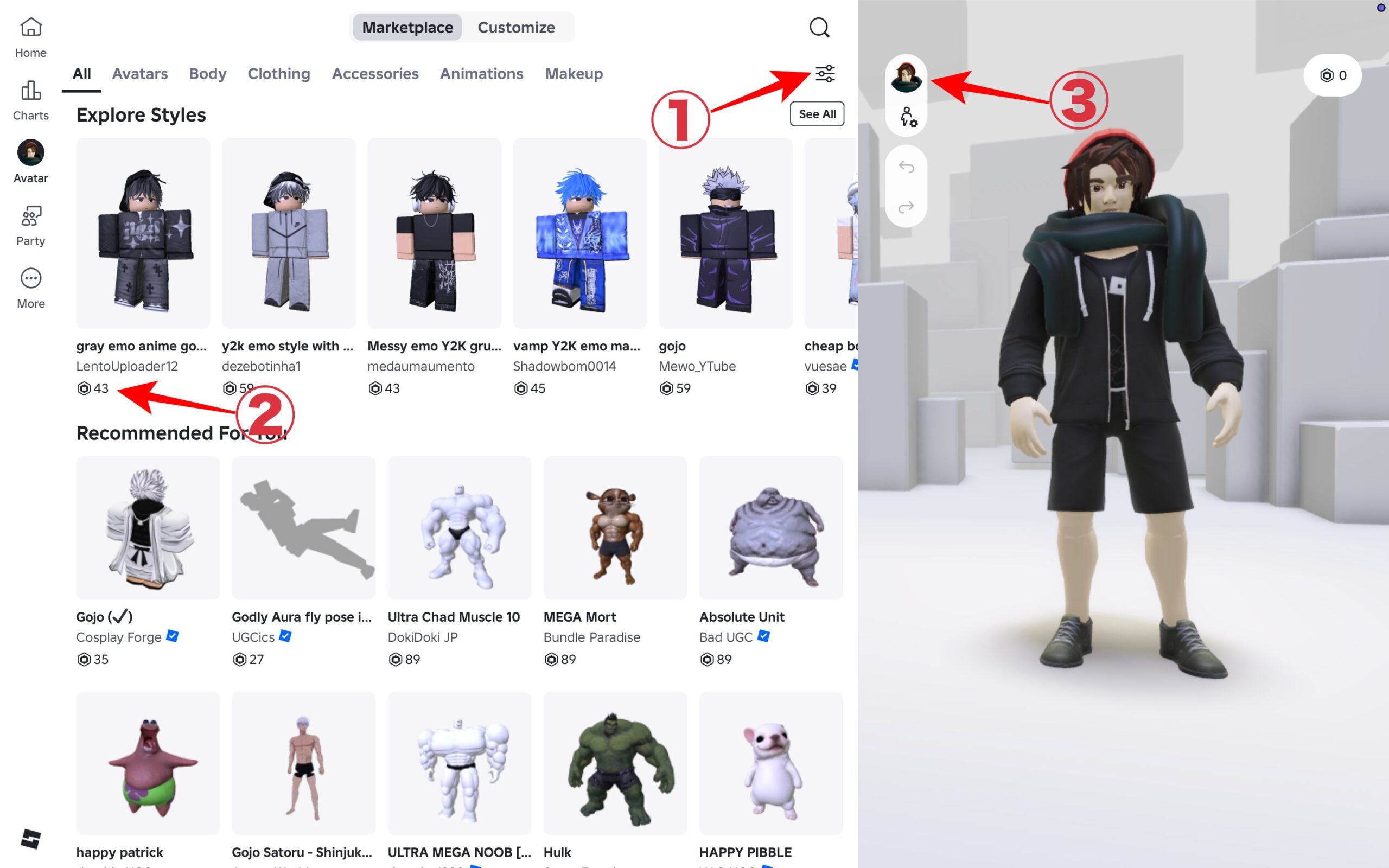
- Three horizontal lines or sliders (Filters): Narrow items by category, creator, price, sale type, or other options.
- Robux icon beside a number (Item price): This is how much Robux the item costs.
- Avatar refinement/preview icon: Opens avatar preview or refinement tools so you can check how an item looks.
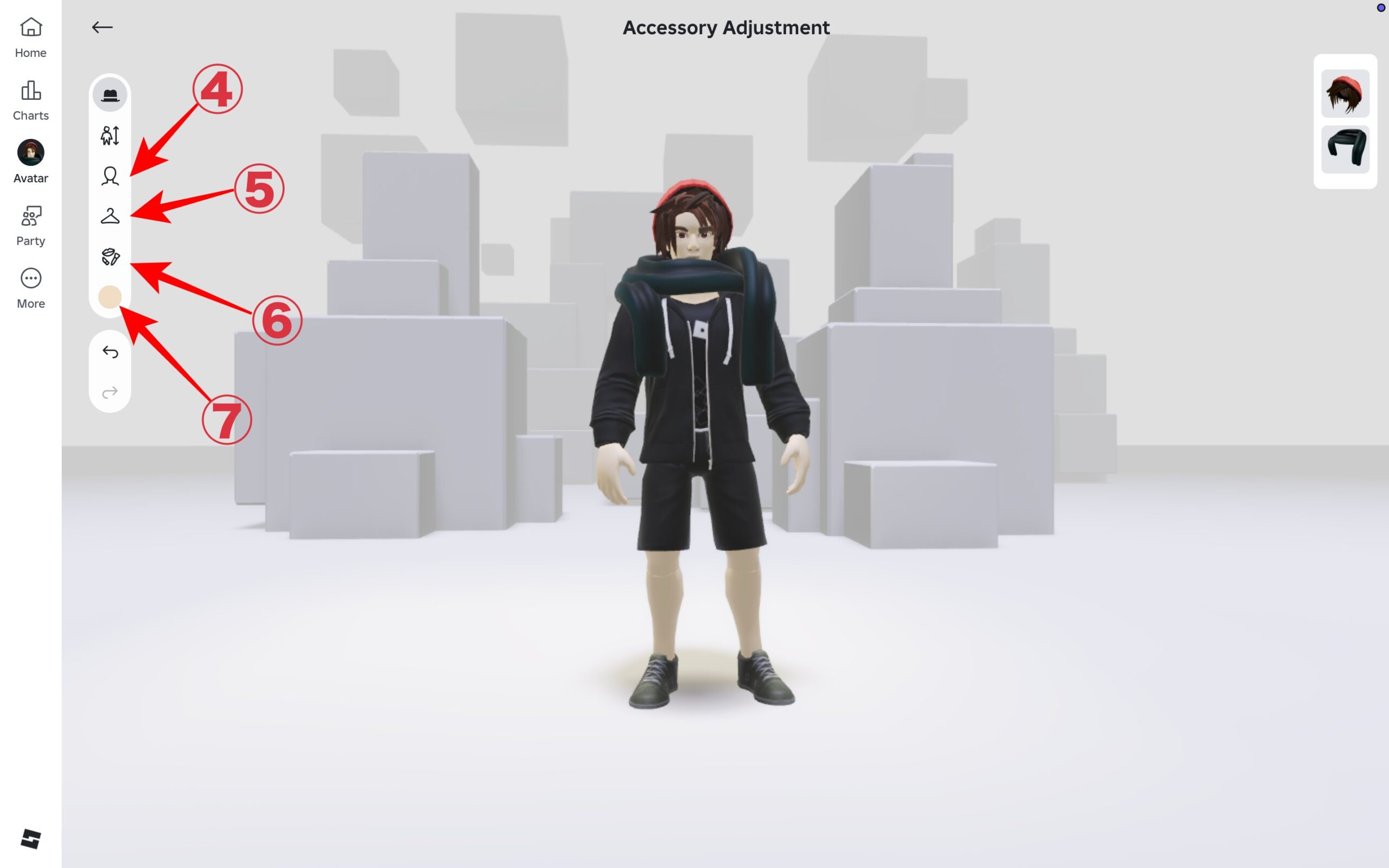
- Head icon: Head-related avatar items or head customization.
- Clothing icon: Clothing categories such as shirts, pants, jackets, and other wearable items.
- Accessory icon: Accessories such as hats, hair, face items, and other add-ons.
- Skin color circle: Skin tone or body color options.
Party icons
The Party area uses social icons for friends, communities, search, invites, and alerts.
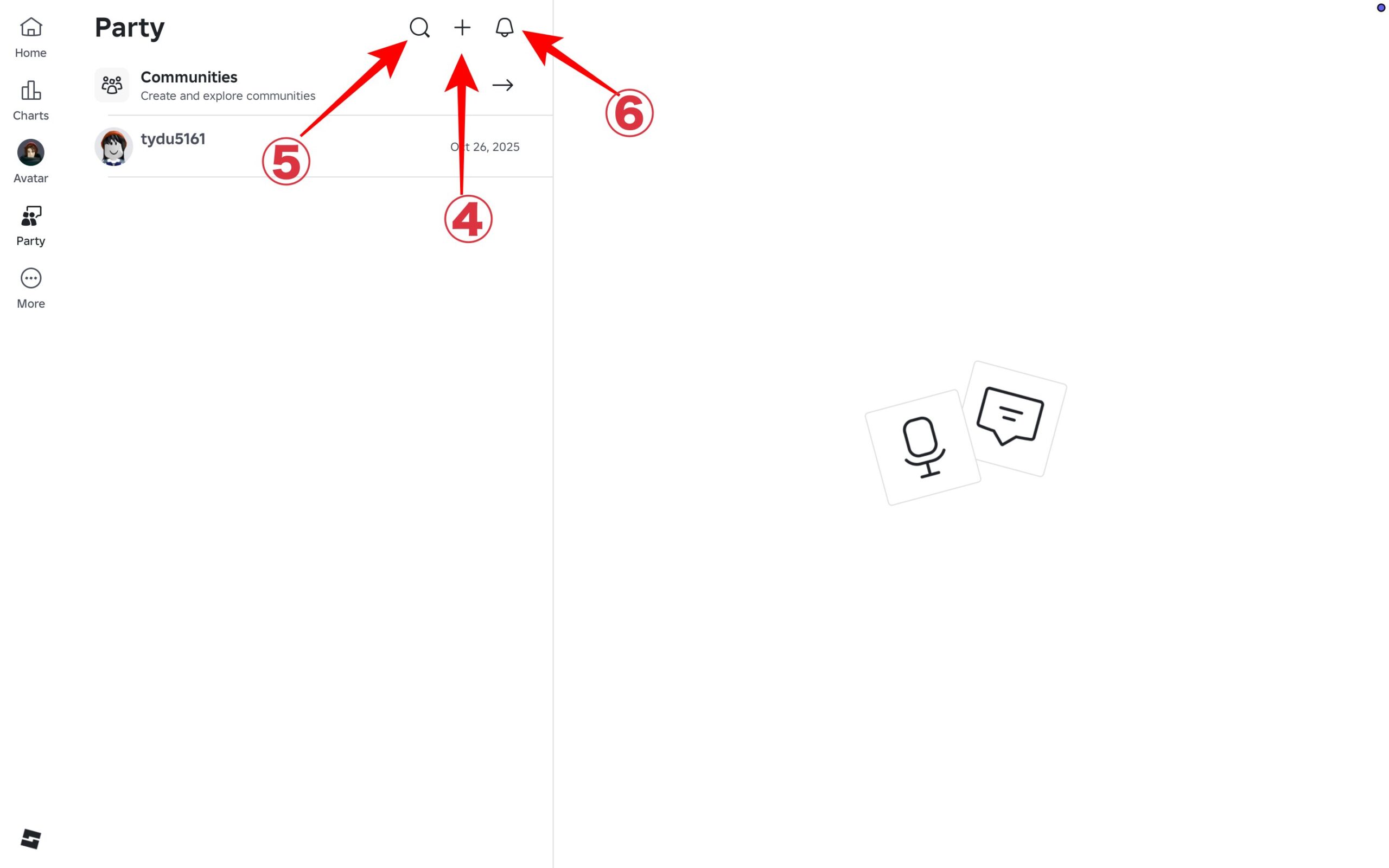
- Two people (Party): Opens or represents the Party/social area.
- Communities icon (Communities): Shows Roblox communities or groups you can join and manage.
- Friends icon (Friends): Shows your friends list and friend-related activity.
- Add friend/person with plus (Add Friends): Helps you find or invite new friends.
- Magnifying glass: Search within friends, users, parties, or communities.
- Bell: Party or social notifications, such as invites and requests.
The More menu collects Roblox sections that do not always fit in the main navigation.
- Premium or membership icon: Some current screens may show Roblox Plus or newer subscription wording instead.
- Backpack/bag (Inventory): Shows avatar items, badges, passes, private servers, and other assets you own.
- Chat bubble/message icon (Messages): Opens private messages and Roblox system messages.
- Create icon (Create): Opens Roblox creation and creator-related tools.
- Blog/news icon (Blog): Opens Roblox news and platform updates.
- Gift card/card icon (Gift Card): Opens gift card purchase or redemption information.
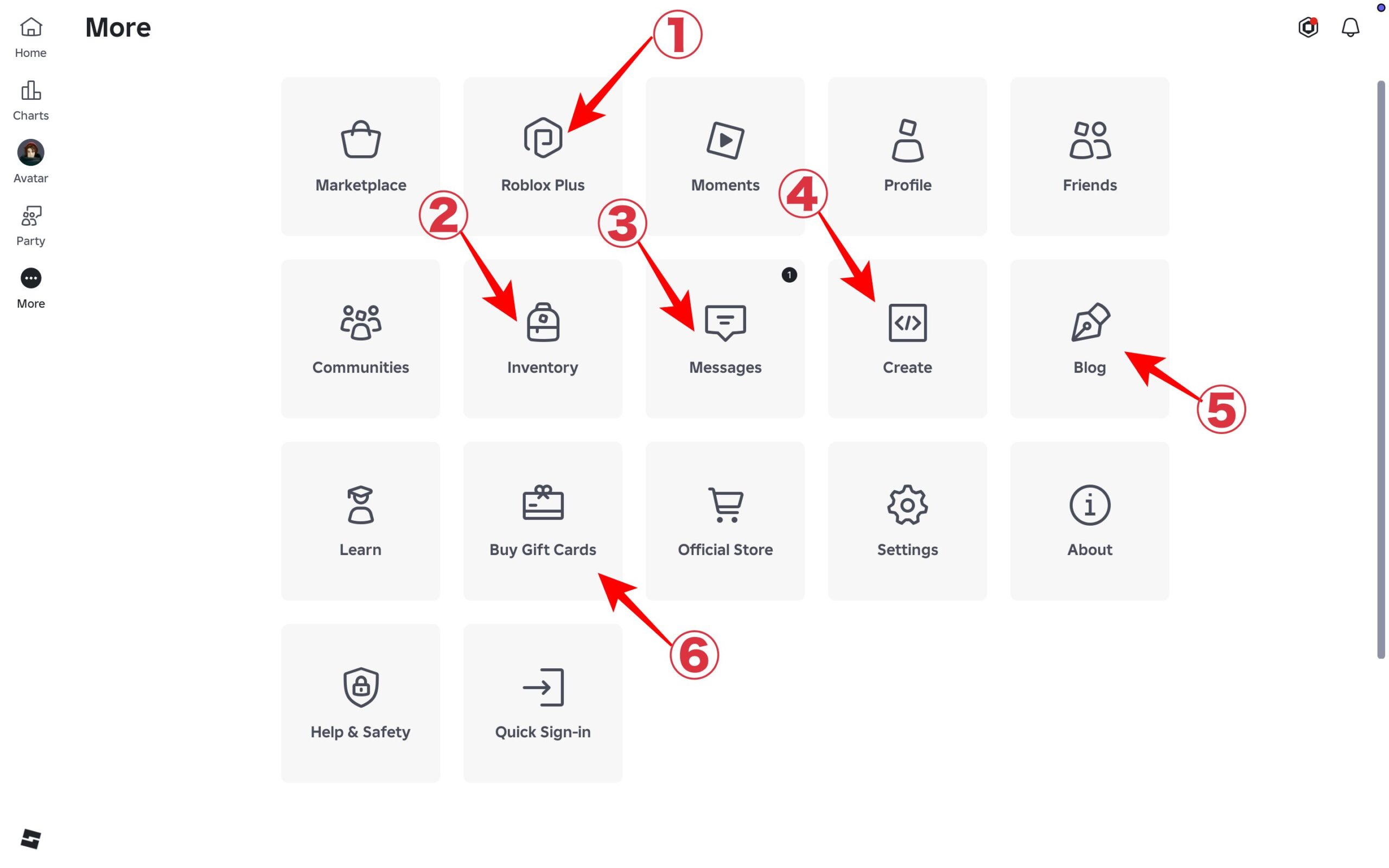
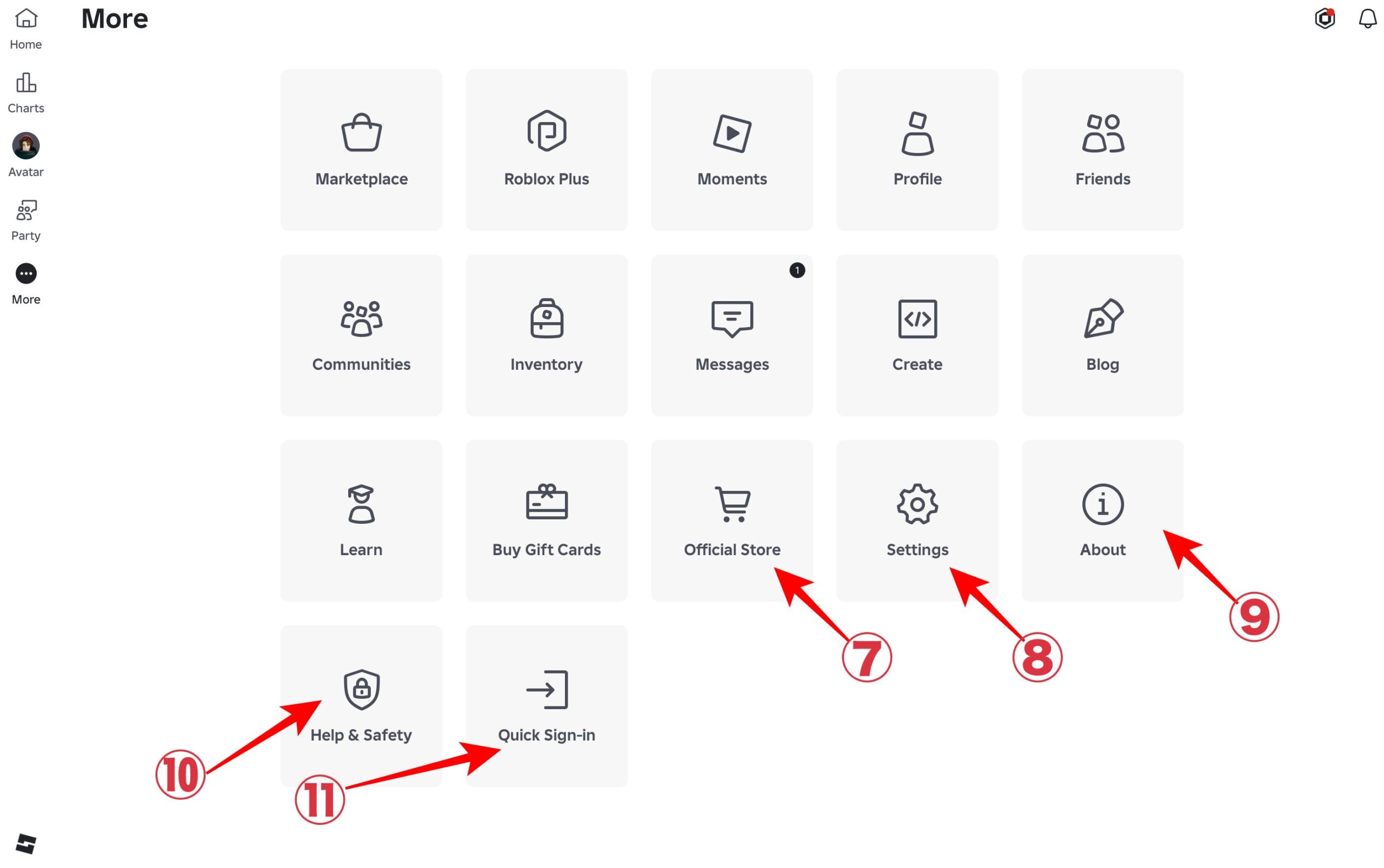
- Storefront/cart icon (Official Store): Opens official Roblox merchandise or store pages.
- Gear/cog (Settings): Opens account, privacy, notification, payment, subscription, and safety settings.
- Circle with “i” (About): Opens Roblox company or platform information.
- Shield or safety icon (Help & Safety): Opens help, safety, reporting, or support options.
- Quick sign-in icon (Quick Sign-In): Helps sign in on another device using Roblox’s quick sign-in flow.
Player list symbols
Player list symbols appear beside names inside Roblox experiences. They usually tell you something about the player, creator, or account status.
- Medallion/crown-style icon (Place owner): Usually marks the creator or owner of that experience.
- Builders Club icon: Legacy Builders Club membership symbol from older Roblox.
- Turbo Builders Club icon: Legacy Turbo Builders Club membership symbol.
- Outrageous Builders Club icon: Legacy Outrageous Builders Club membership symbol.
- Following icon: Shows that you follow that user.
- Video Star icon: Marks a Roblox Video Star or creator-related account.
- Administrator/Roblox icon: Marks an official Roblox administrator when shown in the proper player-list context.
Roblox uses dozens of icons across its menus, Marketplace, Party features, and in-game experiences, and it isn’t always obvious what each one does. Once you know what these symbols represent, navigating the app becomes much easier, whether you’re customizing your avatar, shopping in the Marketplace, joining friends, or exploring new experiences.
Keep in mind that Roblox occasionally updates its interface, so some icons may change over time while others, like the old Builders Club badges, only appear in legacy screenshots or older games.
Did we miss a Roblox icon you’ve been wondering about? Let us know in the comments, and we’ll help explain what it means.
You might also like: