
FaceTime Like a Pro
Get our exclusive Ultimate FaceTime Guide 📚 — absolutely FREE when you sign up for our newsletter below.

FaceTime Like a Pro
Get our exclusive Ultimate FaceTime Guide 📚 — absolutely FREE when you sign up for our newsletter below.


Learn about the icons and symbols on the Apple Watch to make navigating easier and more intuitive.
 ByVikhyat


If you have just bought a new Apple Watch, you will likely notice at least one icon, known or unknown, at the top center of its display. Some appear at the top of the screen, others sit inside the Control Center, and many appear during workouts, charging, or system alerts. While you might already be familiar with a few, some icons can be confusing, especially if you are a new Apple Watch user. Therefore, knowing what each symbol means helps you use your watch with confidence and avoid confusion when unexpected events occur.
To help you out, I’ve prepared this definitive guide on the meanings of all the Apple Watch icons and symbols.
Status icons appear at the top of the Apple Watch screen and give you a quick snapshot of what your watch is doing. They help you understand connectivity, active features, and alerts at a glance before you dive into the detailed meanings.
The Red Dot icon at the top center of your Apple Watch signifies that you have at least one unread notification. To access the notification center, swipe down on your Watch Face or long-press the top edge of the screen, then swipe down if you are within an app.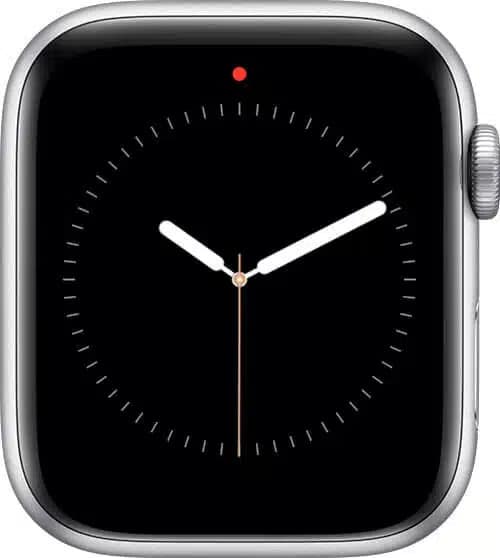
The green lightning or flash icon indicates that your Apple Watch is currently connected to a charger and successfully charging.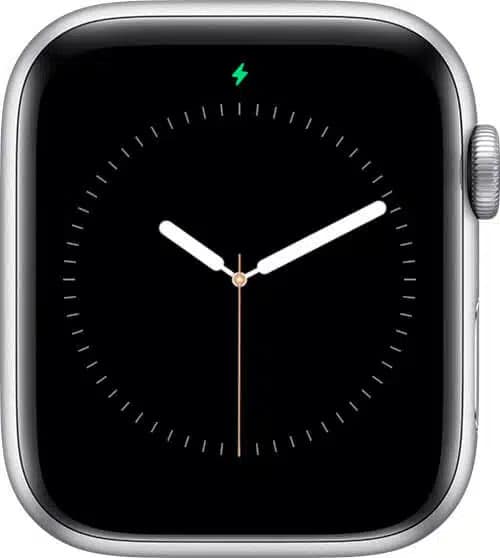
The Red Lightning icon appears when your Apple Watch’s battery is low. To use it again, you must attach it to its charging cradle. The icon usually appears when your Apple Watch battery falls way below the Low Power mode mark, i.e., 10%.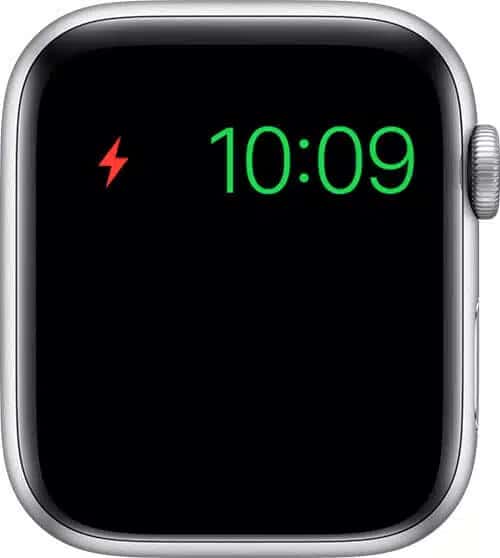
If you notice a Lock icon, it means your Apple Watch is locked with the passcode you set up during initial setup. With wrist detection enabled, the Passcode Lock automatically activates when you remove the Apple Watch from your wrist. Without wrist detection, you’ll need to manually activate the lock from the Control Center.
Simply enter your passcode to unlock your Apple Watch.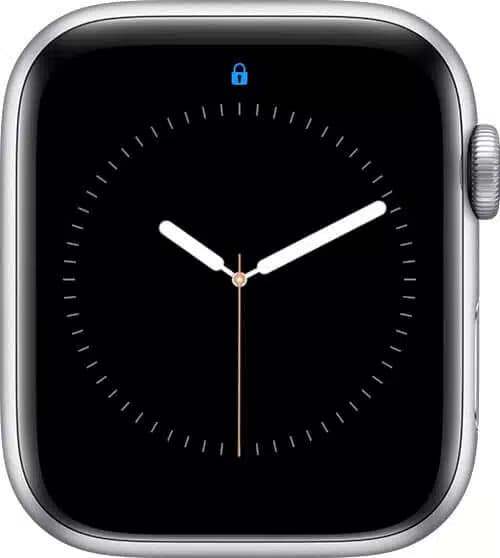
The Water Drop or Water Lock appears when you turn on the Water Lock feature in the Apple Watch’s Control Center. When activated, it prevents your Apple Watch from responding to display touches, helping prevent accidental exposure to water.
To deactivate this feature, simply rotate the Digital Crown until you hear a beeping sound. The beeping sound helps eject the water from the Apple Watch’s speaker.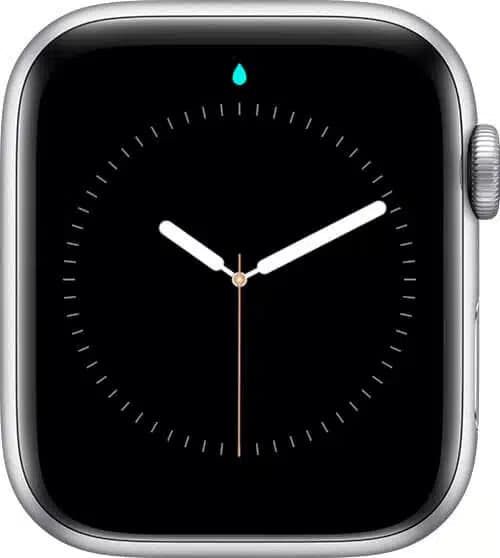
The Crescent Moon appears when you activate Do Not Disturb mode in the Control Center on your Apple Watch or the paired iPhone, if the Share Focus Across Devices setting is on. Once enabled, the Do Not Disturb mode silences all calls and other alerts; however, alarms will still ring.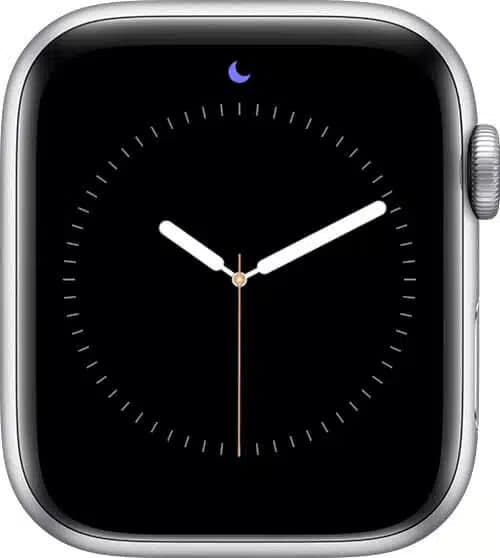
If you see the Airplane icon on your Apple Watch, it means Airplane Mode is active, and all features that require a wireless connection are unavailable.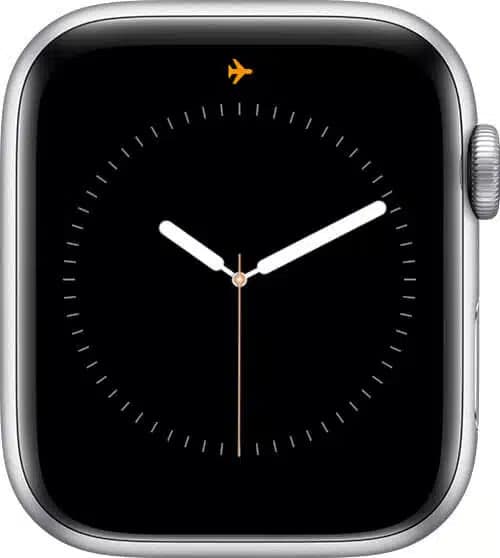
The Dual Face Mask represents Theater Mode, which can be enabled or disabled in the Control Center. As the name suggests, the mode is intended for use in places that require zero distractions. The mode restricts your Apple Watch from lighting up whenever a new notification arrives and also disables the Always-on Display if your Apple Watch supports it.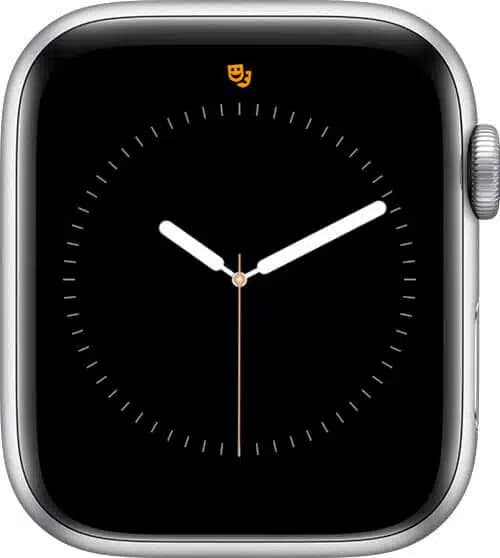
This icon appears when your Apple Watch detects that you are in a workout session, or when you manually start a workout in the Workout app. Tapping the icon takes you to the workout-tracking screen in the Workout app, where you can pause and resume the workout.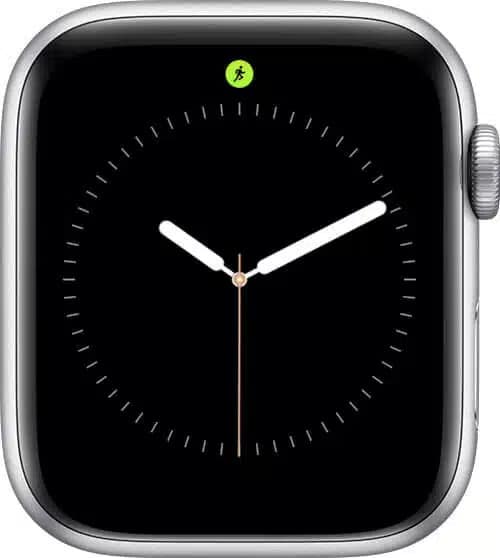
This status icon indicates that your GPS + Cellular Apple Watch has lost its cellular network connection.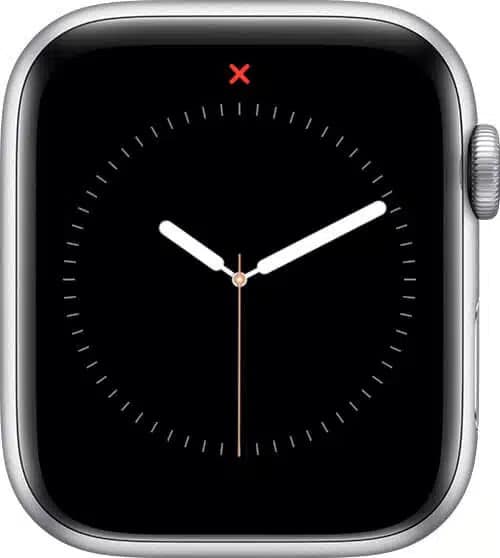
Represented by an iPhone with a slash over it, the iPhone Disconnected icon indicates that your Apple Watch has lost connection to the paired iPhone. To fix the issue, try bringing your Apple Watch and the paired iPhone close together, disabling Airplane mode if it is active, or restarting your Apple Watch.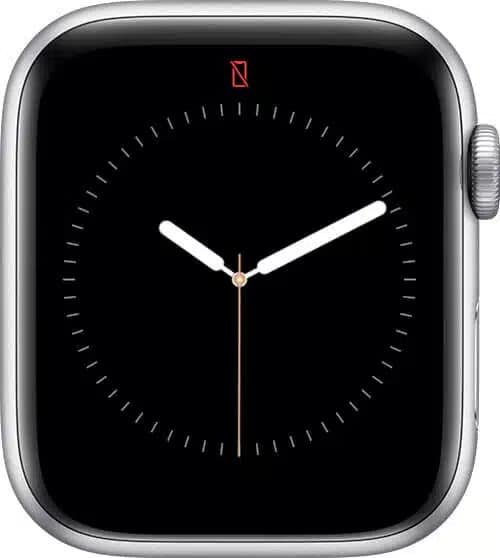
Represented by a green iPhone symbol, this icon appears at the top center of the Control Center whenever the Apple Watch is connected to the paired iPhone.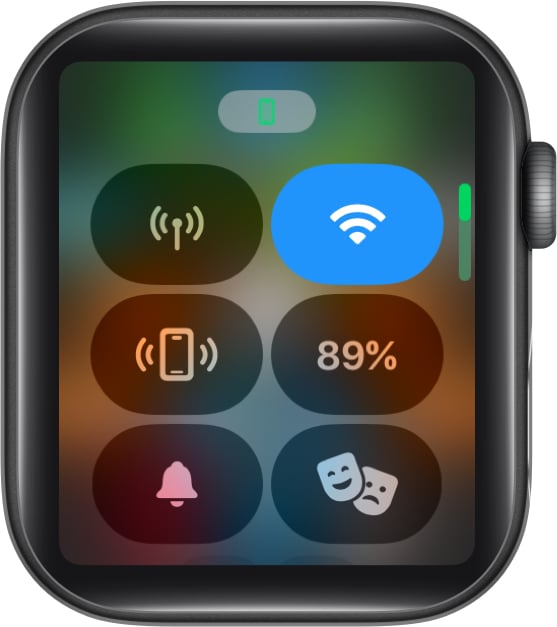
This Apple Watch icon signifies an app or the Watch face that requires location services to display information, such as weather details, or is currently using your location.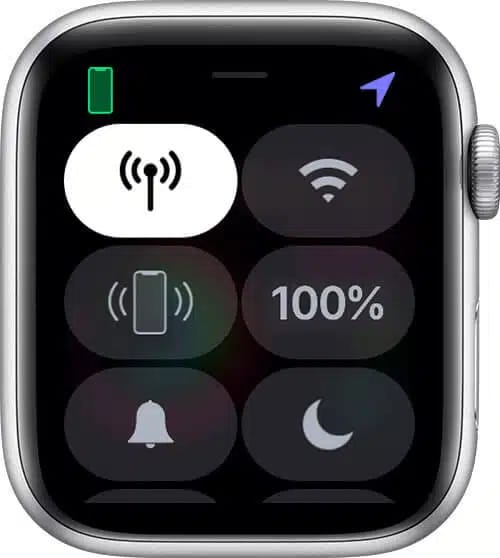
As you can see, the Wi-Fi icon appears when you connect your Apple Watch to a Wi-Fi network.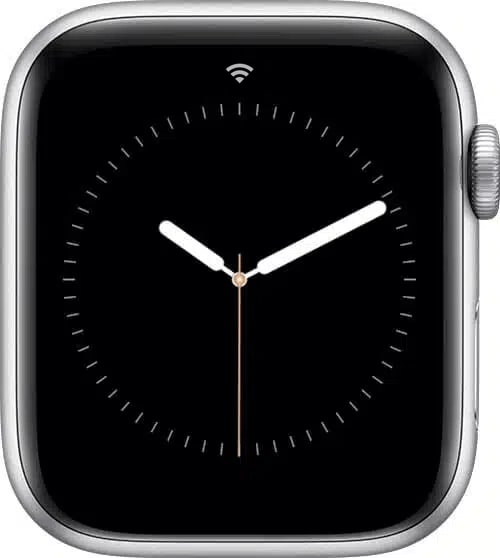
This icon appears when wireless activity is taking place or when an active process is running.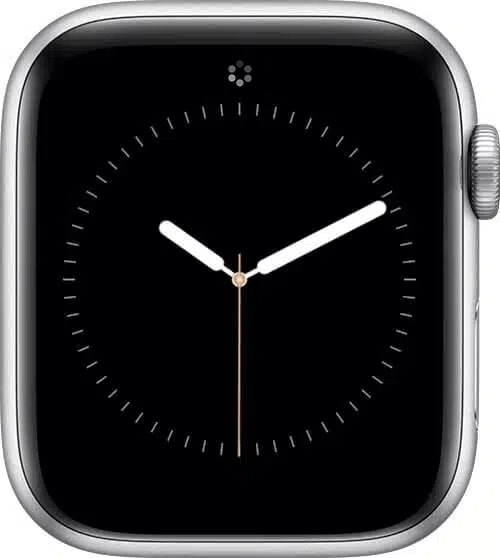
The orange Mic icon appears when an app or service uses the Apple Watch’s mic to listen to external audio. This icon usually pops up when using Siri, recording a voice memo, talking on the walkie-talkie, and more.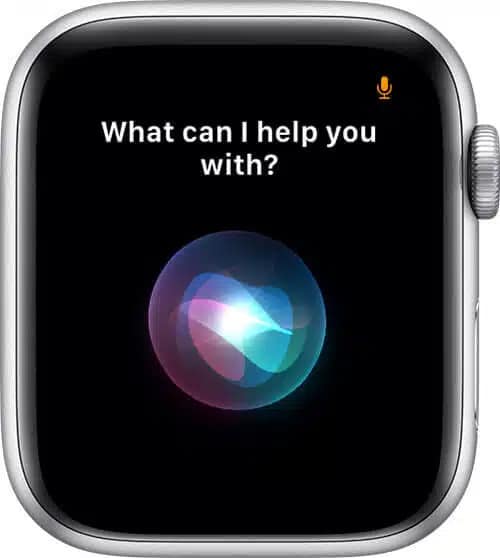
Represented by a stripped play button, the Now Playing icon appears when music is playing on the Apple Watch or the paired iPhone. Tapping the icon takes you to the Now Playing screen, where you can control media playback.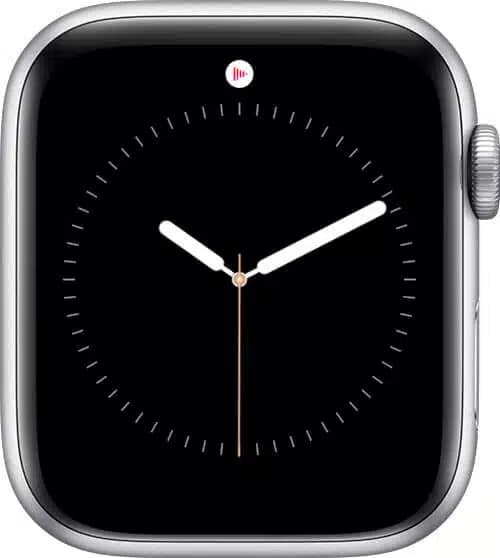
The LTE icon represents the cellular signal strength on your GPS + Cellular Apple Watch model.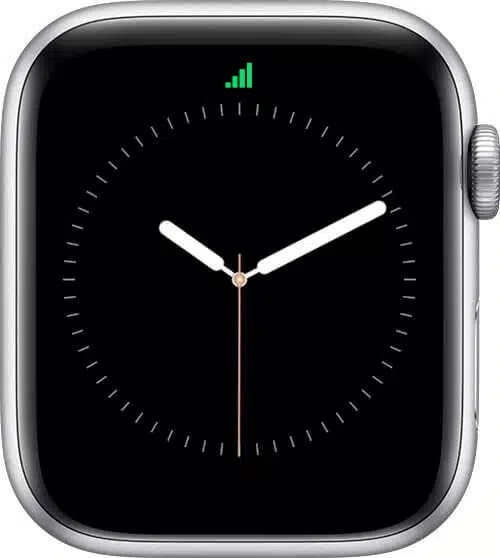
The green phone icon appears when you are on an active call, on either the Apple Watch or the paired iPhone. Tapping the icon will take you to the calling, where you can transfer calls between your iPhone and Apple Watch.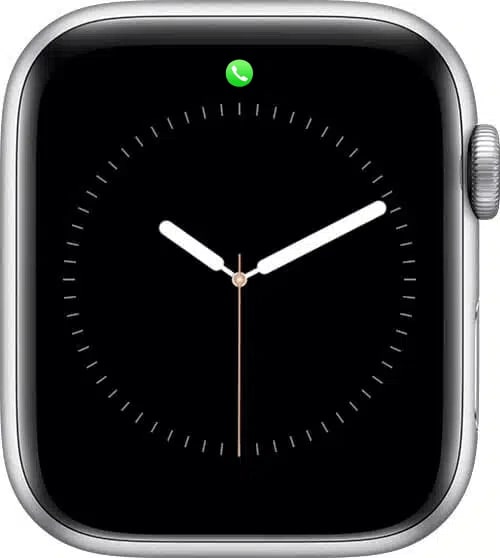
Appears when the Apple Watch is being used to provide directions using the Apple Maps app.
This icon appears when you enable Walkie-Talkie in Apple Watch mode. Once the mode is active, your friends with Apple Watches can contact you via Walkie-Talkie.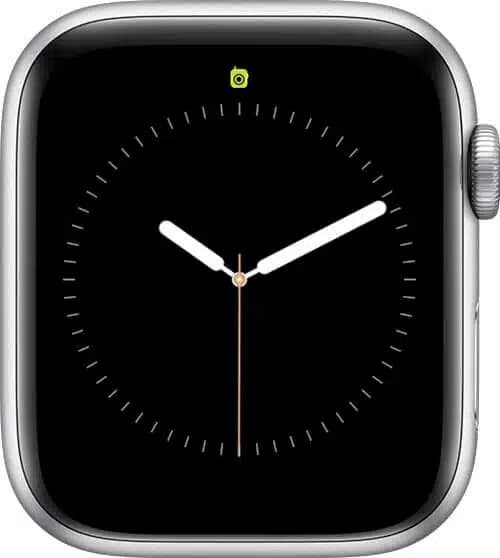
It appears when a third-party app is being used to provide directions on the Apple Watch.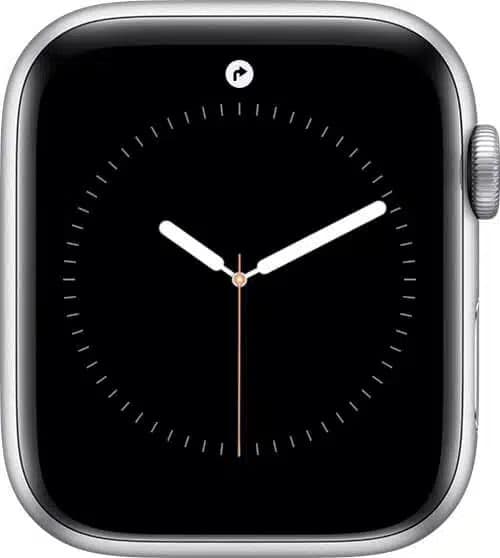
This car appears when you enable Car Focus on the paired iPhone, and the Share Focus Across Devices setting is enabled on it.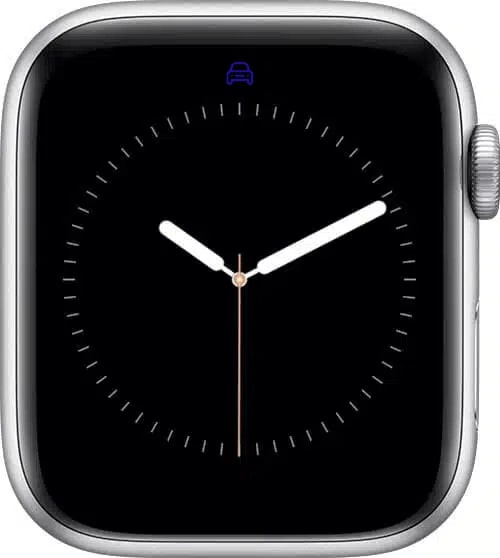
The yellow circle represents the Low Power Mode icon on the Apple Watch, which can be enabled or disabled via the Control Center or the battery settings on the watch.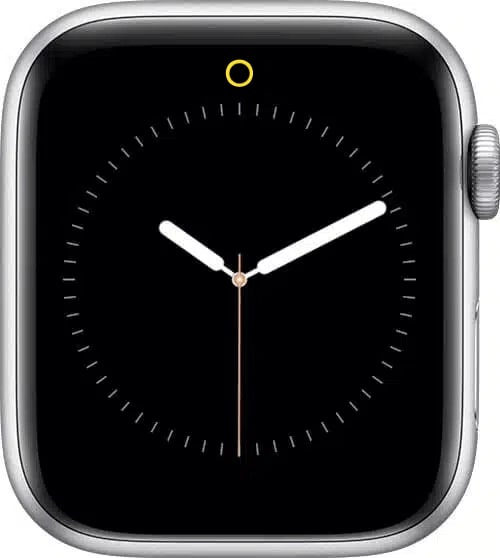
Status icons appear at the top of the Apple Watch screen and give you a quick snapshot of what your watch is doing. They help you understand connectivity, active features, and alerts at a glance before you dive into the detailed meanings.
Tapping this icon enables or disables cellular connectivity on your Apple Watch with eSIM functionality.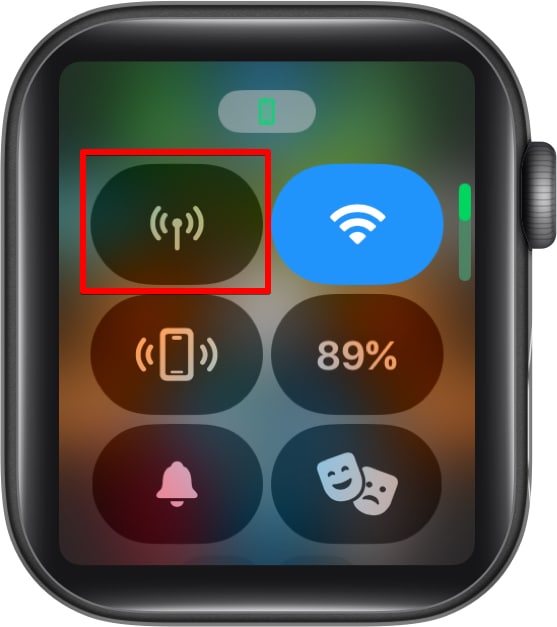
Tapping the Wi-Fi icon toggles through Wi-Fi connectivity on your Apple Watch.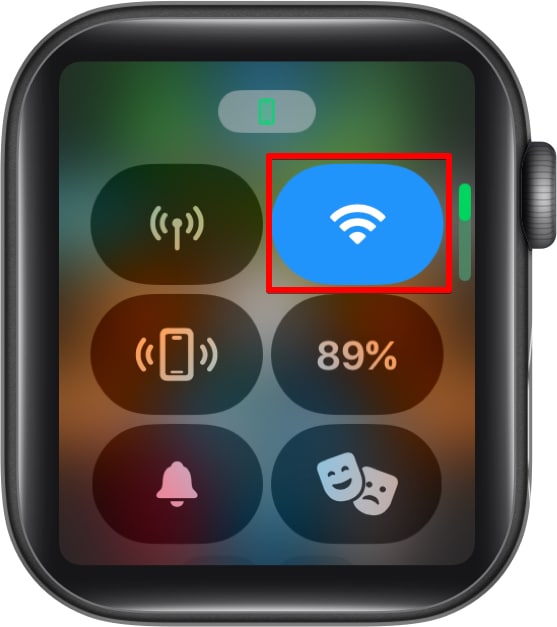
This control center icon helps you quickly locate your misplaced paired iPhone. When you tap this icon, the paired iPhone makes a loud beeping sound, which you can hear to locate the iPhone.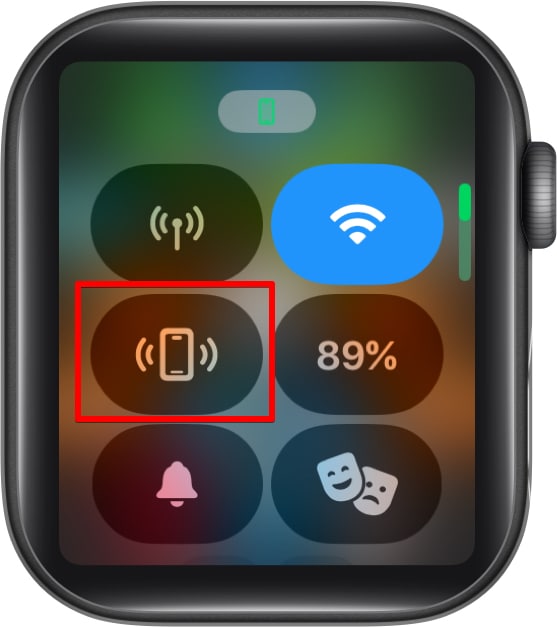
This icon shows the current available battery level on your Apple Watch. Moreover, you can enable low power mode on your Apple Watch by tapping this icon and choosing the appropriate option.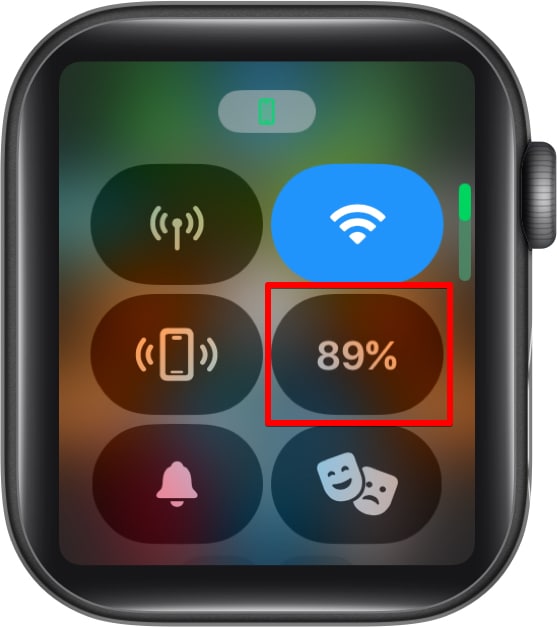
As the name suggests, tapping this icon puts your Apple Watch in Silent Mode. Once enabled, the bell icon will transform into a crossed bell icon and vice versa.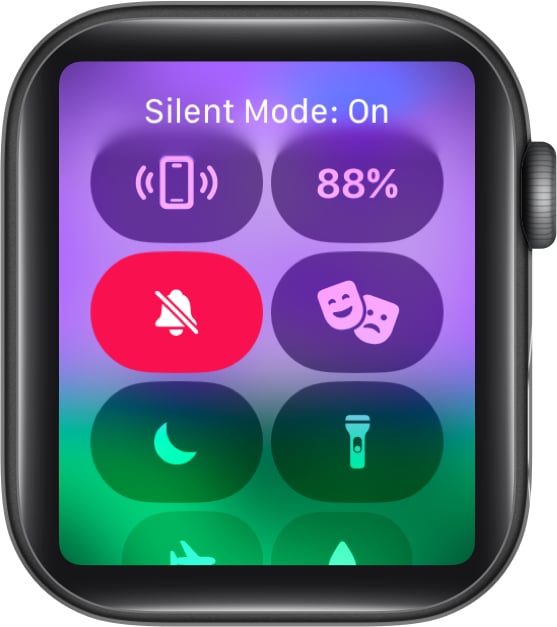
This Control Center button transforms your Apple Watch display into a flashlight. There are three flashlight modes, and you can switch between them by simply swiping across the display.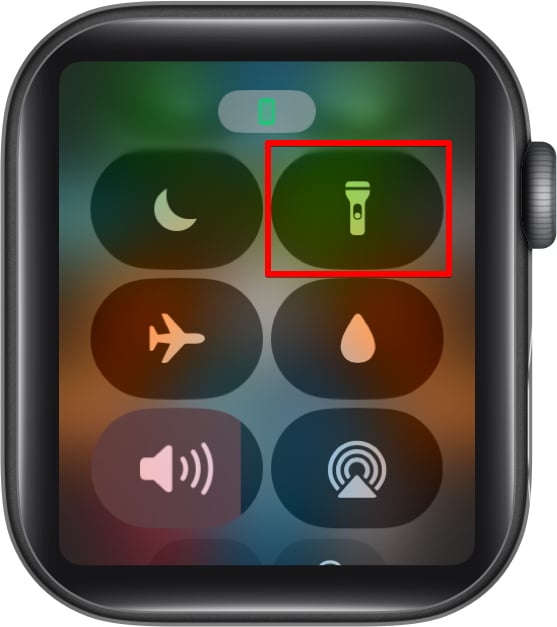
The AirPlay icon in the Control Center lets you choose the audio output device for your Apple Watch.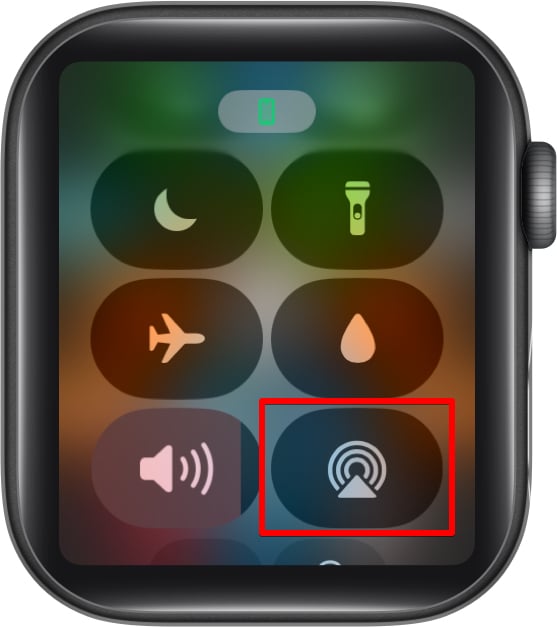
As you might expect, the icon indicates that your Apple Watch is in sleep mode. When in this mode, the display will turn off, and when you tap the screen, the sleep timer will appear. You can set the sleep mode time in the settings app.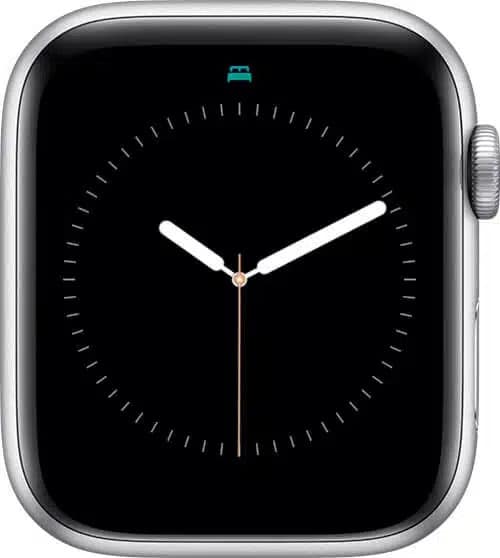
Appears when the Work focus is enabled on your Apple Watch or any of your Apple devices. This Focus is aimed at limiting distractions caused by the Apple Watch during your work hours, and the Work Focus icon appears at the top center and in the Control Center when enabled.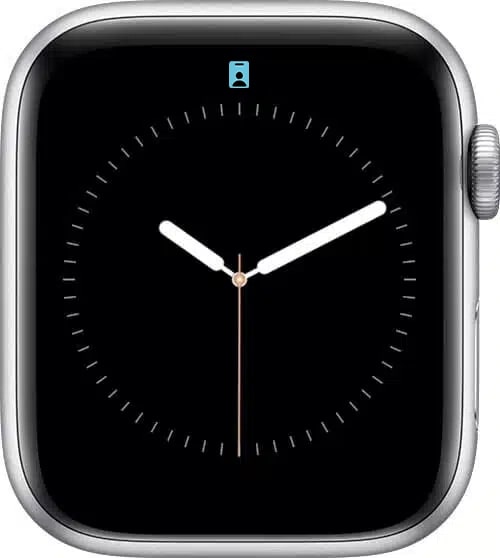
Similar to Work Mode Focus, Personal Focus also appears when enabled on your Apple Watch or other Apple devices. The icon shows up on your Watch Face and in the Control Center.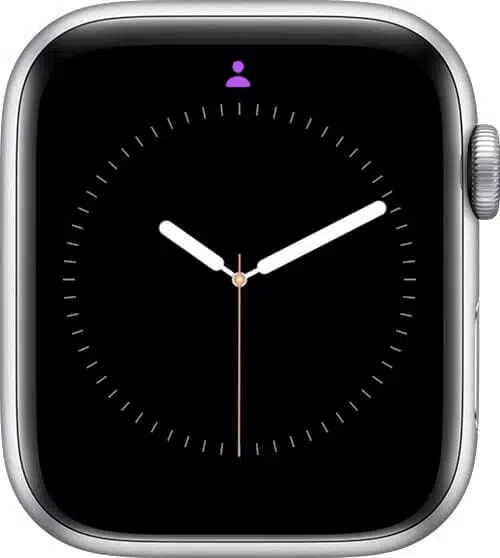
This icon represents the Dynamic Type feature, which lets you choose the text size displayed on your Apple Watch.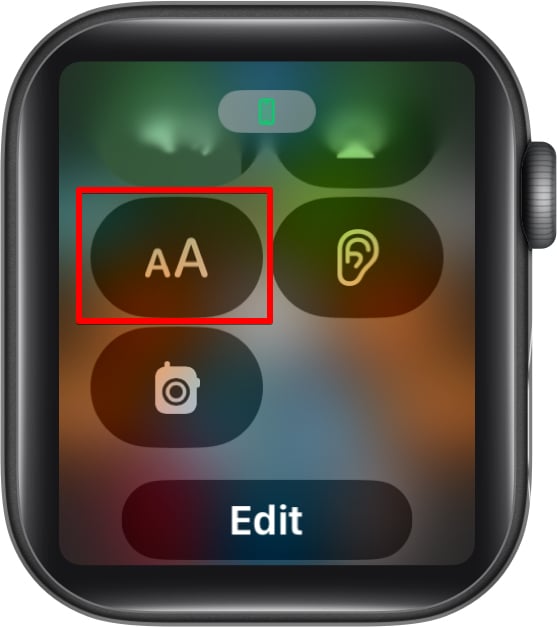
This icon represents the Siri Announce feature, which reads all incoming notifications aloud when the Apple Watch is connected to supported headphones (AirPods or certain Beats models). However, you must allow Siri to announce notifications on the Apple Watch and paired iPhone settings.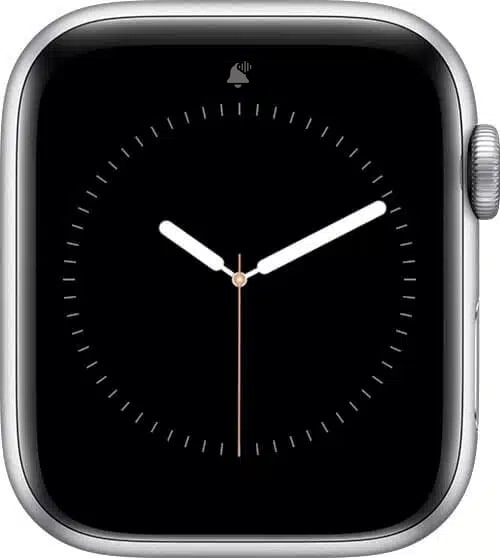
This icon on the Apple Watch indicates the Hearing Devices options that appear when the headphone volume exceeds a certain threshold, which could affect your hearing.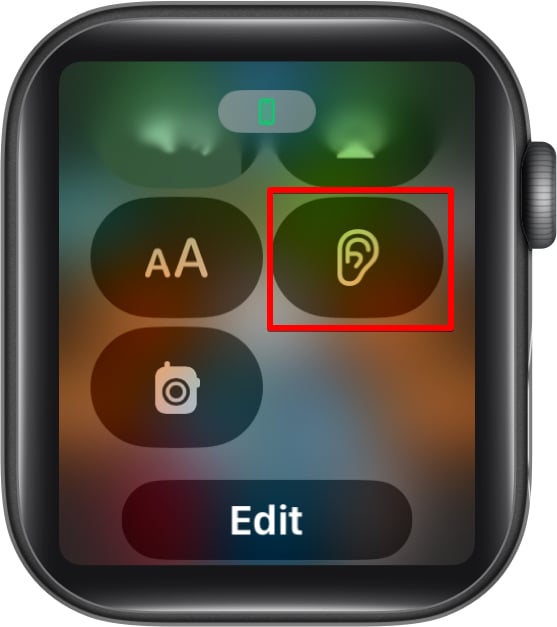
This icon appears when you use the Backtrack feature on the supported Apple Watch models. The feature helps you backtrack your steps and traveled routes in case you are lost.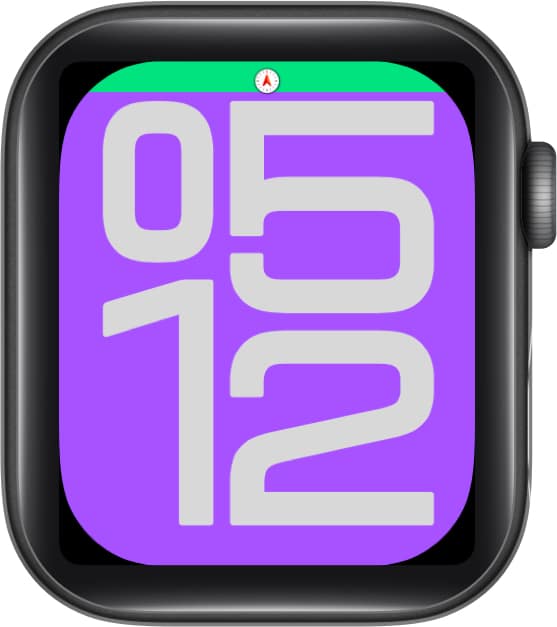
And that’s it; these were all the icons and symbols you might have noticed on your Apple Watch at one point or another. While most icons are self-explanatory, some, like the Location Indicator or Red Dot, can confuse new Apple Watch users. We tried covering almost all the icons and symbols that may appear on your Apple Watch screen. If we missed anything, please let us know in the comments below.
Read More :









