
FaceTime Like a Pro
Get our exclusive Ultimate FaceTime Guide 📚 — absolutely FREE when you sign up for our newsletter below.

FaceTime Like a Pro
Get our exclusive Ultimate FaceTime Guide 📚 — absolutely FREE when you sign up for our newsletter below.


Is your Apple Watch unresponsive or stuck on a black screen? Here are 8 proven fixes to help you unfreeze it and get it working again quickly.
 ByVikhyat


Apple Watch is not just another smartwatch. It delivers a premium experience backed by advanced health tracking, deep iPhone integration, and powerful everyday features, all at a premium price. So when it suddenly becomes unresponsive, the frustration is completely understandable. A frozen screen or delayed response can interrupt workouts, notifications, and essential tasks, making the issue feel more serious than it often is.
If you are dealing with a similar issue, you’re at the right place. This post details how to fix an unresponsive Apple Watch.
To save time and avoid unnecessary troubleshooting, it helps to understand the common factors that can cause your Apple Watch to stop responding. Identifying the possible reason behind the issue can make it easier to apply the right fix quickly:
Before moving on to technical troubleshooting, make sure none of the following factors are interfering with the Apple Watch’s touch responsiveness:
In most cases, an Apple Watch becomes unresponsive due to temporary software bugs or system glitches running in the background. A force restart refreshes watchOS by shutting down all active processes and reloading the system, often restoring normal responsiveness within seconds. Here’s how:
If you have not used your Apple Watch for several days, the battery may have drained completely, making the device appear unresponsive. In such cases, the screen may remain black, and the watch may not react to button presses immediately. To fix this:
However, if nothing happens, try using a different charger, as the issue may be with the charging cable or adapter rather than the Apple Watch itself.
When you use your Apple Watch in extreme conditions or expose it to direct sunlight for an extended period, it may temporarily stop responding if it becomes too warm. This is a built-in safety feature designed to protect the internal components from overheating.
In such a case, remove the watch from your wrist and let it cool for a few minutes. Avoid charging or exposing it to direct sunlight during this time. Once the temperature returns to normal, the watch should function properly again.
Like any other computing device, your Apple Watch can become slow and sluggish when storage space runs low, making it unresponsive at times.
To check available storage on your Apple Watch:
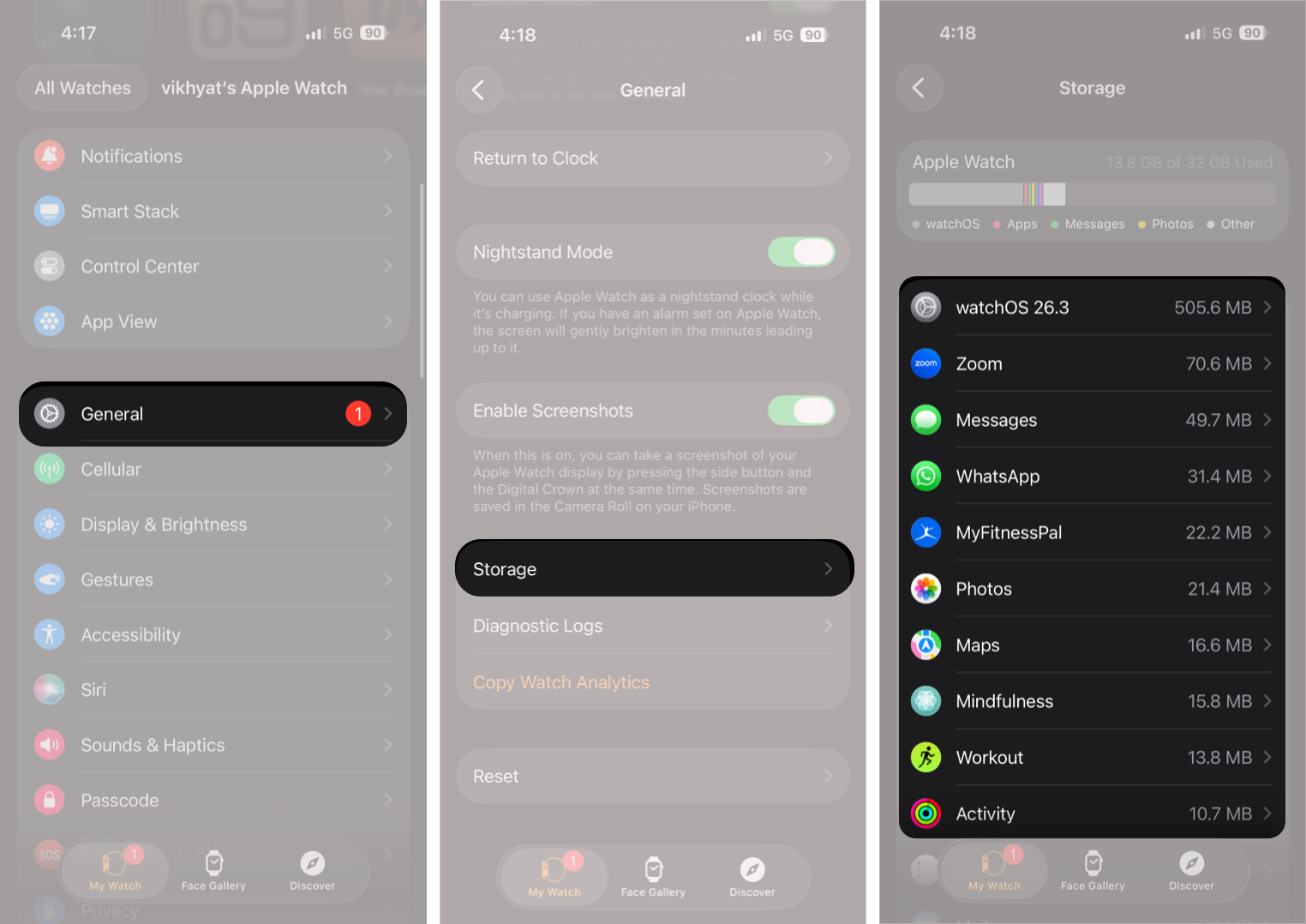
If available storage is low, removing unused apps, music, podcasts, or photos will free up space and improve performance.
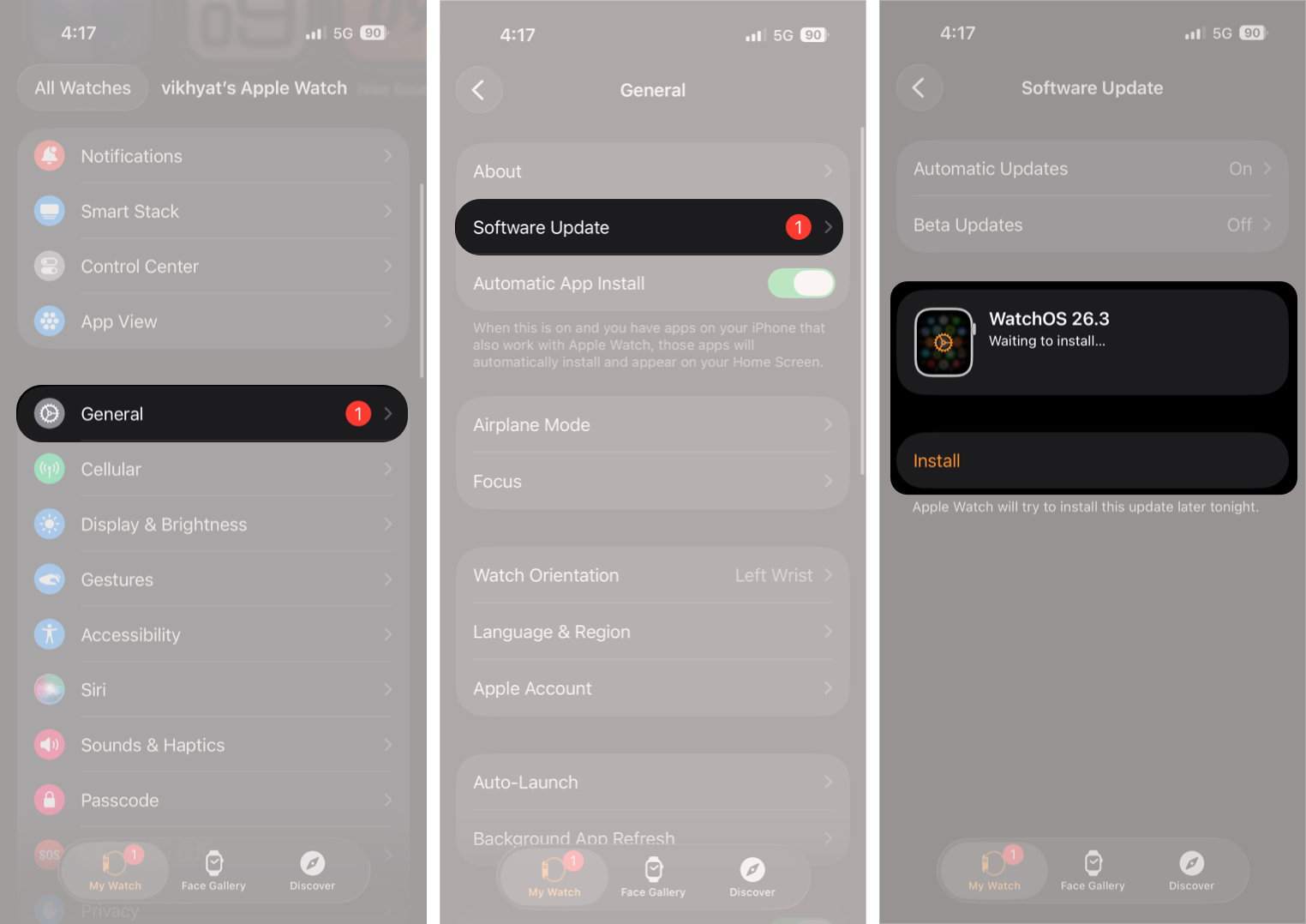
Outdated software can sometimes cause freezing or responsiveness issues. Apple regularly releases watchOS updates that include bug fixes and performance improvements. Here’s how:
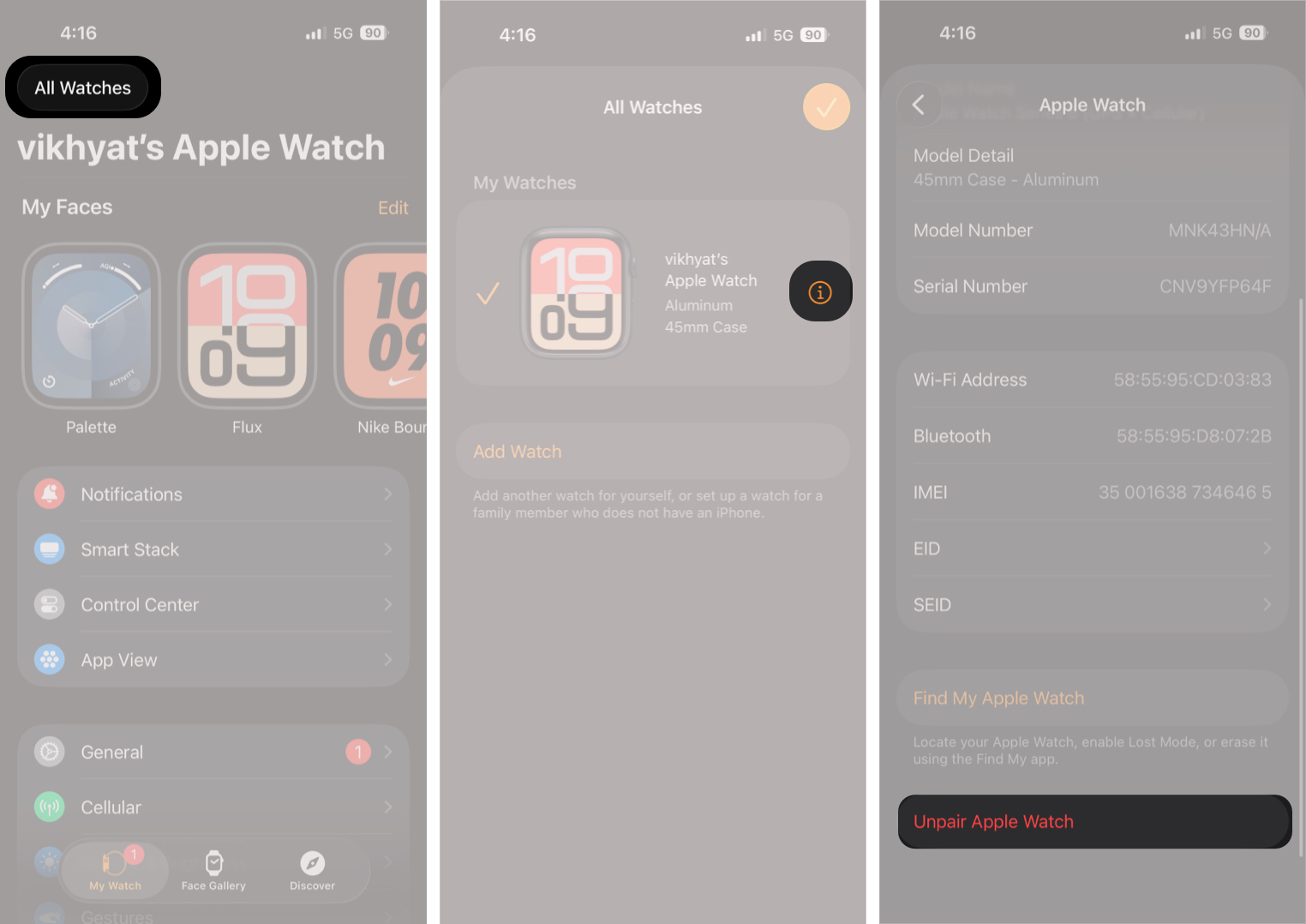
If none of the previous solutions work, unpairing and re-pairing the Apple Watch can resolve deeper software conflicts. Here’s how:
If you’ve already tried everything and the issue persists, the problem may be hardware-related. Problems such as a faulty display, damaged buttons, or a failed battery require professional inspection.
In this case, contact Apple Support or visit an Apple Authorized Service Provider for further assistance.
An unresponsive Apple Watch can be concerning at first, but in most cases, the issue can be resolved with simple troubleshooting steps, provided there is no physical damage. Problems such as temporary software glitches, low battery, overheating, or storage limitations are common and can usually be fixed within minutes.
However, if the issue continues even after a full reset, professional support is the safest next step to ensure your Apple Watch functions reliably again.
Did any of these solutions help fix your Apple Watch? Let us know in the comments and share your experience with other readers.









