
FaceTime Like a Pro
Get our exclusive Ultimate FaceTime Guide 📚 — absolutely FREE when you sign up for our newsletter below.

FaceTime Like a Pro
Get our exclusive Ultimate FaceTime Guide 📚 — absolutely FREE when you sign up for our newsletter below.


Locked out of the App Store? Don't panic—this guide will help you reconnect and get back to downloading in a snap!


Have you ever opened the App Store on your iPhone or iPad, only to be greeted with the frustrating “Cannot Connect to App Store” error? You’re not alone. This issue can appear when you’re trying to download a new app, update your favorites, or even browse the store, and it can be caused by anything from a weak internet connection to a temporary glitch in Apple’s servers.
The good news is, you don’t have to panic. In this guide, we’ll walk you through 14 proven ways to fix the “Cannot Connect to App Store” error and get your App Store working again in minutes.
Before you jump into the fixes, it’s helpful to know what’s really going on behind the scenes. There are a handful of sneaky reasons why you might see the “Cannot Connect to App Store” error pop up.
You don’t always have to go nuclear with your fixes. It’s usually best to start with the easiest, least disruptive solutions and only move on to the bigger stuff if you need to. Here’s how to troubleshoot the smart way:
Before making any changes to your settings or restarting your devices, verify whether the issue originates with Apple. Sometimes service outages or technical issues on Apple’s end can cause disruptions, so checking their system status can save you unnecessary troubleshooting.
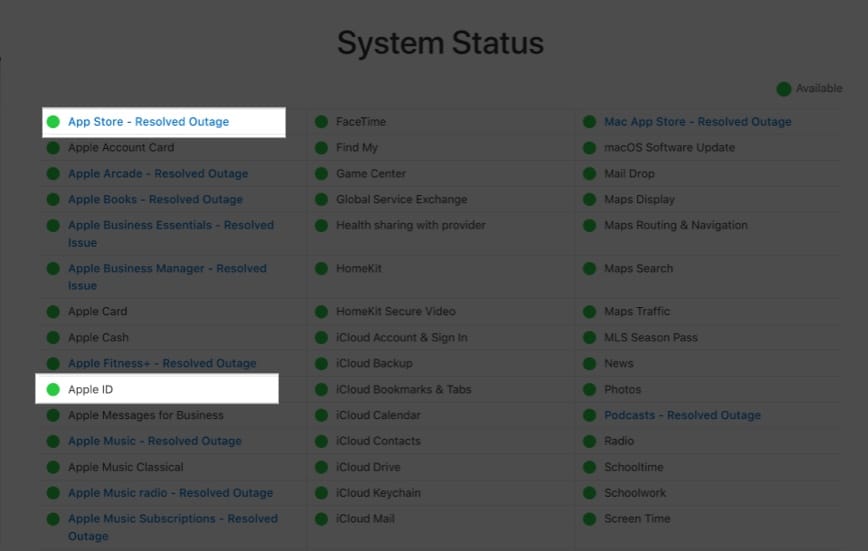
Why This Matters: Apple’s services are robust but not immune to outages. Social media and outage trackers may report problems before Apple’s page updates. Trust your instincts if you see widespread reports.
A stable, unrestricted internet connection is essential for smooth browsing, streaming, and online communication. Here’s how to diagnose like a pro:
Why This Matters: Systematically isolating the problem saves time and avoids unnecessary steps. These advanced checks empower you to fix not just App Store issues, but any network hiccup.
If you see the error message, tap Retry. Sometimes, a quick refresh is all it takes, especially after fixing your internet connection or toggling Airplane Mode.

The App Store requires your permission to access your data connection to download apps, updates, and other content. Allowing this permission ensures that the App Store can function properly and provide you with the latest features and services.
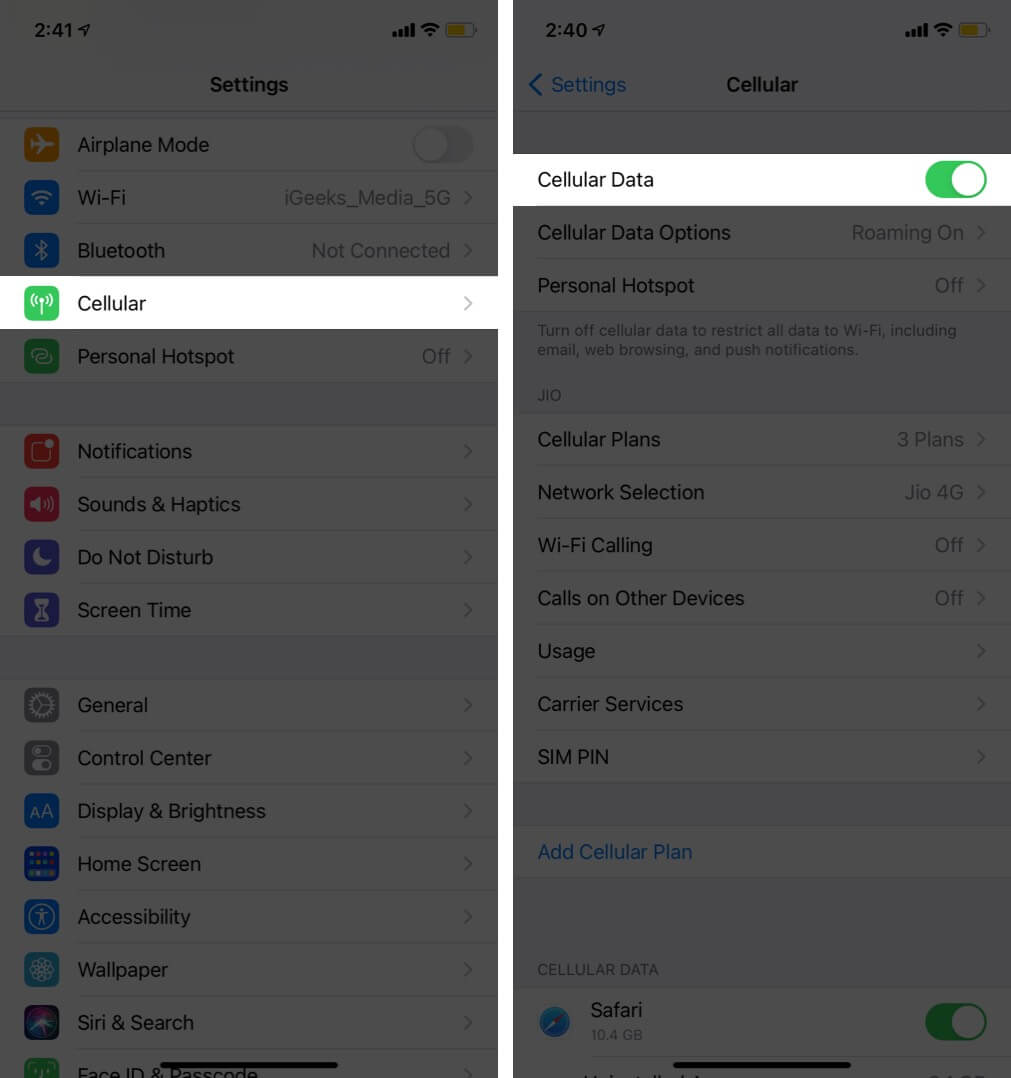
Why This Matters: If this is off, the App Store can’t use your mobile data for downloads or updates.
Temporary glitches, such as software bugs or connection issues, can cause the App Store to crash unexpectedly or freeze, preventing users from browsing or downloading apps until the problem is resolved.
Why Clearing Cache Works
Like many apps, the App Store stores temporary files (also called cache) to help things load faster. But over time, this cache can become outdated or corrupted, slowing things down or causing weird connection errors. Clearing it out gives the App Store a fresh start, so it can grab new data straight from Apple’s servers.
How to Clear the App Store Cache
What to Expect: After clearing the cache, the App Store may reload content and feel snappier. No apps, purchases, or account info will be lost.
When to Use: If the App Store seems slow or stuck, or displays outdated information, this simple trick can refresh it and often resolves connection issues that don’t respond to restarts.
Myth Busting: Clearing the cache does not delete your apps, purchases, or personal data. The lack of a confirmation message is normal.
A standard restart of your iPhone often clears minor device glitches by shutting down all running processes and refreshing the system, resolving temporary issues and improving overall device performance.
VPNs often reroute your IP address to servers in different locations. This process can create a mismatch between your actual location and the one detected by Apple’s regional verification system. As a result, you may experience issues accessing the App Store, such as being unable to download certain apps or encountering errors due to these regional conflicts.
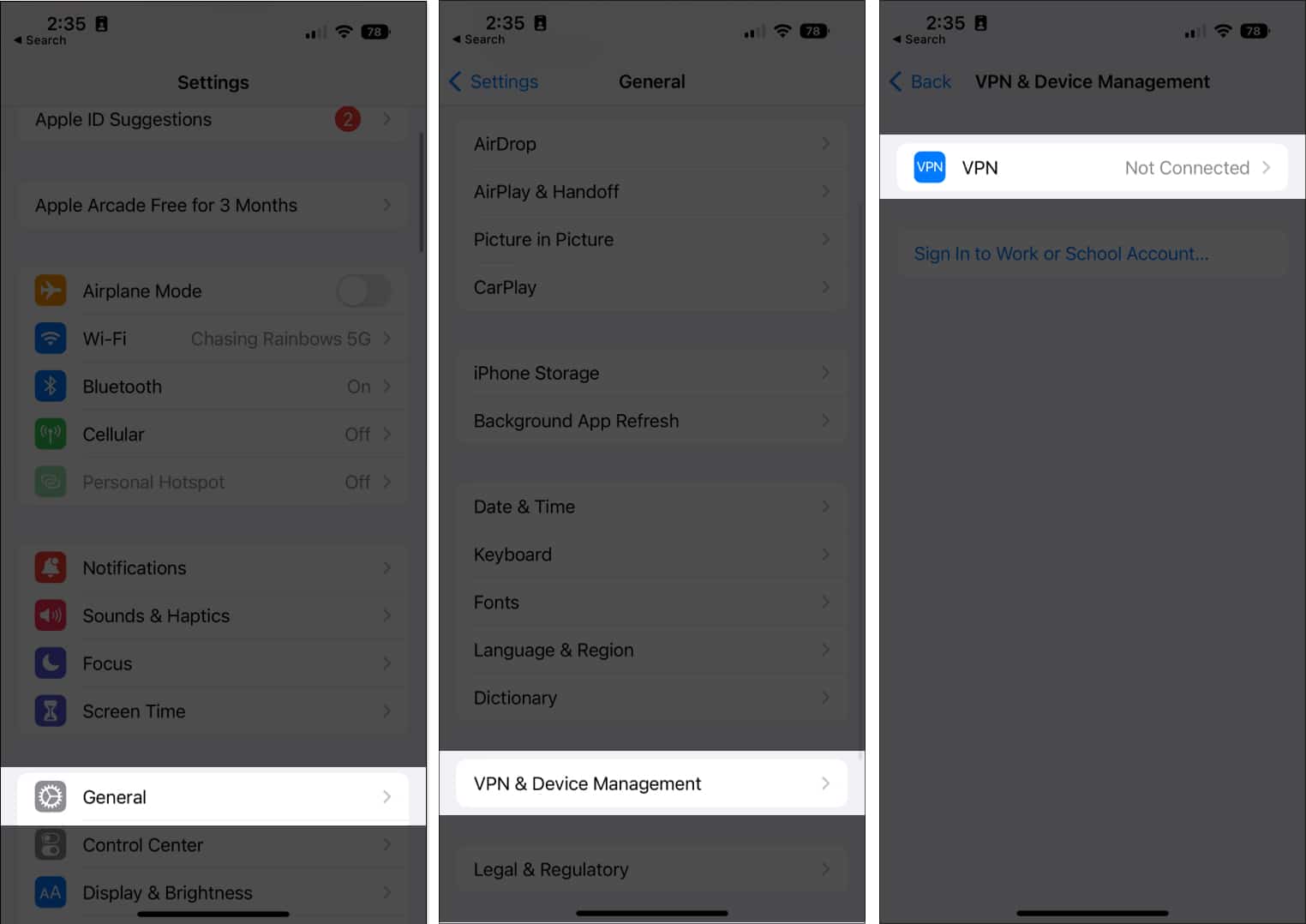
Extra Insight: Security apps, firewalls, or device management profiles can also restrict access. Disable them if possible.
Apple’s servers utilize your device’s date, time, and location information to verify your identity. This process helps ensure that only authorized users can access certain services and maintains secure, region-specific access to Apple’s features and content. By verifying these details, Apple can provide a safer, more personalized user experience.
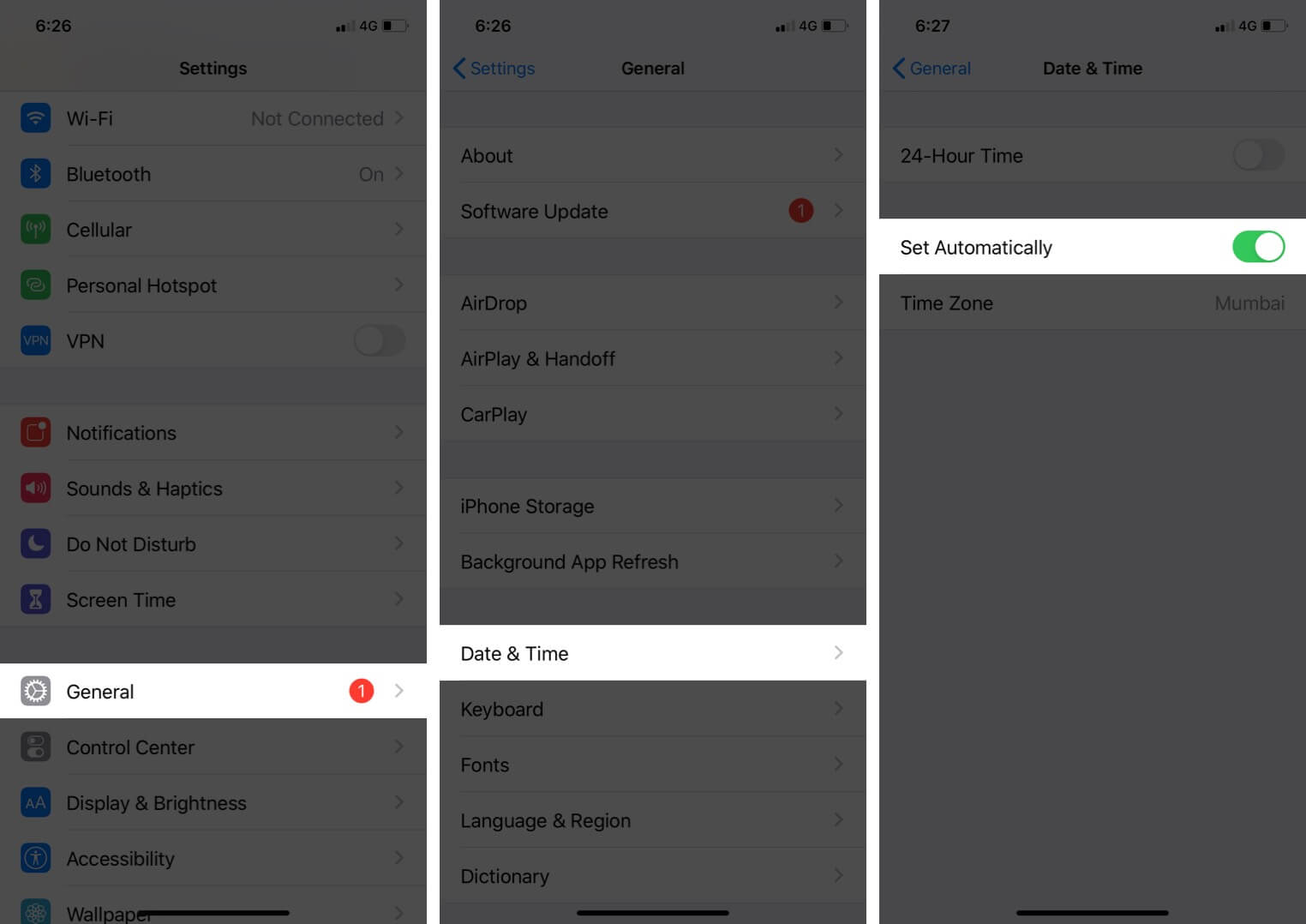
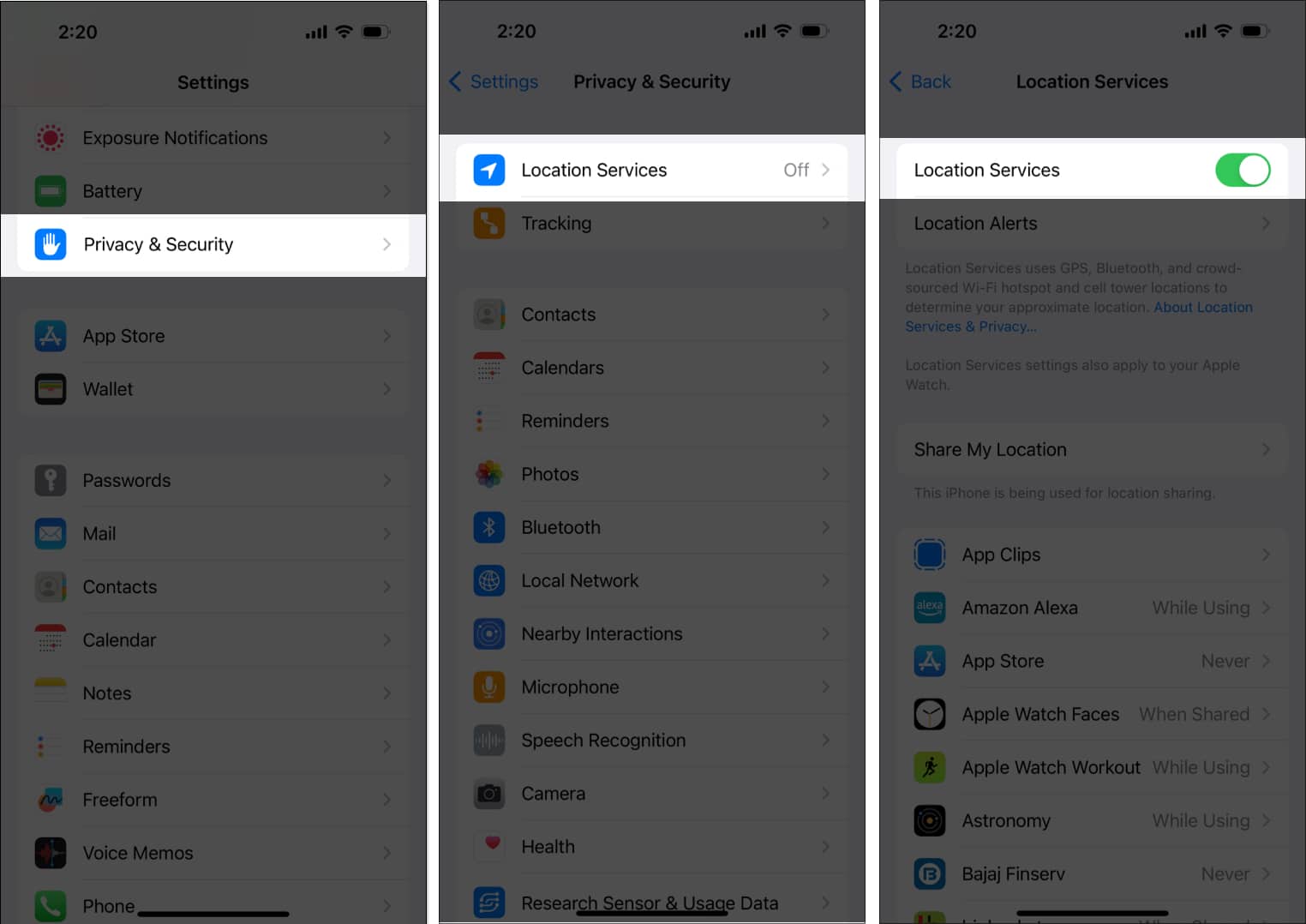
Advanced: Rarely, custom regional settings (like 24-hour time or non-Gregorian calendars) can cause issues. Reset to default if needed.
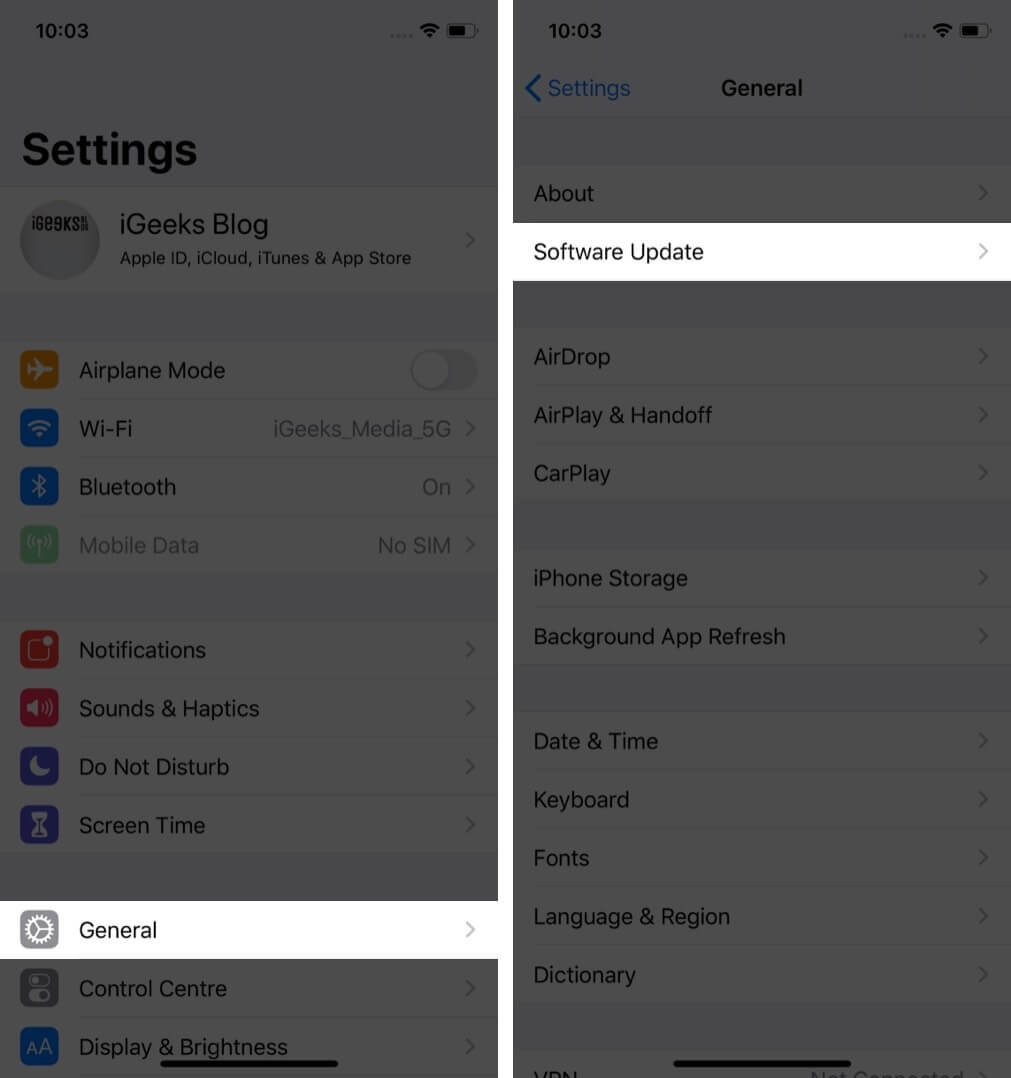
Outdated software can cause bugs and compatibility issues, such as unexpected errors, security vulnerabilities, and difficulties working with newer hardware or other updated programs.
Why Signing Out/In Works
Sometimes, the problem isn’t with your device or your internet connection. It’s your Apple ID session acting up. If there are authentication hiccups, expired logins, or other account issues, simply signing out and back in can give your device a clean, secure connection to Apple’s servers.
How to Sign Out and In
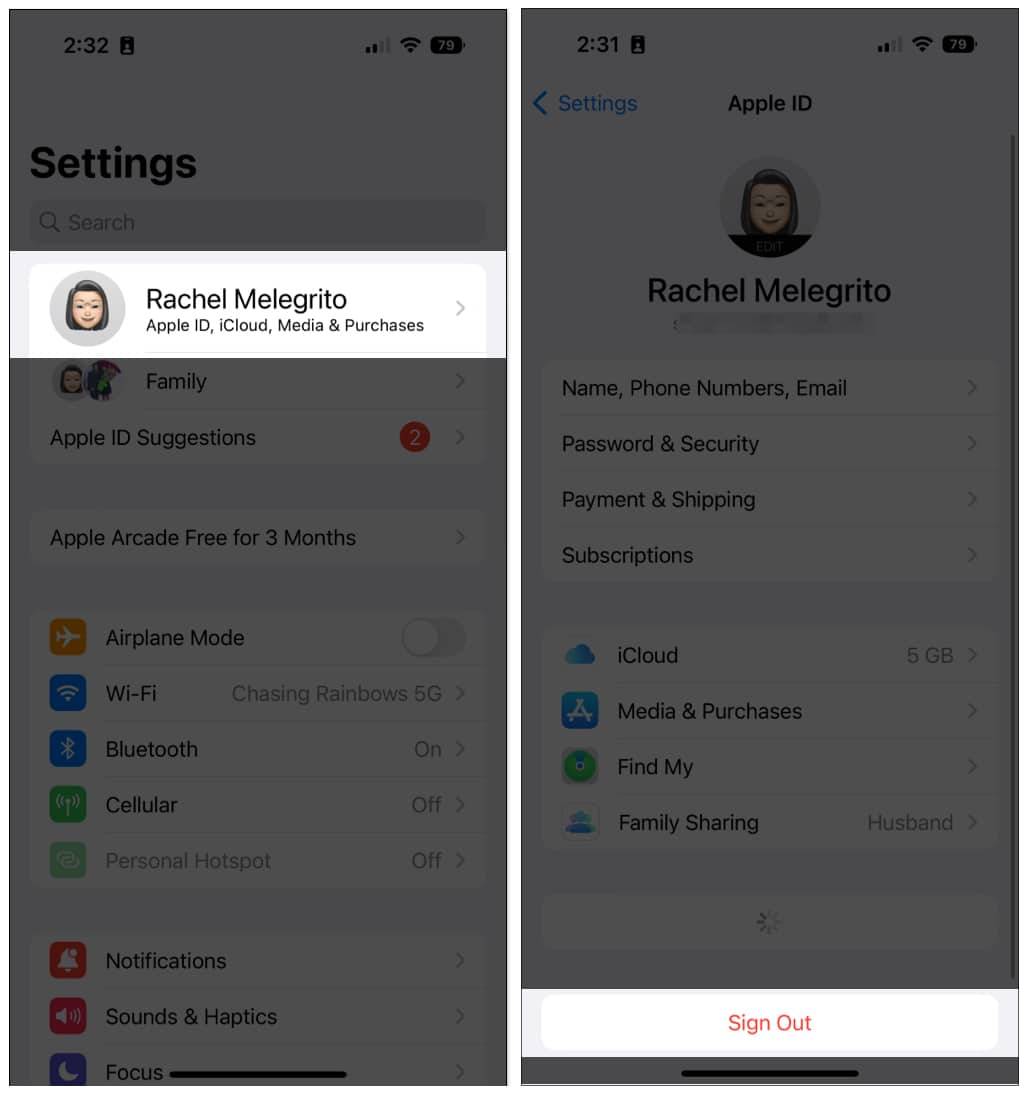
To sign out of just the App Store: Go to Settings → [your profile] → Media & Purchases. Tap Sign Out, then sign back in.
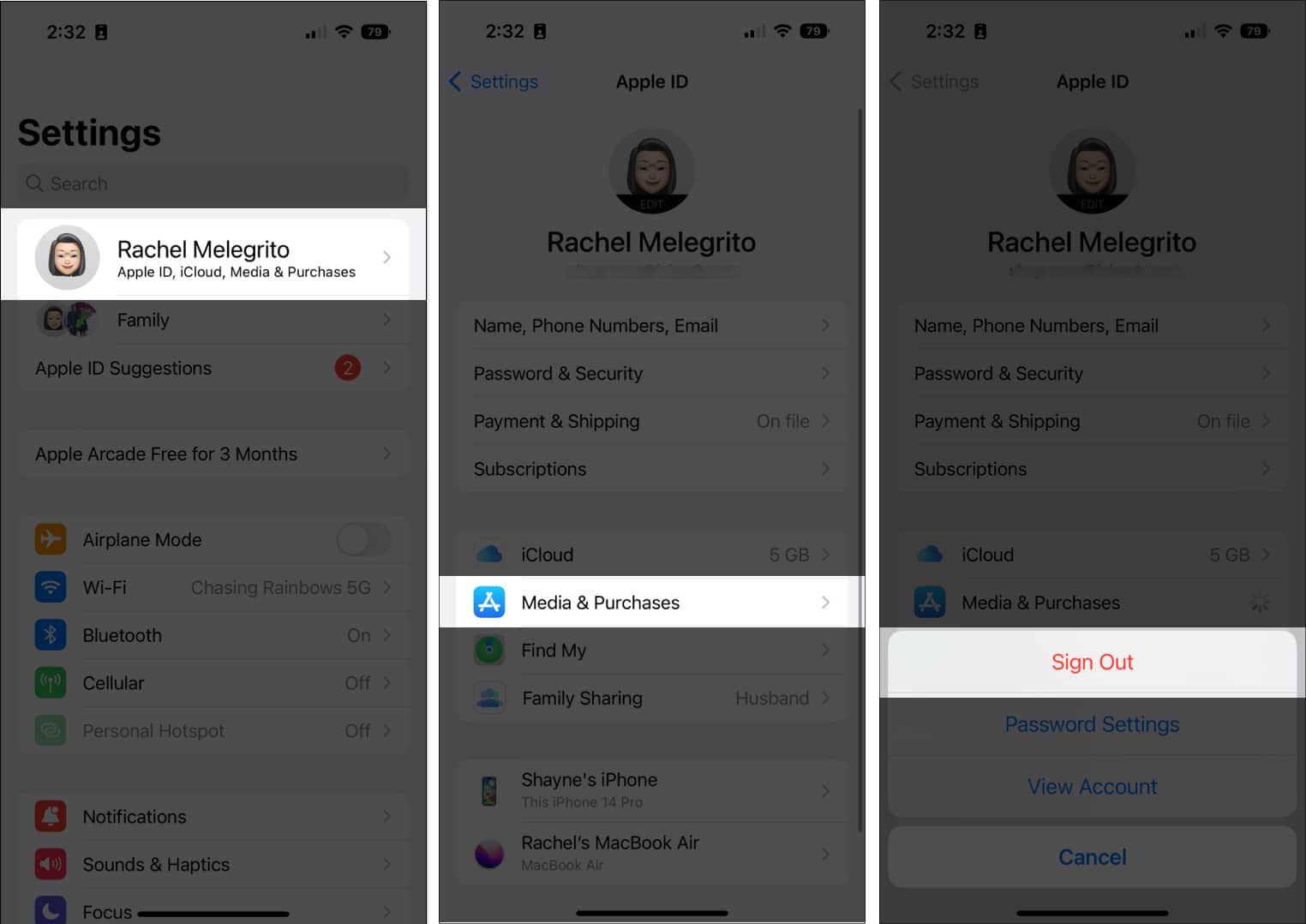
What to Expect: You may need to re-enter your Apple ID password. No apps, purchases, or data will be lost, but you could temporarily lose access to Apple services if you forget your credentials.
When to Use: If you’re seeing account-related errors, repeated prompts for your Apple ID, or persistent connection issues after clearing the cache, try this step.
A force restart can resolve stubborn software glitches by completely shutting down the device and restarting its operating system, which helps clear temporary errors and refresh system processes.
If your internet connection is working on other websites or apps but you are unable to access the App Store, try resetting your device’s network settings. This process can help resolve connectivity issues by restoring your network configurations to their default state, which may fix problems preventing the App Store from loading properly.
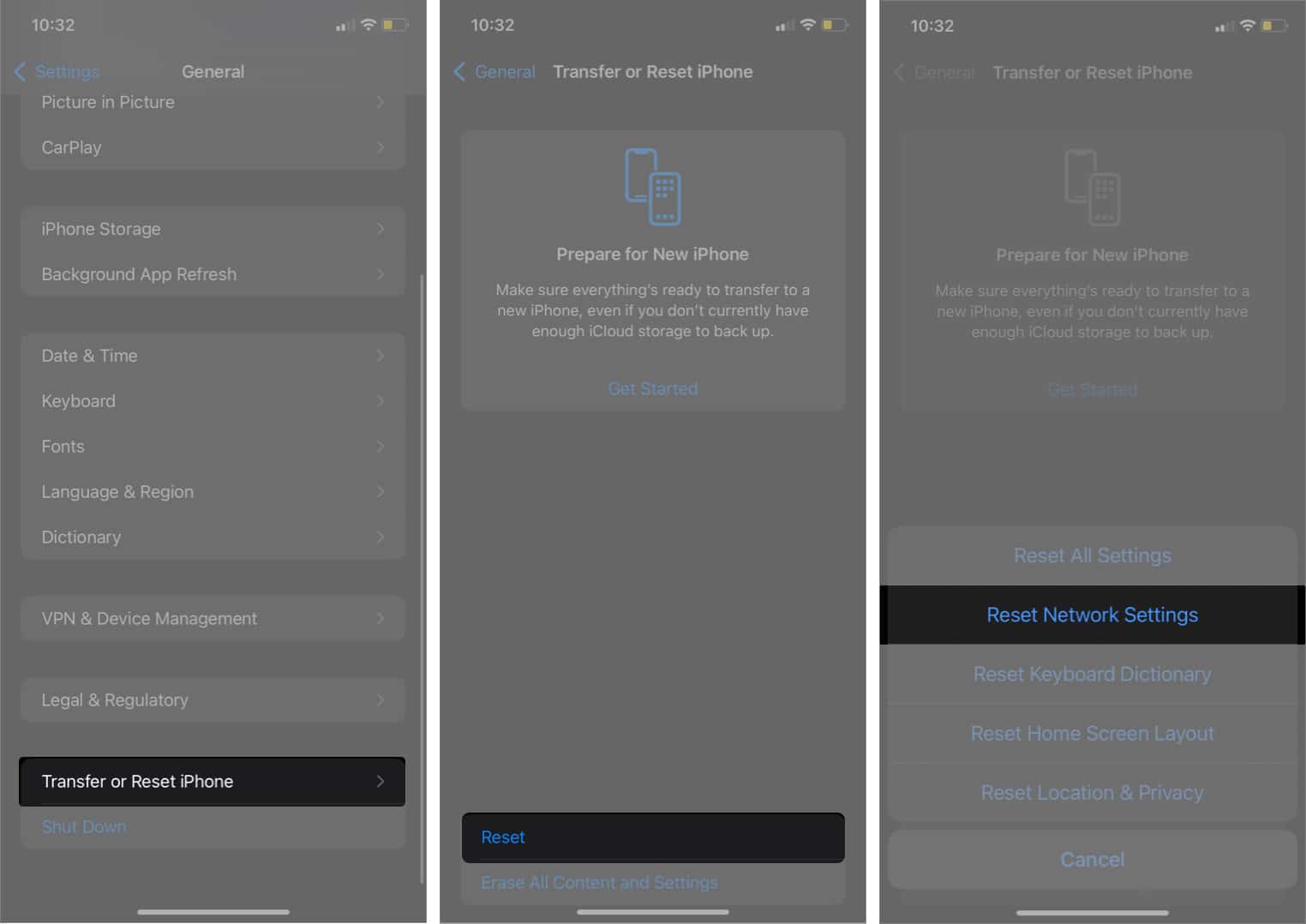
If nothing else works, you can reset all settings to their default values. This will restore the system to its original configuration, removing any customizations or changes you have made. Use this option as a last resort if other troubleshooting steps have not resolved your issue.

What to Expect: This won’t erase your data, apps, or photos, but it will reset system preferences (Wi-Fi, privacy, accessibility, etc.) to their defaults.
If you have tried all the steps above and the App Store still does not connect, there may be a more serious issue with your device. This could be caused by issues with your device’s software, network settings, or your Apple ID. You may need to restart your device, reset your network settings, or contact Apple Support for help.
Third-party apps like Dr.Fone System Repair or MagFone iOS System Recovery can diagnose and repair core iOS components, often without erasing your personal data.
Best Practices:
Apple’s built-in diagnostics and resets work for most issues, but advanced third-party tools can fix deeper system corruption, often without causing full data loss.
| Step | When to Use | What Gets Affected | Data Loss? |
|---|---|---|---|
| Force Quit App Store | App Store is frozen or glitchy | App Store session/cache | No |
| Standard Restart | Minor device glitches | Temporary system state | No |
| Force Restart | Device is unresponsive | Temporary system state | No |
| Reset Network Settings | Network issues only with App Store | Wi-Fi, Bluetooth settings | No (but passwords lost) |
| Reset All Settings | Persistent, unexplained issues | All system settings | No |
| Advanced Repair Tools | Deep, persistent software issues | iOS system files | No (standard mode) |
You’ll need to:
Rest assured: Your personal content (photos, apps, messages, etc.) remains untouched.
If you’ve tried all these steps, including advanced repair tools, and still can’t connect to the App Store, the problem may be a deeper software or hardware issue.
Contact Apple Support or visit your nearest Apple Store for additional assistance.
Most of the time, you can fix the “Cannot Connect to App Store” message with a few practical steps. Start with the basics — checking Apple’s system status and your internet connection — then move through the other solutions from simplest to most advanced. Once you understand why each fix works, you’ll feel much more confident troubleshooting and preventing these issues in the future. If you’re still stuck, reach out to Apple Support, as they’re always ready to help.
Have another App Store issue? Leave a comment below, and I’ll be happy to help!
FAQs
This may happen due to incorrect date and time settings, issues with your Apple ID, or App Store server problems. Verify these settings first.
Resetting network settings only erases Wi-Fi and Bluetooth settings. Resetting all settings doesn’t erase personal data, but does revert all system settings.
The App Store may use your location to provide region-specific content or comply with local regulations.
If your device is managed by your employer, school, or parental controls, some settings may be restricted. Check for device management profiles under Settings → General → VPN & Device Management.
Related posts:









