FaceTime Like a Pro
Get our exclusive Ultimate FaceTime Guide 📚 — absolutely FREE when you sign up for our newsletter below.

FaceTime Like a Pro
Get our exclusive Ultimate FaceTime Guide 📚 — absolutely FREE when you sign up for our newsletter below.


Looking for the best controller settings for Fortnite? This guide covers the key sensitivity, aiming, and gameplay settings that can help improve your accuracy, reaction time, and overall performance.
Fortnite is among the most competitive online games out there. Each button press, each keystroke, and each fleeting second during a match could prove pivotal in deciding whether or not you achieve Victory Royale.
While grinding for hours is undoubtedly a great way to improve your Fortnite skills, I’ve found that certain in-game settings can make your journey toward the next ranked tier a little easier. After all, there’s little point in collecting cosmetics or trying to gift skins to friends if you’re not getting the most out of your gameplay experience. To maximize your chances of securing wins and eliminations, I recommend tweaking the controller settings until you find the sweet spot that feels right for your playstyle.
While the basic controller settings in Fortnite are readily available to customize, I’ve found that some of the most impactful tweaks are tucked away in the advanced settings menu. To access them, you’ll first need to enable the Advanced Options toggle. Since the setup I’m recommending uses a mix of both basic and advanced settings, I suggest following the steps below to unlock these additional options before making any changes.
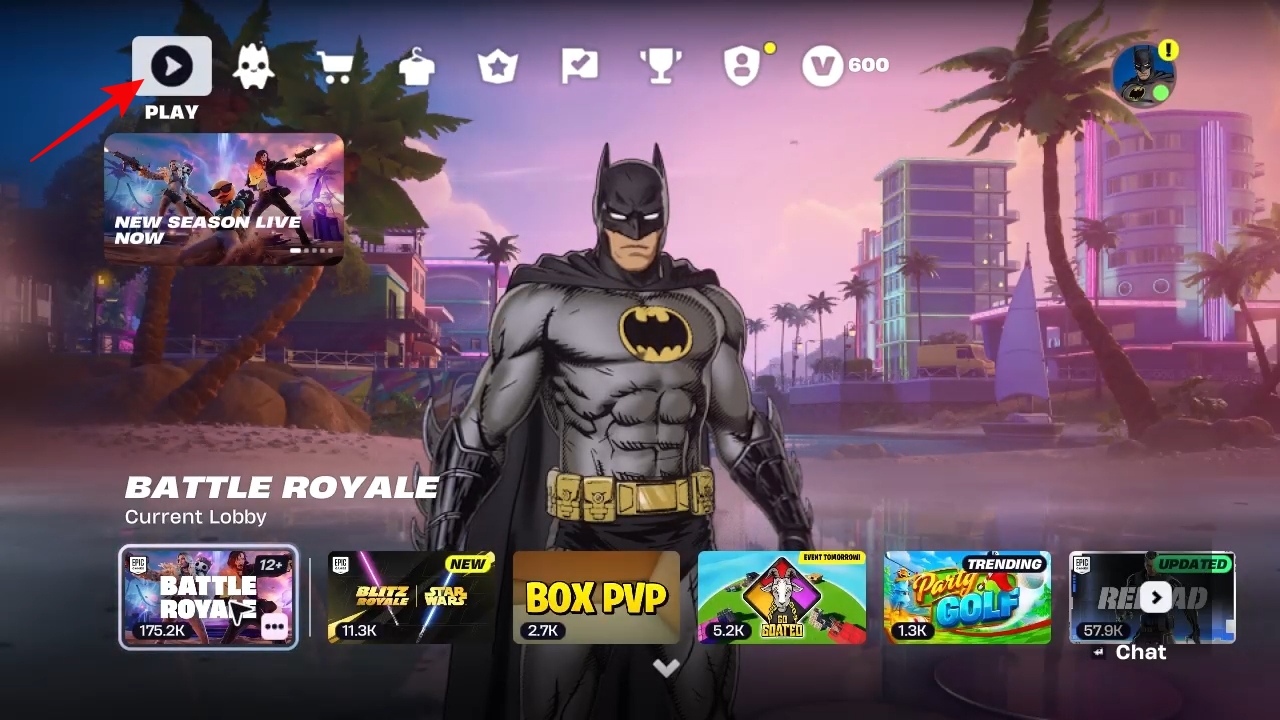
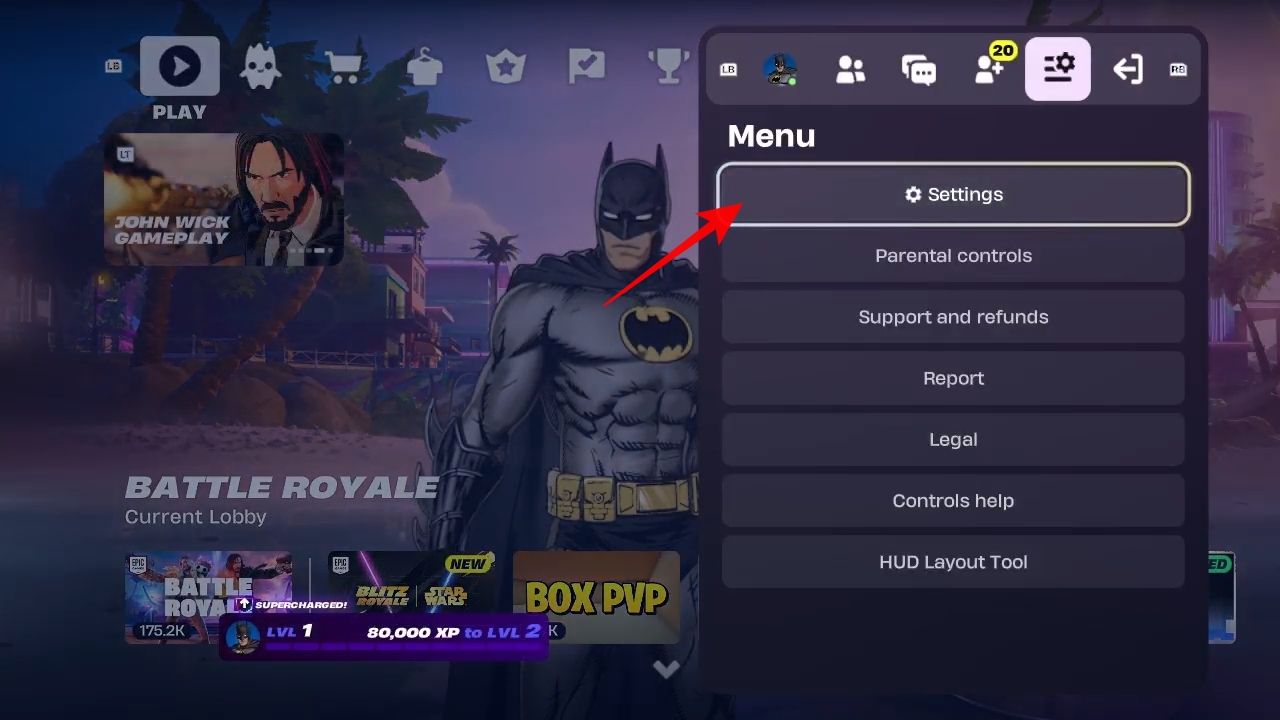
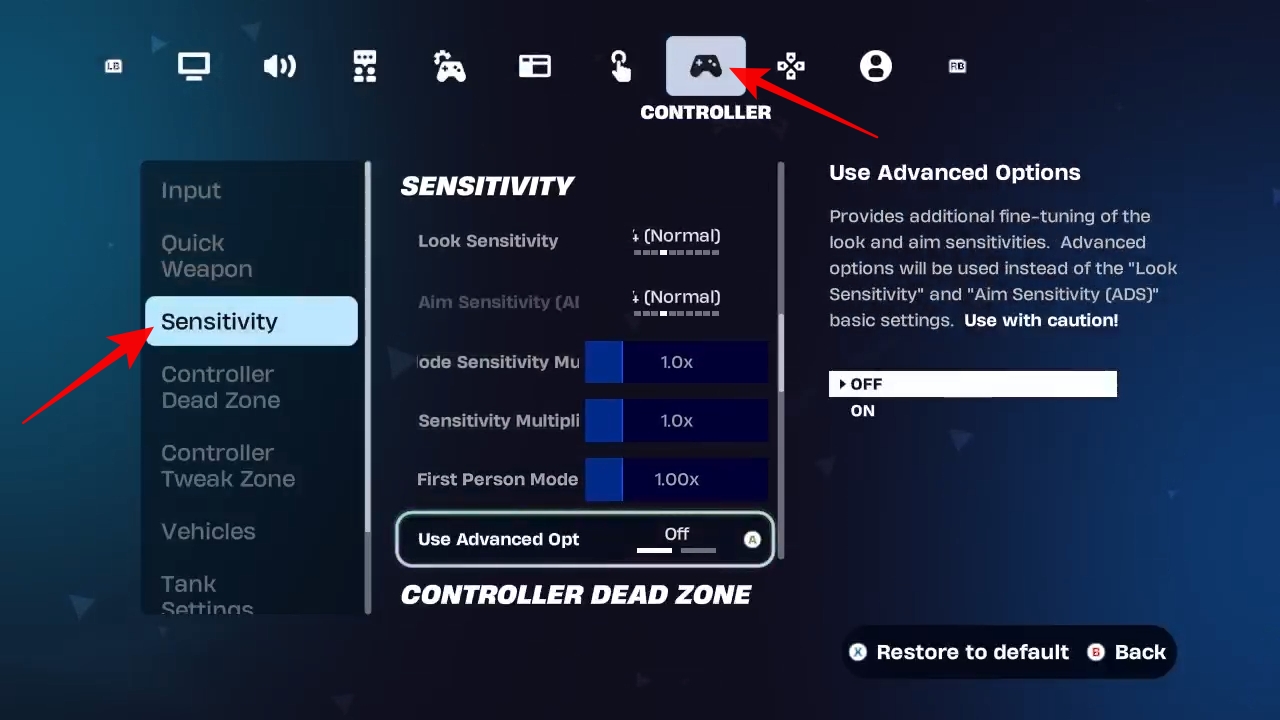
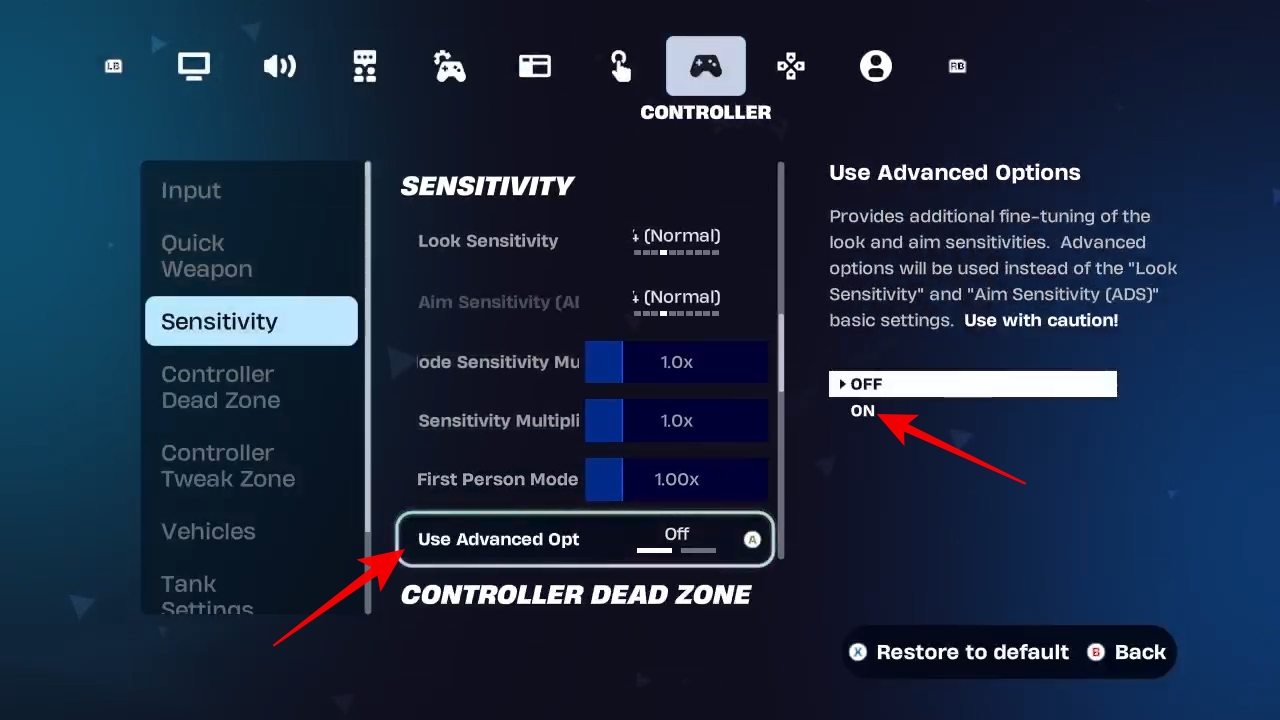
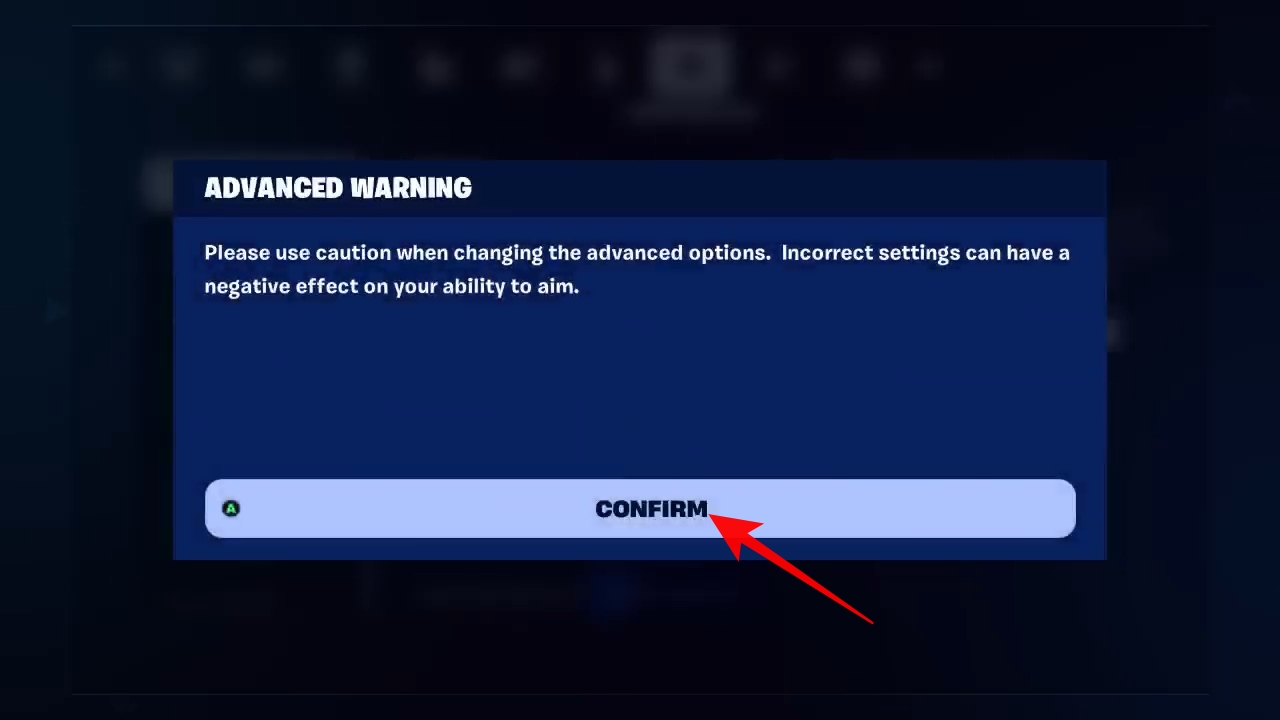
After this, a handful of new ways to tinker with how your controller behaves during gameplay will show up in the Sensitivity section.
Since each player’s preferences can be different, the following controller setting tweaks give a range for most parameters. Within this range, a majority of players are expected to find the right balance that suits them. Moreover, the recommended settings given below also assume that other toggles and values are set to the default.
First things first, one simple but effective setting that I recommend you change is the controller vibration, which you can access in the Input section of the Controller settings tab. Even though it may slightly water down the immersion, it is overall better to turn off the Vibration Feature option to fully ensure sudden haptic feedback doesn’t interfere with your manual input.
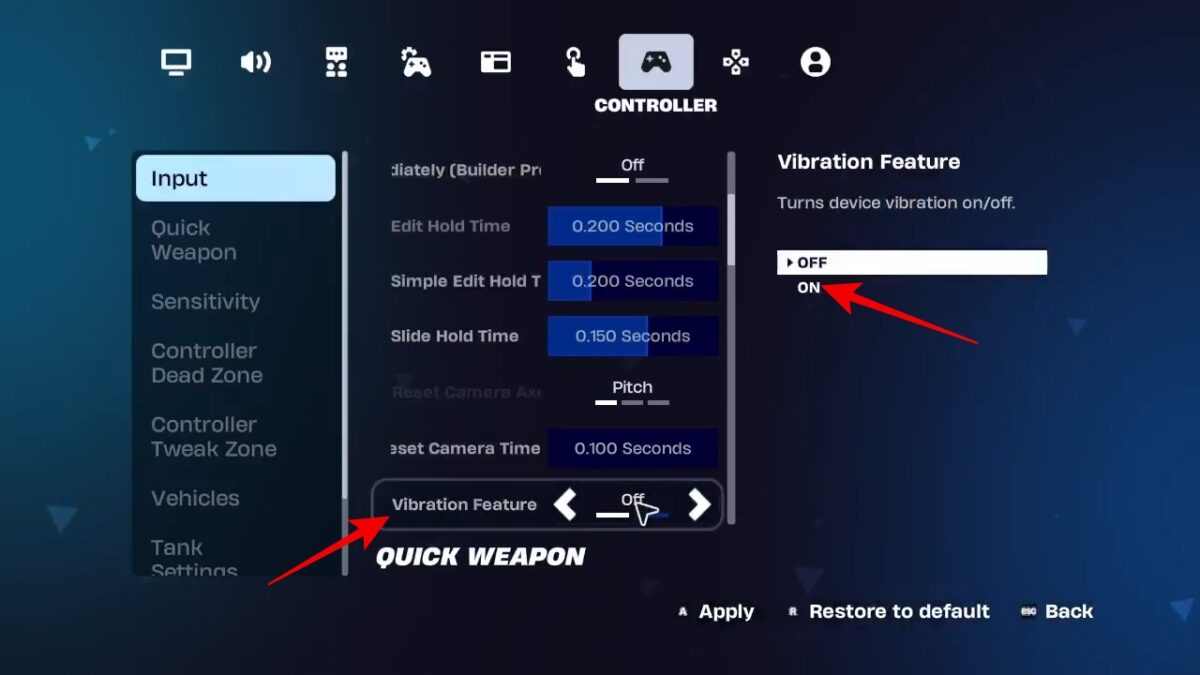
The adjustments that follow are crucial changes and directly influence how your controller input is executed during matches. Therefore, it’s best to double-check and make sure you have put in the right values, as mentioned, before saving these settings and jumping into a match.
| Setting name | What it does | Recommended value |
|---|---|---|
| Build Mode Sensitivity Multiplier | This affects how quickly your view rotates when you are in build mode. | ~1.9x–2.2x |
| Edit Mode Sensitivity Multiplier | This affects how quickly your view rotates when you are in edit mode. | ~2.0x–2.3x |
| Look Horizontal Speed | This affects how quickly your view goes left and right (moves horizontally). | ~40% |
| Look Vertical Speed | This affects how quickly your view goes up and down (moves vertically). | ~40% |
| Turning Horizontal Boost | This adds extra left or right rotation speed when the right stick is deflected in order to allow for quick turns. | 0% |
| Turning Vertical Boost | This adds extra up or down rotation speed when the right stick is deflected in order to allow for quick control of the view. | 0% |
| Turning Boost Ramp Time | This defines the time taken for the turning boost to kick in. | 0.00 seconds |
| ADS Look Horizontal Speed | This affects how quickly your view goes left and right (moves horizontally), when aiming down sights. | 7–14% |
| ADS Look Vertical Speed | This affects how quickly your view goes up and down (moves vertically), when aiming down sights. | 7–14% |
| Look Input Curve | This changes how the right stick movement is implemented. While ‘Linear’ relies on raw input, ‘Exponential’ lowers the impact of negligible movements. | Linear |
Dead zones are the areas around the controller sticks that the game ignores input from. This setting changes how much you have to push your sticks in a particular direction before Fortnite acknowledges the input. The deadzone values given below are recommended for getting optimal match results.
Left Stick Deadzone: 5–7%
Right Stick Deadzone: 9–11%
Finally, it’s worth noting that the aforementioned values may not land perfectly for every player right from the beginning. So, it’s suggested that you first dive into less competitive Fortnite Creative maps with these settings to test out how the changes feel.
Based on that experience, you can make slight adjustments to the settings and their values until you find your exact setup. Such a trial-and-error approach with these recommended settings should get you noticeably better at Fortnite in a reasonable amount of time.
You Might Also Like: