
FaceTime Like a Pro
Get our exclusive Ultimate FaceTime Guide 📚 — absolutely FREE when you sign up for our newsletter below.

FaceTime Like a Pro
Get our exclusive Ultimate FaceTime Guide 📚 — absolutely FREE when you sign up for our newsletter below.


Adding apps to your Apple Watch is quick and easy using your iPhone or the Watch App Store. This guide shows how to install, manage, and restore apps to customize your watch.
 ByVikhyat


For most users, the Apple Watch is seen as nothing more than a companion to the iPhone. That perspective, however, barely scratches the surface of what the Apple Watch can actually do. Users who understand its true potential know how capable the device is, even without the iPhone nearby. With support for a wide range of apps that can work independently, the Apple Watch extends far beyond basic functions.
That is why knowing how to add and remove apps on your Apple Watch is essential. Proper app management helps unlock its full potential, keeps your watch clutter-free, and ensures that only the apps you actually need are available on your wrist. Continue reading to learn how.
Just like iPhone apps, Apple Watch apps fall into three broad categories:
Keep in mind that not every iPhone app has a watch version, and not every watch app works independently.
Apple Watch supports three different app installation methods, giving you the flexibility to install apps directly on the watch or manage them from your iPhone.
You do not need to take any extra steps to install companion apps on your Apple Watch. When you install an app on your iPhone that includes a watchOS version, watchOS can automatically install the companion app on your Apple Watch in the background.
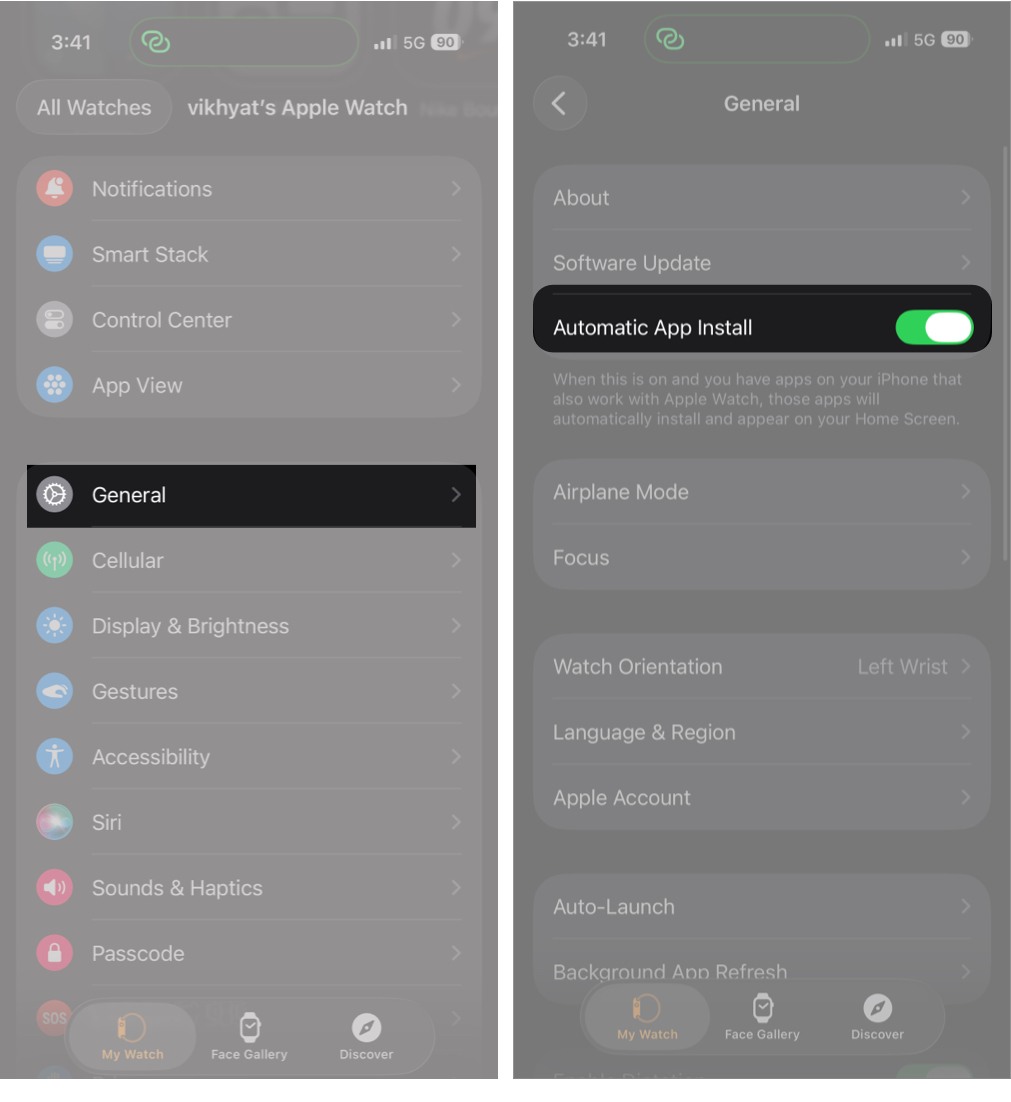
By default, watchOS enables Automatic App Install during the initial pairing process. Apple does this to ensure that essential companion apps such as fitness tracking, messaging, and productivity tools are available on the watch as soon as their iPhone counterparts are installed.
To verify whether Automatic App Install is enabled:
Like the iPhone, the Apple Watch has a dedicated App Store that lets you search for and install apps without using your phone. This method is especially useful for standalone watchOS apps or for installing an app quickly while on the move.
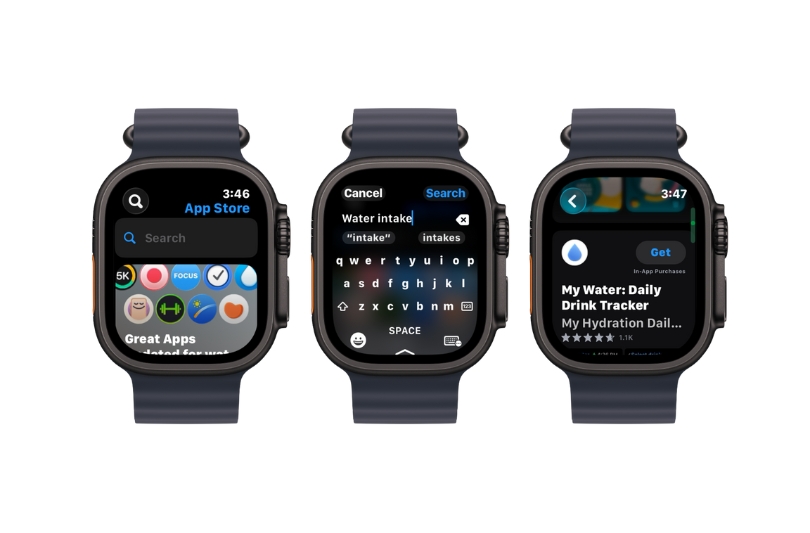
The app will download and install in the background and appear on your Apple Watch Home Screen once the process is complete.
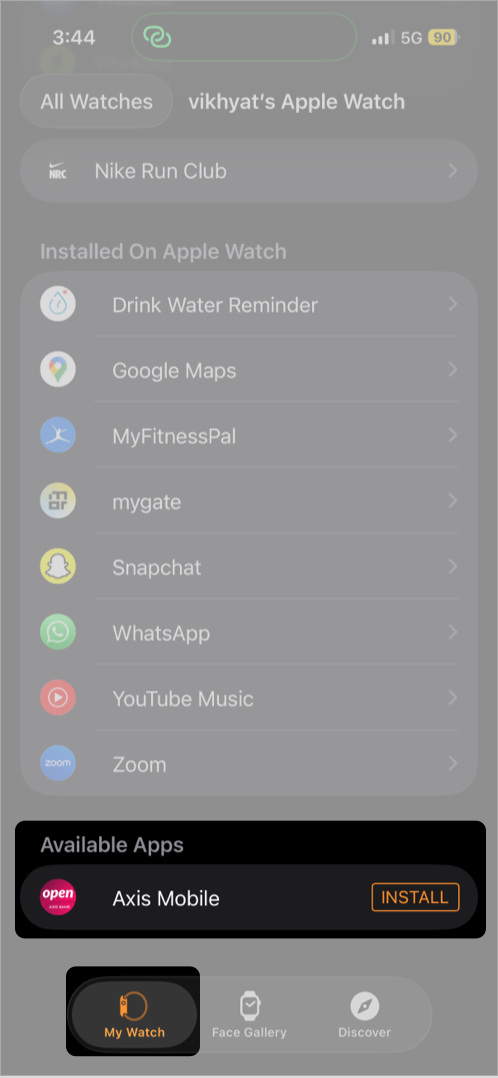
If Automatic App Install is turned off, newly installed iPhone apps that include a watch companion app will not appear on your watch automatically. In that case, you must install them manually using the Watch app on your iPhone.
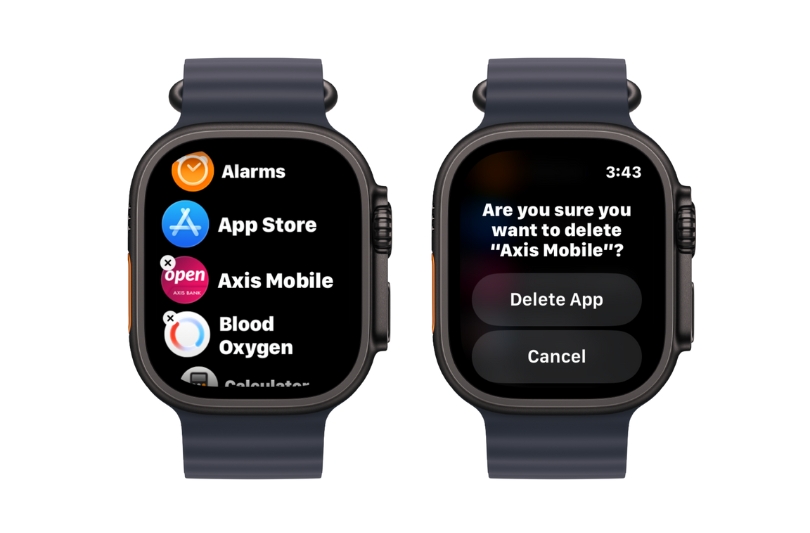
You can remove apps directly from the Apple Watch or manage app deletion using the Watch app on your iPhone.
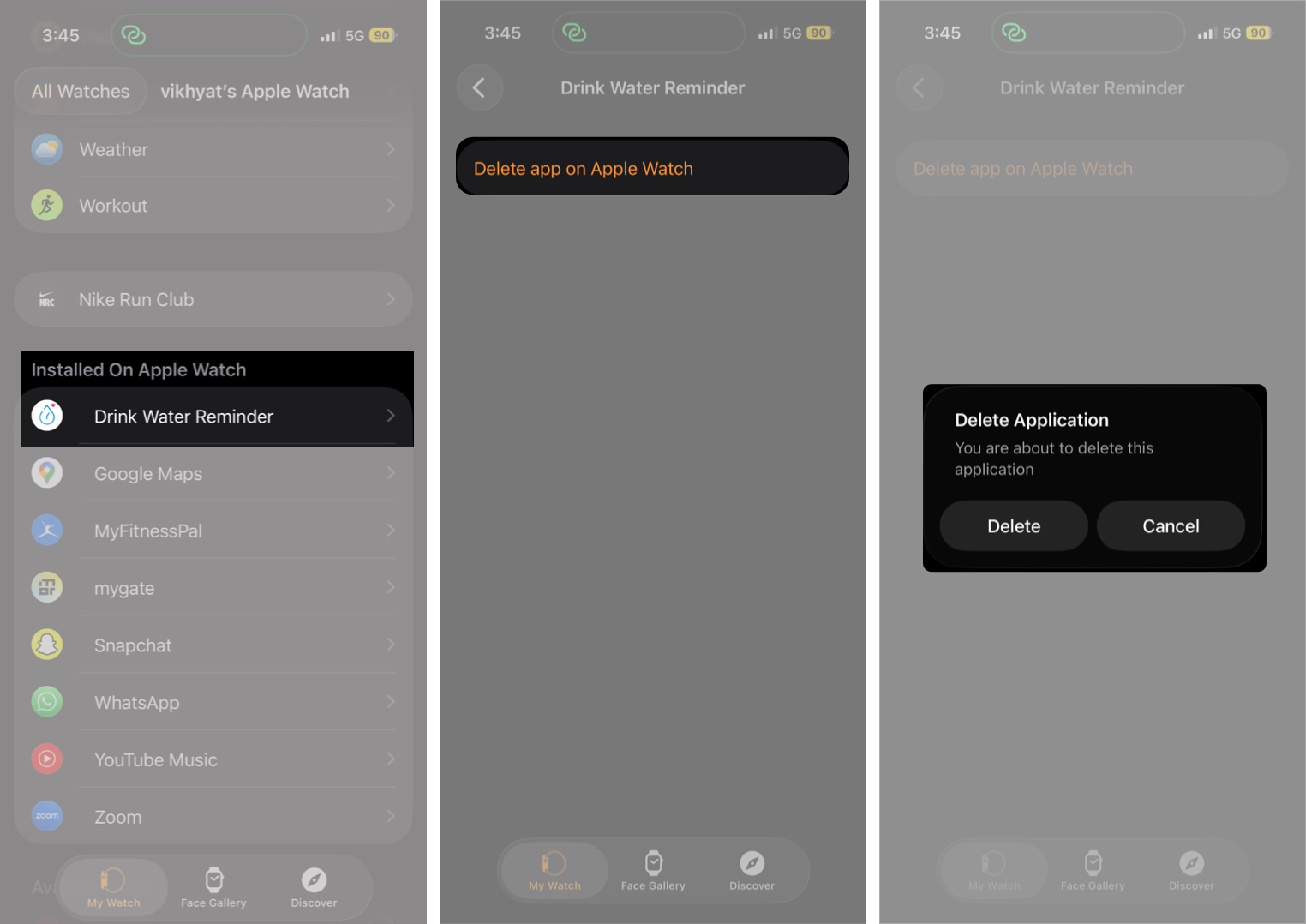
Yes, but not all of them. You can remove certain built-in apps such as Cycle Tracking, Stopwatch, Walkie-Talkie, and Voice Memos. However, core apps that are tightly integrated with watchOS, including Messages, Phone, Heart Rate, and Settings, cannot be deleted.
When you delete an app from your Apple Watch, only the watch version is removed. The iPhone version remains installed unless you delete it separately.
Any data stored locally on the Apple Watch by that app is also deleted. This usually includes cached files, offline content, and app-specific settings saved on the watch. Data synced through iCloud or stored on the iPhone typically remains intact and is restored if you reinstall the app later.
Removing a companion app from the watch does not affect the app on your iPhone. However, features that rely on the watch, such as notifications or complications, will stop working until the app is reinstalled.
That covers everything you need to know about installing and deleting apps on your Apple Watch. You can now keep your watch organized, responsive, and tailored to your daily needs while avoiding storage issues caused by unnecessary apps.
If you have questions about Apple Watch app management or run into issues while installing or removing apps, feel free to share them in the comments. We will help you troubleshoot.
Also read:









