
FaceTime Like a Pro
Get our exclusive Ultimate FaceTime Guide 📚 — absolutely FREE when you sign up for our newsletter below.

FaceTime Like a Pro
Get our exclusive Ultimate FaceTime Guide 📚 — absolutely FREE when you sign up for our newsletter below.


Free up space and fix lag! Here’s how to clear game data on your iPhone or iPad for a clean, smooth gaming experience.
 ByVikhyat


If you’ve been playing a game on your iPhone or iPad for a while, you’ve probably accumulated a lot of saved progress, settings, and in-app data. Over time, that data can eat up valuable storage and even cause glitches or sync issues. Whether you want to replay a favorite title from scratch, fix corrupted saves, or simply declutter your device, clearing game data is the perfect solution.
While iOS doesn’t include a one-tap “Clear Game Data” button, you can still erase game progress by managing your local storage, iCloud saves, and linked accounts. Let’s look at all the effective ways to delete game data on your iPhone.
There are several reasons you might want to delete game data:
Yes, you can, but it depends on where the data is stored. Games may save your progress locally on your device, in iCloud, or on the developer’s servers. Simply deleting the app won’t always erase everything, as iCloud or account-linked saves can restore your progress once you reinstall.
To truly start fresh, you’ll need to clear the game data from all storage points.
There are multiple ways to remove saved game data and start over. Try these methods in order:
Before you uninstall anything, check if the game offers a reset option.
This is the easiest and safest way to wipe your progress without reinstalling the game.
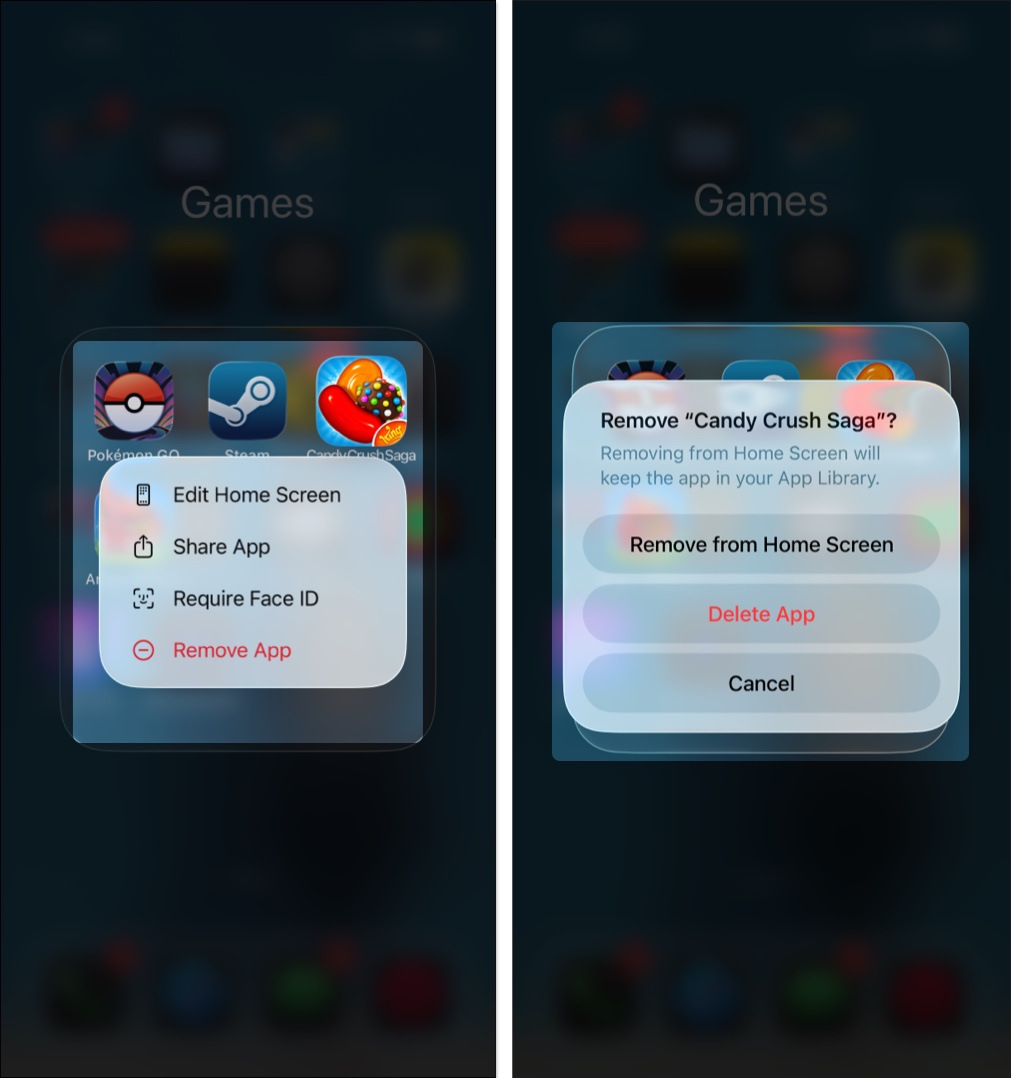
If there’s no in-game reset, deleting the app removes its local data from your device. Here’s how:
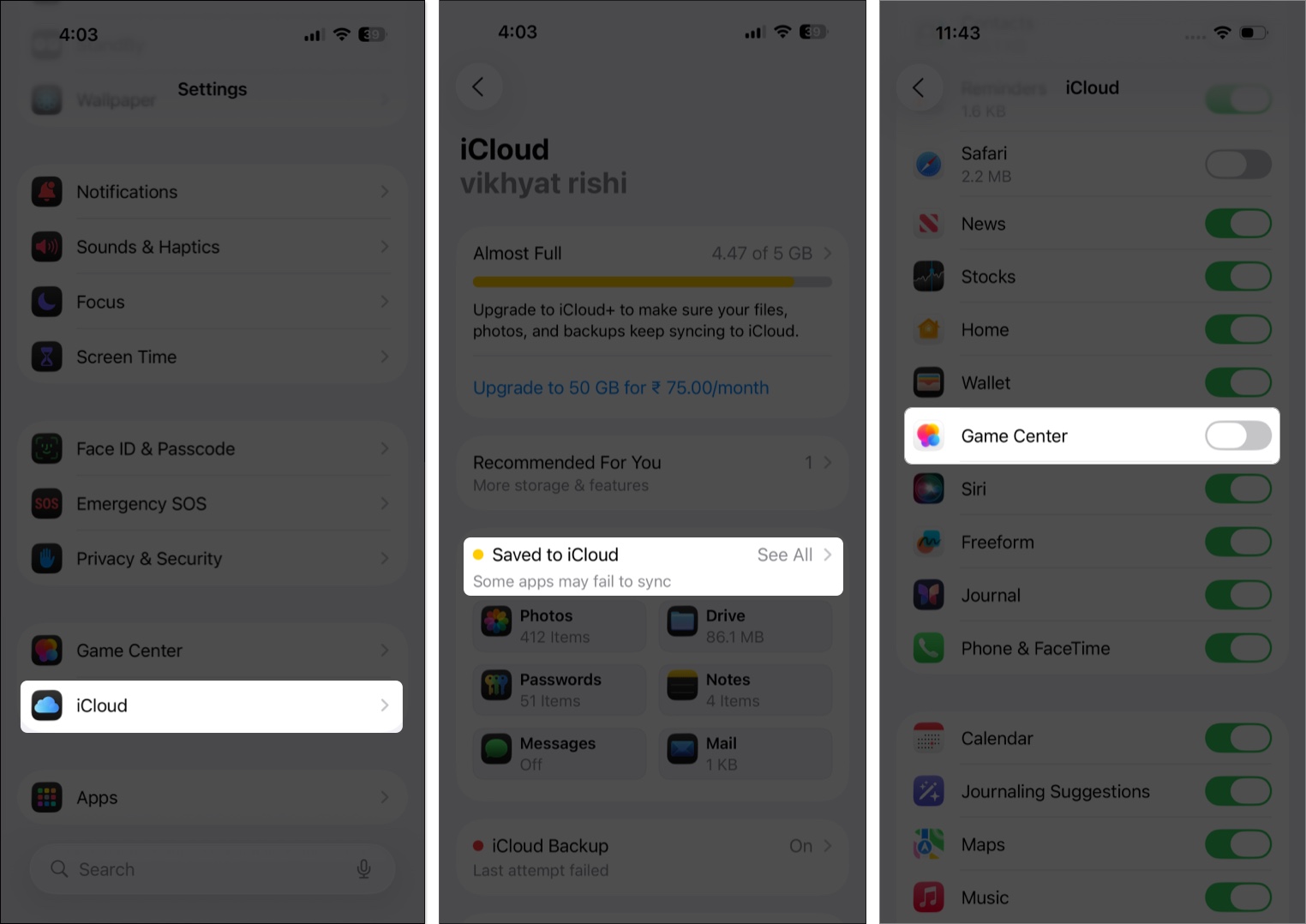
To completely reset your progress, you’ll need to remove game data stored in iCloud:
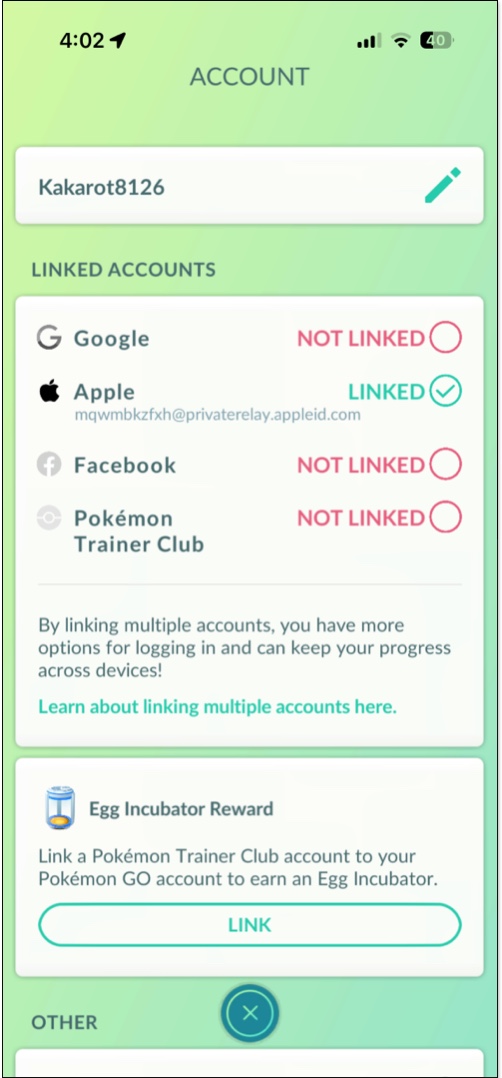
Many popular games (like PUBG Mobile, Genshin Impact, or Call of Duty Mobile) sync progress through linked accounts such as Apple ID, Facebook, or Google. To prevent automatic restore:
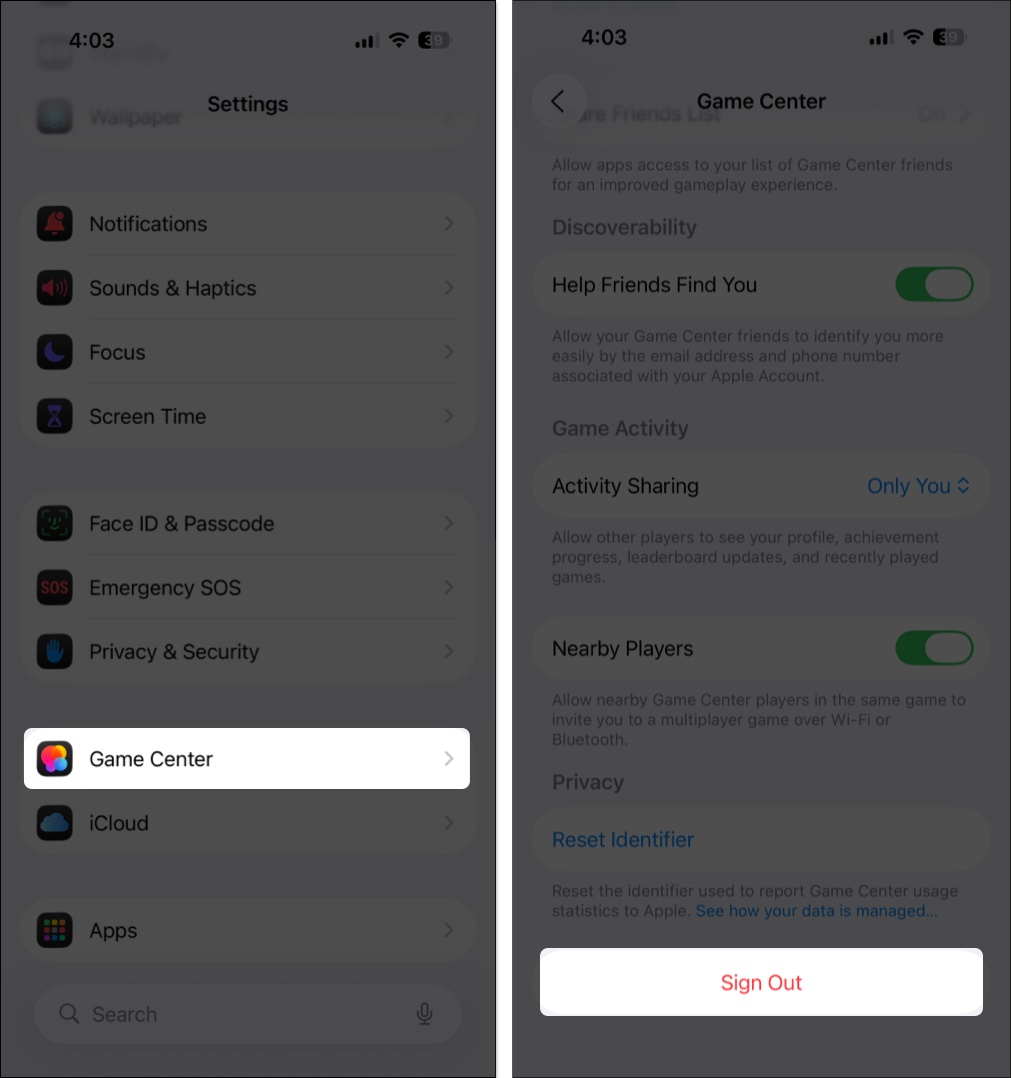
Apple’s Game Center stores achievements and leaderboards, not full save files. However, you can still reset or switch accounts:
Some online games save progress through developer servers (like EA, Supercell, or Activision) instead of iCloud. In these cases, deleting the app won’t remove your saved data.
When you clear game data from your iPhone or iPad, a few things happen depending on where the data was stored:
Clearing game data on your iPhone may take a few extra steps, but it’s worth it if you want a truly fresh start. Start with an in-app reset if possible, then remove iCloud data and unlink any accounts. Once you’ve cleared every storage source, reinstall the game and enjoy a clean slate.
Have a better way to reset or clear game data on iPhone? Drop your tip in the comments below. Your insight might help other gamers too.
Don’t miss these related reads:









