
FaceTime Like a Pro
Get our exclusive Ultimate FaceTime Guide 📚 — absolutely FREE when you sign up for our newsletter below.

FaceTime Like a Pro
Get our exclusive Ultimate FaceTime Guide 📚 — absolutely FREE when you sign up for our newsletter below.
Apple’s iOS 26 introduces native iMessage polls, making it easier to plan, decide, and have fun in group chats. Here’s how to create, customize, and manage them.
 ByAva Biswas


Apple has finally brought polls to iMessage in iOS 26, making group decision-making easier and more fun without needing third-party apps. Whether you’re planning dinner, organizing a trip, or just sparking engagement in a chat, iMessage polls help you collect opinions quickly and securely.
In this guide, you’ll learn how to create, customize, and manage polls in iMessage. Plus, if you haven’t updated to iOS 26 yet, we’ll also cover the best third-party alternatives to create polls across devices.
Group chats often turn chaotic when deciding on plans. Polls bring structure and fun:
Whether you’re coordinating with friends, family, or coworkers, polls streamline group chats and make decision-making smoother.
Before you start:
Related: How to Create iMessage Group Chat on an iPhone
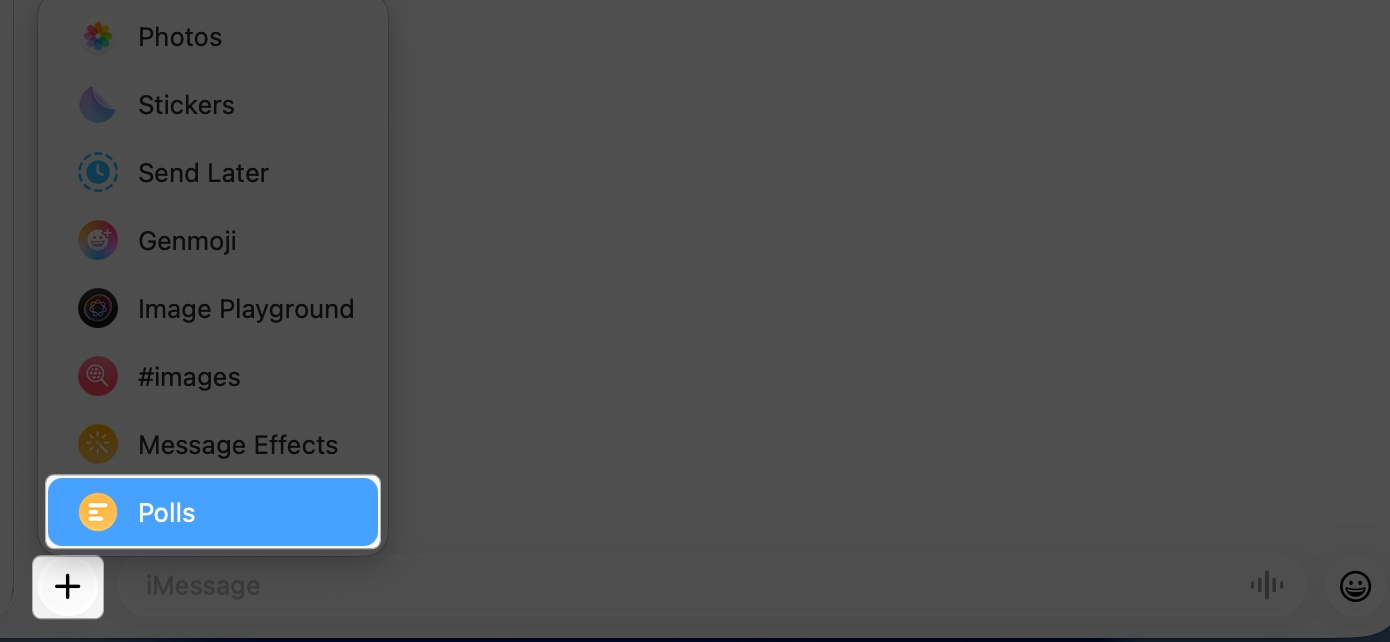
Here’s how to start a poll directly inside the Messages app:

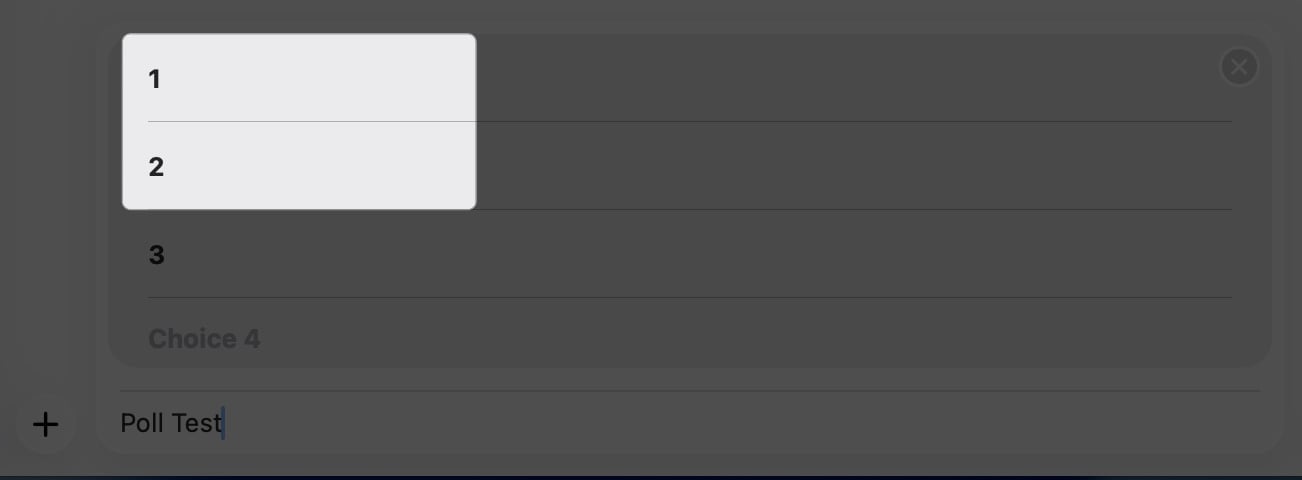
Group members can now vote, and results update in real time with profile pictures next to each choice, so you know who picked what.
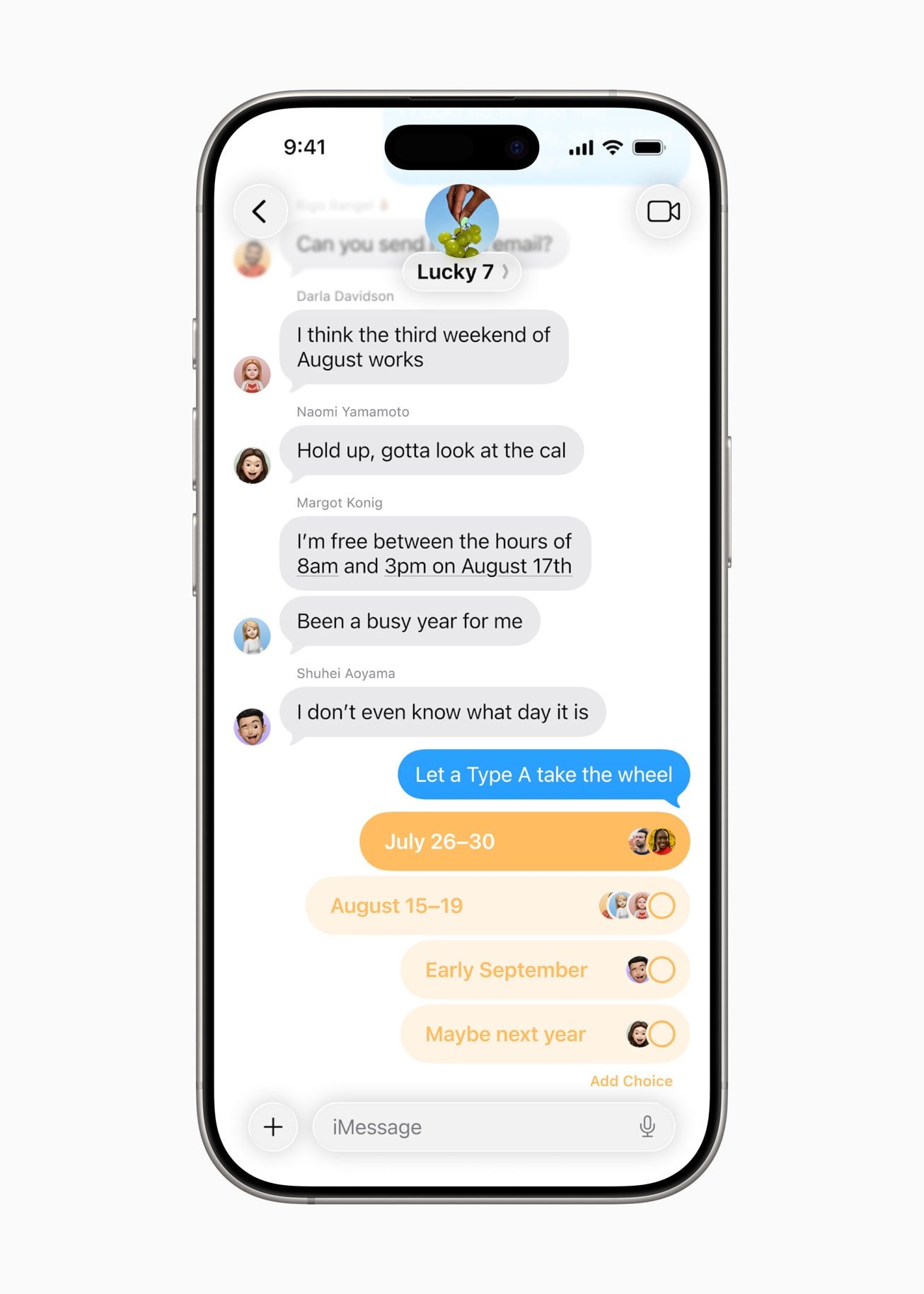
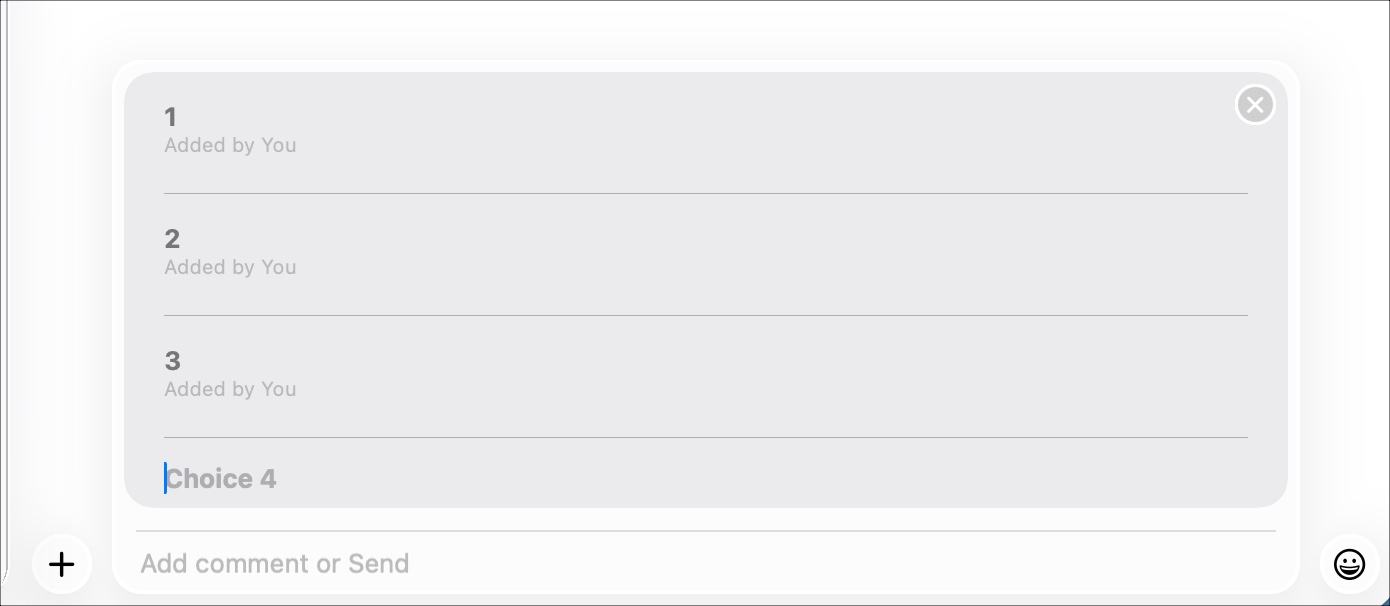
Once you’ve sent a poll, you still have control:
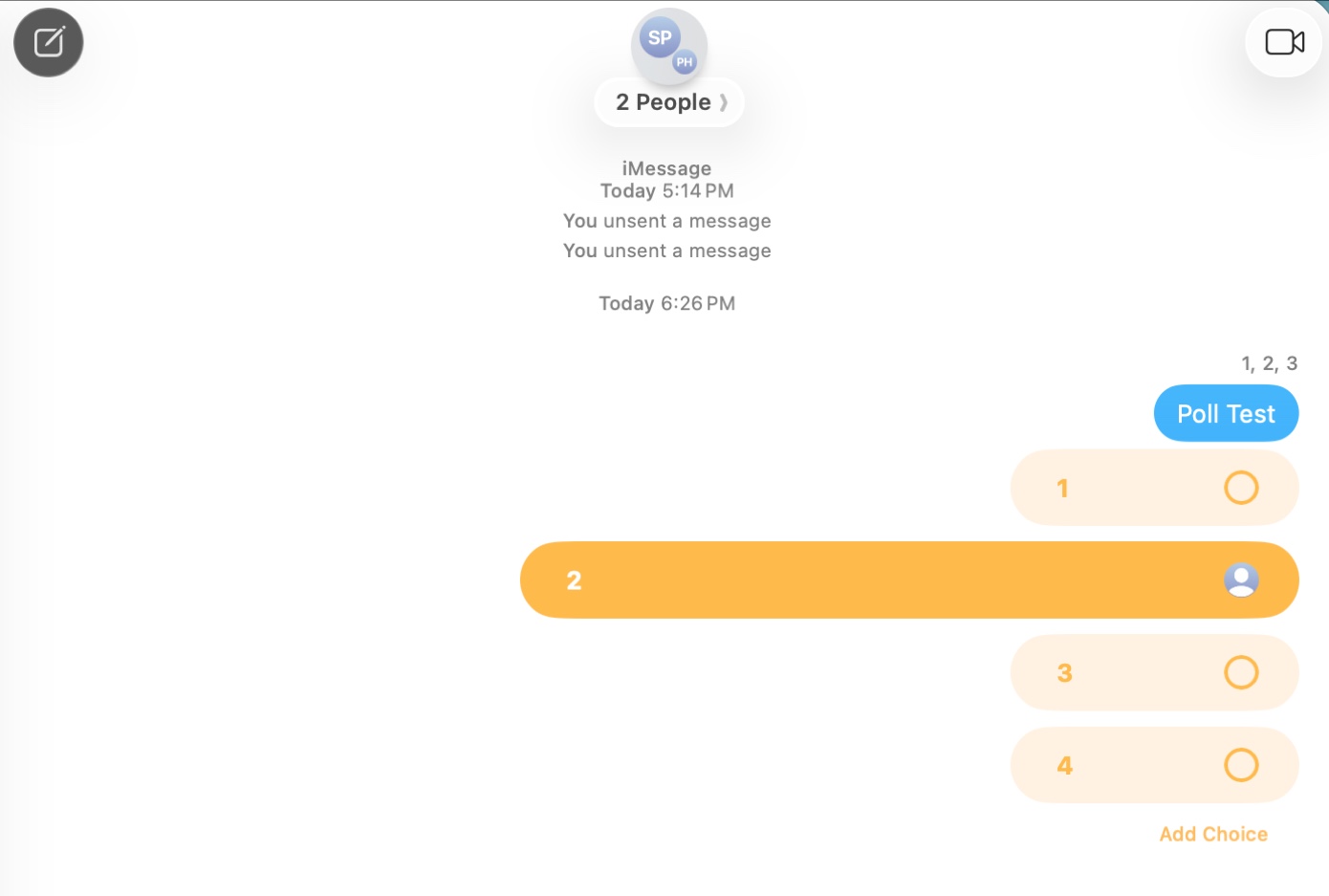
With Apple Intelligence, iMessage can even suggest polls automatically. For example, if someone texts “Game night this weekend?”, you might see a Create Poll suggestion above your keyboard.
If you haven’t updated yet, the Polls for iMessage app is your best option. It lets you create polls with multiple choices, works across all devices, and doesn’t require others to install the app.
First, install the app on your iPhone. Open the App Store, tap the Search icon at the bottom right corner, and type Polls for iMessage. Then, tap the Get button to download and install the app. Once installed, it will automatically appear in your iMessage app drawer.
To add a poll to the iMessage group:

Group members can now tap the poll, select their choice, and vote. Let’s see how to manage poll settings in iMessage.
To edit your poll settings, tap the Settings icon in the bottom right corner. Four options will appear. By default, all options are enabled, and you can disable the ones you don’t want to use. Now, let’s take a look at these options.
Once you have modified the poll’s content, exit the Settings page by tapping Back in the top-left corner. Then, hit Send and watch as people in the group interact with your poll.
To make your polls engaging and effective, keep these best practices in mind:
If you run into problems, here are some fixes:
The new iMessage polls in iOS 26 make group coordination seamless and fun. Whether it’s picking a movie, planning a trip, or deciding on takeout, polls help you cut the noise and get quick, fair results, right inside your chat.
Don’t miss these:

Ava is a die-hard Apple aficionado and seasoned writer with a knack for breaking down complex tech concepts into easily digestible content. Having honed her writing and editing skills over 4 years at renowned media houses like TechBurner, Ava crafts informative and engaging articles including troubleshooting guides, product reviews, editorials at iGeeksBlog. When not typing, you can find her exploring the latest Apple releases or pondering the future of tech innovation.
Get our exclusive Ultimate FaceTime Guide 📚 — absolutely FREE when you sign up for our newsletter below.










