
FaceTime Like a Pro
Get our exclusive Ultimate FaceTime Guide 📚 — absolutely FREE when you sign up for our newsletter below.

FaceTime Like a Pro
Get our exclusive Ultimate FaceTime Guide 📚 — absolutely FREE when you sign up for our newsletter below.


Keep your App Store purchase history private on Apple devices. Learn how to hide purchased apps on iPhone, iPad, and Mac step by step.
 ByVikhyat


Purchased an app or subscription, but don’t want it to appear in your App Store history? I have been there too. After all, we often make private purchases we don’t want others to see, especially when we share them with family members. In this article, I’ll show you how to hide apps from your App Store purchase history on iPhone, iPad, and Mac.
The steps to hide purchases on iPhone and Mac are quite straightforward. I have detailed them below:
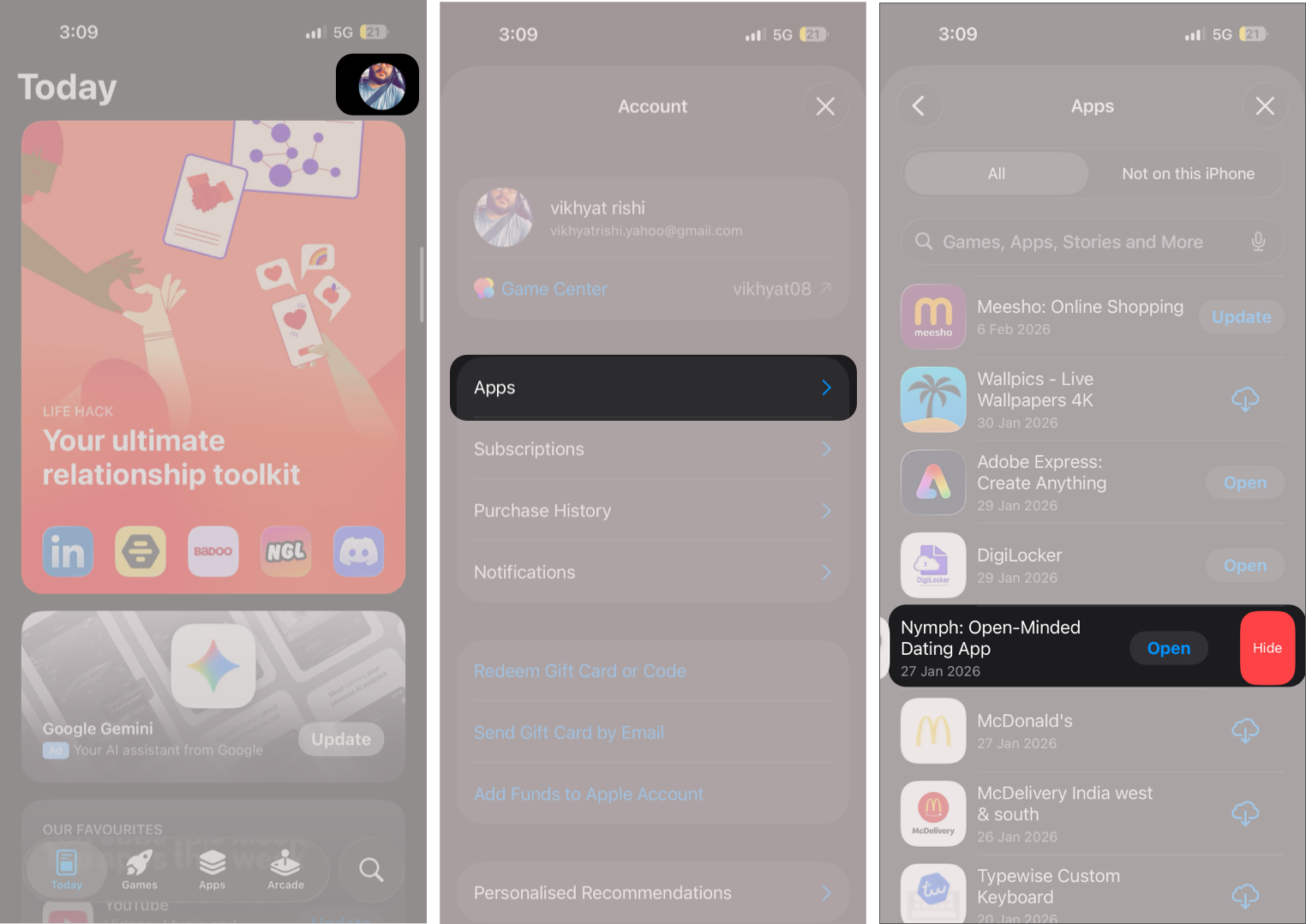
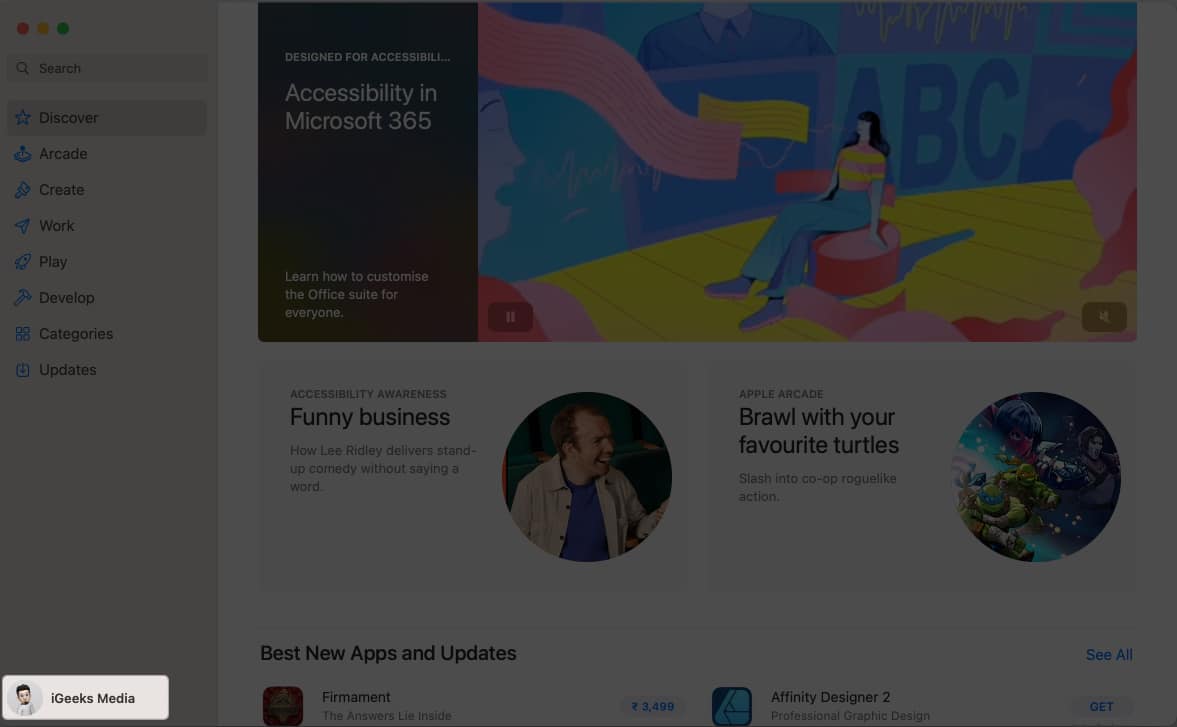
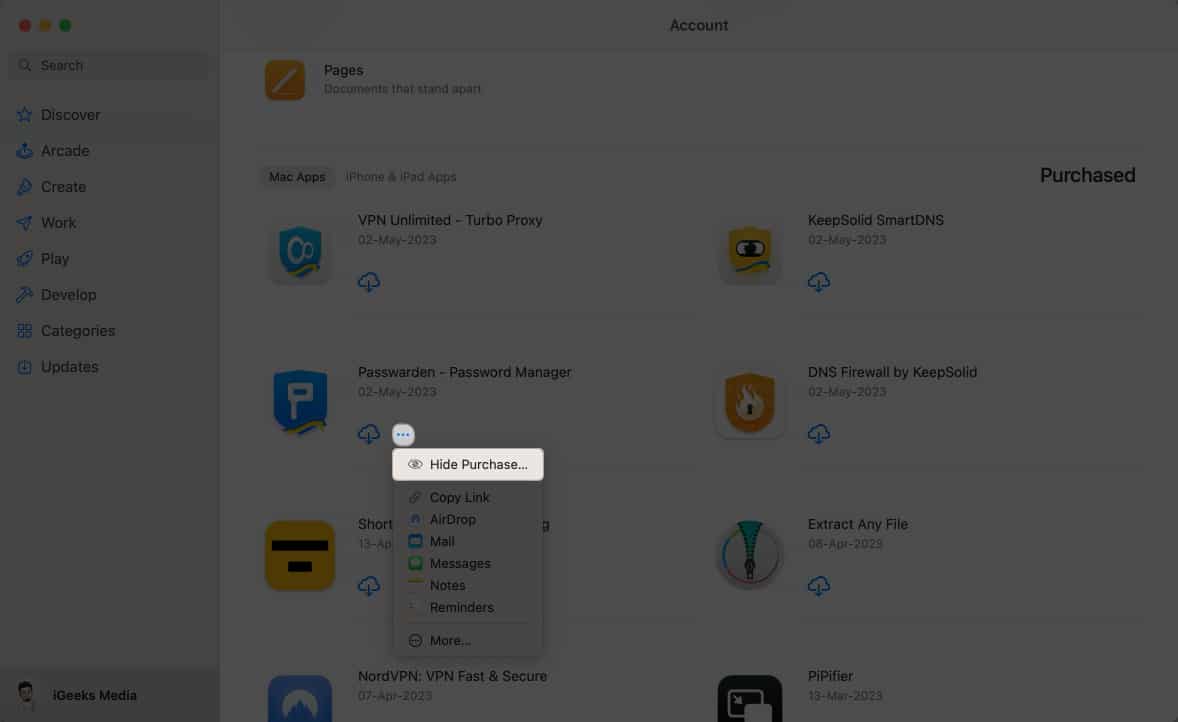
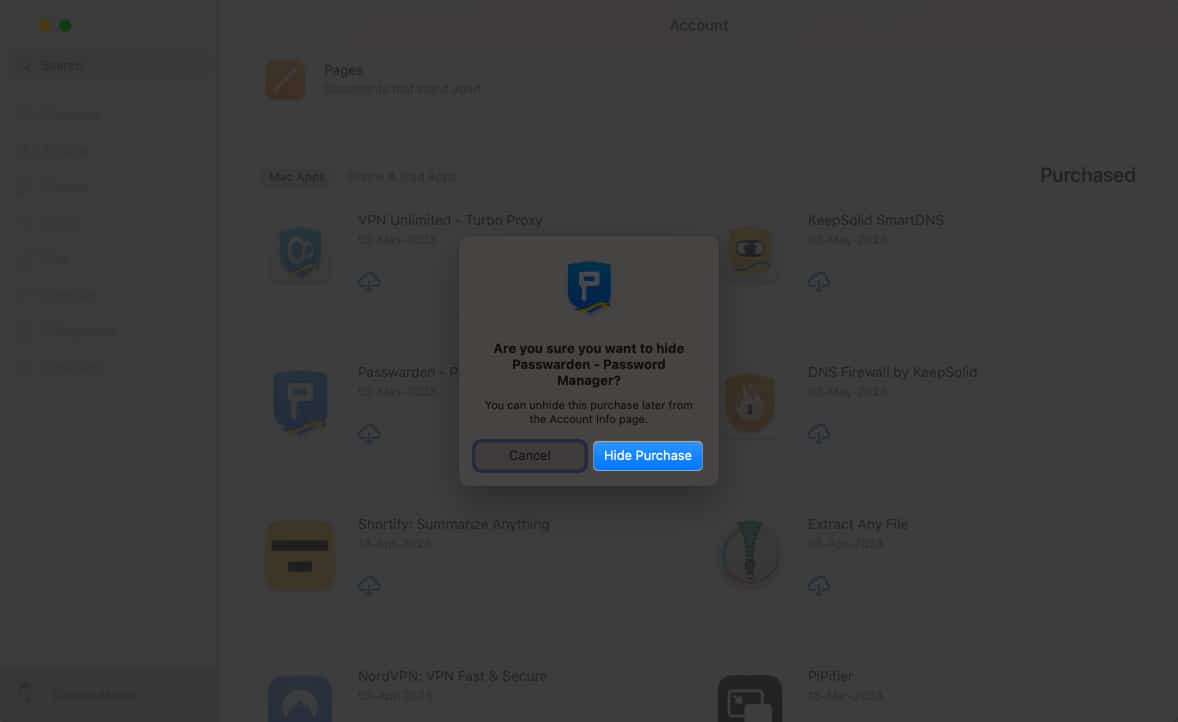
Now, in case you have changed your mind and want to find the hidden purchase on the App Store, do the following:
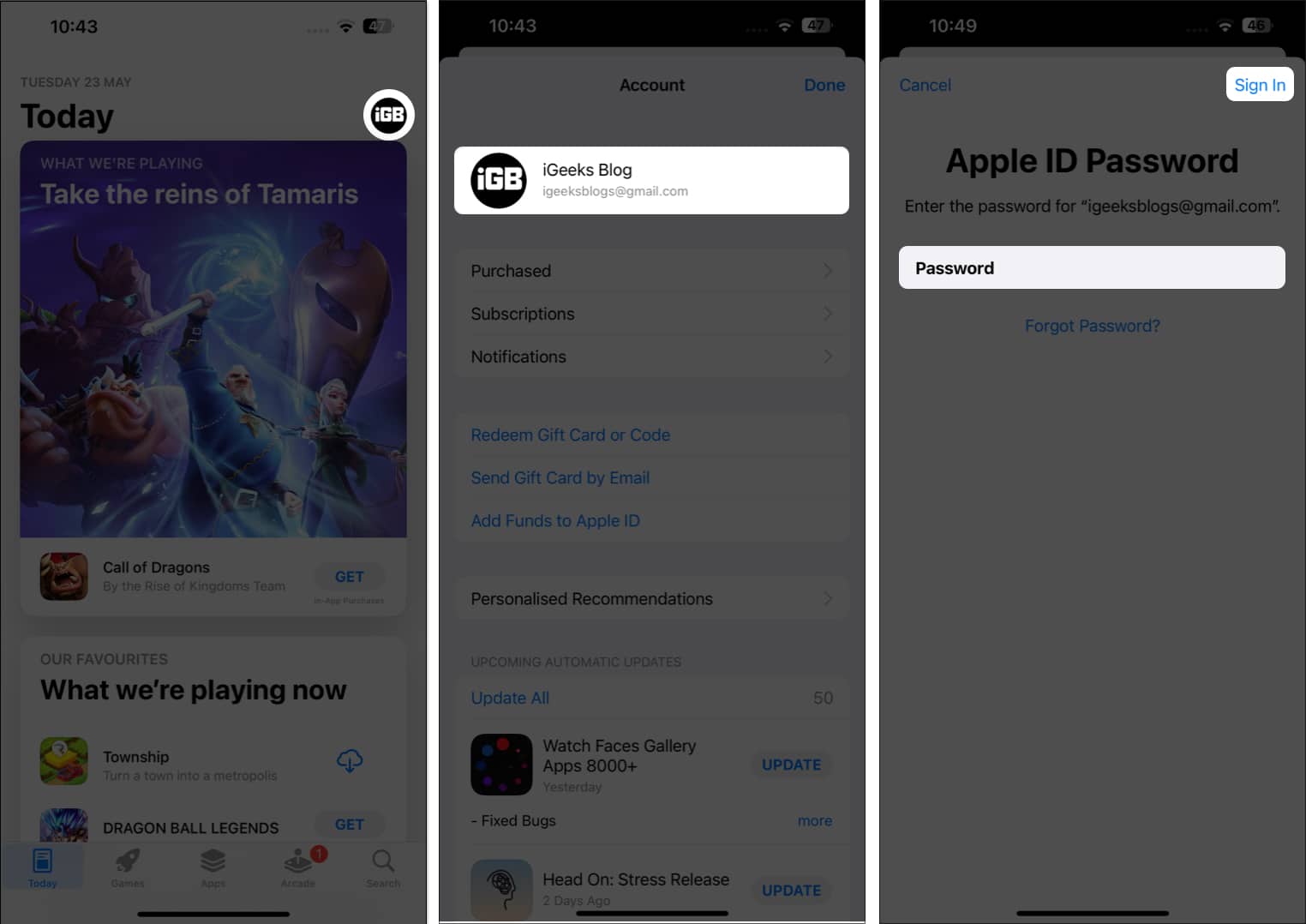
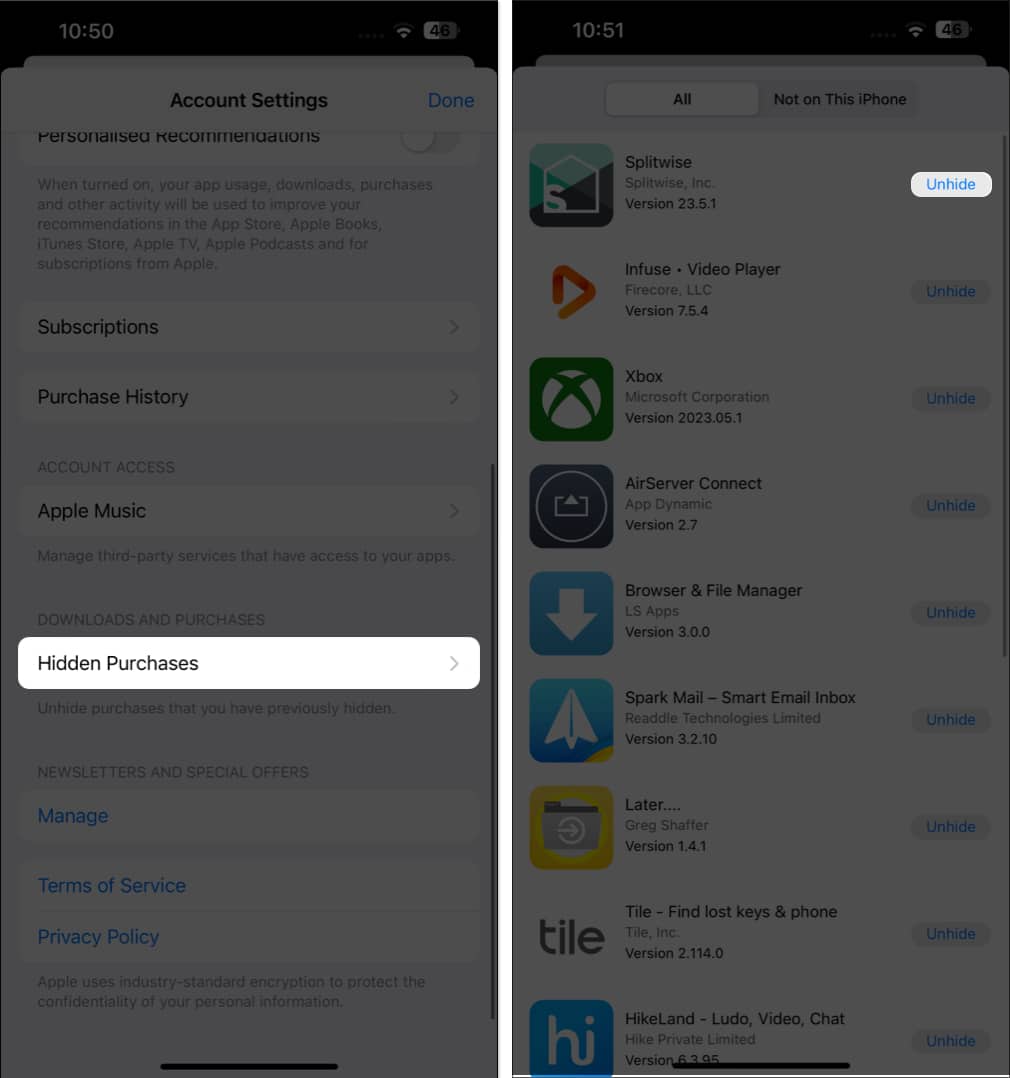
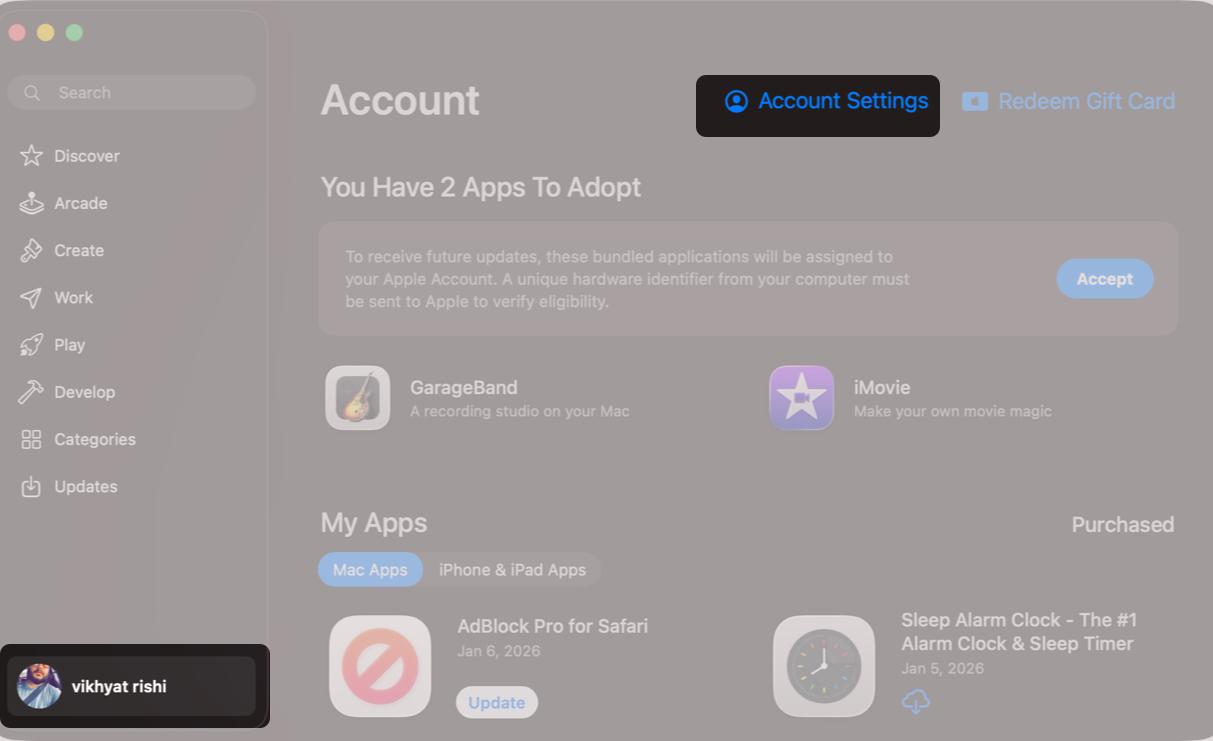
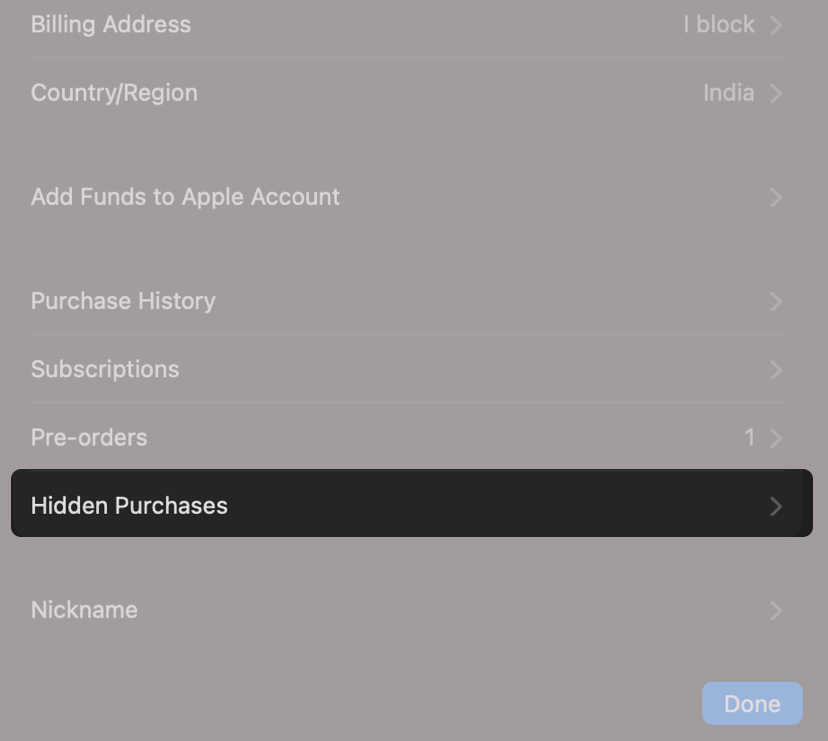

When you hide an app from your App Store purchase list, Apple simply removes that app from your visible purchase history without deleting it or affecting your access to it. The app will no longer appear in the Purchased section of the App Store, helping keep certain downloads private or reduce clutter in your list.
If you use Family Sharing, the hidden app also becomes invisible to family members in shared purchases. However, hiding an app does not uninstall the app from your iPhone or iPad, cancel its subscriptions, or erase associated data.
You still own the app and can download it again at any time by searching for it directly in the App Store. This feature only changes how the app appears in your purchase history, not how it functions on your device or your Apple account.
I hope you have now learnt how to hide dating apps, VPNs, or other purchases you have made on the App Store.
Do you have any further queries regarding the App Store? If yes, do share them in the comments below. I’ll respond ASAP!
Read more:









