How to Make a Conference Call on iPhone: A Complete Guide
Learn how to make a conference call on your iPhone with this step-by-step guide. Discover new iOS 26 features, tips, troubleshooting fixes, and more.
Key Takeaways:
- The Basics: Making conference calls on an iPhone is simple and gives you full control without needing third-party apps.
- Prerequisites: Before calling, ensure your carrier supports conference calls and that you have a strong cellular signal.
- How to Make the Call: Start by calling one person, then tap “Add Call” for the next participant and finally “Merge Calls.”
- In-Call Management: As the host, you can speak privately with one person or remove participants directly from the call screen.
- New in iOS 26: The upcoming iOS 26 update will introduce features like real-time translation and advanced call screening.
Conference calls are a fantastic way to bring people together—whether it’s for work, family catch-ups, or planning events. If you use an iPhone, you’ll be glad to know that setting up and managing a conference call is incredibly simple with the built-in Phone app. In this guide, I’ll walk you through how to make a conference call on iPhone, including requirements, benefits, step-by-step instructions, and pro tips.
Table of Contents
- Benefits of Using iPhone for Conference Calls
- Requirements Before Starting a Conference Call
- How to Make a Conference Call on iPhone
- How to Conduct a Private Conversation
- How to Remove Someone From a Conference Call
- What's New in iOS 26 for Conference Calls?
- Tips for Smooth Conference Calling on iPhone
- Troubleshooting iPhone Conference Calling Issues
Benefits of Using iPhone for Conference Calls
Using your iPhone for group calls offers several advantages:
- No third-party apps needed – Use the built-in Phone app.
- Add up to five participants (carrier-dependent).
- Full control – Use speaker, mute, or private chat options.
- No extra cost – If supported by your carrier, there are no extra charges.
In short, conference calling on an iPhone is intuitive and efficient.
Requirements Before Starting a Conference Call
Before placing a group call, ensure the following:
- Carrier support: Most major U.S. carriers like Verizon, AT&T, and T-Mobile support conference calls. However, check if your specific plan allows it.
- Strong signal: A solid cellular connection is essential for clear audio.
- Latest iOS version: Update your iPhone to ensure access to the latest features.
- Participant details ready: Have phone numbers on hand to avoid delays.
- Disable VoLTE or Wi-Fi Calling (if needed): These can interfere with call merging. Go to Settings > Cellular > Wi-Fi Calling and toggle it off if you face issues.
How to Make a Conference Call on iPhone
Follow these steps to make and manage a conference call:
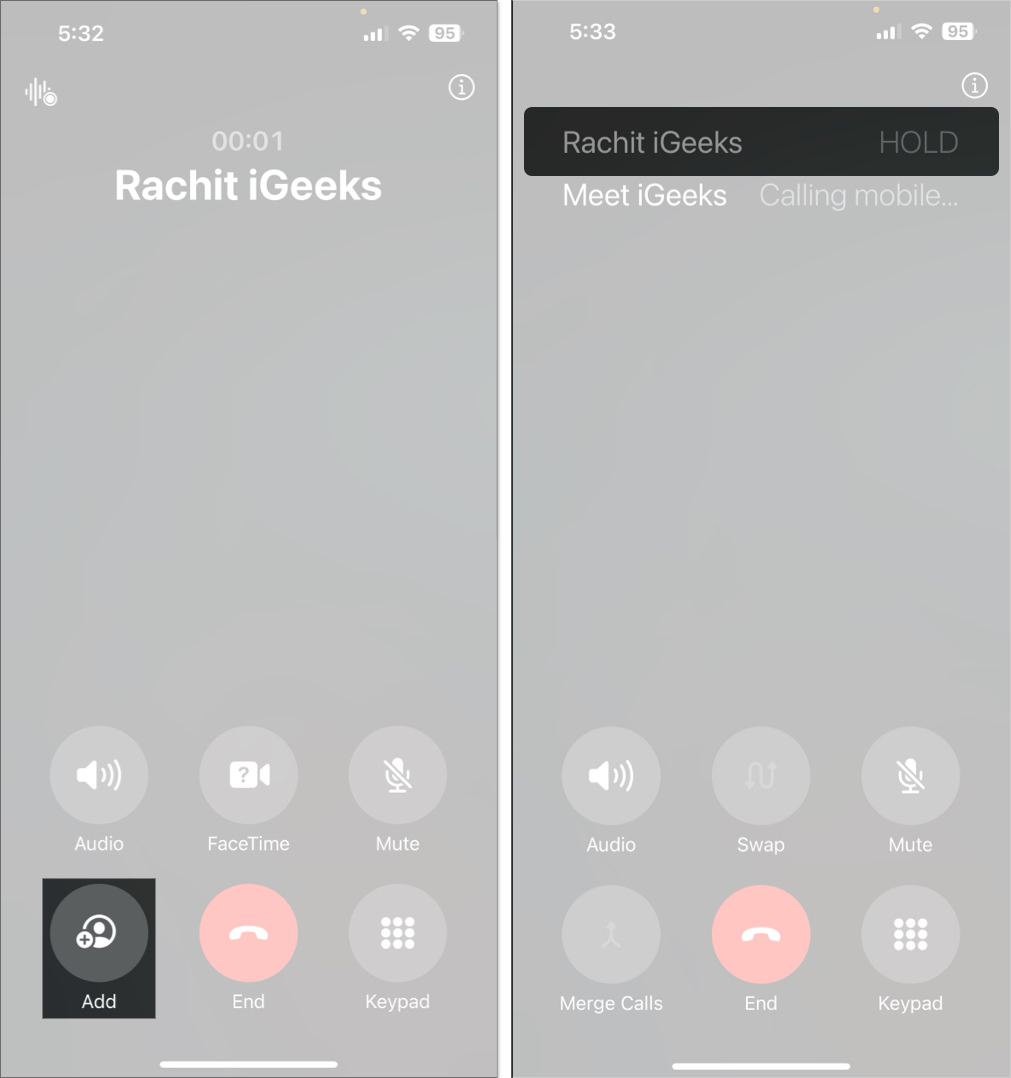
Step 1: Call the First Person
- Open the Phone app and dial the first number or select a contact. Wait for them to answer.
Step 2: Add Another Call
- Tap the Add Call button. This puts the first person on hold.
Step 3: Dial the Second Person
- Choose another contact or enter the second number. Tap the Call button and wait for them to answer.
Step 4: Merge the Calls
- Once the second call connects, tap Merge Calls. You’ll now have a three-way call. Repeat steps 2–4 to add more participants (up to five, based on your carrier).
How to Conduct a Private Conversation
Need to speak to someone privately during a conference call?
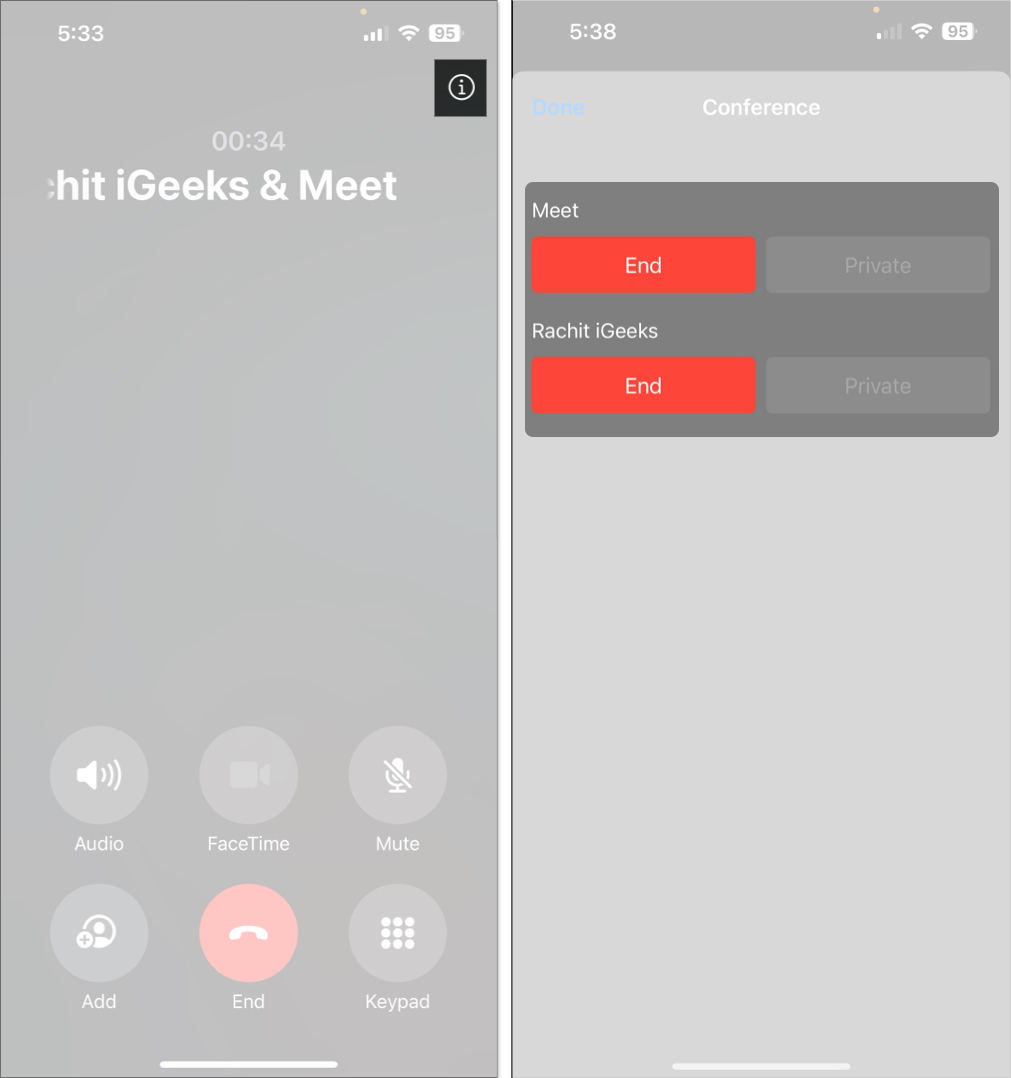
- During the conference call, tap the (i) button at the top of the call screen.
- Find the participant’s name or number, then tap Private below. This puts the other participants on hold.
- When you’re done, tap Merge Calls to bring everyone back into the group conversation.
How to Remove Someone From a Conference Call
You can easily remove a participant:
- Tap the (i) button to view the participant list.
- Tap End next to the participant’s name to disconnect them.
- To end the entire call, tap the red End Call button.
Only the call initiator can remove individual participants.
What’s New in iOS 26 for Conference Calls?
Apple has made some exciting improvements in iOS 26:
iOS 26 introduces several updates to iPhone call management that can improve your conference call experience:
- Live Translation: Apple Intelligence can now translate conversations in real time with on-screen captions.
- Call Screening: Your iPhone can automatically answer unknown calls and ask for the caller’s name before letting you decide whether to answer.
To enable these features, go to Settings > General > Software Update and install the latest version of iOS 26.
Related: How to Download iOS 26 Developer Beta on iPhone
Tips for Smooth Conference Calling on iPhone
Want a better group call experience? Try these tips:
- Plan your call and keep contact info handy.
- Use headphones with a built-in mic for clearer audio.
- Choose a quiet, strong-signal location.
- Tap Mute when you’re not speaking to reduce background noise.
- Use Speaker mode wisely to avoid echo.
- Practice using Merge and Add Call features before an important call.
- Keep groups under five people for better clarity and control.
Troubleshooting iPhone Conference Calling Issues
If you encounter problems during a conference call, try these solutions:
| Problem | Likely cause | Fix |
|---|---|---|
| Merge Calls button missing | Carrier blocks merging when VoLTE or Wi-Fi Calling is active. | Disable Wi-Fi Calling or ask your carrier to enable conferencing. |
| Can’t add a sixth person | Hard five-participant limit on Phone app. | Move to FaceTime group call (up to 32 users) |
| Echo or background noise | Using speaker in a noisy place | Use headphones and enable Voice Isolation |
| No audio from your side | Mic muted or filtered | Unmute and switch mic mode to Wide Spectrum |
| Can’t see Private or End options | Not the call initiator or unsupported carrier | Only available for initiators |
| Dropped calls or poor quality | Weak signals or network glitches | Move to a better coverage area and restart your iPhone. |
Make Conference Calls Like a Pro!
That’s everything you need to know about making a conference call on your iPhone. It’s fast, reliable, and packed with features—even more so with iOS 26. Whether you’re catching up with friends, hosting a remote team meeting, or managing a project, your iPhone has you covered.
Have questions or facing issues? Drop a comment—I’m here to help!
FAQs
You might be using a carrier or plan that doesn’t support merging calls. Also, VoLTE or Wi-Fi Calling can interfere. Disable them via Settings > Cellular > Wi-Fi Calling, or contact your carrier.
Yes—if your iPad supports cellular calling. Otherwise, use FaceTime or third-party apps like Zoom for group calls on Wi-Fi-only iPads.
The iPhone’s native Phone app doesn’t offer scheduling. You can use FaceTime, Zoom, or Microsoft Teams, or set a reminder in Calendar.
For larger or more advanced calls, try apps like Zoom, Google Meet, Microsoft Teams, or OpenPhone. You can download these from the App Store.
Read more:

- What is Call Waiting on iPhone and how to Activate It
- What Does Cancelled Call Mean on iPhone and How to Fix It!
- How to fix “Call Failed” error on iPhone