
FaceTime Like a Pro
Get our exclusive Ultimate FaceTime Guide 📚 — absolutely FREE when you sign up for our newsletter below.

FaceTime Like a Pro
Get our exclusive Ultimate FaceTime Guide 📚 — absolutely FREE when you sign up for our newsletter below.


Forgot your Notes password? This guide explains how to reset Notes password on iPhone, iPad, and Mac without confusion.
 ByVikhyat


The Apple Notes app is the go-to app for many users to store personal thoughts, sensitive documents, passwords, and other private information. It lets you lock notes with a password, Face ID, or Touch ID. However, the same protection can quickly become a headache if you forget the password. And the worst part is that Apple does not even let you recover forgotten or locked notes. You can only reset the Notes password for future notes.
This post details how the Notes password system works and walks you through resetting the password on iPhone, iPad, and Mac.
Before resetting anything, it’s important to understand how Apple Notes password protection works. When you lock a note, Apple encrypts it with the password in effect at the time. If you reset the Notes password later, your previously locked notes will not unlock with the new password. They remain protected with the older one.
In other words:
Apple offers two different options for managing the Notes password: Change Password and Reset Password.
While both of these may sound similar to you, they serve different purposes. This makes it essential to understand the distinction, especially if you already have locked notes you want to keep accessible.
Changing the Notes password updates the password for both existing and future notes. This option only works if you remember the current Notes password. Once you change the password, all locked notes are re-encrypted with the new password.
Resetting the Notes password, as the name suggests, is meant for situations where you have forgotten the existing Notes password. It allows you to lock new notes with the new password, but the existing locked notes remain tied to the old password.
Here is a quick comparison to help you understand the difference between the two options:
| Feature | Change Notes password | Reset Notes password |
|---|---|---|
| Requires old password | Yes | No |
| Unlocks existing locked notes | Yes | No |
| Applies to future locked notes | Yes | Yes |
| Risk of losing access to old notes | No | Yes |
| Best used when | You remember the current password | You forgot the current password |
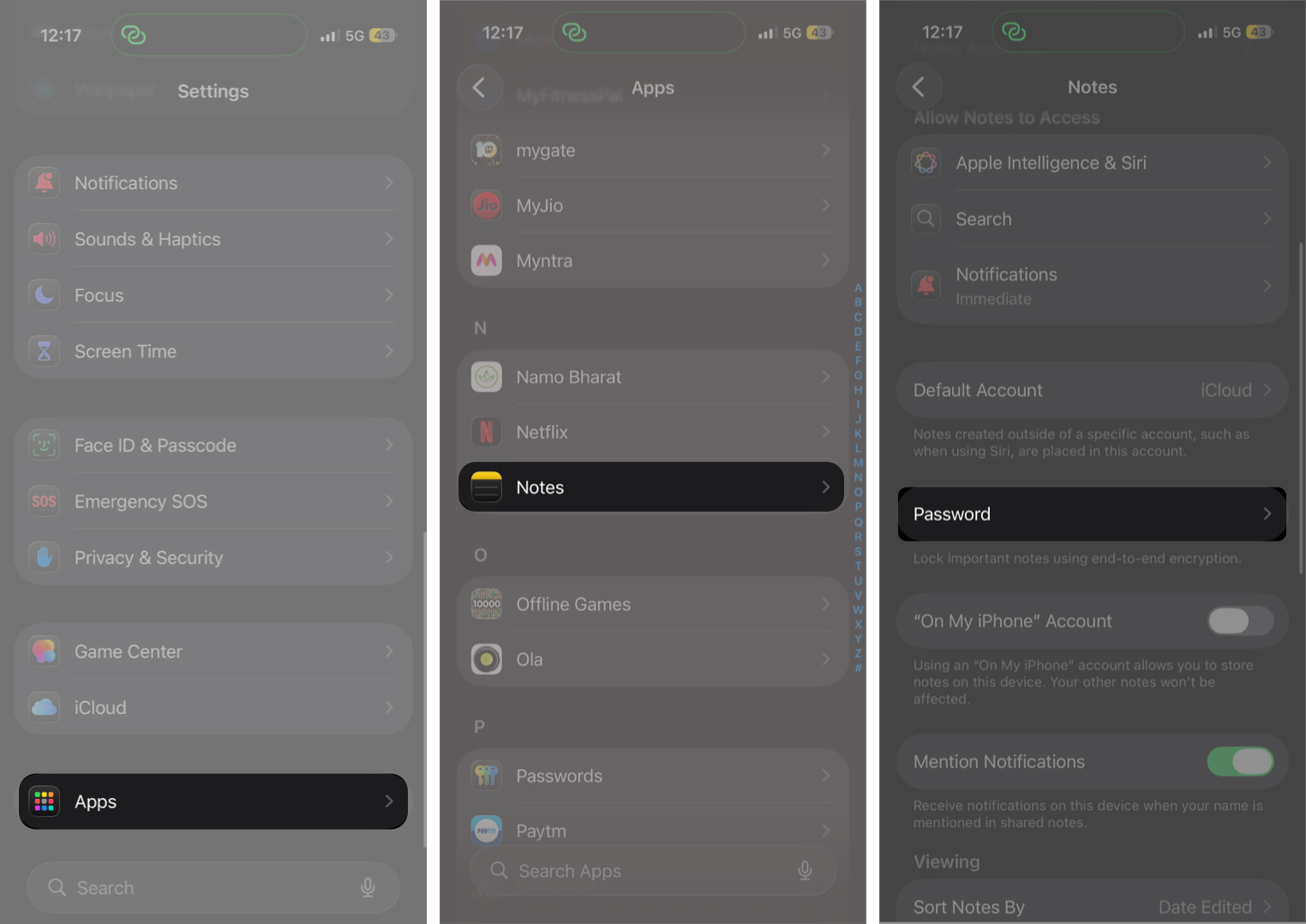
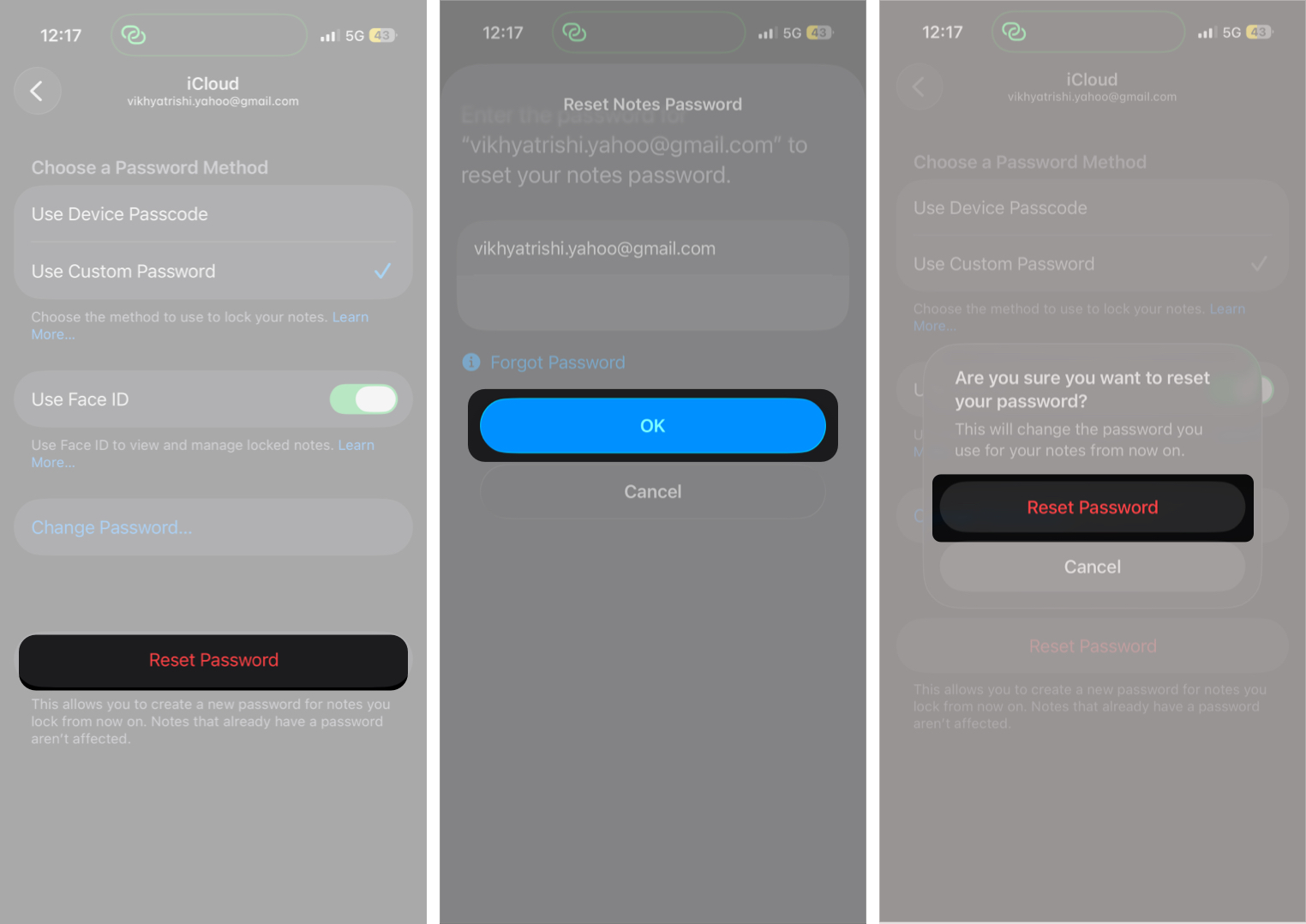
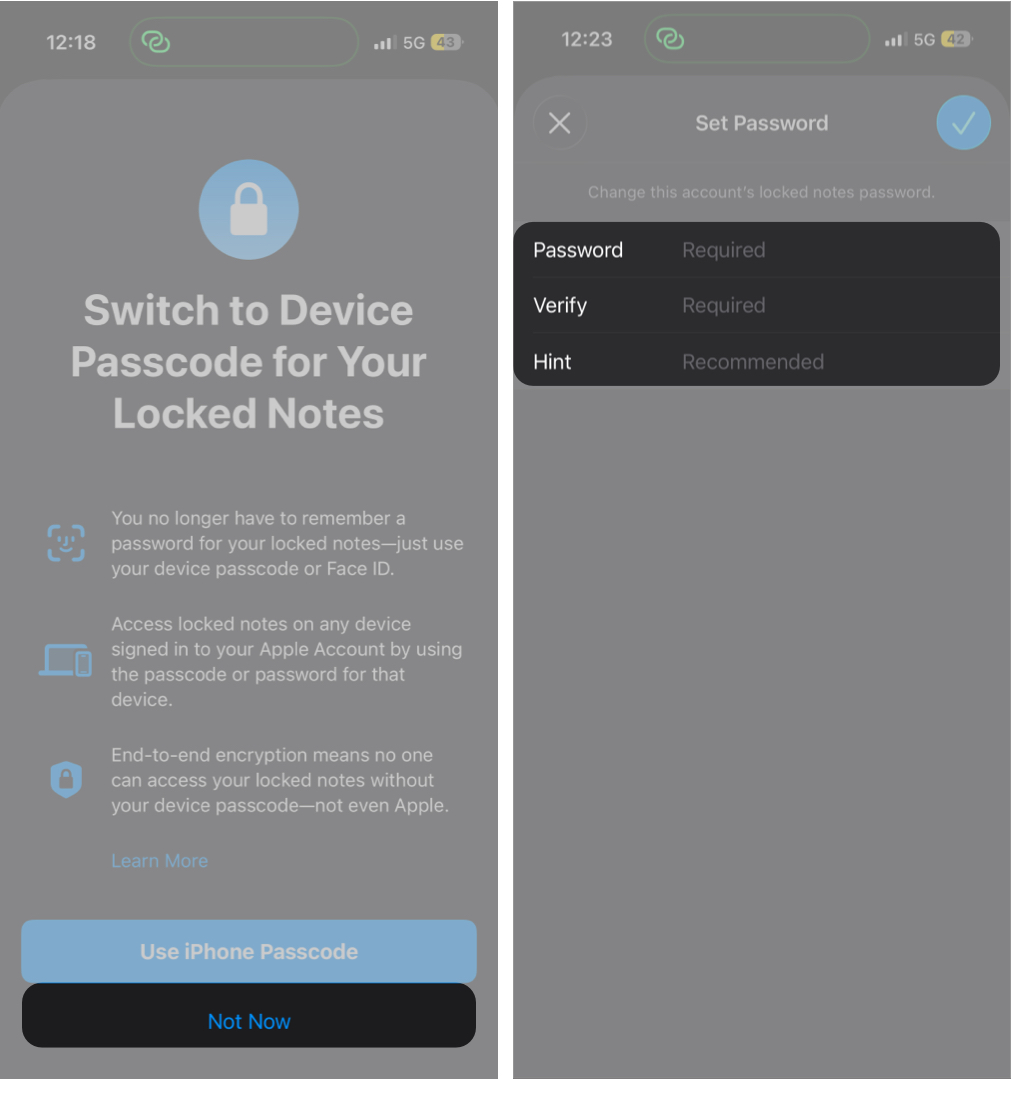
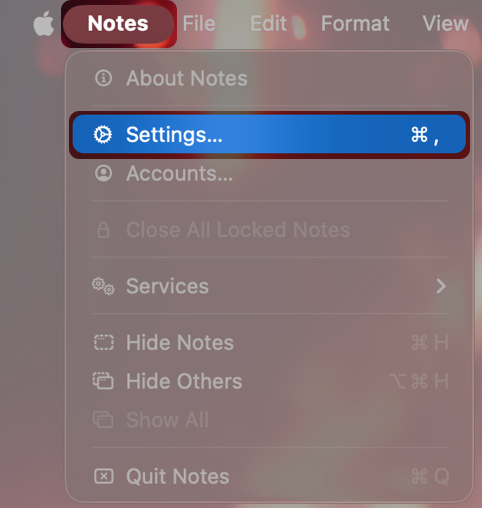
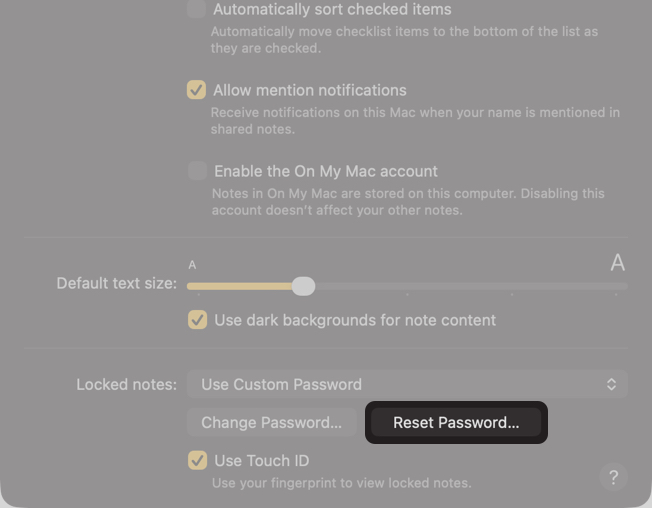
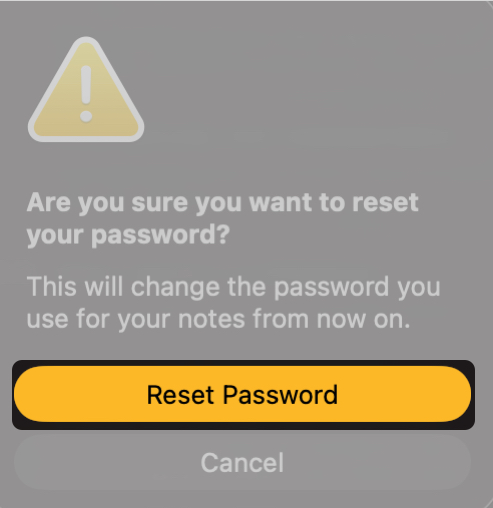
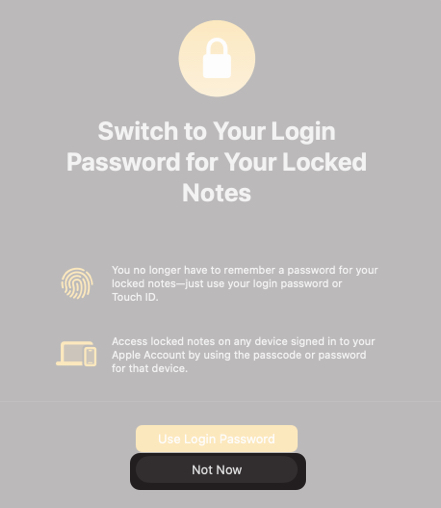
No. Resetting the Notes password does not recover or unlock previously locked notes.
If you still remember the old password, you can:
If you do not remember the old password, there is no workaround. Apple does not store encryption keys for locked notes.
To avoid getting locked out of important notes, it is a smart move to save your current Notes password in the Passwords app (or any trusted password manager) before making changes.
To help you quickly access your locked notes, Apple lets you unlock them with Face ID or Touch ID. However, these authentication methods do not replace the Notes password itself. The real security layer is the password method you choose.
Here is how they interact with locked notes:
If you’re unable to reset the Notes password, the issue is usually tied to account verification, device settings, or iCloud sync. Use the checks below to identify and fix the problem.
Make sure your device is signed in with the same Apple ID you used when creating the Notes password. Also, if the reset option is present on one device but is missing on the other, ensure Notes is enabled for iCloud.
Confirm that you’re entering the correct Apple ID password. If it still fails, sign out of iCloud, then sign back in, then try the reset again.
This is expected behavior, not a bug. Resetting the password does not unlock existing notes. Old locked notes remain encrypted with the previous password.
While resetting the Notes password is pretty straightforward, you still won’t be able to access notes locked with the old password. Therefore, it’s best to take the following preventive steps going forward so you don’t lose access to important notes again:
That’s pretty much it. Now you know that Apple Notes prioritizes user privacy over convenience. Remember, while resetting the Notes password lets you proceed, it does not restore access to previously locked notes. The upside of this approach is stronger security. Even if someone gets their hands on your Apple Account password and resets the Notes password on your Apple device, your existing locked notes remain inaccessible to them.
Still stuck with a locked note or reset issue? Drop a comment below, and I will help you figure it out.
In case you missed









