How to Share Your Location via Family Sharing on iPhone and iPad
Learn how to share your location on iPhone using Family Sharing, adjust privacy settings, and fix common issues to stay safe and connected with loved ones.
Family Sharing basics: Lets you share Apple subscriptions, purchases, iCloud storage, and locations with up to six people for easier coordination.
Location sharing requirements: Each member needs an Apple ID, iOS 15 or later, and enabled Location Services, Find My, and iCloud.
To share location via Family Sharing on iPhone: In Settings, open Family > Location Sharing, then choose members or use the Find My app.
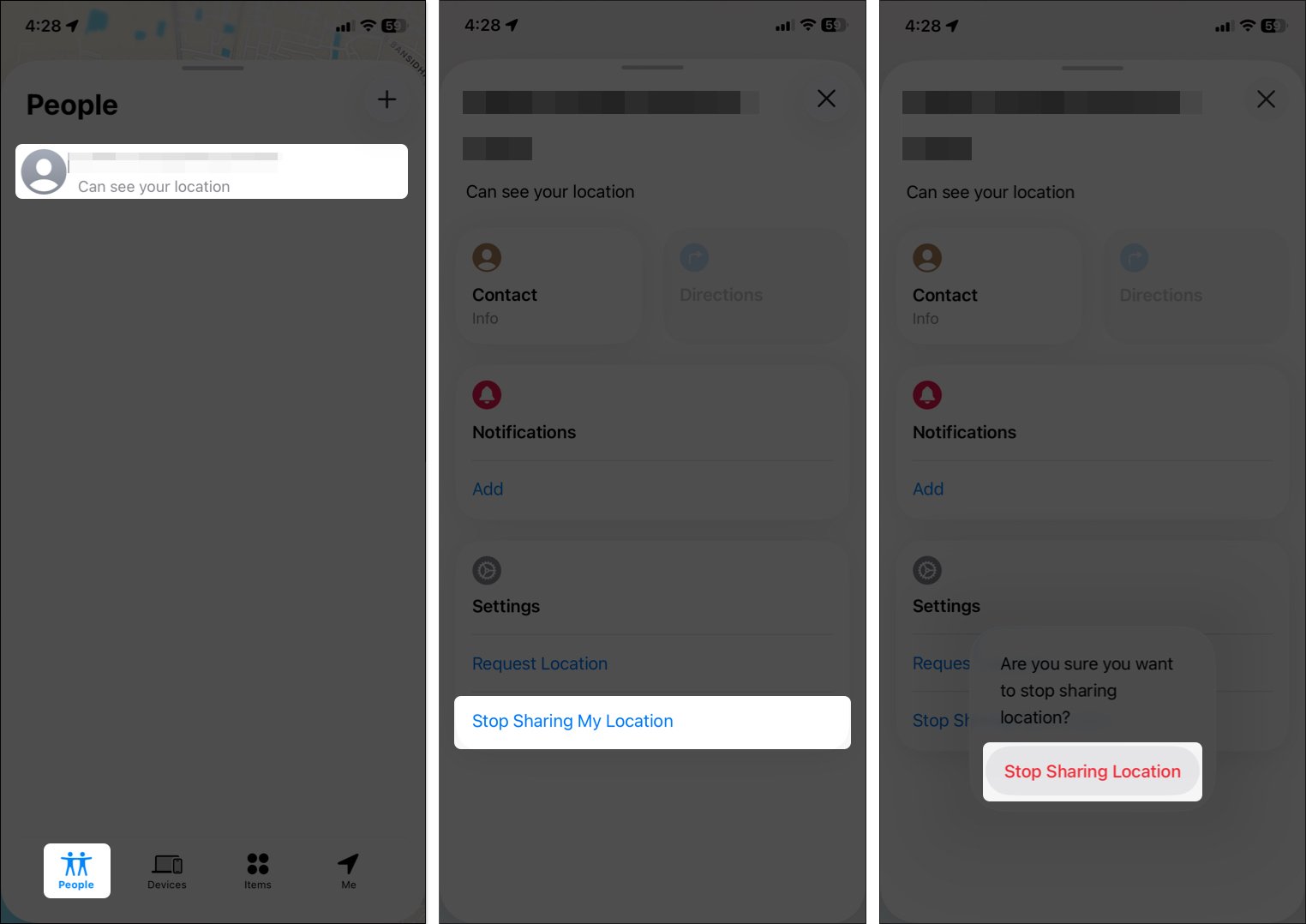
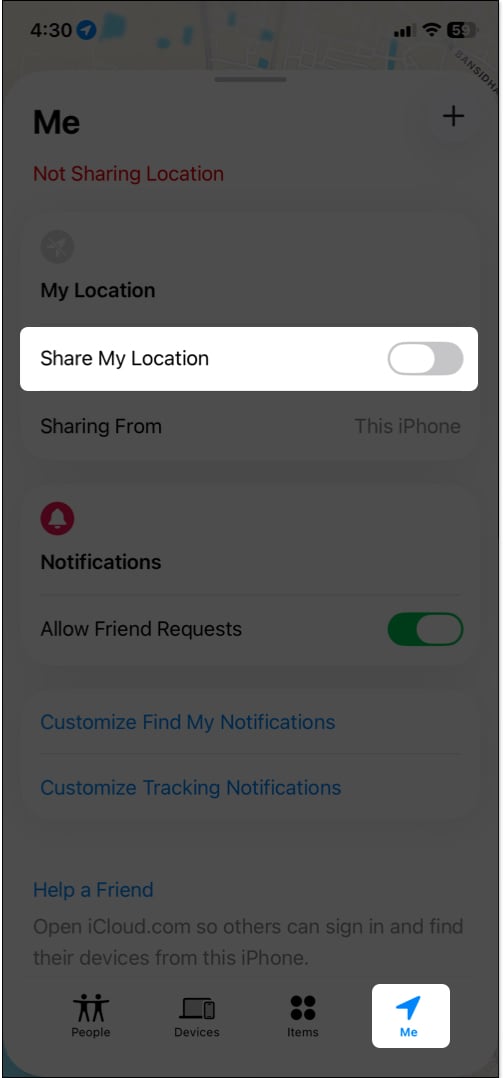
Manage or stop sharing anytime: Pause, switch devices, or turn off location sharing in Find My or Settings to control privacy.
Track family and set alerts: See members’ locations in Find My or Messages, and set arrival or departure alerts for quick updates.
If you’ve ever tried meeting up with family in a busy place, kept tabs on your child’s whereabouts, or needed help finding a misplaced iPhone, you’ll appreciate Apple Family Sharing. This feature lets you share Apple subscriptions and purchases, iCloud storage, and your location with up to six people.
And don’t worry, you can control who can see your location, temporarily pause sharing, or turn it off completely whenever you want to maintain your privacy. In this guide, I’ll walk you through how to share your location via Family Sharing, manage privacy settings, and troubleshoot issues.
What You Need Before Sharing Location via Family Sharing
First, make sure your setup is ready to avoid frustrating glitches. Here’s what you’ll need:
Apple ID and iCloud Account for Each Family Member: Every family member must have their own Apple ID signed in to iCloud. For children under 13, create a child Apple ID on their device.
iOS/iPadOS Version Requirements: Go to Settings > General > Software Update and ensure your devices are running iOS 15 or later for the best experience. For Apple Watch, watchOS 6 or higher is required.
Family Sharing Setup: Go to Settings > [your name] > Family on your iPhone and follow the prompts to invite family members via Messages. Once they accept, they’ll be added to the group.
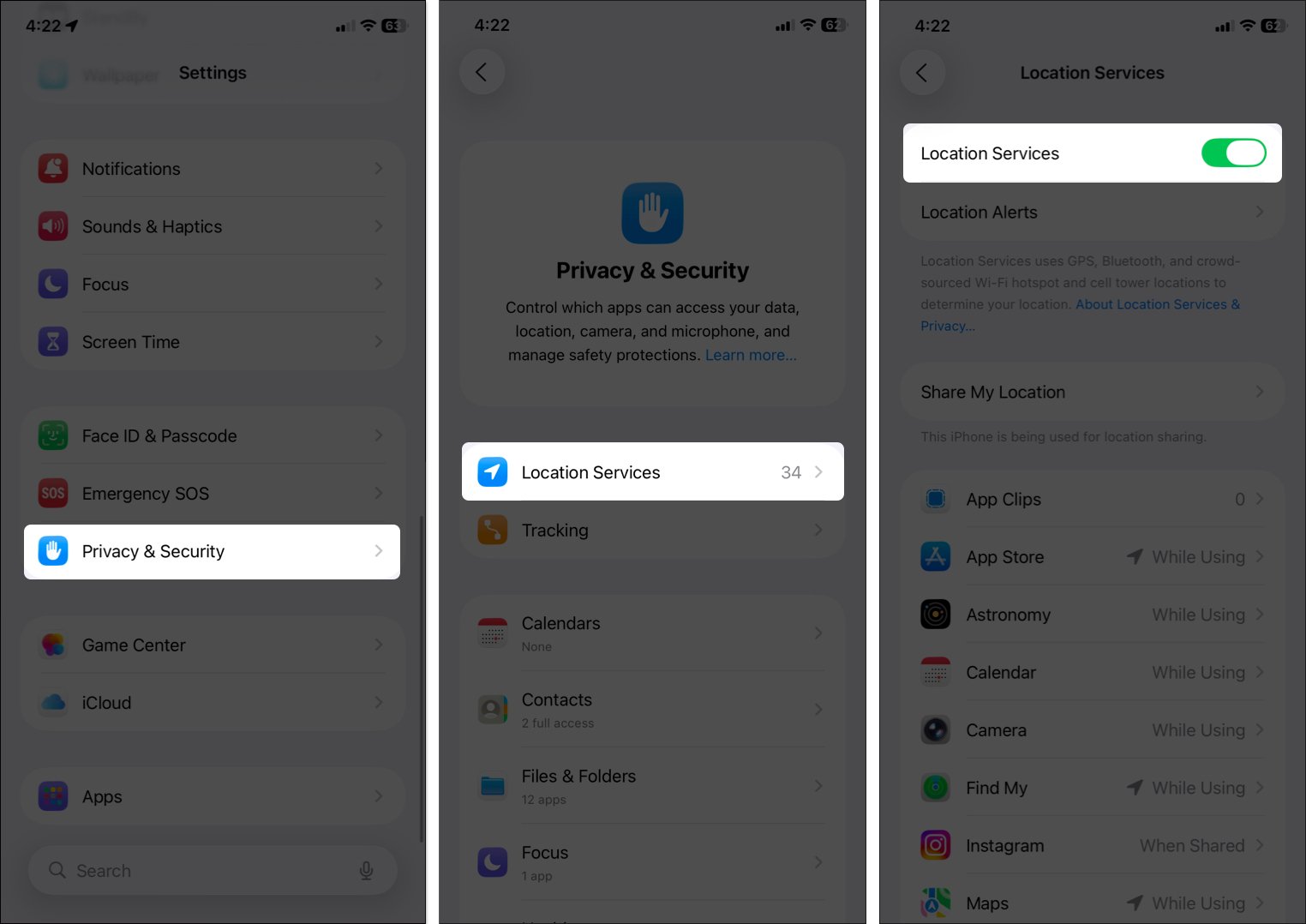
Location Services Enabled: On your iPhone, go to Settings > Privacy & Security > LocationServices and toggle it on. Then, choose Share My Location and enable it.
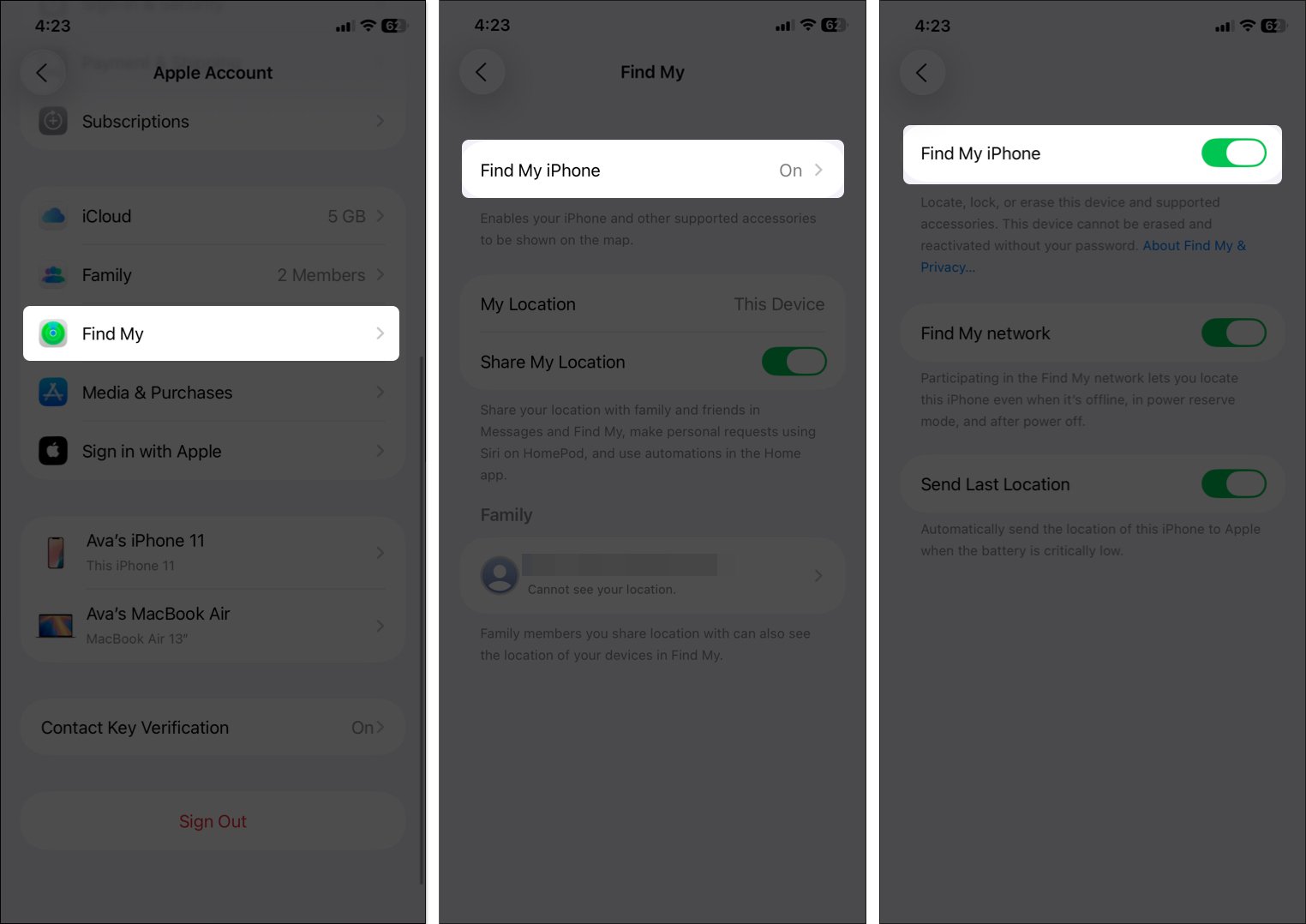
Find My Activated: Go to Settings > [your name] > Find My > Find My iPhone and turn on all options for better tracking.
Also, ensure all devices are connected to the internet (Wi-Fi or cellular) and signed in to the iCloud account linked to your Family group.
How to Share Your Location Through Family Sharing on iPhone or iPad
Once your Family group is set up, sharing your location is simple:
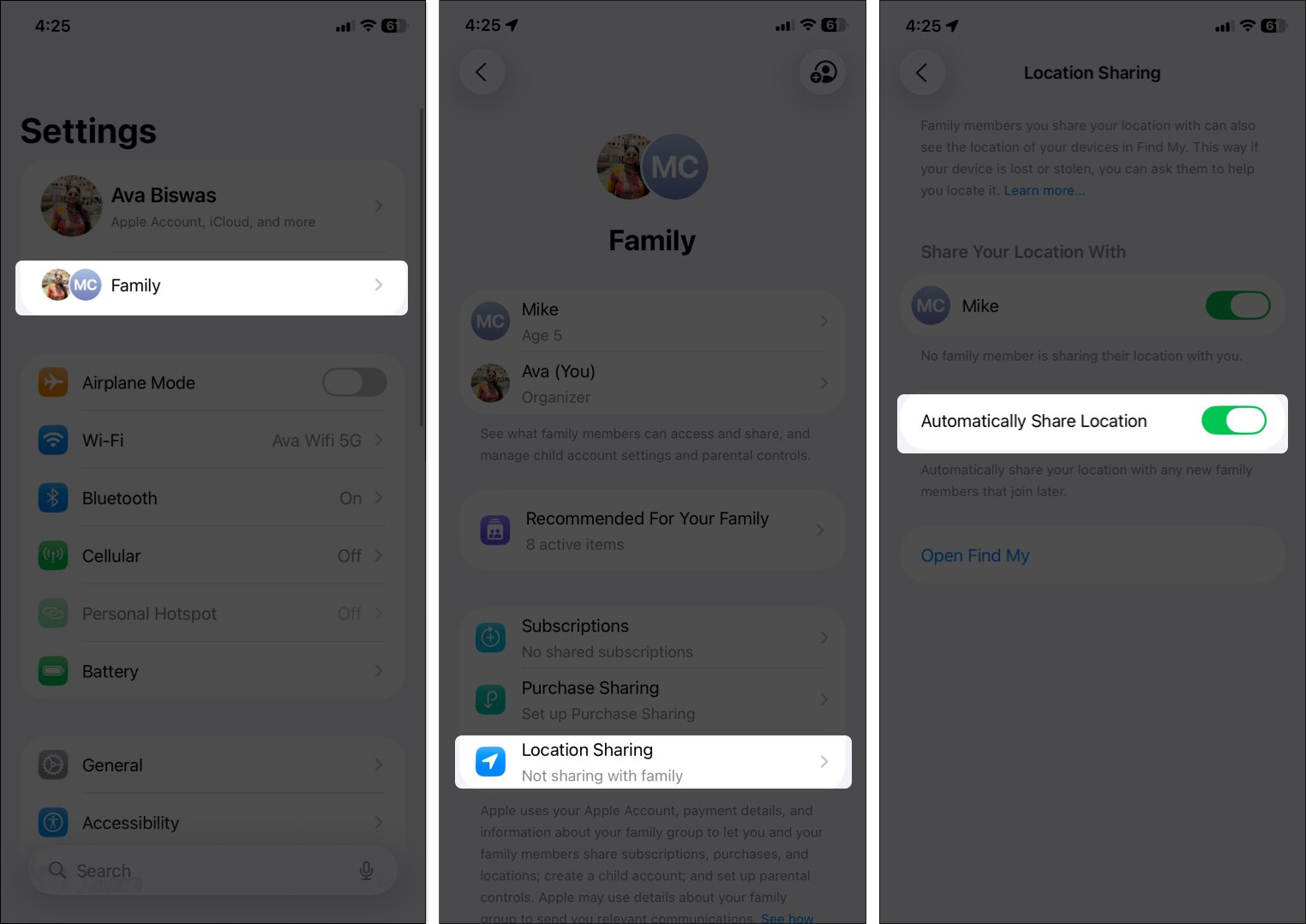
Open the Settings app.
Tap on Family (if you don’t see it, tap your name at the top first, then Family).
Select Location Sharing.
Under Share Your Location With, you’ll see a list of your family members. Toggle on each one you want to share with to enable it. Your location will now be visible to them in the Find My app.
Optionally, enable Automatically Share Location so new members can see your location immediately.
Sharing from the Find My App
If Family Sharing isn’t set up yet:
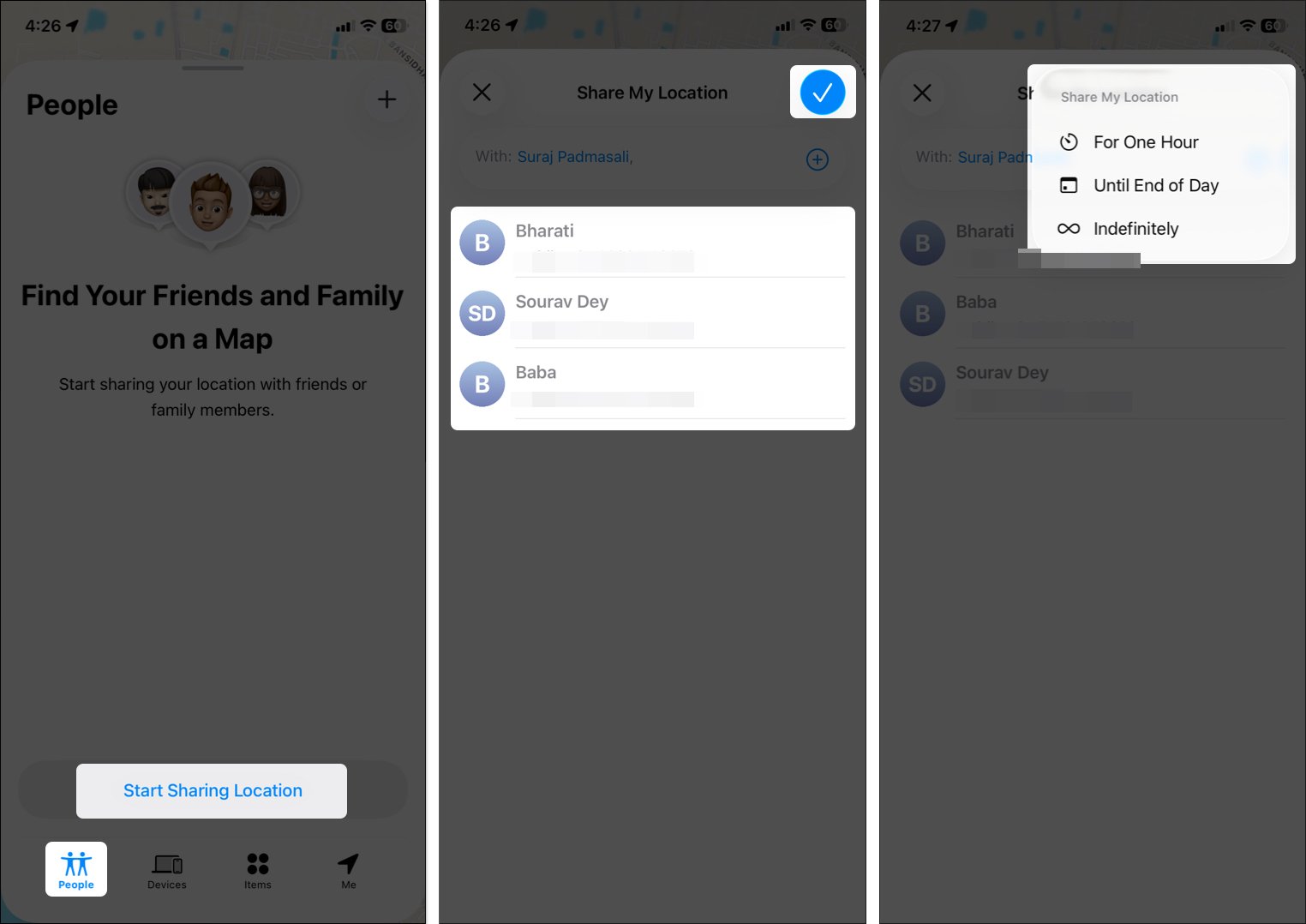
Open the Find My app and go to the People tab at the bottom.
Tap Start Sharing Location.
You will see a contact suggestion. Tap the plus sign next to the With textbox, and select contacts.
Hit the tick mark at the top right corner and select the time duration.
The recipient will get a notification and can choose to share their location back.
How to Check or Change Location Sharing Settings
Apple lets you tweak location sharing settings to maintain your privacy.
If you want to know when a family member leaves or arrives at a place, like home, school, or work, you can set up a location change notification. This can be handy for making sure kids get to school safely or knowing when a loved one arrives home.
In FindMy, go to People and select the familymember.
Tap Add under Notifications and choose NotifyMe.
Pick when you want to be notified: Arrives, Leaves, or Arrives/Leaves a specific location.
Tap Add to save.
The other person will get a notification that you set up an alert for their location changes.
Troubleshooting Location Sharing Issues
Sometimes things don’t go as planned. Here are common fixes:
Issues
Solutions
Location Services Off
Check Settings > Privacy & Security > Location Services and enableit. Ensure Find My has While Using the App access. Restart if needed.
Family Sharing Not Set Up
Verify group in Settings > Family. Re-invite members if missing. Ensure the organizer has location sharing on.
Device Offline or Dead Battery
You’ll see the last known location if Send Last Location is enabled. Wait until it’s online.
Persistent Issues
Reset Location & Privacy via Settings > General > Transfer or Reset iPhone > Reset. Then re-enable permissions.
Family Sharing makes staying connected easier and safer, whether you’re meeting up in a crowded place or making sure loved ones get home safely. With Apple’s privacy tools, you control exactly who sees your location and for how long.
Stay connected, stay safe, and enjoy peace of mind knowing your family is just a glance away in Find My.
Ava is a die-hard Apple aficionado and seasoned writer with a knack for breaking down complex tech concepts into easily digestible content. Having honed her writing and editing skills over 4 years at renowned media houses like TechBurner, Ava crafts informative and engaging articles including troubleshooting guides, product reviews, editorials at iGeeksBlog. When not typing, you can find her exploring the latest Apple releases or pondering the future of tech innovation.