
FaceTime Like a Pro
Get our exclusive Ultimate FaceTime Guide 📚 — absolutely FREE when you sign up for our newsletter below.

FaceTime Like a Pro
Get our exclusive Ultimate FaceTime Guide 📚 — absolutely FREE when you sign up for our newsletter below.


If you want to save battery life and get rid of annoying illumination, check out our guide on how to turn off the green light on Apple Watch.


Although the Apple Watch is an excellent wearable addition for iPhone users, it might take some time to get used to everything it has to offer. Users are often unaware of the bright green lights that illuminate the Apple Watch’s back.
In this post, I’ll explain what green light is and how to turn it off on your Apple Watch.
Your Apple Watch’s green light is an optical heart sensor that indicates your heart rate. Apple used green light because blood is an excellent absorber of this particular color.
They combined the green LED lights with light-sensitive photodiodes, which can measure how much blood is flowing through your wrist. When wearing your Apple Watch properly, it releases green light that passes through the wrist hundreds of times per second, measuring blood flow and counting the number of heartbeats each minute.
Additionally, the number of times your heart beats each minute (Beats Per Minute) is depicted under the BPMs section. Adults typically have resting heart rates of 60 to 100 BPM, according to the American Heart Association.
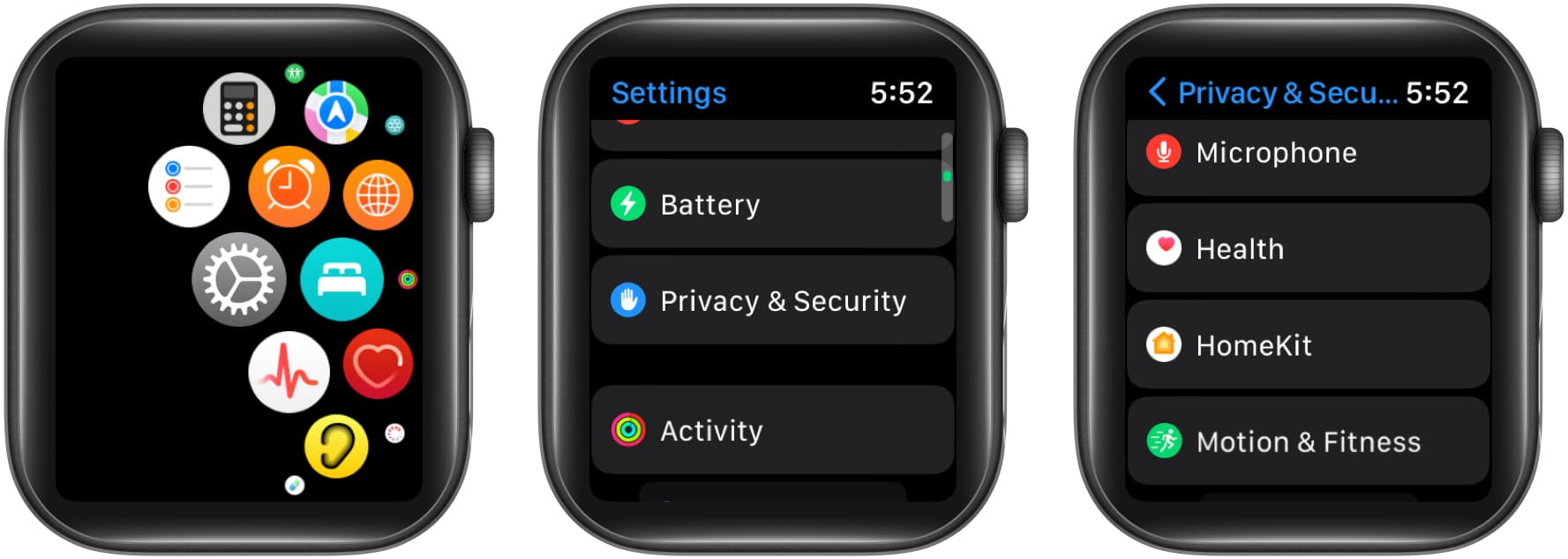
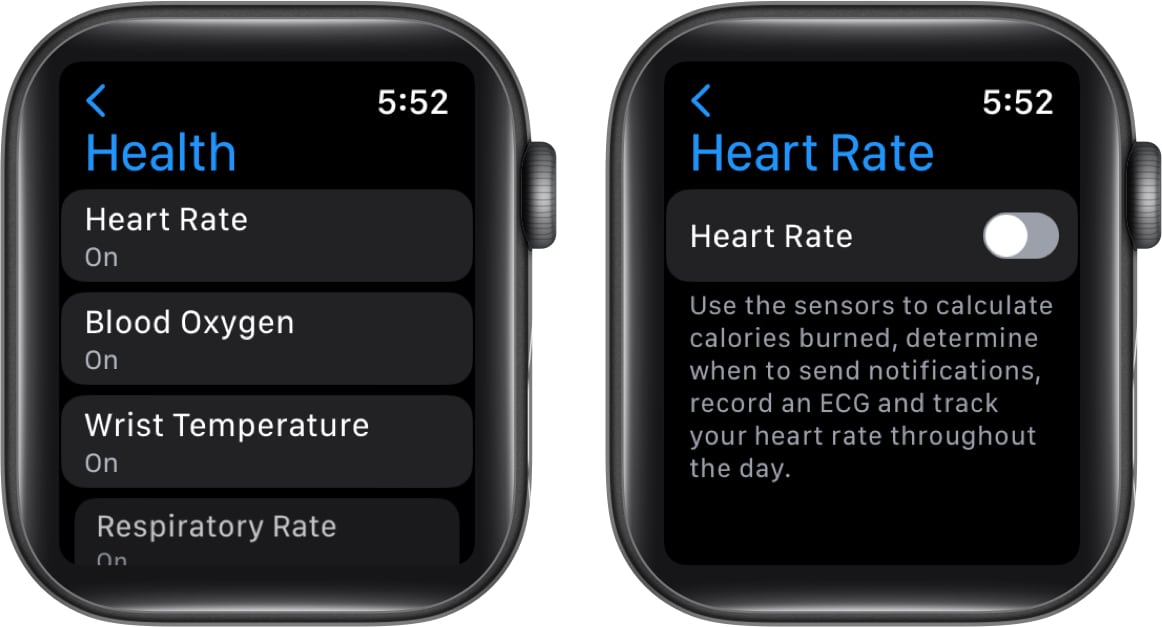
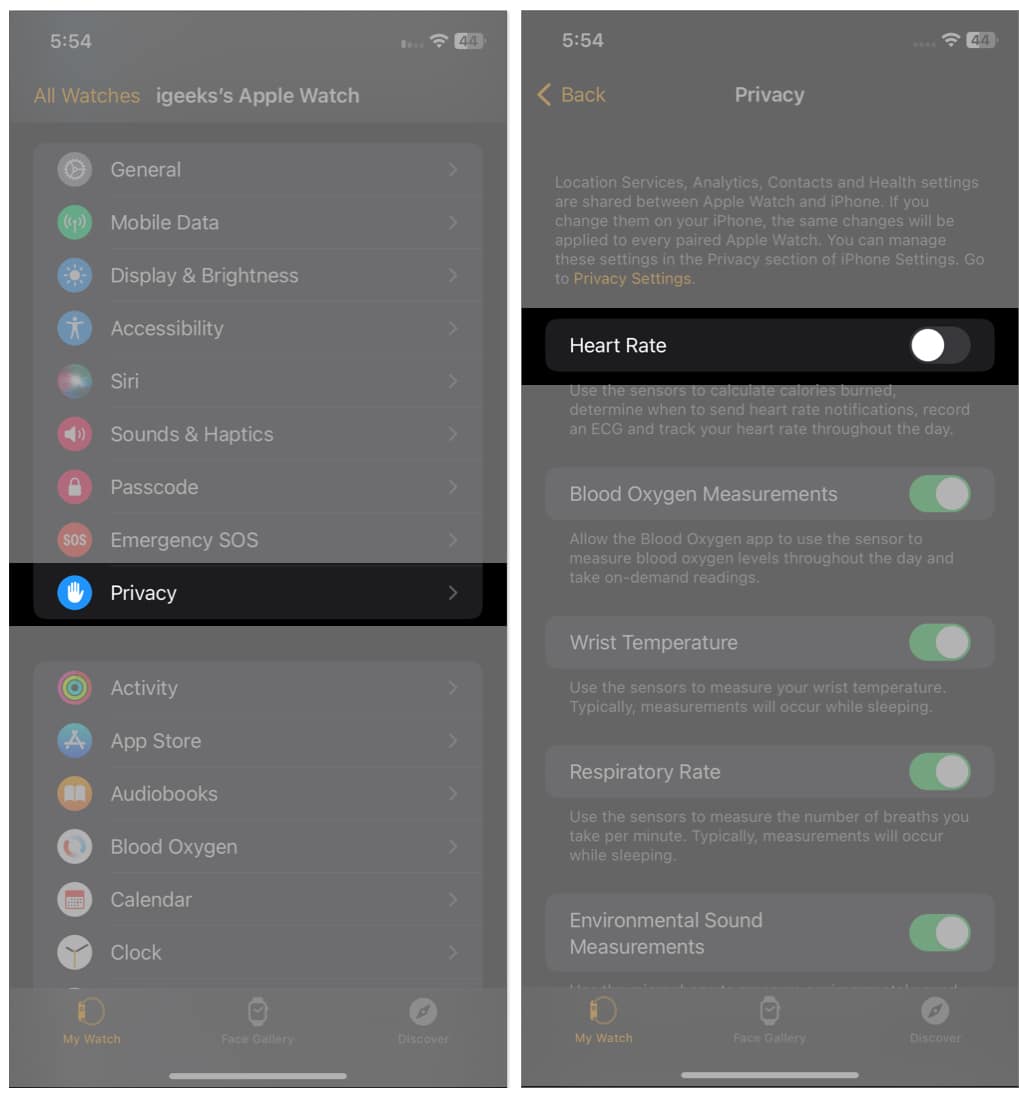
Your watch’s green light can be annoying when you’re trying to sleep or focus without it catching your eye. Here’s how to turn it off from your Apple Watch or iPhone.
Wrapping up…
That’s it! It’s quick and straightforward to switch off the green light on your Apple Watch. While turning off the green light prevents your Apple Watch from providing regular heart rate data, it also offers benefits, including battery life preservation and interruption prevention.
FAQs
Yes, the green light on your Apple Watch does nothing to hurt you or your skin. It simply helps measure the amount of blood passing through your wrist when you check your heart rate.
Have you seen the Apple Watch’s ability to measure blood oxygen levels? This is due in part to the red light that sits under your Apple Watch’s face. The light helps measure photodiodes in your blood to collect data on your blood oxygen levels.
Read more:









