
FaceTime Like a Pro
Get our exclusive Ultimate FaceTime Guide 📚 — absolutely FREE when you sign up for our newsletter below.

FaceTime Like a Pro
Get our exclusive Ultimate FaceTime Guide 📚 — absolutely FREE when you sign up for our newsletter below.




Like iOS updates, it’s essential to ensure that third-party apps on your iPhone are updated. In each new version, the developer fixes bugs, introduces new features, and improves its compatibility and stability with the operating system.
When an app misbehaves or crashes, it is advisable to update the app. In this article, I will share how you can manually or automatically update apps on your iPhone or iPad running iOS 18.
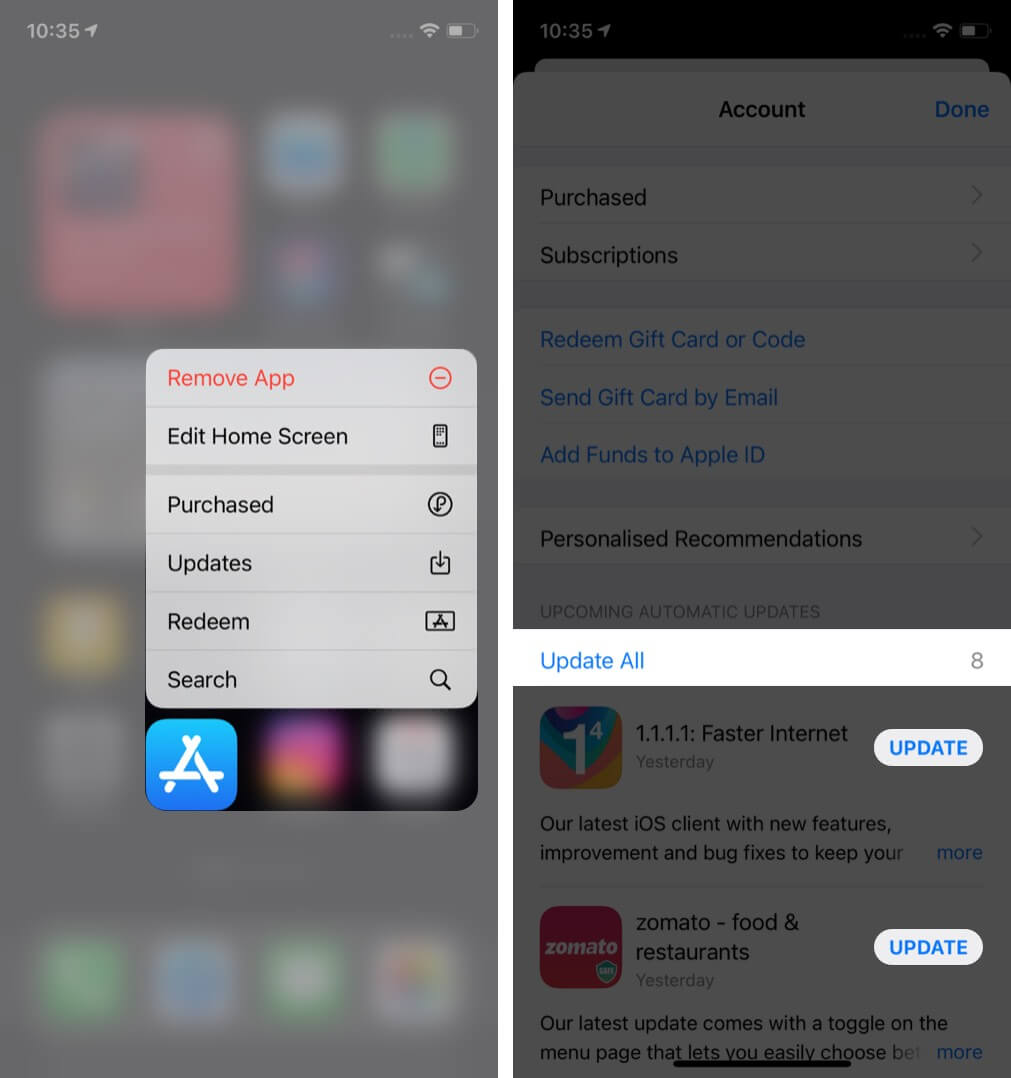
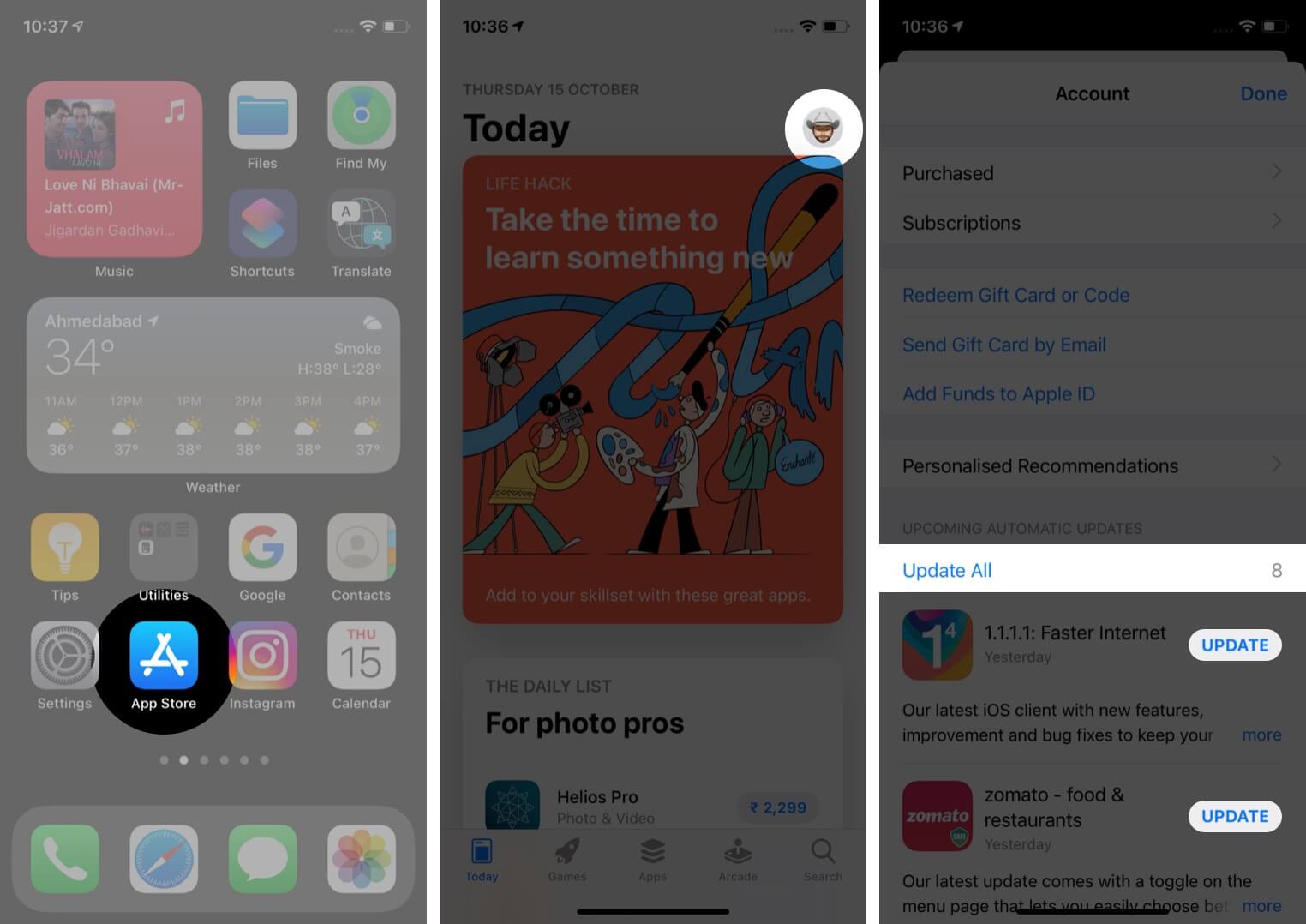
Alternatively, you may also open the App Store and tap your profile picture from the top right.
Here, you will see all the available updates.
Notes:
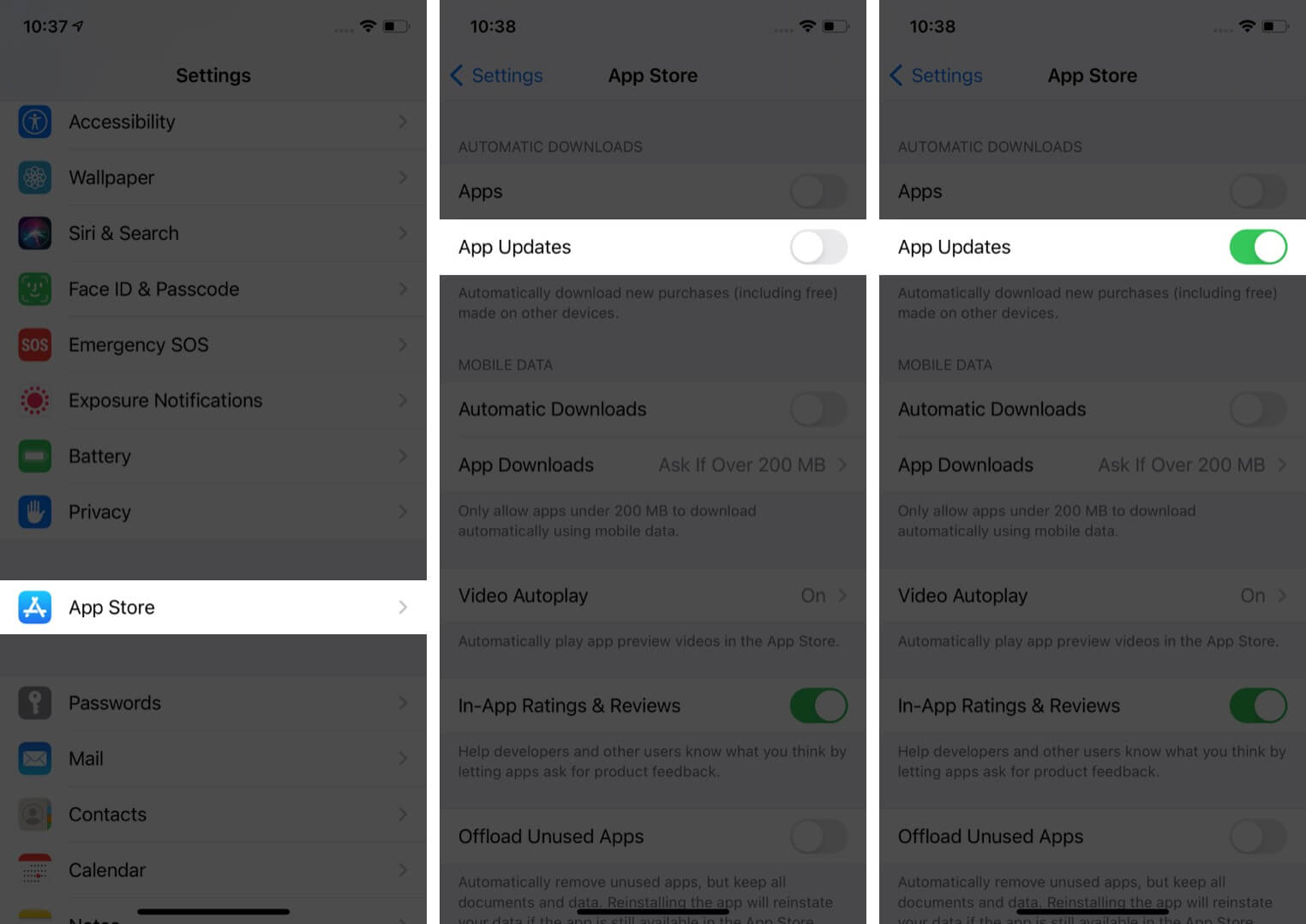
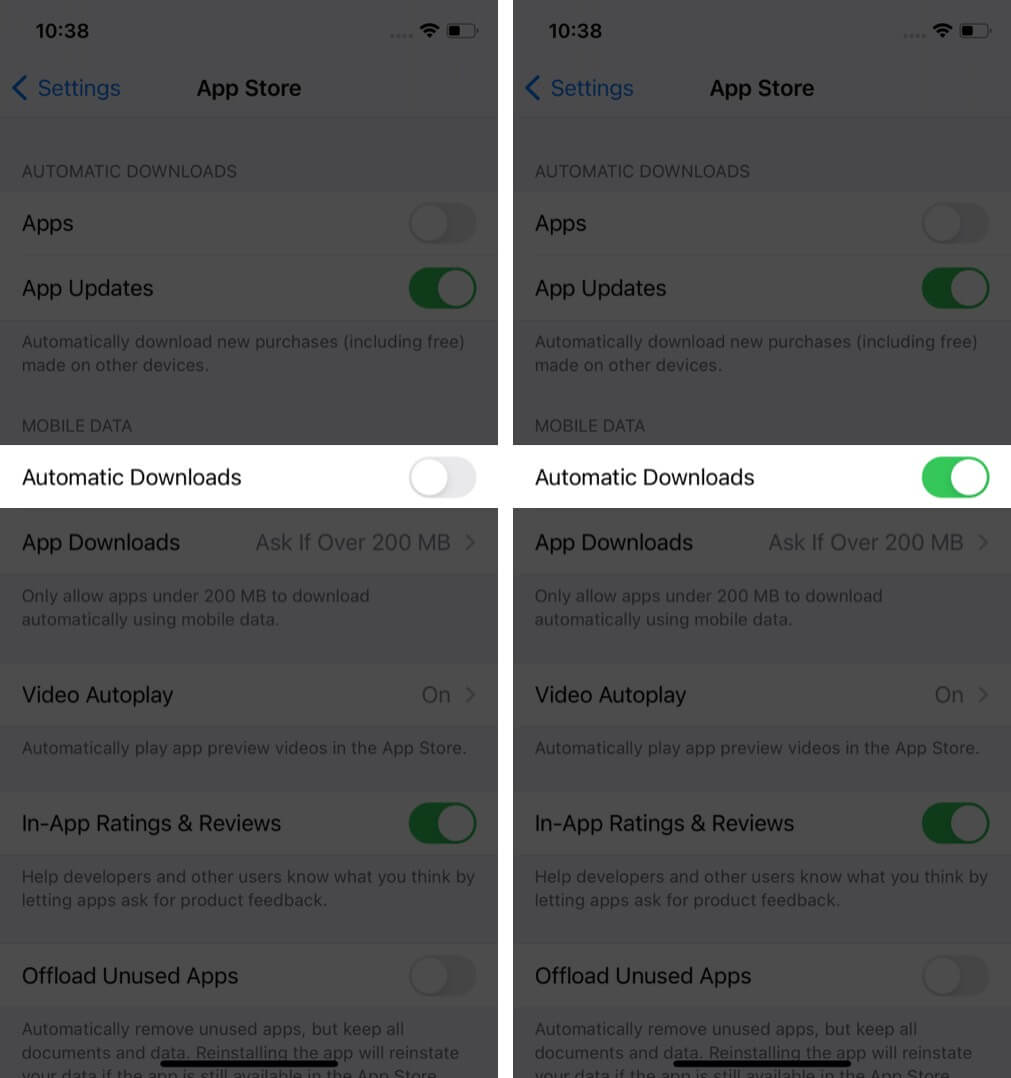
Managing automatic app updates on your iPhone and iPad is pretty easy. Enabling this feature means you won’t have to worry about constantly checking for app updates. The apps will be automatically updated as and when a new version is available on the App Store.
This is how you can update iPhone and iPad apps in iOS 18 and later. I hope this guide was helpful and answered what you were looking for. If you have any queries, share them in the comments below.
Read next:









